


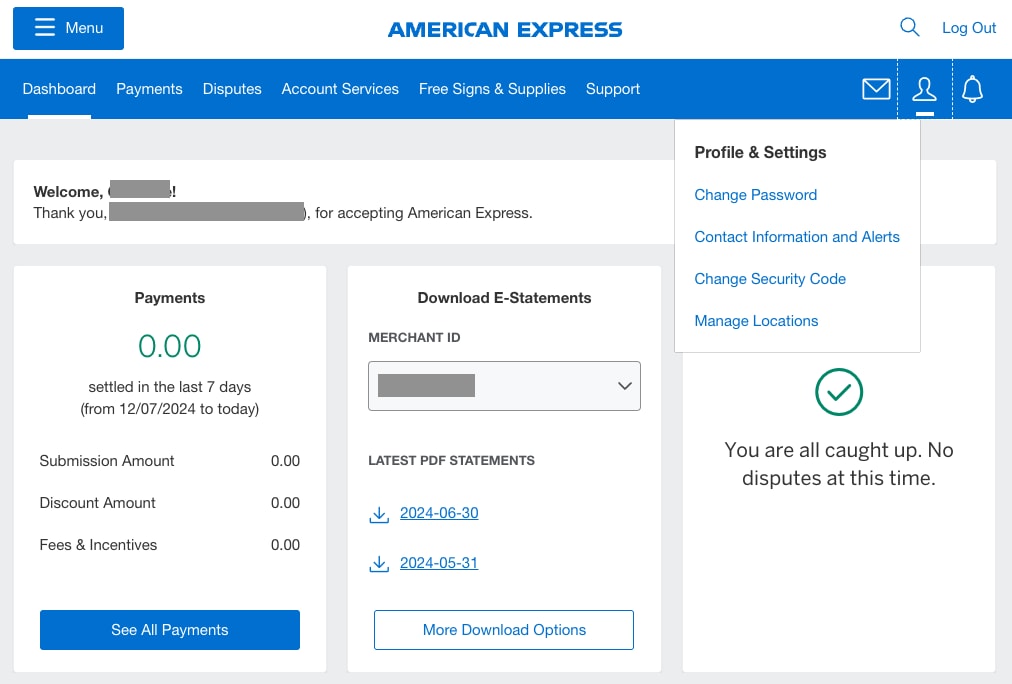
Manage Locations
To manage the Merchant ID(s) associated with your account, log in to your Merchant Account. Once logged in, click on the User Profile icon (person icon) located at the top-right of your screen in the navigation bar. Click on “Manage Locations” to continue.
On this page, you can see the Merchant ID(s) associated with your account, along with the online experiences that Merchant ID is enrolled in – Payments, Disputes, and/or Account Updates.
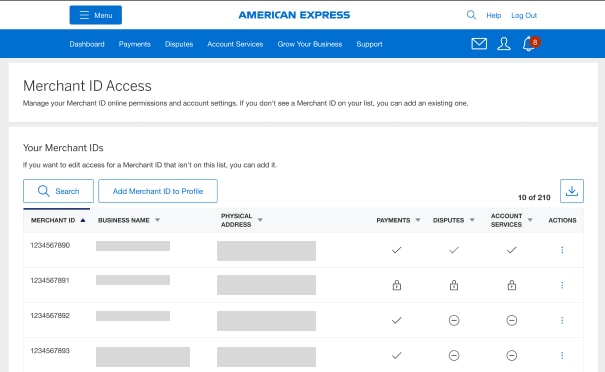
A check mark indicates that the Merchant ID is currently enrolled in the product. A dash means the product is available for enrollment, but the Merchant ID is not currently enrolled. A lock indicates that the Merchant ID is not eligible to enroll in the product.
Add a Merchant ID to Profile
Adding a location grants you access to manage that Merchant ID within your Online Merchant Account. To do this, click the button “Add Merchant ID to Profile”.
You will need to input the Merchant ID and banking information.
Providing your banking information grants full access to Payments, Disputes, and Account Services. If you choose to “Verify Later”, your access will be limited until the information is provided.
Once your bank information is validated, you can select the checkbox for the product(s) you would like access to.
Download
The “Download” option lets you export the list of Merchant IDs as a file. To download the list of Merchant IDs associated with your Merchant Account, click the “Download” icon in the upper right corner.
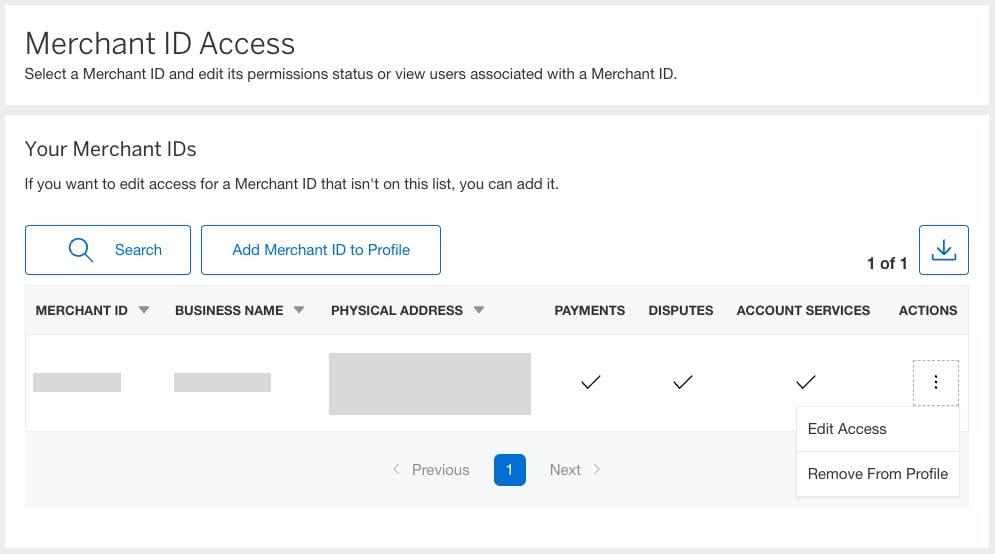
Account Actions
The “Actions” option allows you to edit product access and remove Merchant IDs from your profile.
- Edit Access: Edit access allows you to manage access to Payments, Disputes, and Account Services.
- Remove From Profile: You can personalize your experience by removing a Merchant ID from your Profile.
Contact Us
Live Chat
Click the 'Chat' button once you login to your account to chat with a member of our service team.
Call Us
Our customer care representatives will assist you Mon-Fri, 8:00am to 6:00pm AEST/AEDT.