



Introducing a refreshed @ Work Homepage
The @ Work Homepage has been redesigned with new functionality and a fresh, modern look. It will transform your User Experience and give you fast, intuitive access to the information and functions you need.
Managing your Corporate program is seamless with new navigation and smart search offering powerful self-serve capabilities.
Key benefits
- Modernized User experience
- Increased visibility and fast access to information
- Intuitive program management in one place
Key features
- New navigation for more efficiency
- Smart search capabilities, including auto-suggest
- Proactive features and action-oriented alerts
- Widget with quick links to Recently Posted Transactions

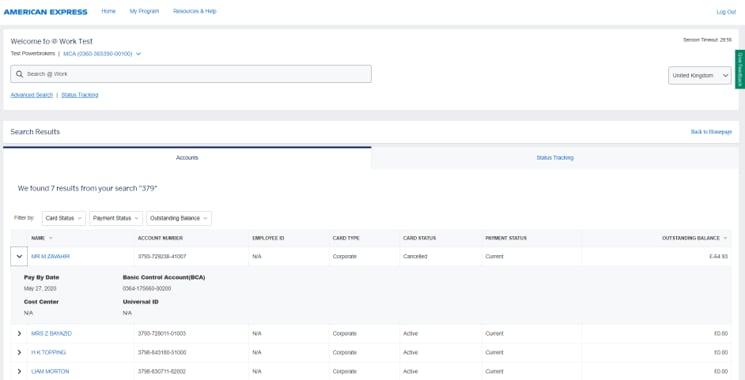
Modernised Search
We have also redesigned our search functionality with:
- A modern and intuitive design
- Efficient navigation and filtering options
- Dynamic and inclusive search results
- Local language support
- An ability to initiate actions within search results
- Auto-suggest recommendations while the user is typing
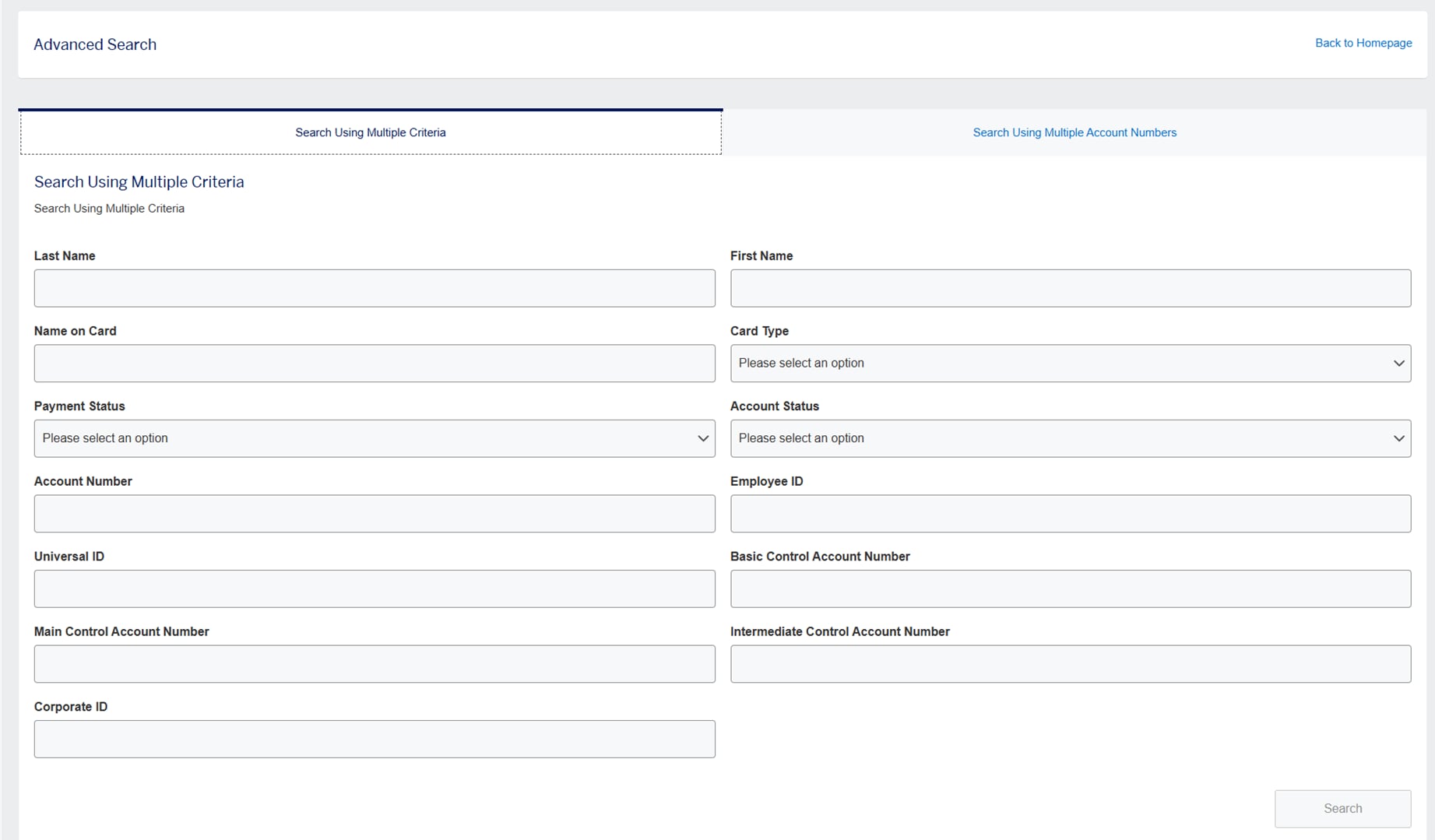
A new advanced search experience where you can initiate bulk actions or search using multiple criteria
*Advanced search will soon be available in Australia, Austria, Canada, Denmark, France, Germany, IEC, Italy, Mexico Netherlands, Norway, Spain, Sweden, United Kingdom, USA and for Global Dollar Card.
Posted Transactions FAQs (Frequently Asked Questions)
Looking for Pending and Declined Transactions in @ Work? While we continue to work hard to provide pending and declined transactional experiences to the new Homepage, you can still locate these transactions under Card Profile.
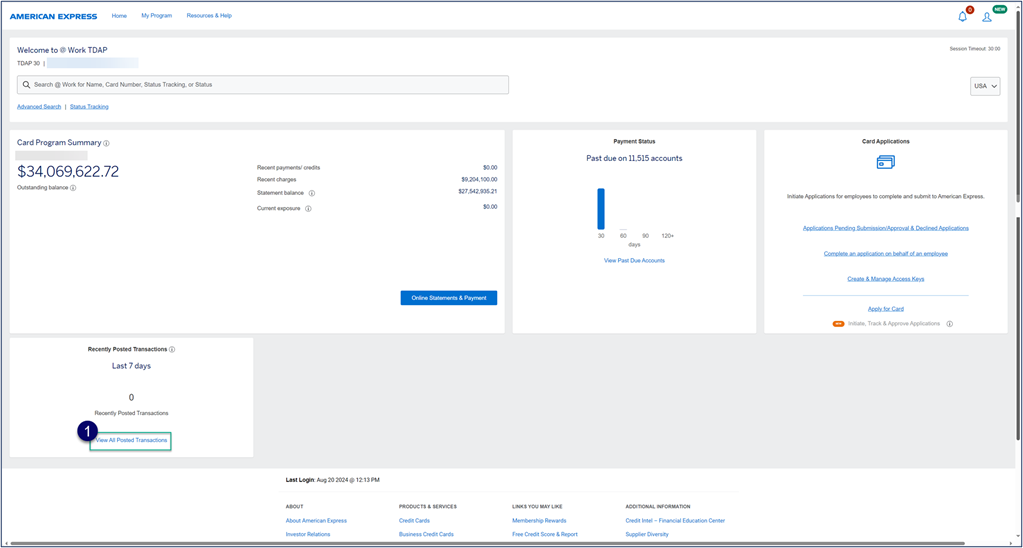
Navigating from the Recently Posted Transactions Widget:
1. Simply navigate to the Posted Transactions Details page by clicking View All Post Transactions hyperlink.
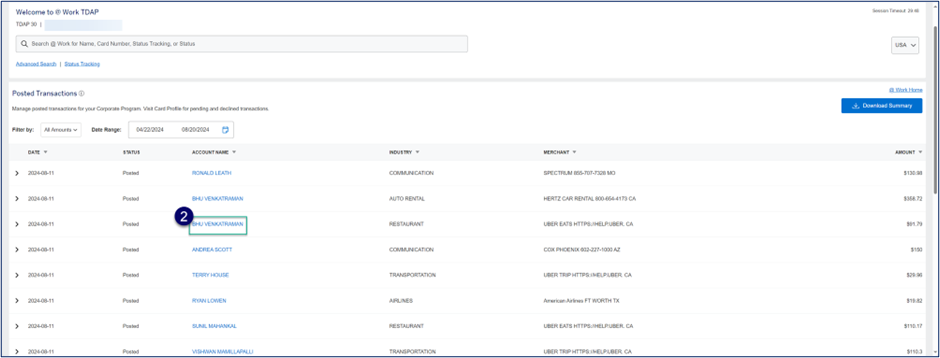
Navigating to and through Card Profile:
2. Click the intended hyperlinked Cardmember name to land on Cardmember specific Card Profile.
3. Scroll down to the Transactions and Statements section.
4. Filter based on Date and transaction Status (Posted, Pending, and Declined) or review holistically.
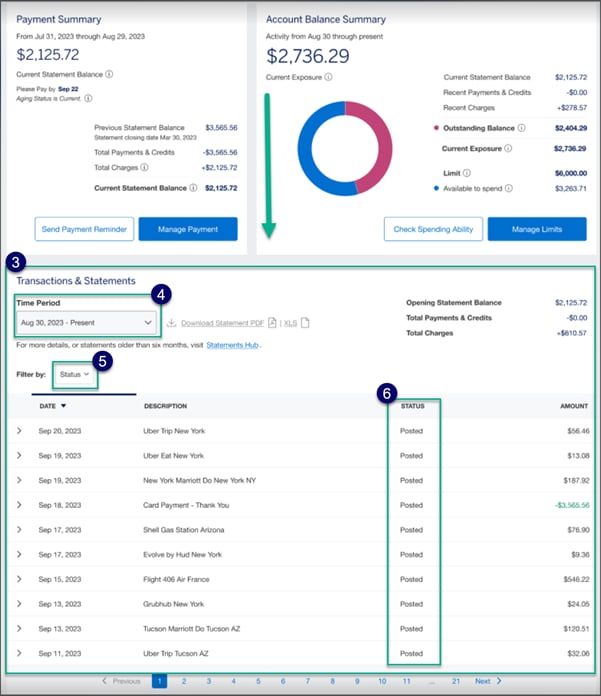
We understand this is a significant change and apologies for the inconvenience this may have caused. We look forward to extending the Posted Transactions module to Declined and Pending experiences soon.
Frequently Asked Questions
You will see the uplifted homepage change on your screen when that specific country rolls out their launch. So for example, if you manage three countries, you might see one country has already changed to the uplifted homepage, while the other two countries that you manage are still reflecting the original design.
In some countries, the new homepage will roll out in phases to small groups at a time.
You can find your specific country-enrollment and PA Servicing team contact information here. Once you have enrolled, you can find an Onboarding Checklist to learn how to get started.
Visit the Global PA Resource Centre to learn find essential information to help manage your Corporate Card Programme.
A: We’ve redesigned the user experience for advanced search. The functionality from the previous advanced search pages remains the same.
A: The link to Advanced Search will still live under the search bar in the welcome header.
You can search multiple account numbers at one time (to initiate bulk actions) or search by specific parameters to return an exact match.