



Card Profile delivers a streamlined experience
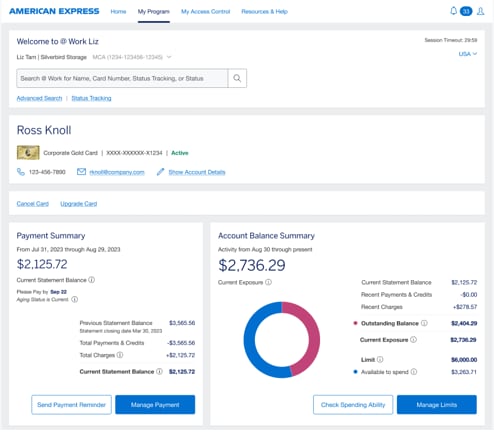
The Card Profile User experience has been modernized and simplified in line with the new @ Work design. The key information you need has been reorganized to make it easy to access and perform common tasks. New layouts and improved visibility make it easy to view and analyze the account information you need the most.
The key benefits include:
- A step-change in the overall User experience.
- Clearly displayed information for efficient account management.
- Time savings through quick access to centrally-billed account information.
- Fast account reconciliation with a reduced need for servicing support.
- Ability to perform tasks due to visibility of functions on Card Profiles.
Examples of the new functionality include the ability to:
- Get detailed snapshots of Account Balance and Payment Summary information in side-by-side layouts.
- View Transactions and Statements in a unified screen.
- Access centrally-billed account information. The summaries are in one place with instant navigation to individual Card accounts.
- The ability to cancel a Card account immediately or at a future date.
- Zoom into account details for a snapshot of important information.
Frequently Asked Questions:
View the Common Actions section in the Card Member Profile Page to access functions such as:
- Cancel a Card: Immediately cancel or request a cancellation for a future date.
- Replace a Card: Replace damaged, lost, or stolen Cards at your convenience.
- Upgrade a Card: Request an upgrade Card to gold or platinum for your employees.
- Manage Limits: Permanently or temporarily update your Card Member’s spending limits.
- Send a Payment Reminder: Help manage Card Member’s overdue accounts with a customizable email.
- Download Statements: Download statements of your employee, up to six months.
You can cancel a Card in @ Work by logging into your account and navigating to the employee’s Card account for which you would like to cancel. Then, under the Common Action menu and click on ‘Cancel Card’. From there, you can select your cancel type and proceed to submit the cancellation request.
You can view statement details in @ Work by logging into your account and navigating to the employee’s Card Account. Scroll down to the ‘Transactions and Statements’ section and select a time period up to the last six months. For statements older than six months, please visit the Statements Hub.
Yes! Simply Log into @ Work and scroll down to the ‘Transactions & Statements’ section to view pending, posted and declined transactions by utilizing the status filter.
You can schedule a cancellation for a Card in @ Work by logging into your account and navigating to the employee’s Card account. From the Common Action Menu Click on ‘Cancel Card’ and select the ‘Schedule Cancellation Date’ radio button and a calendar picker will appear. Proceed to select a Cancellation Reason and review your selections before submission. Click on ‘Submit Cancellation’ to submit your cancellation request.
You can manage Card Limits in @ Work by logging into your account and navigating to the employee’s Card account. From the Account Balance Summary section, click on ‘Manage Limits’. You are then able to select ‘Permanent’, to set a permanent limit on the Card, or ‘Temporary’, for a temporary limit on the Card, depending on your needs. Proceed with providing the necessary information to set a ‘Permanent’ or ‘Temporary’ limit on the Card account.
Yes! You can Upgrade a Card in @ Work by logging into your account and navigating to the employee’s Card account. From the Common Action Menu, click on ‘Upgrade Card’ and select the Card type that the employee’s Card will be upgraded to. Verify the shipping address for the Card delivery and submit the Upgrade Card request.