














American Express @ Work®

Guided Tours

@ Work Reporting

@ Work Reconciliation

@ Work Insights Hub

@ Work Homepage

Business Travel Accounts

Other Resources

Back to main menu 

@ Work Reporting

Other Resources

Video Tutorials

Back

GENERAL NAVIGATION

Introduction

In this session, we’ll give you an overview of how to navigate
the @ Work Reporting function. You can access a video tutorial of this tour under “Other Resources” in the menu bar. 

GENERAL NAVIGATION

Navigate to @ Work Reporting

From the @ Work homepage, you can navigate to the
@ Work Reporting page.  

GENERAL NAVIGATION

Navigate to @ Work Reporting 

Select “My Program” in the navigation bar and click
“@ Work Reports” under the “Insights & Reports” list.
You will arrive at the @ Work Reporting homepage.  

GENERAL NAVIGATION

@ Work Reporting Homepage

From this page, there are two main Reporting journeys - Manage a Report, and Build a Report. The @ Work Reporting page you arrive at is for Manage a Report.  

GENERAL NAVIGATION

Manage a Report

In the bottom section, you’ll find all previously scheduled reports available for download. All schedules will appear under the appropriate American Express Template name.  

GENERAL NAVIGATION

Manage a Report

You can expand the schedule to see the individual report history and click on the PDF or Excel icons to download and export the reports. 

GENERAL NAVIGATION

Manage a Report

You can control the reporting schedules through the filters at the top and through the “Search” function.  

GENERAL NAVIGATION

Manage a Report

At the top of the page is a “Help” button for additional FAQs and a “Settings” button to control report preferences like time zone, language, and currency.  

GENERAL NAVIGATION

Build a Report

The second journey is Build a Report. To run a report, set up a schedule,
or access a saved report template, click the “Build A Report” button.  

GENERAL NAVIGATION

Using Reporting Templates

You can leverage the “All Templates” tab to see all American Express Templates you can use to build reports. 

GENERAL NAVIGATION

Using Reporting Templates

Expand a Template name to see its description and hit “Start” to create the report.  

GENERAL NAVIGATION

Using Reporting Templates

You can choose between a Standard Report or a Customized Report. The Standard Report provides a pre-defined layout, while the Customized Report is tailored to your specific needs, allowing you to select the field most relevant to your requirements.

GENERAL NAVIGATION

My Saved Templates Tab

You can leverage the “My Saved Templates” tab to see your 
personal Customized Report templates. 

GENERAL NAVIGATION

Go to the main menu for more Guided Tours 

Next

general-navigation-screen1
general-navigation-screen2
general-navigation-screen3
general-navigation-screen4
general-navigation-screen5
general-navigation-screen6
general-navigation-screen7
general-navigation-screen8
general-navigation-screen9
general-navigation-screen10
general-navigation-screen11
general-navigation-screen12
general-navigation-screen13
general-navigation-screen14

Back

HOW TO BUILD REPORTS

Introduction

In this session, we’ll give you an overview of
how to navigate the @ Work Reporting function.
You can access a video tutorial of this tour under
“Other Resources” in the menu bar. 

HOW TO BUILD REPORTS

Navigate to @ Work Reporting 

From the @ Work homepage, you can navigate to the
@ Work Reporting page.  

HOW TO BUILD REPORTS

Navigate to @ Work Reporting 

Select “My Program” in the navigation bar and click
“@ Work Reports” 
under the “Insights & Reports” list.
You will arrive at the @ Work Reporting homepage.  

HOW TO BUILD REPORTS

@ Work Reporting Homepage 

From this page, there are two main Reporting journeys - Manage a Report, and Build a Report. The @ Work Reporting page you arrive at is for Manage a Report.  

HOW TO BUILD REPORTS

Build a Report 

The second journey is Build a Report. To run a report, set up a schedule,
or access a saved report template, click the “Build A Report” button.  

HOW TO BUILD REPORTS

All Templates Tab 

You can search by keyword in the Search Bar.  

HOW TO BUILD REPORTS

All Templates Tab 

You will arrive at the “All Templates” Tab, where you can see existing Reporting templates. 

HOW TO BUILD REPORTS

All Templates Tab 

Additionally, you can browse the existing American Express Report Templates.  

HOW TO BUILD REPORTS

All Templates Tab 

You can expand the template name for further details.
You can also click to view a sample of each template. 

HOW TO BUILD REPORTS

All Templates Tab 

Once you identify which template to build from, click “Start”.  

HOW TO BUILD REPORTS

All Templates Tab 

You can choose a Standard Format for a set frequency such as monthly or annually, or build a Customized Report.  

HOW TO BUILD REPORTS

Customize a Report 

You can customize your report by adding Additional Options.  

HOW TO BUILD REPORTS

Customize a Report 

You can apply Filters to your report.  

HOW TO BUILD REPORTS

Customize a Report 

You can also specify additional data fields and get on-demand results. 

HOW TO BUILD REPORTS

Customize a Report 

Once you have selected all the details, click “Run Report”. 

HOW TO BUILD REPORTS

Customize a Report 

Your report is now ready. 

HOW TO BUILD REPORTS

Customize a Report 

You can use these icons in the navigation bar for further options. Use the “Save” icon to save your Customized Report template selections, then give the report template a custom name.  

HOW TO BUILD REPORTS

My Saved Templates Tab 

You can access the report again by clicking the “My Saved Templates” tab and re-running the report on demand. 

HOW TO BUILD REPORTS

My Saved Templates Tab 

Expand “Saved Templates” to find the name of your saved report template.  

HOW TO BUILD REPORTS

Run Reports simultaneously 

To run multiple reports at one time, right click on the browser tab and select “Duplicate”. 

HOW TO BUILD REPORTS

Run Reports simultaneously 

You can now run another report following the same steps. You will need a separate tab for each additional report you wish to run at the same time.  

HOW TO BUILD REPORTS

Go to the main menu for more Guided Tours

Next

build-reports-screen1
build-reports-screen2
build-reports-screen3
build-reports-screen4
build-reports-screen5
build-reports-screen6
build-reports-screen7
build-reports-screen8
build-reports-screen9
build-reports-screen10
build-reports-screen11
build-reports-screen12
build-reports-screen13
build-reports-screen14
build-reports-screen15
build-reports-screen16
build-reports-screen17
build-reports-screen18
build-reports-screen19
build-reports-screen20
build-reports-screen21
build-reports-screen22

Back

HOW TO VIEW REPORTS

Introduction

In this session, we’ll show you how to find different types of 
American Express @ Work® reports using an intuitive and streamlined process. 

HOW TO VIEW REPORTS

Introduction

From the @ Work homepage, you can navigate to the
@ Work Reporting page.  

HOW TO VIEW REPORTS

Navigate to @ Work Reporting 

Select “My Program” in the navigation bar and click
“@ Work Reports” 
under the “Insights & Reports” list.
You will arrive at the @ Work Reporting homepage. 

HOW TO VIEW REPORTS

@ Work Reporting Homepage 

From this page, there are two main Reporting journeys - 
Manage a Report, and Build a Report. 

HOW TO VIEW REPORTS

@ Work Reporting Homepage

In the bottom section, you’ll find all previously scheduled reports available for download. All schedules will appear under the appropriate American Express Template name.

HOW TO VIEW REPORTS

Viewing a Report 

Expand the Template name to see all recurring report schedules set up for that template. You can leverage the PDF and Excel icons to download and export the reports.

HOW TO VIEW REPORTS

Viewing a Report

The three-dot icons indicate the options available to manage your reports and report schedules. 

HOW TO VIEW REPORTS

Viewing a Report

The three-dot icons indicate the options available to manage your reports and report schedules. 

HOW TO VIEW REPORTS

Viewing a Report

You can also expand the individual reports for additional details. 

HOW TO VIEW REPORTS

Viewing a Report

To find a report, you can type a report name into the Search bar and the appropriate base template will populate.

HOW TO VIEW REPORTS

Viewing a Report

Expand the base template to find the report you were looking for. 

HOW TO VIEW REPORTS

Activating Report Schedules

You may notice deactivated schedules appearing here. This section combines 
all available, upcoming, and deactivated report schedules that have been categorized under the appropriate base template name.

HOW TO VIEW REPORTS

Activating Report Schedules

To reactivate a deactivated schedule, click on the three-dot icon above, and hit “Activate Schedule”.

HOW TO VIEW REPORTS

Filtering Reports

You can also control your view by leveraging the filters at the top.

HOW TO VIEW REPORTS

Filtering Reports

If you wish to exclude deactivated schedules from your view, you can click on the “All Reports” filter, and only filter for “Active” schedules.

HOW TO VIEW REPORTS

Filtering Reports

You can also click the “Save filters as default” button to customize your 
view once you log in below.

HOW TO VIEW REPORTS

Go to the main menu for more Guided Tours

Next

view-reports-screen1
view-reports-screen2
view-reports-screen3
view-reports-screen4
view-reports-screen5
view-reports-screen6
view-reports-screen7
view-reports-screen8
view-reports-screen9
view-reports-screen10
view-reports-screen11
view-reports-screen12
view-reports-screen13
view-reports-screen14
view-reports-screen15
view-reports-screen16
view-reports-screen17

Back to main menu 

@ Work Reconciliation Program Administration

@ Work Reconciliation
End User

Other Resources

Video Tutorials

Back

MANAGE AND UPDATE CARD INFORMATION

Introduction

This session covers how to find Cards and update information relating to them.

MANAGE AND UPDATE CARD INFORMATION

The Card page

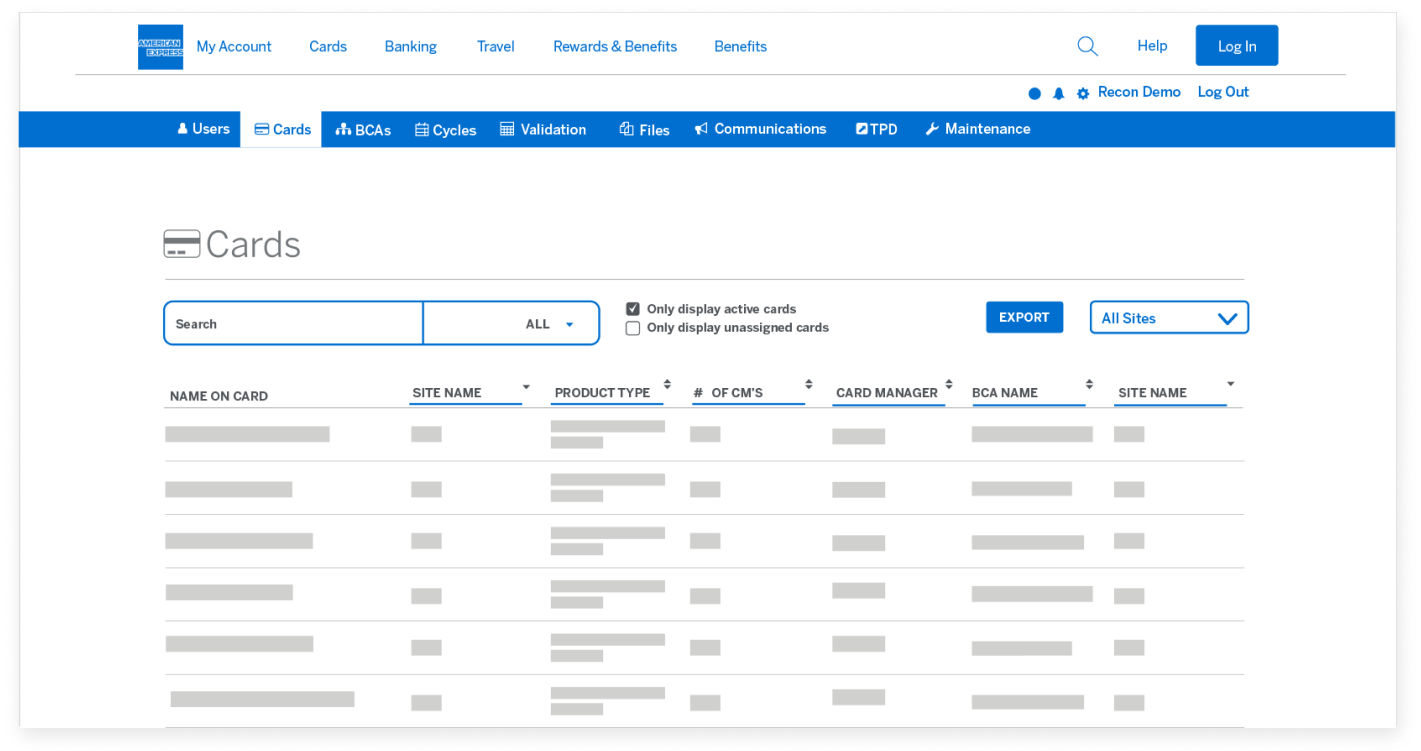
The Cards page displays all of your companies’ Cards that are uploaded into the American Express @ Work® Reconciliation tool.

MANAGE AND UPDATE CARD INFORMATION

Filtering your results

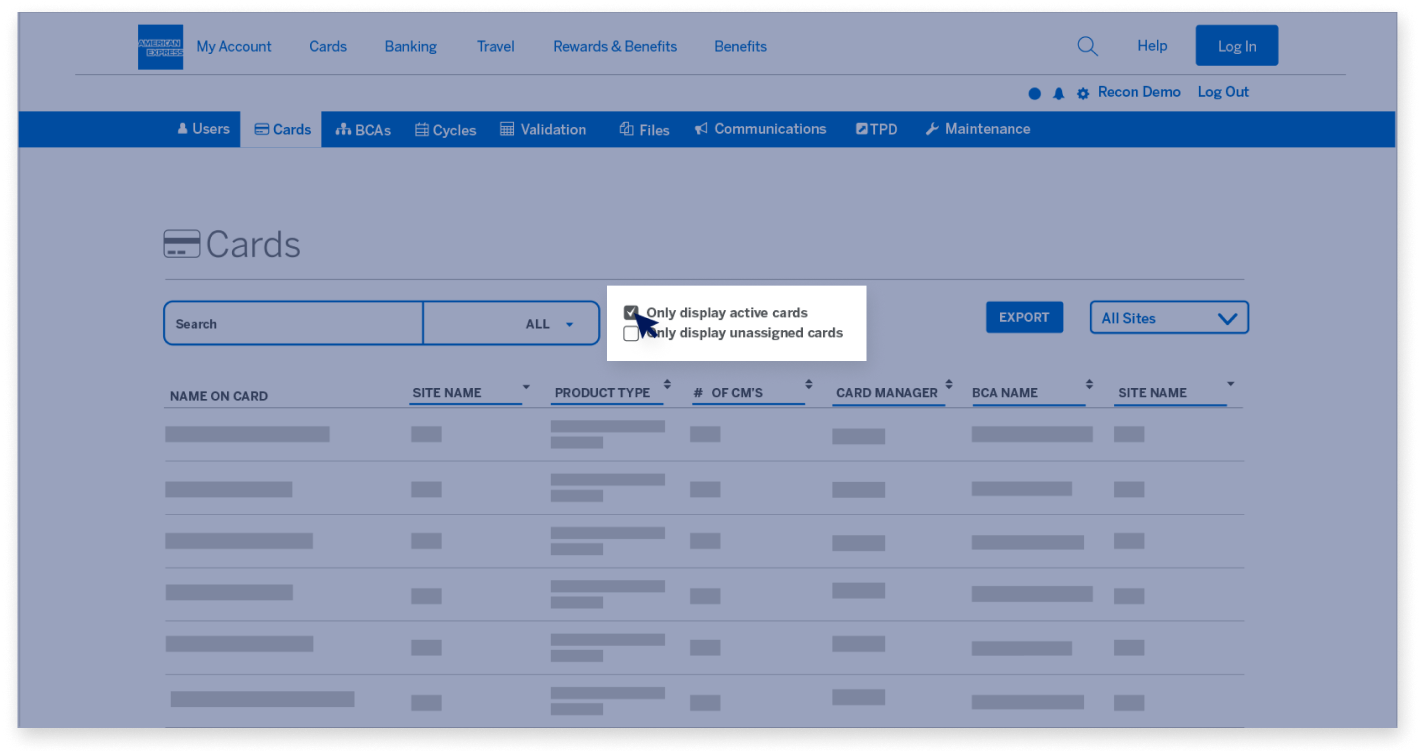
The default view only displays the active Cards. If you want to show cancelled Cards, uncheck the “Only display active cards” box.

MANAGE AND UPDATE CARD INFORMATION

Filtering your results 

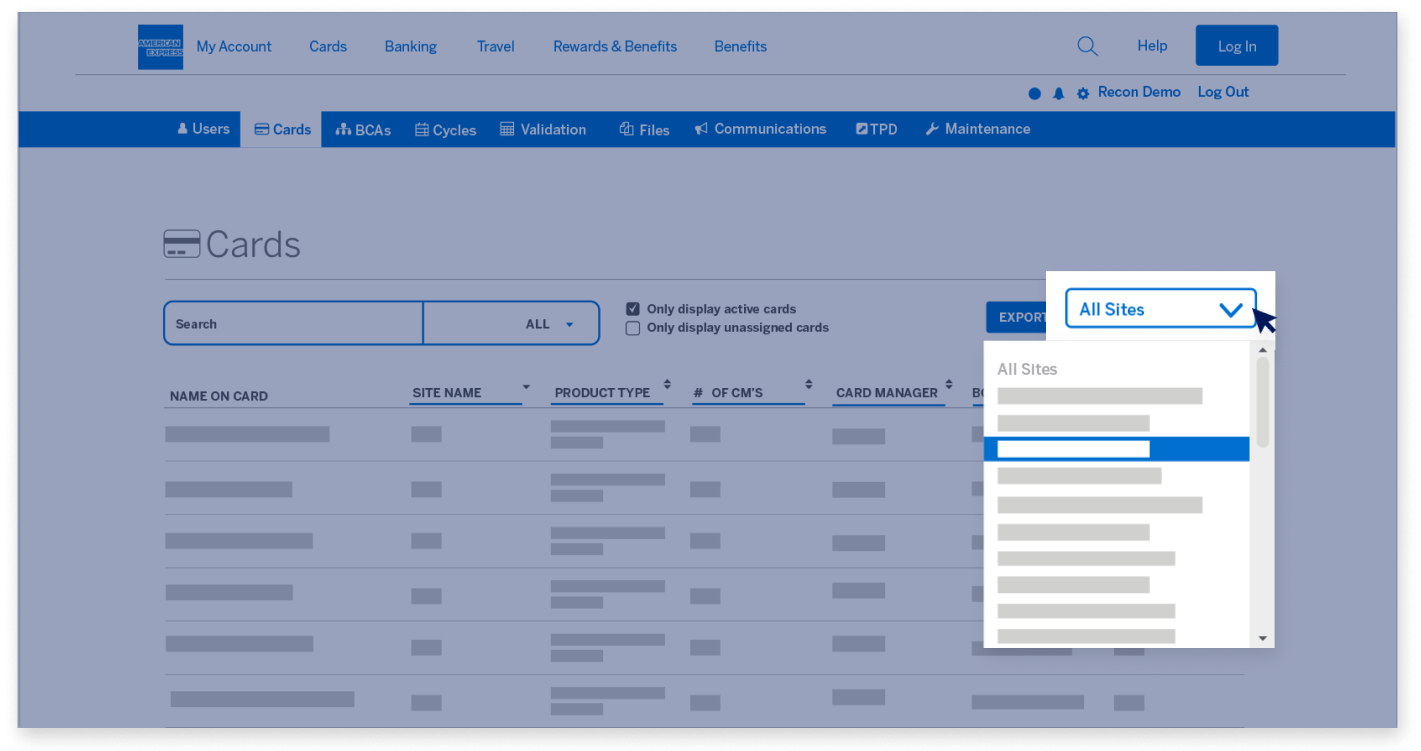
You can narrow the scope of the Cards displayed by using the “Sites” 
drop-down at the top right. This shows you the Cards for a particular site.

MANAGE AND UPDATE CARD INFORMATION

Filtering your results

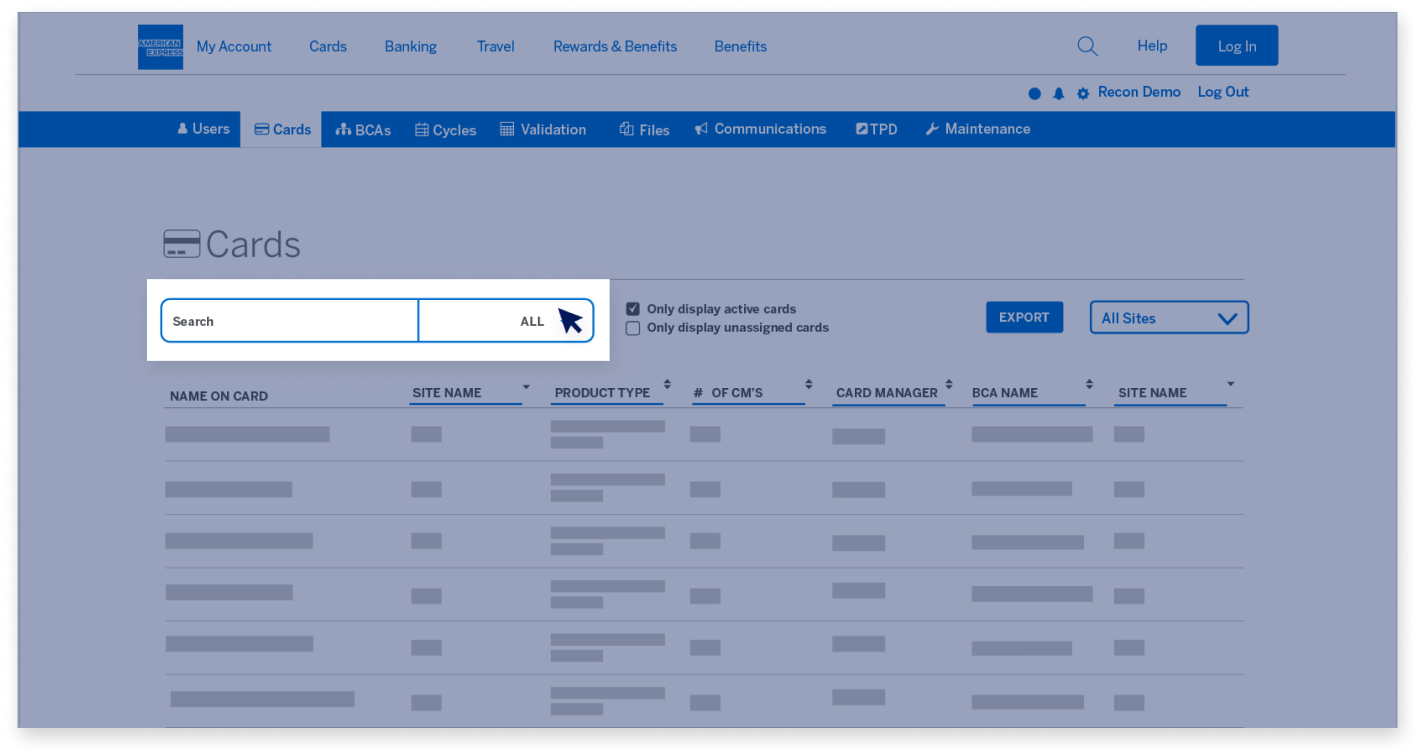
Use the “Search” field to the left to narrow down the Cards list based 
on any of the fields shown on the page.

MANAGE AND UPDATE CARD INFORMATION

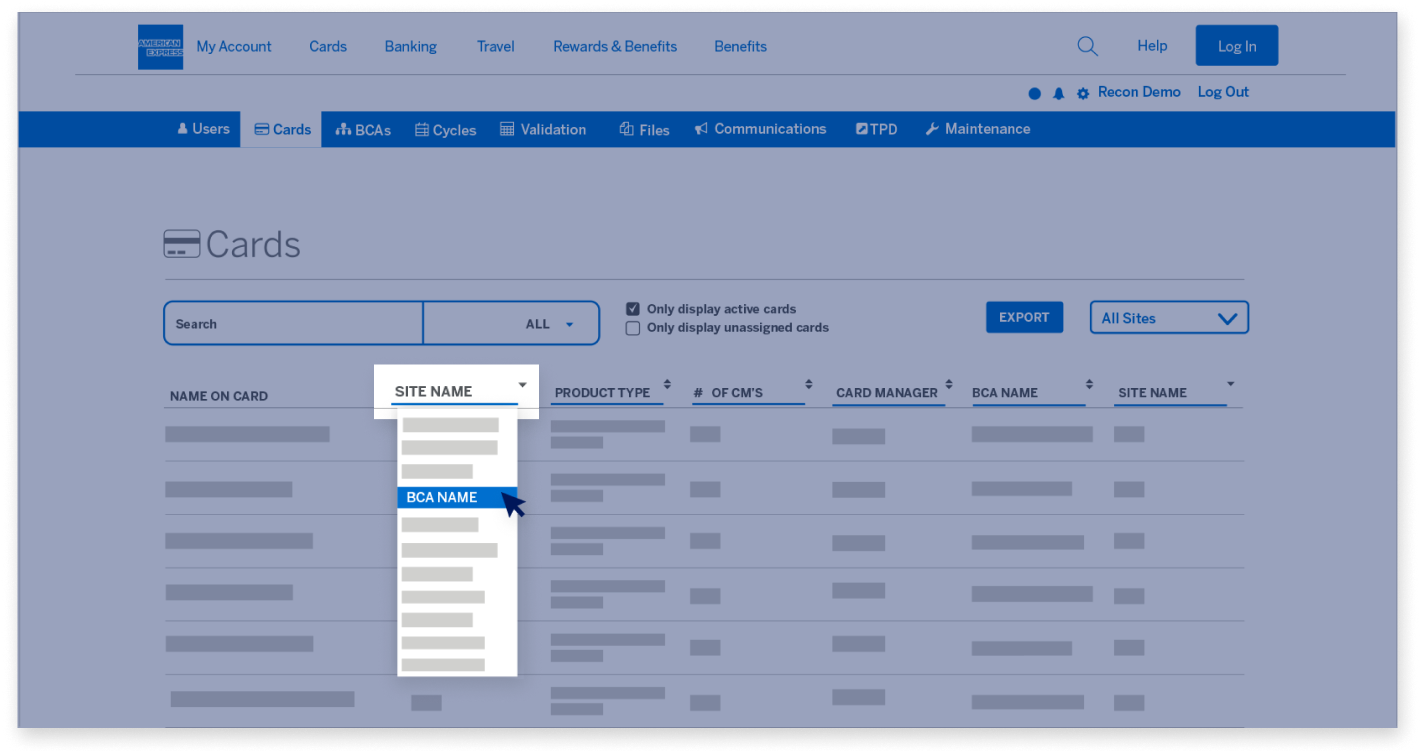
Filtering your results

Other than the “Name on Card” field, you can change the information displayed in each 
of the columns by clicking on the header and selecting a field from the drop-down menu.

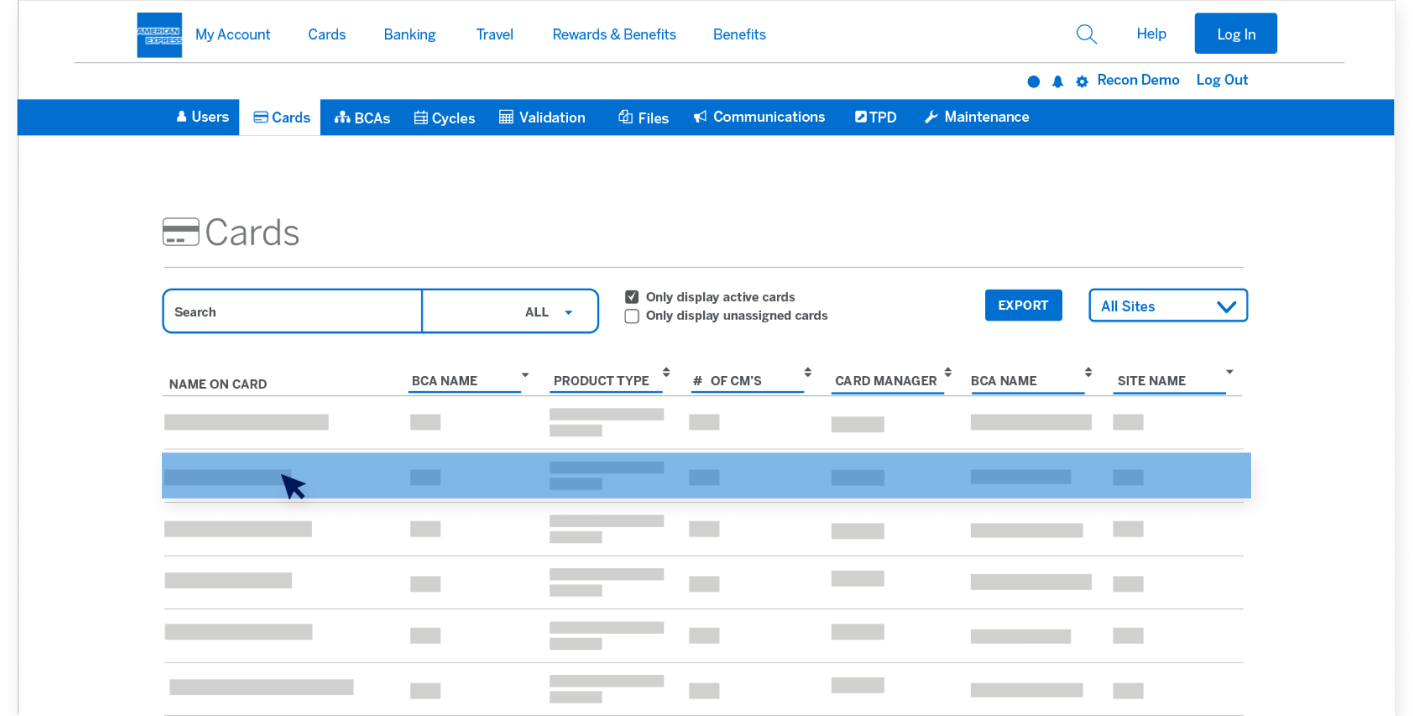
MANAGE AND UPDATE CARD INFORMATION

Filtering your results

Once you have found the Card you’d like to update, you can click 
anywhere on the line of that Card.

MANAGE AND UPDATE CARD INFORMATION

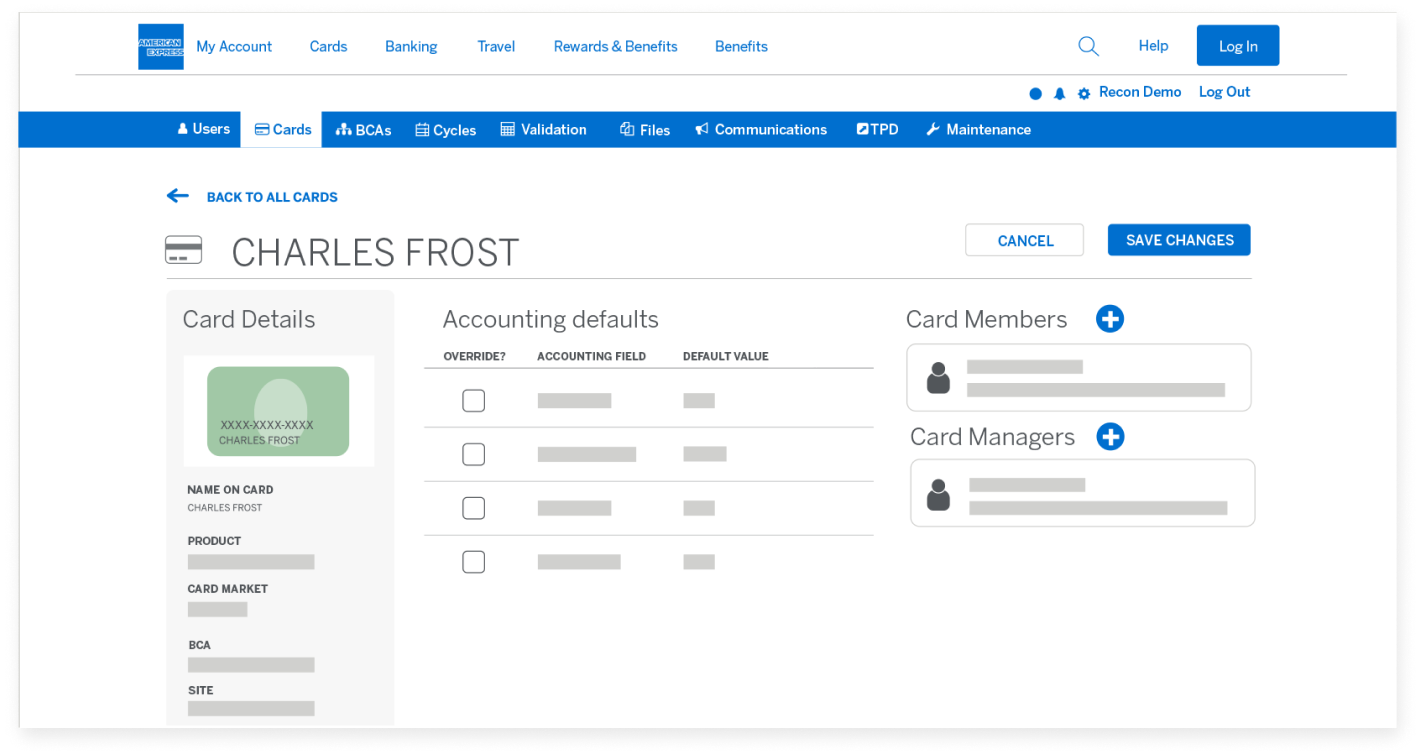
The Card Member page

Once you have clicked on a Card, you arrive at the specific page for that Card.

MANAGE AND UPDATE CARD INFORMATION

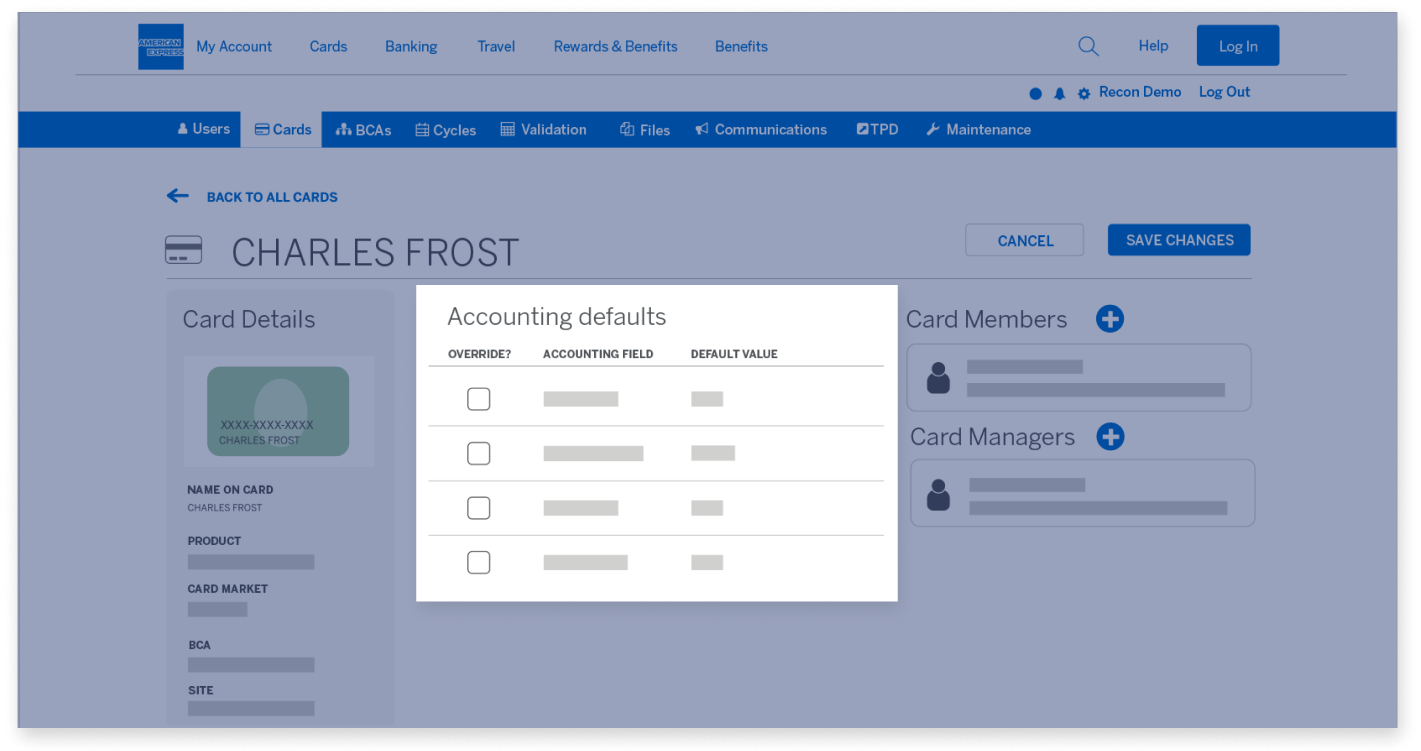
The Card Member page

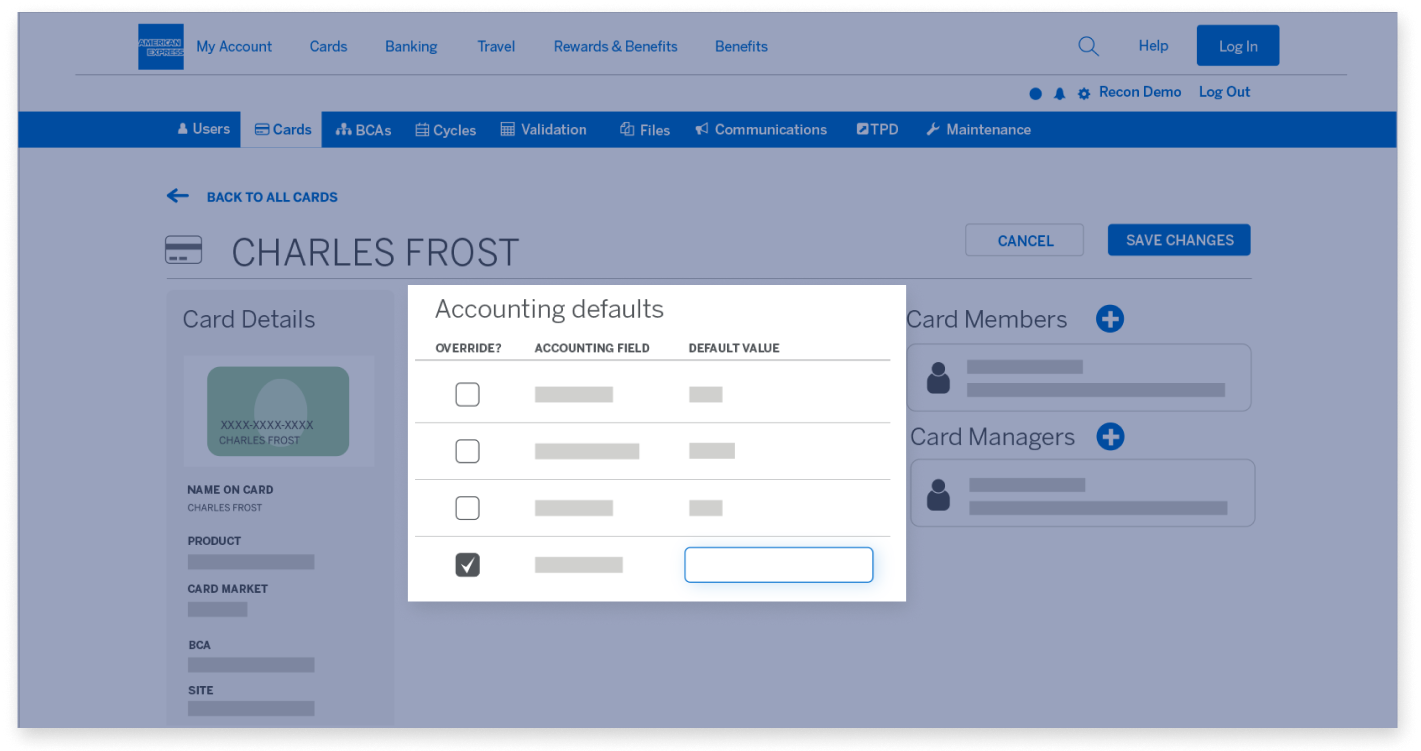
In the middle section, you can see the “Accounting defaults” for the selected Card. 

MANAGE AND UPDATE CARD INFORMATION

The Card Member page

To update any of the defaults, select the “Override?” checkbox and make 
the necessary changes. If any of the Accounting fields are validated or have masks, 
those rules will be enforced here.

MANAGE AND UPDATE CARD INFORMATION

The Card Member page

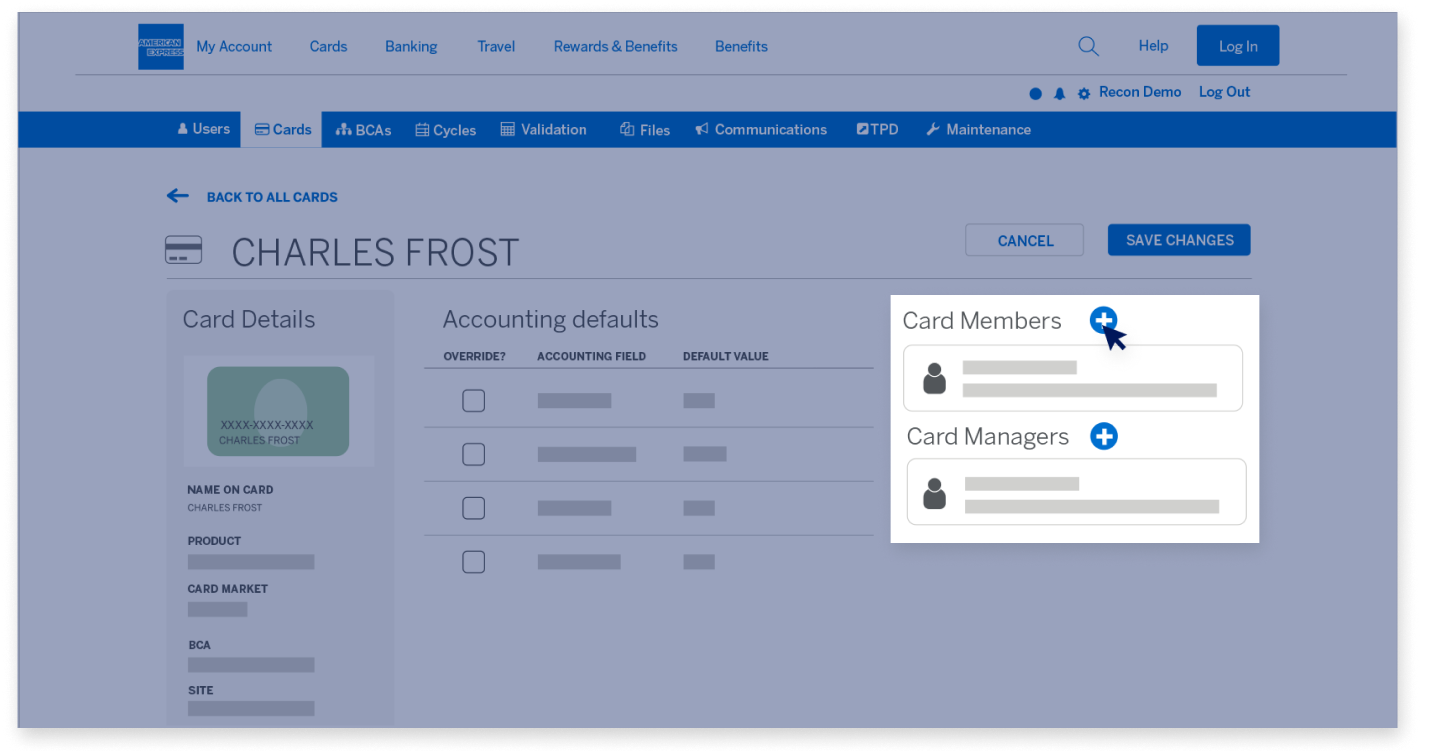
You are able to assign a Card Member or Card Manager to this Card by selecting the 
“Plus” button on the right side of the page.

MANAGE AND UPDATE CARD INFORMATION

The Card Member page

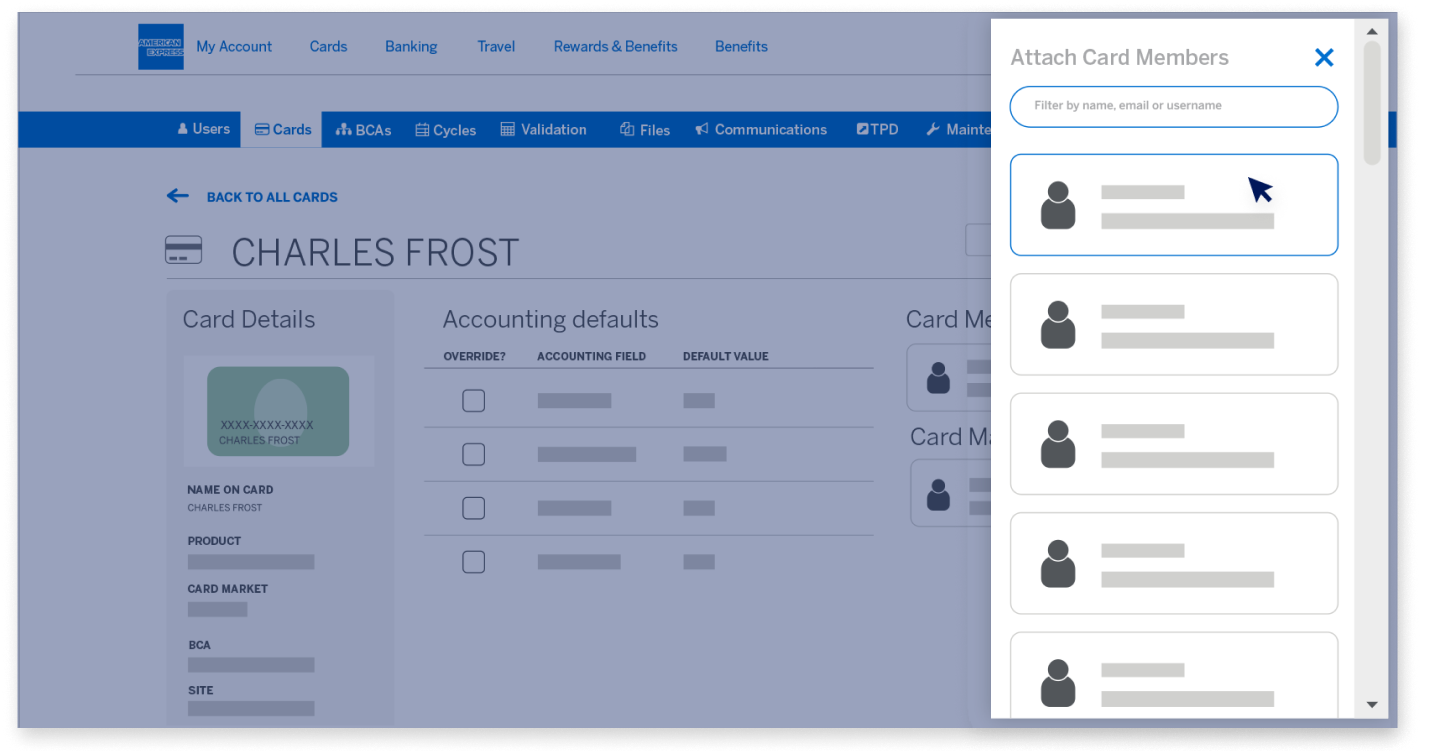
Then, select the User you want to assign to the Card.

MANAGE AND UPDATE CARD INFORMATION

The Card Member page

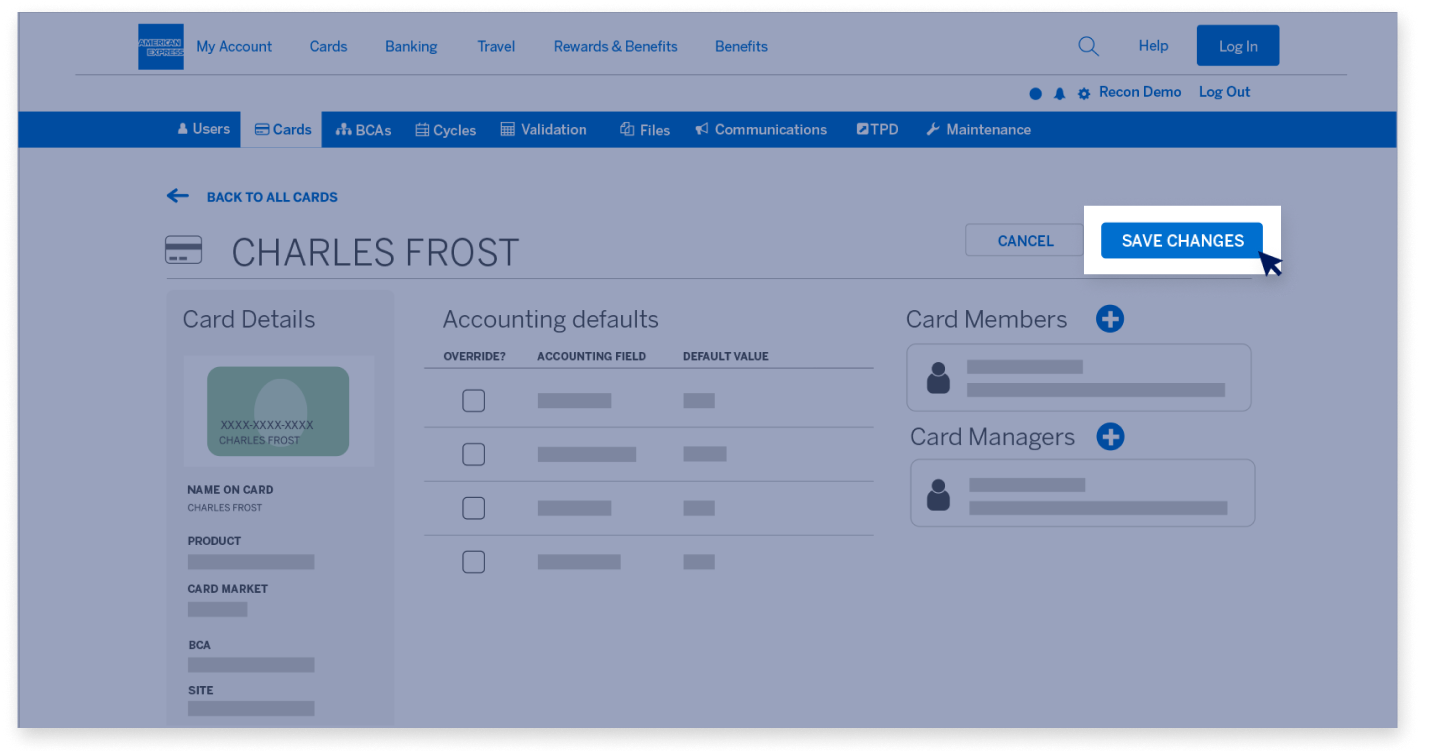
Once you’ve made your Card changes, complete the process by clicking “Save Changes”.

MANAGE AND UPDATE CARD INFORMATION

Go to the main menu for more Guided Tours

Next

atwork-reconciliation-screen
atwork-reconciliation-screen7
atwork-reconciliation-screen8
atwork-reconciliation-screen9
atwork-reconciliation-screen10
atwork-reconciliation-screen11
atwork-reconciliation-screen12
atwork-reconciliation-screen13
atwork-reconciliation-screen14

Back

COMMUNICATE WITH CARD MEMBERS

Introduction

In this session, we’ll show you how to communicate with Card Members using either Broadcast messages or Custom emails.

COMMUNICATE WITH CARD MEMBERS

Communications tab

Under the “Communications” tab in the Navigation Bar, you’ll find 
two ways to communicate with your Users.

COMMUNICATE WITH CARD MEMBERS

Communications tab

The first is through Broadcast messages. These messages are presented to your Users
as a pop-up message after they have logged in to the American Express
@ Work® Reconciliation tool.

COMMUNICATE WITH CARD MEMBERS

Communications tab

The “Broadcast” message has to be closed by the User so you have confidence they have seen the message.

COMMUNICATE WITH CARD MEMBERS

Broadcast Maintenance

As you select the “Broadcast Message” button, the “Broadcast Maintenance” screen 
will show you the list of recent “Broadcast” messages.

COMMUNICATE WITH CARD MEMBERS

Broadcast Maintenance

This includes the current status of the message, the start and end dates, 
as well as the first part of the message.

COMMUNICATE WITH CARD MEMBERS

Broadcast Maintenance

Under the “Actions” column, you have the option to either delete or edit the existing message.

COMMUNICATE WITH CARD MEMBERS

Composing a Broadcast

To create a new broadcast message, click on the “Compose” tab.

COMMUNICATE WITH CARD MEMBERS

Composing a Broadcast

You can choose who the message will be presented to and when it will be active, 
and compose the message that will be displayed.

COMMUNICATE WITH CARD MEMBERS

Custom emails

The second communications option is Custom emails.

COMMUNICATE WITH CARD MEMBERS

Custom emails

These are emails that will be delivered to your Users based on their roles, access, and event types. Under the “Email Maintenance” header, the first tab shows you the current emails 
that are set up for your company.

COMMUNICATE WITH CARD MEMBERS

Custom emails

You will see the status of the email along with the Users who will get the email 
and the event that triggers it.

COMMUNICATE WITH CARD MEMBERS

Custom emails

Next is the “Sent” tab. This will show you all the emails that have 
been recently sent to your Users and the details of each.

COMMUNICATE WITH CARD MEMBERS

Custom emails

If you select the “Info” icon under the actions column, you will be able to see the list of Users that particular email was sent to along with their email addresses. 

COMMUNICATE WITH CARD MEMBERS

Custom emails

Last is the “Compose” button. This is where you can build a new email.

COMMUNICATE WITH CARD MEMBERS

Custom emails

You can start by selecting from one of our ten event types, or you can build an 
email from scratch using the Custom event.

COMMUNICATE WITH CARD MEMBERS

Custom emails

Based on the event type you select, the email parameters will differ slightly.

COMMUNICATE WITH CARD MEMBERS

Custom emails

After you select the event type, start by creating the List of Users who will get the email.

COMMUNICATE WITH CARD MEMBERS

Custom emails

Next, you add the subject and the body to the email you would like to create.

COMMUNICATE WITH CARD MEMBERS

Custom emails

You have formatting options and can add images or links to the body of the email. 
The system can also insert details such as the User’s name.

COMMUNICATE WITH CARD MEMBERS

Custom emails

Finally, you can schedule the frequency of the email. 

COMMUNICATE WITH CARD MEMBERS

Go to the main menu for more Guided Tours

Next

build-reports-screen1
build-reports-screen2
build-reports-screen3
build-reports-screen4
build-reports-screen5
build-reports-screen6
build-reports-screen7
build-reports-screen8
build-reports-screen9
build-reports-screen10
build-reports-screen11
build-reports-screen12
build-reports-screen13
build-reports-screen14
build-reports-screen15
build-reports-screen16
build-reports-screen17
build-reports-screen18
build-reports-screen19
build-reports-screen20
build-reports-screen21
build-reports-screen22

Back

MANAGE THE EXTRACT OF REPORTS

Introduction

In this session, we’ll look at how you can manage the Extract of Reports within American Express @ Work® Reconciliation.

MANAGE THE EXTRACT OF REPORTS

Introduction

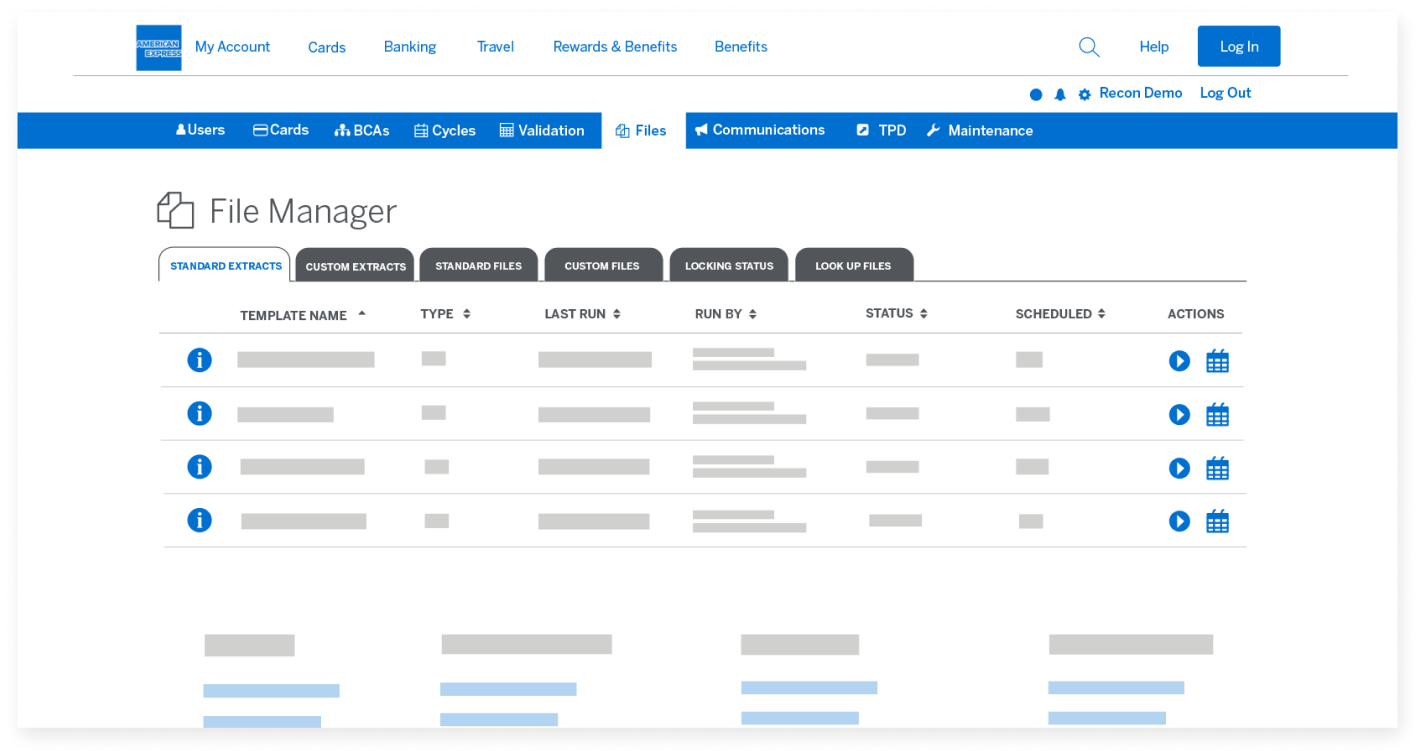
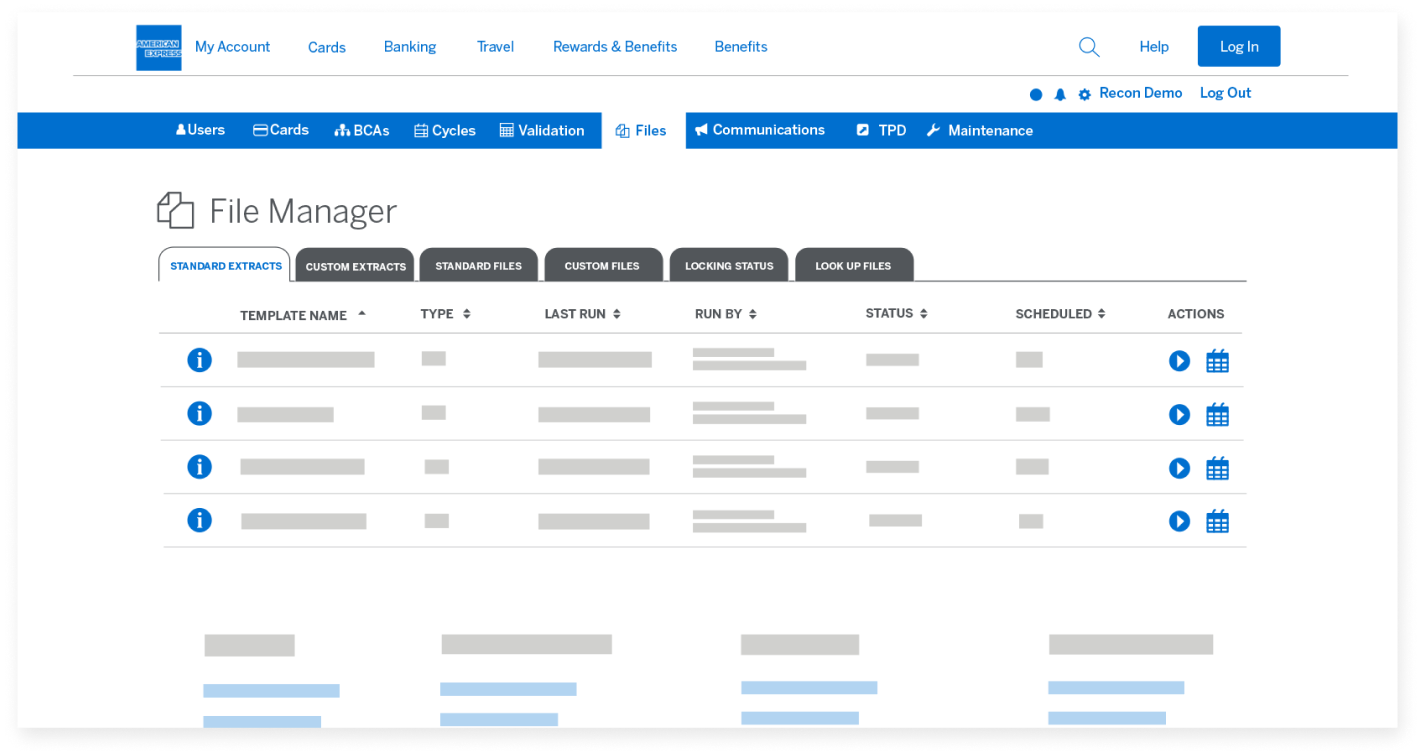
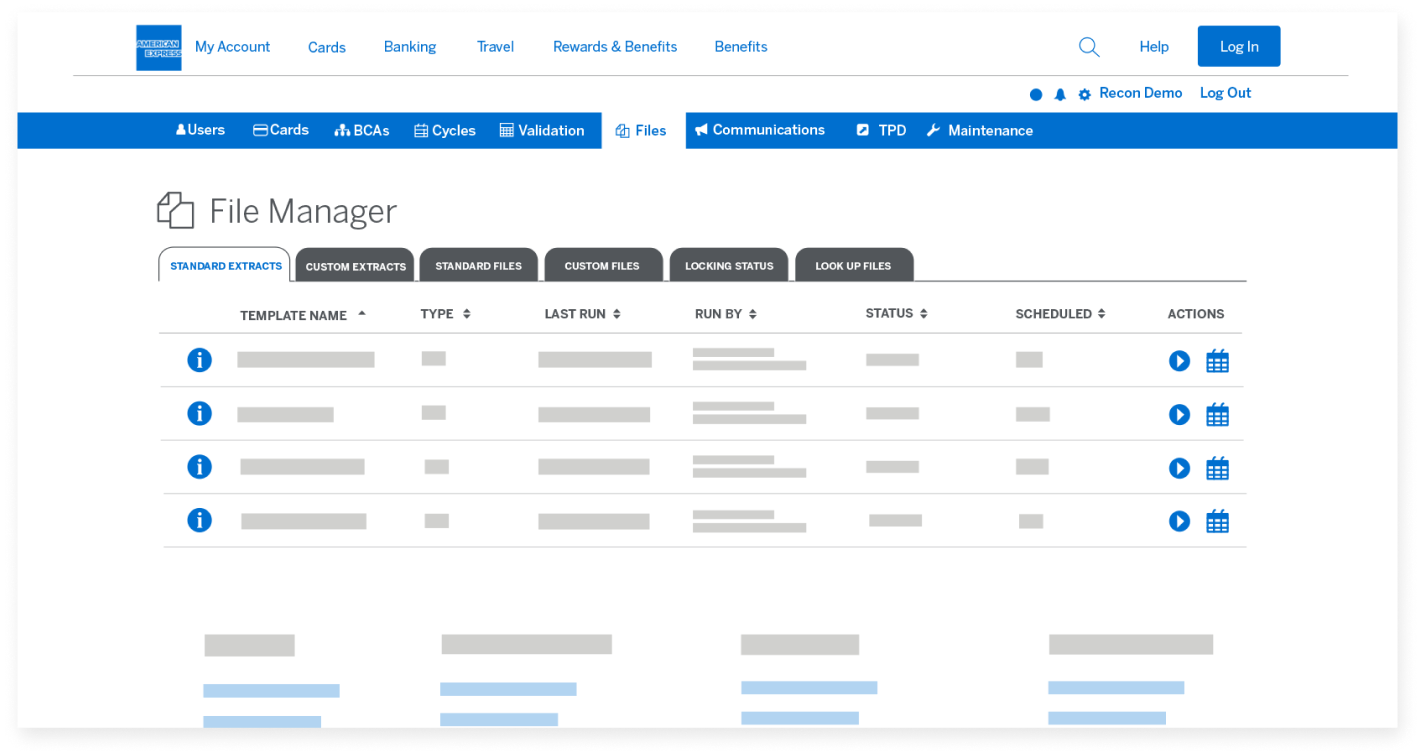
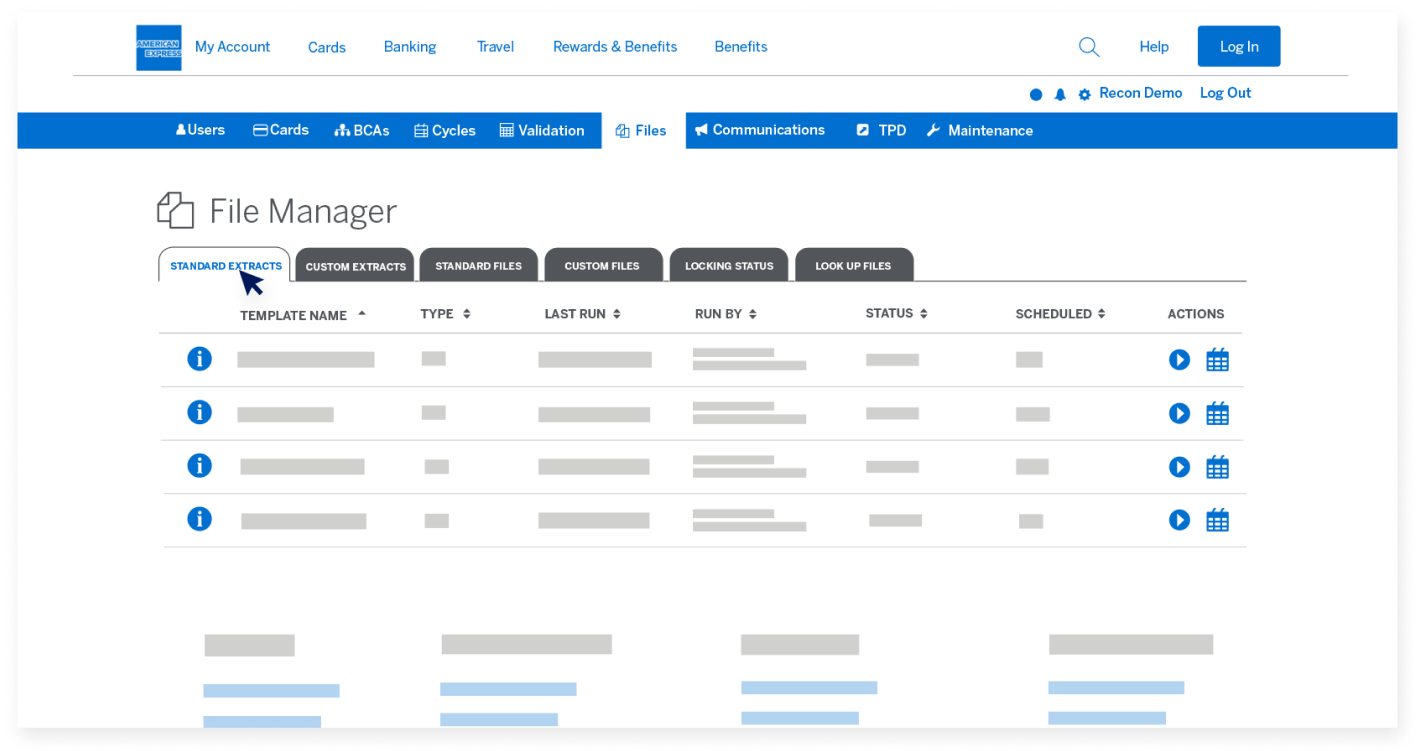
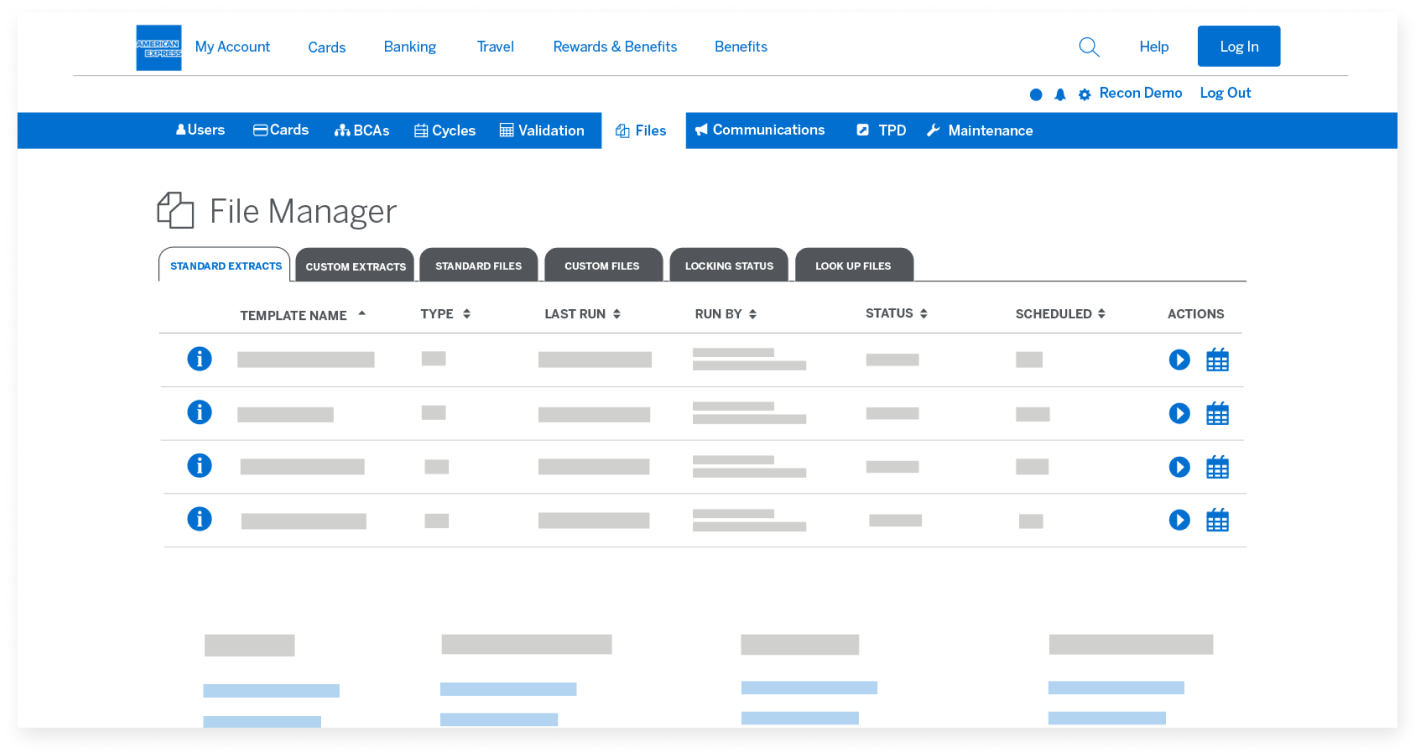
To get started, the "Files" tab opens a page where you can run reports which are either Standard or Custom Extracts.

MANAGE THE EXTRACT OF REPORTS

Introduction

They can be run manually or set up to run on a schedule and be downloaded on completion.
First up are four “Standard Extracts” that all clients can access.

MANAGE THE EXTRACT OF REPORTS

Introduction

Two of these run at the Cycle level, and the other two can be run 
for a specific date or a date range.

MANAGE THE EXTRACT OF REPORTS

Standard Extracts tab

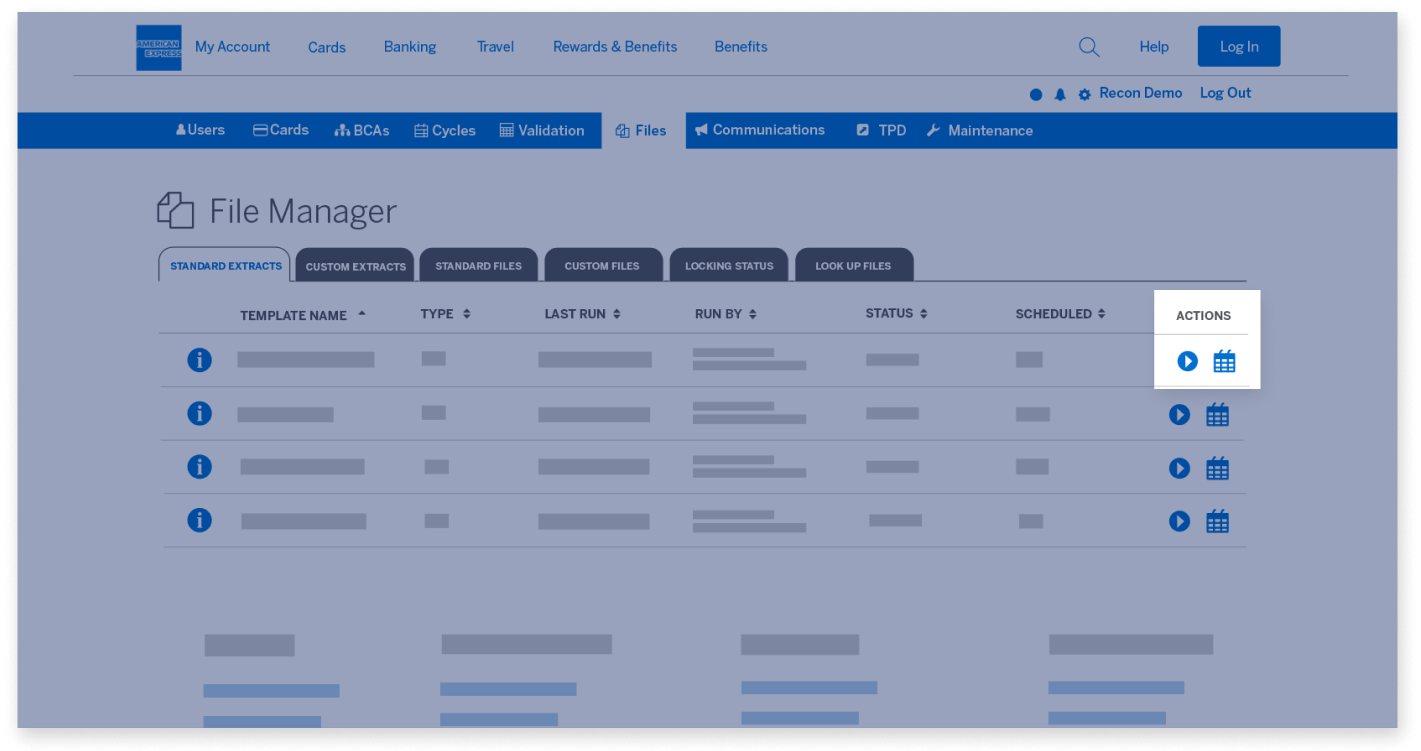
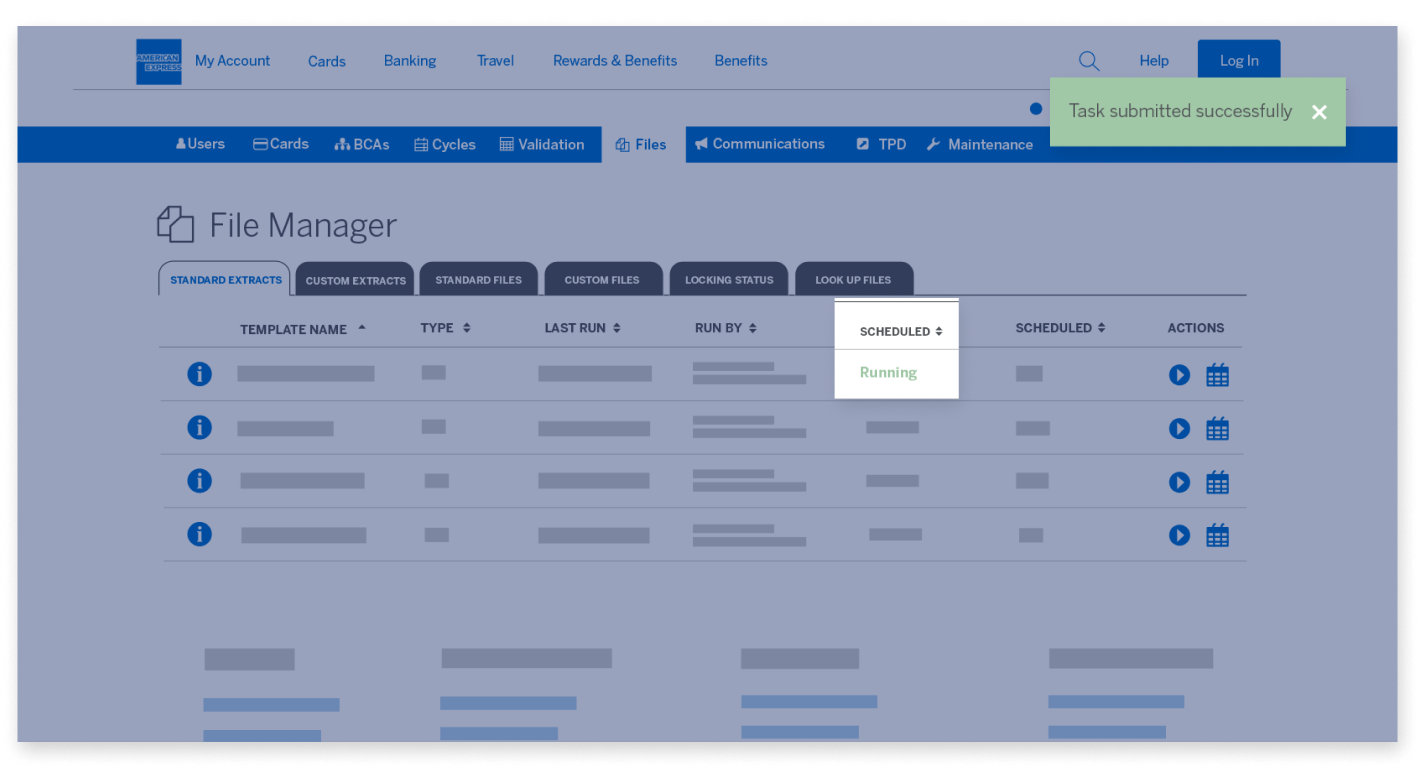
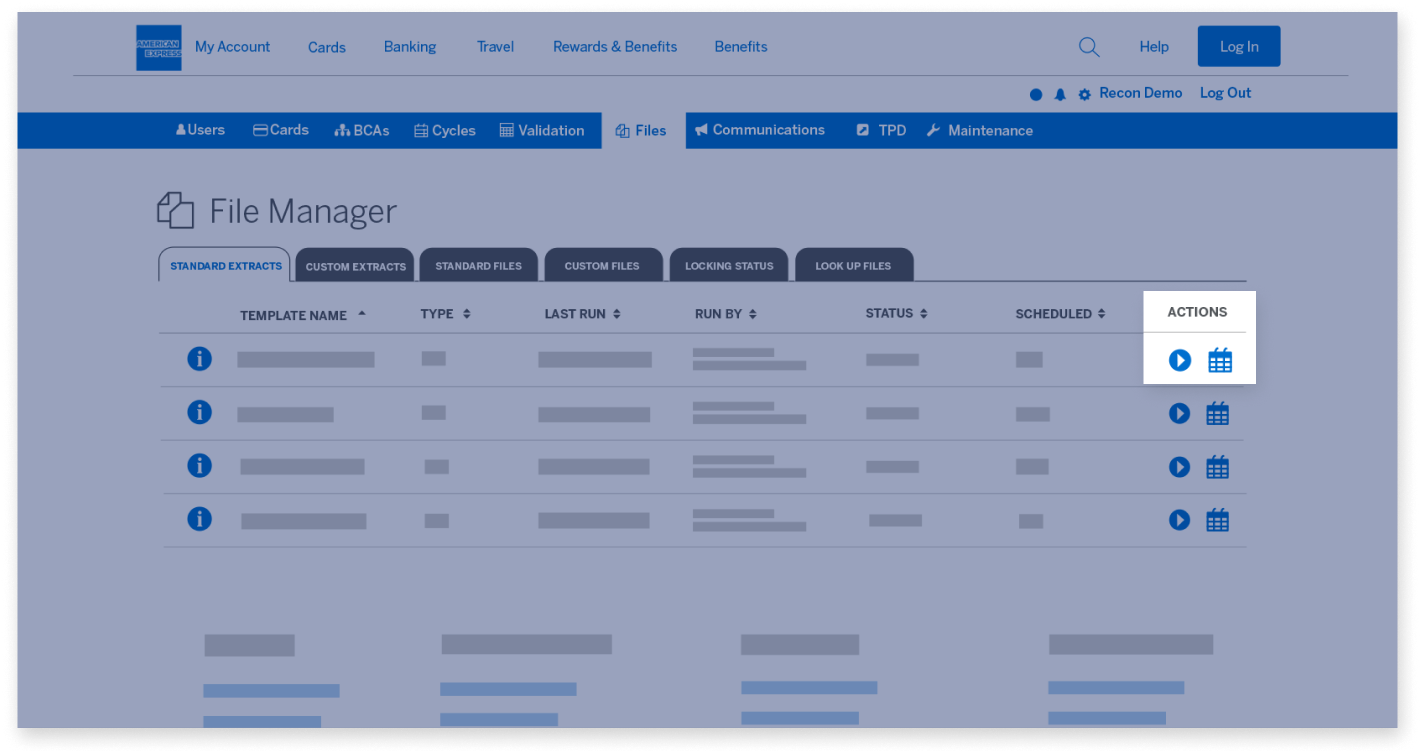
To run the extract, select the “Play” button under the Actions column.

MANAGE THE EXTRACT OF REPORTS

Standard Extracts tab

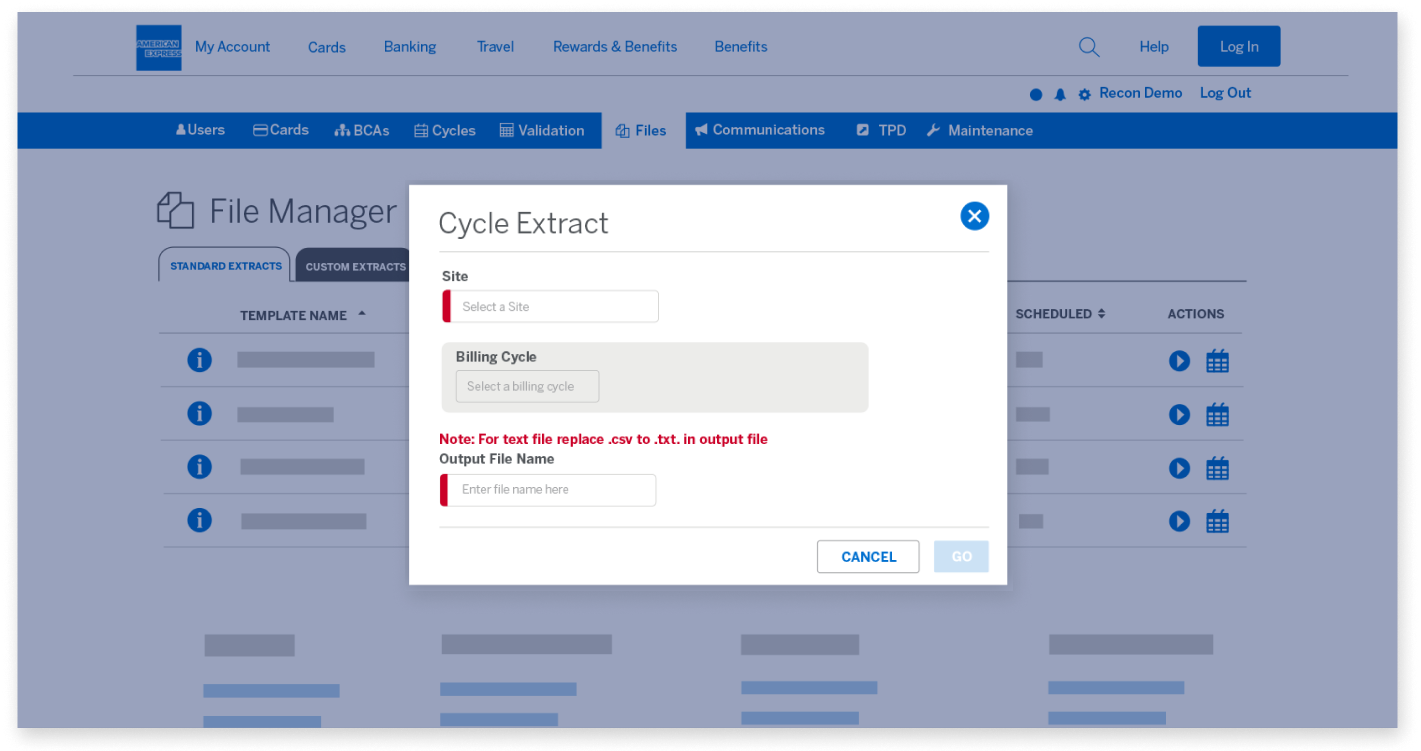
A pop-up screen appears for you to choose the export parameters.

MANAGE THE EXTRACT OF REPORTS

Standard Extracts tab

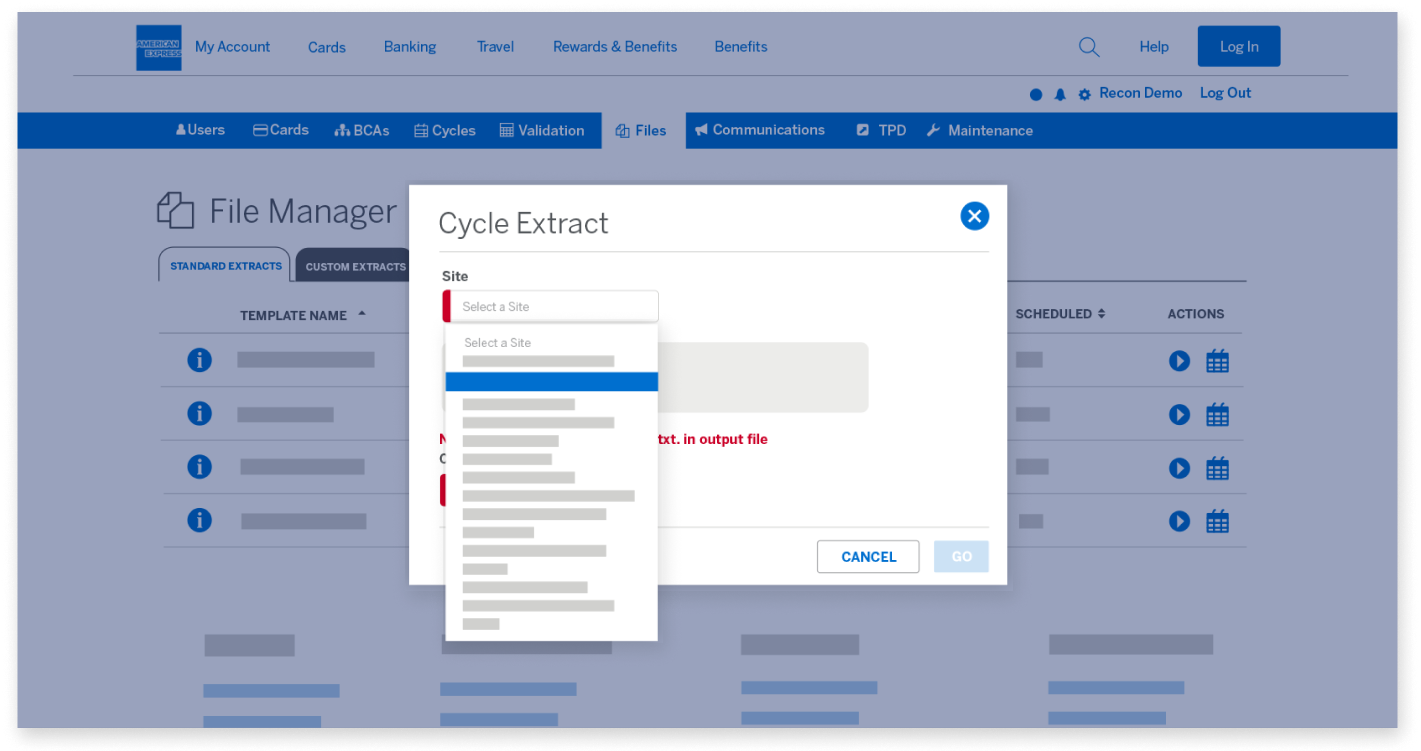
The parameters include the Site you’re looking for.

MANAGE THE EXTRACT OF REPORTS

Standard Extracts tab

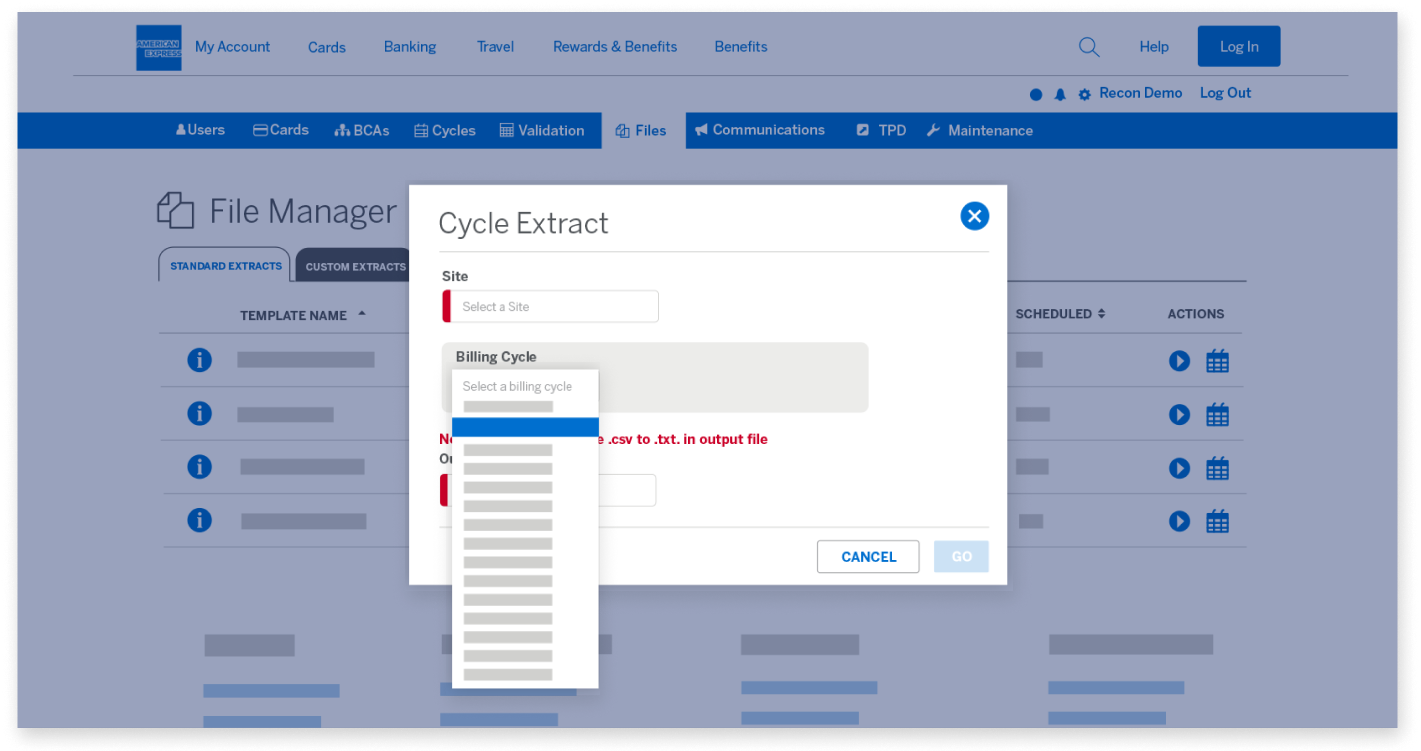
As well as the Billing Cycle and Output File Name. 

MANAGE THE EXTRACT OF REPORTS

Standard Extracts tab

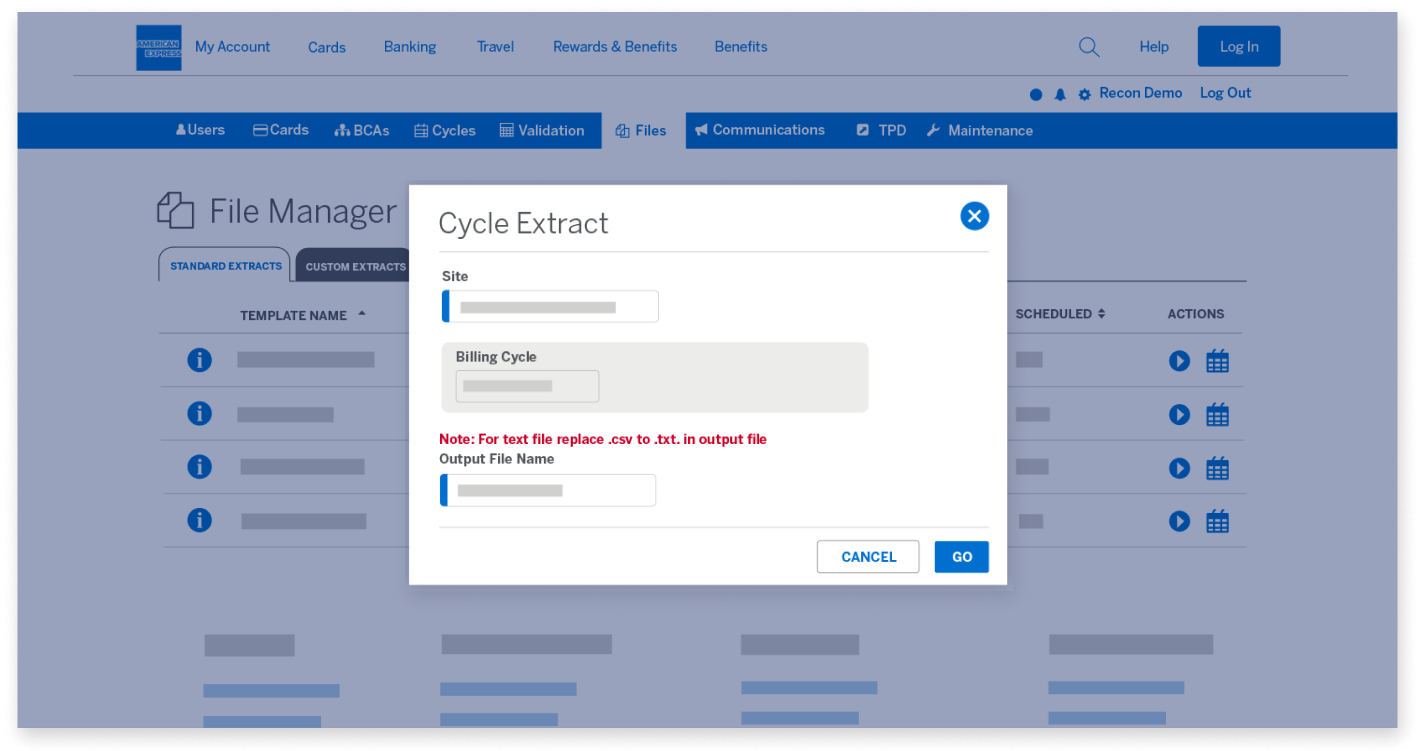
Once you’ve completed your selections, click on the “Go” button to start the extract.

MANAGE THE EXTRACT OF REPORTS

Standard Extracts tab

The status will show as “Running” until the extract is complete.

MANAGE THE EXTRACT OF REPORTS

Standard Files tab

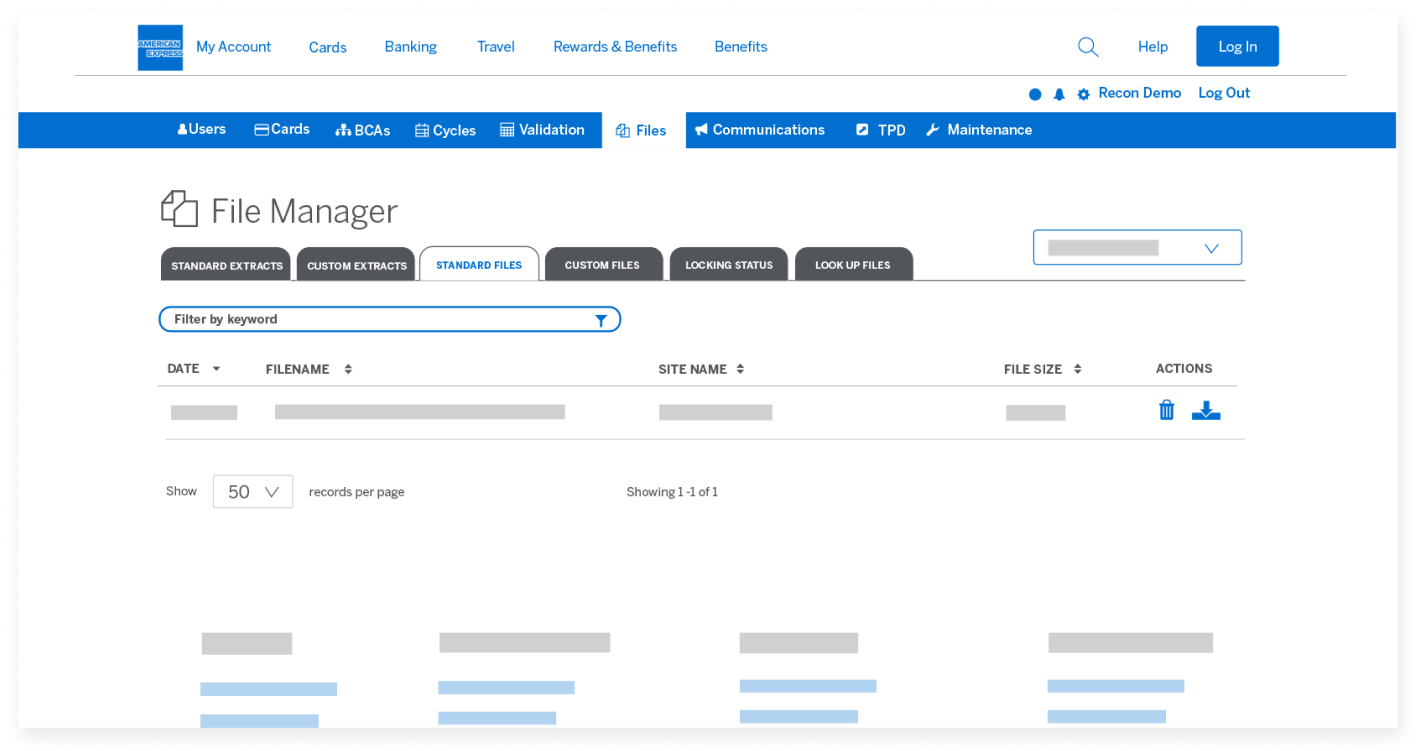
You can then go to the “Standard Files” tab and download the extract to your local device.

MANAGE THE EXTRACT OF REPORTS

Custom Extracts tab

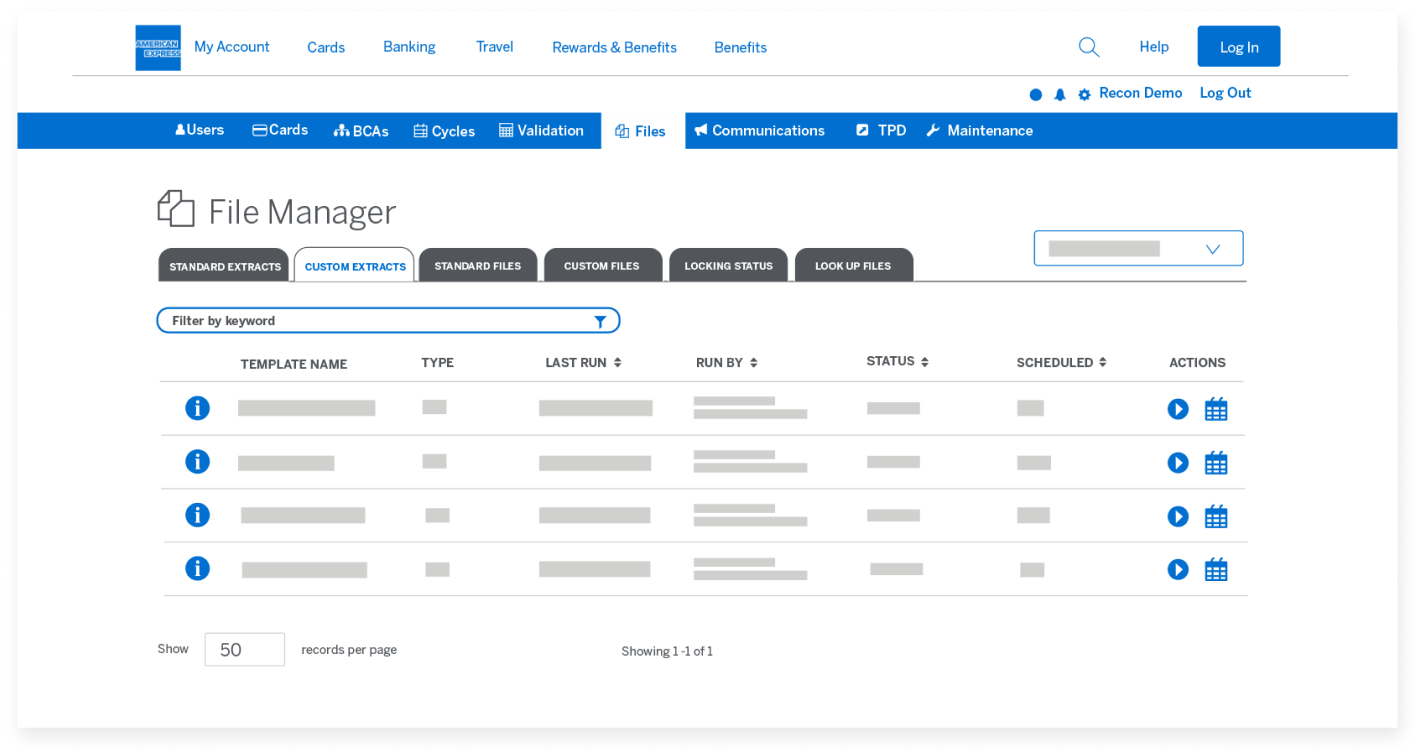
Custom Extracts are the second type of extracts. Under the “Custom Extracts” tab,
you’ll find the Custom templates which were built specifically for your company by our Implementations team.

MANAGE THE EXTRACT OF REPORTS

Custom Extracts tab

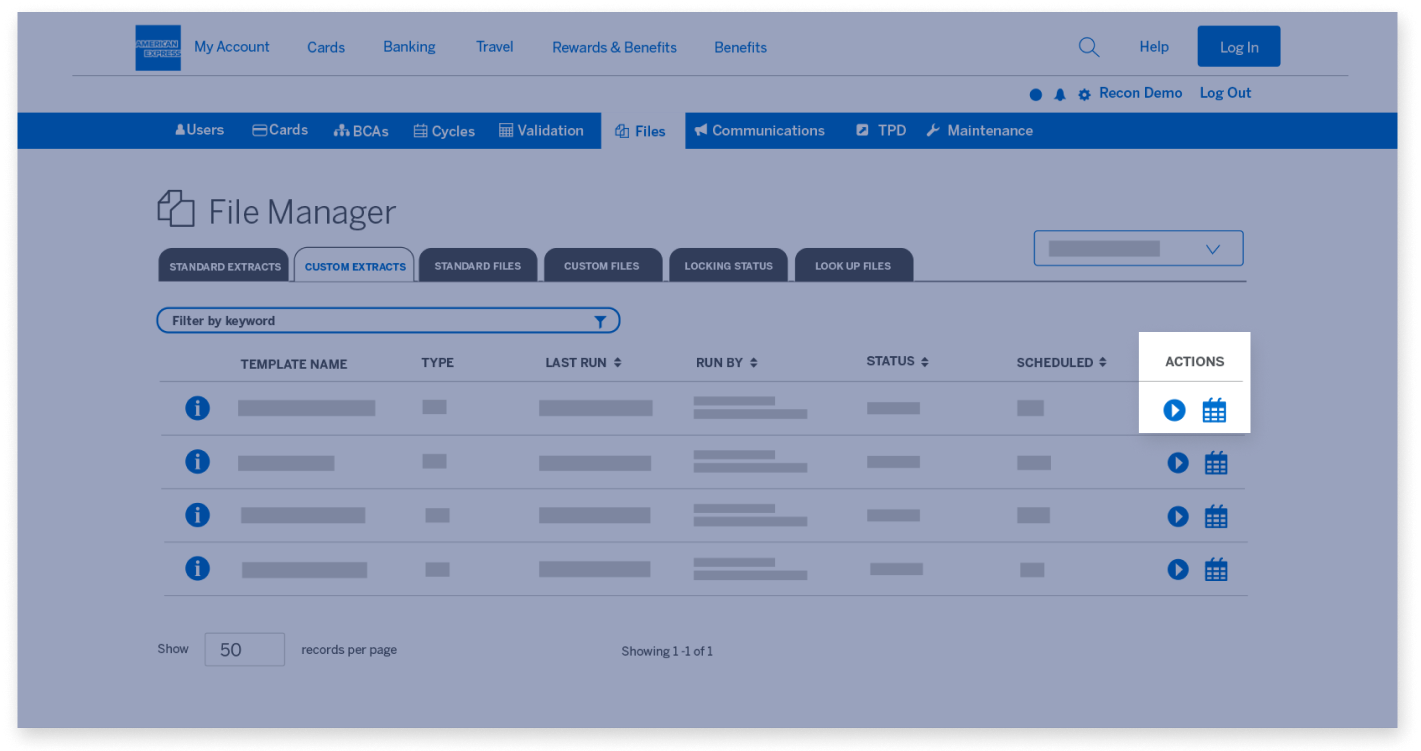
Like the Standard Extracts tab, you can run these manually by clicking the “Play” button under the Actions column.

MANAGE THE EXTRACT OF REPORTS

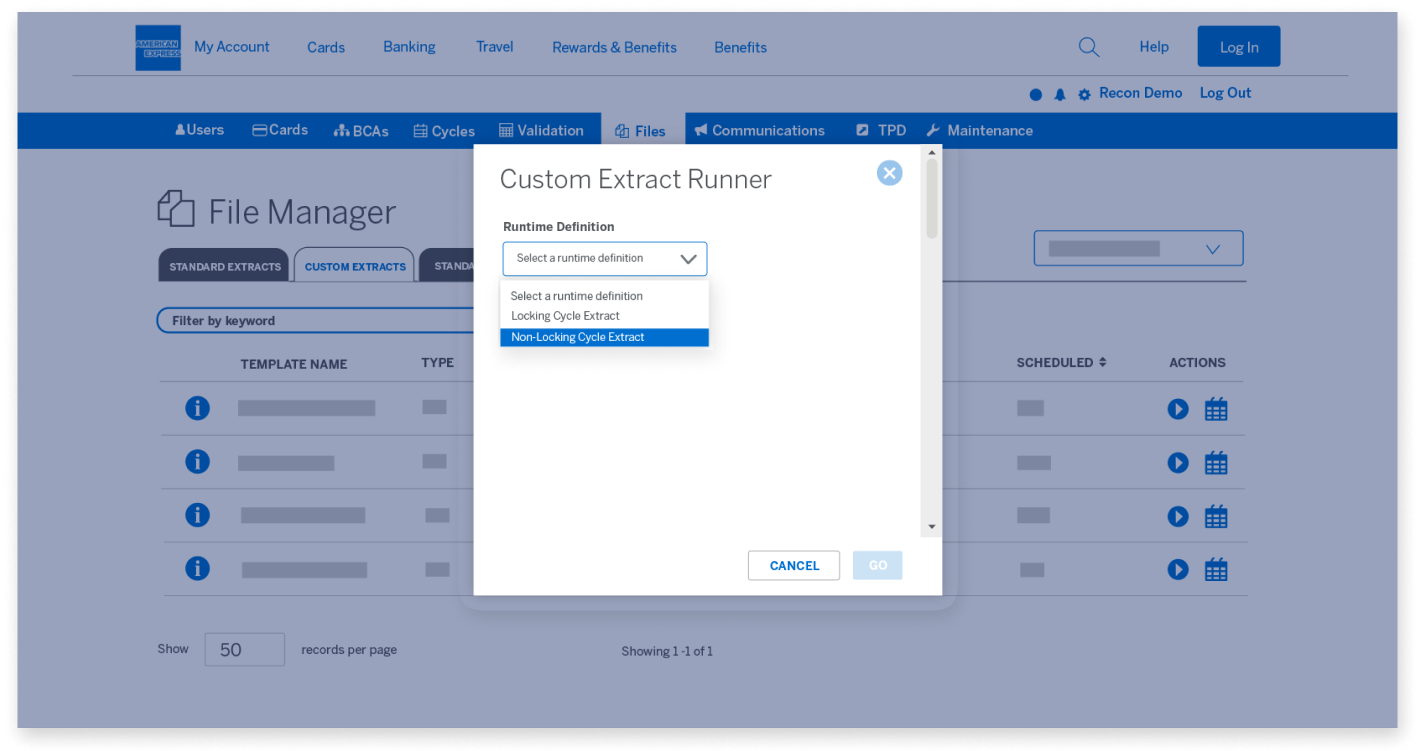
Custom Extracts tab

Once again, you’ll be presented with a pop-up screen to choose the export 
parameters such as Runtime.

MANAGE THE EXTRACT OF REPORTS

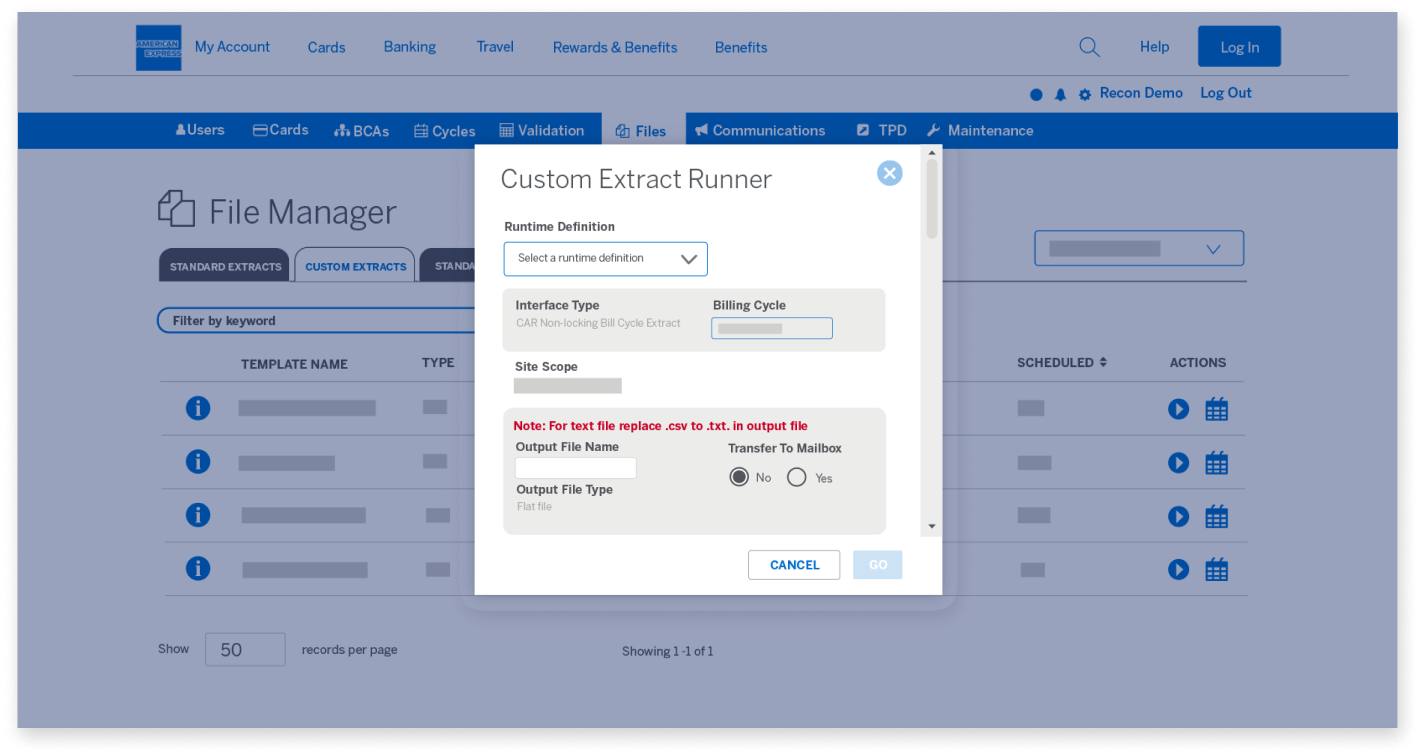
Custom Extracts tab

Other parameters include Billing Cycle and the File Name.

MANAGE THE EXTRACT OF REPORTS

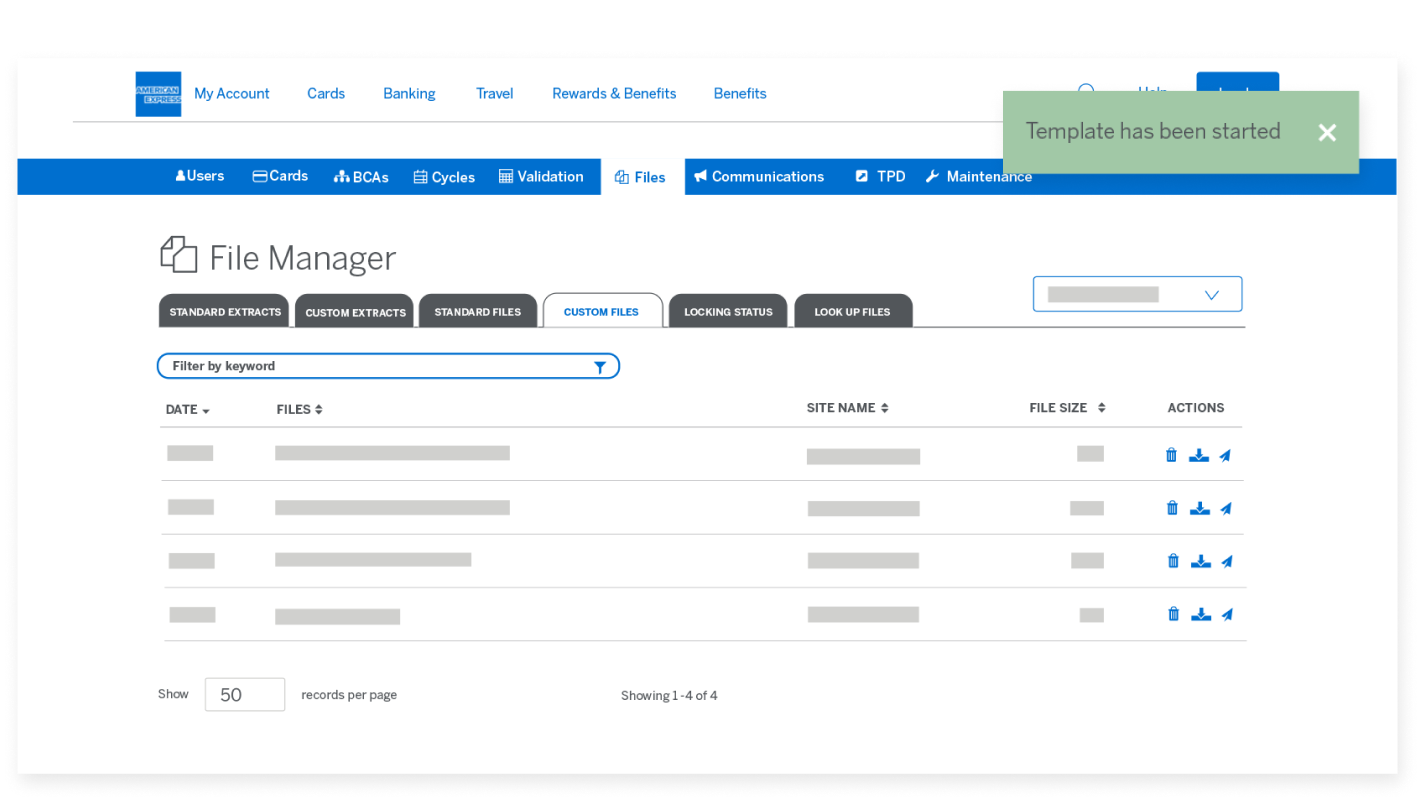
Custom Files tab

Once the extract is complete, you can go to the Custom Files tab.

MANAGE THE EXTRACT OF REPORTS

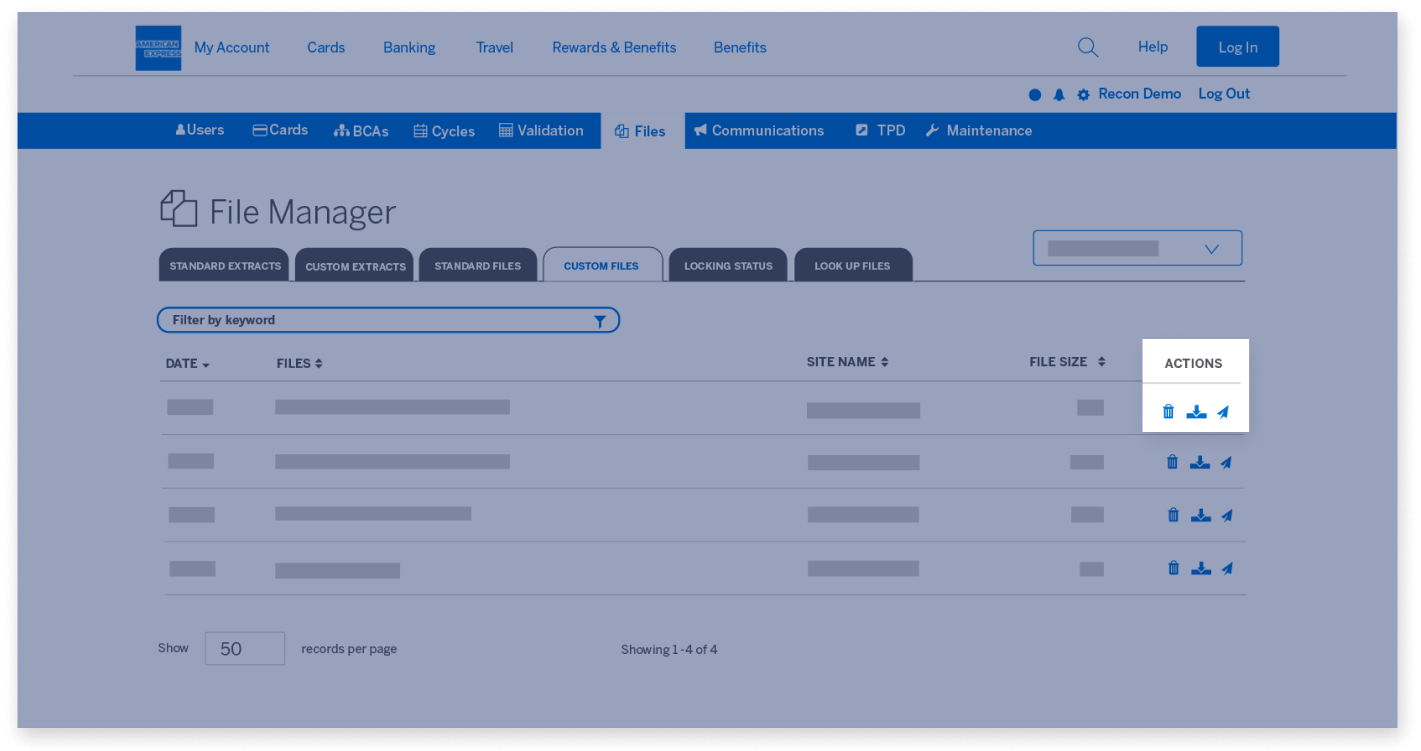
Custom Files tab

From here, you can download the Template to your local device.

MANAGE THE EXTRACT OF REPORTS

Scheduling Extracts

If you want to schedule any of the Standard or Custom extracts to automatically run on a particular schedule, navigate back to the "Standard Extracts" tab.

MANAGE THE EXTRACT OF REPORTS

Scheduling Extracts

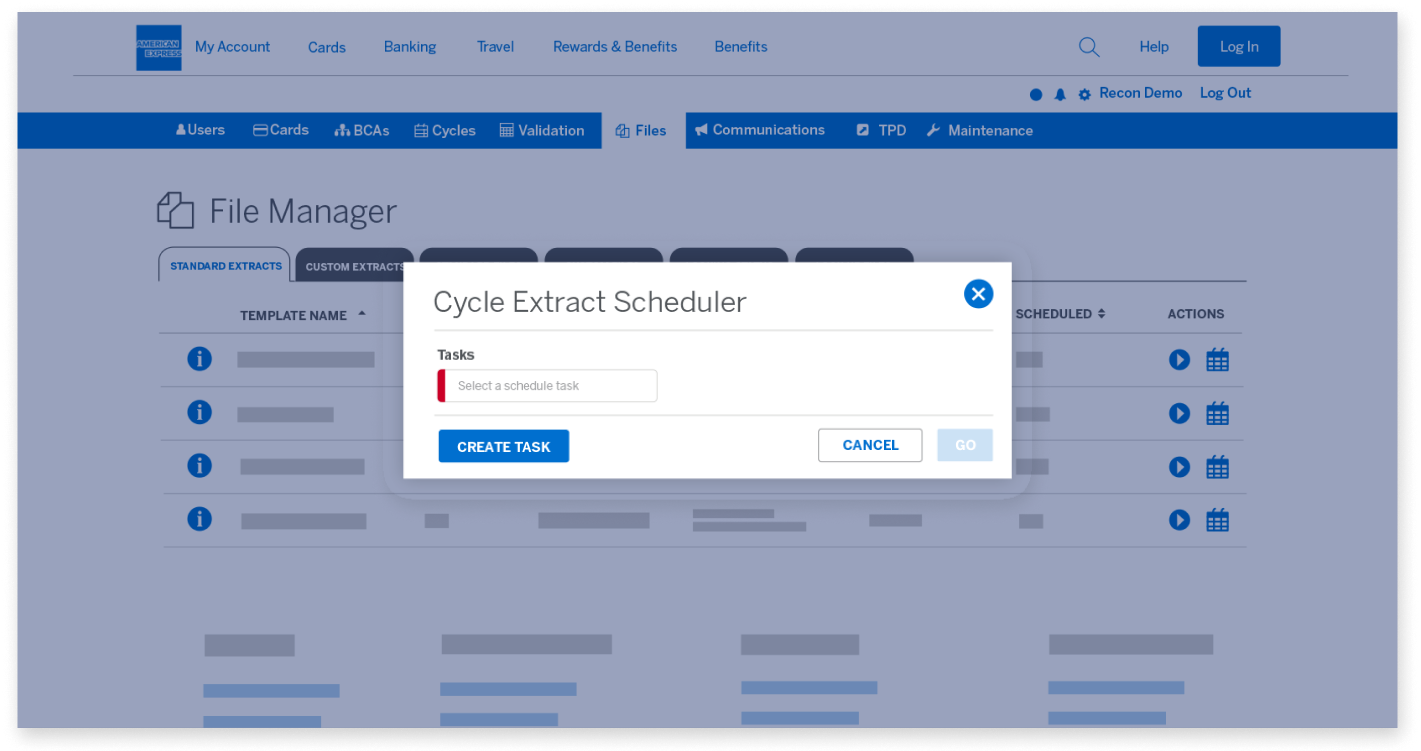
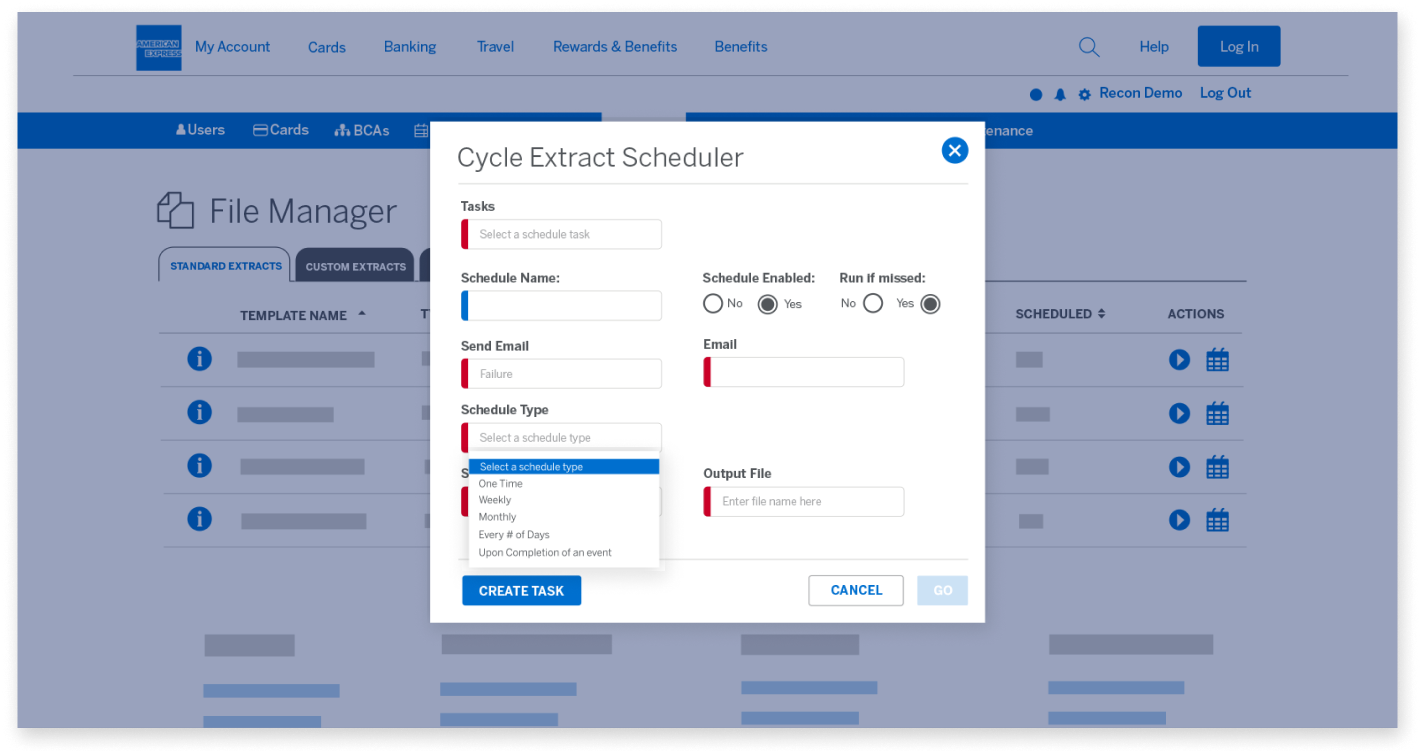
You can schedule Extracts by selecting the “Calendar” icon under the Actions column.

MANAGE THE EXTRACT OF REPORTS

Scheduling Extracts

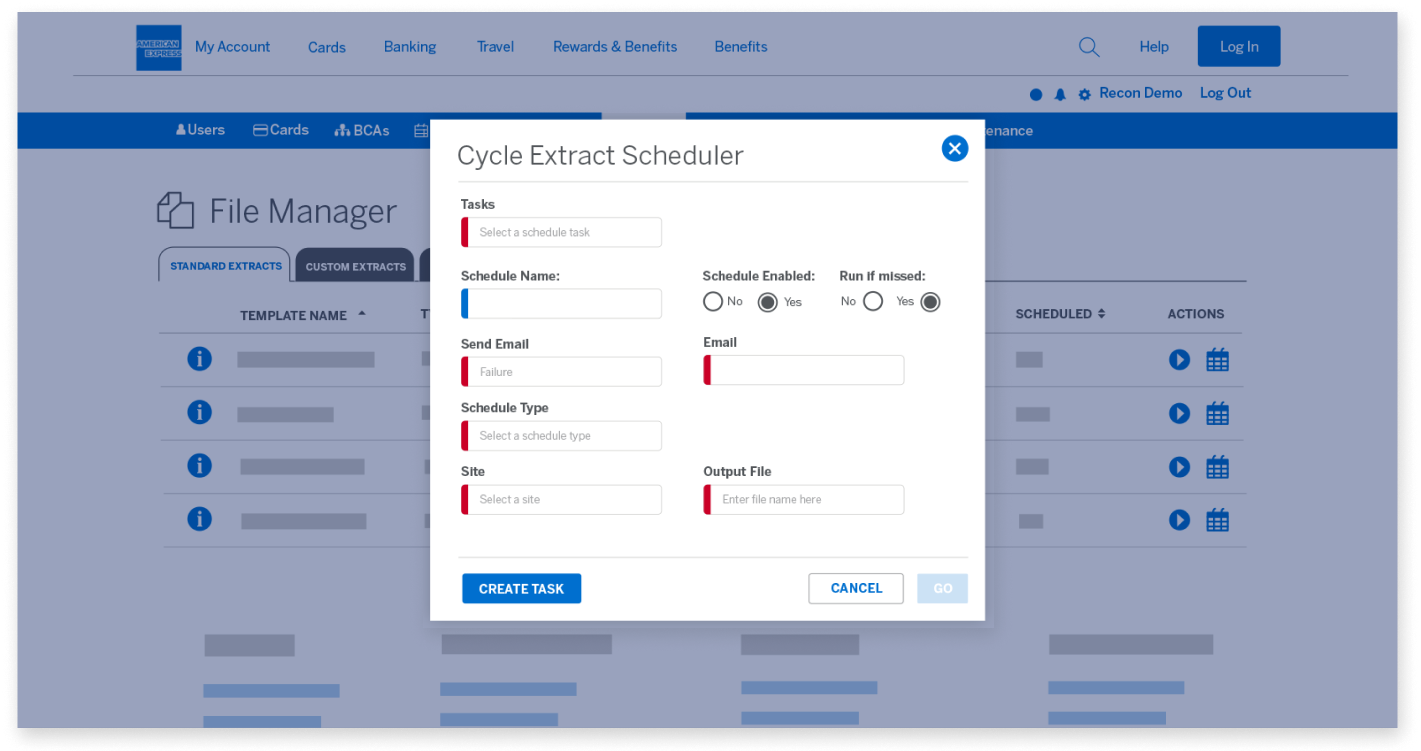
The next step is to create a new task and fill in the relevant details.

MANAGE THE EXTRACT OF REPORTS

Scheduling Extracts

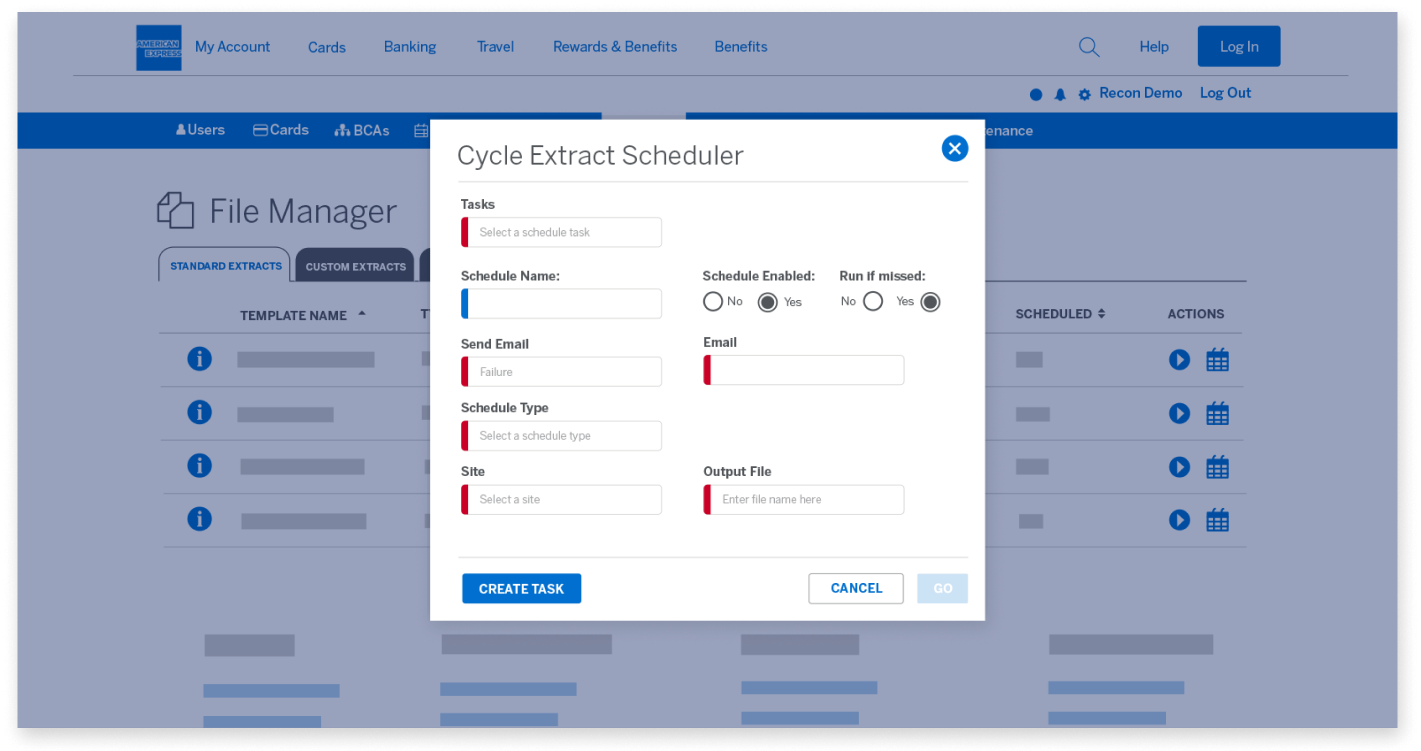
Fill in the “Schedule Name”, “Schedule Type”, and Runtime.

MANAGE THE EXTRACT OF REPORTS

Scheduling Extracts

The Run Time “Schedule Type” will dictate the cadence at which your extracts are run.
It can be set up to run one time, weekly, monthly, or even after particular events.

MANAGE THE EXTRACT OF REPORTS

Scheduling Extracts

Once you have filled in all the relevant information, you can save the schedule.

MANAGE THE EXTRACT OF REPORTS

Scheduling Extracts

On completion, the Scheduled extracts will appear in the same 
Standard or Custom files tabs, just like the manual extracts.

MANAGE THE EXTRACT OF REPORTS

Go to the main menu for more Guided Tours

Next

reports-screen1
reports-screen2
reports-screen3
reports-screen4
reports-screen5
reports-screen6
reports-screen7
reports-screen8
reports-screen9
reports-screen10
reports-screen11
reports-screen12
reports-screen13
reports-screen14
reports-screen15
reports-screen16
reports-screen17
reports-screen18
reports-screen19
reports-screen20
reports-screen21
reports-screen22
reports-screen23
reports-screen24
reports-screen25

Back

MANAGE MERCHANT/MCC ACCOUNTING

Introduction

This session looks at how American Express @ Work® Reconciliation helps automate the reconciliation process by applying default accounting values to either specific Merchants or MCCs, also known as Merchant Category Codes.

MANAGE MERCHANT/MCC ACCOUNTING

Introduction

Beginning from the “Users” tab, select the “Maintenance” tab from the menu bar.

MANAGE MERCHANT/MCC ACCOUNTING

Maintenance tab

You will arrive on the “Maintenance” page.

MANAGE MERCHANT/MCC ACCOUNTING

Maintenance tab

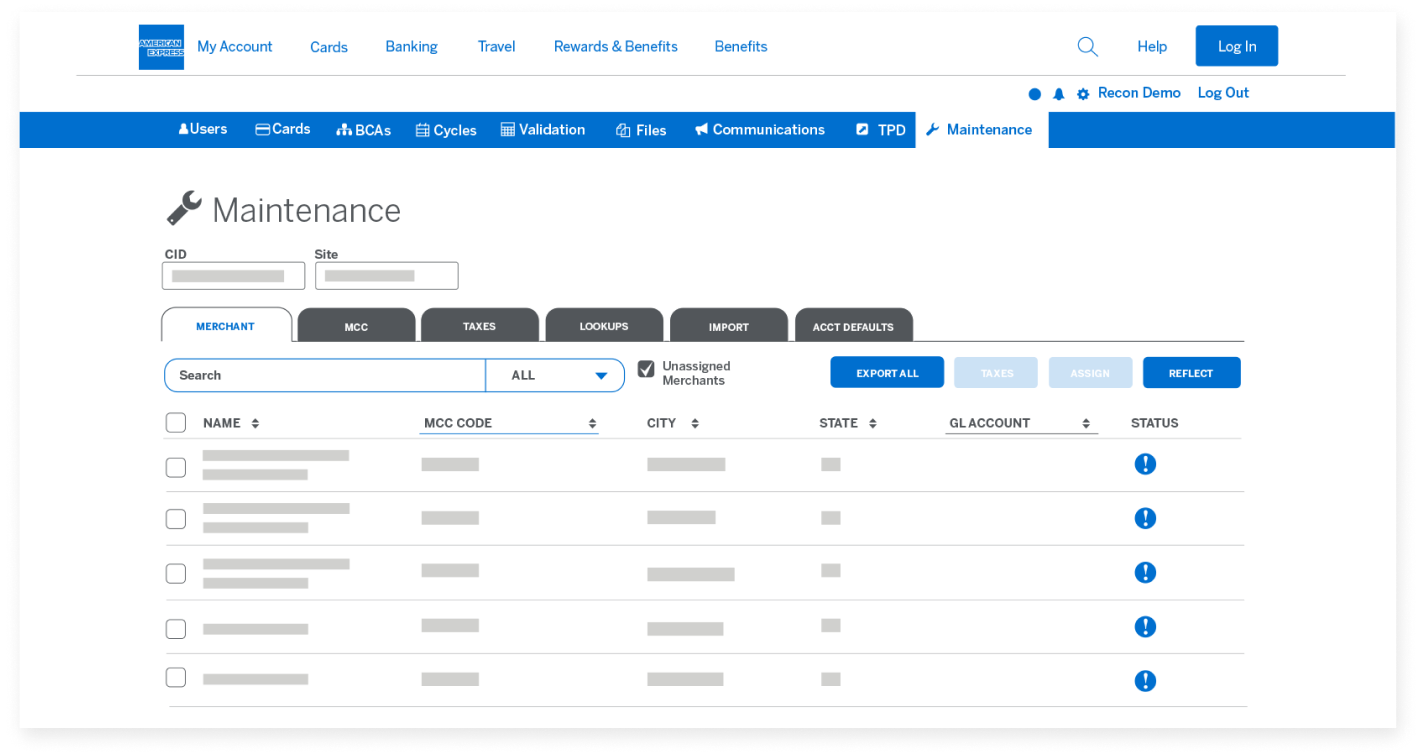
You must first select the CID and the Site you want to apply the default values to.

MANAGE MERCHANT/MCC ACCOUNTING

The Merchant Tab

After making the selection, you arrive at the “Merchant” tab where you can apply default accounting values for a specific merchant. Initially, you will be shown the list of merchants that don’t have default values assigned to them.

MANAGE MERCHANT/MCC ACCOUNTING

The Merchant Tab

If you want to see the full list of merchants, uncheck the “Unassigned Merchants” box at the top of the page.

MANAGE MERCHANT/MCC ACCOUNTING

The Merchant Tab

The list only contains merchants that have been previously used by Card Members of the particular CID and Site. If a merchant is not listed, then no previous transactions have taken place at that merchant location.

MANAGE MERCHANT/MCC ACCOUNTING

The Merchant Tab

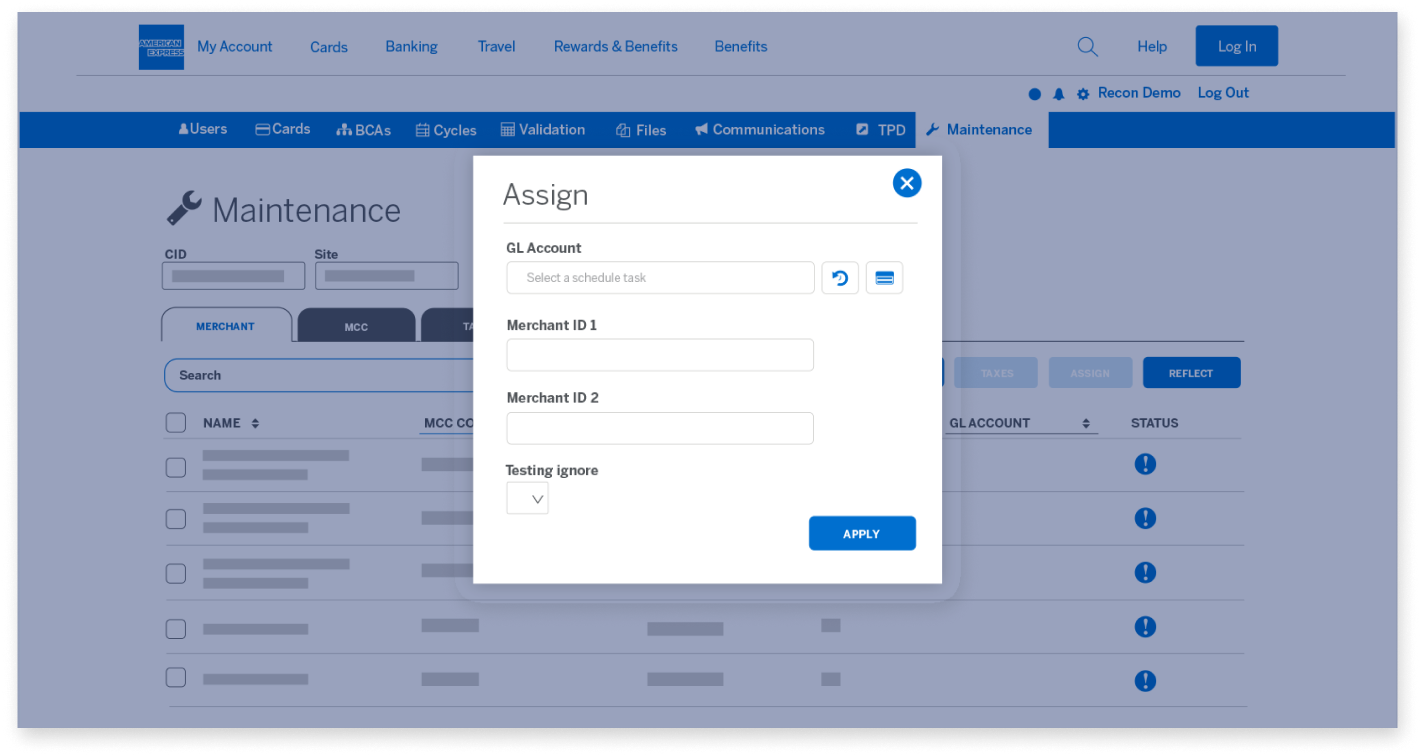
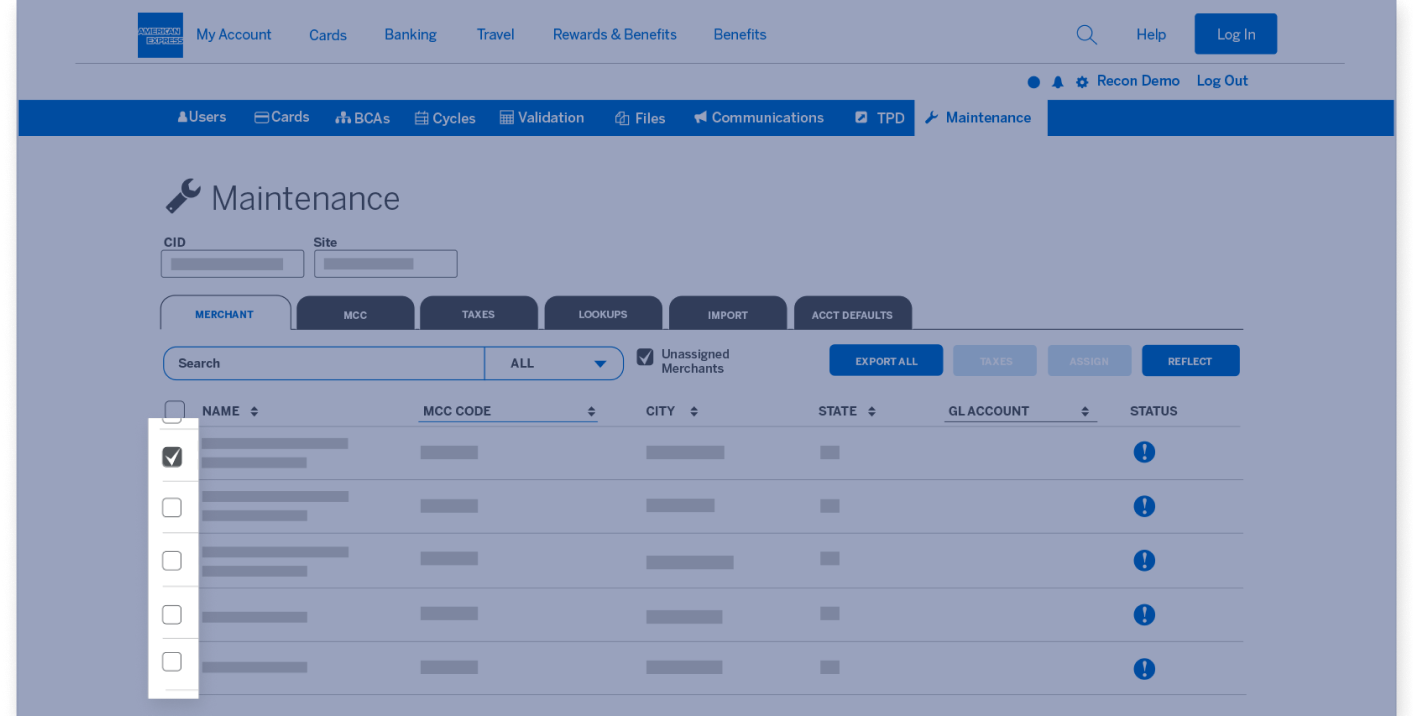
Once you locate the merchant you want to add or update default accounting values for,  check the box to the left of the Name and select the “Assign” button.

MANAGE MERCHANT/MCC ACCOUNTING

The Merchant Tab

This will bring up a window where you can assign one or more default accounting values that will be applied to future transactions with this merchant.

MANAGE MERCHANT/MCC ACCOUNTING

The Merchant Tab

If you want to assign the same defaults to multiple merchants, you can select multiple merchants before selecting the “Assign” button.

MANAGE MERCHANT/MCC ACCOUNTING

The Merchant Tab

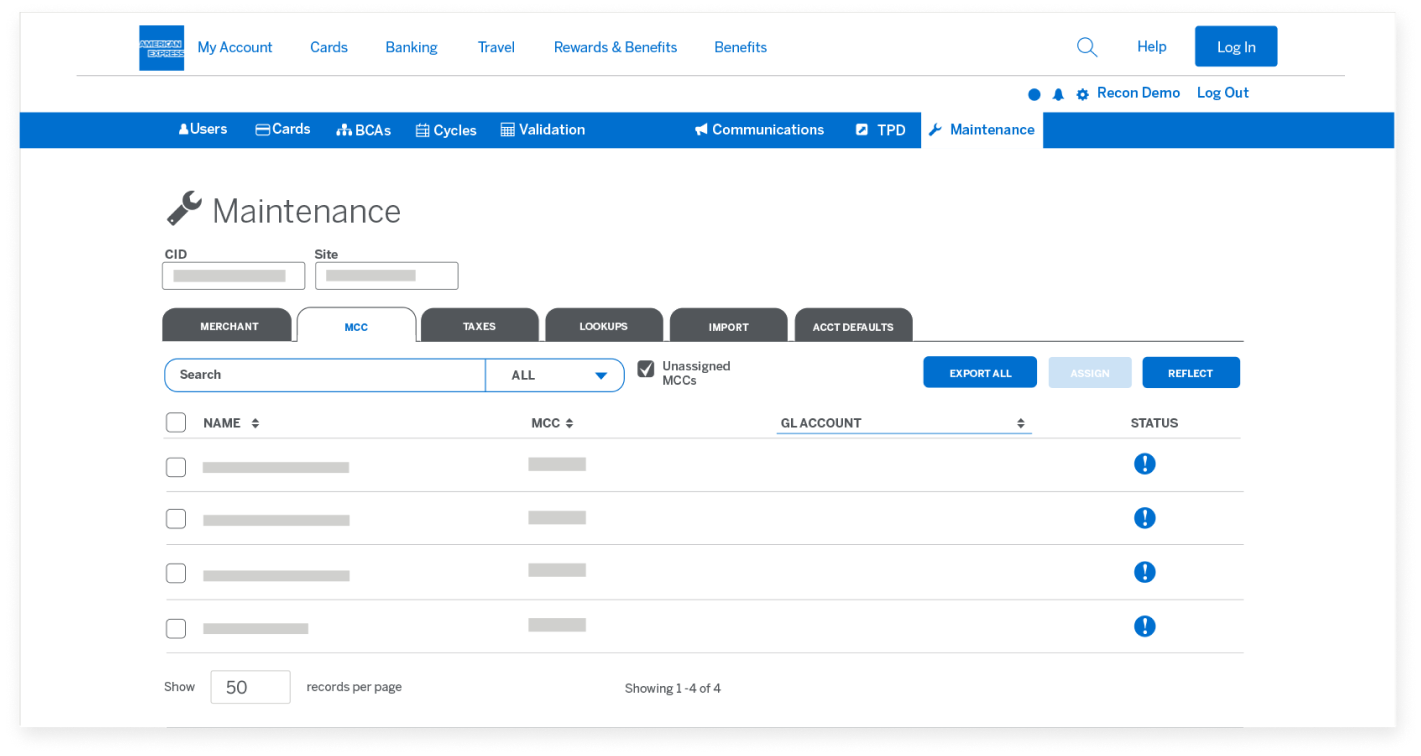
Updating the default accounting values for Merchant Category Codes,
or MCCs, is similar to the update process for merchants.

MANAGE MERCHANT/MCC ACCOUNTING

The Merchant Tab

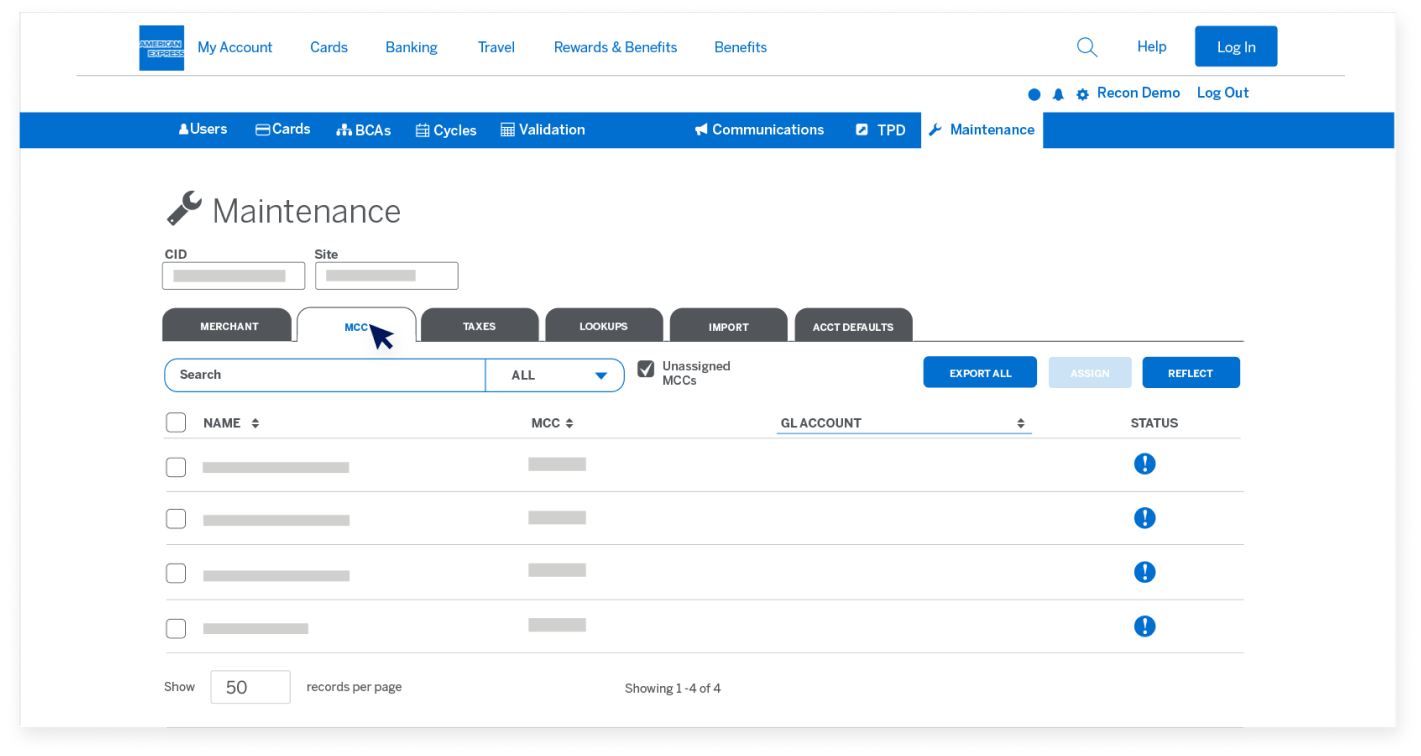
While the “Merchants” tab only displays merchants where the Card has been 
used before, the full list of around 300 MCCs is always available.

MANAGE MERCHANT/MCC ACCOUNTING

The MCC tab

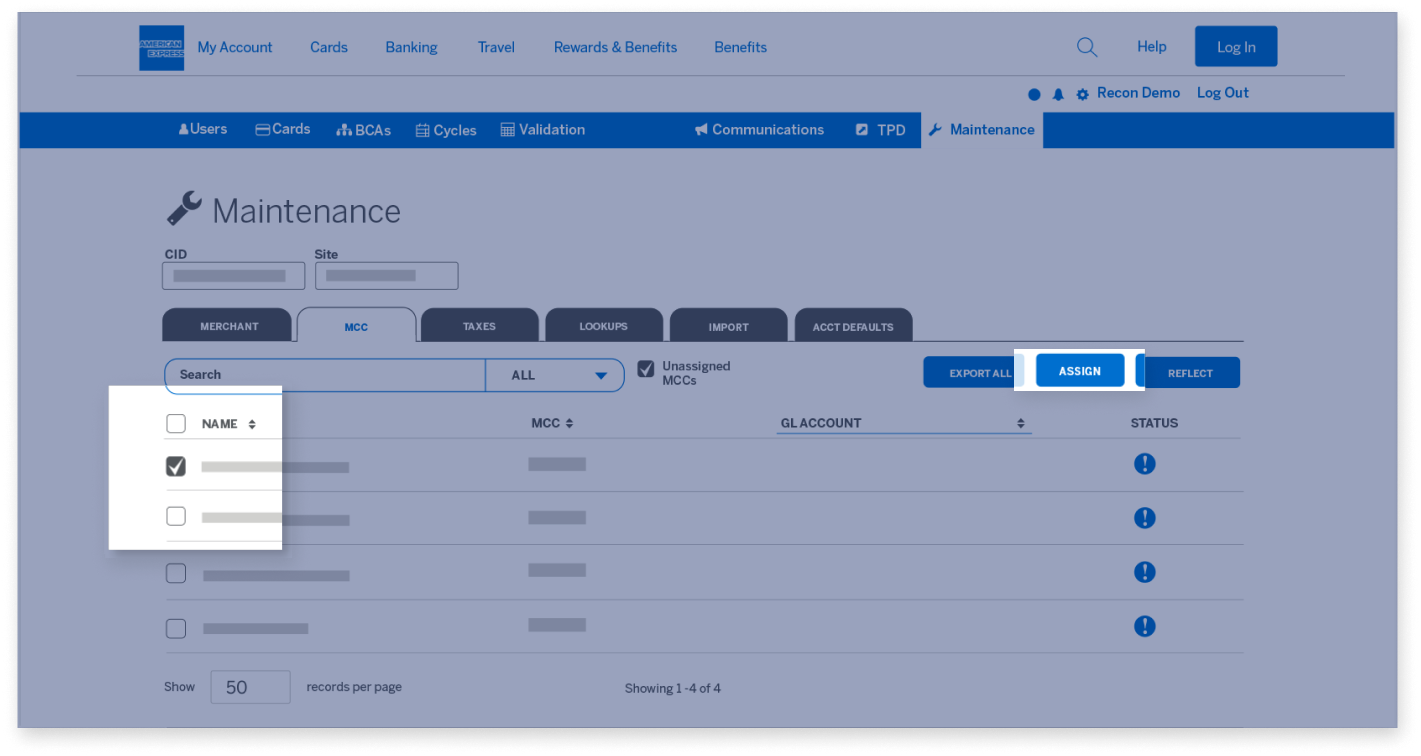
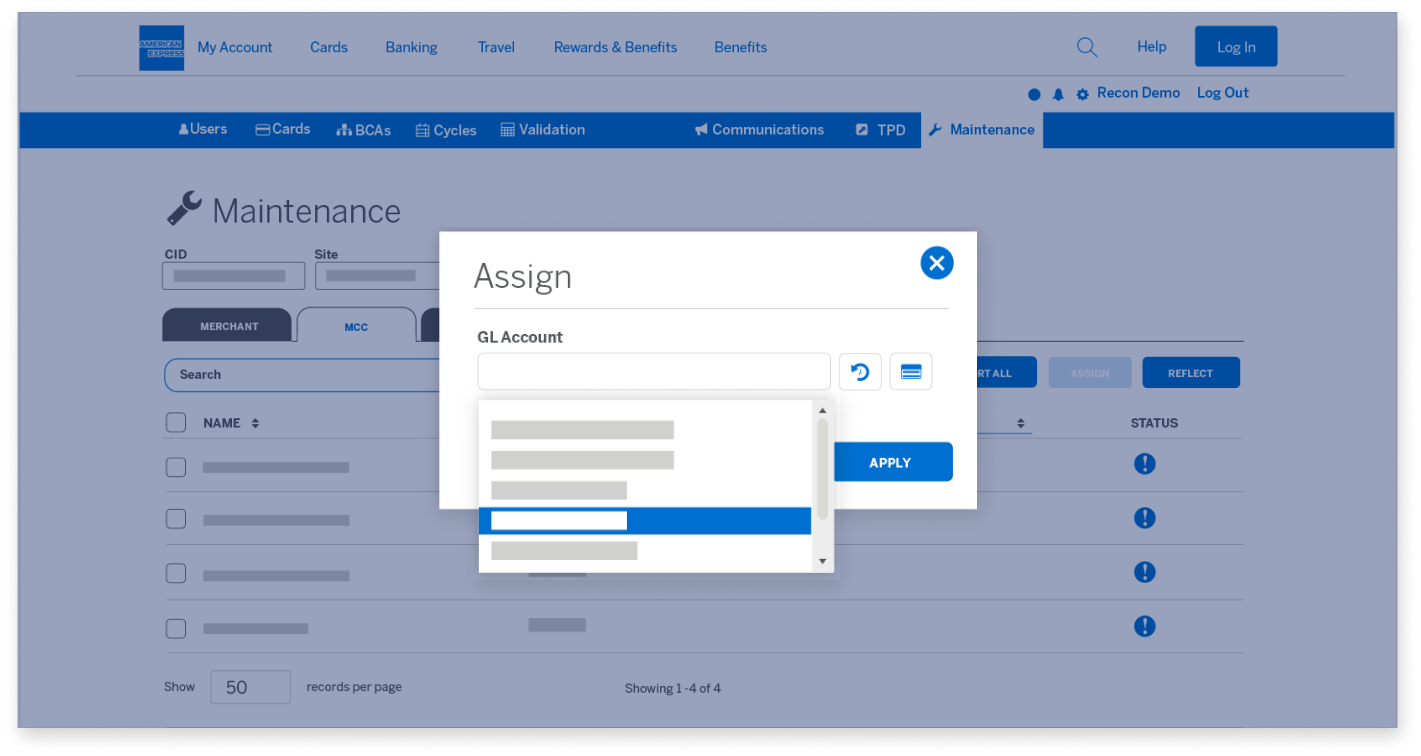
To update the default accounting values, select the MCC or MCCs you want to update 
and click on the “Assign” button.

MANAGE MERCHANT/MCC ACCOUNTING

The MCC tab

Make the necessary changes and then “Apply” the changes to save the updates.

MANAGE MERCHANT/MCC ACCOUNTING

The MCC tab

To update the default accounting values, select the MCC or MCCs you want to update and click on the “Assign” button.

MANAGE MERCHANT/MCC ACCOUNTING

Go to the main menu for more Guided Tours

Next

merchant-screen1
merchant-screen2
merchant-screen3
merchant-screen4
merchant-screen5
merchant-screen6
merchant-screen7
merchant-screen8
merchant-screen9
merchant-screen10
merchant-screen11
merchant-screen12
merchant-screen13
merchant-screen14
merchant-screen15
merchant-screen16

Back

MANAGE AND UPDATE USER PROFILES

Introduction

This session covers User profile maintenance and shows how to update 
and maintain the profiles for all your company’s Users.

MANAGE AND UPDATE USER PROFILES

Introduction

After you log in, the first page you arrive at is the Users page.

MANAGE AND UPDATE USER PROFILES

Introduction

Start by clicking on the User you’d like to update.

MANAGE AND UPDATE USER PROFILES

Updating a User

You’ll see their User details along with the Roles and Permissions assigned to them.

MANAGE AND UPDATE USER PROFILES

Updating a User

To add or delete a Role, click on the checkbox to the left of the role type.

MANAGE AND UPDATE USER PROFILES

Updating a User

To add a new Card, Basic Control Account (BCA), or other permission to the Card Member role, click on the “Plus” button next to the role and you will see a display of Cards 
or other permissions not already assigned to the User.

MANAGE AND UPDATE USER PROFILES

Updating a User

You can filter this list by name or by the last five digits of the Card number. 

MANAGE AND UPDATE USER PROFILES

Updating a User

Once you have found the Card you’d like to add, click on the Card.

MANAGE AND UPDATE USER PROFILES

Updating a User

To remove a Card or other permission, click the “X” at the top right of the corresponding box.

MANAGE AND UPDATE USER PROFILES

Updating a User

Once you’ve made all the updates to the User’s profile, click the 
“Save Changes” button at the top right of the page.

MANAGE AND UPDATE USER PROFILES

Go to the main menu for more Guided Tours

Next

users-screen1
users-screen2
users-screen3
users-screen4
users-screen5
users-screen6
users-screen7
users-screen8
users-screen9
users-screen10
users-screen11

Back

USING THE VALIDATION FUNCTION

Introduction

This session covers the Validation function that allows a User to update their list of valid accounting values which can be used during the allocation process.

USING THE VALIDATION FUNCTION

Introduction

After you log in, the first page you arrive at is the Users page. 

USING THE VALIDATION FUNCTION

The Validation tab

Start by selecting the “Validation” tab. This drop-down will let you choose which type 
of Validation you want to update. You can update “Single”, “Combination”, or “Group Validation” options.

USING THE VALIDATION FUNCTION

The Validation tab

You are only shown the Validation types that have been set up for your company.
For example, if you don’t see “Combination Validation” in your drop-down,
that means your company does not use this type.

USING THE VALIDATION FUNCTION

Validation Maintenance

After selecting the type of Validation you’d like to update, you’ll be asked to “Select a Site”.

USING THE VALIDATION FUNCTION

Validation Maintenance

Validations are specific to each site, so you may need to make updates to multiple sites.

USING THE VALIDATION FUNCTION

Validation Maintenance

Next, you can select the “Accounting Field” or combination that you want to update.

USING THE VALIDATION FUNCTION

Validation Maintenance

Once you’ve made the selections, you will see your list of valid accounting values.

USING THE VALIDATION FUNCTION

Validation Maintenance

To add a new value to your list, select the “Add New” button.

USING THE VALIDATION FUNCTION

Validation Maintenance

Input the “Value” and “Description”, and then click the “Save” button.

USING THE VALIDATION FUNCTION

Validation Maintenance

If you want to modify an existing value, you can select the edit or delete buttons under the “Actions” column. To update the value, select the “pencil” icon.

USING THE VALIDATION FUNCTION

Validation Maintenance

To delete a particular value, select the “trash” icon and then 
confirm your selection by clicking “OK”.

USING THE VALIDATION FUNCTION

Validation Maintenance

If you want to make a large number of modifications to your Validation list,
you can import a CSV file. You can import a new file or export your existing list, making the necessary changes and uploading the modified list.

USING THE VALIDATION FUNCTION

Validation Maintenance

After selecting “Validation File Import”,...

USING THE VALIDATION FUNCTION

Validation File Import

...you will arrive at the “Validation File Import” page.

USING THE VALIDATION FUNCTION

Validation File Import

You will again be prompted to enter your “Site”, “File Type”, and “Accounting Field”.

USING THE VALIDATION FUNCTION

Validation File Import

Next, you will choose your “Load Method”. You can choose to “Replace” the
existing list with your new file, “Add only” new values from the file, or “Delete only” a specific list of values from the file.

USING THE VALIDATION FUNCTION

Validation File Import

Now that you’ve made the necessary selections, you can import the file from your local device.

USING THE VALIDATION FUNCTION

Validation File Import

Once the file has been successfully uploaded, you will be able to see those changes on the Validation page.

USING THE VALIDATION FUNCTION

Go to the main menu for more Guided Tours

Next

build-reports-screen1
build-reports-screen2
build-reports-screen3
build-reports-screen4
build-reports-screen5
build-reports-screen6
build-reports-screen7
build-reports-screen8
build-reports-screen9
build-reports-screen10
build-reports-screen11
build-reports-screen12
build-reports-screen13
build-reports-screen14
build-reports-screen15
build-reports-screen16
build-reports-screen17
build-reports-screen18
build-reports-screen19
build-reports-screen20

Back

@ WORK RECONCILIATION END USER MODULE

Introduction

This session is intended to serve as a reference guide to assist with the most commonly used functions of the American Express @ Work Reconciliation End User module.

@ WORK RECONCILIATION END USER MODULE

Viewing Transactions for a Billing Cycle

Log in at reconciliation.americanexpress.com.
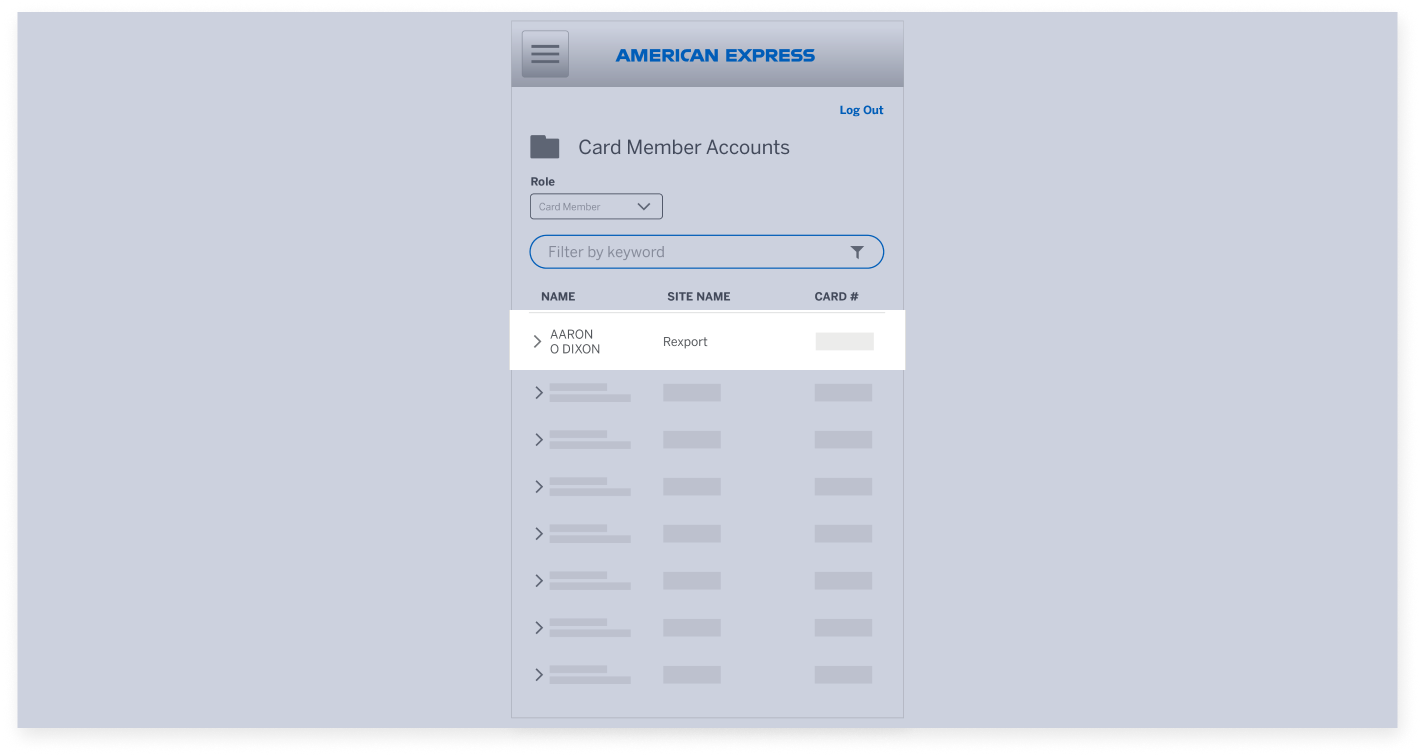
The first screen will show your Accounts Summary. 

@ WORK RECONCILIATION END USER MODULE

Viewing Transactions for a Billing Cycle

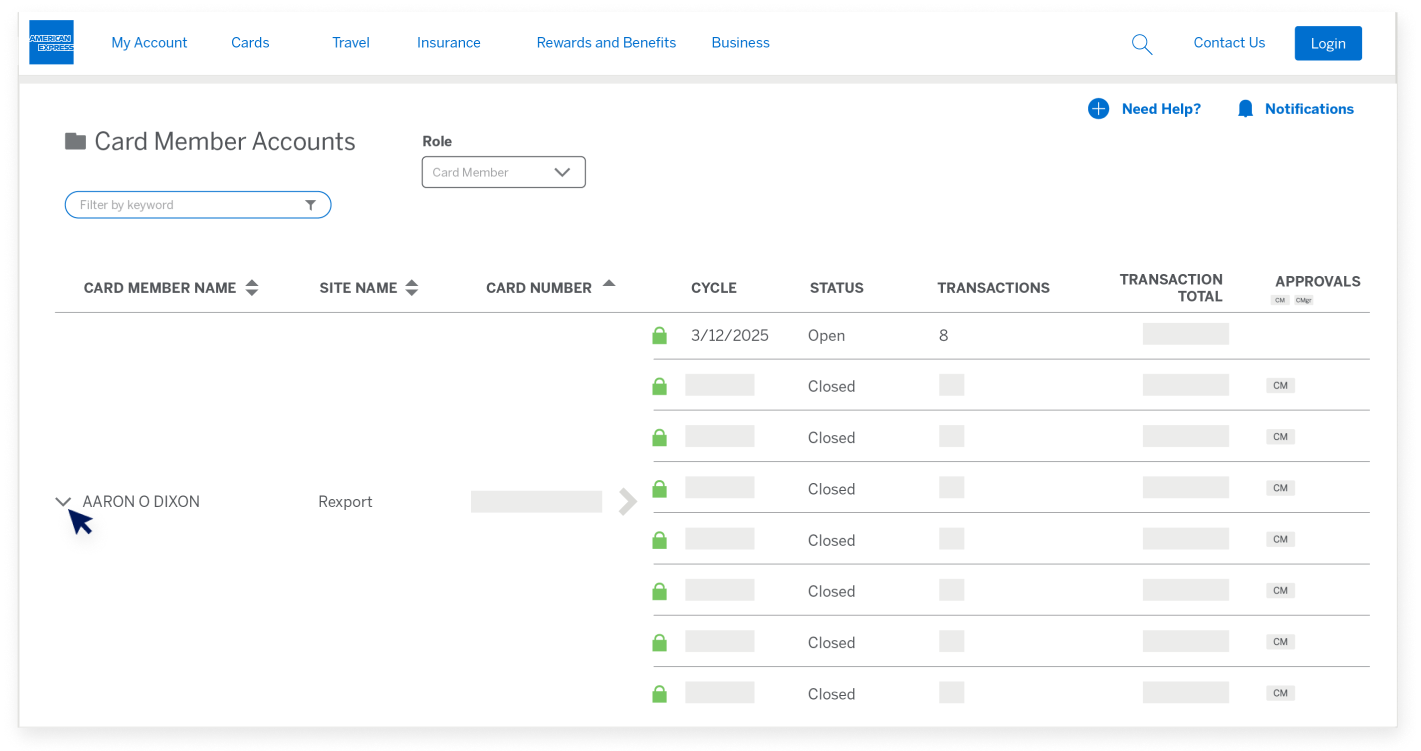
If you have more than one Card account enrolled for @ Work Reconciliation, they will show as a list.

@ WORK RECONCILIATION END USER MODULE

Viewing Transactions for a Billing Cycle

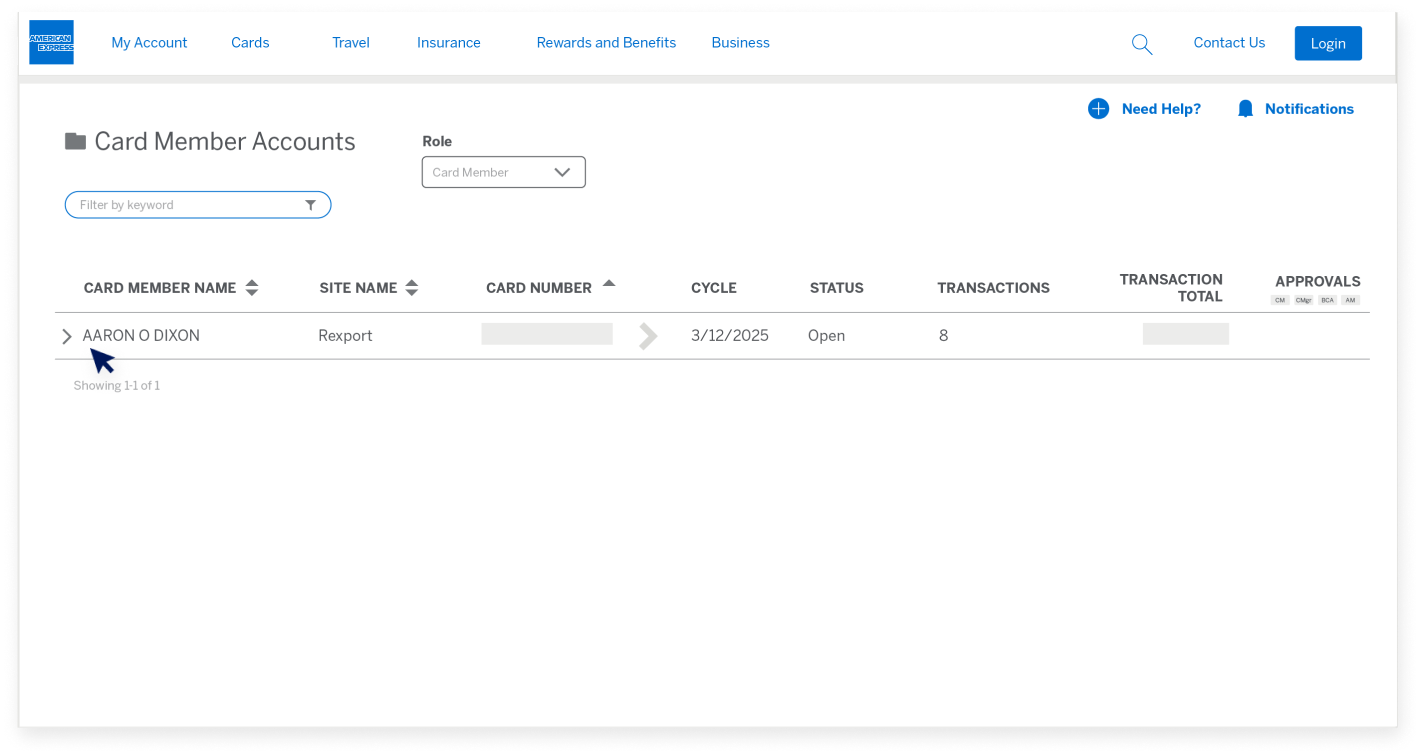
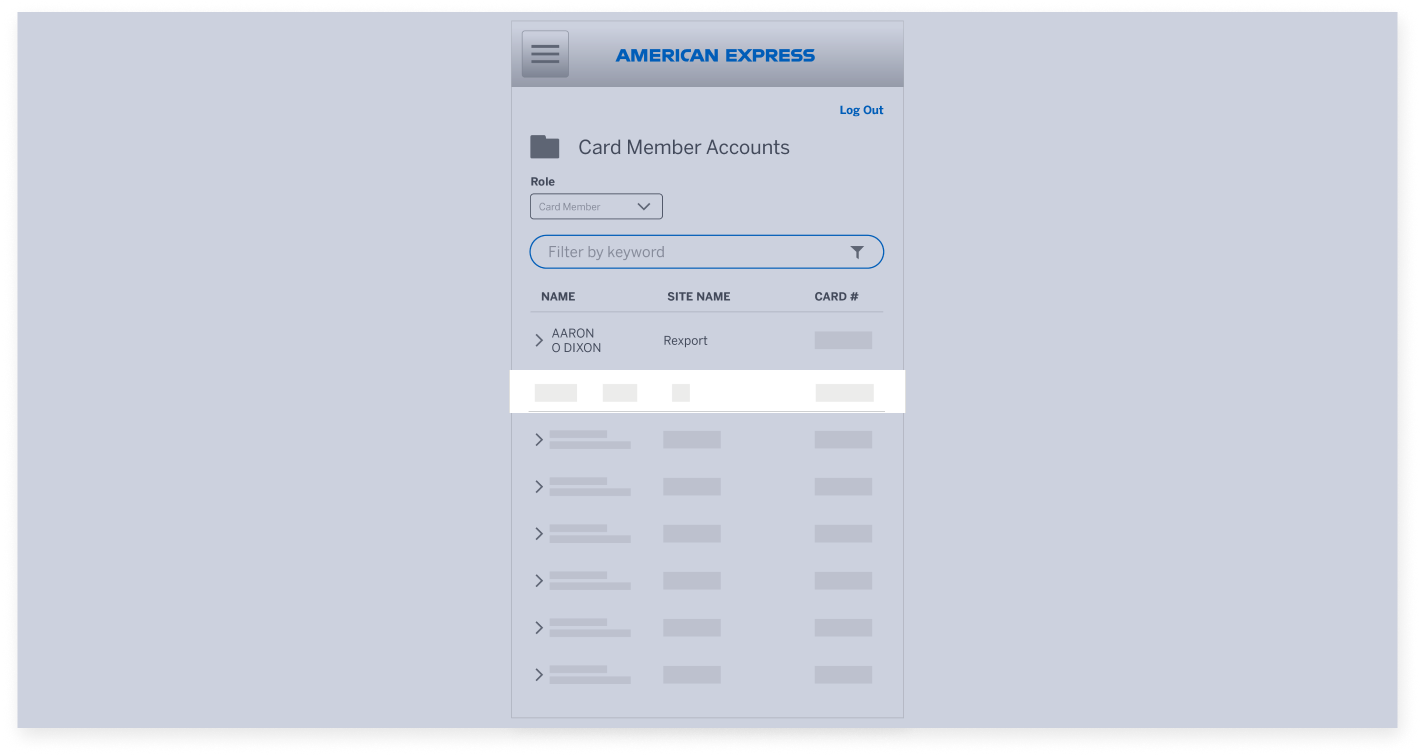
Initially, only the most recent Billing Cycle will show for each Card. You can click on the left half of the line to expand this view to show up to the last 13 Billing Cycles.

@ WORK RECONCILIATION END USER MODULE

Viewing Transactions for a Billing Cycle

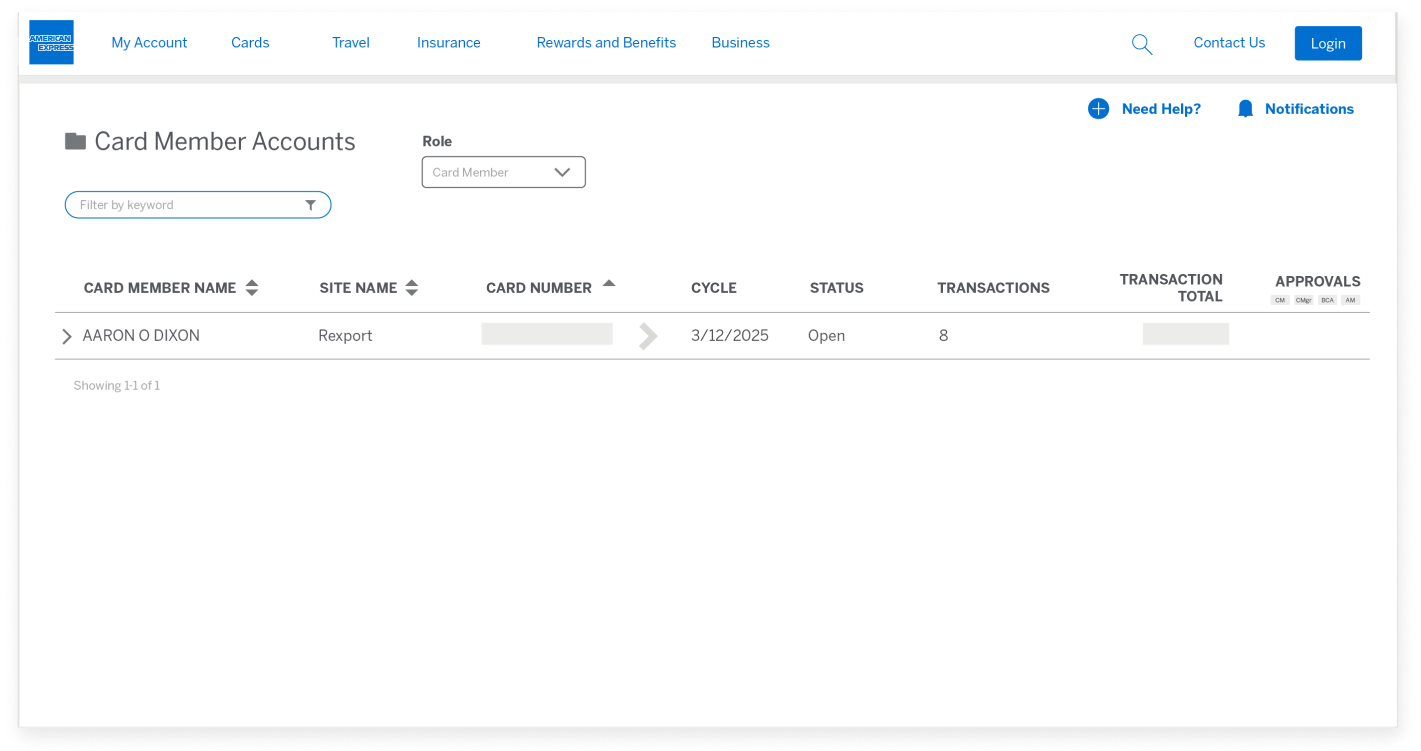
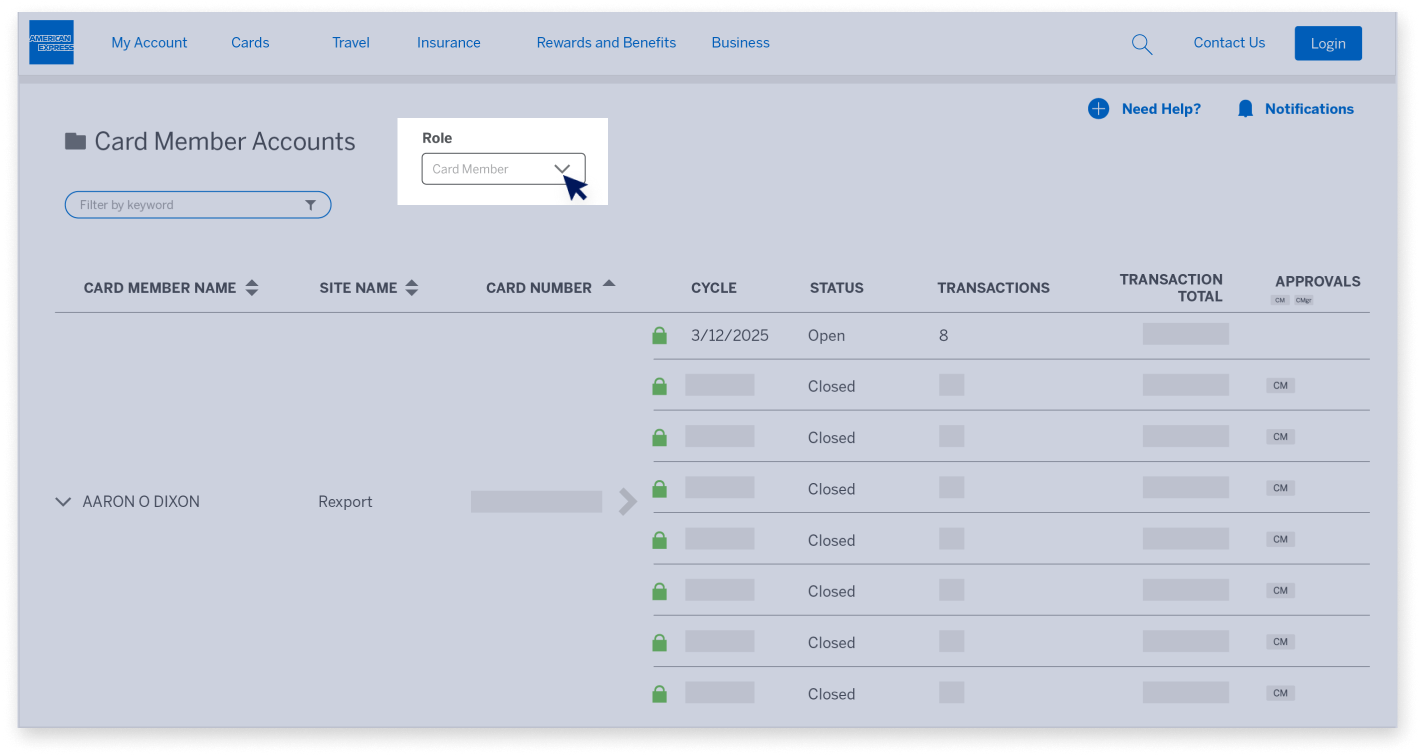
If you have multiple roles, you can use the Role dropdown to toggle between the roles.

@ WORK RECONCILIATION END USER MODULE

Viewing Transactions for a Billing Cycle

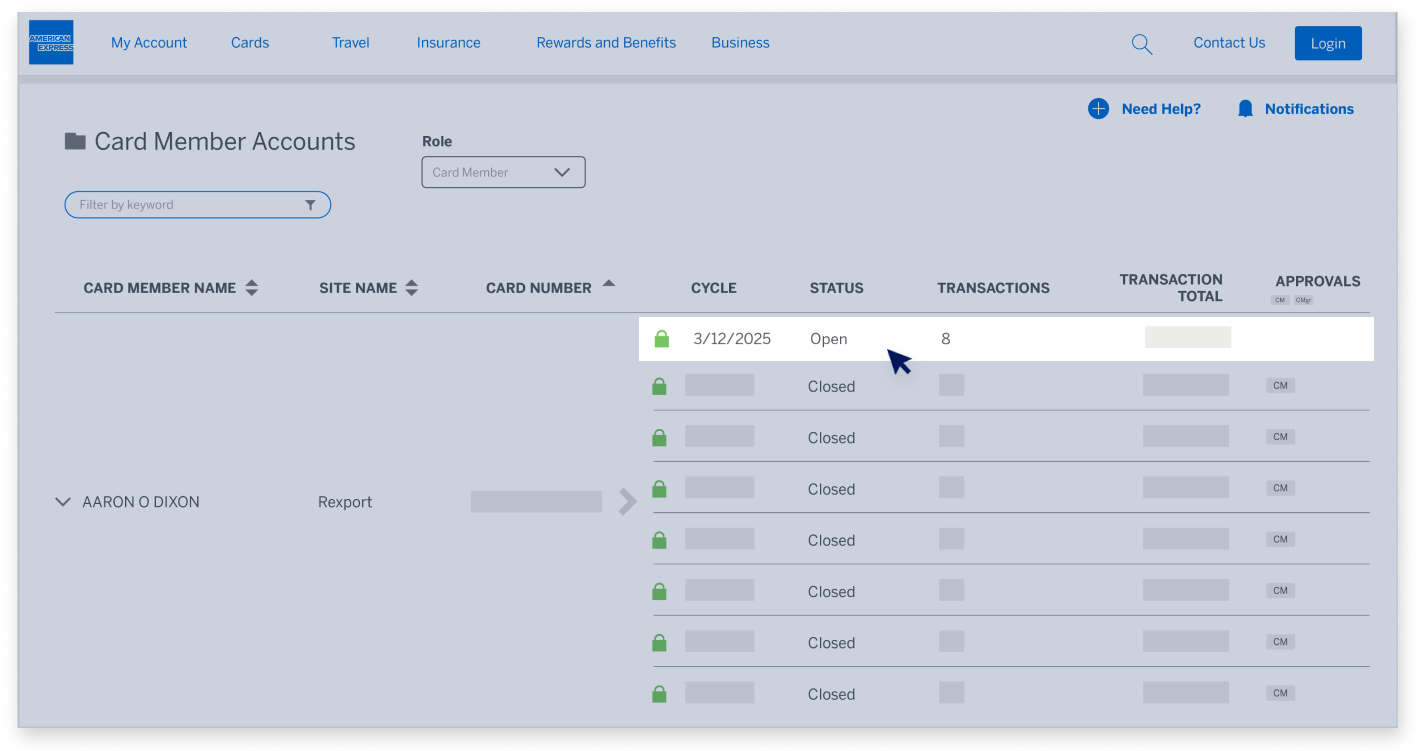
Next, click on the desired Billing Cycle on the right to go to the Transaction List View for that cycle.

@ WORK RECONCILIATION END USER MODULE

Transaction List View Details

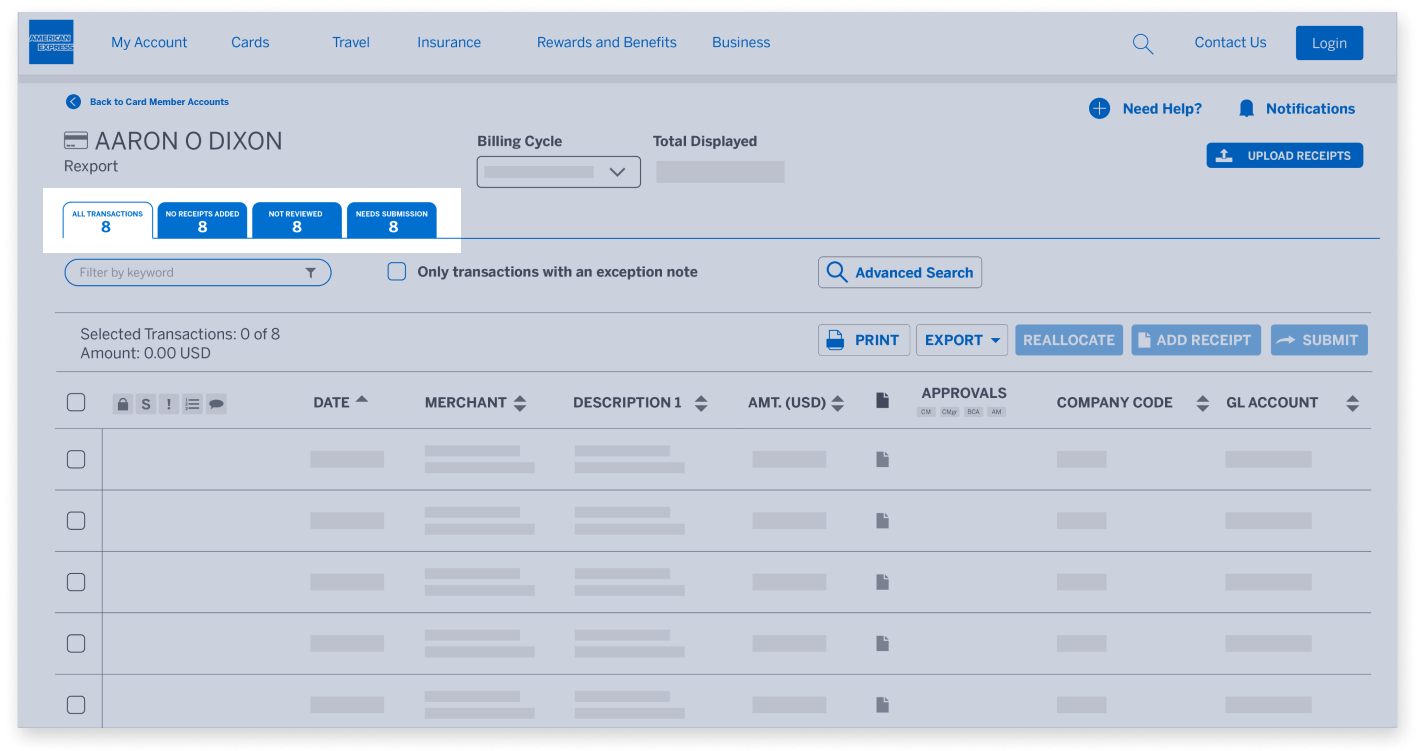
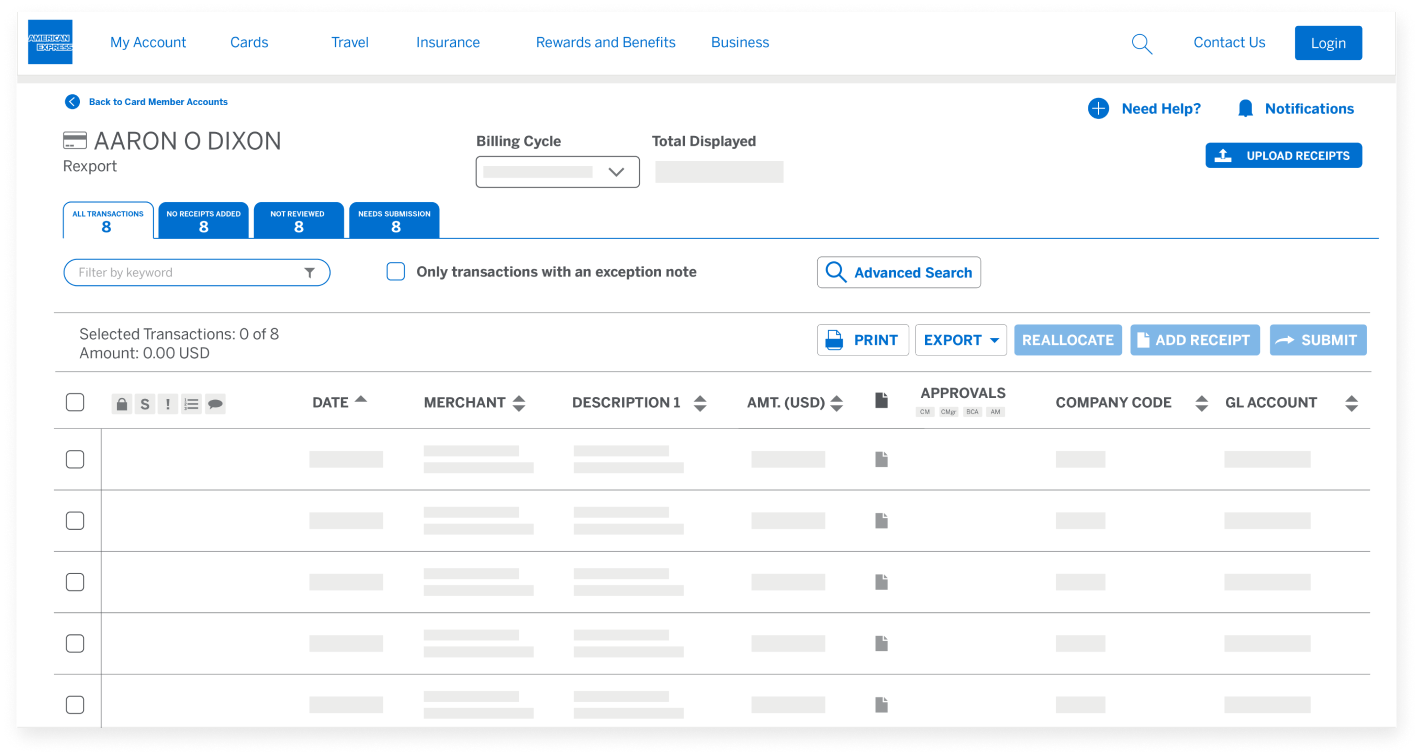
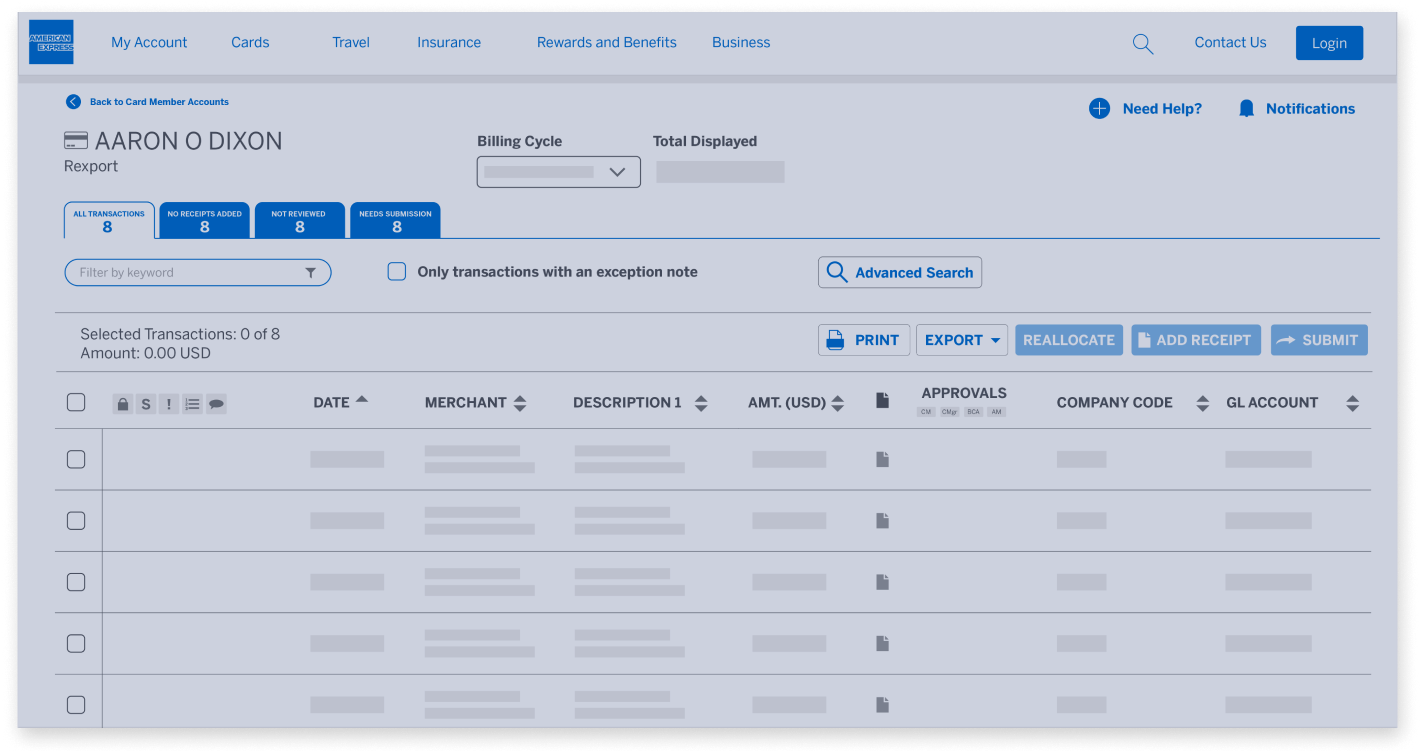
The tabs act as filters for the transactions and will be displayed depending on your role and on the business rule choices determined by your company.

@ WORK RECONCILIATION END USER MODULE

Transaction List View Details

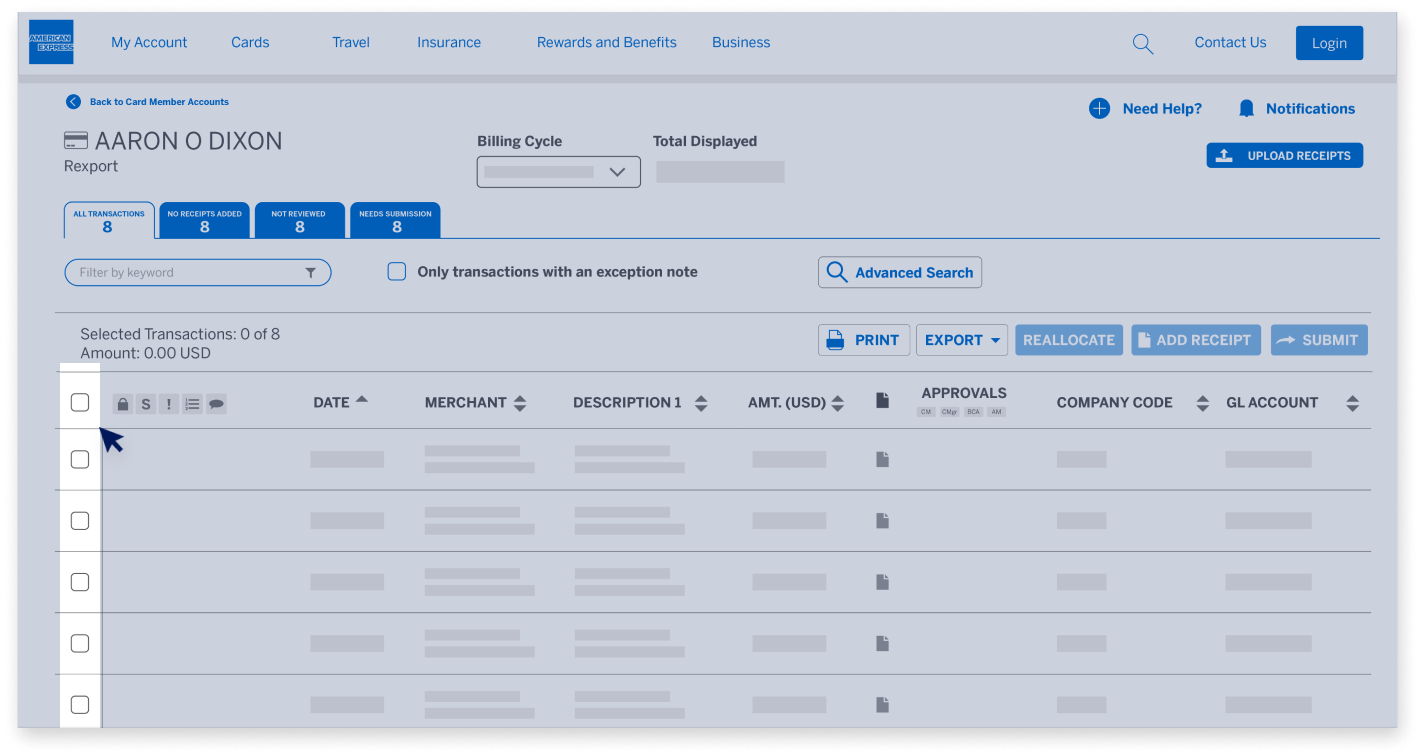
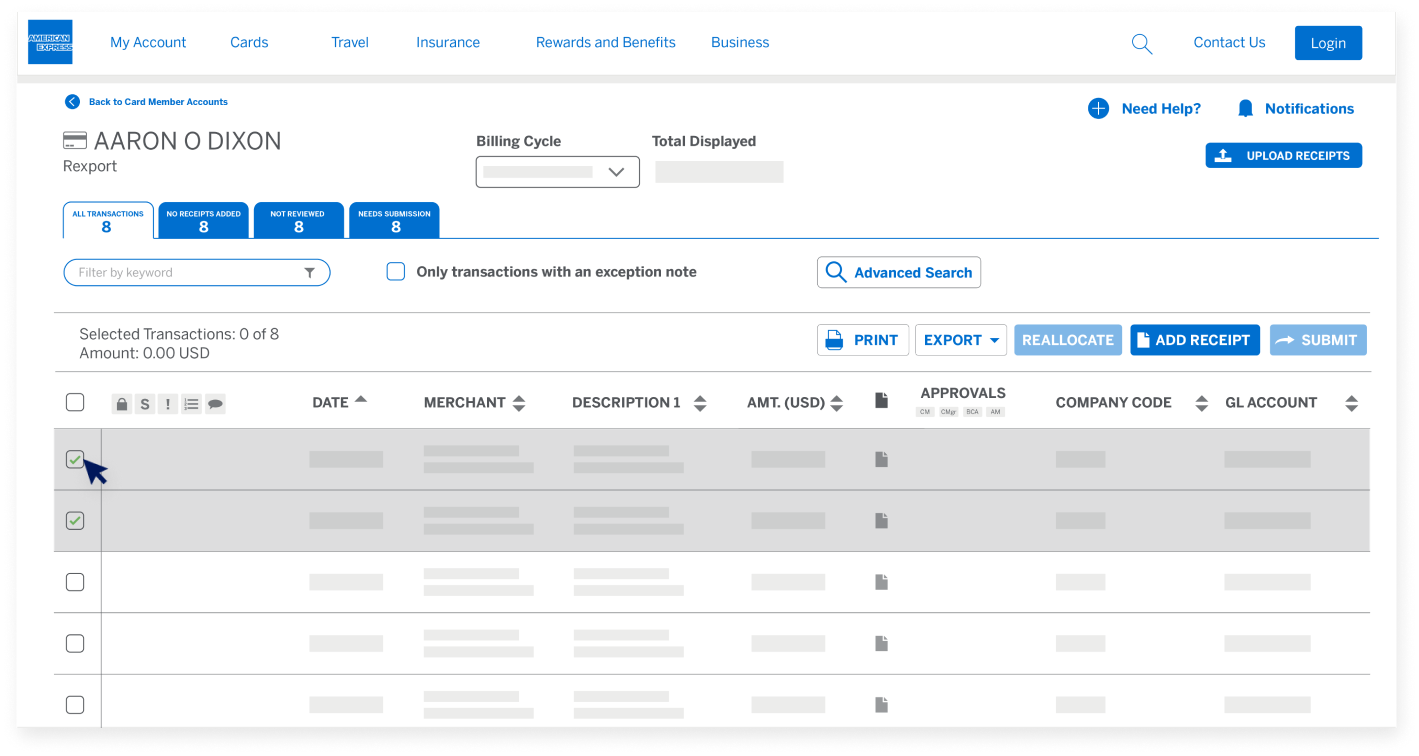
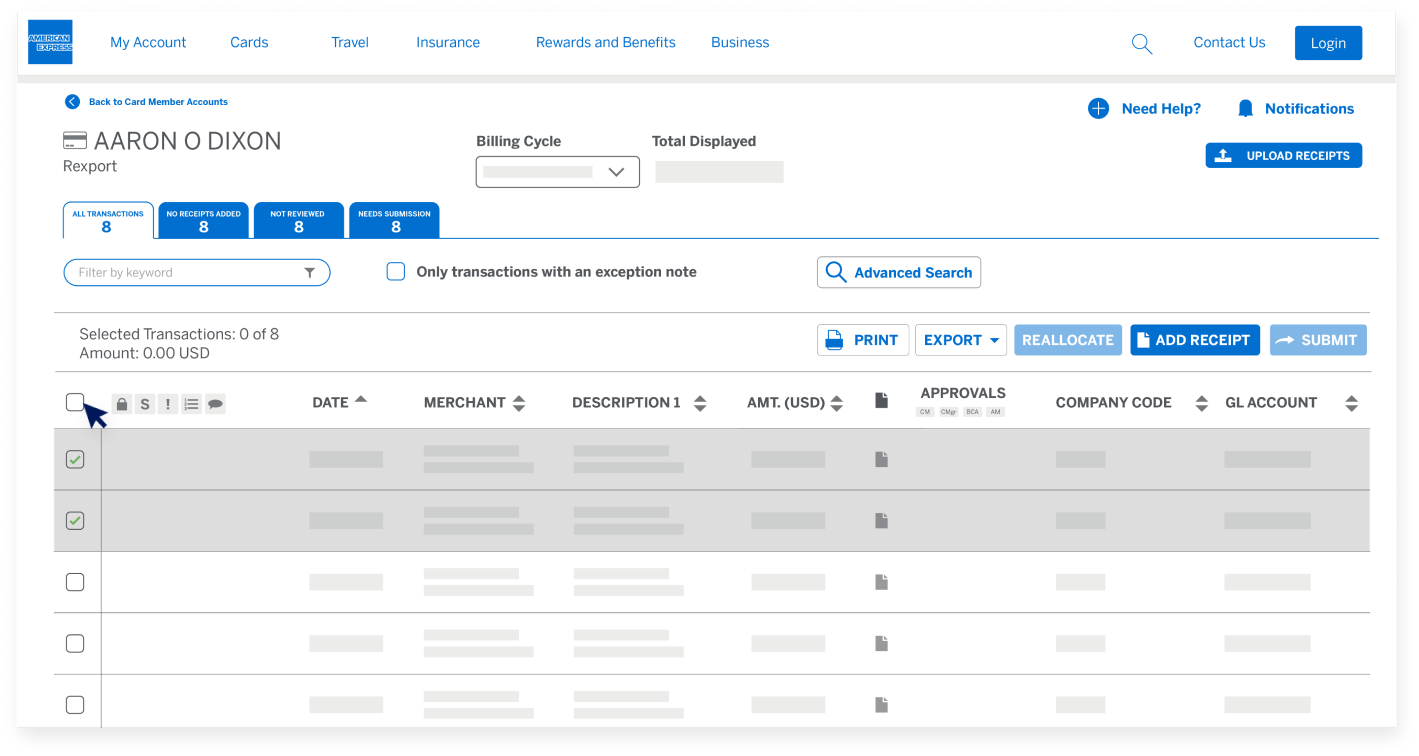
The leftmost column of checkboxes is for Transaction Selection. Your company may permit you to select more than one transaction or all transactions on the screen.

@ WORK RECONCILIATION END USER MODULE

Transaction List View Details

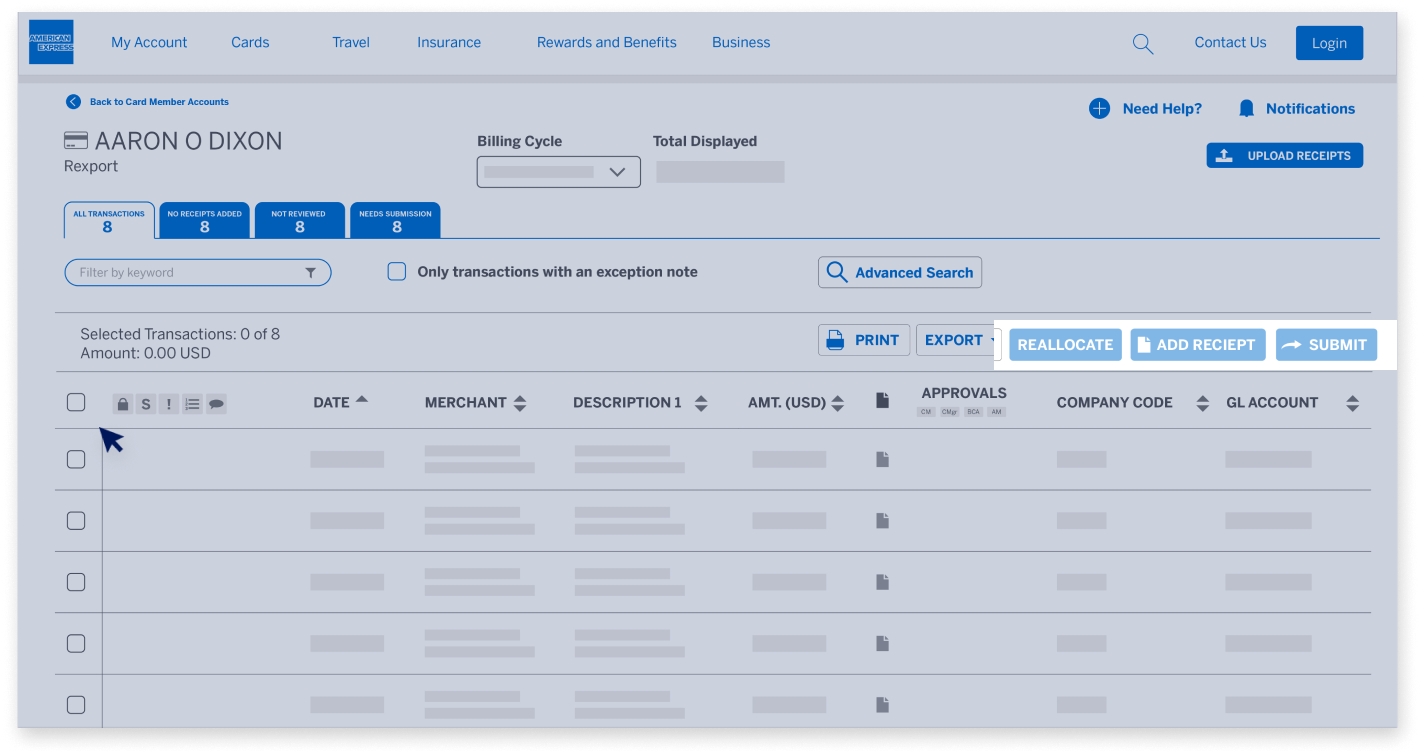
Your company may permit you to make mass changes for approvals, receipts, or reallocations.

@ WORK RECONCILIATION END USER MODULE

Transaction List View Details

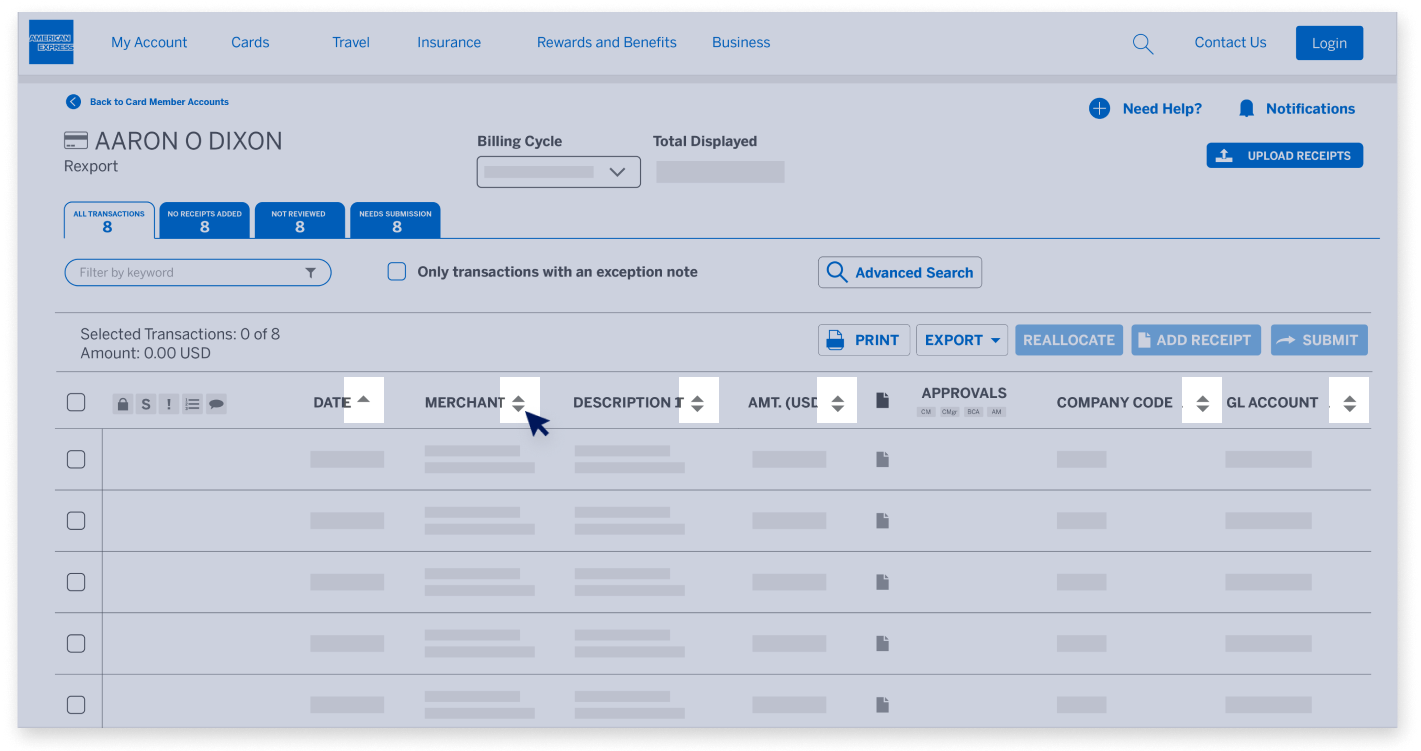
Columns are sortable, and the arrow icon will indicate if they are sorted in ascending or descending order.

@ WORK RECONCILIATION END USER MODULE

Transaction List View Details

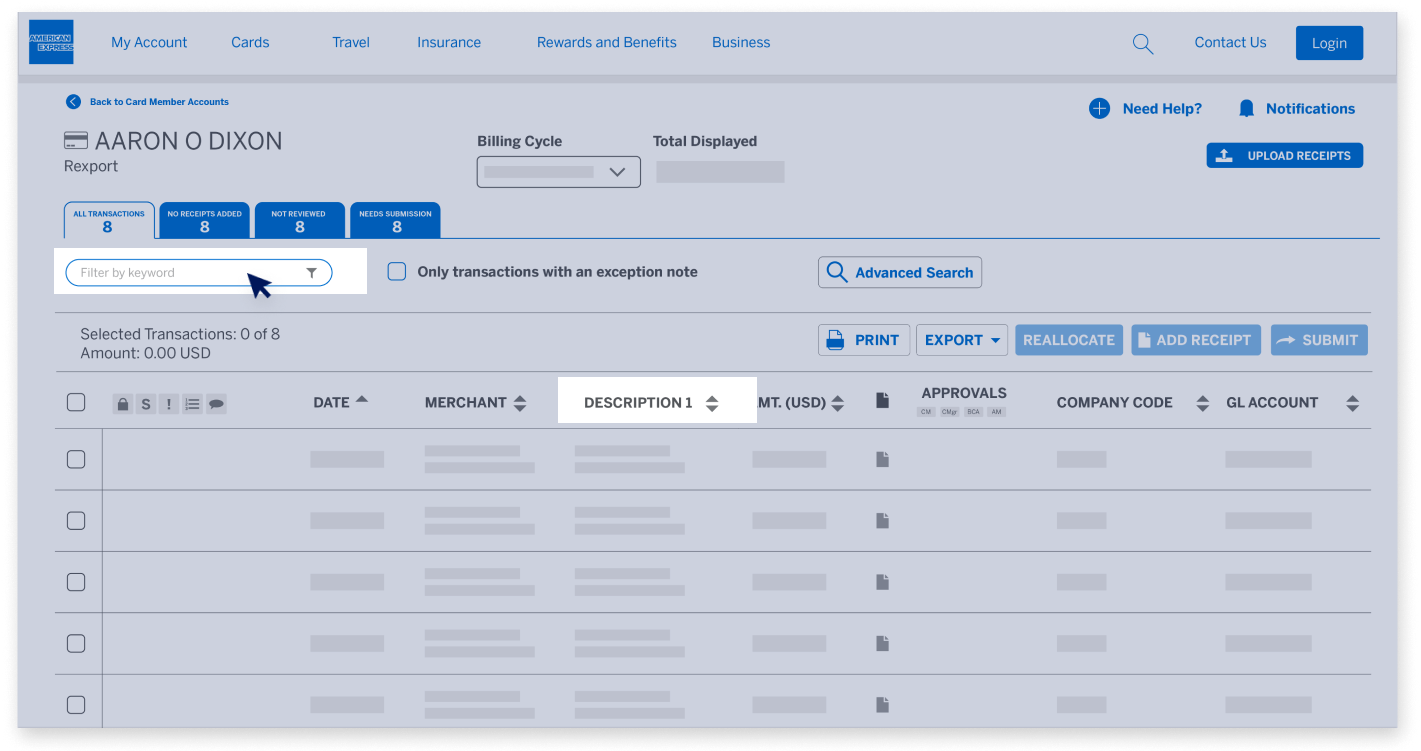
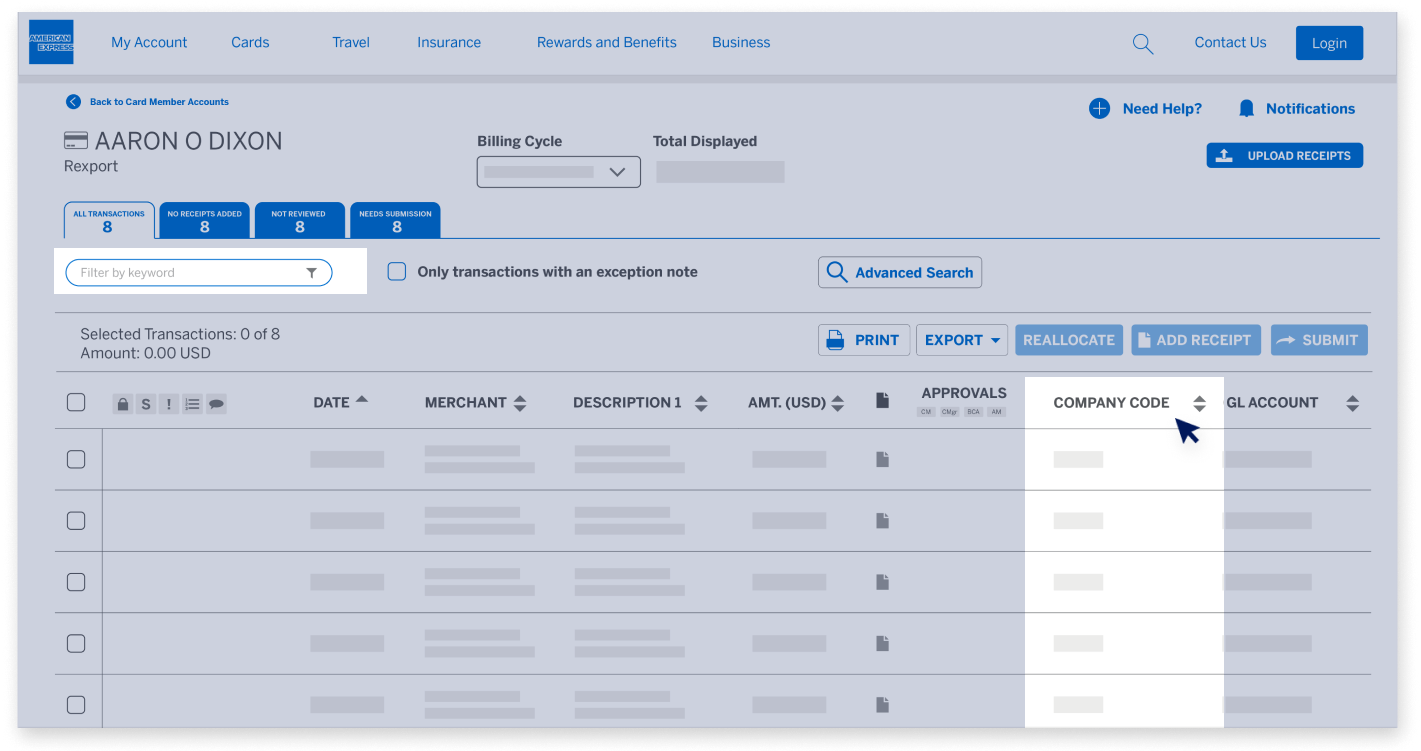
For the Corporate Purchasing Card (CPC), the Corporate Meeting Card (CMC), and vPayment products, there is a selectable column you can use to select which transaction data elements to display. The keyword filter will search whichever data field you have selected in addition to the fixed columns.

@ WORK RECONCILIATION END USER MODULE

Transaction List View Details

There are two selectable columns displaying the accounting codes for the first accounting allocation line for a transaction. The Keyword Filter will also search these columns. You can change which accounting codes to show on the fly.

@ WORK RECONCILIATION END USER MODULE

Transaction List View Details

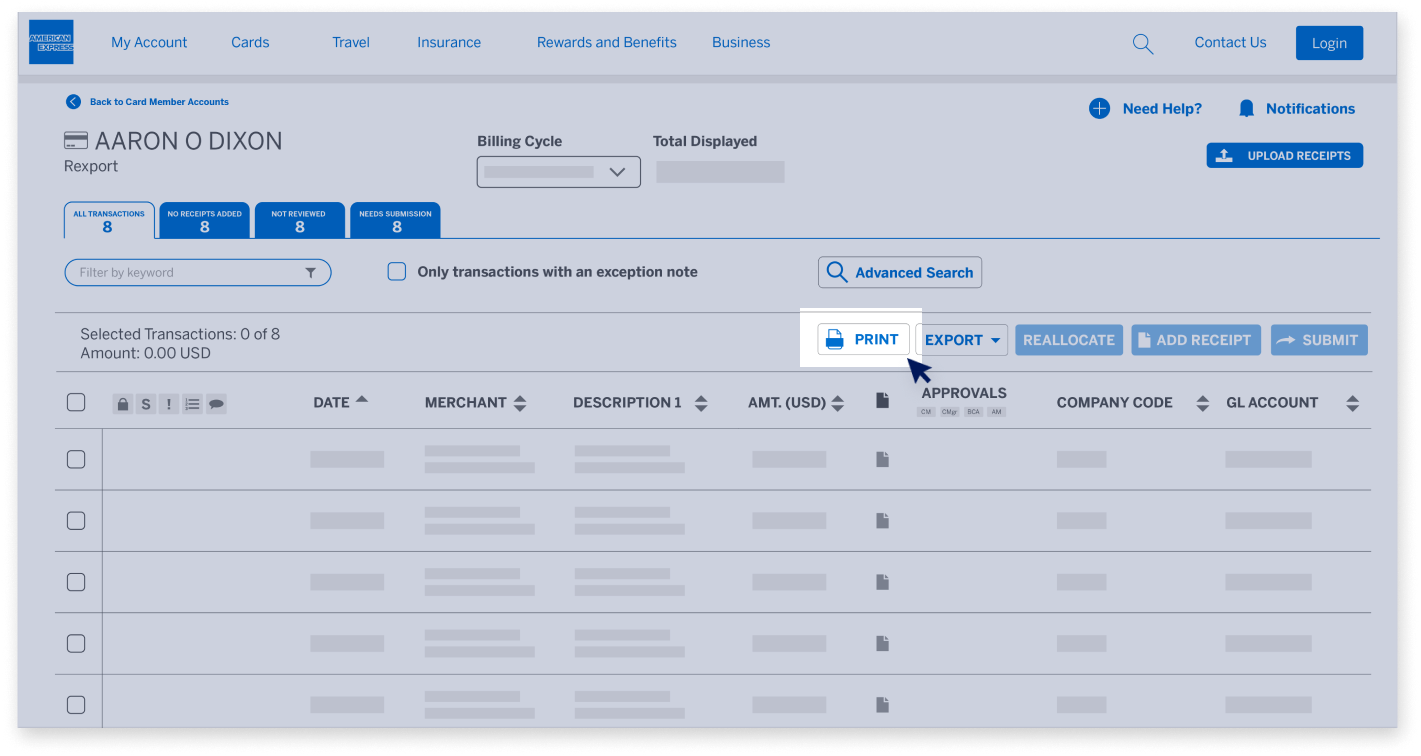
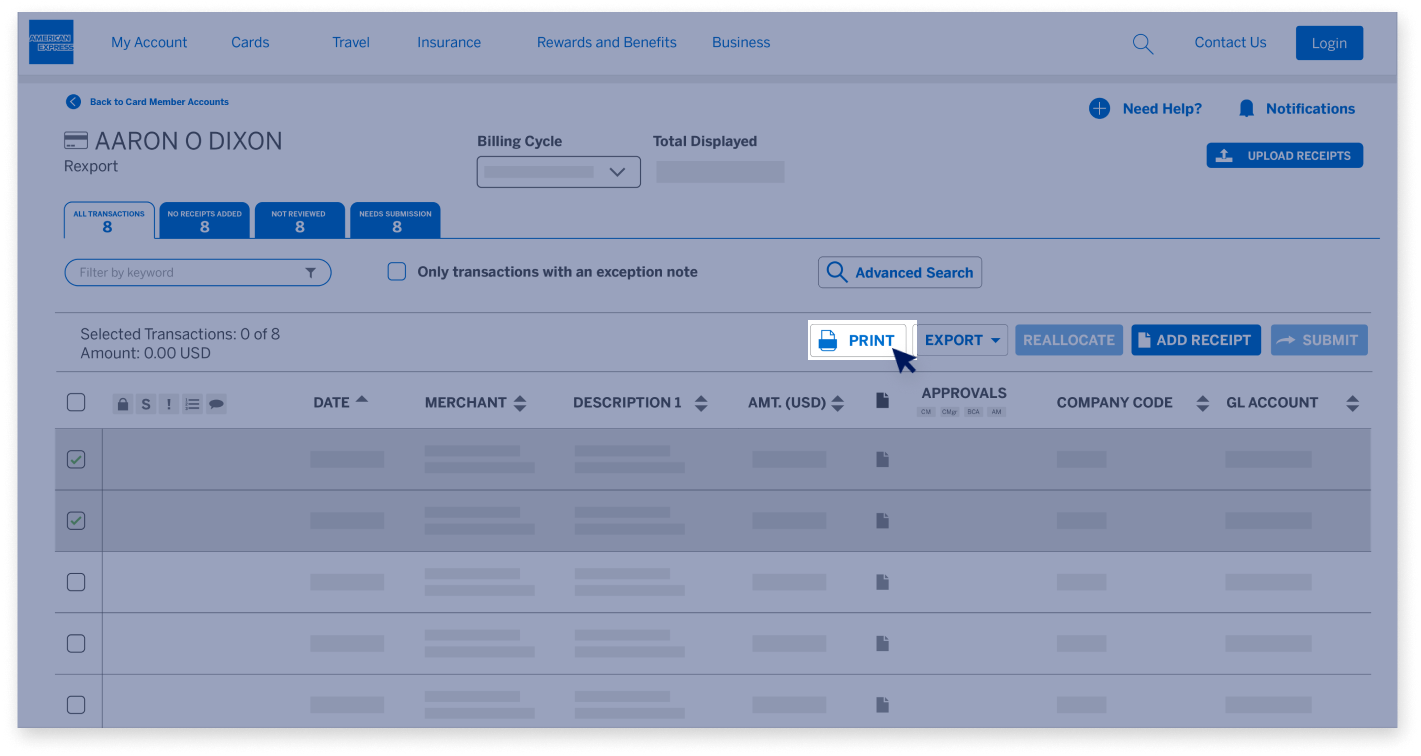
Other functions on the Transaction Summary page include: “Print” to print the summary of transactions for the selected cycle,

@ WORK RECONCILIATION END USER MODULE

Transaction List View Details

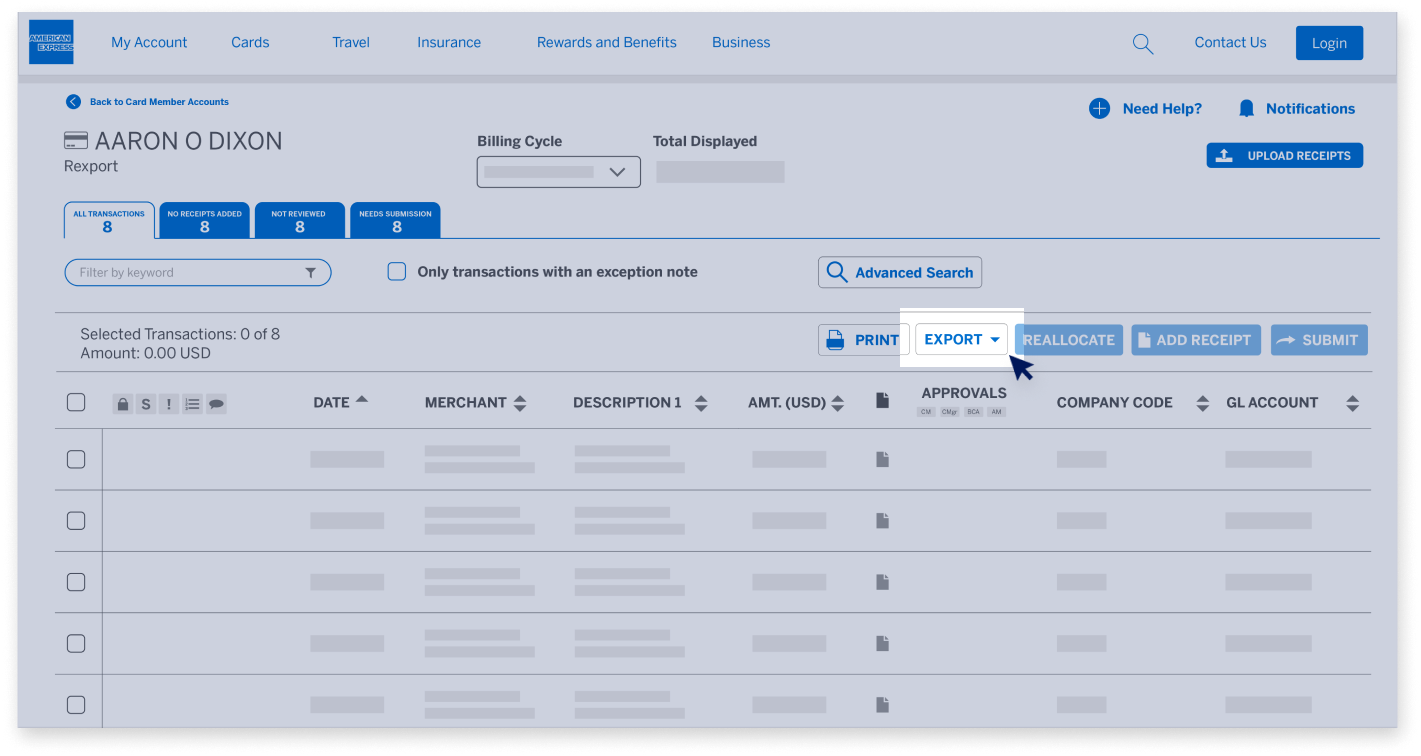
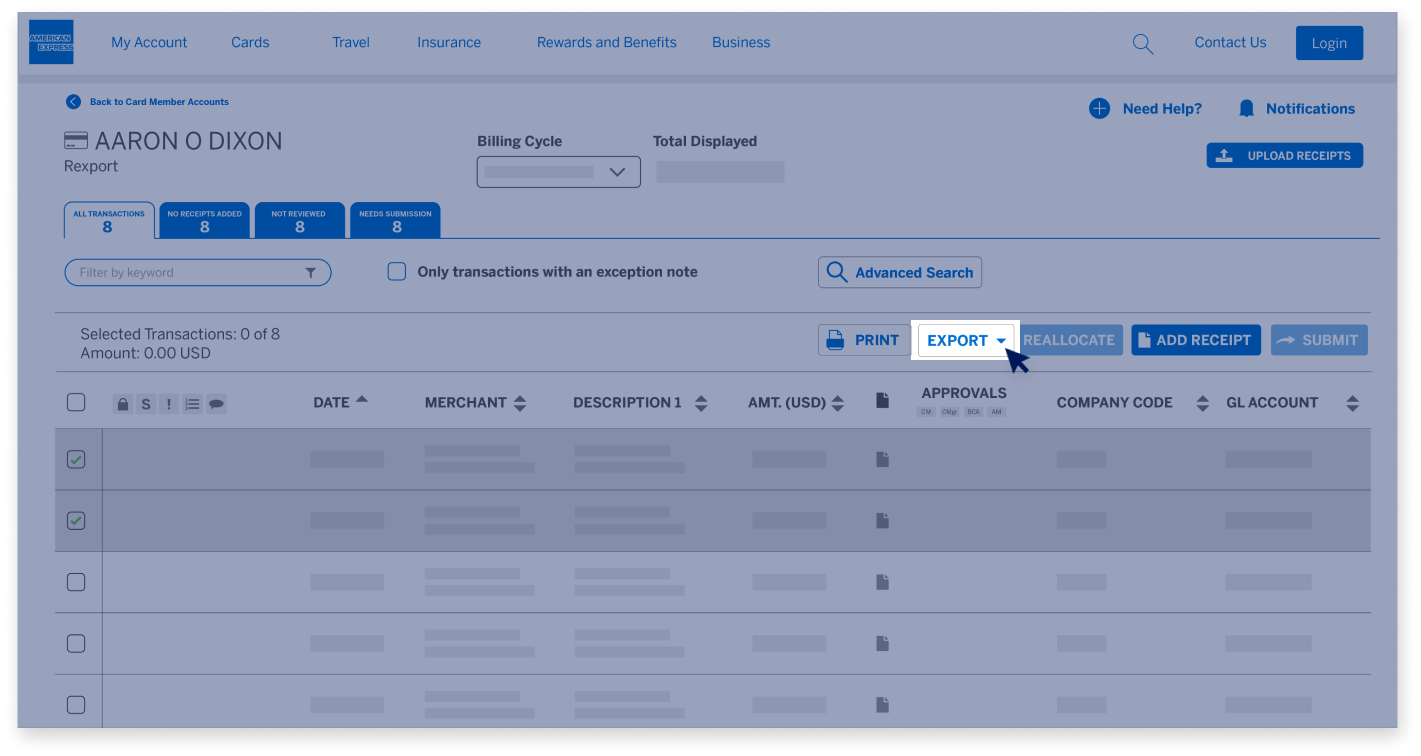
“Export” to export the transactions in CSV format based on the data fields you choose,

@ WORK RECONCILIATION END USER MODULE

Transaction List View Details

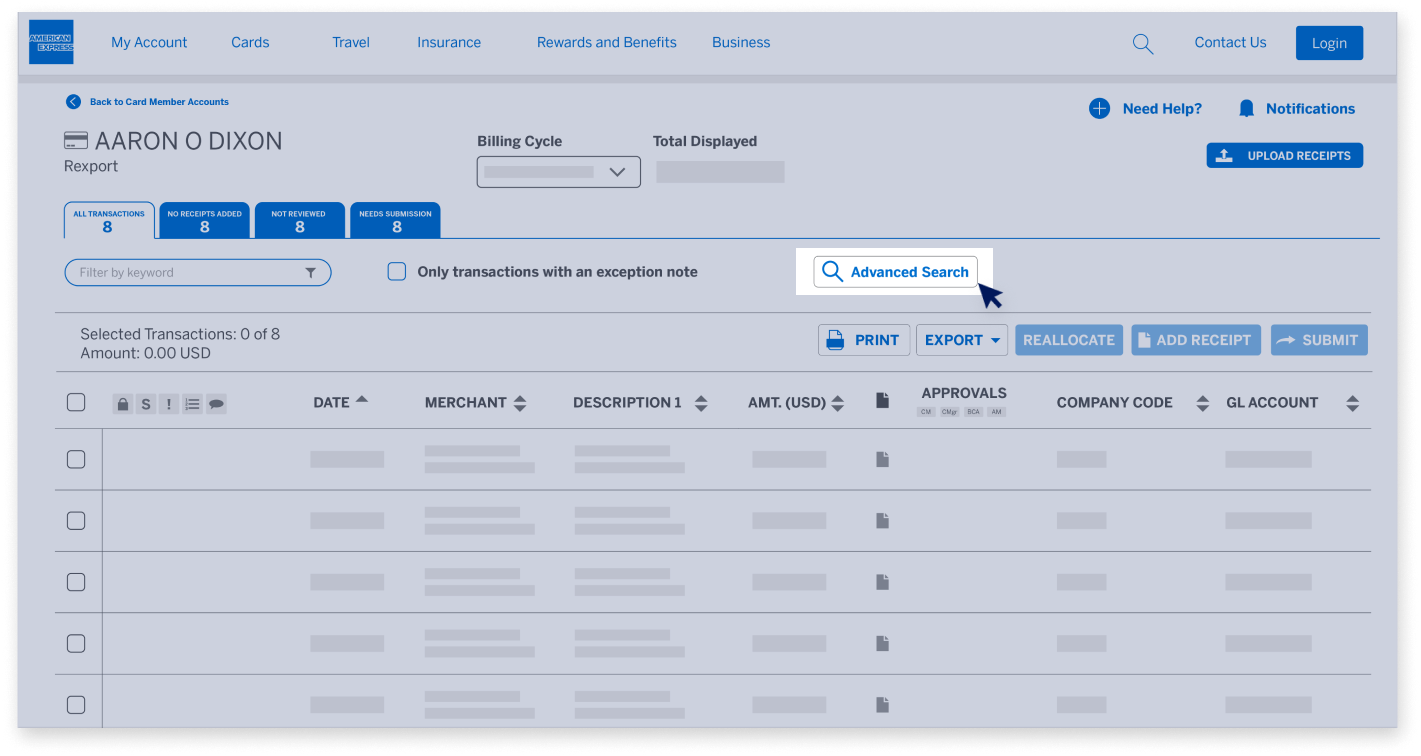
and “Advanced Search” if you are looking to find transactions and the Keyword Search is not sufficient.

@ WORK RECONCILIATION END USER MODULE

Transaction List View Details

Note: Hovering your mouse over certain transaction fields will display a popup with extra information.

@ WORK RECONCILIATION END USER MODULE

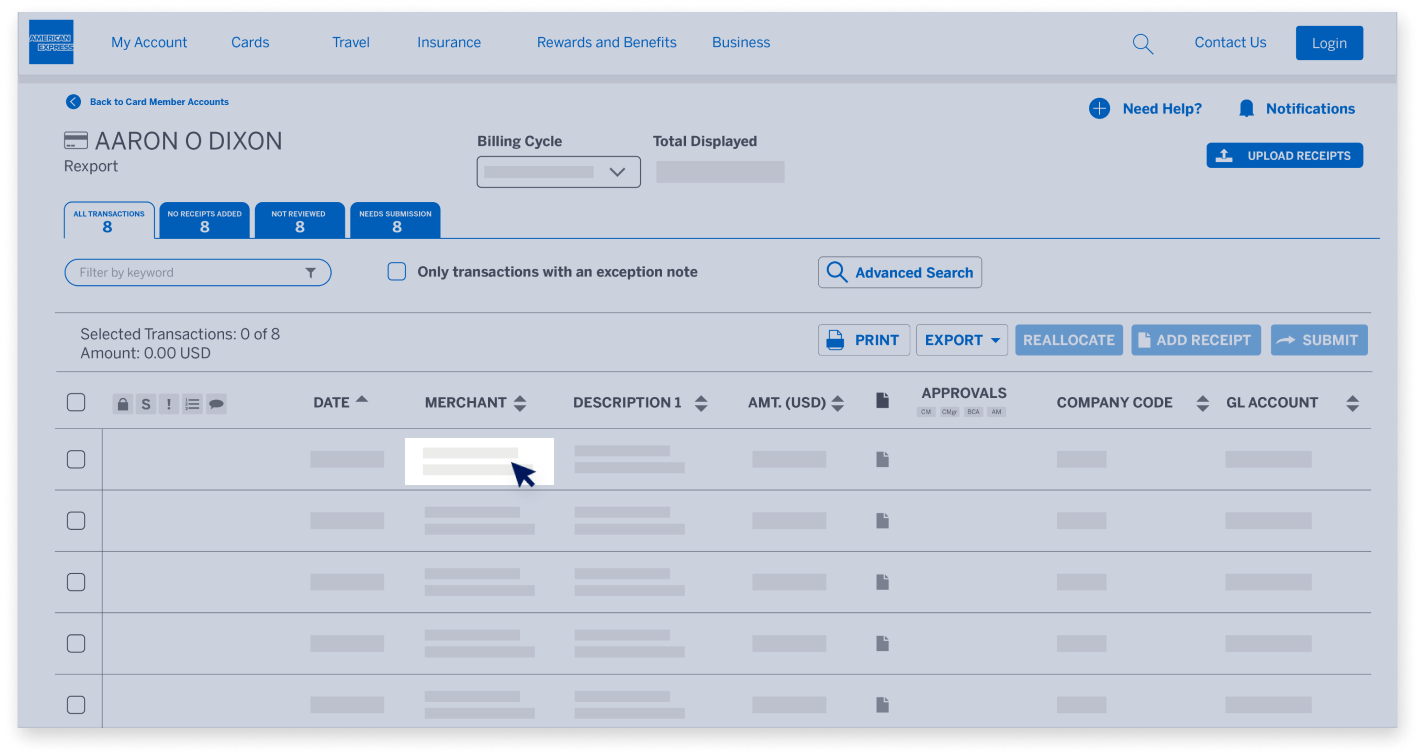
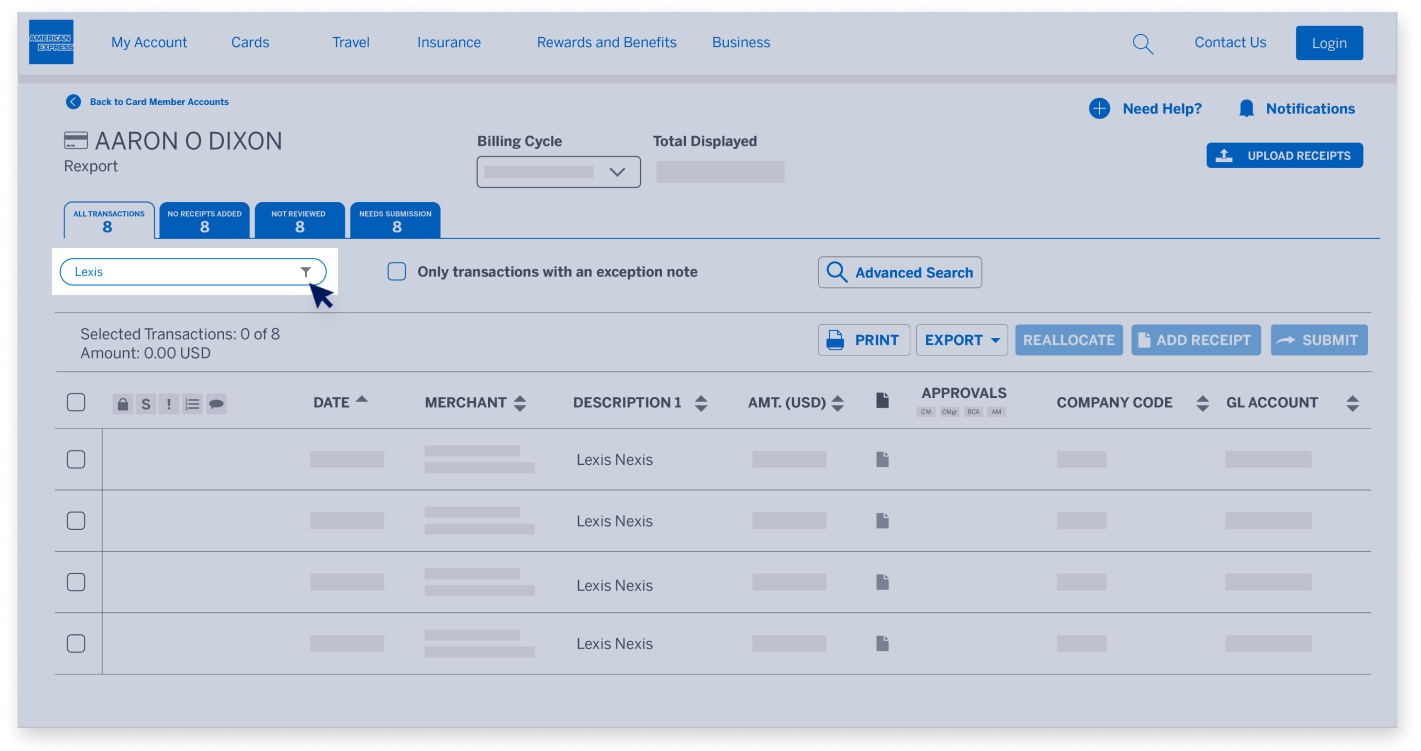
Searching for a Transaction

@ Work Reconciliation allows Users to create Transaction Searches and save them for future use. Begin by typing a word or a number into the Keyword Filter area.

@ WORK RECONCILIATION END USER MODULE

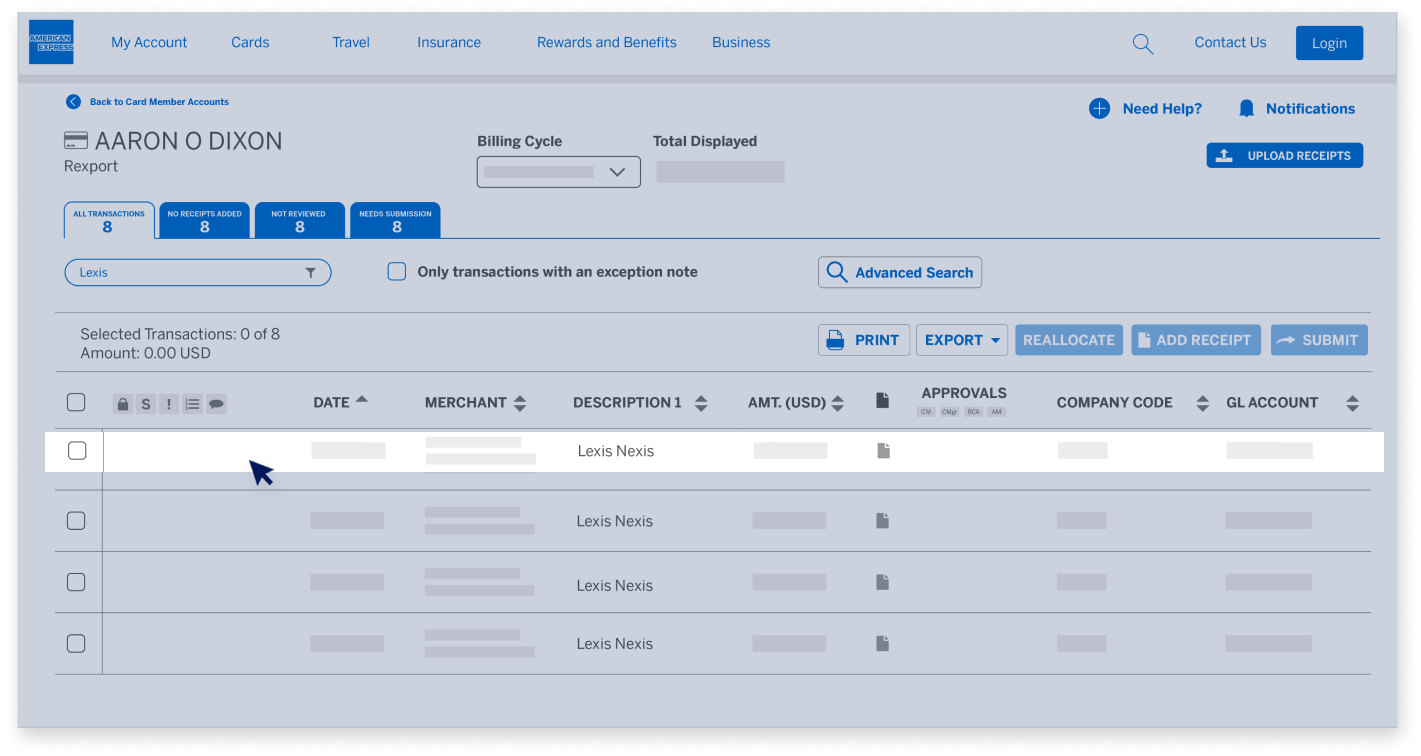
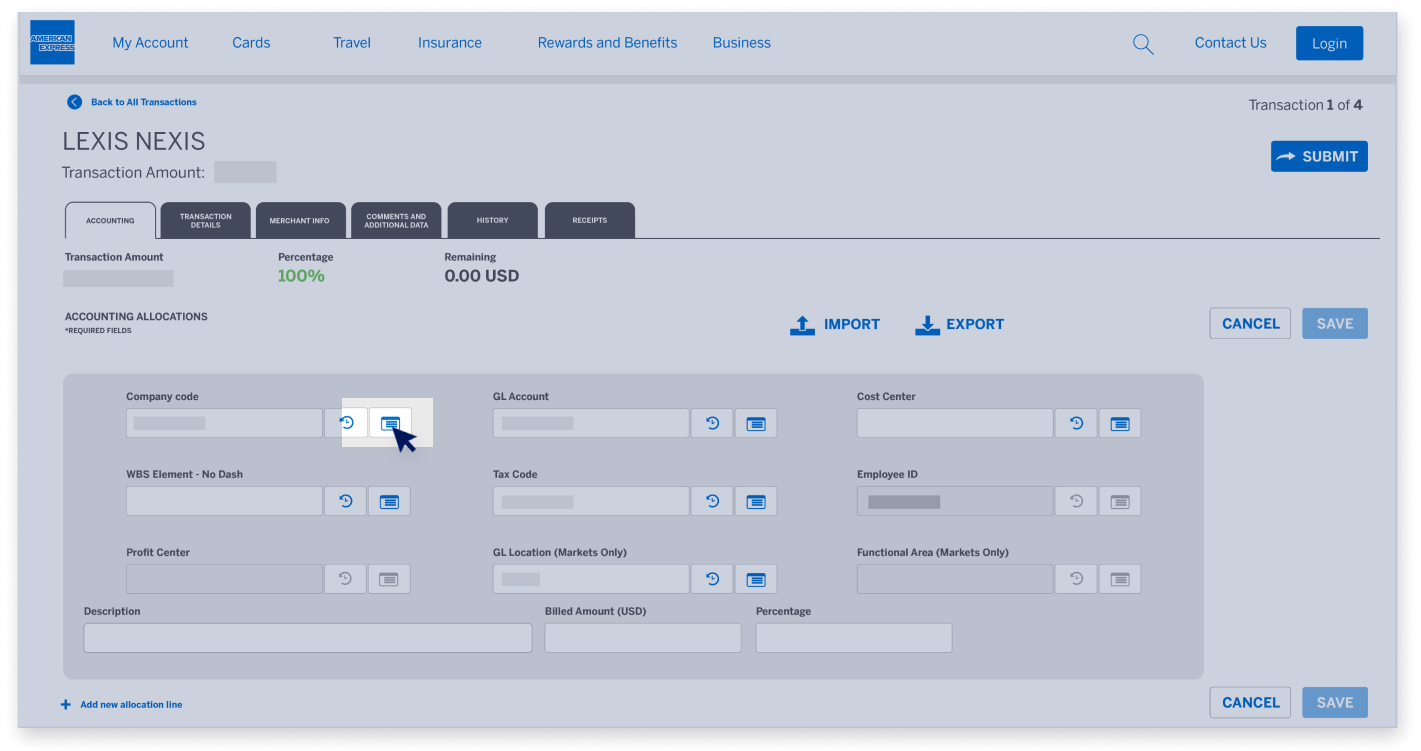
Changing the account for a Transaction

Select the desired Transaction by clicking on its row. This will take you to the Accounting Tab in the Transaction Detail screen.

@ WORK RECONCILIATION END USER MODULE

Changing the account for a Transaction

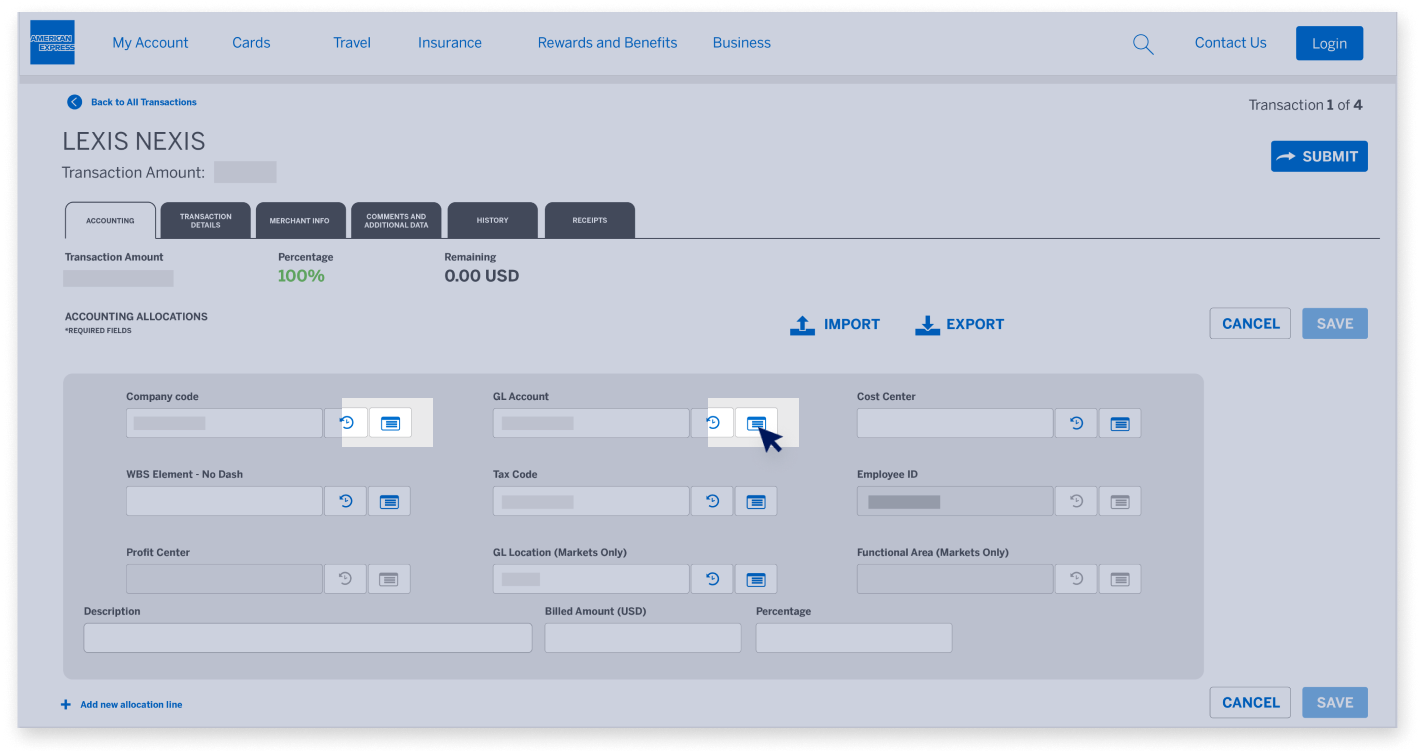
Click on the Accounting Field you wish to change. You can type the code in manually, or use a dropdown list with up to 100 available valid values. To narrow down the dropdown choices, you can start to type either the accounting code, value, or a description.

@ WORK RECONCILIATION END USER MODULE

Changing the account for a Transaction

Some companies have accounting codes that are validated in combination with other codes. In this case, @ Work Reconciliation will indicate which fields are linked with the accounting field you are entering.

@ WORK RECONCILIATION END USER MODULE

Changing the account for a Transaction

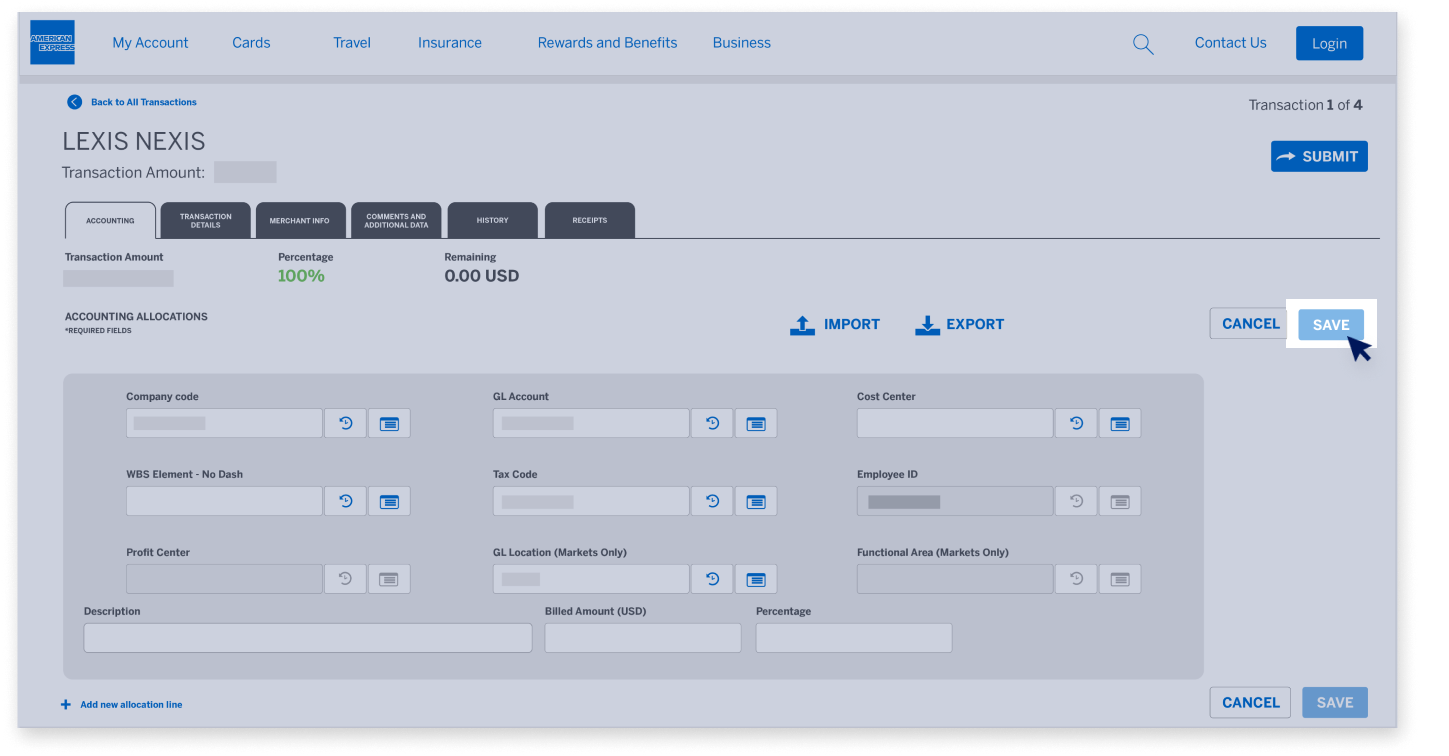
When you are finished reallocating, press the “Save” button.

@ WORK RECONCILIATION END USER MODULE

Changing the account for a Transaction

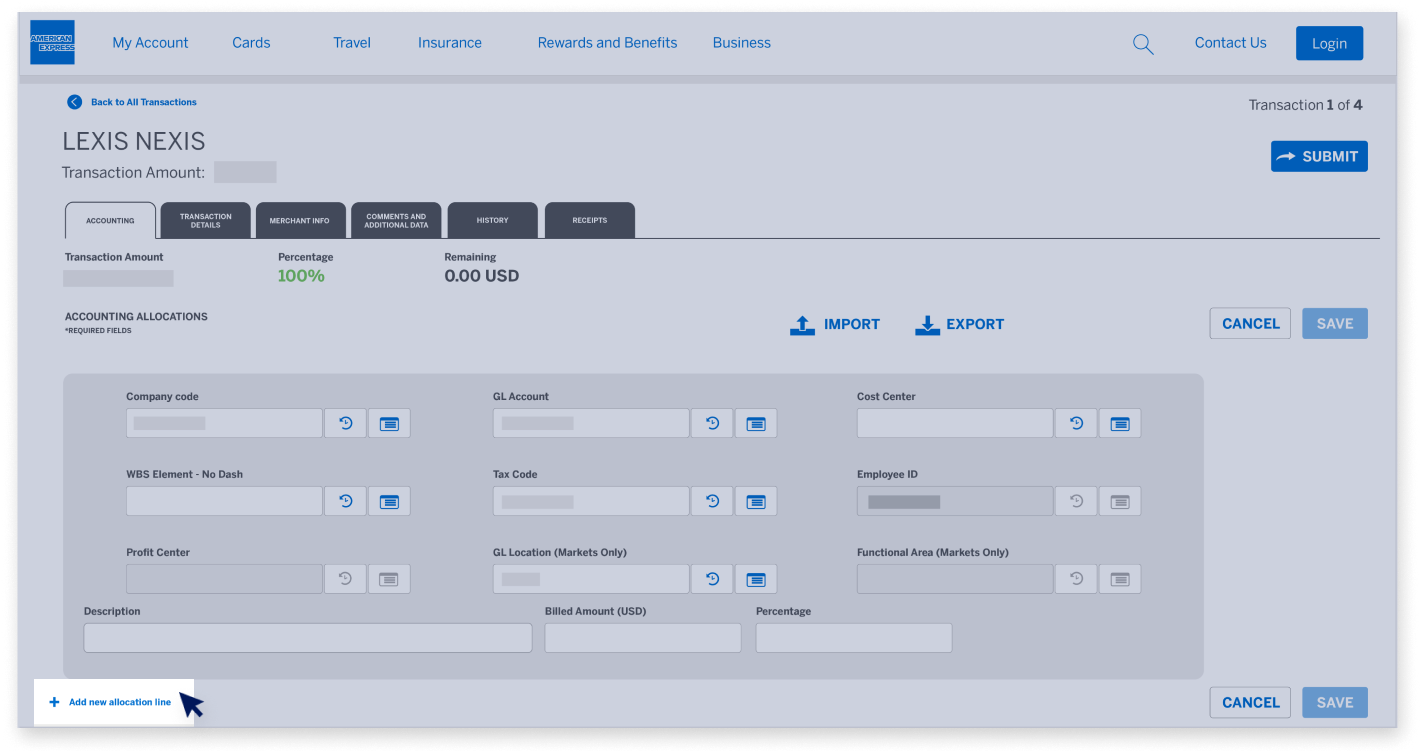
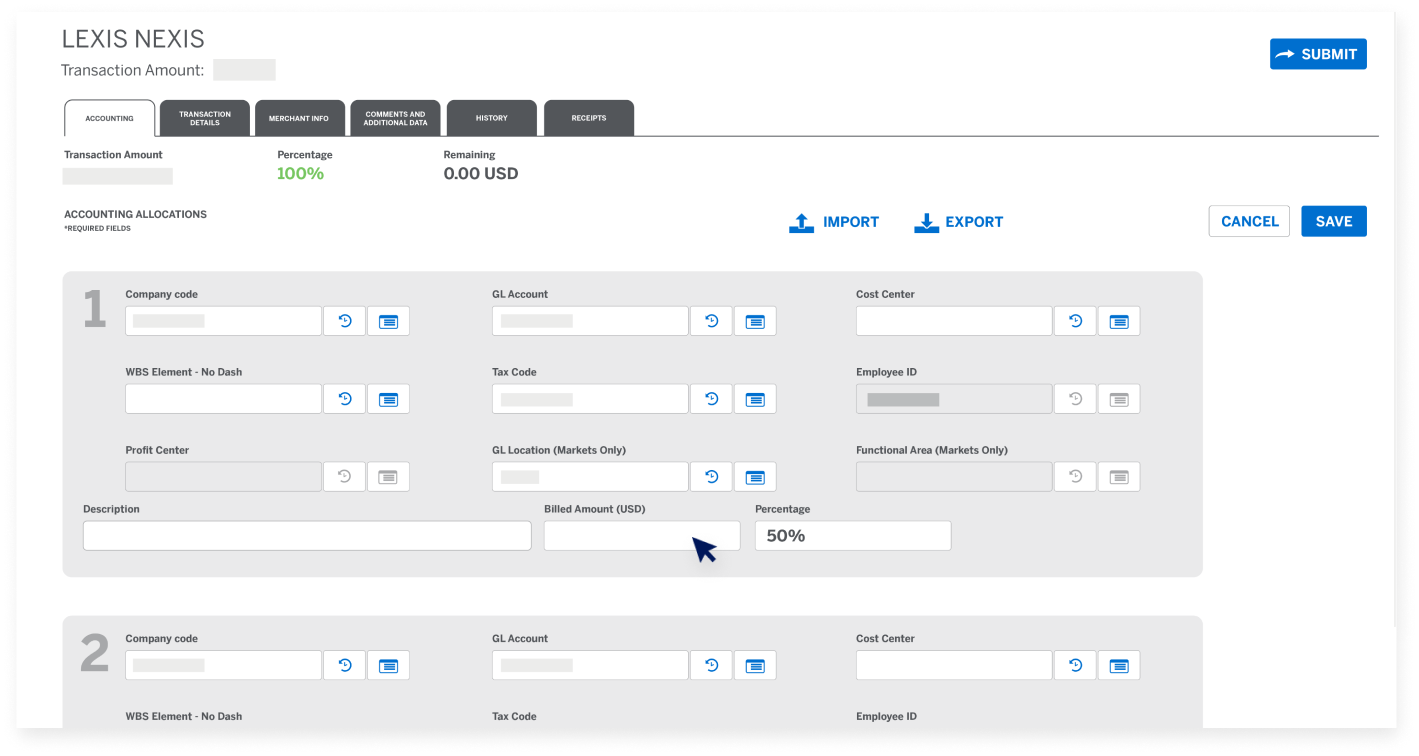
If you would like to split a transaction over two or more codes, click on "Add new allocation line". You will not be able to save until the allocation balance amounts to 100% of the transaction amount.

@ WORK RECONCILIATION END USER MODULE

Splitting accounting for a Transaction

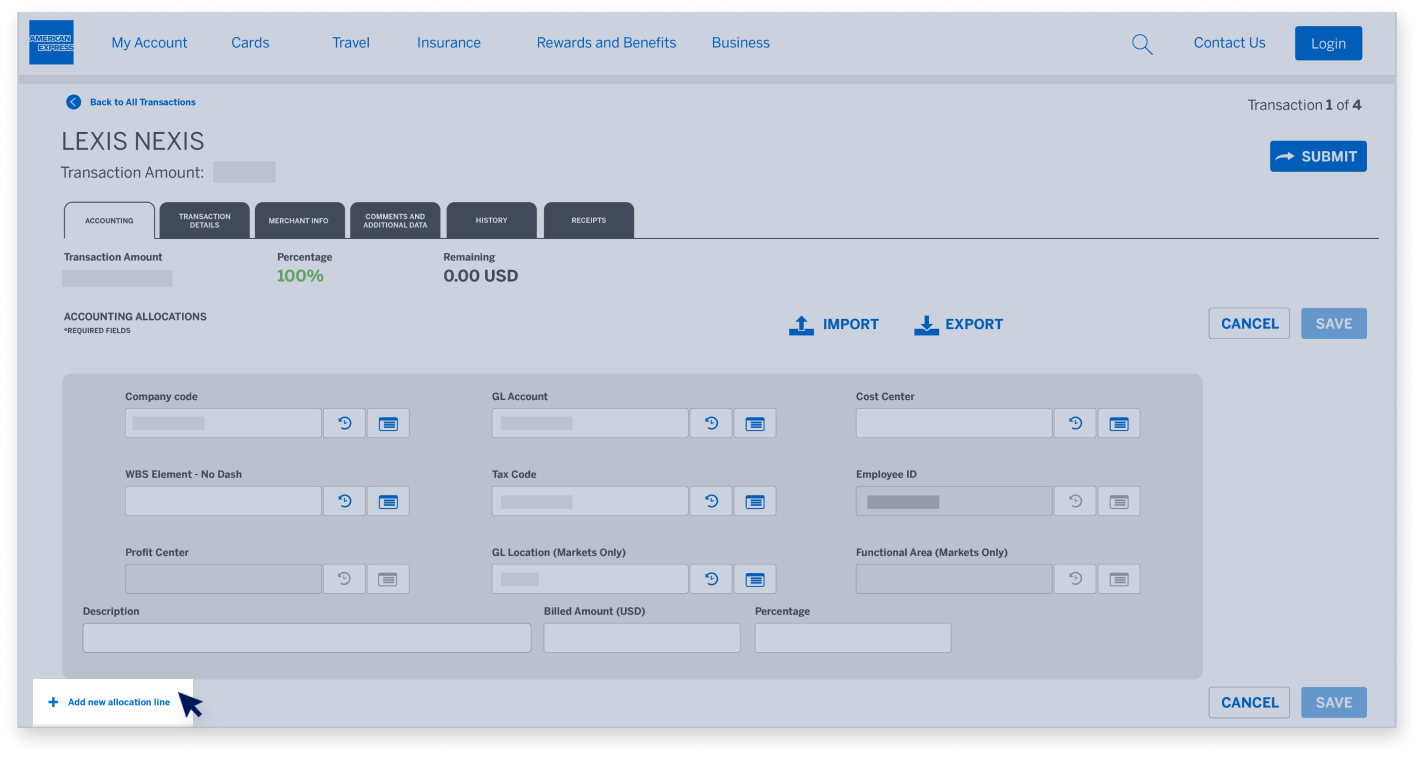
@ Work Reconciliation allows you to split a transaction into multiple accounting allocation lines. Click on "Add new allocation line".

@ WORK RECONCILIATION END USER MODULE

Splitting accounting for a Transaction

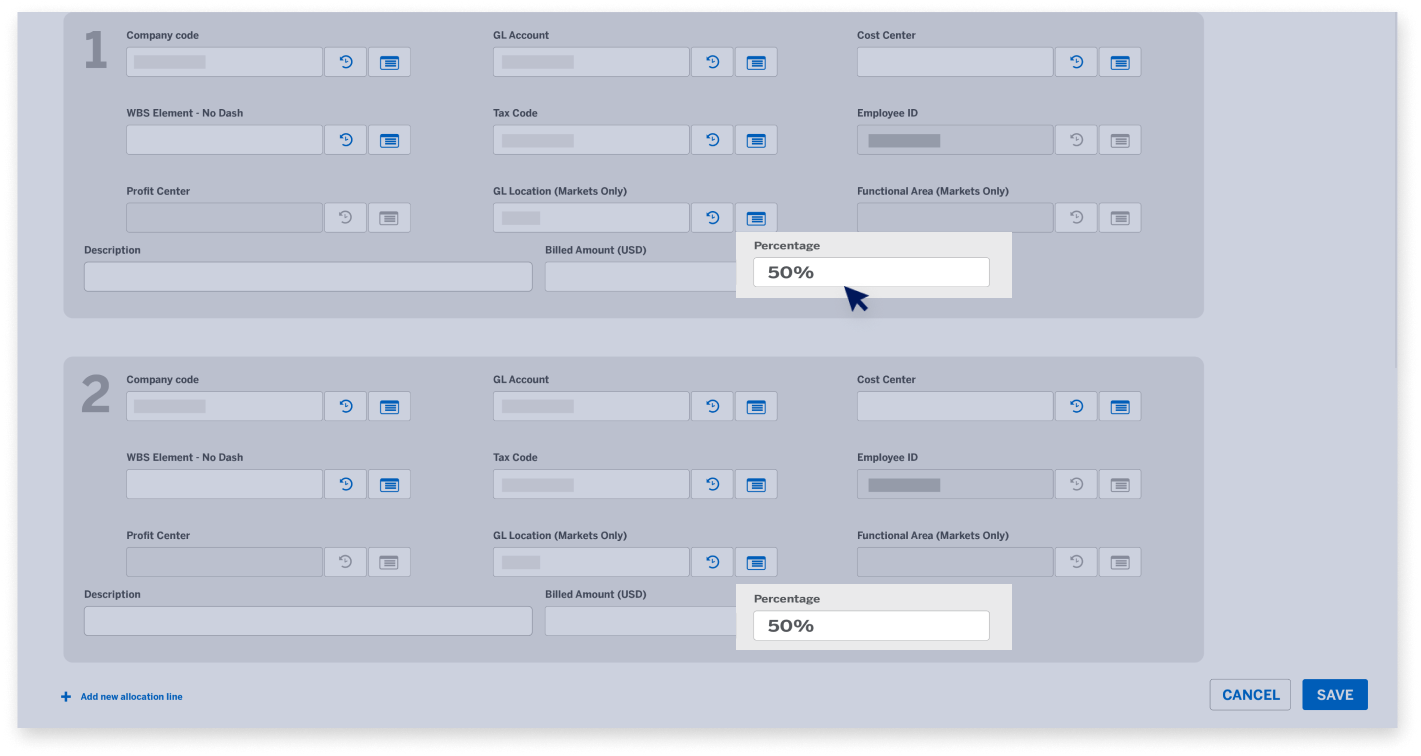
You can split the allocation by amount or percentage.

@ WORK RECONCILIATION END USER MODULE

Splitting accounting for a Transaction

The totals of the splits must equal 100% of the transaction amount, or you will not be able to save the reallocation.

@ WORK RECONCILIATION END USER MODULE

Splitting accounting for a Transaction

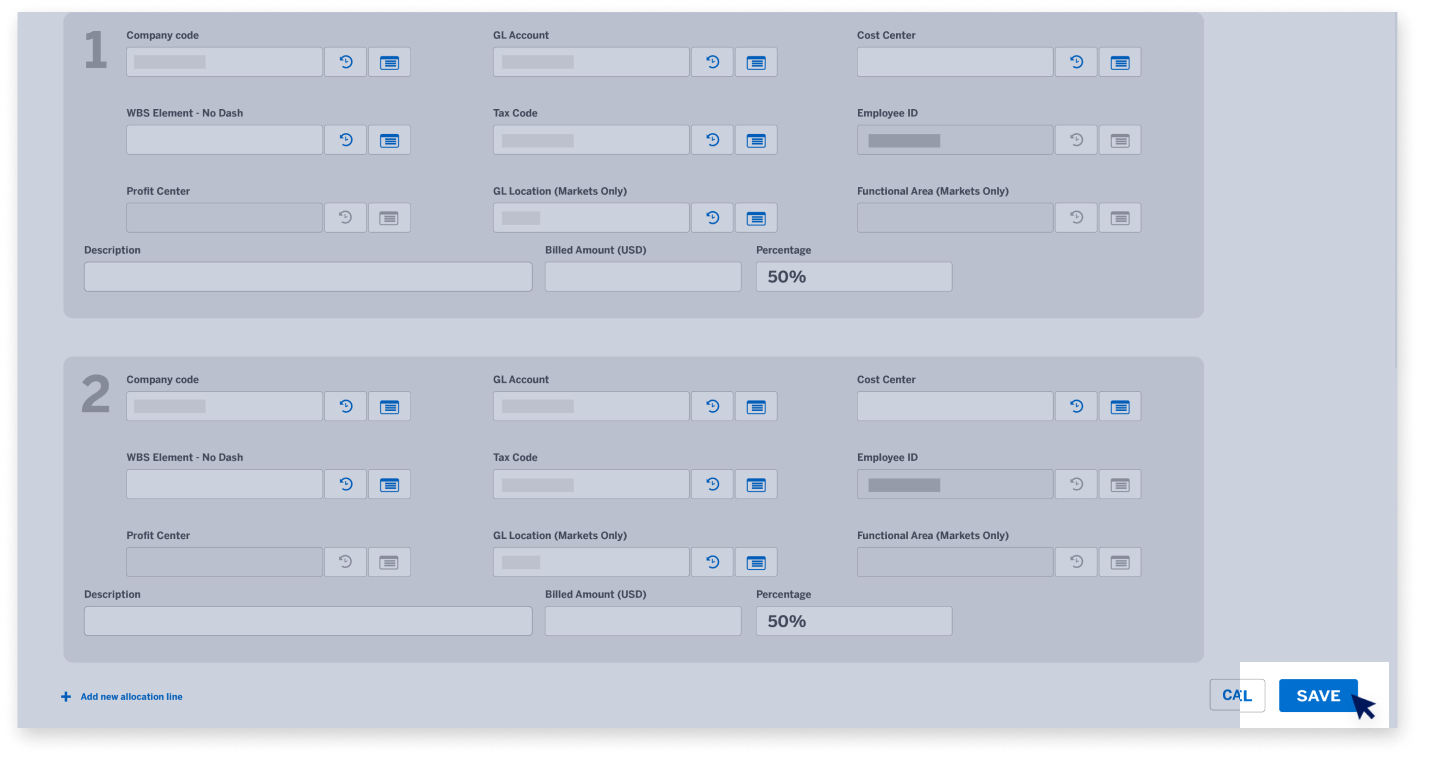
You can split any Accounting Field and add as many allocation lines as needed. When you are finished reallocating, click the Save button.

@ WORK RECONCILIATION END USER MODULE

Uploading Receipts to the Receipt Pool

The Receipt Pool allows Users to upload receipts to the system in advance so they can be attached at a later time.

@ WORK RECONCILIATION END USER MODULE

Uploading Receipts to the Receipt Pool

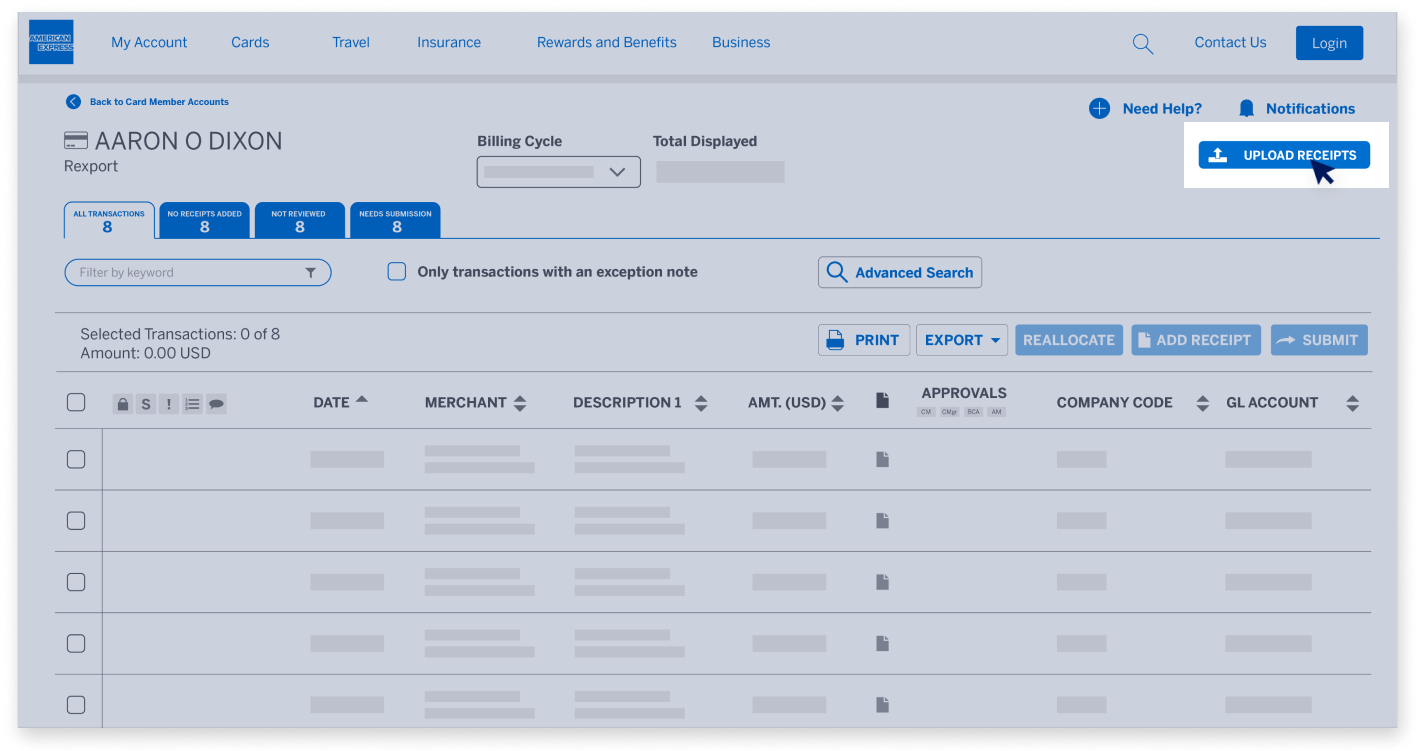
Your company will determine if receipts should be attached at the Billing Cycle Level or at the Transaction Level. If the button says “Upload Receipts”, then your company uses Transaction Level receipts. If it says “Receipt Pool”, your company uses Billing Cycle Level receipts.

@ WORK RECONCILIATION END USER MODULE

Uploading Receipts to the Receipt Pool

Note: If there is no button at all, then either your company is not configured for attaching receipts or your company Administrator may have locked the cycle so no more receipts can be added. Check with your Administrator to verify how long after the cycle 
close date receipts can still be attached.

@ WORK RECONCILIATION END USER MODULE

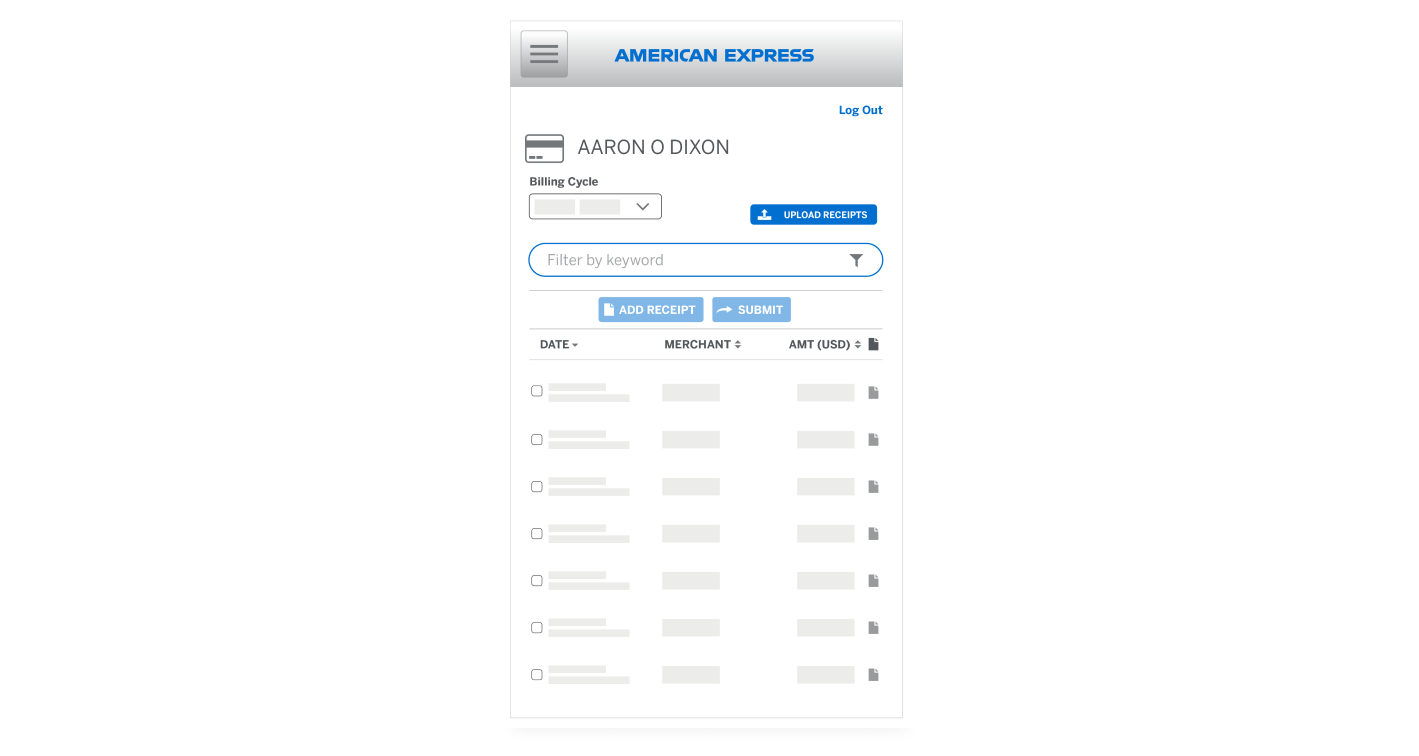
Uploading Receipts from a Phone

Select the Card account.

@ WORK RECONCILIATION END USER MODULE

Uploading Receipts from a Phone

Tap on the correct Billing Cycle for the receipt.

@ WORK RECONCILIATION END USER MODULE

Uploading Receipts from a Phone

Note: If your company uses Transaction Level Receipts, you will need to use a computer or tablet to match the receipts from the Receipt Pool to the transactions.

@ WORK RECONCILIATION END USER MODULE

Matching Receipts to Transactions

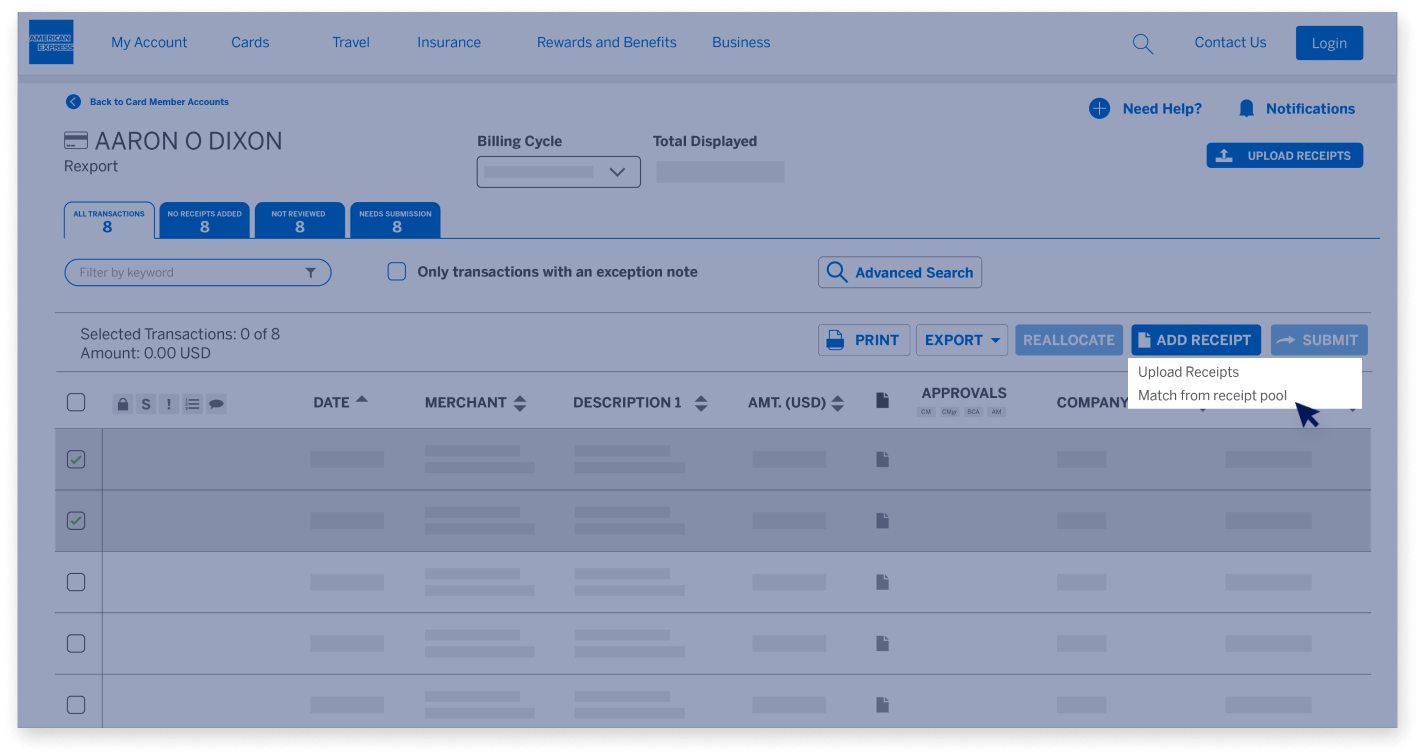
Select the desired transaction(s) by placing a checkmark in the box(es). Note: You can attach a single receipt to multiple transactions if needed.

@ WORK RECONCILIATION END USER MODULE

Matching Receipts to Transactions

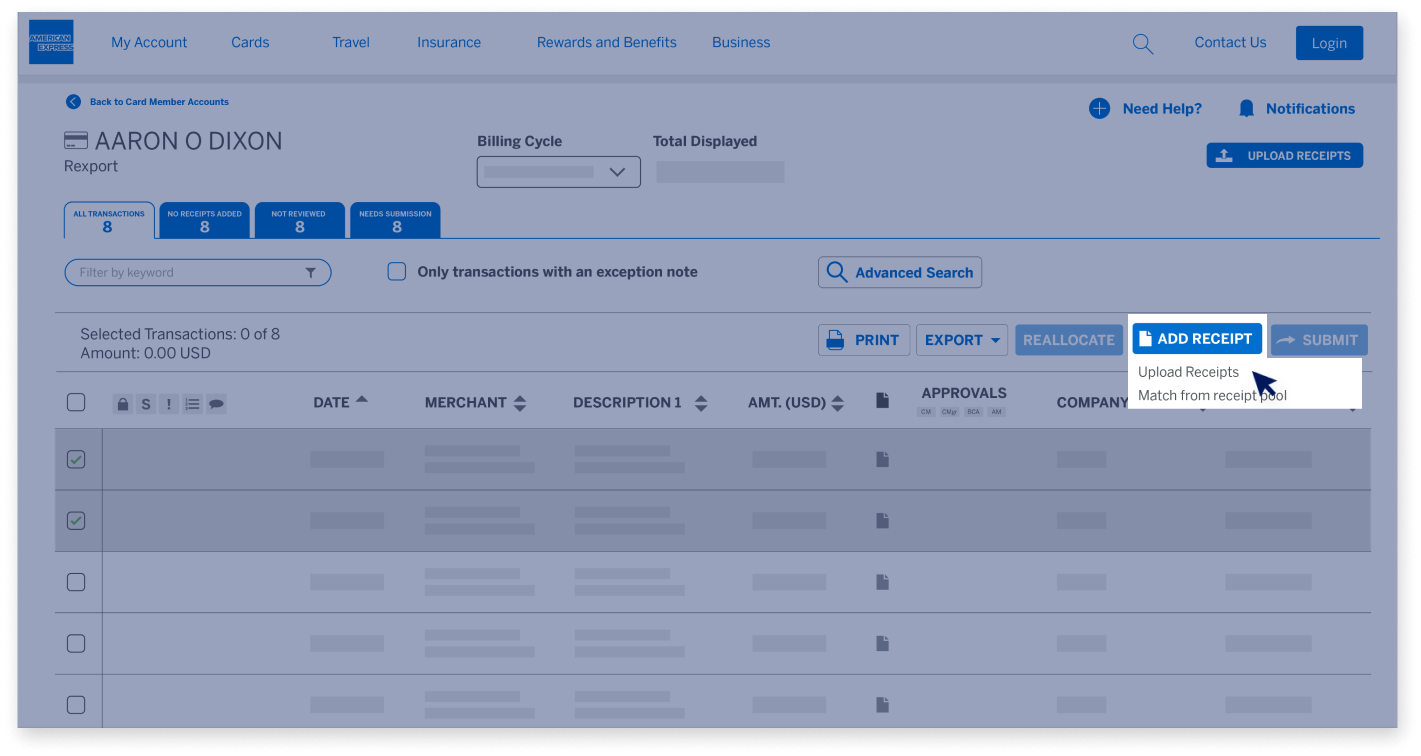
Click on the "Add Receipt" button where you have two options. Click on “Upload Receipts”...

@ WORK RECONCILIATION END USER MODULE

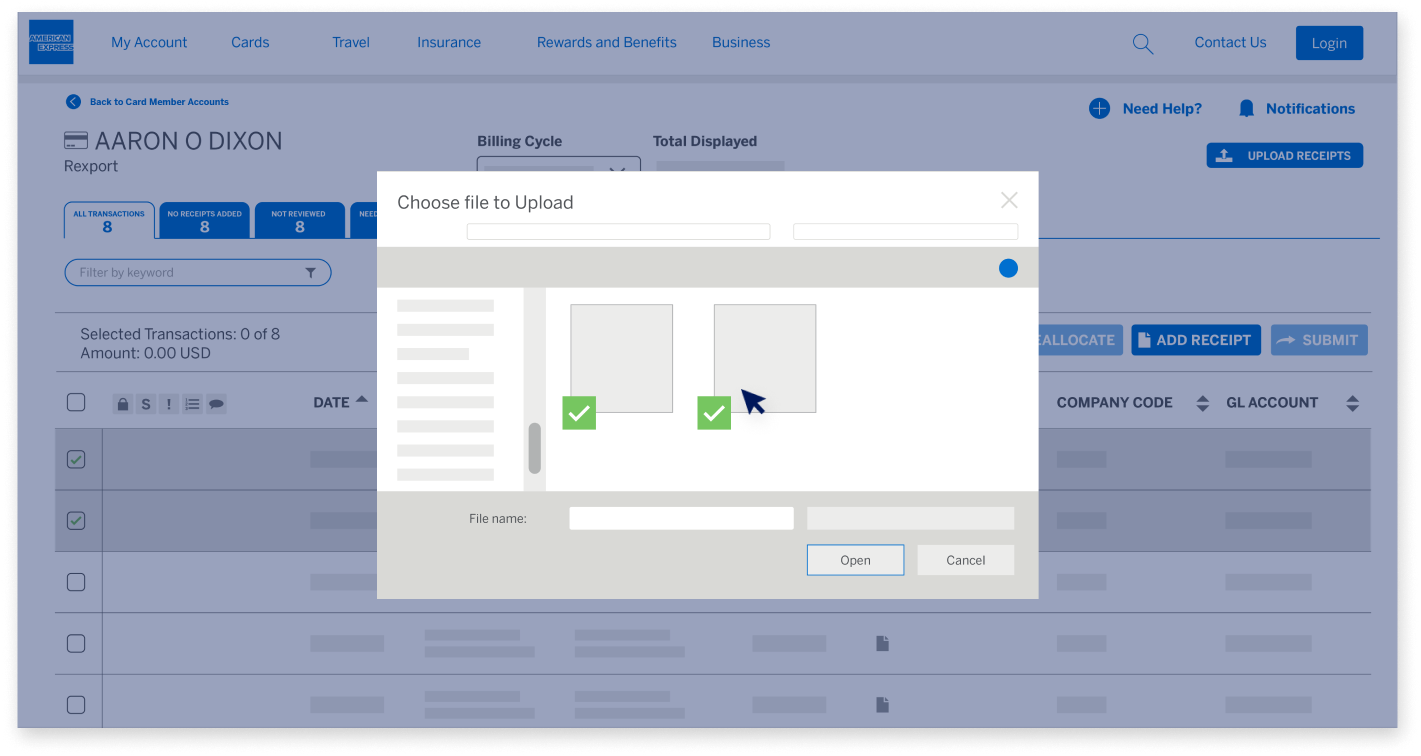
Matching Receipts to Transactions

...to upload the desired receipt from your computer.

@ WORK RECONCILIATION END USER MODULE

Matching Receipts to Transactions

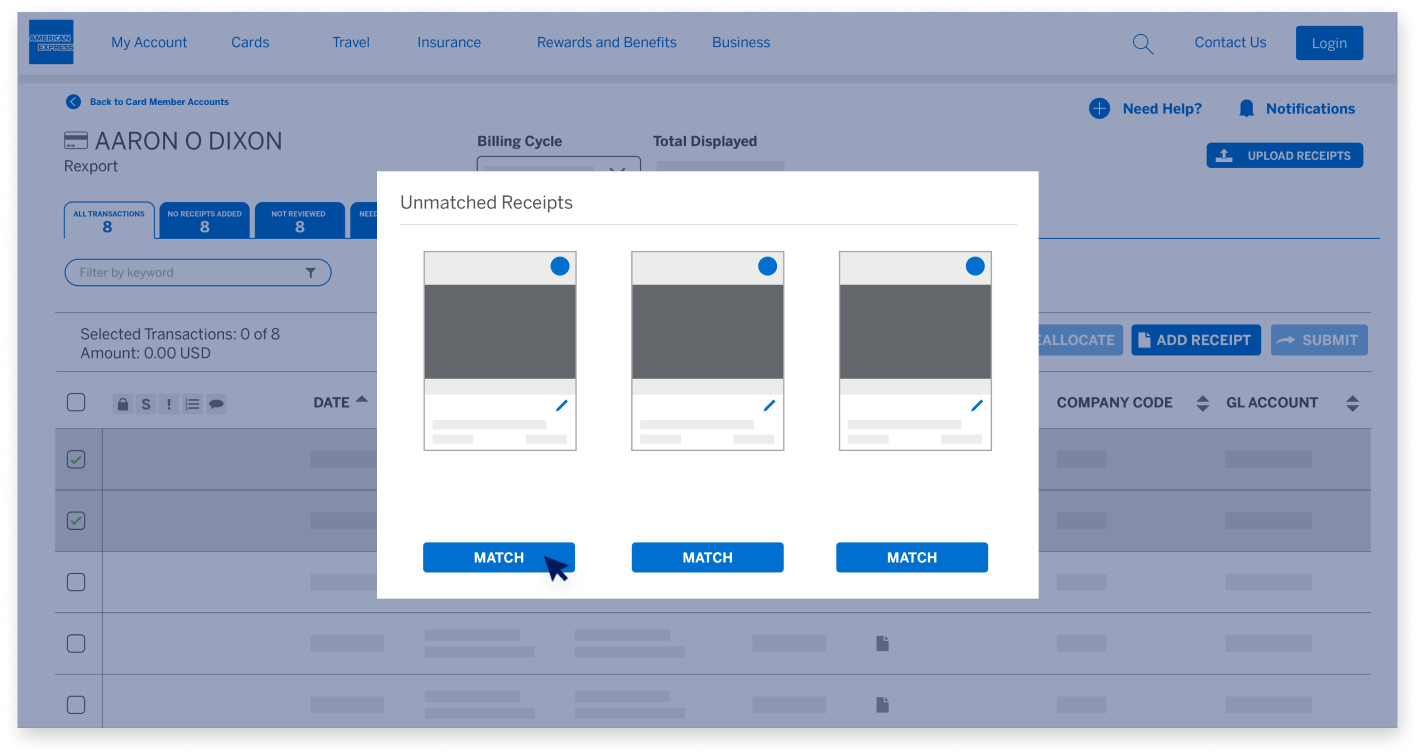
Click on “Match from receipt pool”...

@ WORK RECONCILIATION END USER MODULE

Matching Receipts to Transactions

...to select the receipt from the pool.

@ WORK RECONCILIATION END USER MODULE

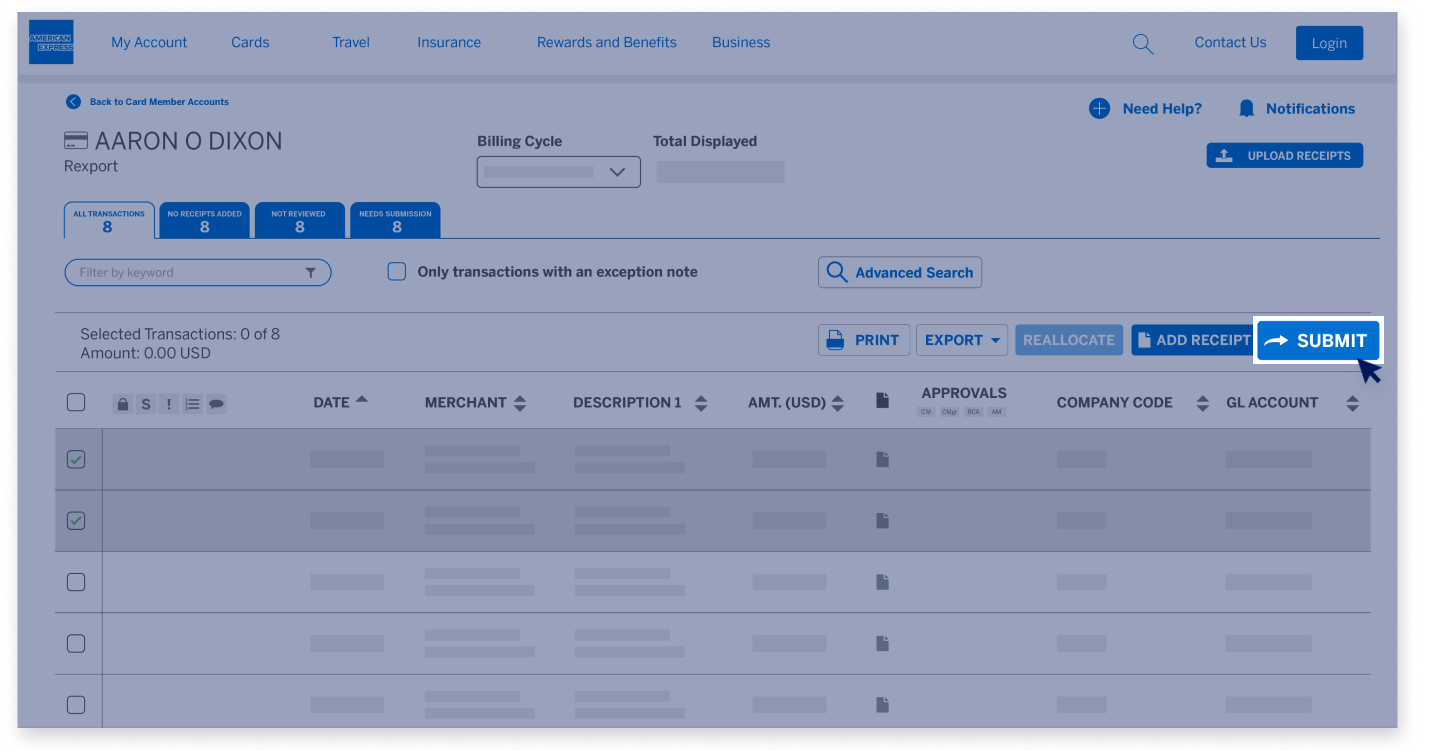
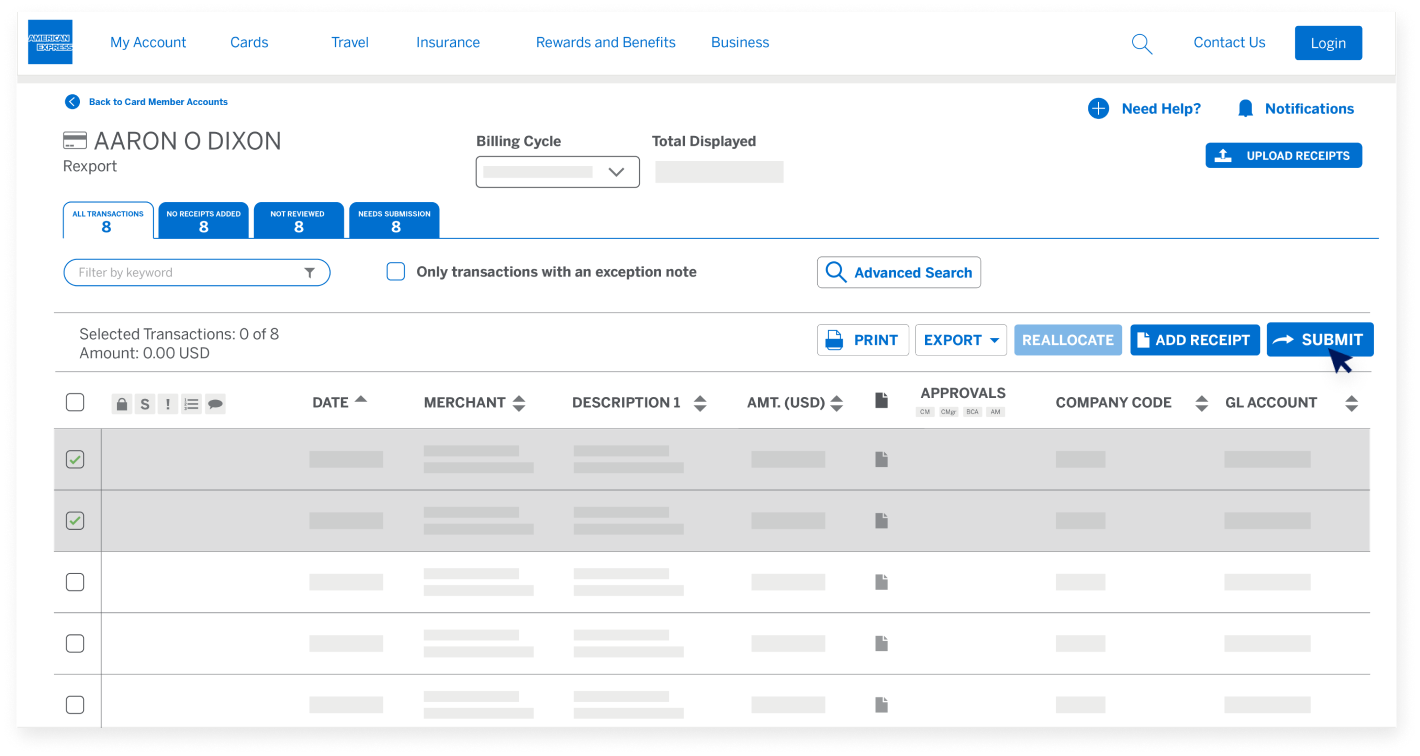
Submitting Transactions for Approval

Your company may require you to submit transactions for approval. This will be indicated by the "Submit" button. If your company does not require approval, this button will instead say "Review".

@ WORK RECONCILIATION END USER MODULE

Submitting Transactions for Approval

You also can click the top checkbox to select all transactions on the page you are viewing. If your company does not allow this, the “Submit” button will be greyed out if you select more than one transaction.

@ WORK RECONCILIATION END USER MODULE

Submitting Transactions for Approval

Select the Submit button above the Transaction Headings to submit 
the transactions for Manager approval.

@ WORK RECONCILIATION END USER MODULE

Export and Print Functions

Click the “Print” button to print a PDF summary page, as well as a list of your transactions and accounting information.

@ WORK RECONCILIATION END USER MODULE

Export and Print Functions

The Export option allows you to customize what you will see in the printout. Click the “Export” button and select the fields to be included.

@ WORK RECONCILIATION END USER MODULE

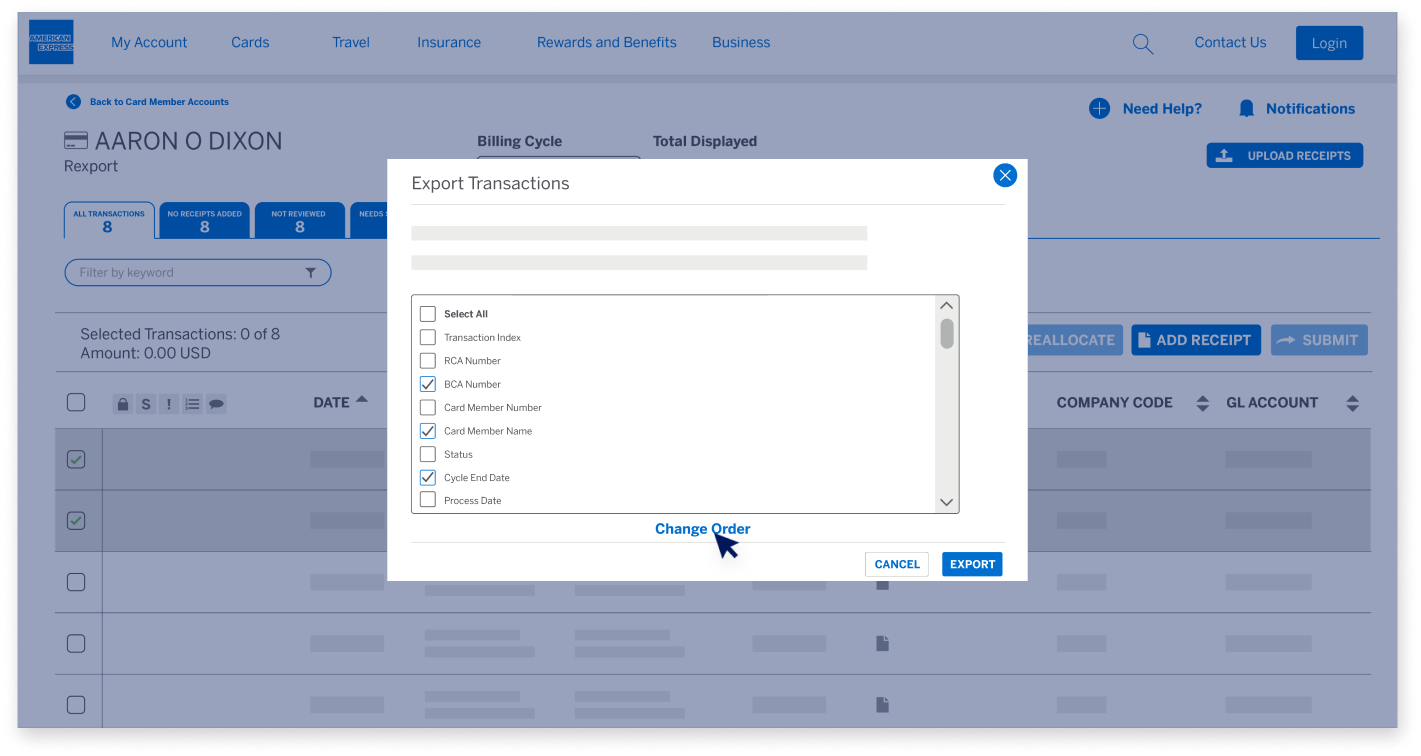
Export and Print Functions

Click the Export button and select the fields to be included. You can change the order and save the export as well.

@ WORK RECONCILIATION END USER MODULE

Go to the main menu for more Guided Tours


Next

end-user-module-screen1
end-user-module-screen
end-user-module-screen1
end-user-module-screen2
end-user-module-screen

Back to main menu 

@ Work Insights Hub

Other Resources

Video Tutorials

Back

SPEND AND CARDS-IN-FORCE

Introduction

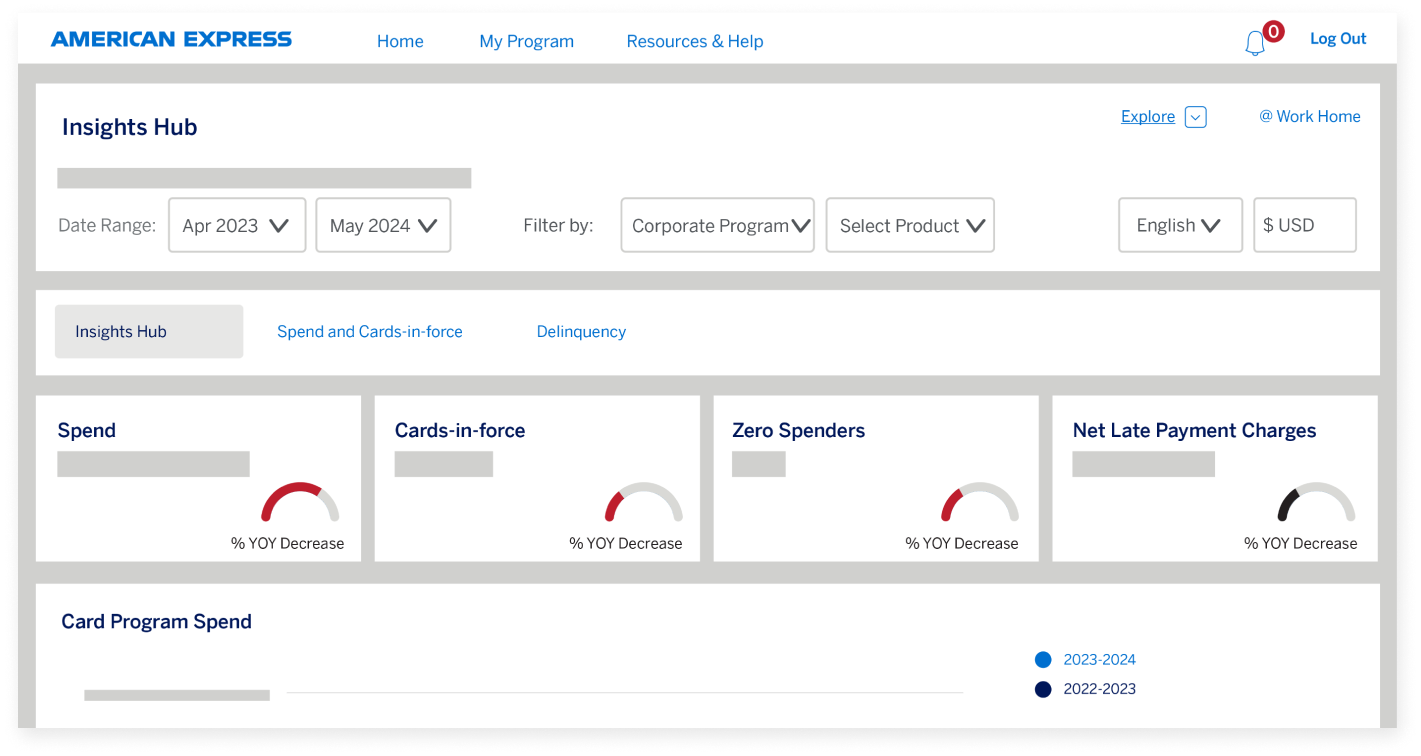
In this session, we’re going to walk through the Spend and Cards-in-force dashboard, which gives a comprehensive view of your Card Program spending and Cards-in-force across time-periods, control account, product types, and merchant categories. 

SPEND AND CARDS-IN-FORCE

Introduction

You can use the Spend and Cards-in-force dashboard to get visibility and analyze key program metrics, view historical trends of data, 

SPEND AND CARDS-IN-FORCE

Introduction

 ...understand where you’re spending, view top Program markets and product types, identify zero-spending accounts, and view and download Card Member lists.  

SPEND AND CARDS-IN-FORCE

Navigating to Spend and Cards-in-force

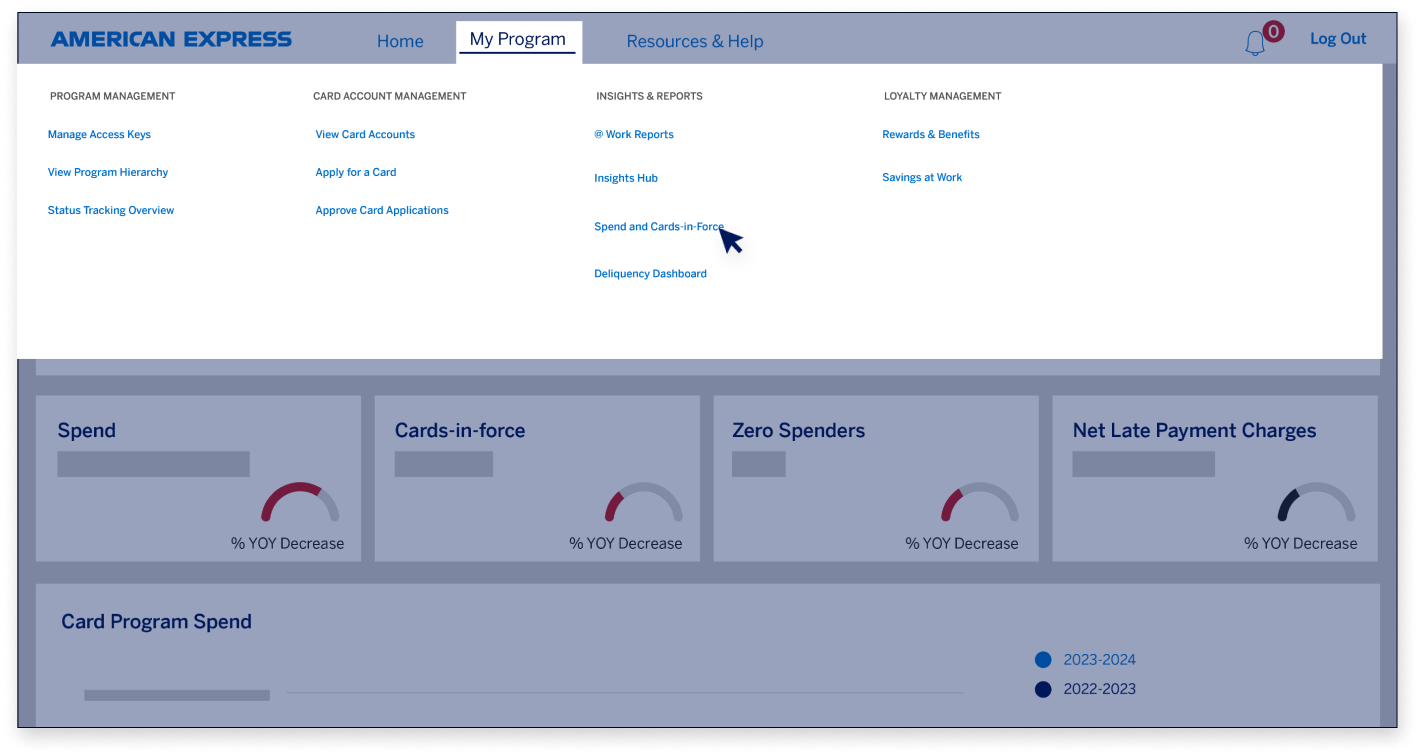
You can access the Spend and Cards-in-force dashboard from the
@ Work navigation menu present on top of the page. 

SPEND AND CARDS-IN-FORCE

Navigating to Spend and Cards-in-force 

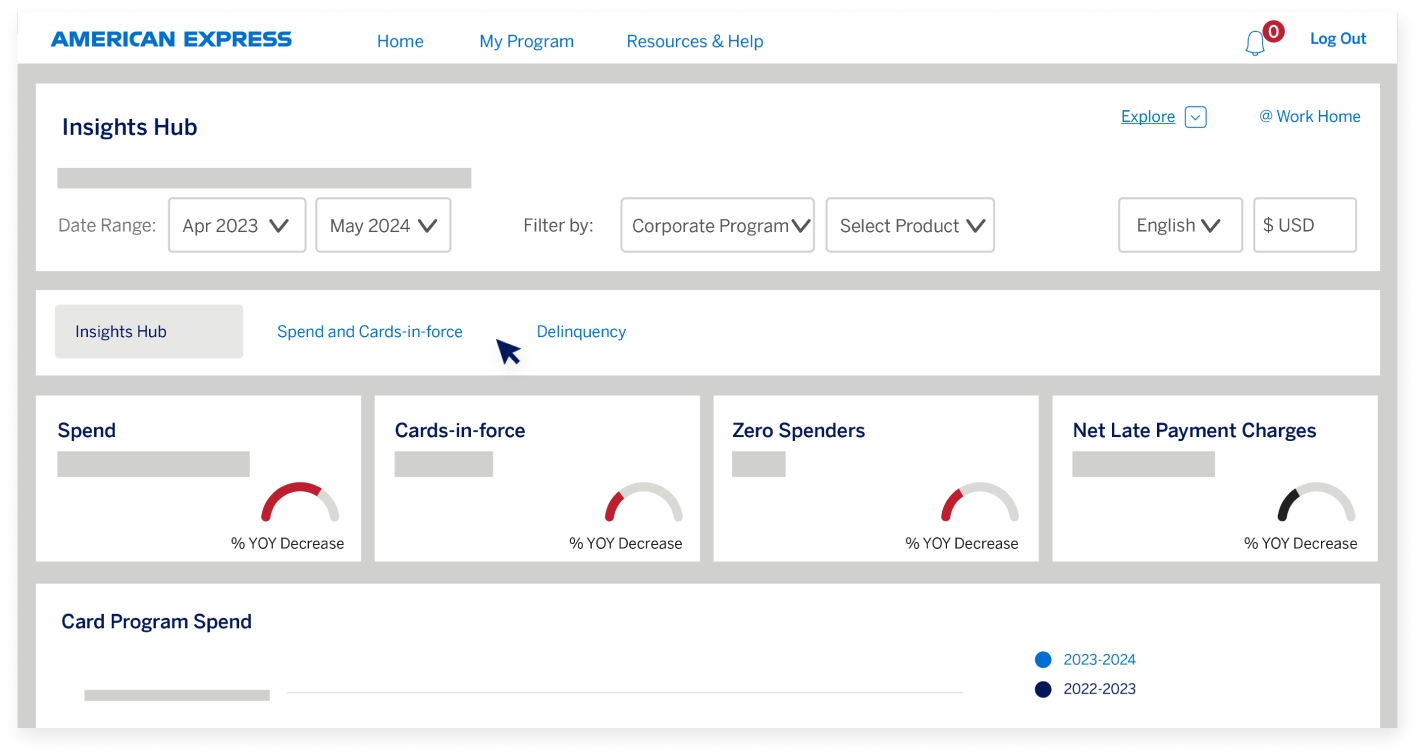
If you’re already on Insights Hub, you can visit the Spend and Cards-in-force dashboard using the navigation bar... 

SPEND AND CARDS-IN-FORCE

Navigating to Spend and Cards-in-force 

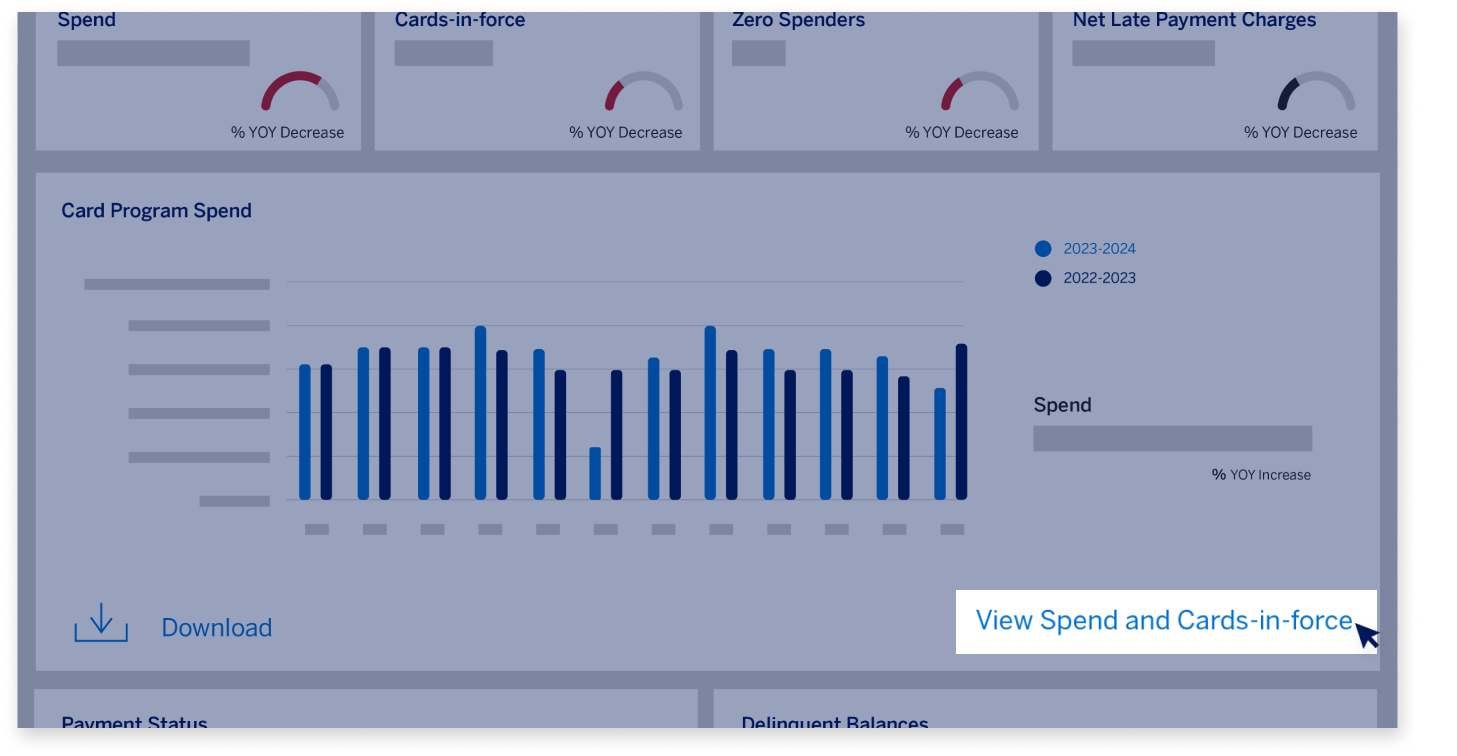
...or by clicking on the “View Spend and Cards-in-force” link on the 
“Card Program Spend” widget. 

SPEND AND CARDS-IN-FORCE

The Spend and Cards-in-force dashboard 

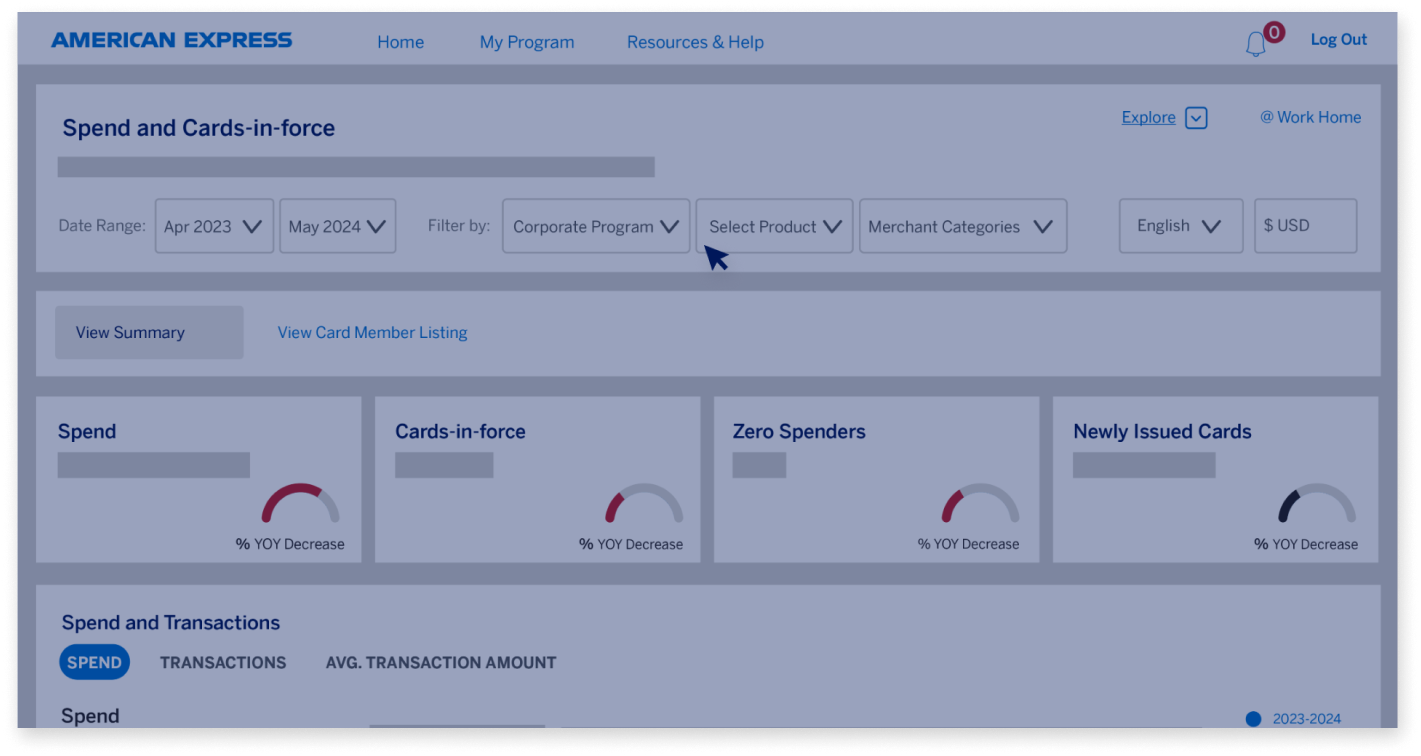
Let’s deep dive into the Spend and Cards-in-force dashboard! 

SPEND AND CARDS-IN-FORCE

The Spend and Cards-in-force dashboard 

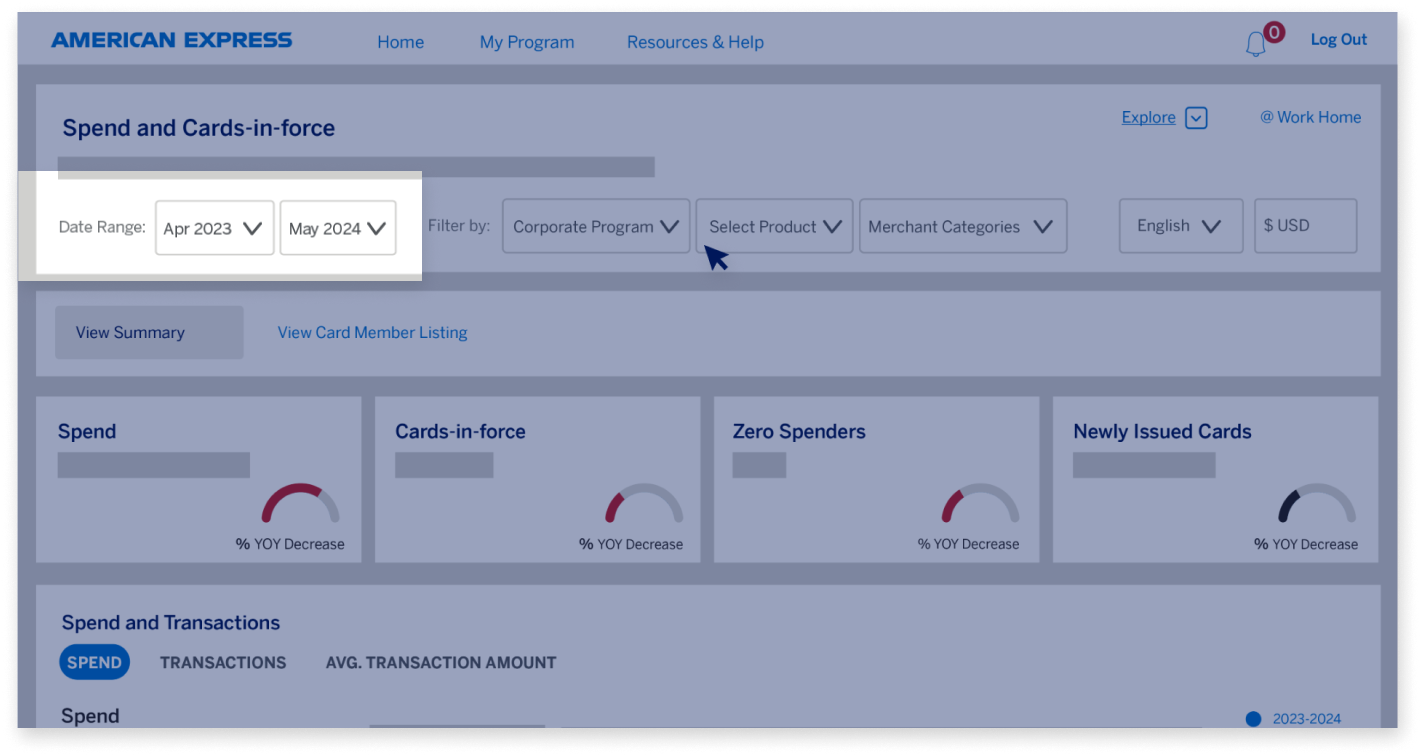
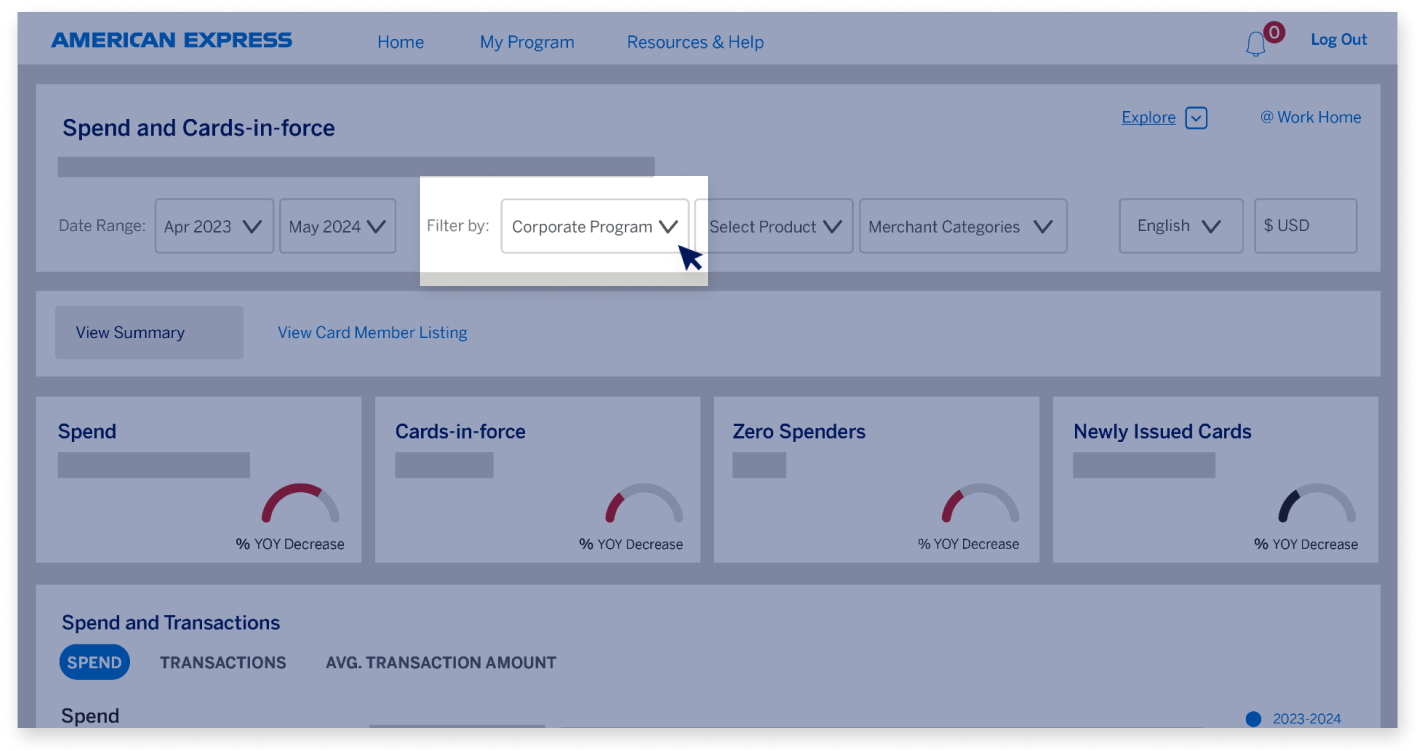
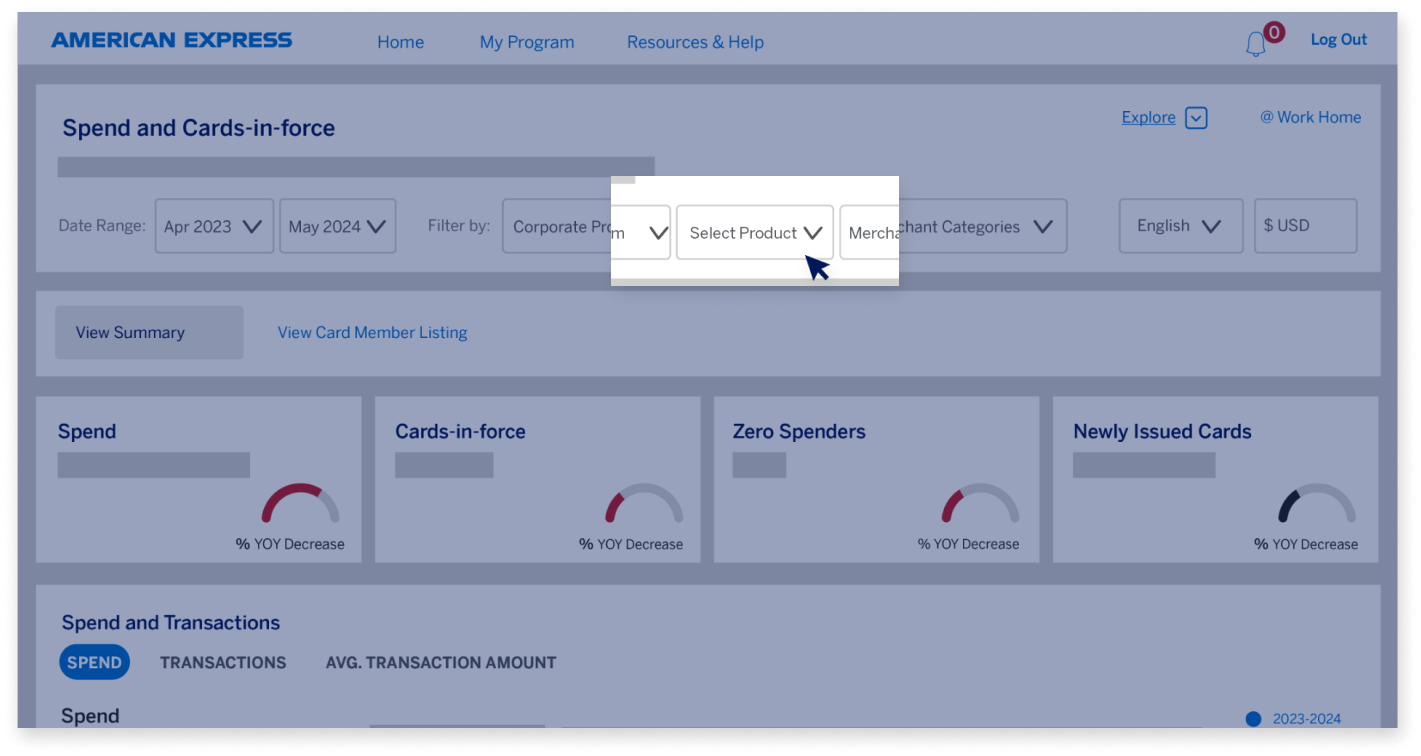
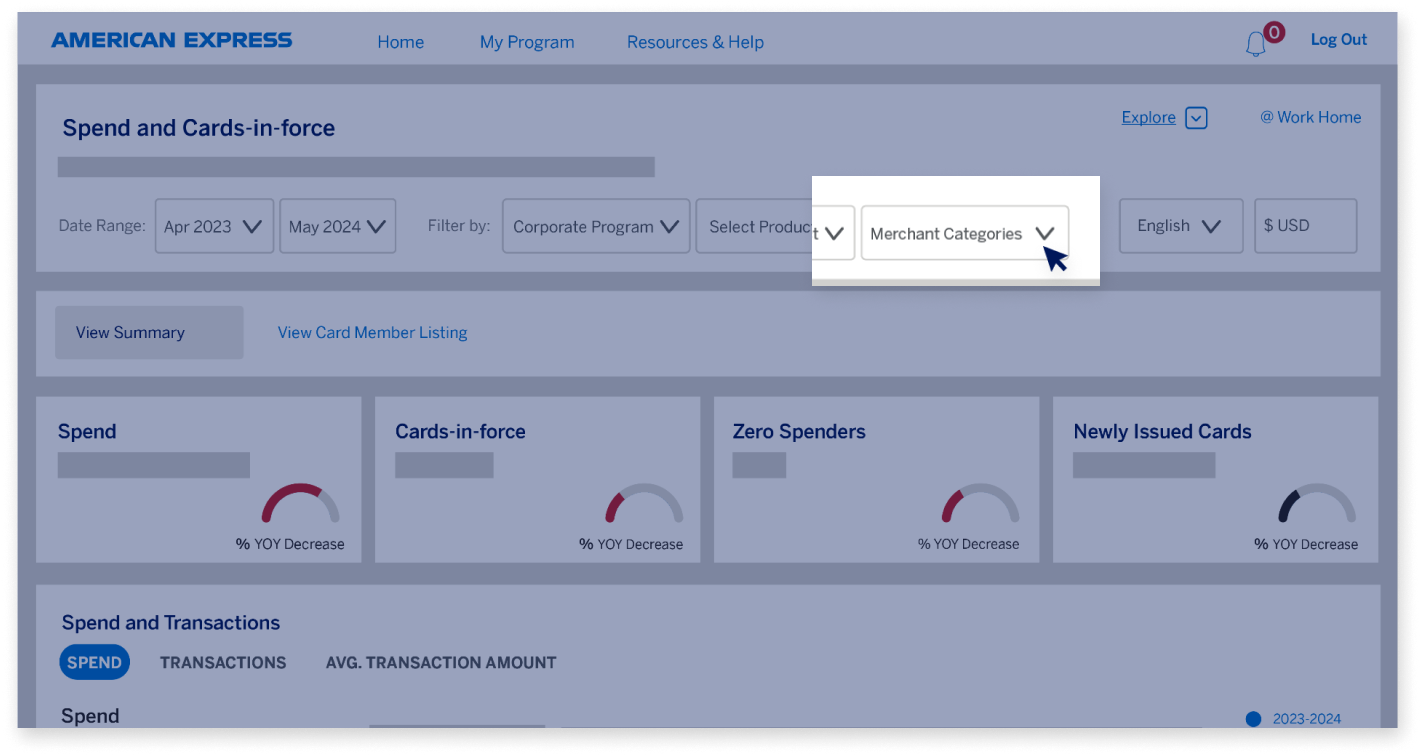
You can filter information on this dashboard by...  

SPEND AND CARDS-IN-FORCE

The Spend and Cards-in-force dashboard 

...Date Range... 

SPEND AND CARDS-IN-FORCE

The Spend and Cards-in-force dashboard 

...Control Accounts... 

SPEND AND CARDS-IN-FORCE

The Spend and Cards-in-force dashboard 

...Product Types, 

SPEND AND CARDS-IN-FORCE

The Spend and Cards-in-force dashboard 

and Merchant Categories. 

SPEND AND CARDS-IN-FORCE

The Spend and Cards-in-force dashboard 

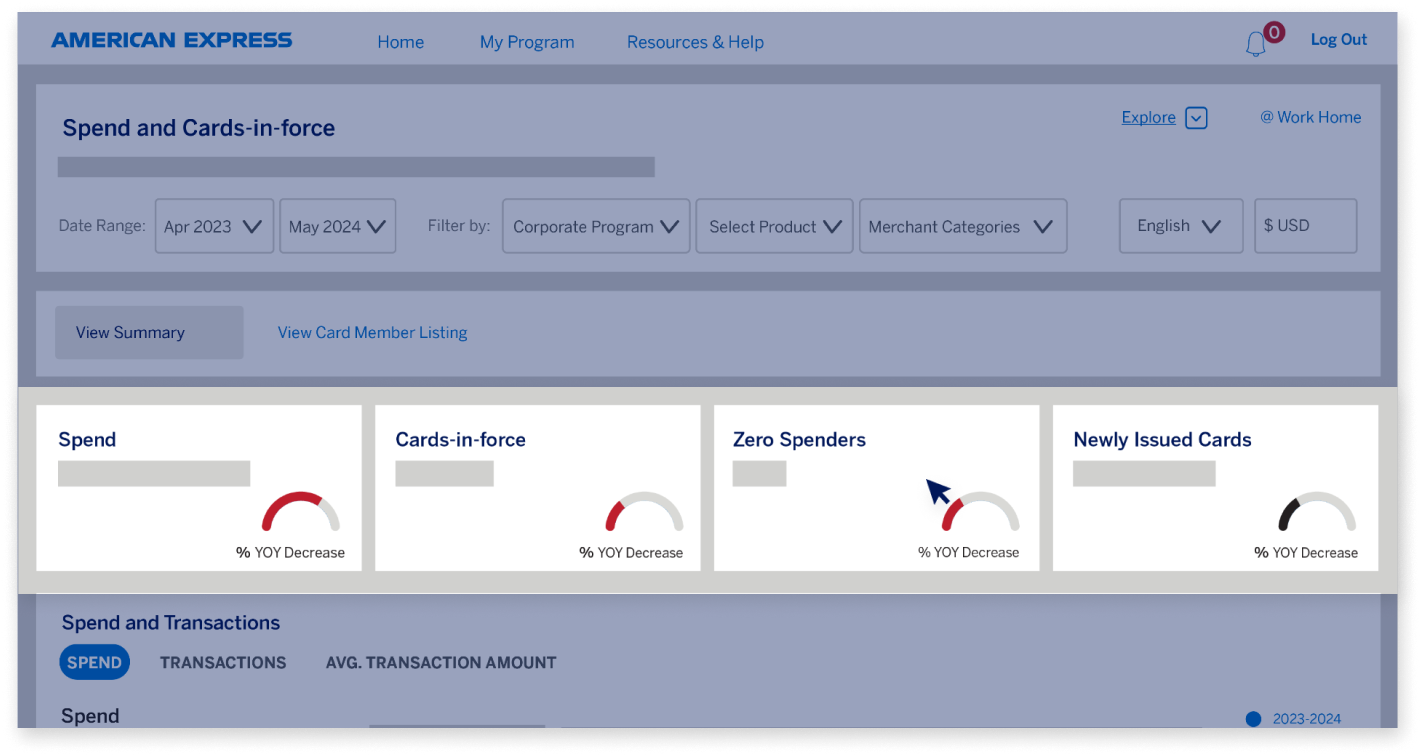
The four KPIs on top show you the: Total Card Program Spend, Cards-in-force, Zero Spenders, and Newly Issued Cards. 

SPEND AND CARDS-IN-FORCE

The Spend and Cards-in-force dashboard 

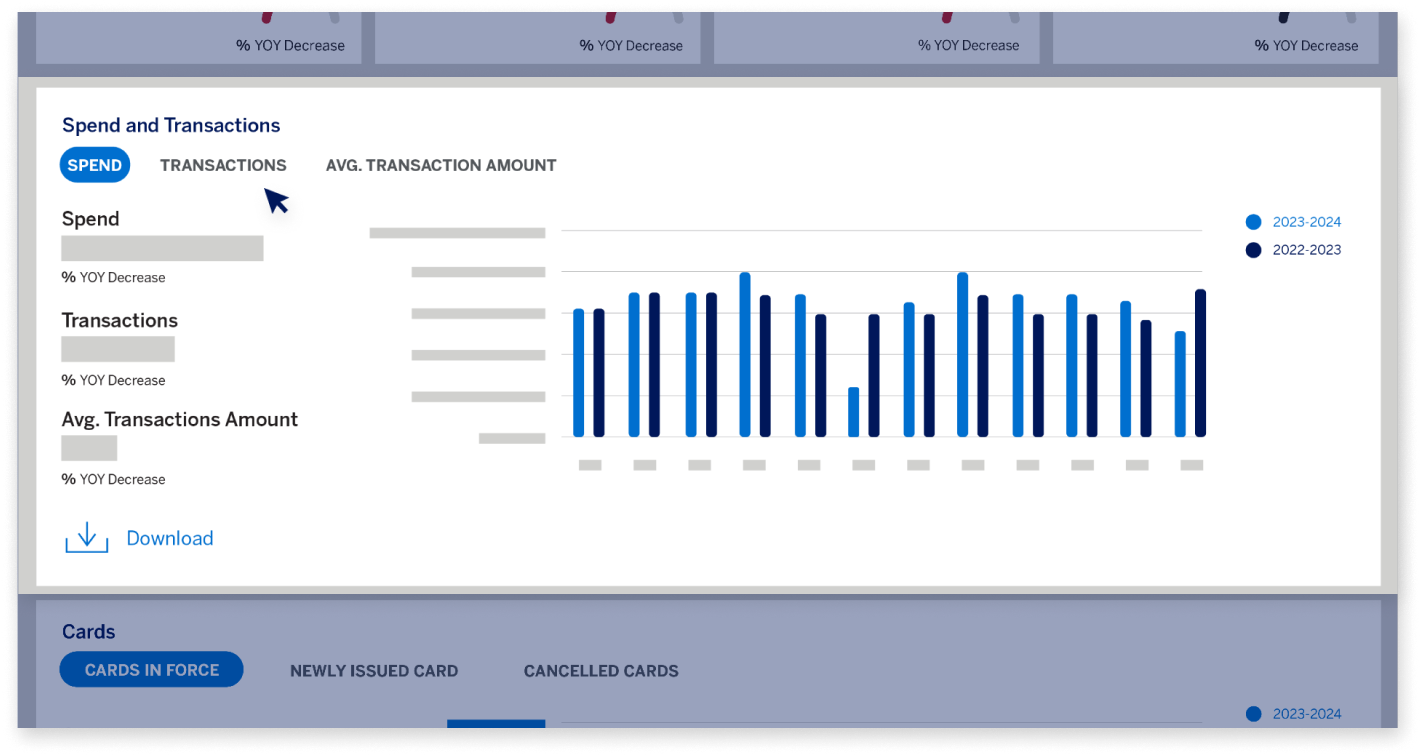
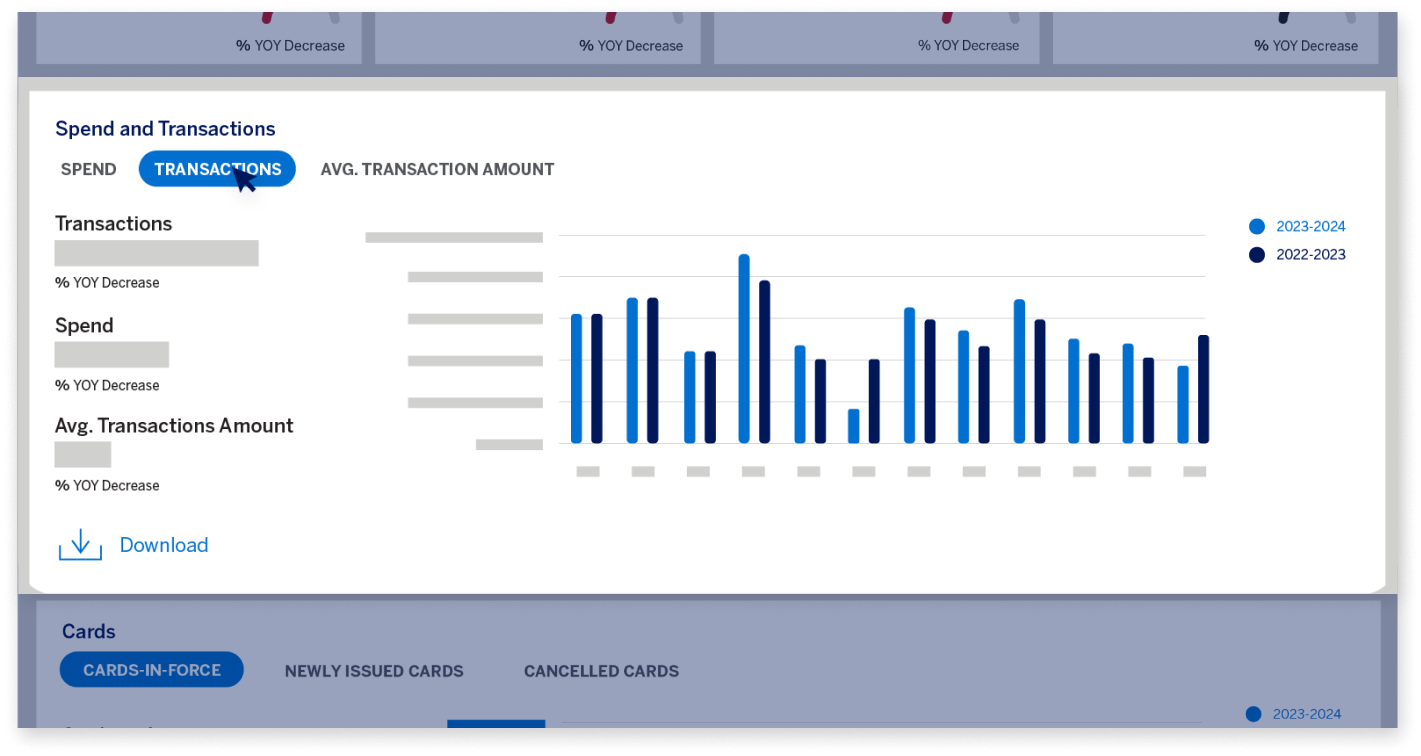
The “Spend and Transactions” widget shows you the total Card Program spend, number of Transactions, and the Average Transaction Amount, along with Year-On-Year changes. 

SPEND AND CARDS-IN-FORCE

The Spend and Cards-in-force dashboard 

You can select the metric for which you want to see a monthly trend on the chart.  

SPEND AND CARDS-IN-FORCE

The Spend and Cards-in-force dashboard 

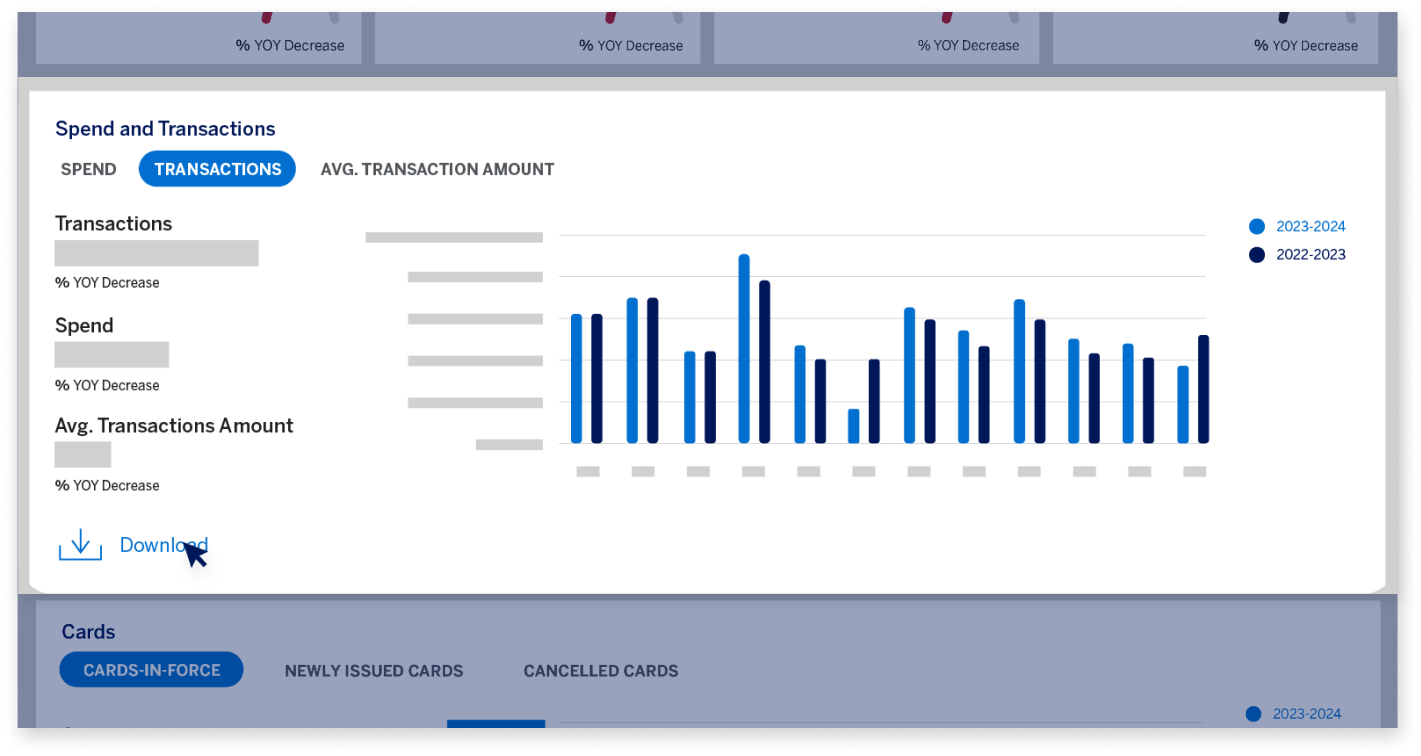
You can click on the “Download” button on any of the widgets and download the information for offline use in a desired file format like CSV, Excel, JPEG or PDF. 

SPEND AND CARDS-IN-FORCE

The Spend and Cards-in-force dashboard 

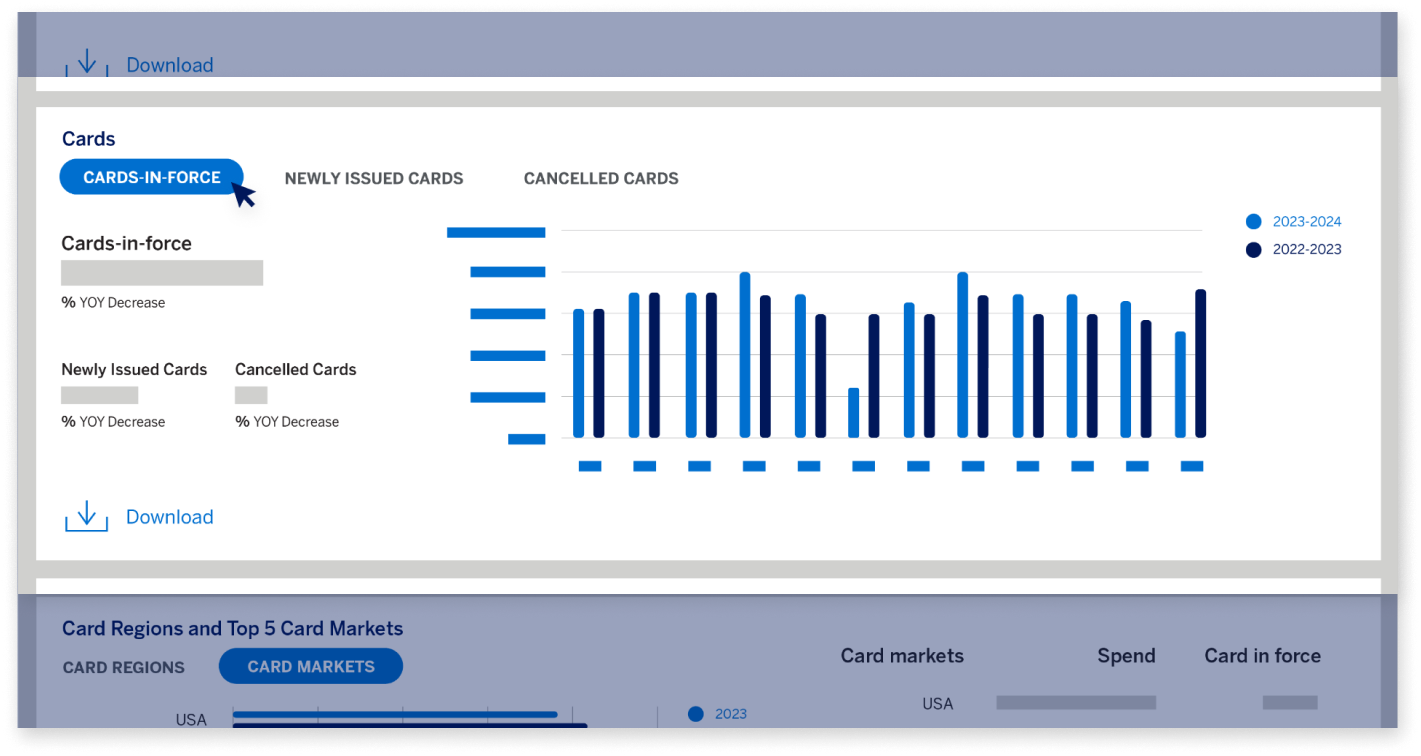
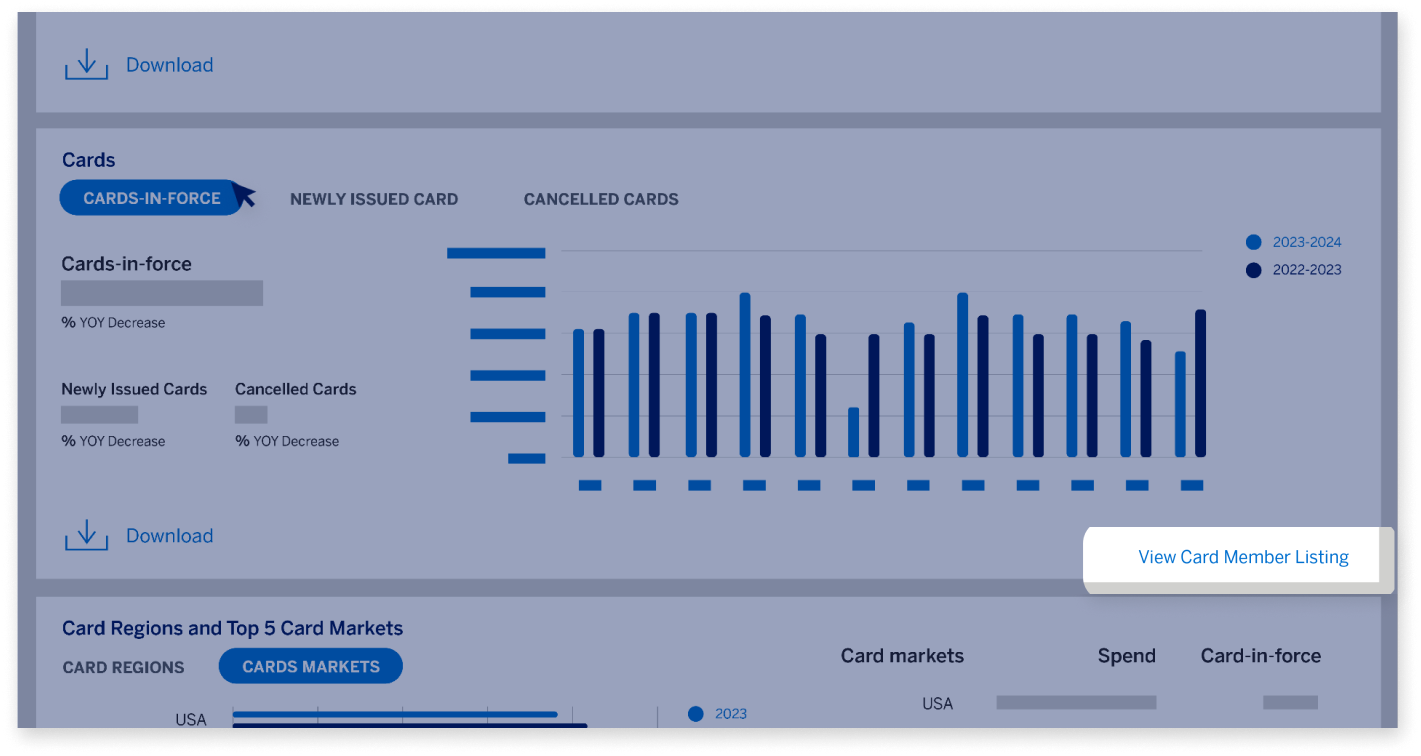
Next, you can look at the Cards-in-force, Newly Issued Cards and Cancelled Cards
in the Cards widget. Here as well, you can select the metric for which you want to see a monthly trend on the chart.

SPEND AND CARDS-IN-FORCE

The Spend and Cards-in-force dashboard 

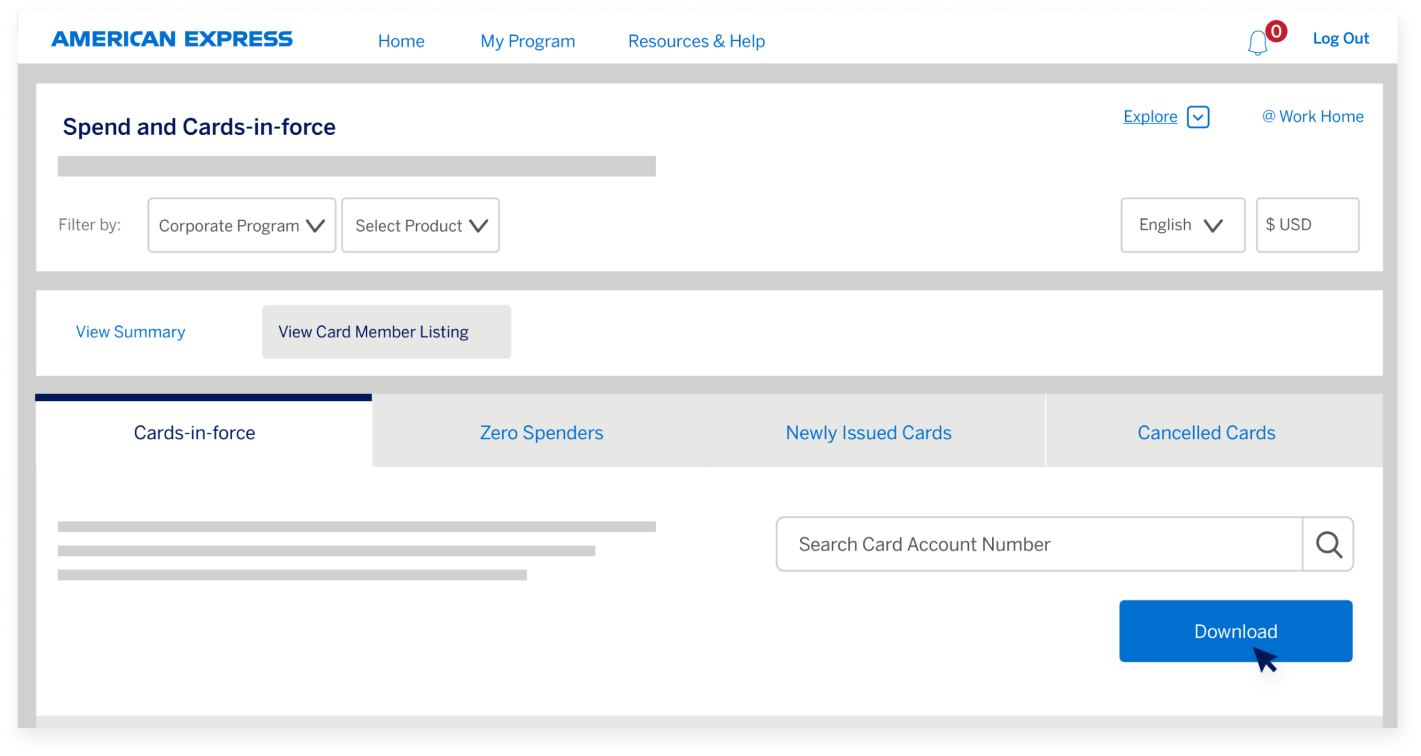
If you want to view and download a Card Member listing, you can do that visiting the Card Member listing page either by clicking on the link provided in the widget itself or by using the Insights Hub navigation on the dashboard.  

SPEND AND CARDS-IN-FORCE

The Spend and Cards-in-force dashboard 

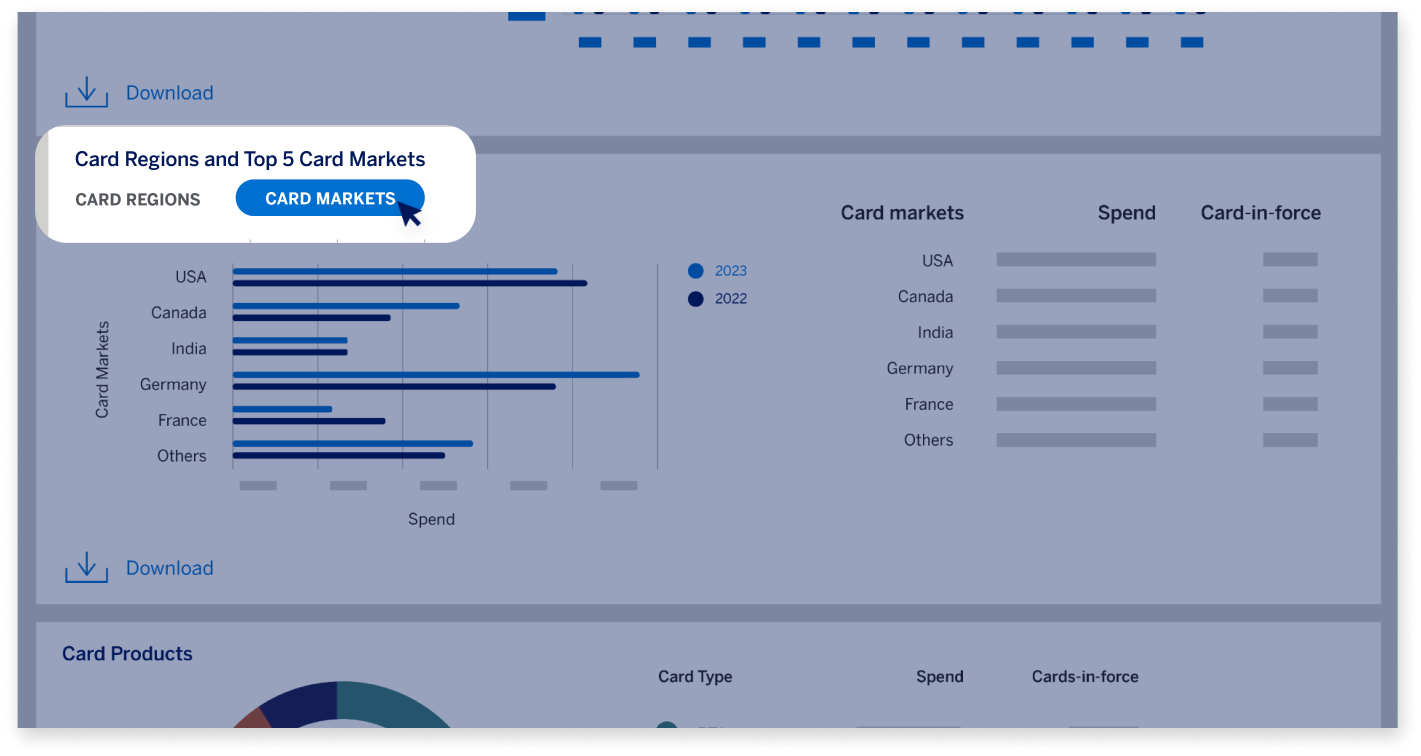
Next, you can scroll down to look at the spend and Cards-in-force across Card Regions and top five Card Markets. 

SPEND AND CARDS-IN-FORCE

The Spend and Cards-in-force dashboard 

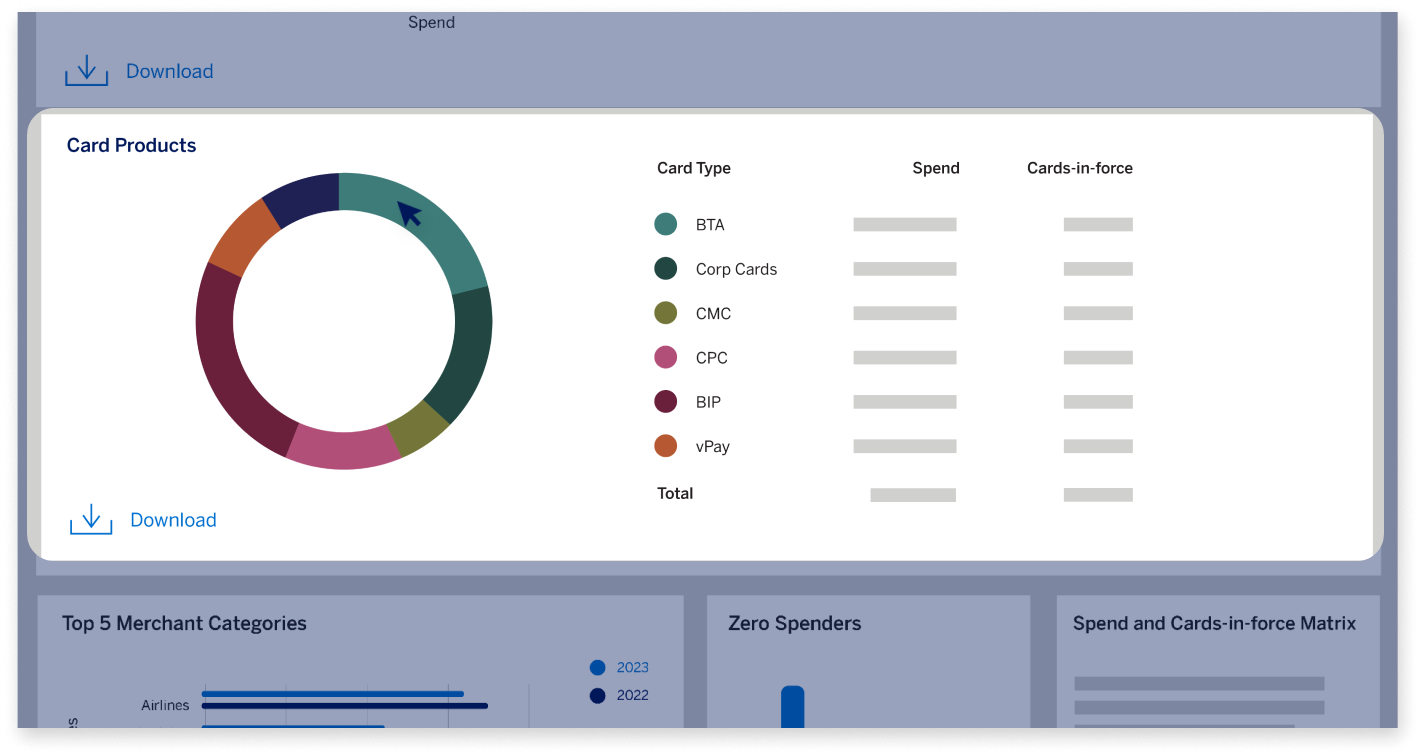
You can also look at the spend and Cards-in-force across all the Card product types in your Program. 

SPEND AND CARDS-IN-FORCE

The Spend and Cards-in-force dashboard 

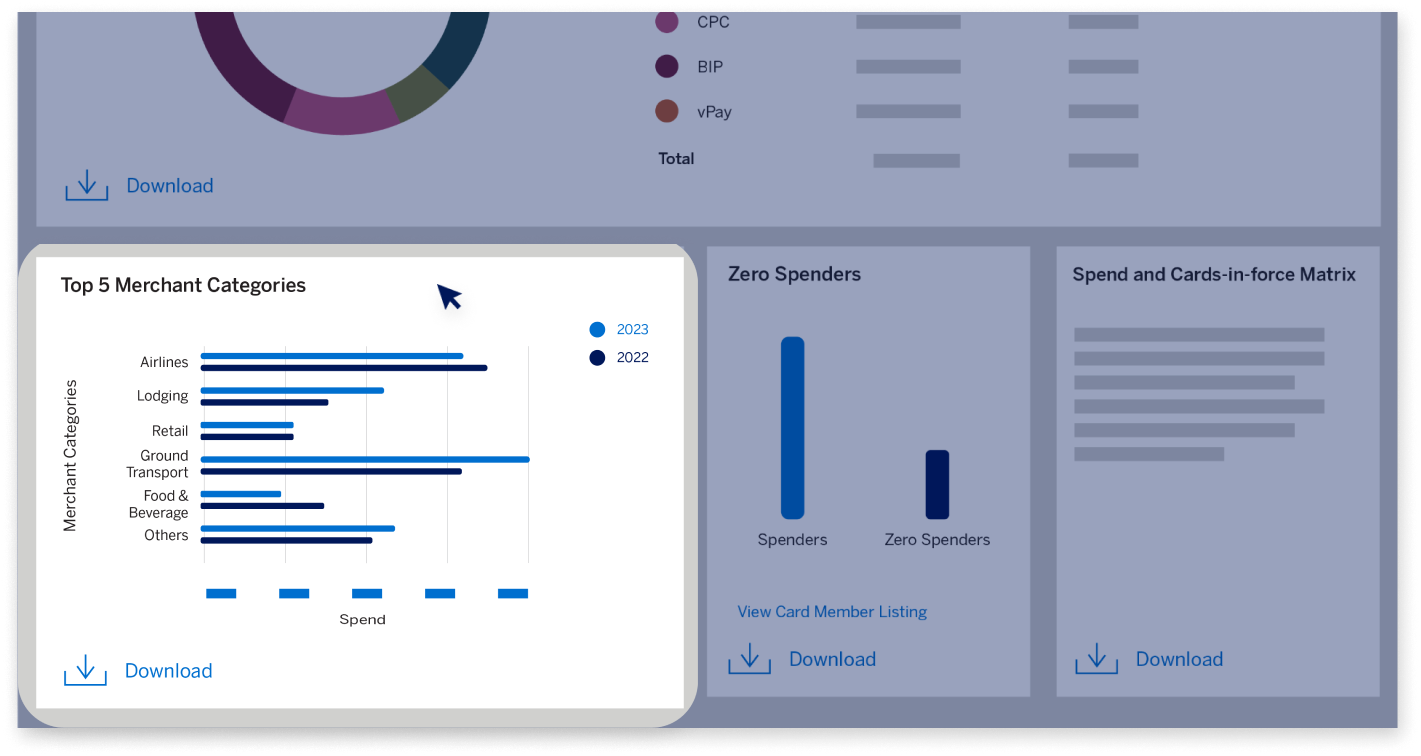
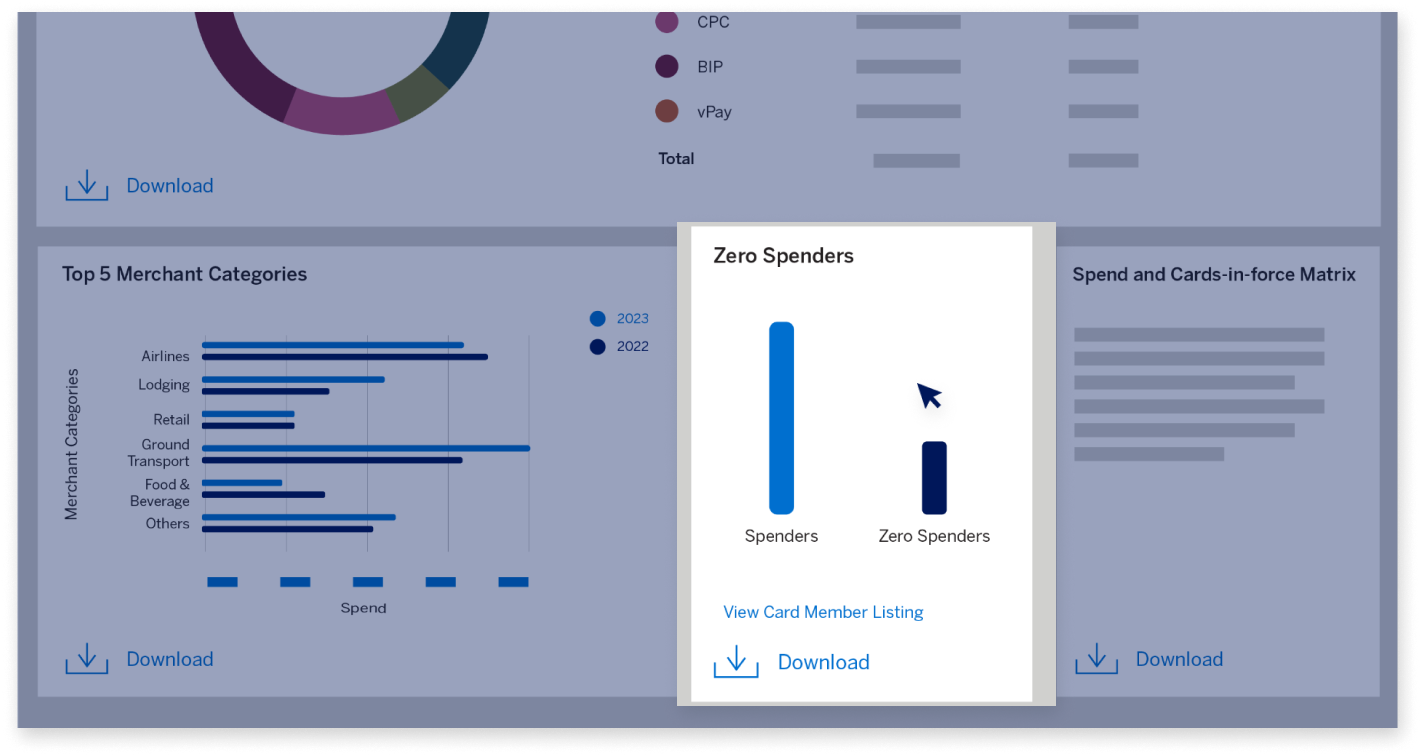
As you scroll towards the end of the dashboard, you can see the spend on Top 5 Merchant Categories and in the widget next to it, you can compare the Spenders and Zero Spenders in your Program.  

SPEND AND CARDS-IN-FORCE

The Spend and Cards-in-force dashboard 

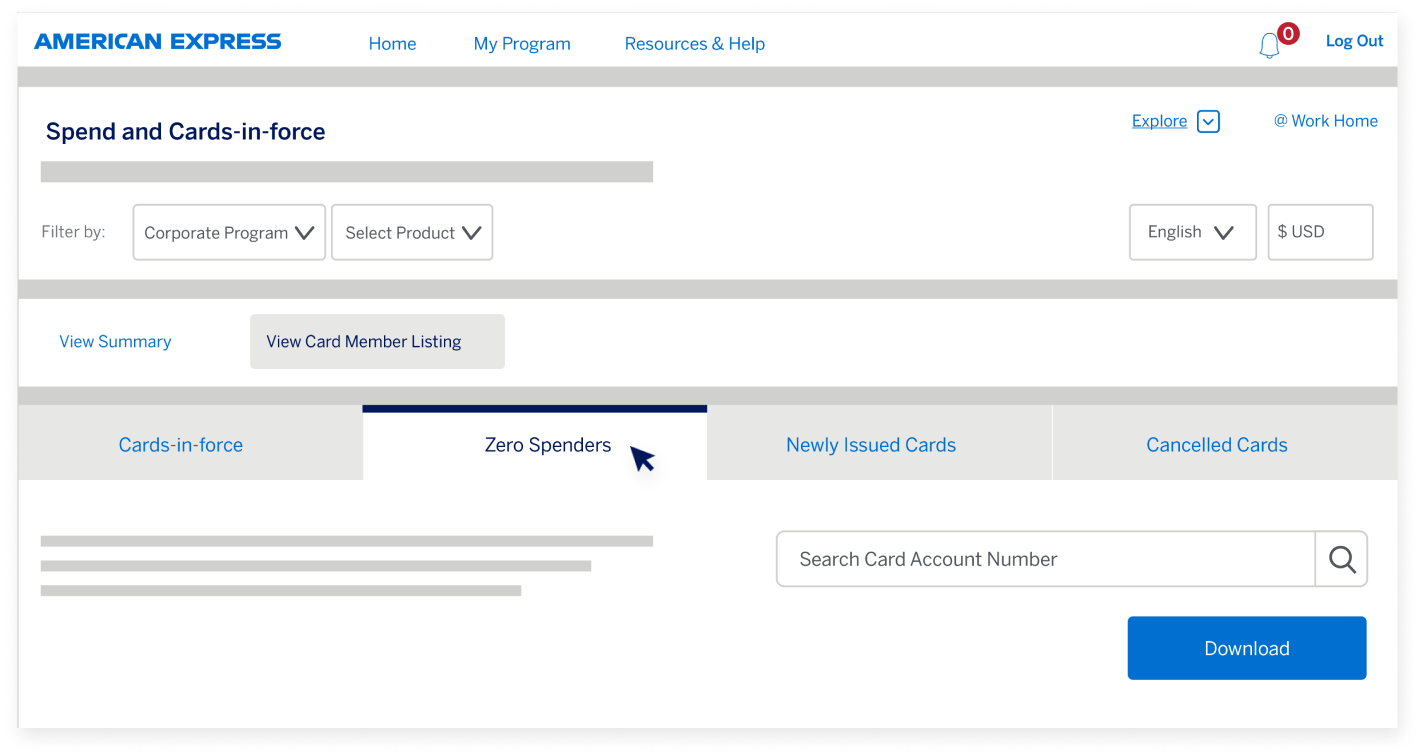
You can also access the list of Zero Spenders by clicking on the “View Card Member Listing” link on the Zero Spenders widget. 

SPEND AND CARDS-IN-FORCE

The Spend and Cards-in-force dashboard 

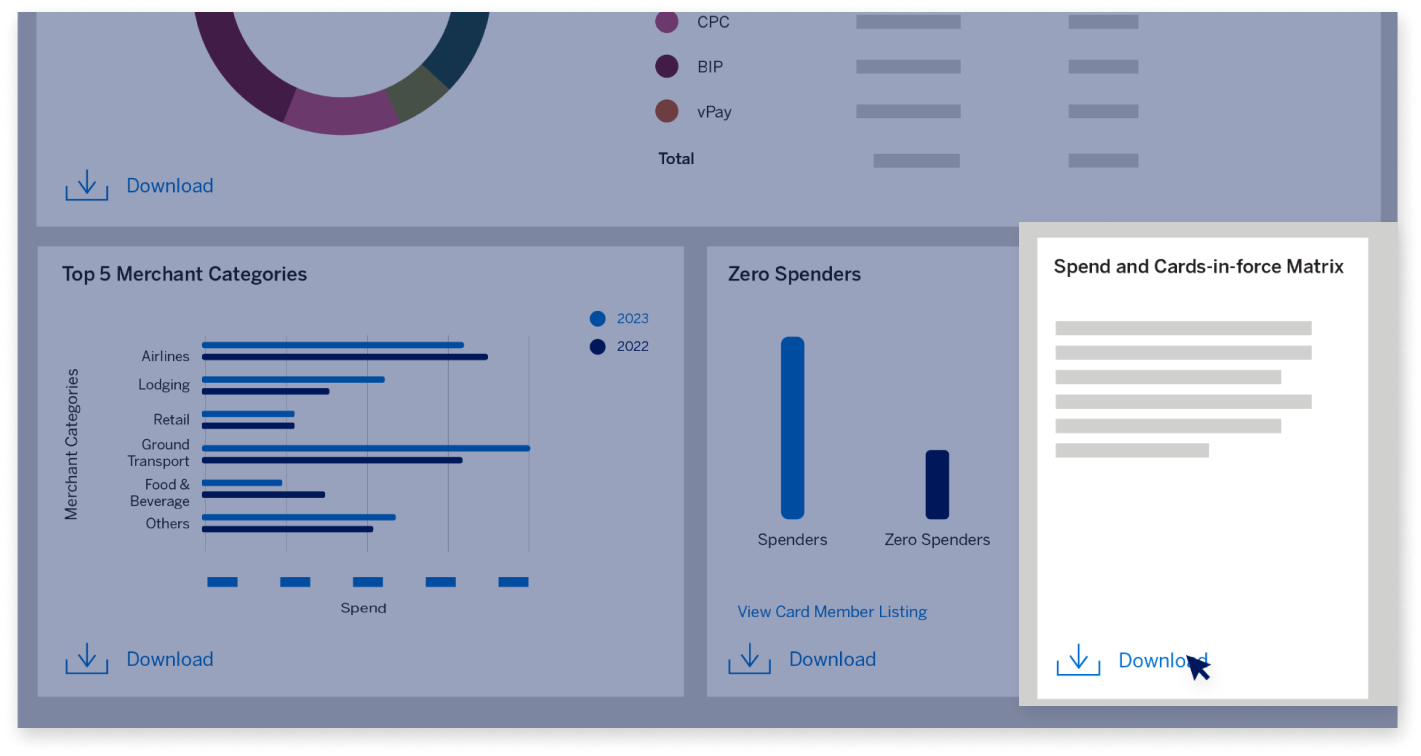
Finally, if you wish to further analyze your Card Program data, you can download a comprehensive Spend and Cards-in-force report in an Excel format including details like the Card Program hierarchy, location and product types, along with a year-on-year comparison. 

SPEND AND CARDS-IN-FORCE

The Spend and Cards-in-force dashboard 

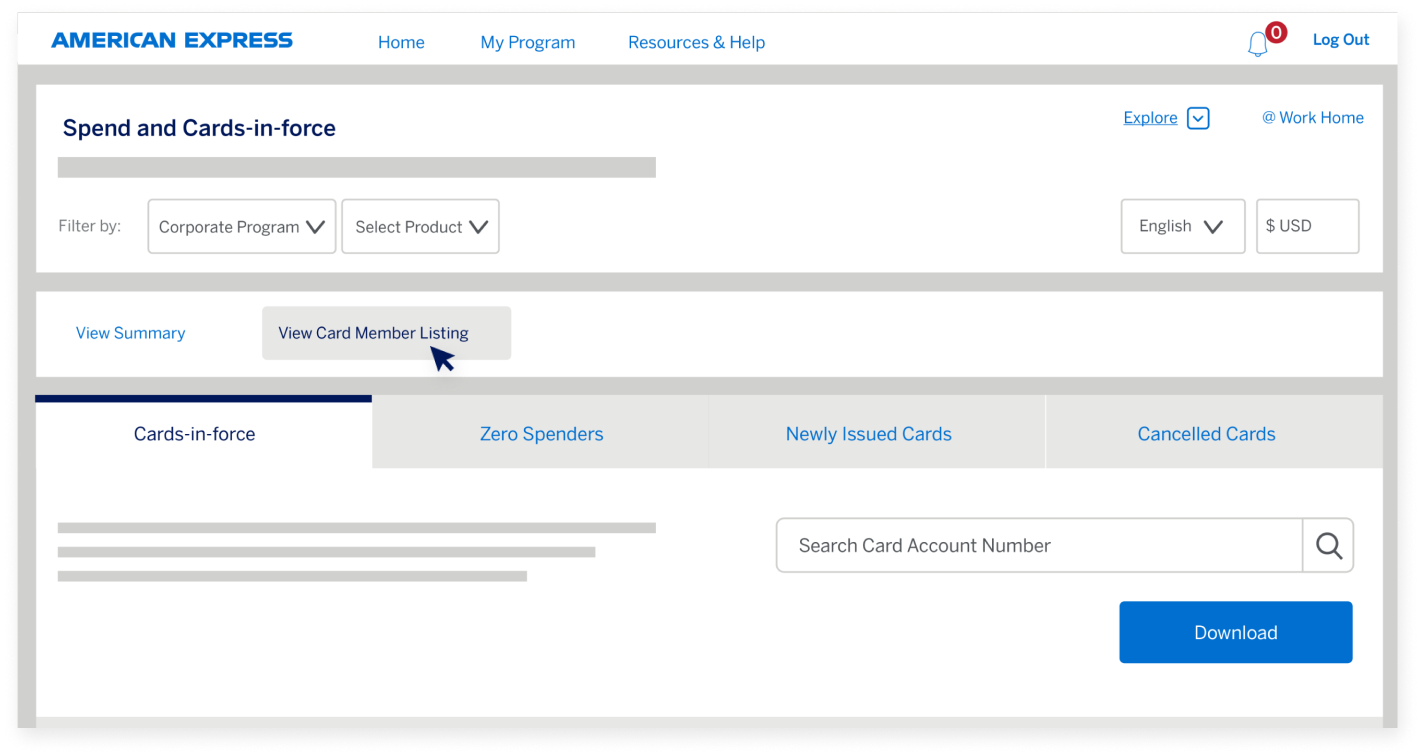
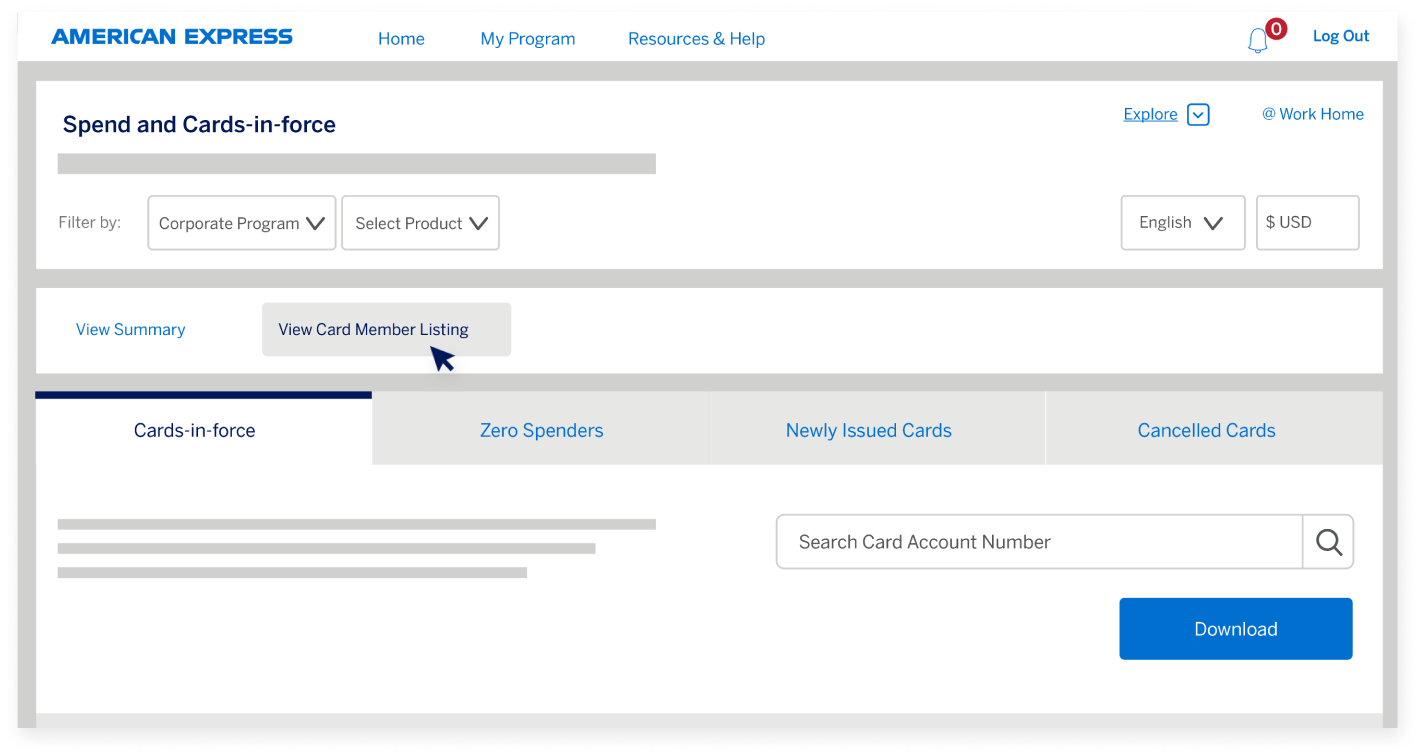
Let’s now look at the Card Member Listing page within the Spend and Cards-in-force dashboard. You can get to the Card Member Listing using the Insights Hub navigation on the dashboard.  

SPEND AND CARDS-IN-FORCE

Card Member Listing page  

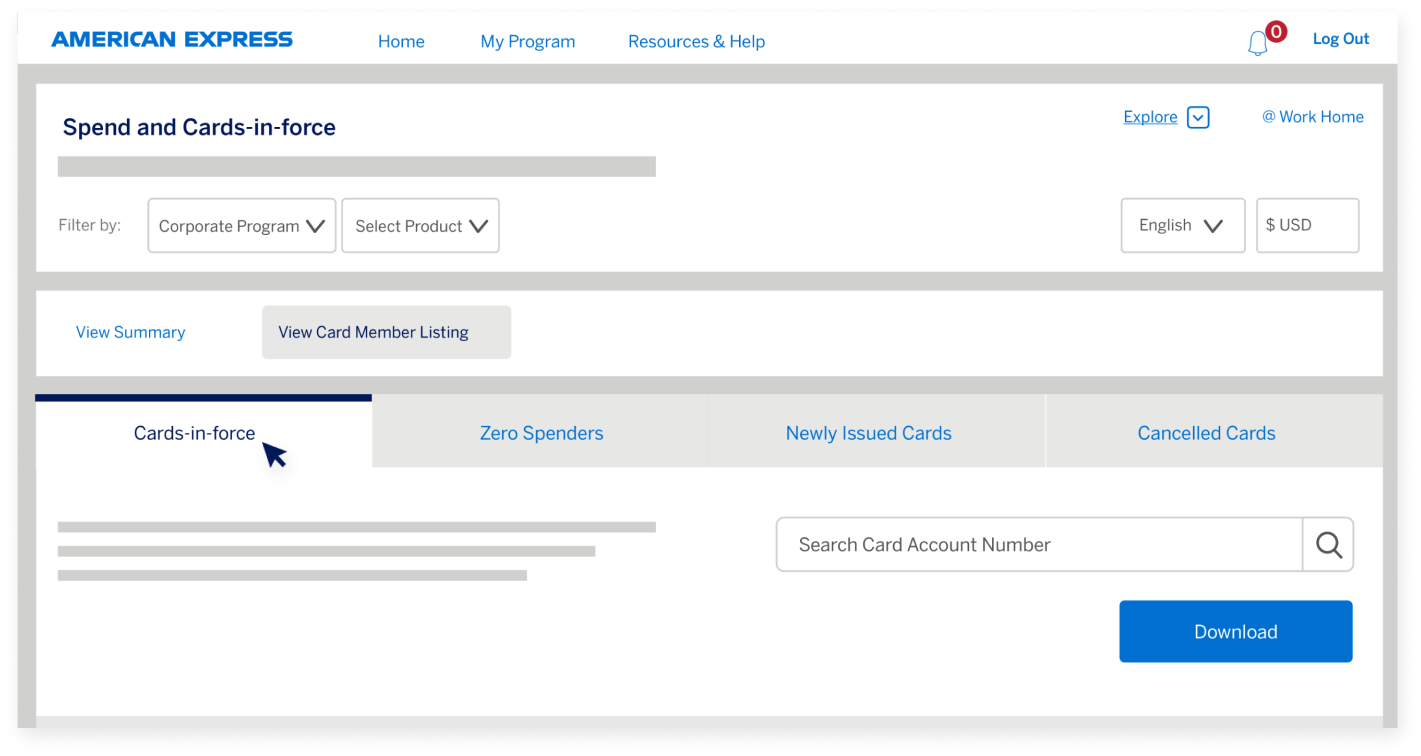
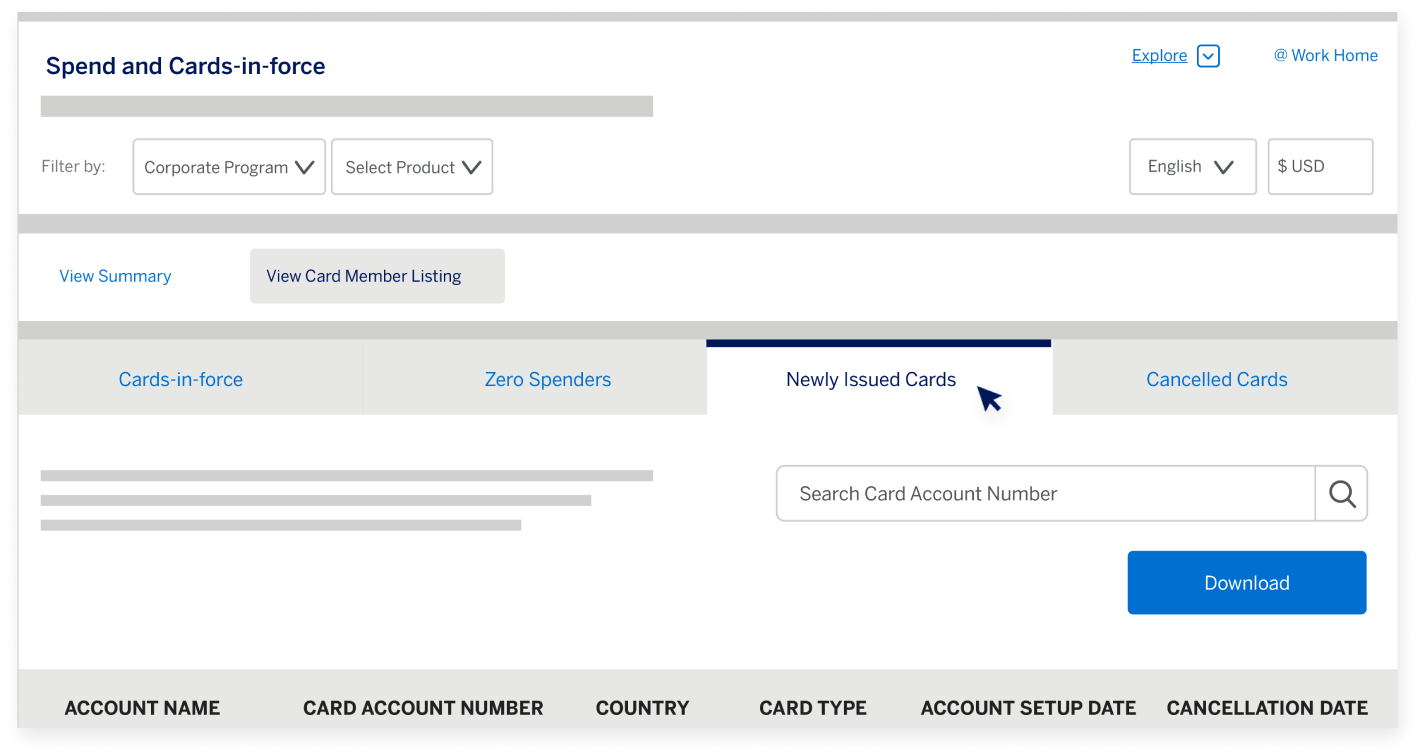
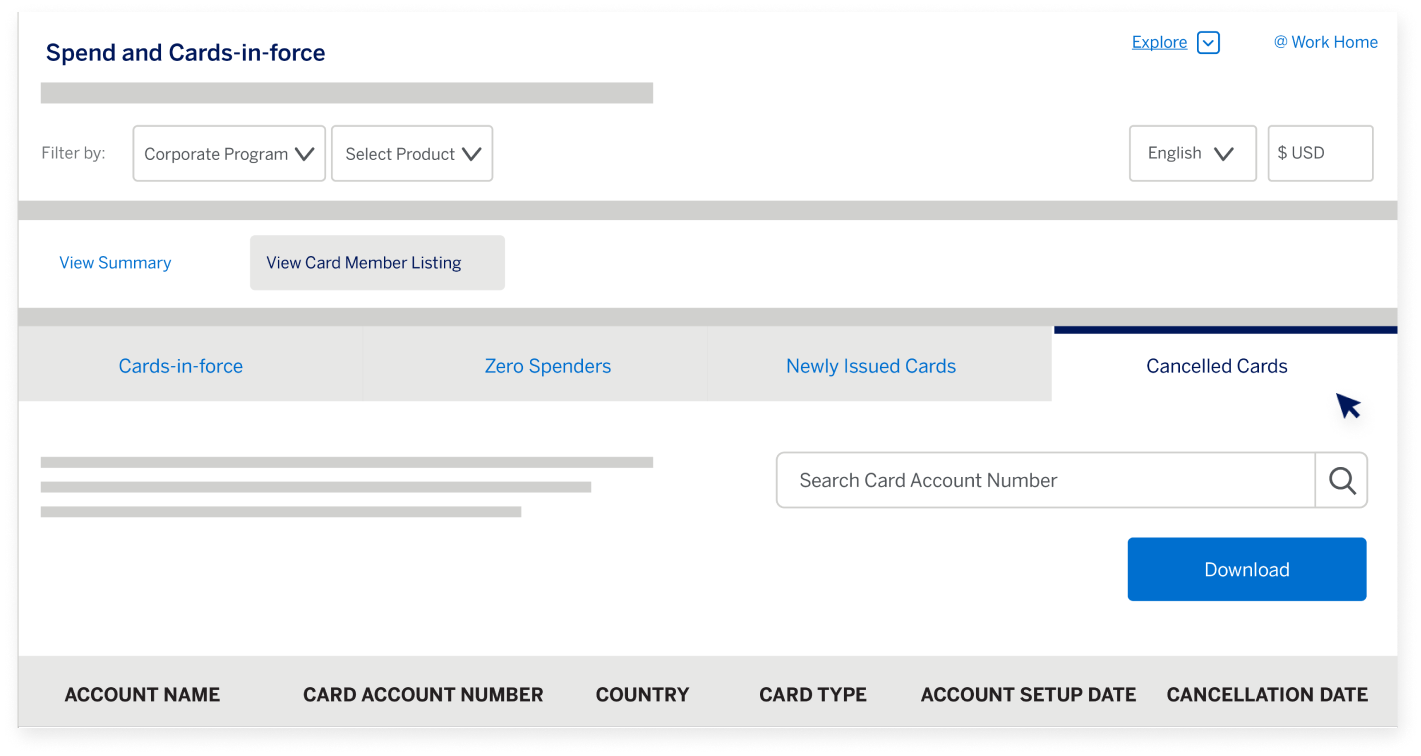
The Card Member Listing page shows the list of Card Members in your Program in four categories:  

SPEND AND CARDS-IN-FORCE

Card Member Listing page  

...Cards-in-force...  

SPEND AND CARDS-IN-FORCE

Card Member Listing page  

...Zero Spenders...   

SPEND AND CARDS-IN-FORCE

Card Member Listing page  

...Newly Issued Cards, and...  

SPEND AND CARDS-IN-FORCE

Card Member Listing page  

...Cancelled Cards. 

SPEND AND CARDS-IN-FORCE

Card Member Listing page  

On the Card Member Listing page, you can view and download Card Member level information.  

SPEND AND CARDS-IN-FORCE

Card Member Listing page  

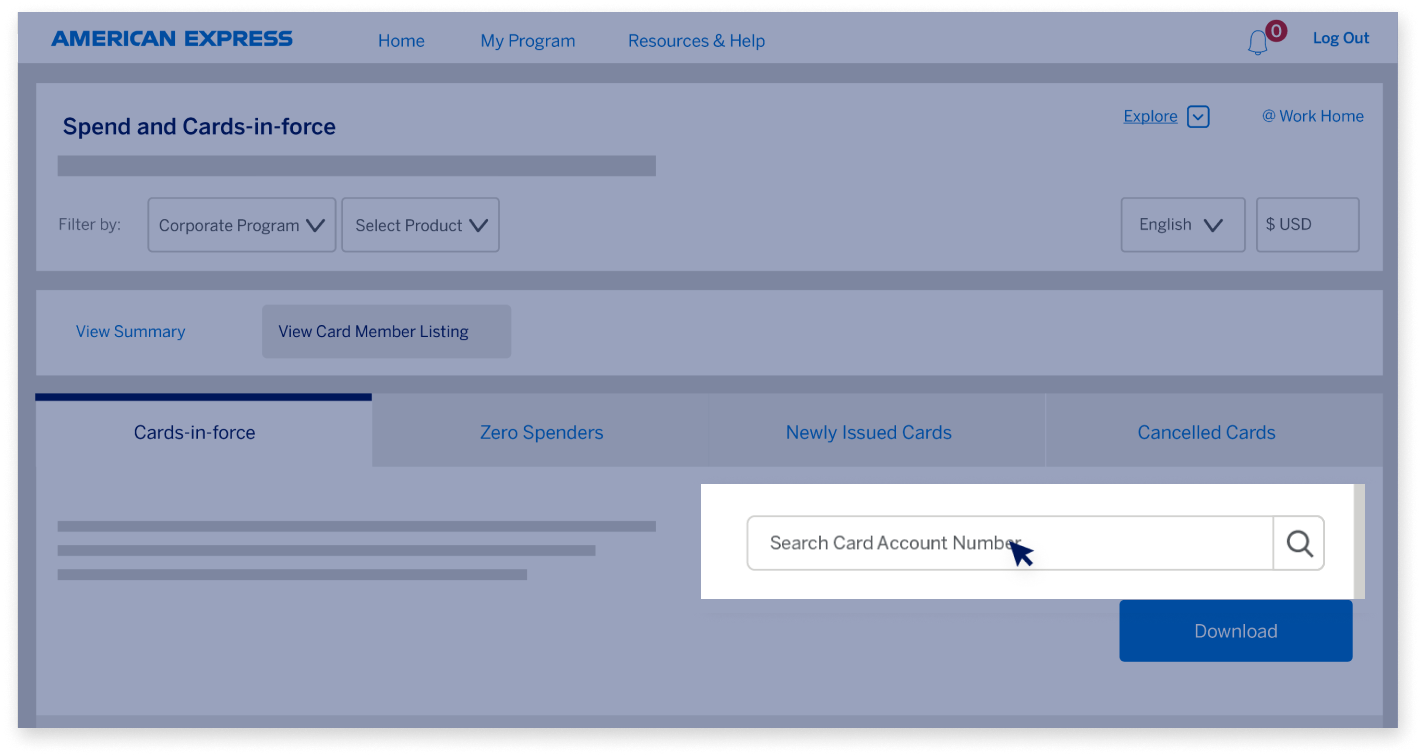
Search for an account in a search bar by typing the last four 
digits or the complete 15-digit Card account number. 

SPEND AND CARDS-IN-FORCE

Card Member Listing page  

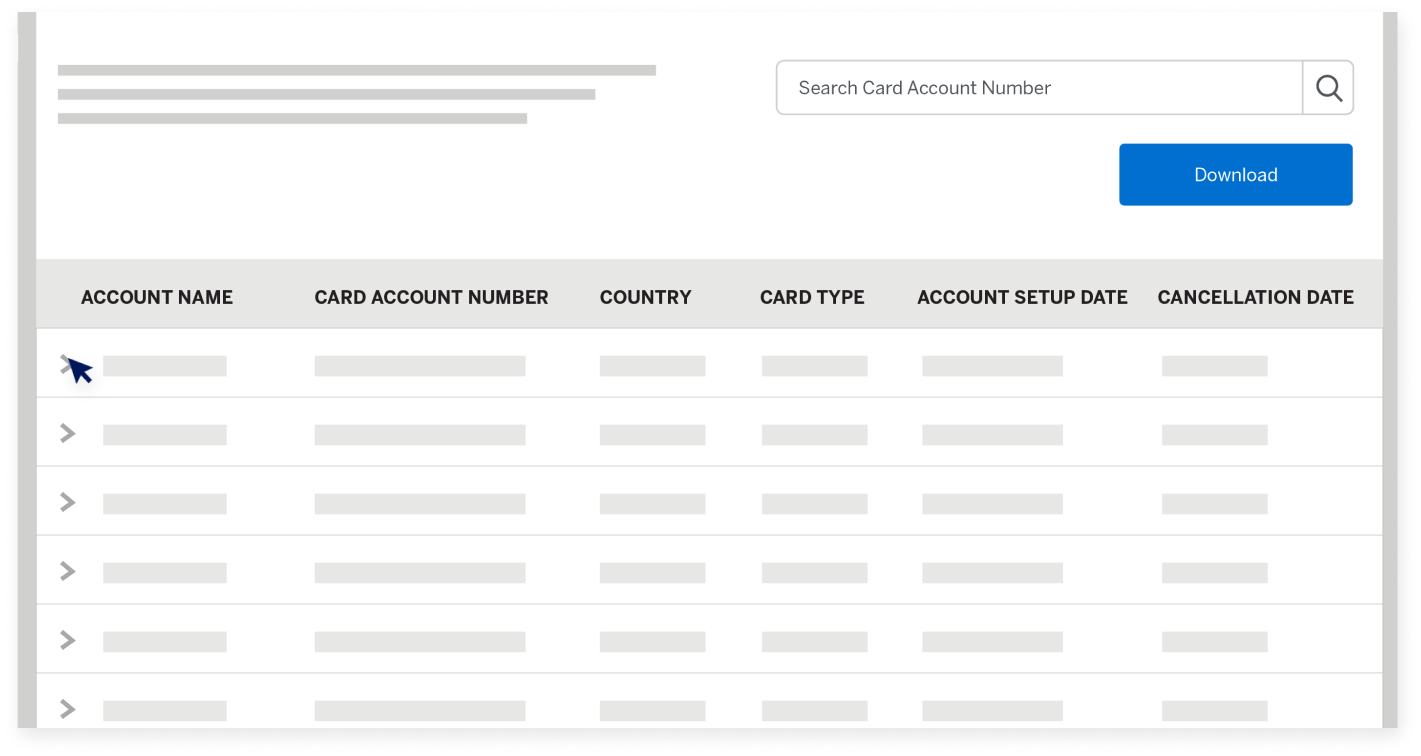
View more details for an account by clicking on the 
expander button before the account name. 

Go to the main menu for more Guided Tours 

The Delinquency Dashboard will be covered in a separate chapter. 

Next

spend-and-cards-in-force-screen1
spend-and-cards-in-force-screen2
spend-and-cards-in-force-screen3
spend-and-cards-in-force-screen4
spend-and-cards-in-force-screen5
spend-and-cards-in-force-screen7
spend-and-cards-in-force-screen8
spend-and-cards-in-force-screen9
spend-and-cards-in-force-screen10
spend-and-cards-in-force-screen11
spend-and-cards-in-force-screen12
spend-and-cards-in-force-screen13
spend-and-cards-in-force-screen14
spend-and-cards-in-force-screen15
spend-and-cards-in-force-screen16
spend-and-cards-in-force-screen17
spend-and-cards-in-force-screen18
spend-and-cards-in-force-screen19
spend-and-cards-in-force-screen21
spend-and-cards-in-force-screen22
spend-and-cards-in-force-screen23
spend-and-cards-in-force-screen24
spend-and-cards-in-force-screen25
spend-and-cards-in-force-screen26
spend-and-cards-in-force-screen27
spend-and-cards-in-force-screen28
spend-and-cards-in-force-screen29
spend-and-cards-in-force-screen30
spend-and-cards-in-force-screen31
spend-and-cards-in-force-screen32
spend-and-cards-in-force-screen35

Back

DELINQUENCY DASHBOARD 

Introduction

In this session, we’re going to explore the Delinquency Dashboard, which gives a comprehensive view of your total delinquent amounts, Card accounts, and late payment fees.  

DELINQUENCY DASHBOARD

Introduction 

The Dashboard helps you manage overdue balances and take steps to avoid incurring late payment fees using in-depth analysis and actionable insights. 

DELINQUENCY DASHBOARD

Navigating to the Delinquency Dashboard   

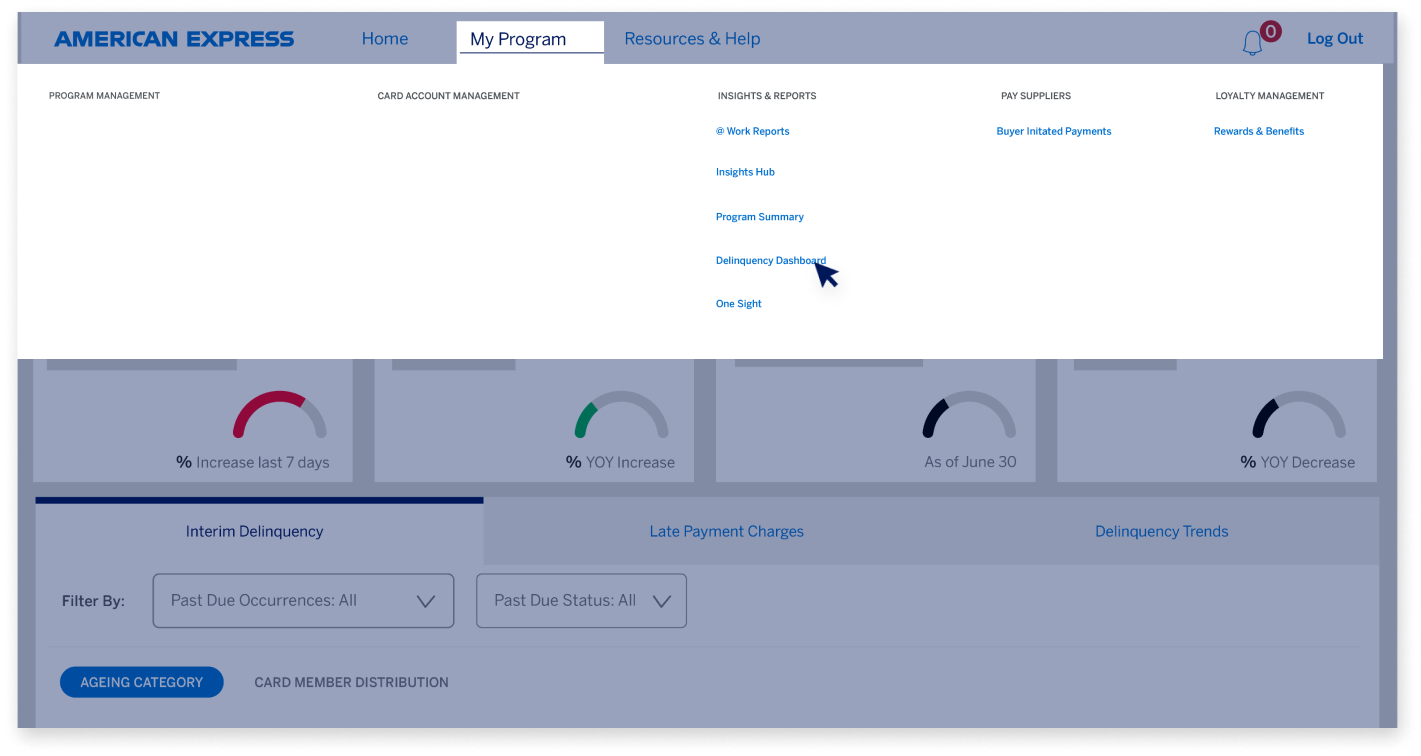
To get started, access the Delinquency Dashboard using the
@ Work navigation menu. 

DELINQUENCY DASHBOARD

Navigating to the Delinquency Dashboard  

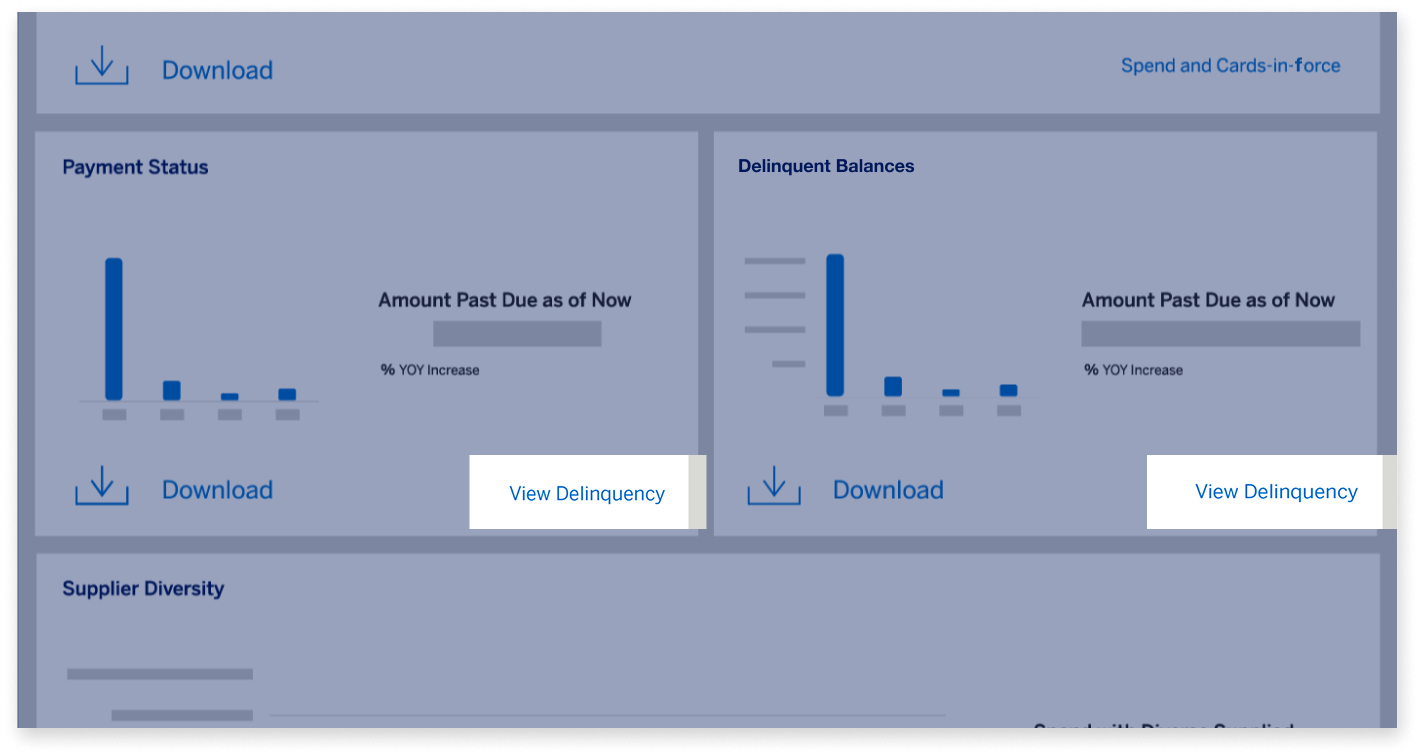
If you’re already on Insights Hub, you can visit the Delinquency Dashboard by clicking on the View Delinquency link on the Payment Status or Delinquent Balances widgets.   

DELINQUENCY DASHBOARD

Navigating to the Delinquency Dashboard   

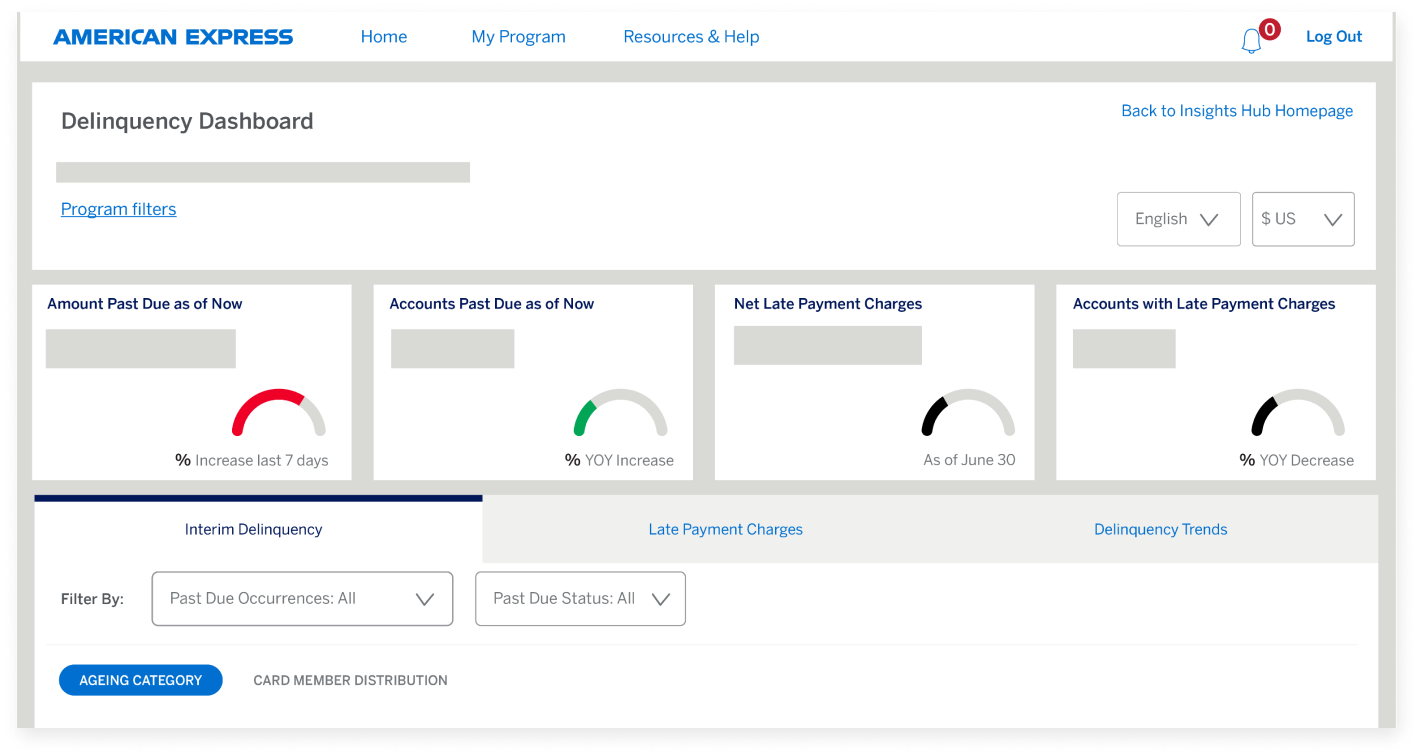
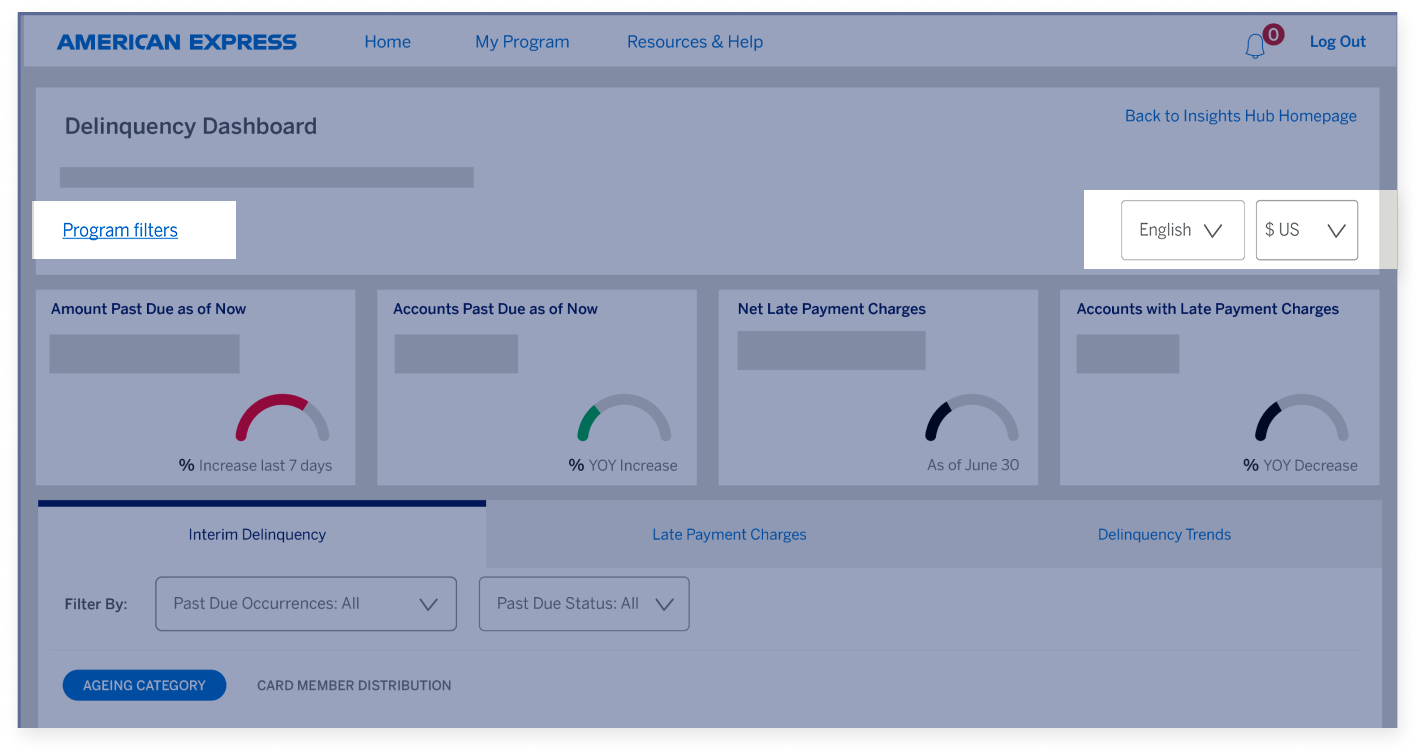
Let’s deep dive into the Delinquency Dashboard to see what’s inside. You can filter information by Control Accounts, markets, and product types using the “Program filters” button at the top of the page.  

DELINQUENCY DASHBOARD

The Delinquency Dashboard  

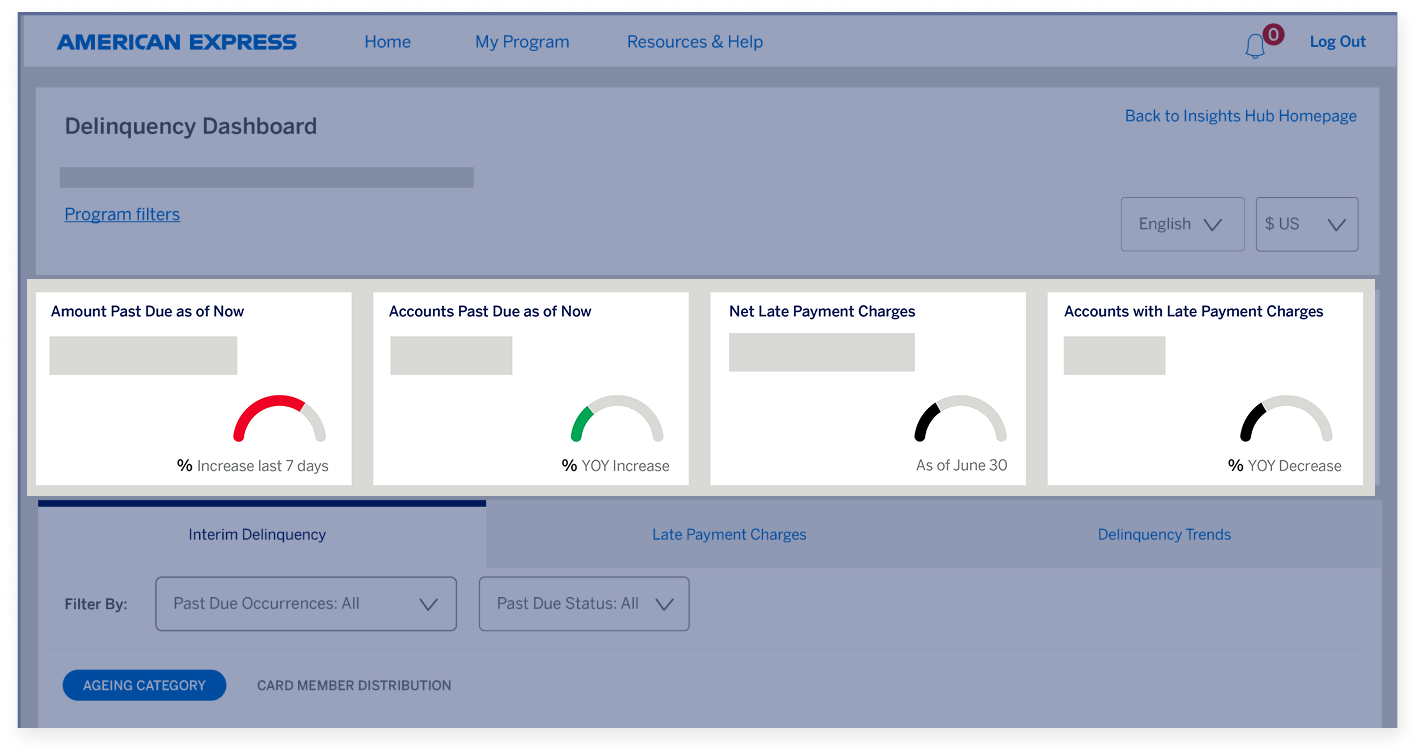
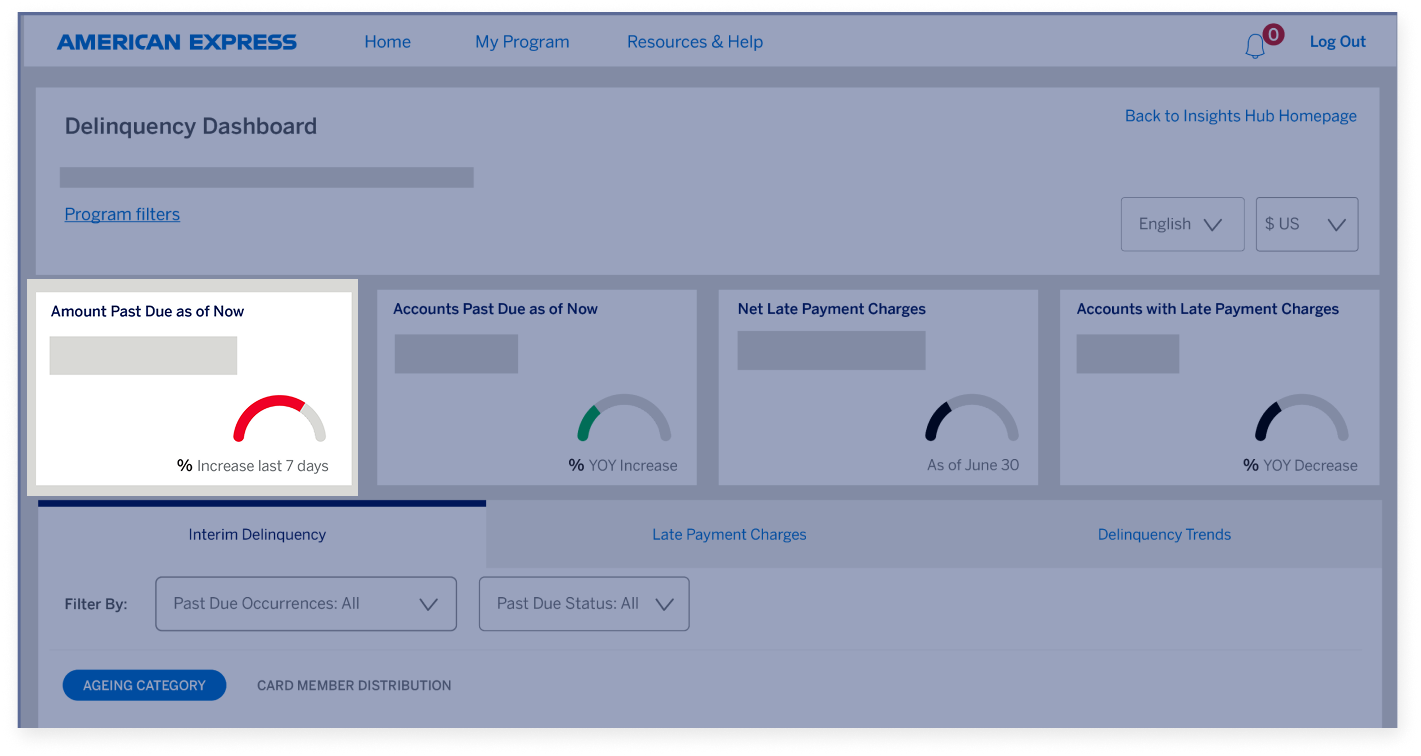
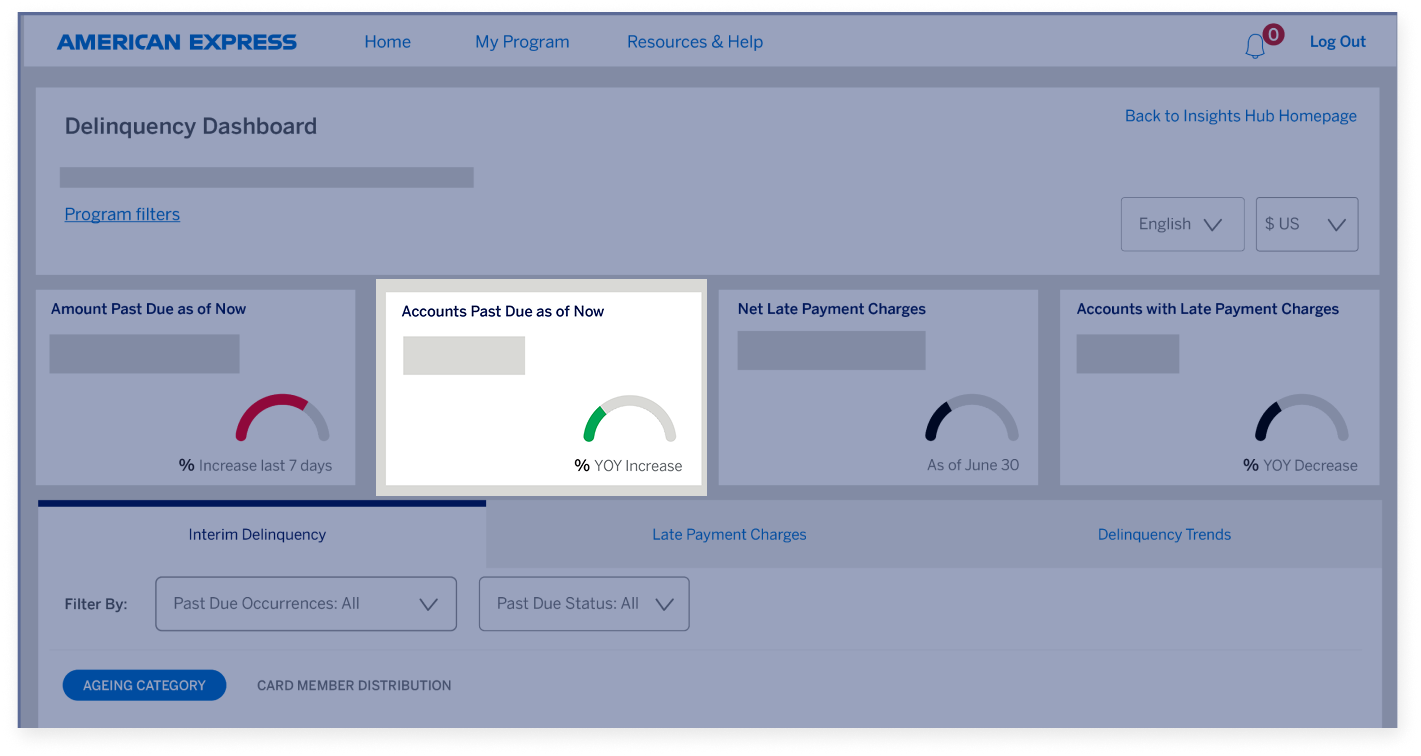
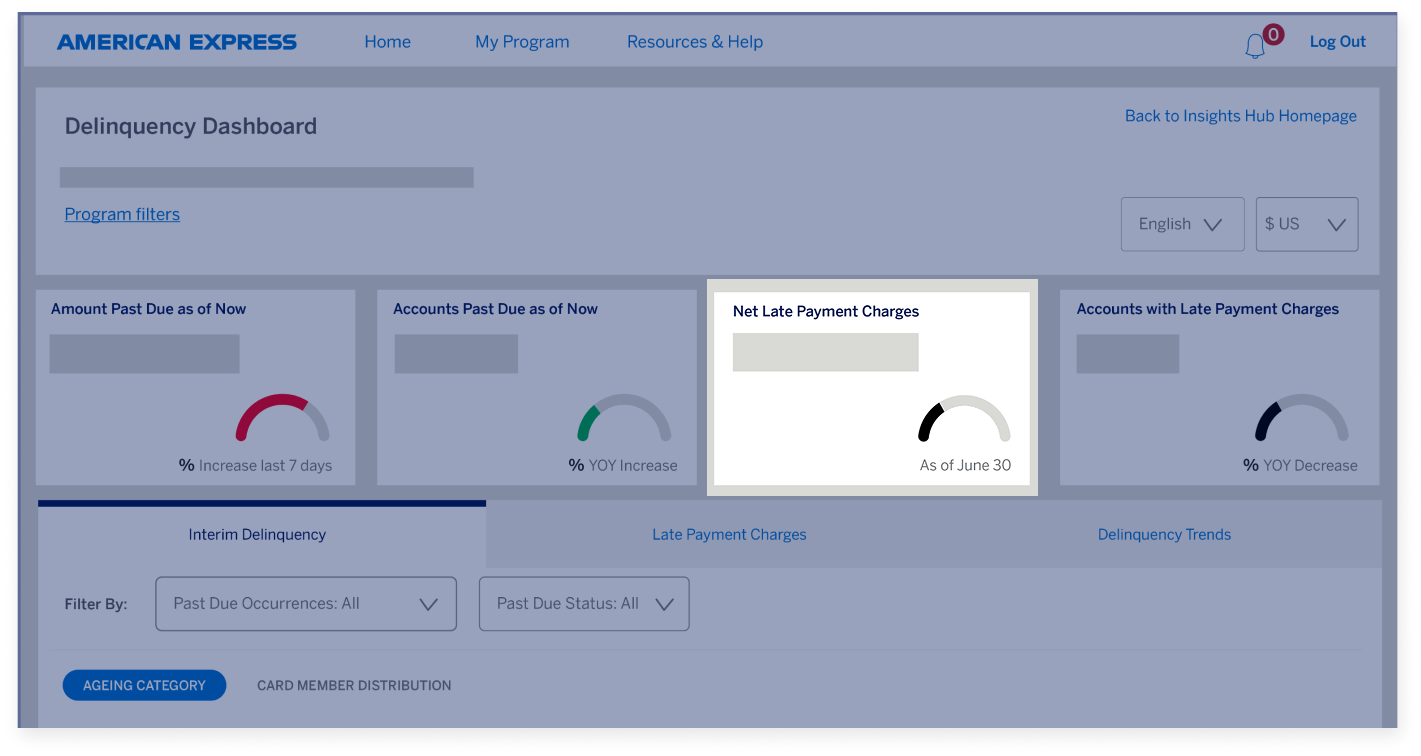
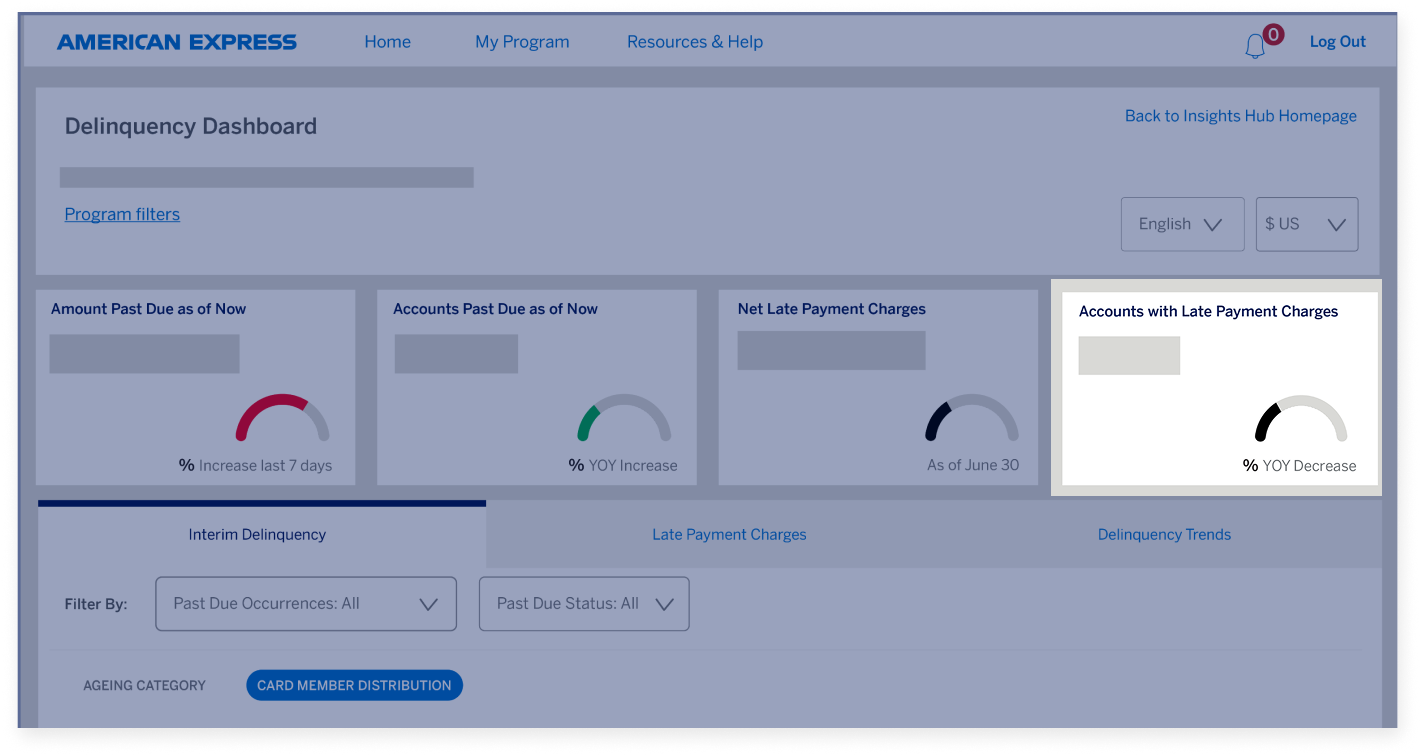
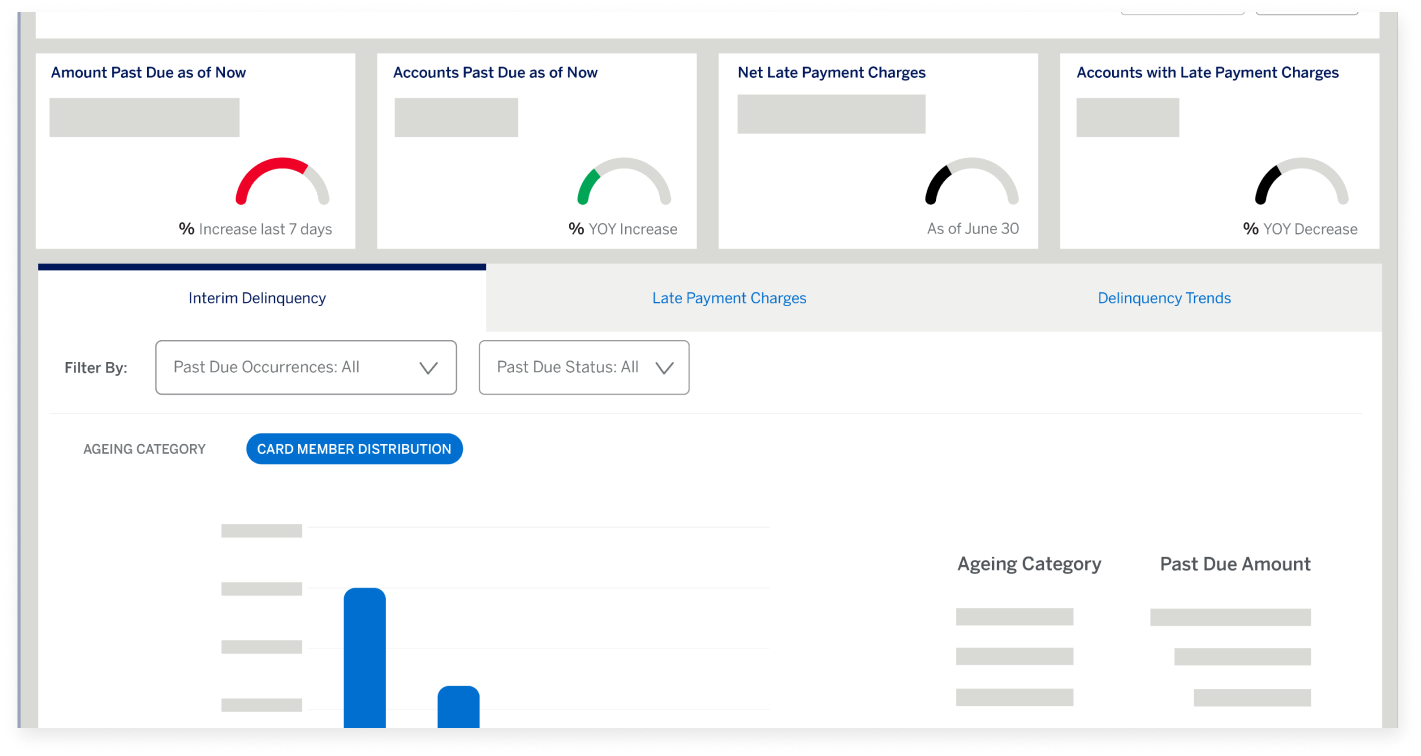
The four KPI tiles give you a quick summary of Delinquency in your Program. These are: 

DELINQUENCY DASHBOARD

The Delinquency Dashboard    

...Amount Past Due as of Now...  

DELINQUENCY DASHBOARD

The Delinquency Dashboard  

...Accounts Past Due as of Now...  

DELINQUENCY DASHBOARD

The Delinquency Dashboard    

...Net Late Payment Charges, and...   

DELINQUENCY DASHBOARD

The Delinquency Dashboard    

...Accounts with Late Payment Charges.   

DELINQUENCY DASHBOARD

The Delinquency Dashboard 

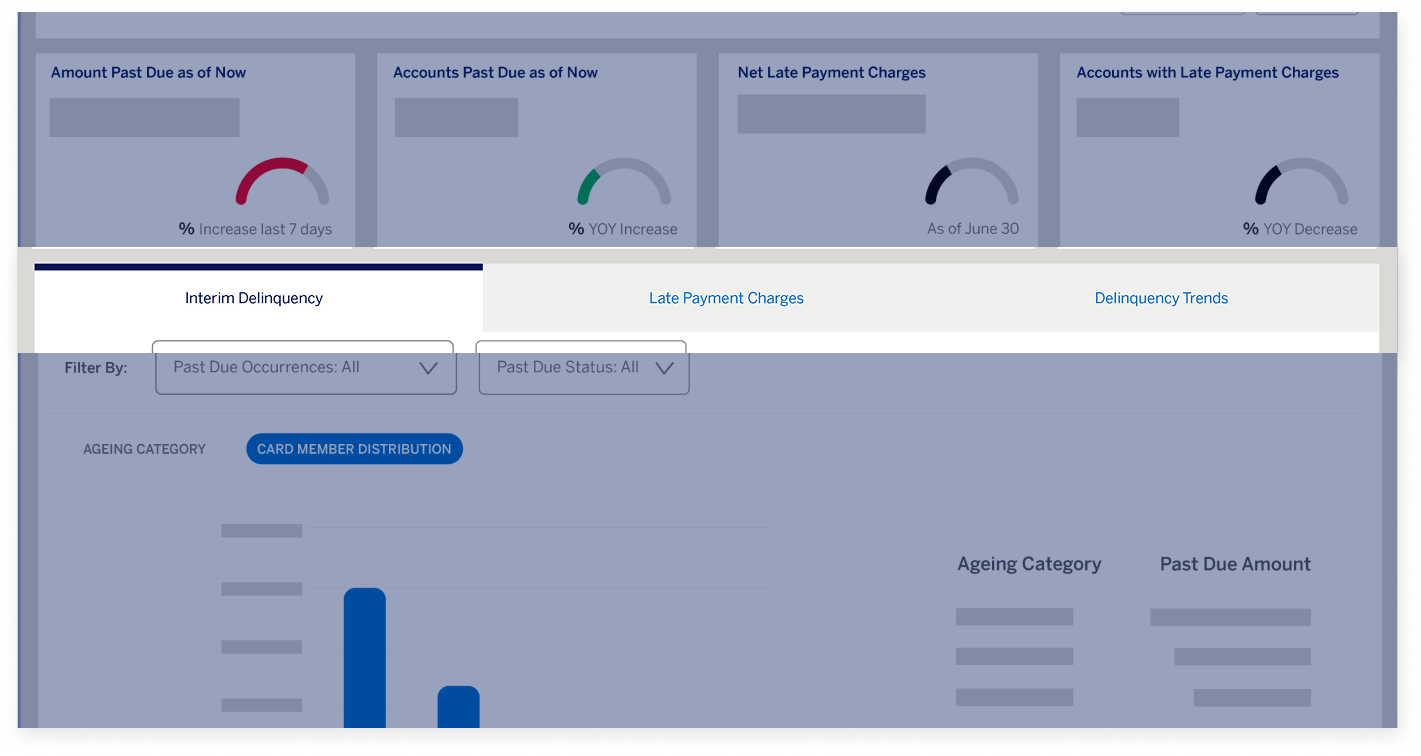
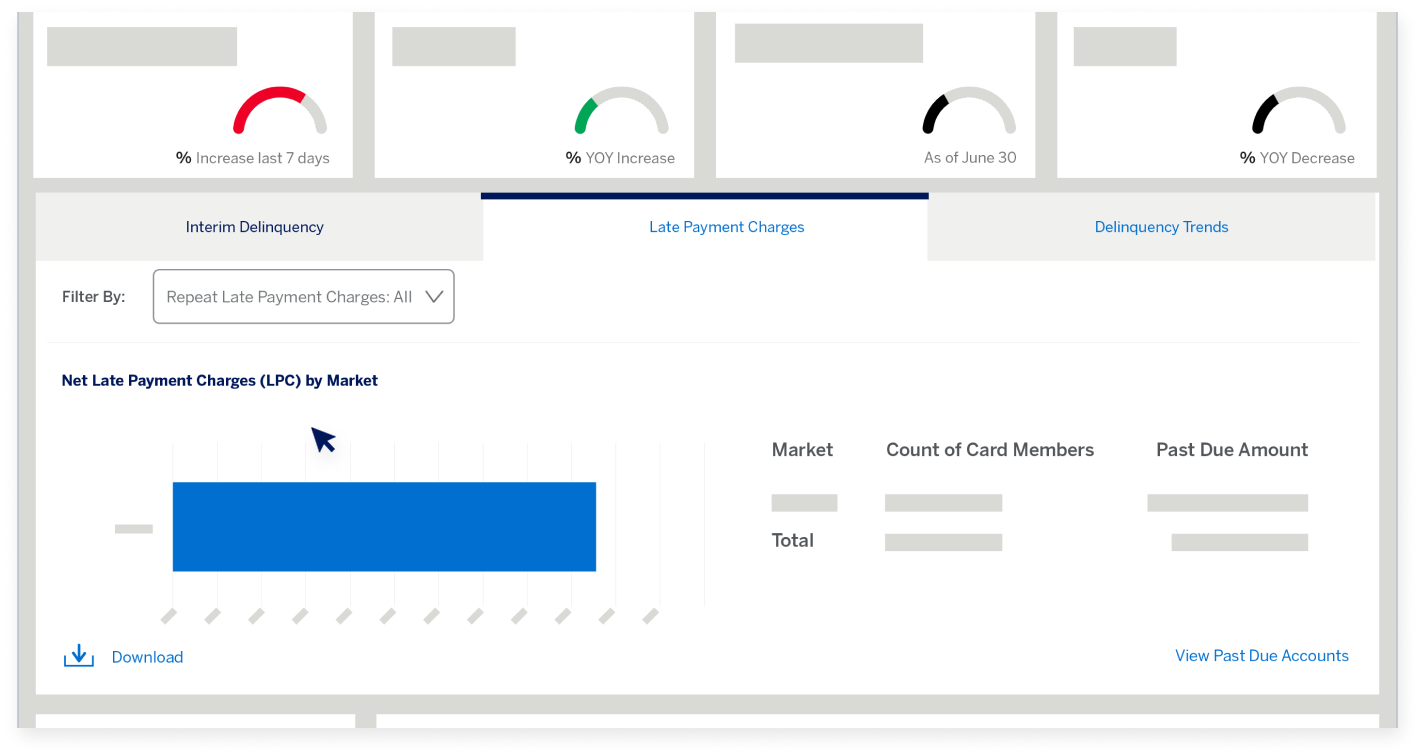
The dashboard reveals detailed information under three tabs:   

DELINQUENCY DASHBOARD

The Delinquency Dashboard 

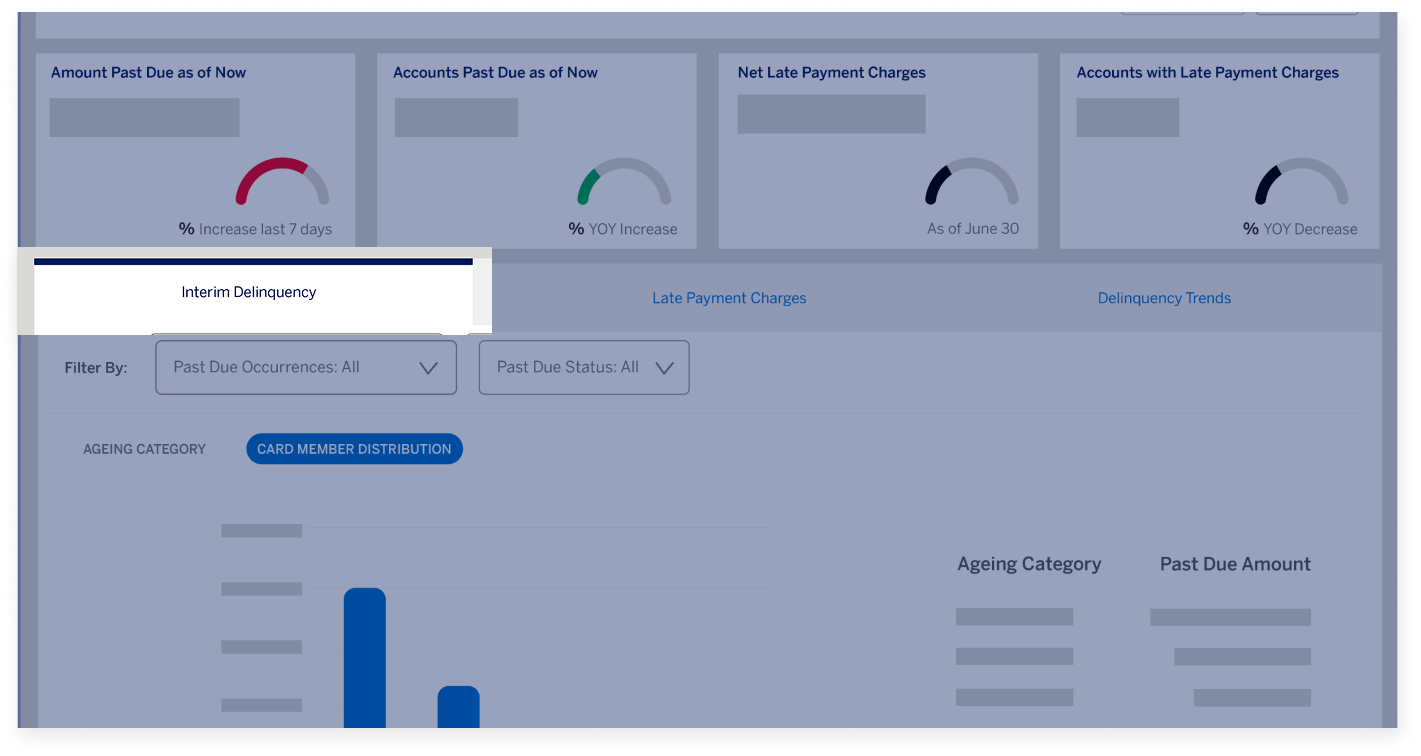
...Interim Delinquency...  

DELINQUENCY DASHBOARD

The Delinquency Dashboard    

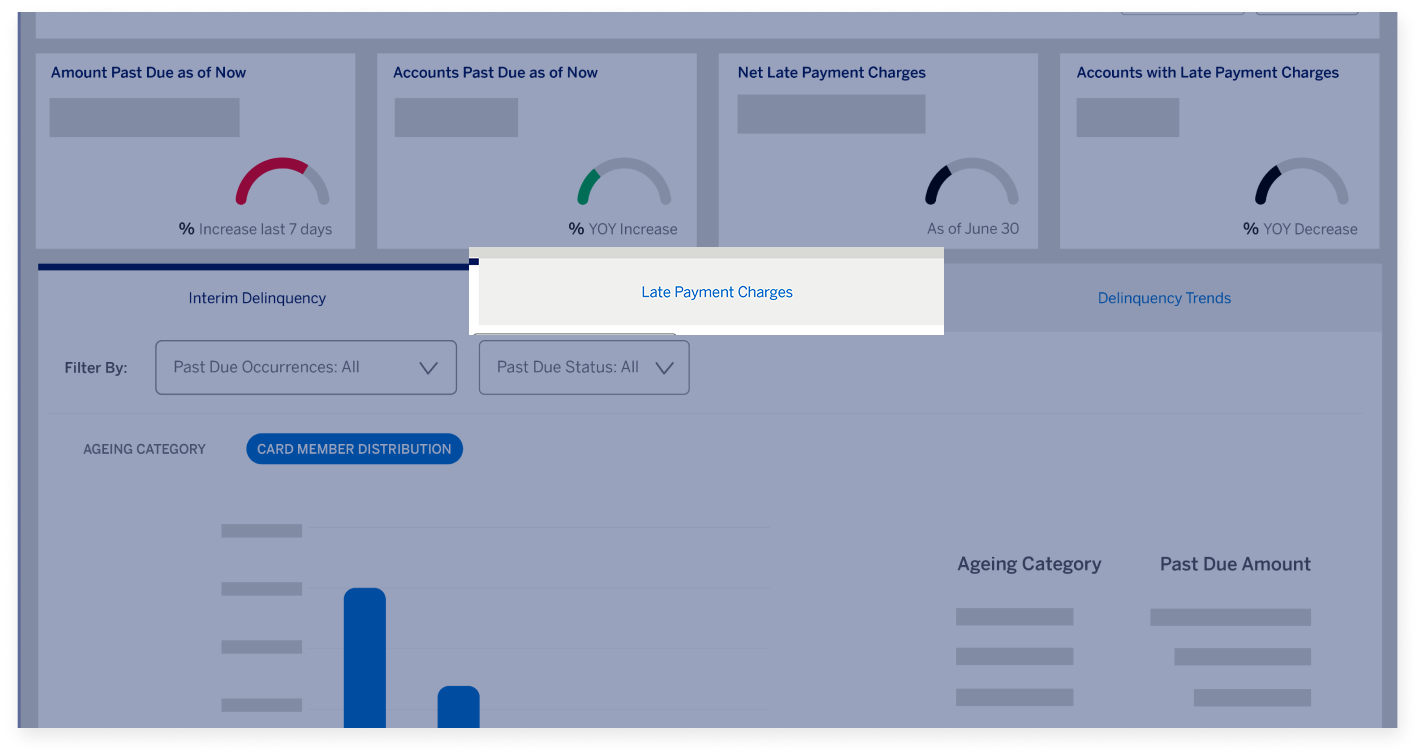
...Late Payment Charges, and... 

DELINQUENCY DASHBOARD

The Delinquency Dashboard  

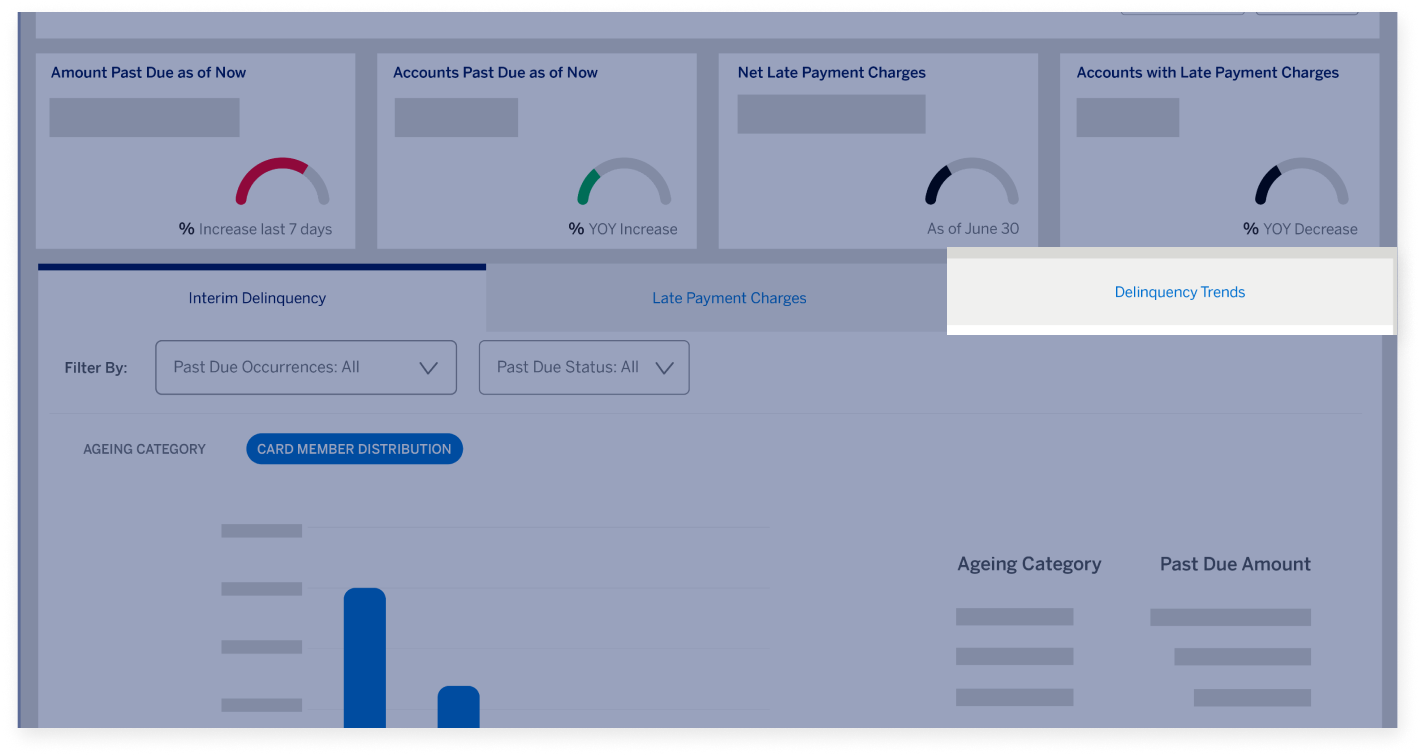
...Delinquency Trends. 

DELINQUENCY DASHBOARD

Delinquency Dashboard tabs    

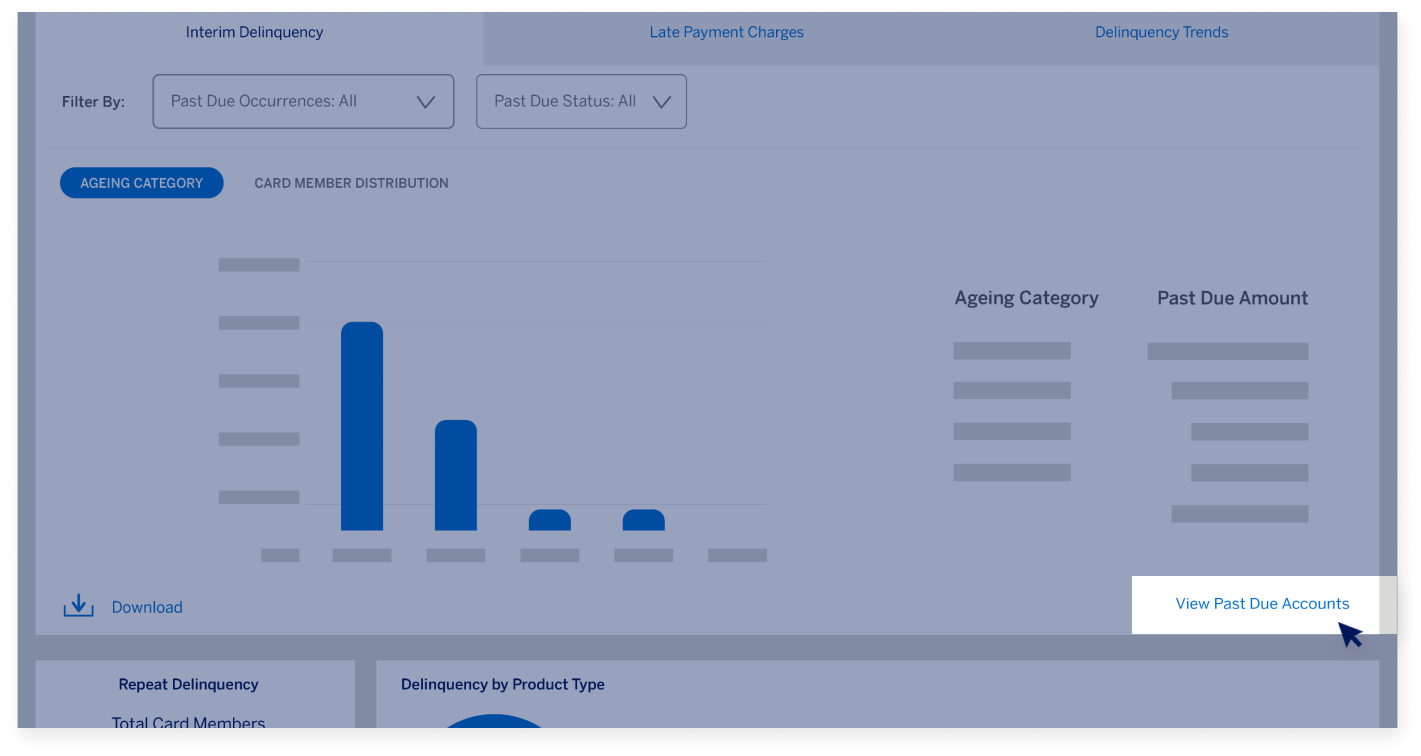
Click the Interim Delinquency tab and you’ll find additional filters like Past Due Occurrences and Status that will power the data on this page.  

DELINQUENCY DASHBOARD

Delinquency Dashboard tabs    

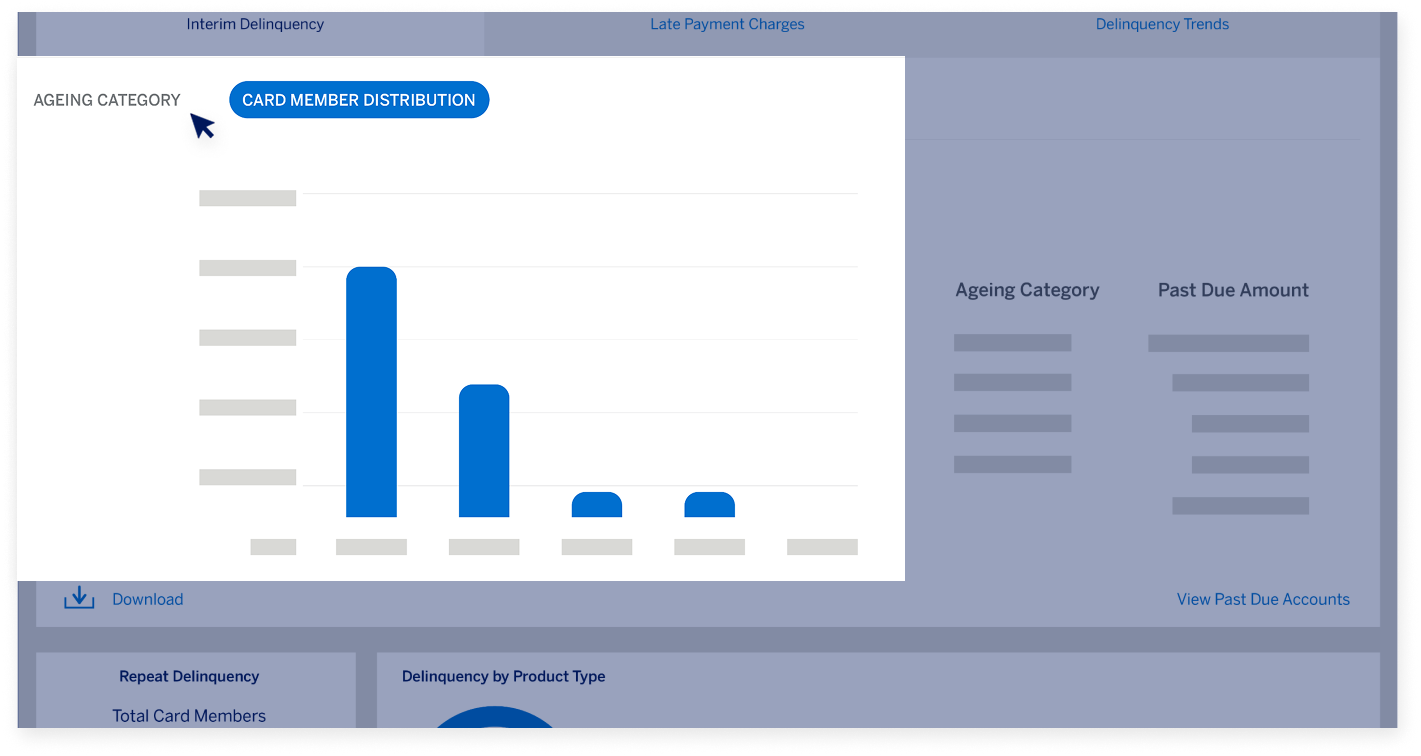
A table shows the breakdown of past due amounts in various aging categories from 30 to 150 days. You can also switch this chart to see the Card Members distribution across past due status. 

DELINQUENCY DASHBOARD

Delinquency Dashboard tabs    

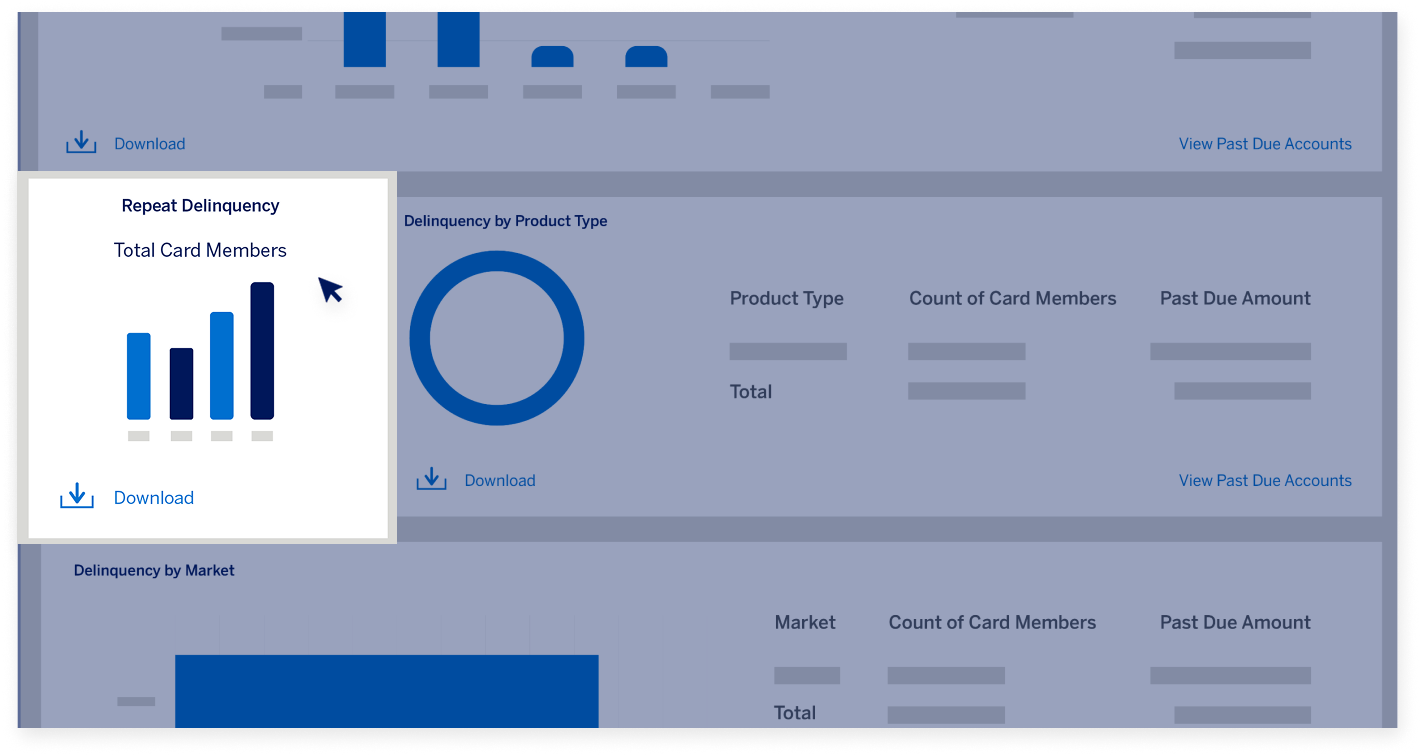
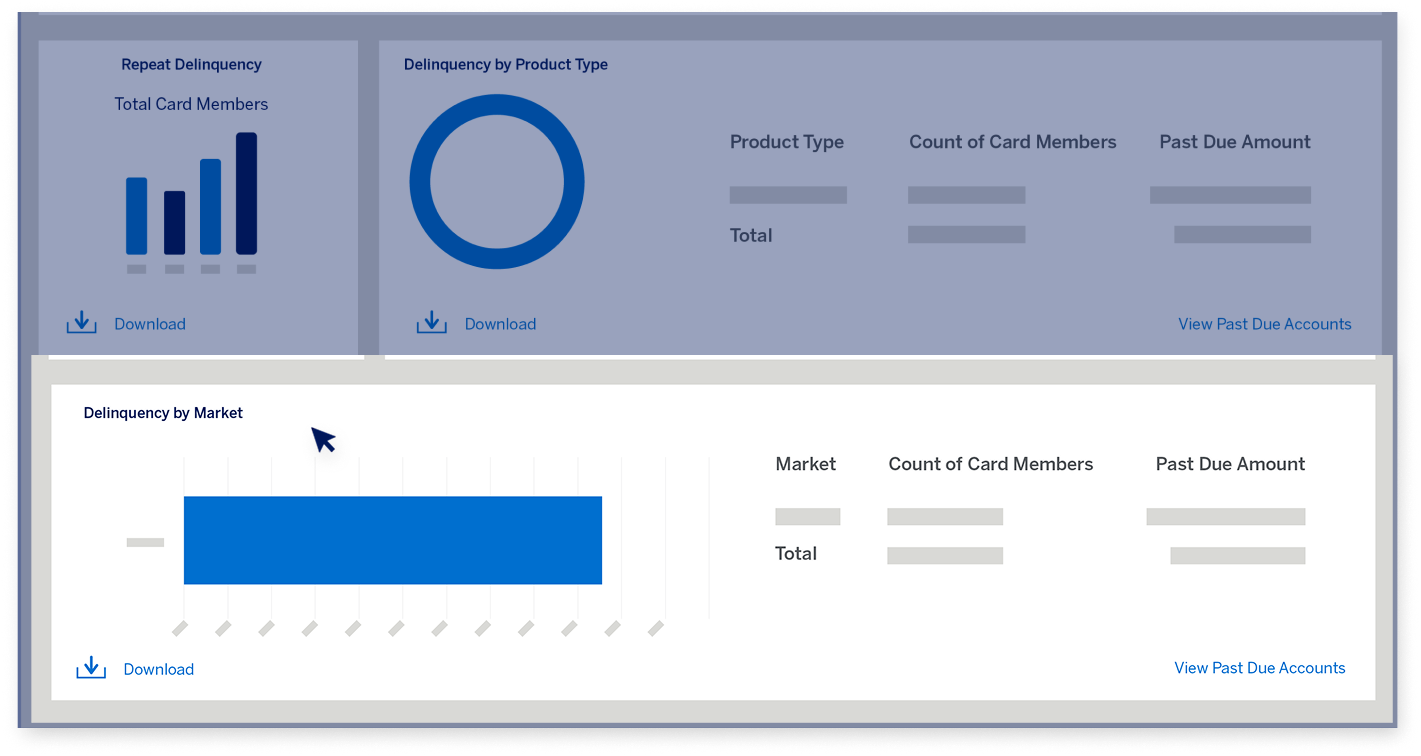
The Repeat Delinquency widget shows you the number of Card Members by repeat occurrences of Delinquency on their account.  

DELINQUENCY DASHBOARD

Delinquency Dashboard tabs    

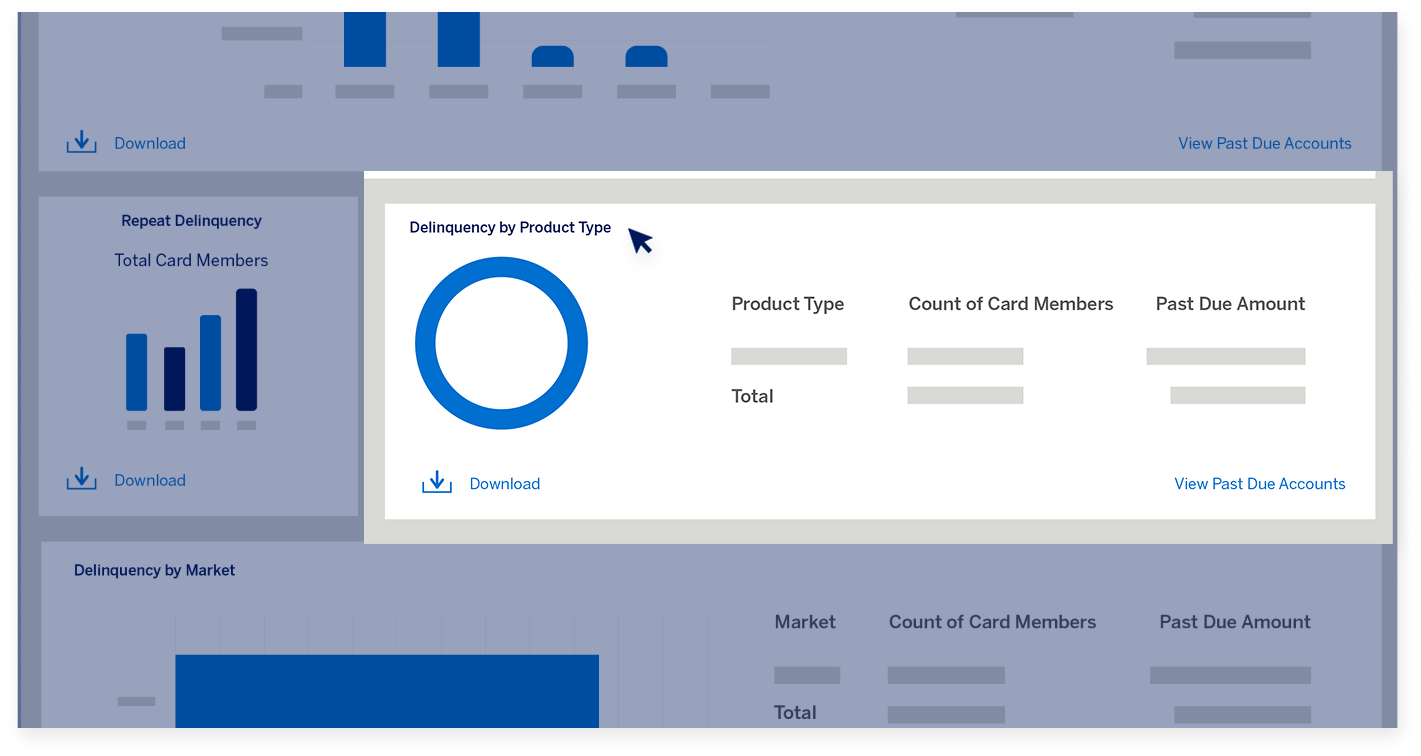
The next widget shows the delinquent amounts and number of Card Members across product types in your Program.  

DELINQUENCY DASHBOARD

Delinquency Dashboard tabs    

The Delinquency by Market widget shows the Past Due Amounts and the number of Card Members across the top five Card markets. 

DELINQUENCY DASHBOARD  

Delinquency Dashboard tabs  

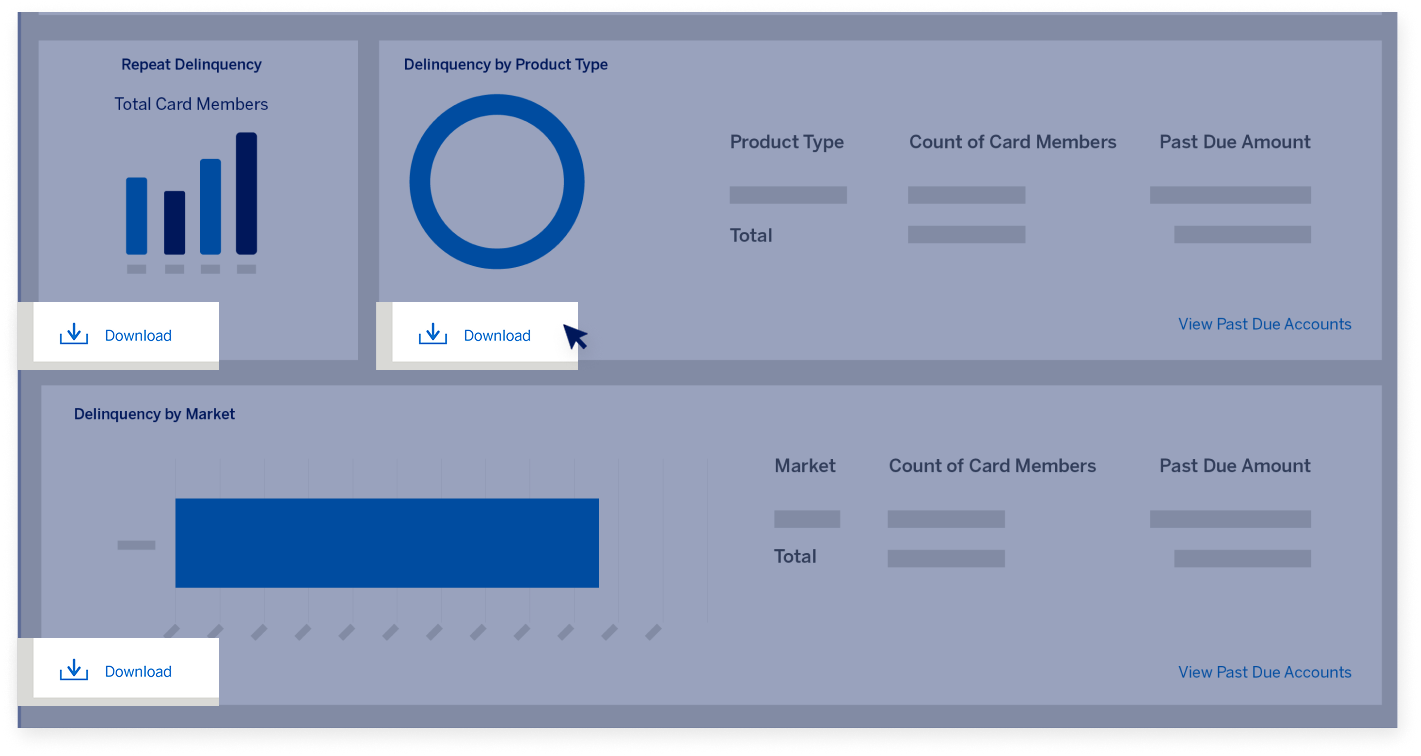
You can click the “Download” button on any of the widgets to download the information for offline use in a desired file format.  

DELINQUENCY DASHBOARD

Delinquency Dashboard tabs 

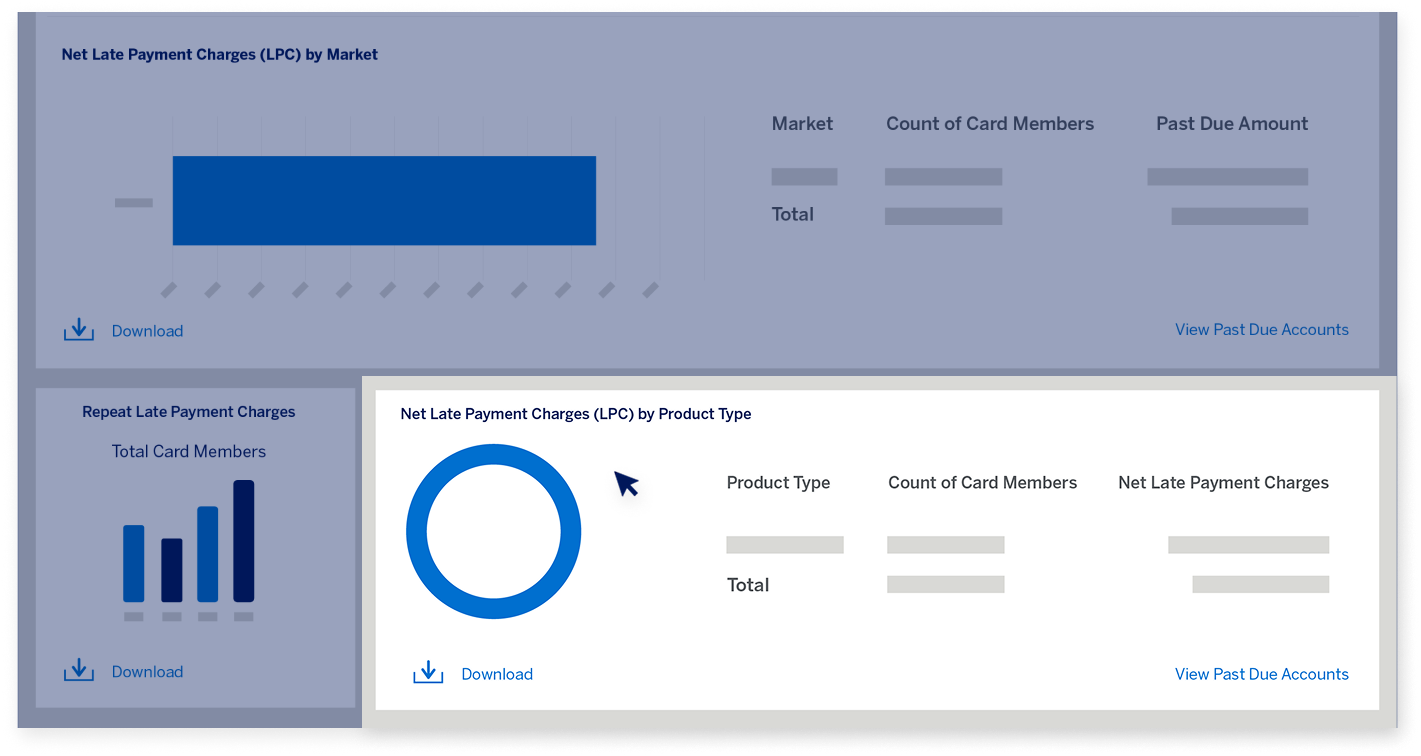
The second tab is the Late Payment Charges tab. The first widget shows the Net Late Payment Charges and number of Card Members by the top five Card markets.  

DELINQUENCY DASHBOARD

Delinquency Dashboard tabs

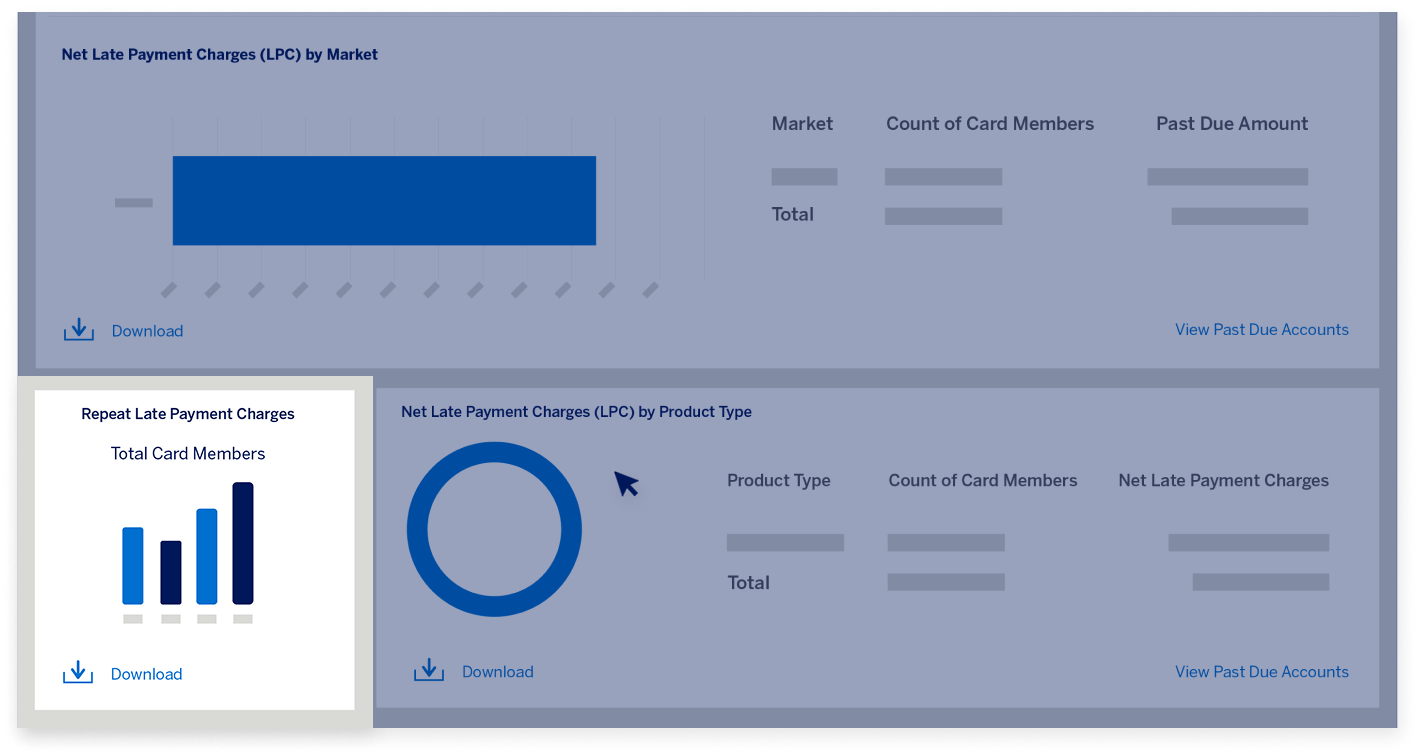
Below that, you can look at the number of Card Members by repeat occurrences of having incurred late payment charges. 

DELINQUENCY DASHBOARD

Delinquency Dashboard tabs

The final widget shows you the Net Late Payment Charges and number of Card Members across product types in your Program.   

DELINQUENCY DASHBOARD

Delinquency Dashboard tabs

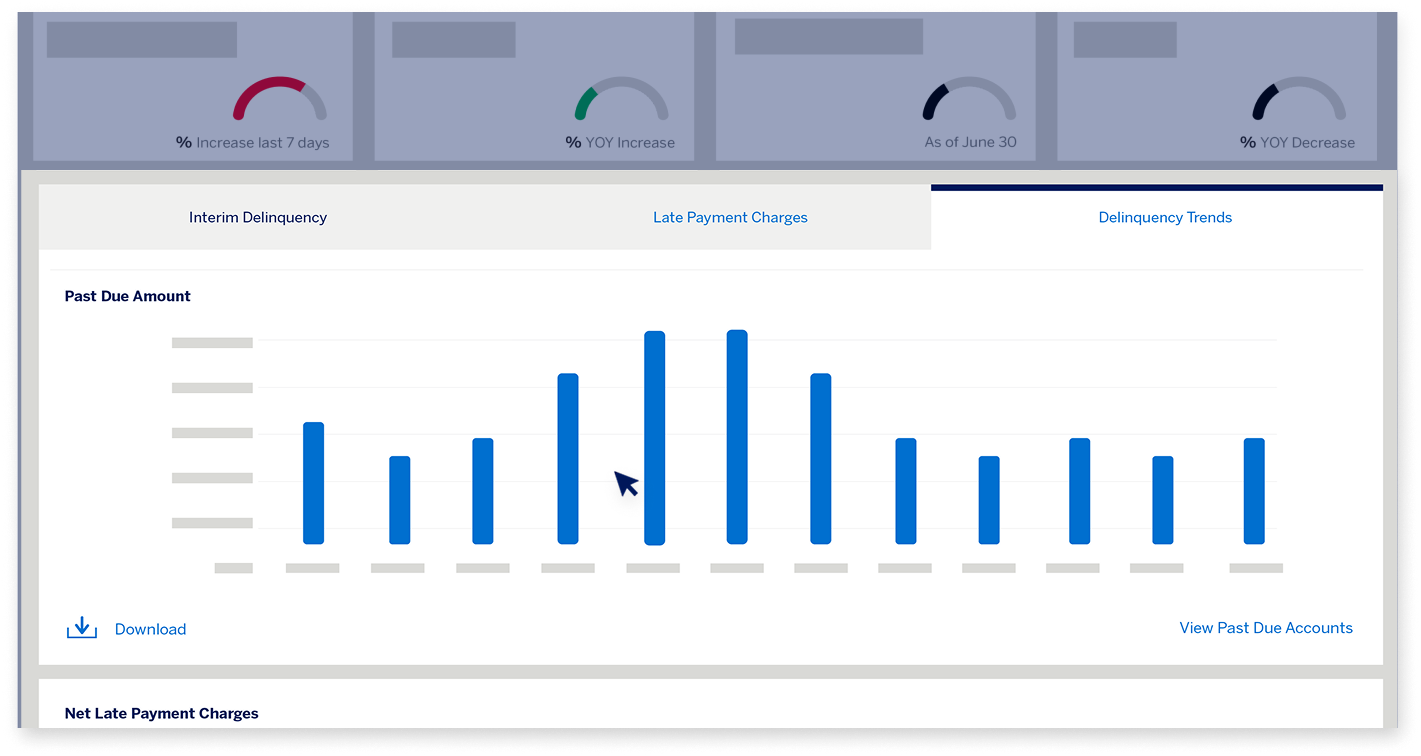
The third tab is the Delinquency Trends tab, where you can see the monthly trend of total Past Due Amount and Net Late Payment Charges based on the date range you select. 

DELINQUENCY DASHBOARD

Delinquency Dashboard tabs 

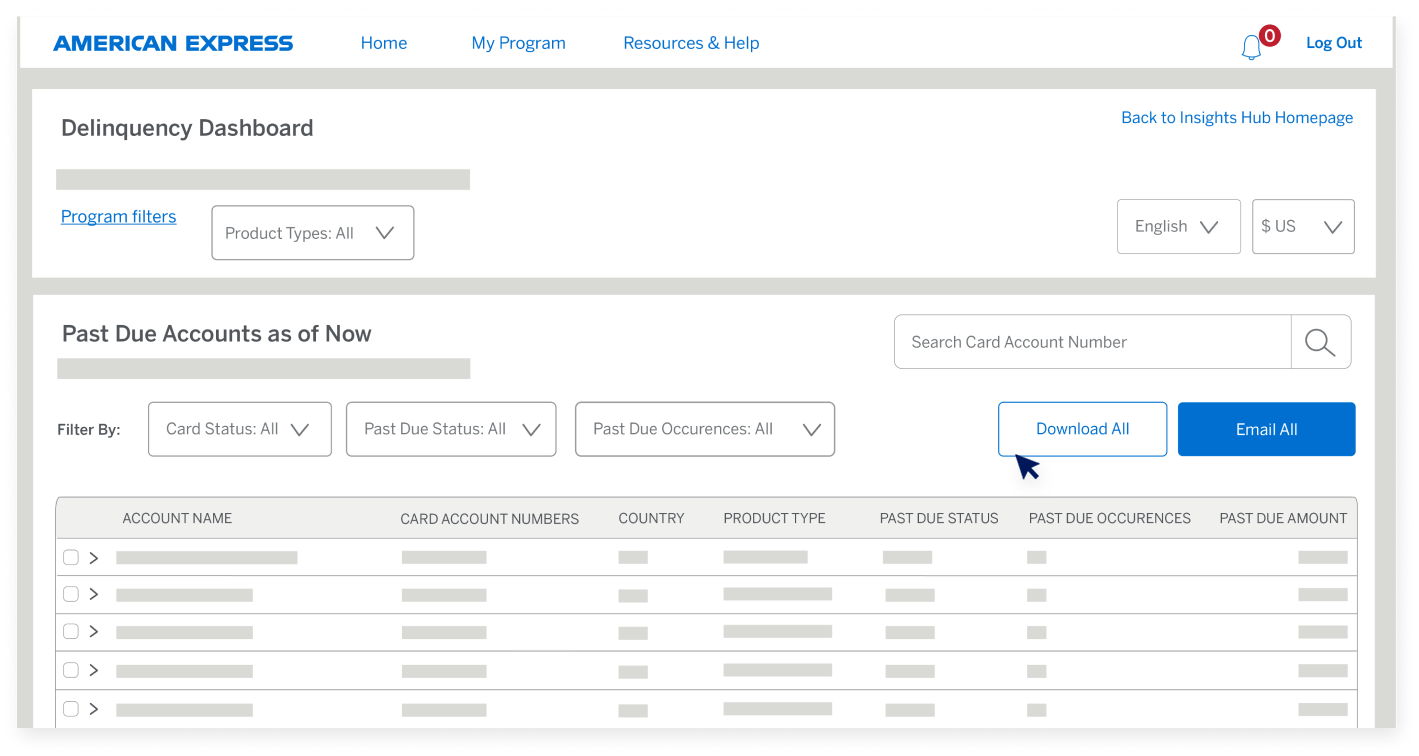
Now that you’ve seen a summary of Delinquency and late payment charges in your Program, you can review the delinquent Card Members. 

DELINQUENCY DASHBOARD

Delinquency Dashboard tabs 

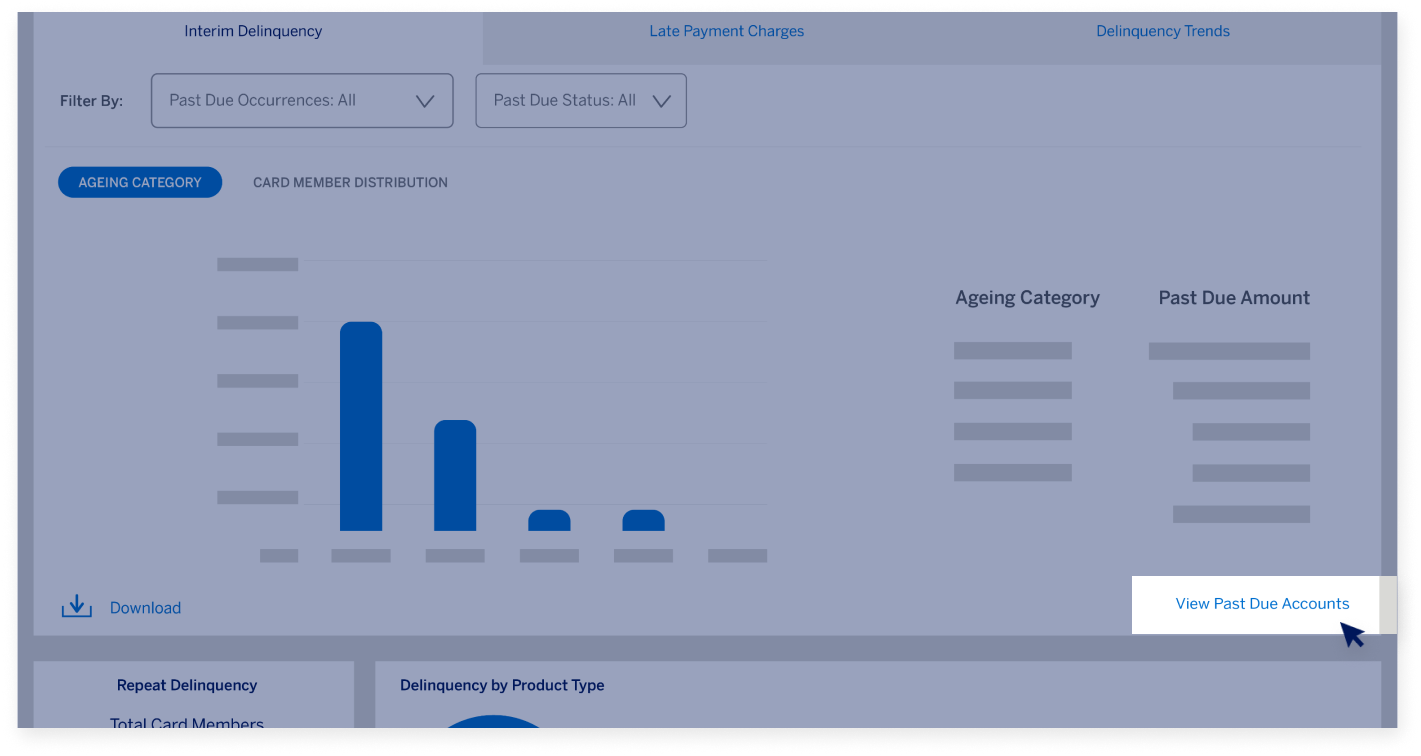
The Delinquency Dashboard has a Card Member Listing Page which you can access by clicking on the “View Past Due Accounts” link found on the widgets in the Interim Delinquency tab. 

DELINQUENCY DASHBOARD

Past Due Accounts Page  

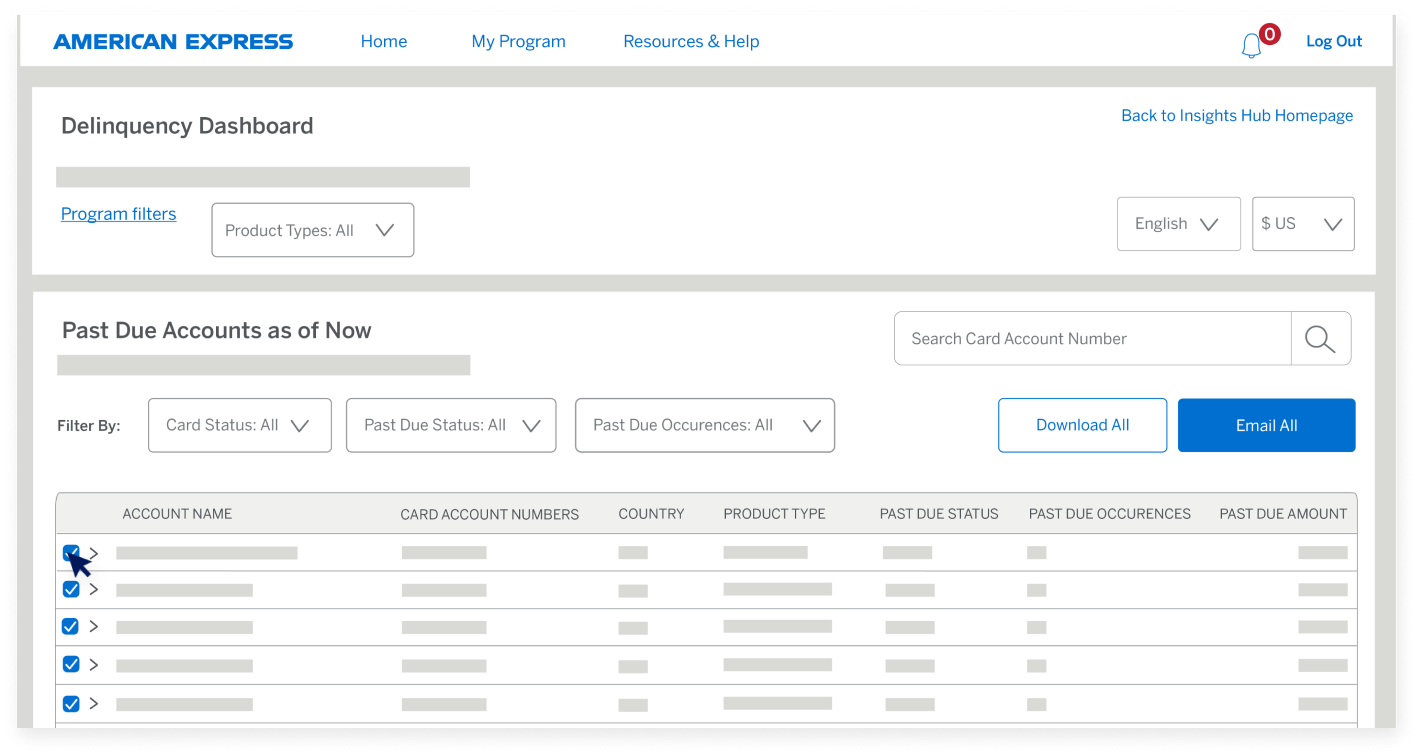
On the Card Member Listing Page, you can: View and Download Card Member level information. 

DELINQUENCY DASHBOARD

Past Due Accounts Page  

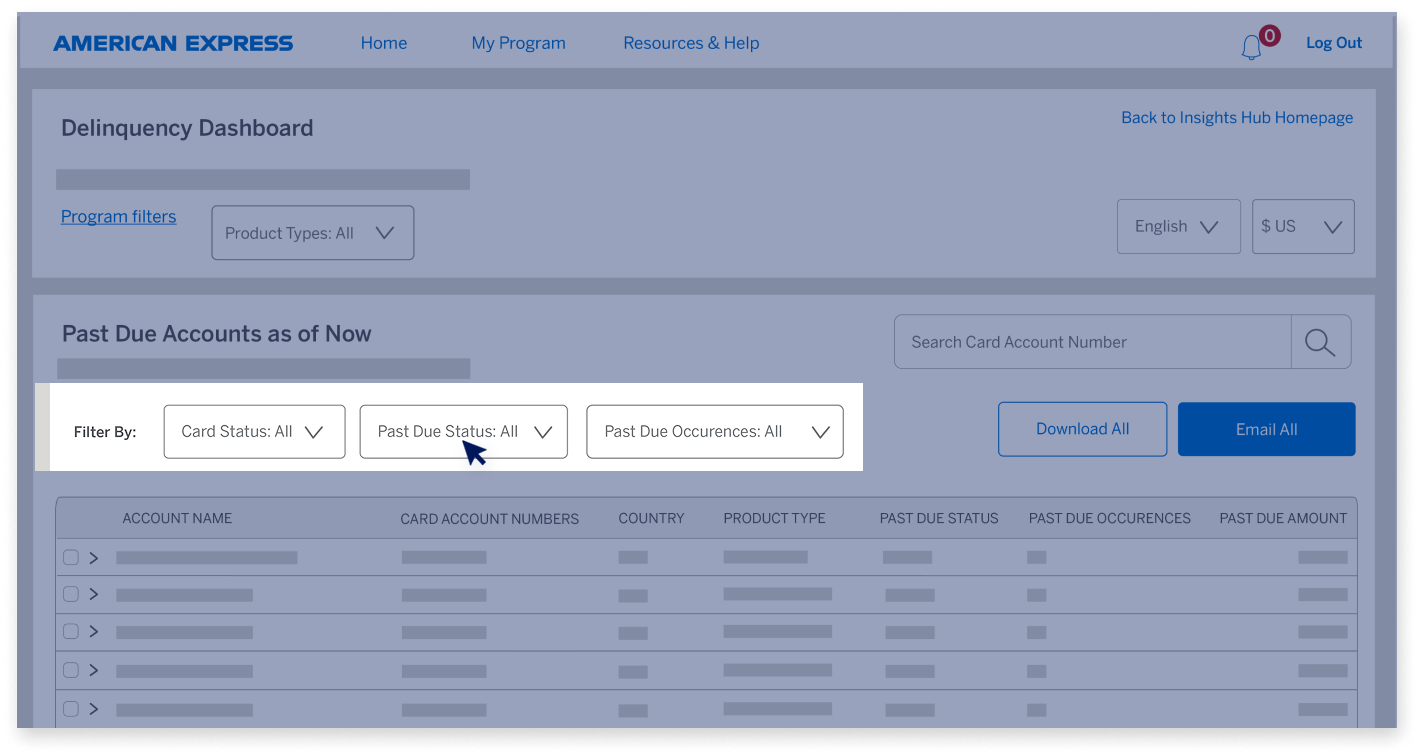
Filter Card Members based on their Card Status, Past Due Status, and Repeat Occurrences. 

DELINQUENCY DASHBOARD

Past Due Accounts Page 

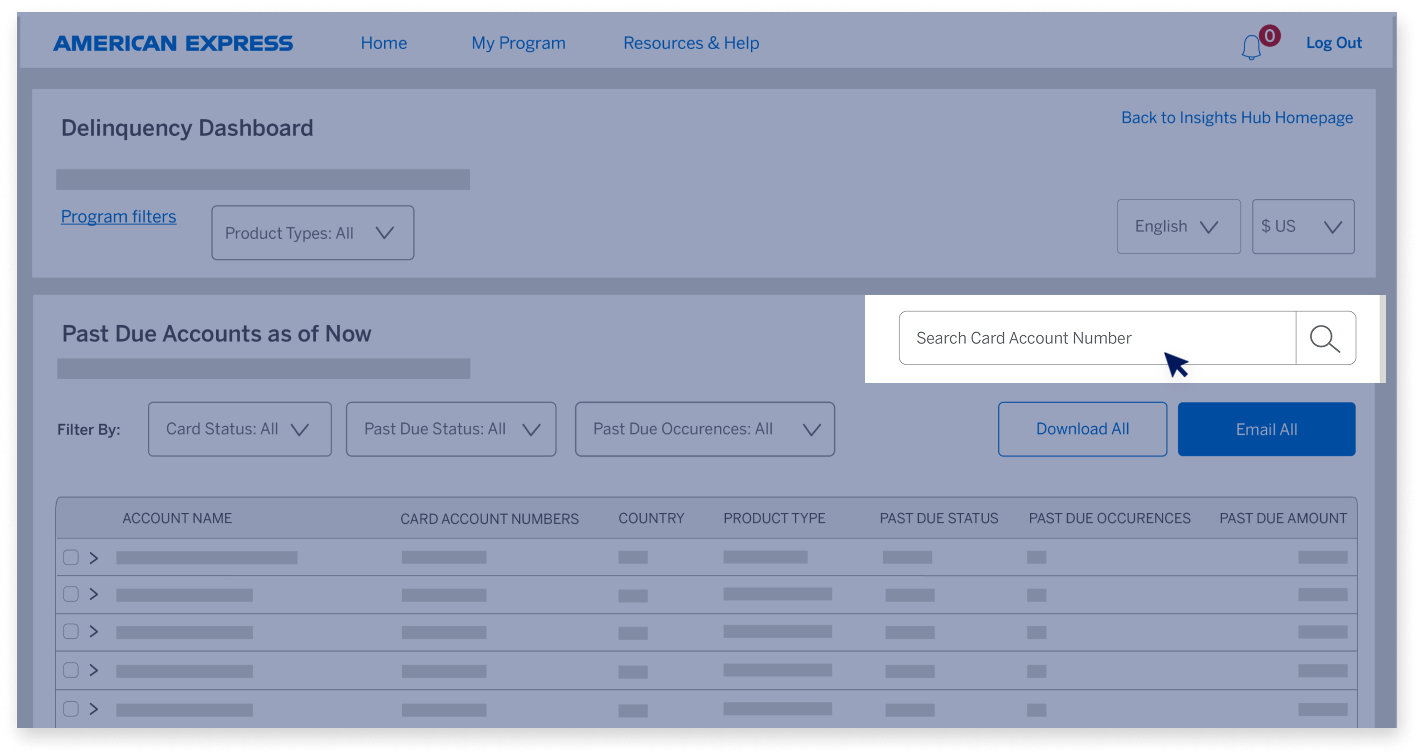
Search for an account in the Search bar by typing the last four digits or the complete 15-digit Card account number. 

DELINQUENCY DASHBOARD

Past Due Accounts Page  

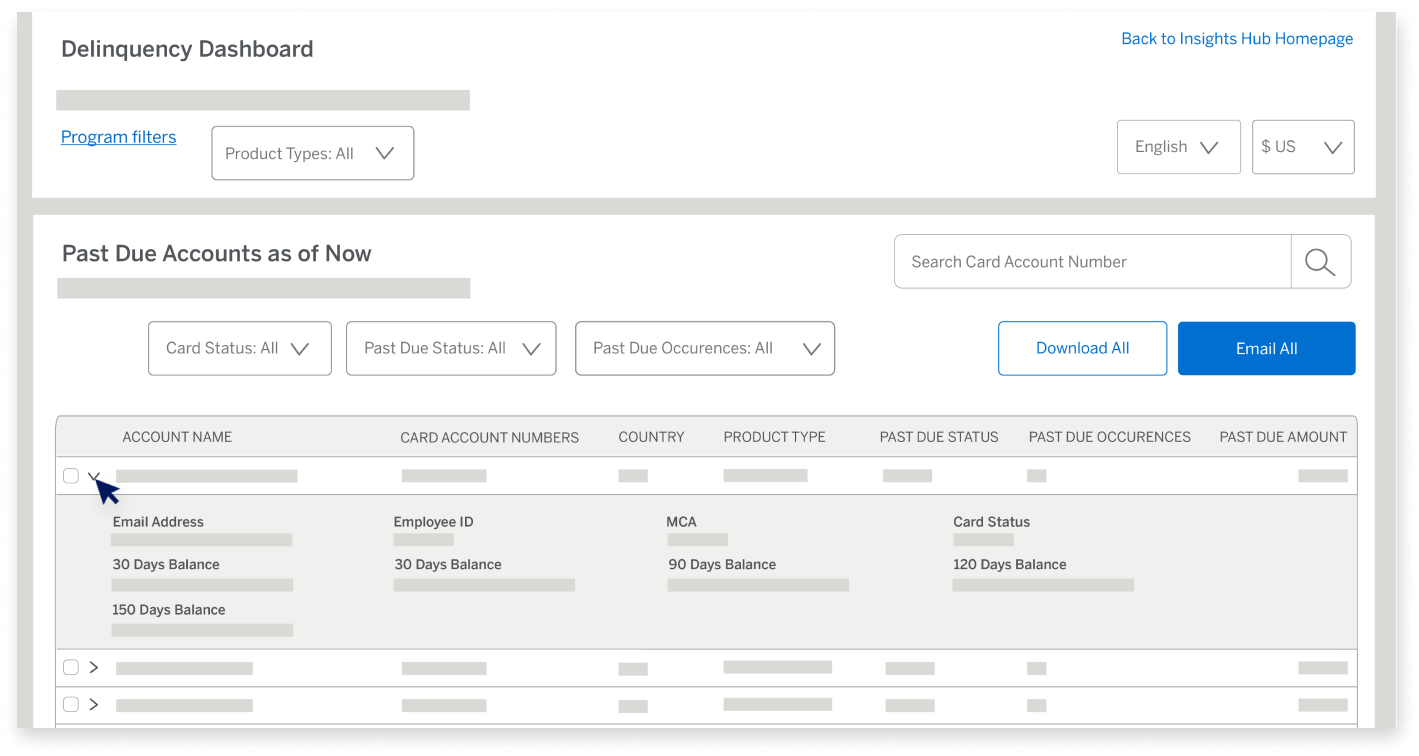
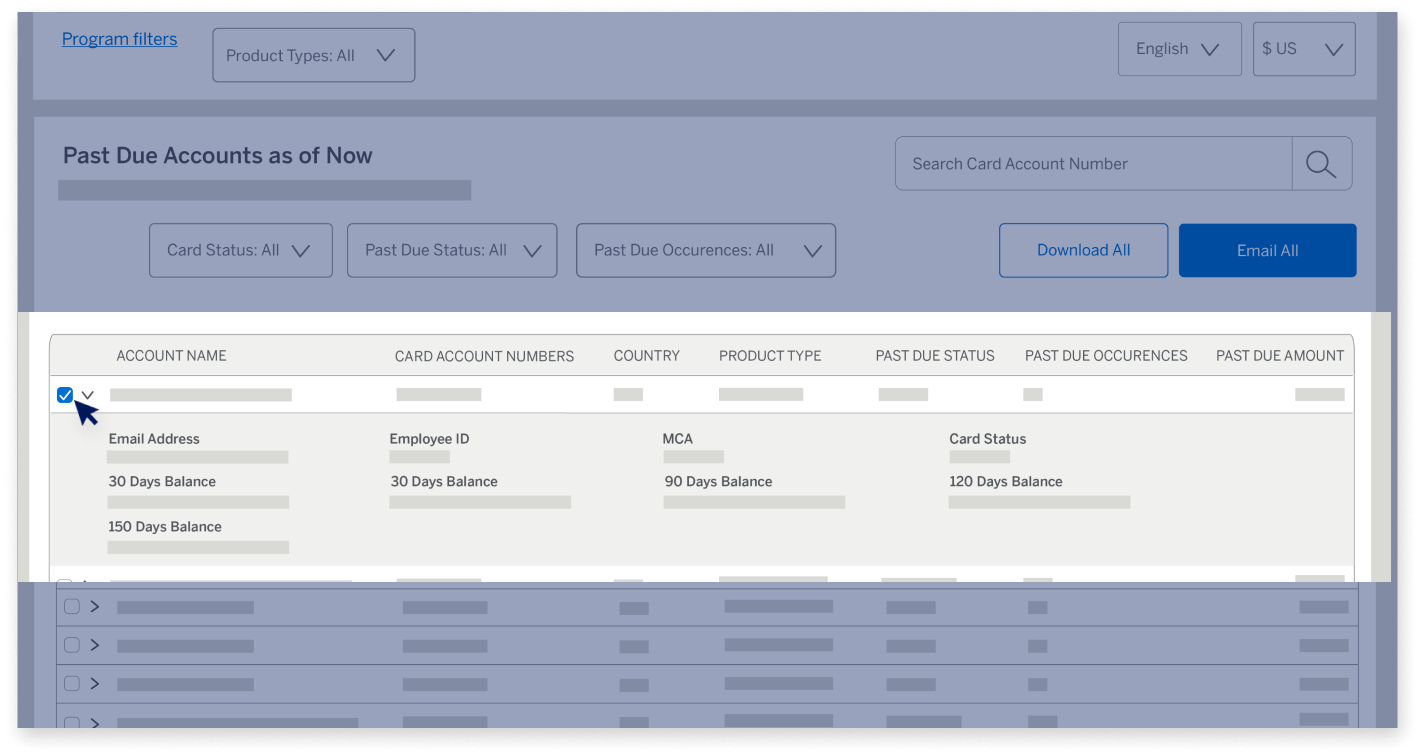
View more details for an account by clicking on the expander button before the account name. 

DELINQUENCY DASHBOARD

Past Due Accounts Page 

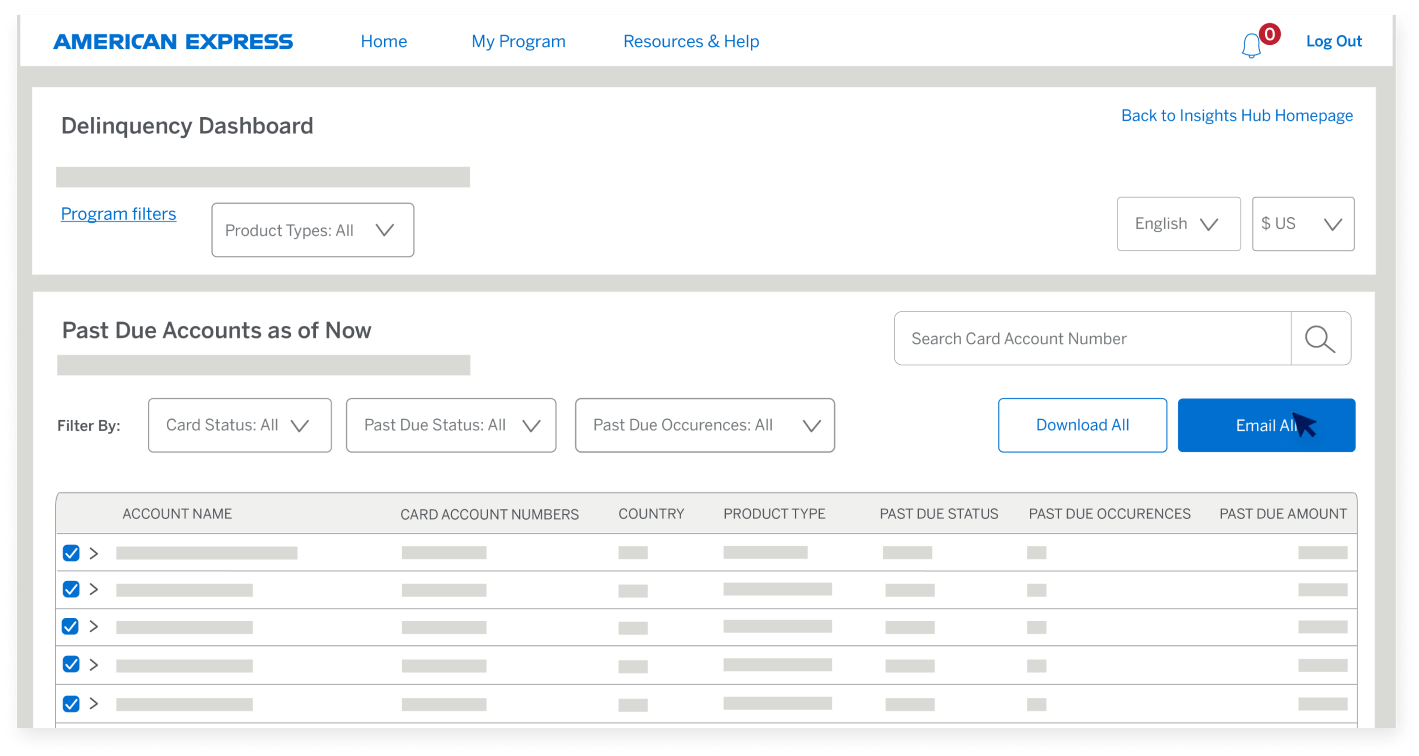
You can also use the Delinquency Dashboard to send a payment reminder email to a single Card Member or multiple Card Members in bulk. 

DELINQUENCY DASHBOARD

Past Due Accounts Page 

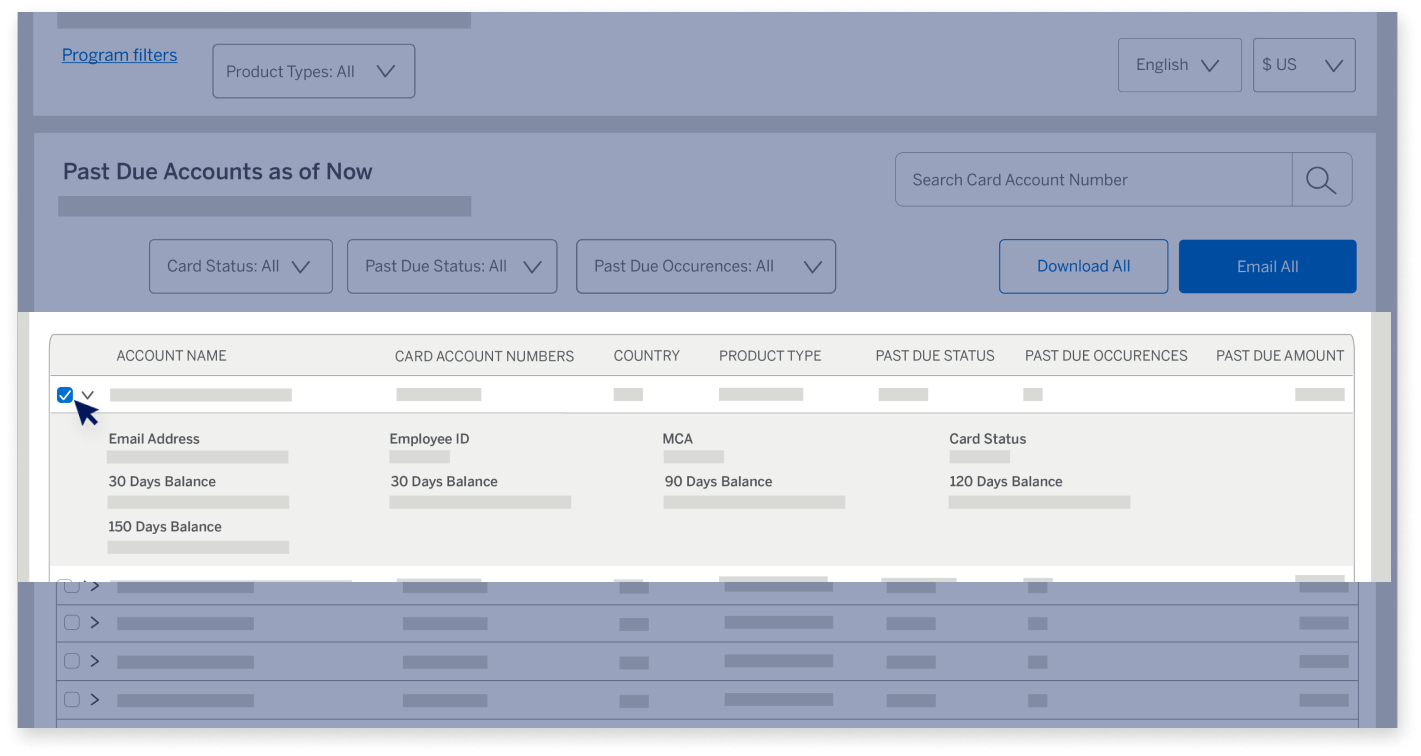
Let’s learn more about sending a payment reminder to a single Card Member. First, select the Card Member. 

DELINQUENCY DASHBOARD

Past Due Accounts Page 

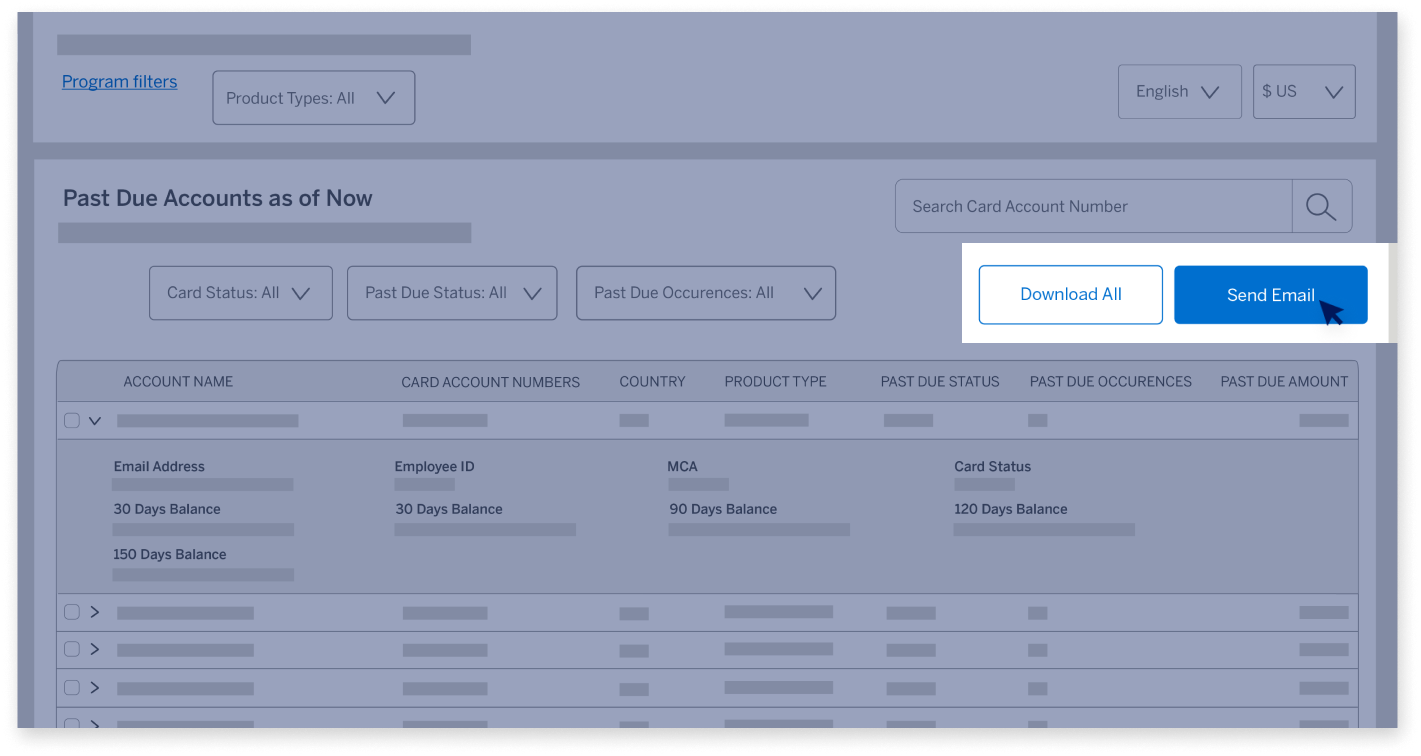
Then, click on the "Send Email" button. 

DELINQUENCY DASHBOARD

Past Due Accounts Page 

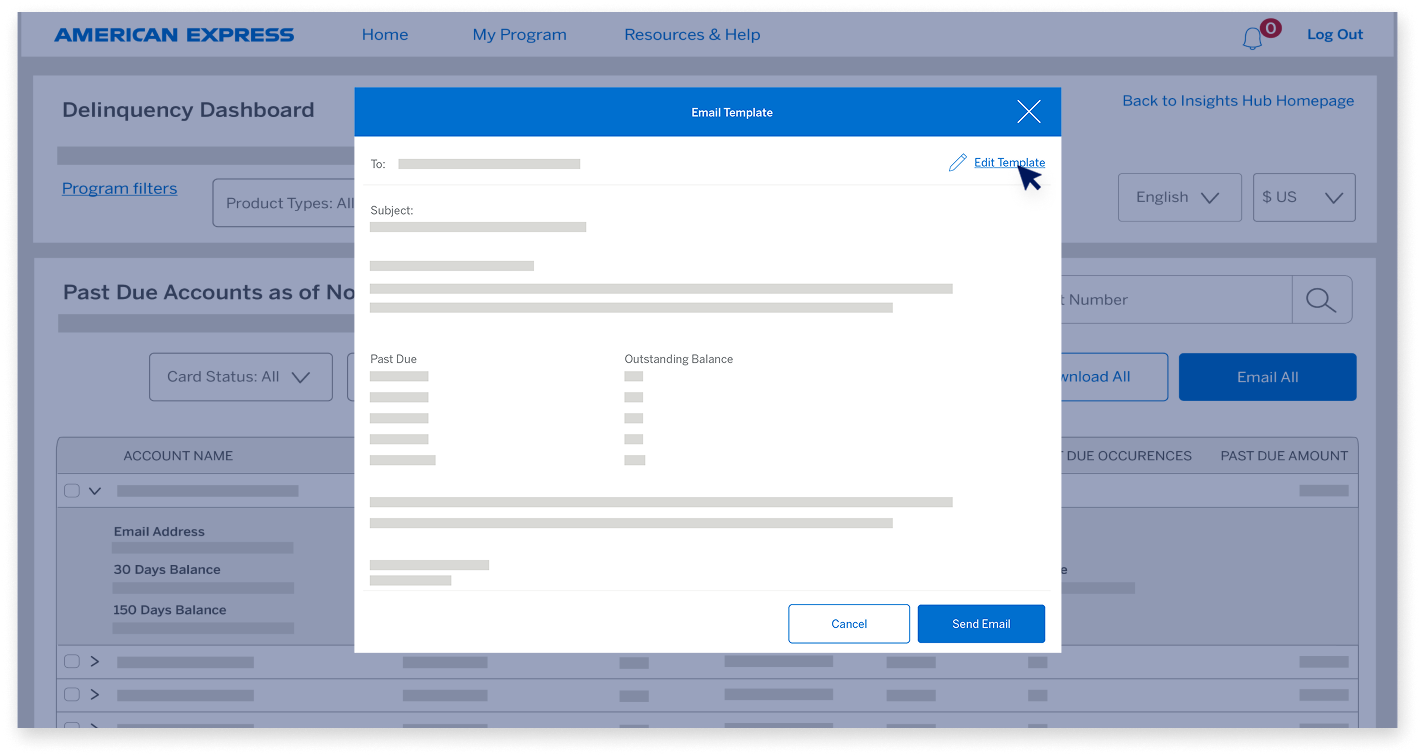
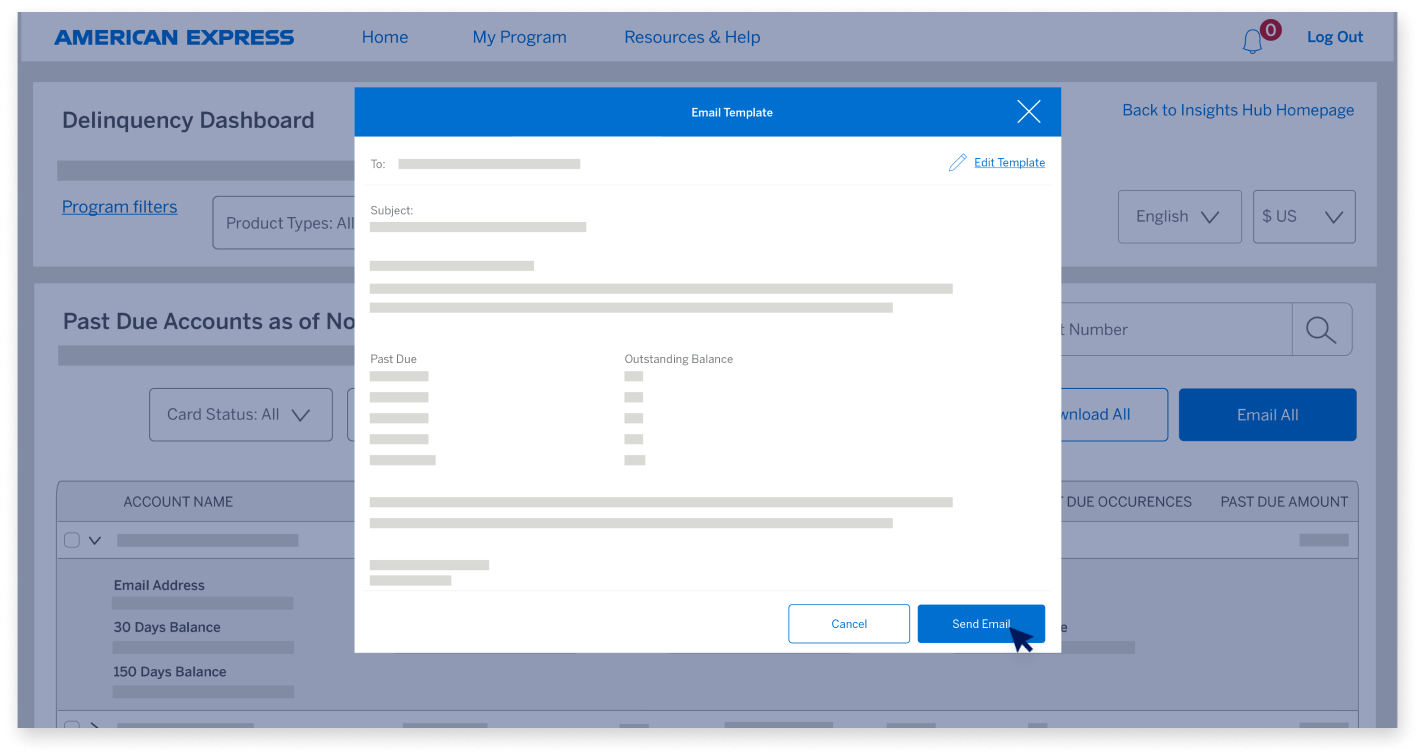
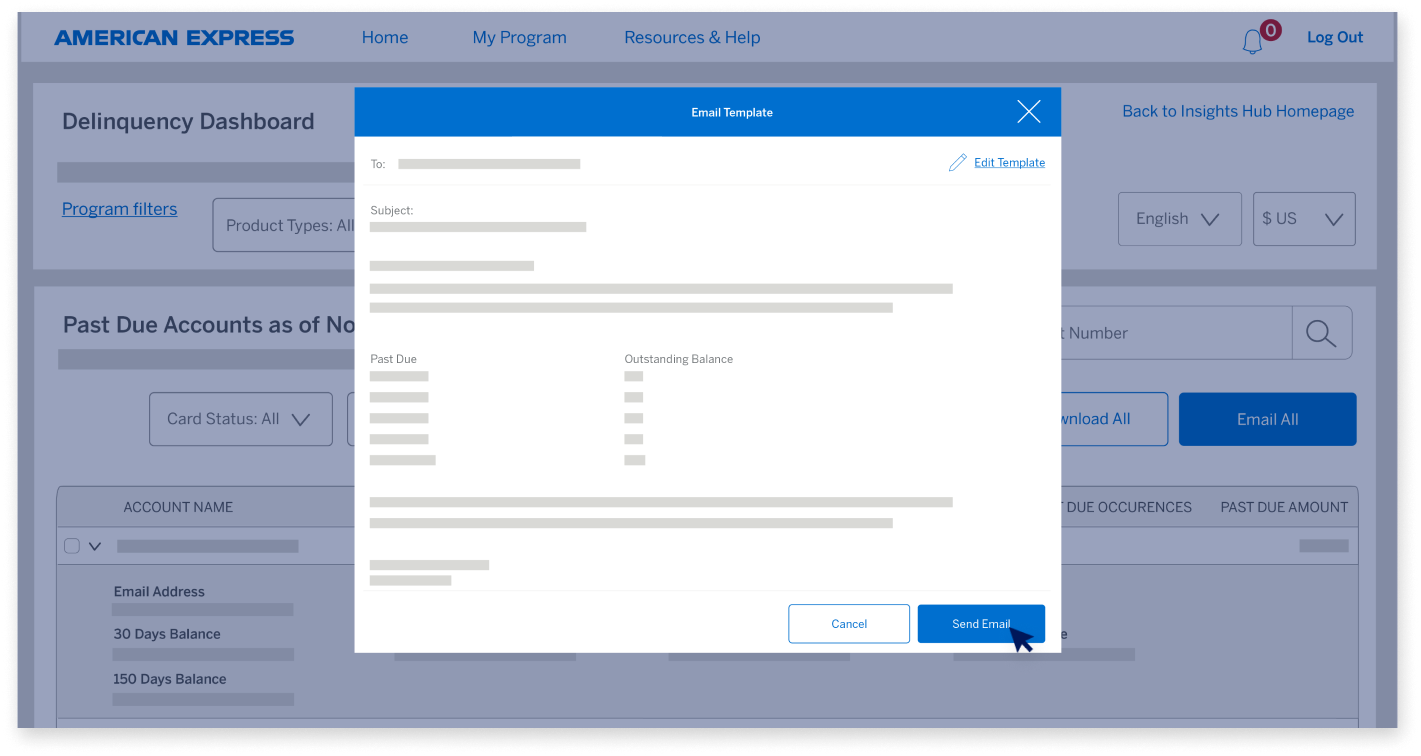
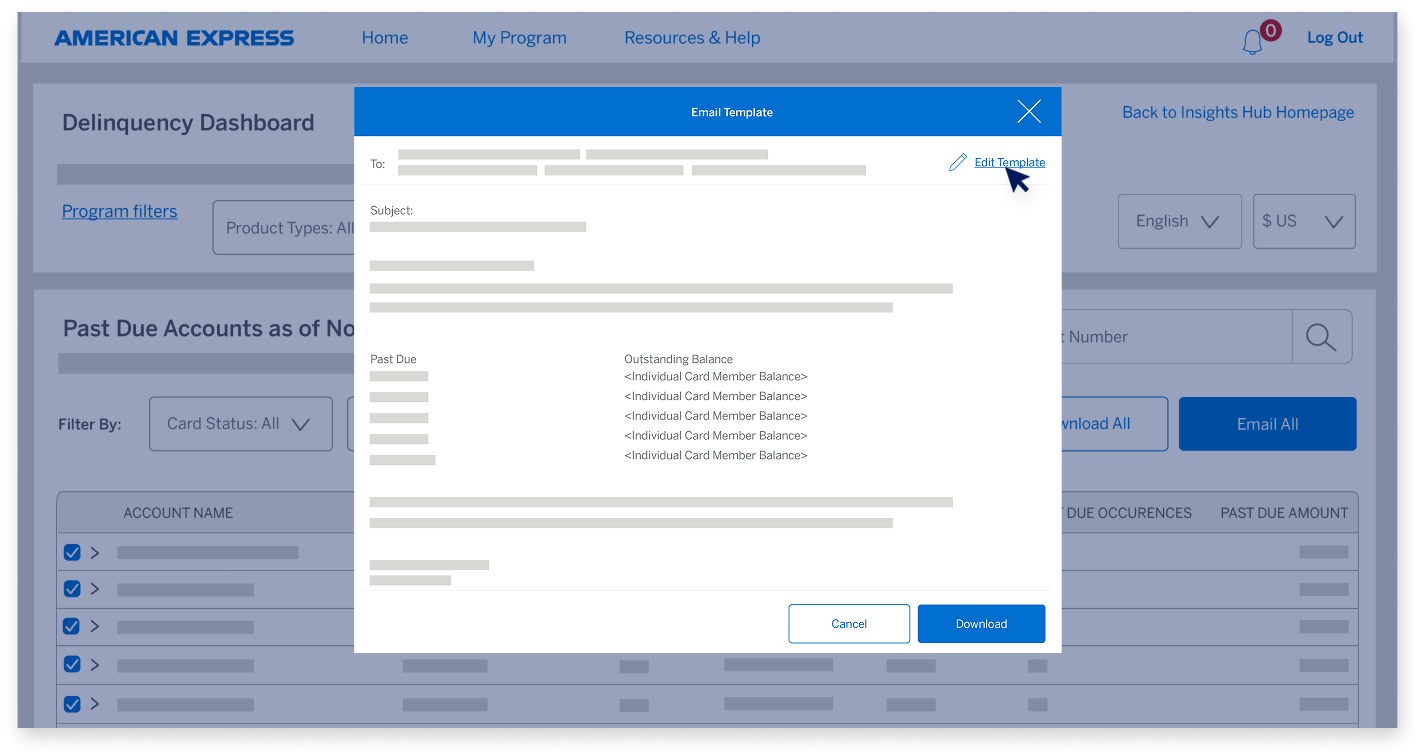
If you want to edit the message, click on the “Edit Template” button. 

DELINQUENCY DASHBOARD

Past Due Accounts Page 

Click on “Send Email” and the email will open on your default email app. 

DELINQUENCY DASHBOARD

Past Due Accounts Page 

Then select “Send Email” from your email app. Note: The email would be sent from the email account configuration on your email application and not from an American Express® Email account. 

DELINQUENCY DASHBOARD

Past Due Accounts Page 

Now, let’s learn about sending payment reminders to multiple Card Members. 

DELINQUENCY DASHBOARD

Past Due Accounts Page 

Select multiple Card Members and click on the “Email All” button. 

DELINQUENCY DASHBOARD

Past Due Accounts Page 

If you want to edit the message, click on the “Edit Template” button.

DELINQUENCY DASHBOARD

Past Due Accounts Page 

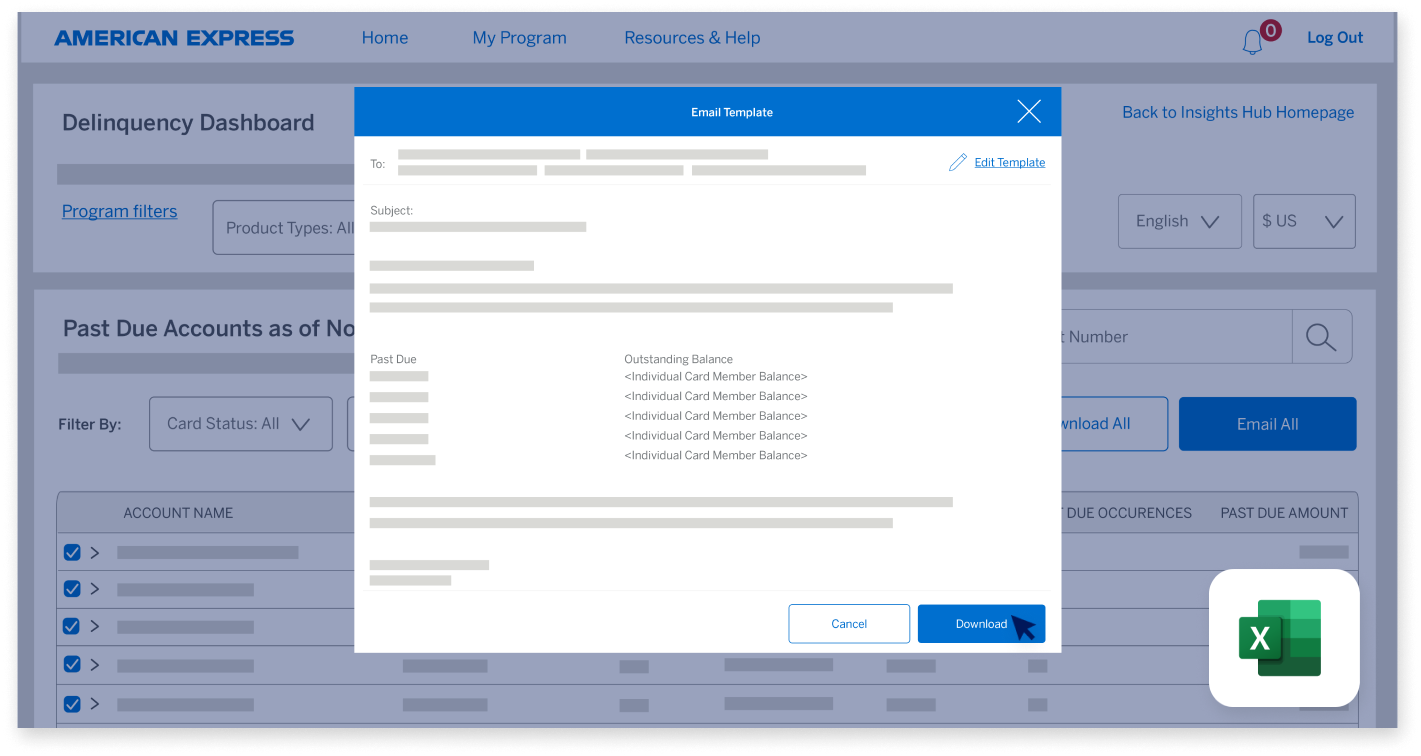
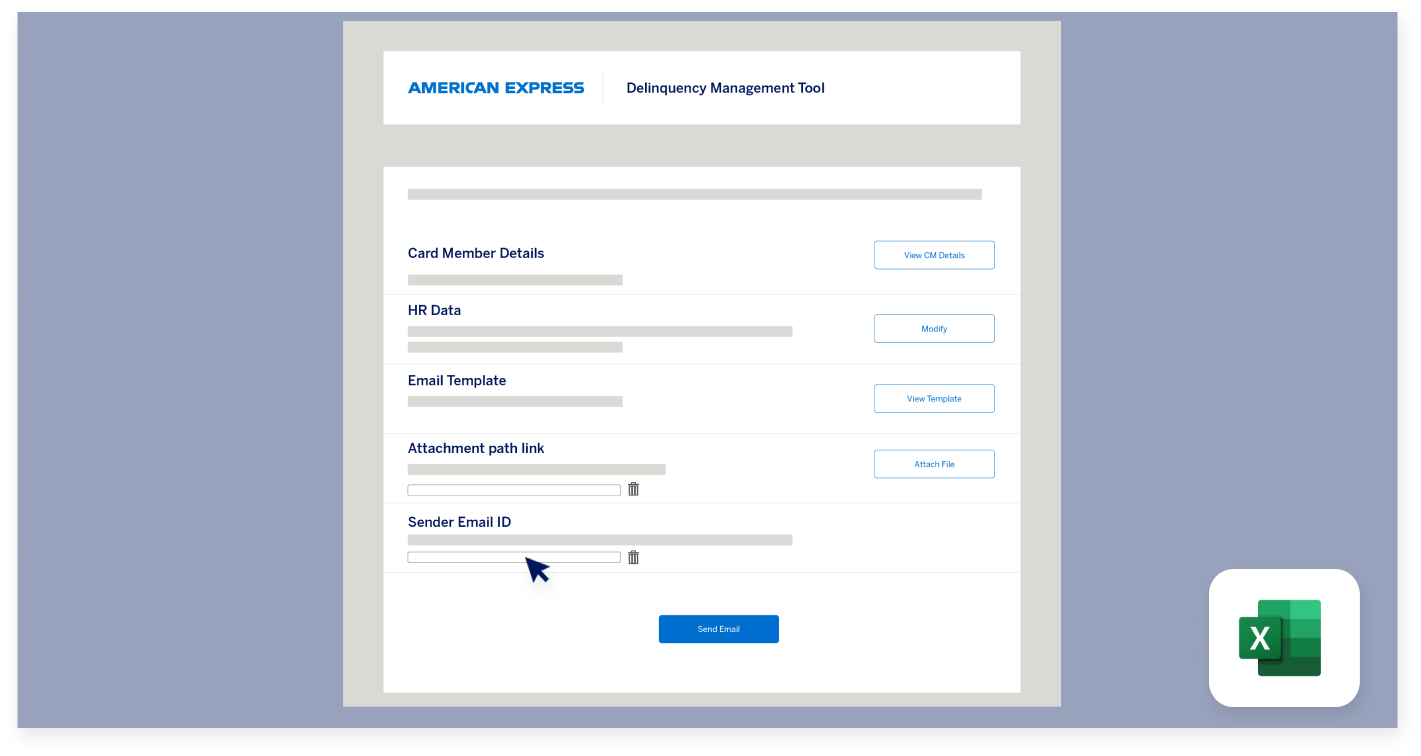
Now, download the American Express Bulk Dunning Tool. This is an MS Excel macro-based tool to send bulk payment reminders to multiple Card Members. 

DELINQUENCY DASHBOARD

Microsoft Excel Download 

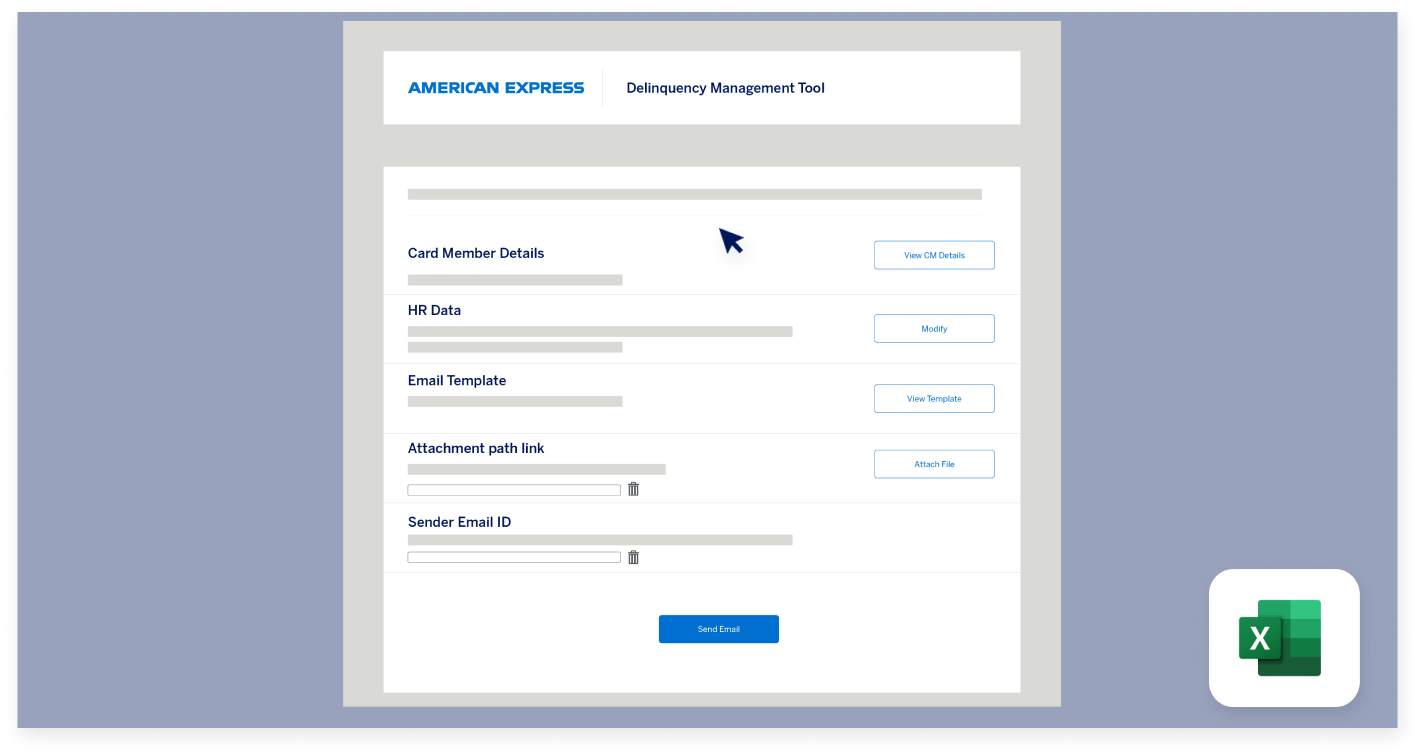
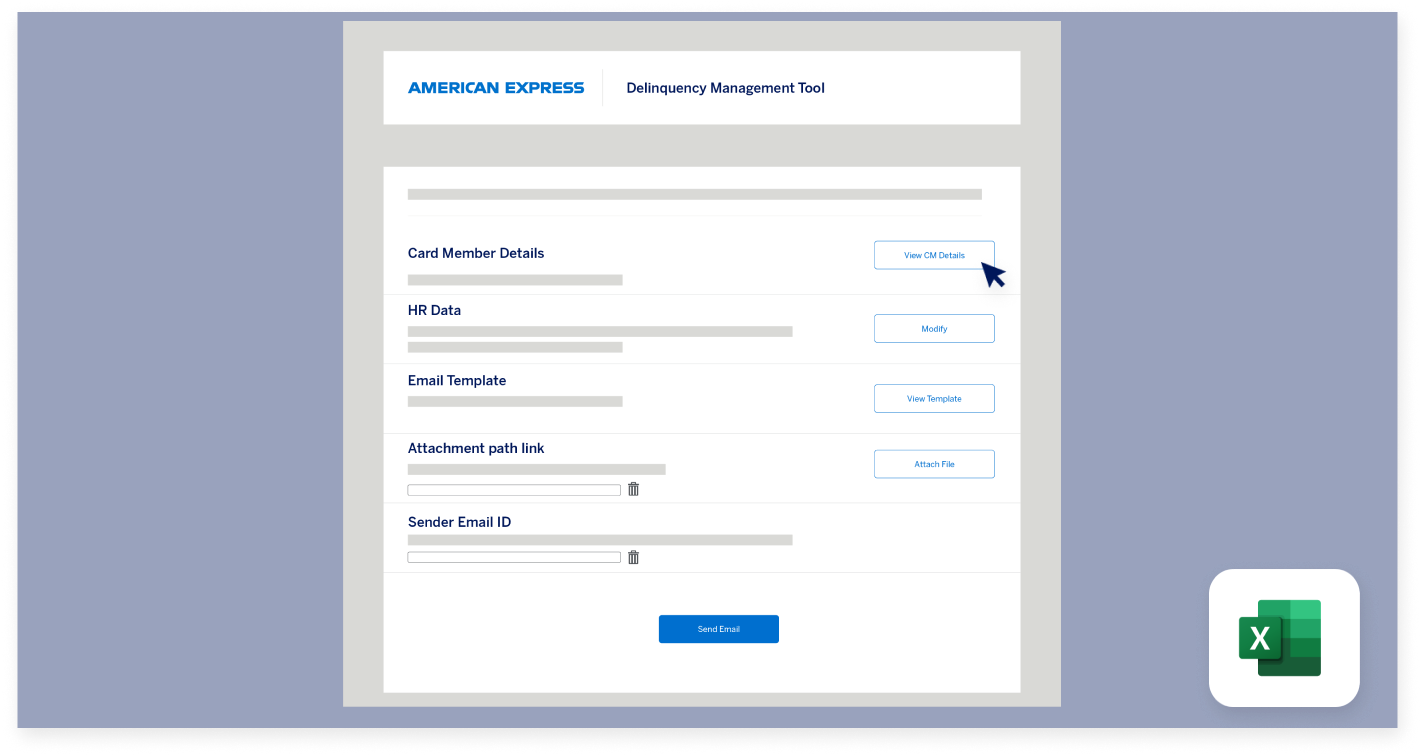
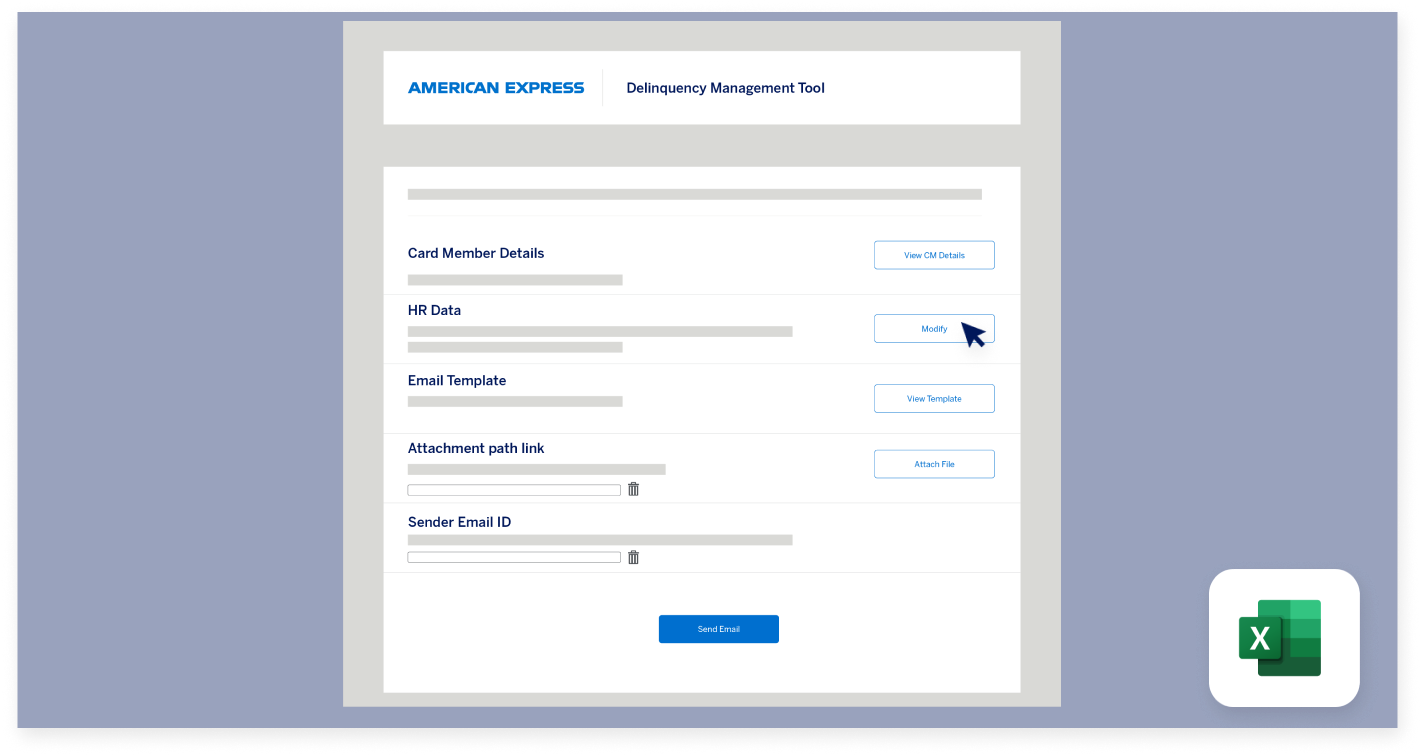
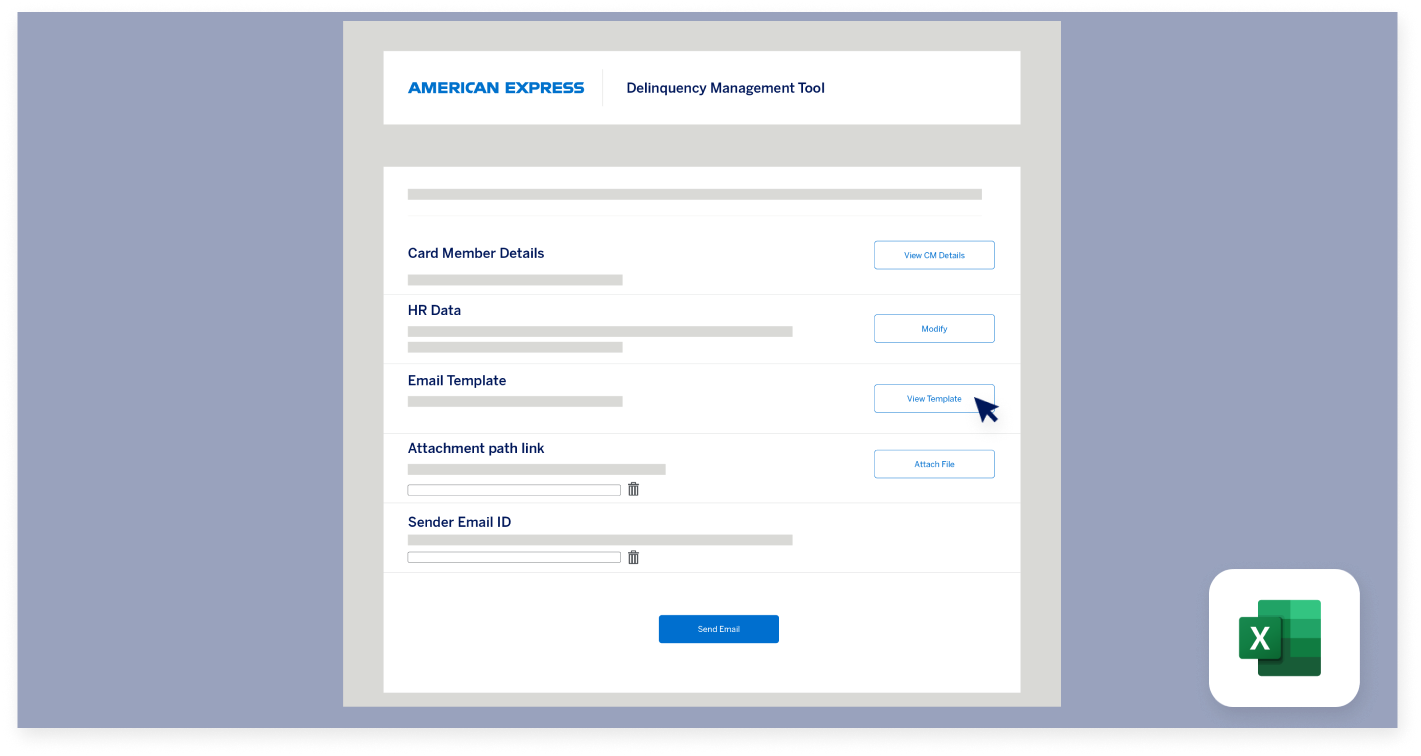
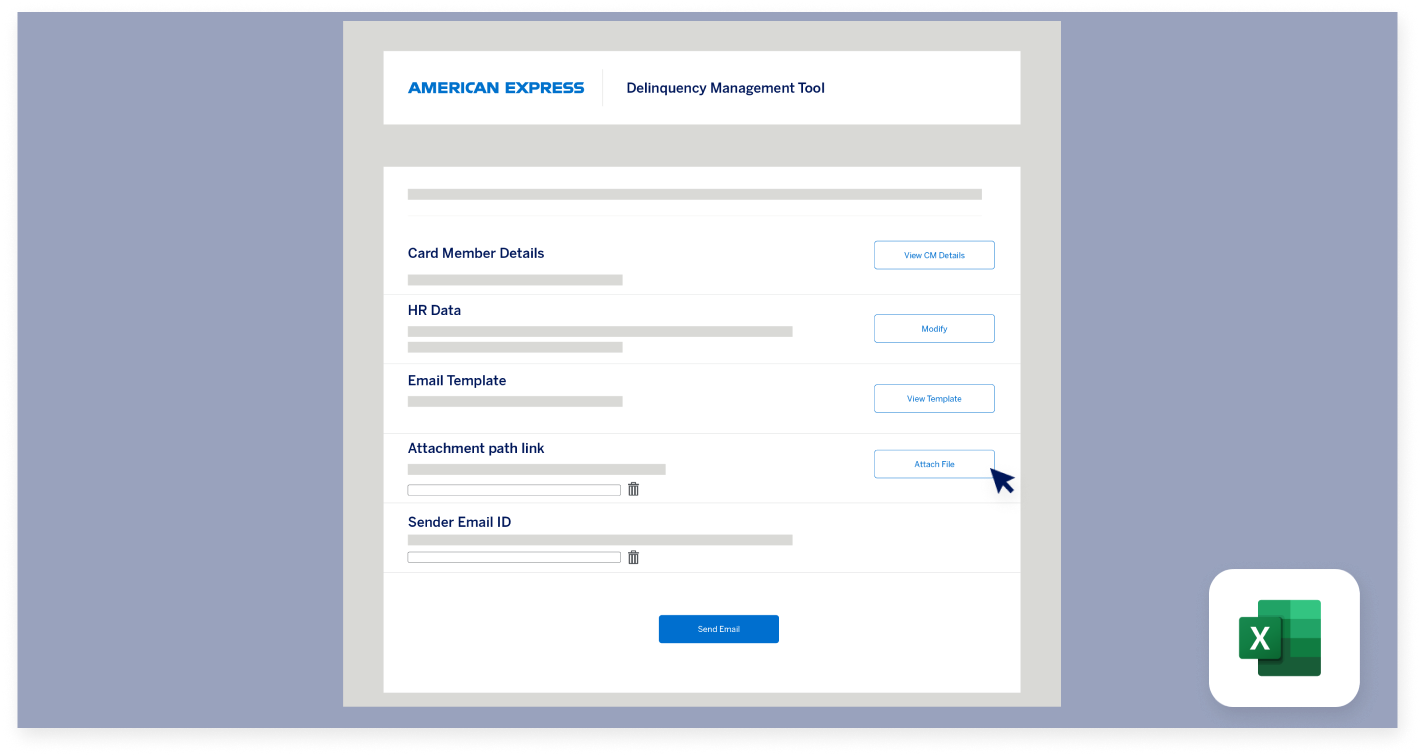
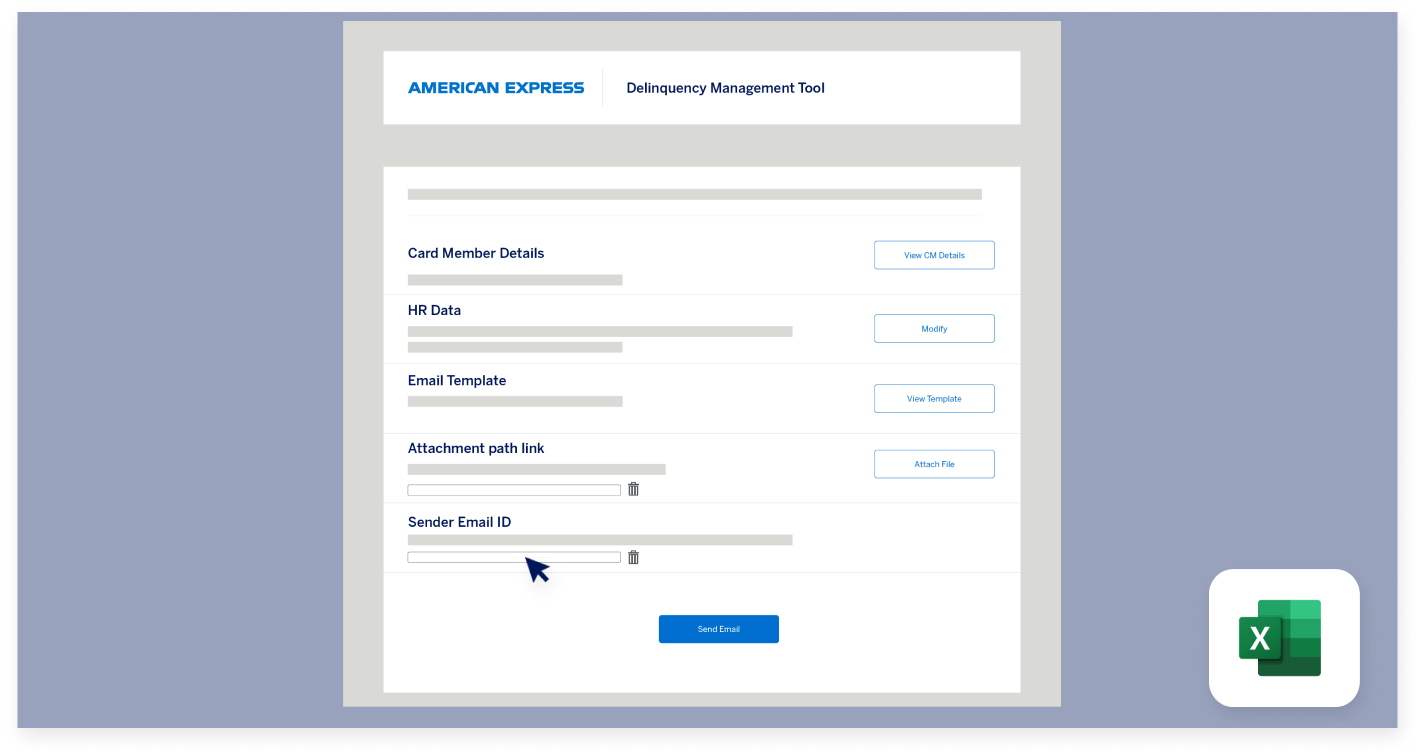
Open the MS Excel download. This is the landing page of the tool which has five optional controls for you to modify the bulk payment reminders. 

DELINQUENCY DASHBOARD

Microsoft Excel Download  

Card Member Details – you can review the Card Member details here. 

DELINQUENCY DASHBOARD

Microsoft Excel Download  

HR Data – you can add the human resources contact and manager details for the Card Members and edit the Card Member Email ID. 

DELINQUENCY DASHBOARD

Microsoft Excel Download  

Email Template – you can review the email template here. 

DELINQUENCY DASHBOARD

Microsoft Excel Download  

Attachment – you can attach a file here. File should be under the size allowed by your email service provider. 

DELINQUENCY DASHBOARD

Microsoft Excel Download 

Sender Email ID – you can choose from the mailboxes configured on your system from which you want to send the email. 

DELINQUENCY DASHBOARD

Microsoft Excel Download  

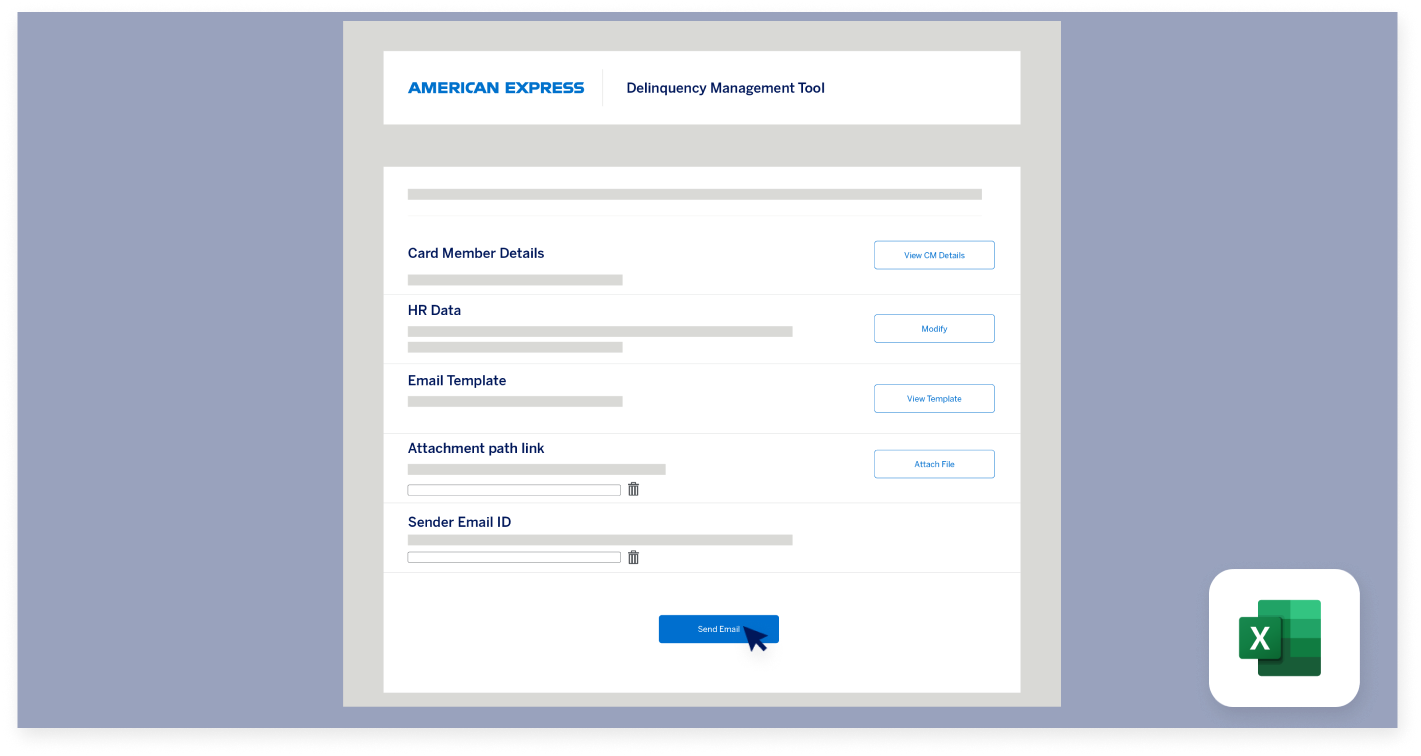
Note: The email would be sent from the email account configuration on your email application and not from an American Express email account. 

DELINQUENCY DASHBOARD

Microsoft Excel Download 

Click on “Send Email” to send bulk payment reminders to all the selected Card Members. Note: Currently, you can only send bulk payment reminders from MS Outlook. However, single emails can be sent from any default email application configured on your system. 

DELINQUENCY DASHBOARD

Go to the main menu for more Guided Tours  


Next

delinquency-dashboard-screen1
delinquency-dashboard-screen2
delinquency-dashboard-screen3
delinquency-dashboard-screen4
delinquency-dashboard-screen5
delinquency-dashboard-screen6
delinquency-dashboard-screen7
delinquency-dashboard-screen8
delinquency-dashboard-screen9
delinquency-dashboard-screen10
delinquency-dashboard-screen11
delinquency-dashboard-screen12
delinquency-dashboard-screen13
delinquency-dashboard-screen14
delinquency-dashboard-screen15
delinquency-dashboard-screen16
delinquency-dashboard-screen17
delinquency-dashboard-screen18
delinquency-dashboard-screen19
delinquency-dashboard-screen20
delinquency-dashboard-screen21
delinquency-dashboard-screen22
delinquency-dashboard-screen23
delinquency-dashboard-screen24
delinquency-dashboard-screen25
delinquency-dashboard-screen26
delinquency-dashboard-screen27
delinquency-dashboard-screen28
delinquency-dashboard-screen29
delinquency-dashboard-screen30
delinquency-dashboard-screen31
delinquency-dashboard-screen32
delinquency-dashboard-screen33
delinquency-dashboard-screen34
delinquency-dashboard-screen35
delinquency-dashboard-screen36
delinquency-dashboard-screen37
delinquency-dashboard-screen38
delinquency-dashboard-screen39
delinquency-dashboard-screen40
delinquency-dashboard-screen41
delinquency-dashboard-screen42
delinquency-dashboard-screen43
delinquency-dashboard-screen44
delinquency-dashboard-screen45
delinquency-dashboard-screen46
delinquency-dashboard-screen47
delinquency-dashboard-screen48

Back to main menu 

@ Work Homepage

Other Resources

Video Tutorials

Back

@ WORK HOMEPAGE

Introduction

In this session, we’re going to walk through the @ Work Homepage, which offers you tools to manage your Program, all in one place.   

@ WORK HOMEPAGE

Introduction

Let’s take a tour of the modernized Homepage, with its User-friendly and intuitive layout.  

@ WORK HOMEPAGE

The Navigation Menu 

At the top is a Navigation Menu that launches your @ Work journeys.   

@ WORK HOMEPAGE

The Navigation Menu

Next, you will find a notifications bell that takes you to the Notifications Center.   

@ WORK HOMEPAGE

The Navigation Menu

There is an account icon where you can find Communication Preferences, Security and Privacy settings, and can also log out from your account.  

@ WORK HOMEPAGE

The Navigation Menu

There is also a session timer, 

@ WORK HOMEPAGE

The Navigation Menu

...a market drop-down to select your markets,  

@ WORK HOMEPAGE

The Navigation Menu

...the Program selection drop-down to select the account you want to view,   

@ WORK HOMEPAGE

The Navigation Menu

...a tour of the @ Work page,   

@ WORK HOMEPAGE

The Navigation Menu

...and a link to the Status Tracking page.    

@ WORK HOMEPAGE

The Homepage Dashboard

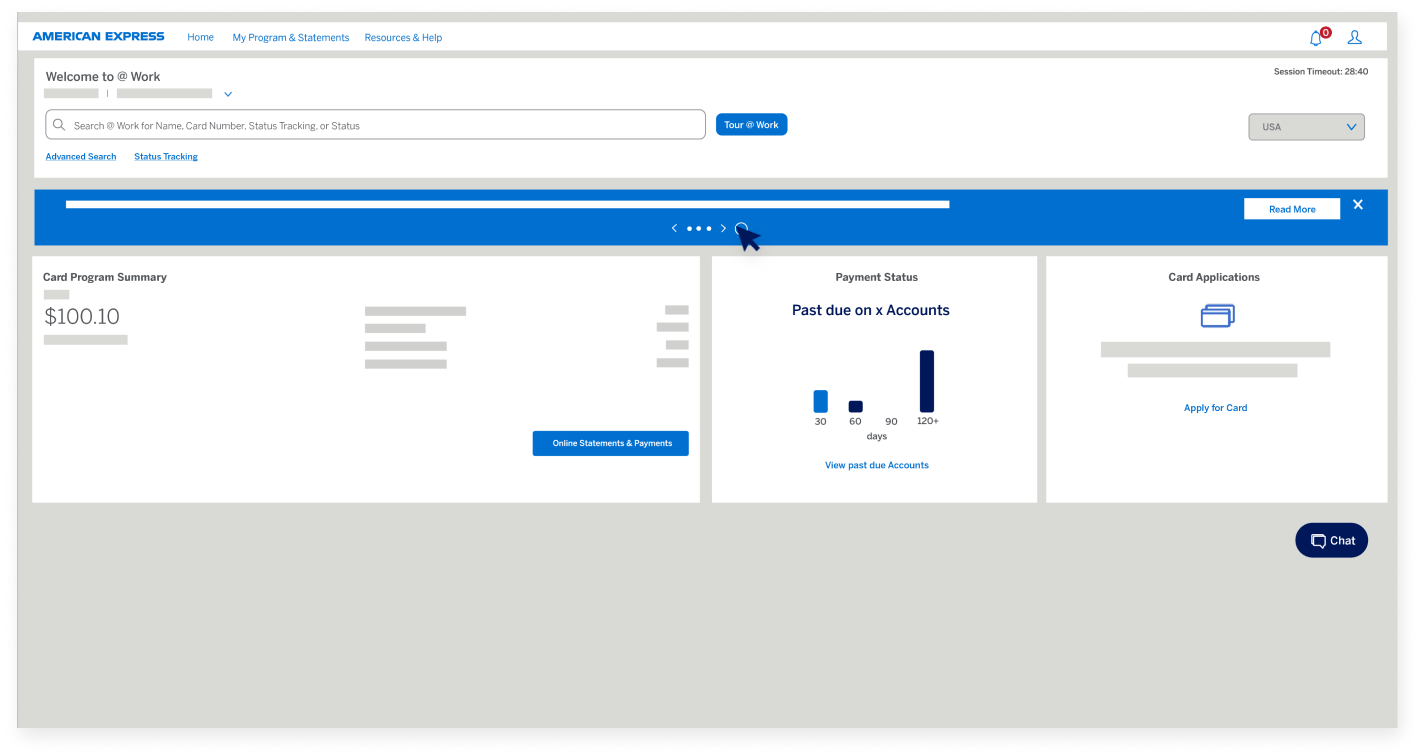
Now let’s look at the helpful information on the Homepage dashboard starting with the blue notification that you can either click through, or that scrolls by itself. 

@ WORK HOMEPAGE

The Homepage Dashboard

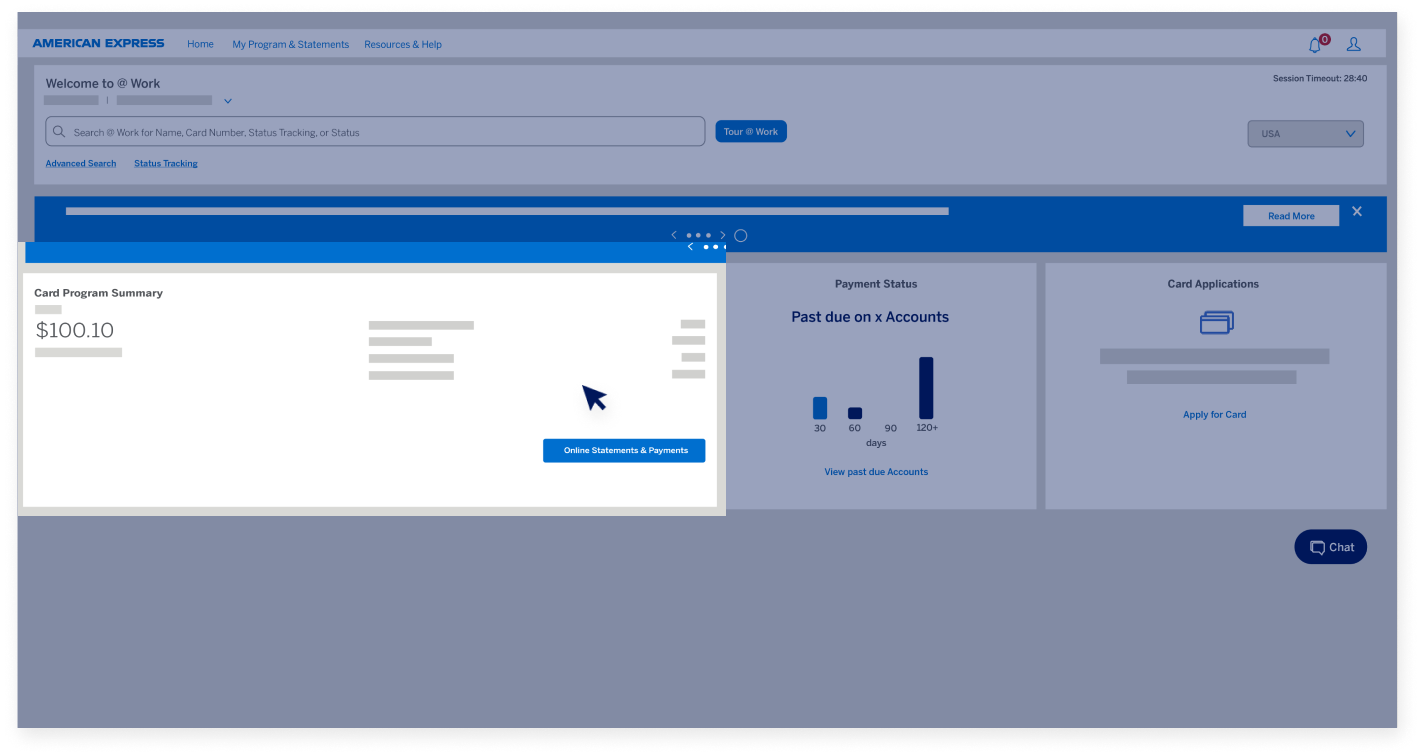
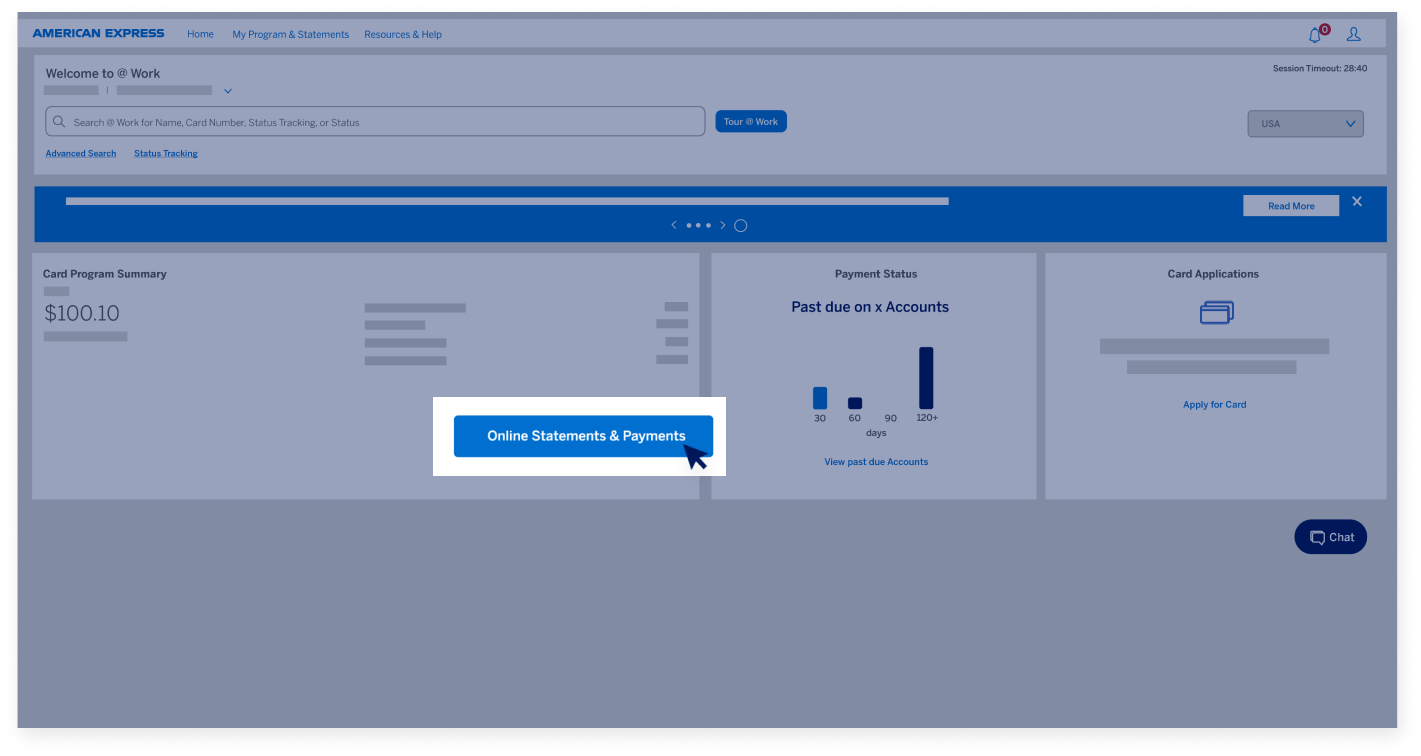
The Card Program module gives you a snapshot summary of the Program.  

@ WORK HOMEPAGE

The Homepage Dashboard

In this module, you can also find a link to online statements and payments, where you can download statements and make payments. 

@ WORK HOMEPAGE

The Homepage Dashboard

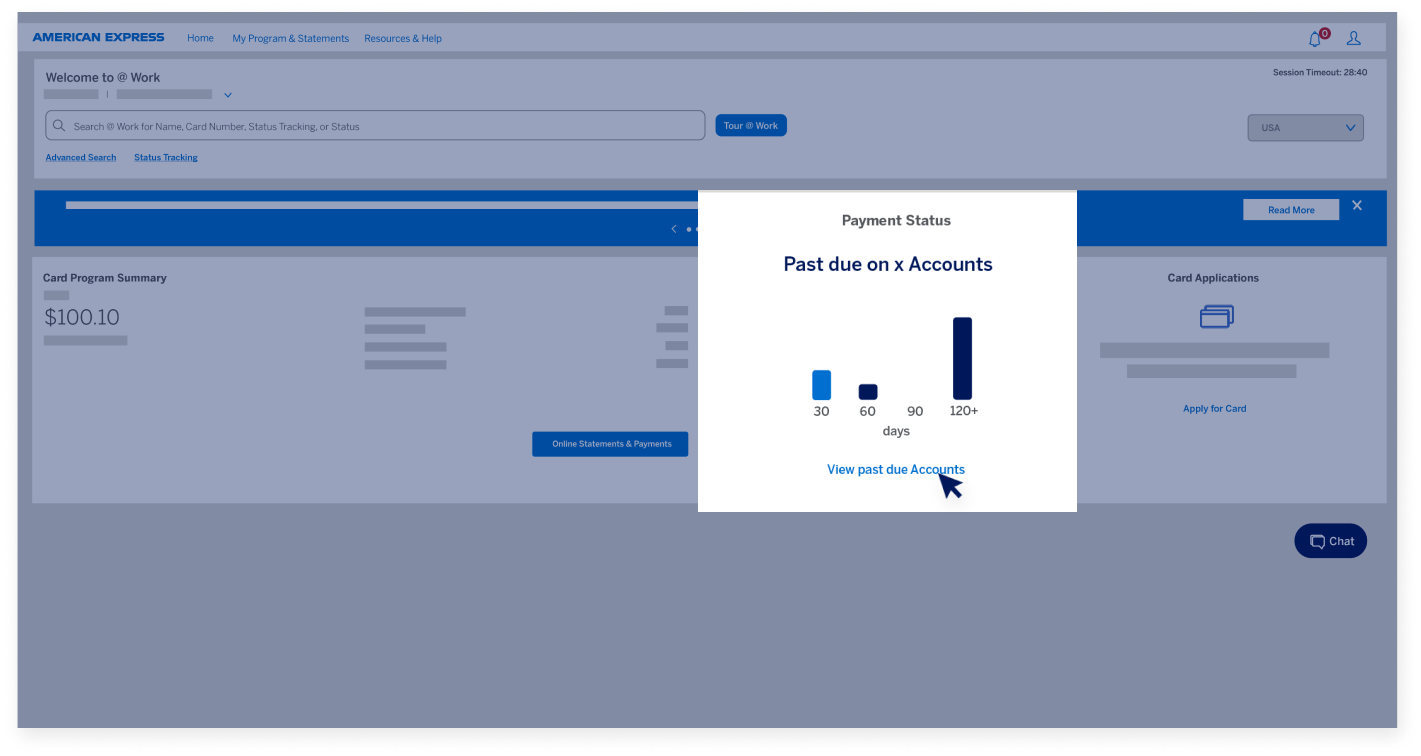
The Payment Status dashboard displays a visual graph of past due Cards and a link to view further details. 

@ WORK HOMEPAGE

The Homepage Dashboard

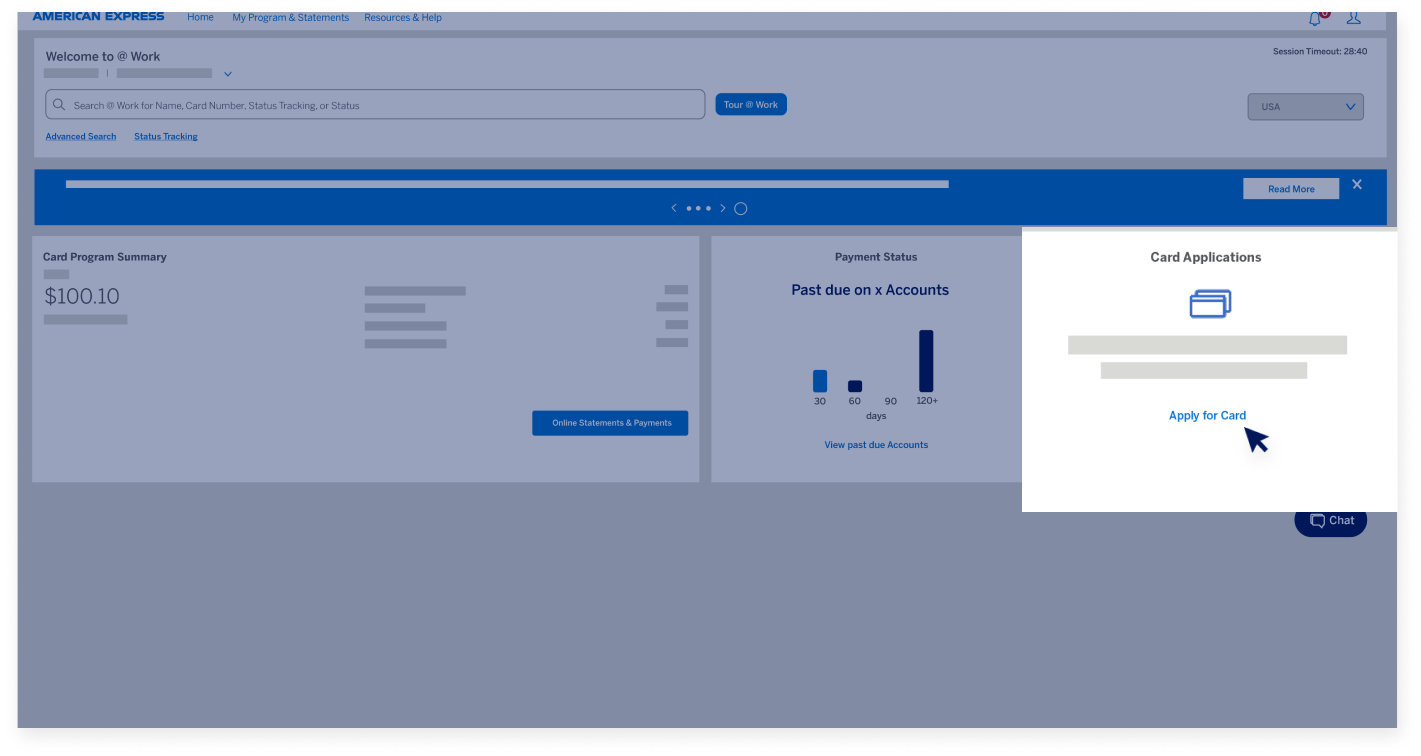
You can also view a Card management module where you can apply for Cards, complete an application, or create and manage access keys.   

@ WORK HOMEPAGE

The Homepage Dashboard

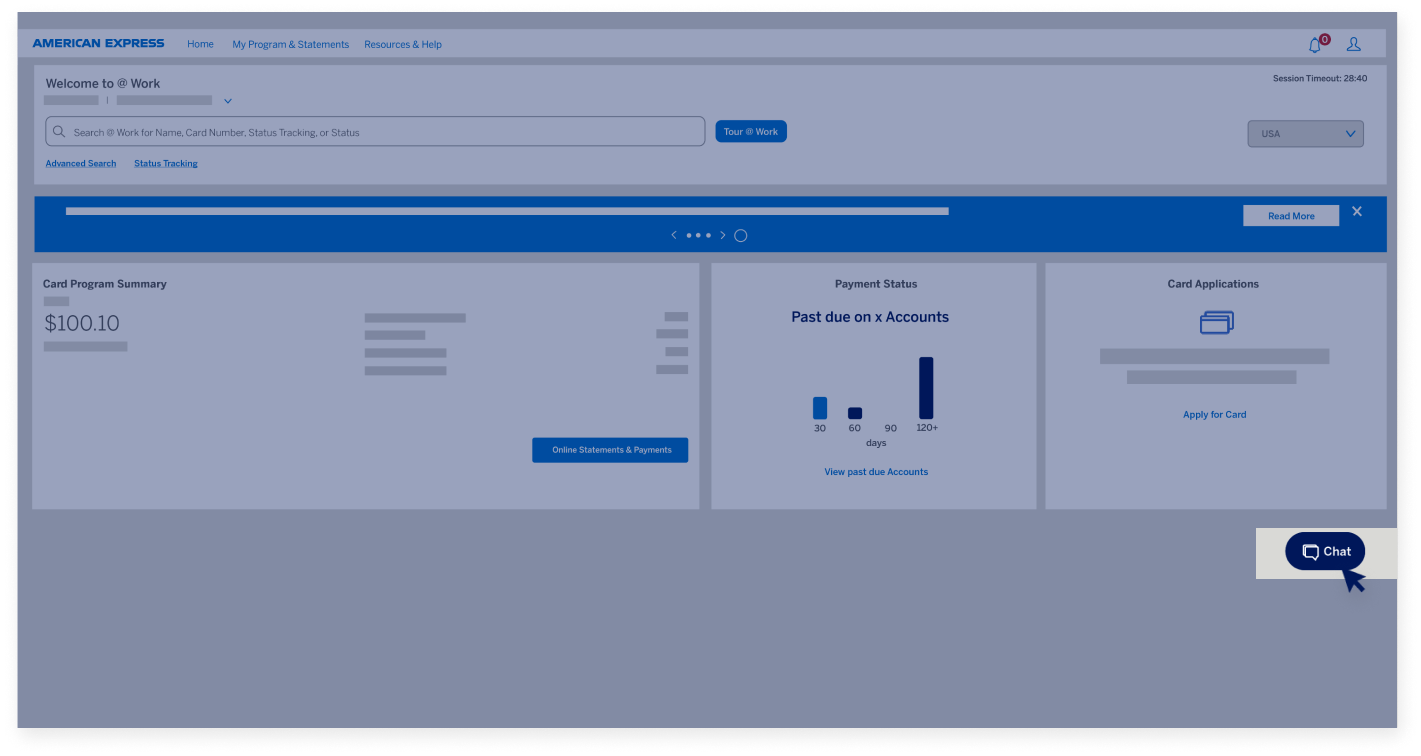
Additionally, towards the bottom of the page, there is a live chat option during operating business hours.  

@ WORK HOMEPAGE

Navigation menu features

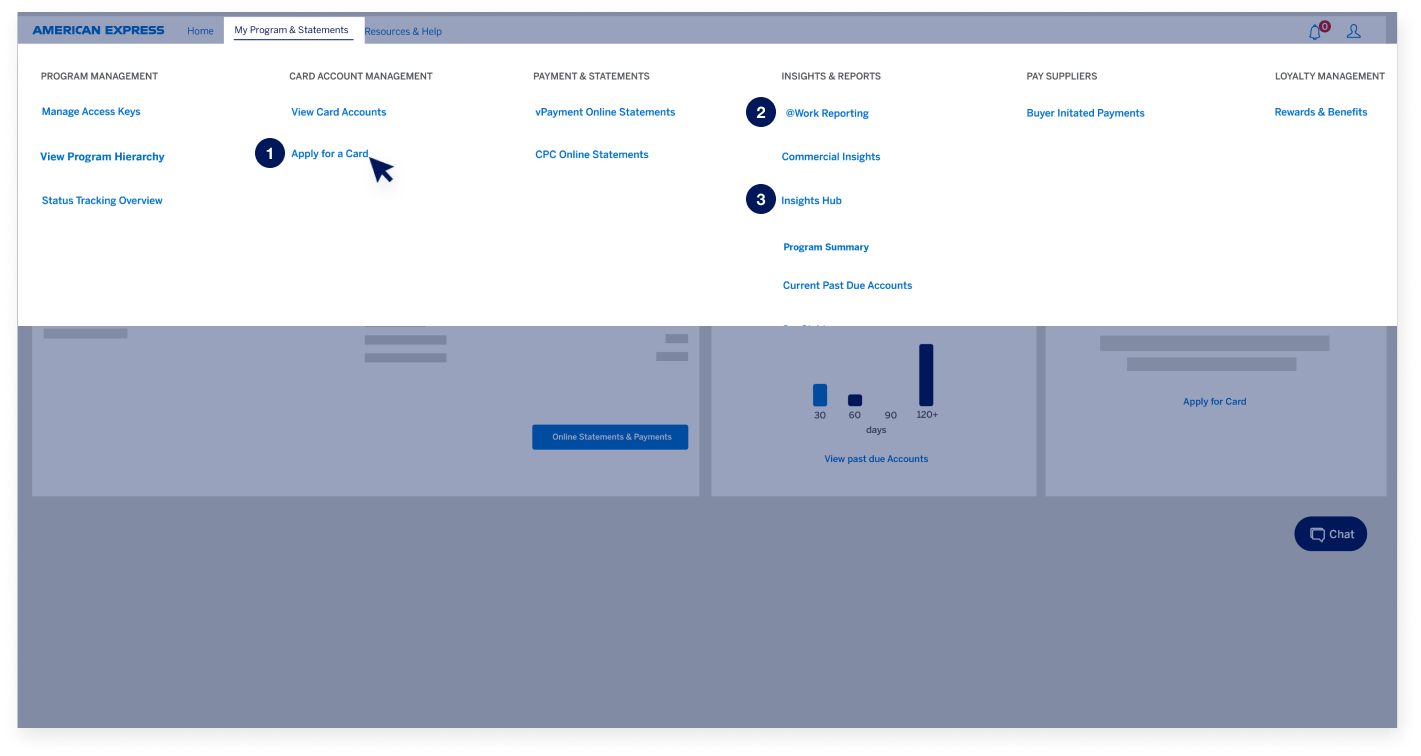
Returning to the navigation menu, the “My Program” tab is where you’ll find functions for managing your Program, including Apply for a Card,
@ Work Reporting, the Insights Hub, and more.  

@ WORK HOMEPAGE

Navigation menu features

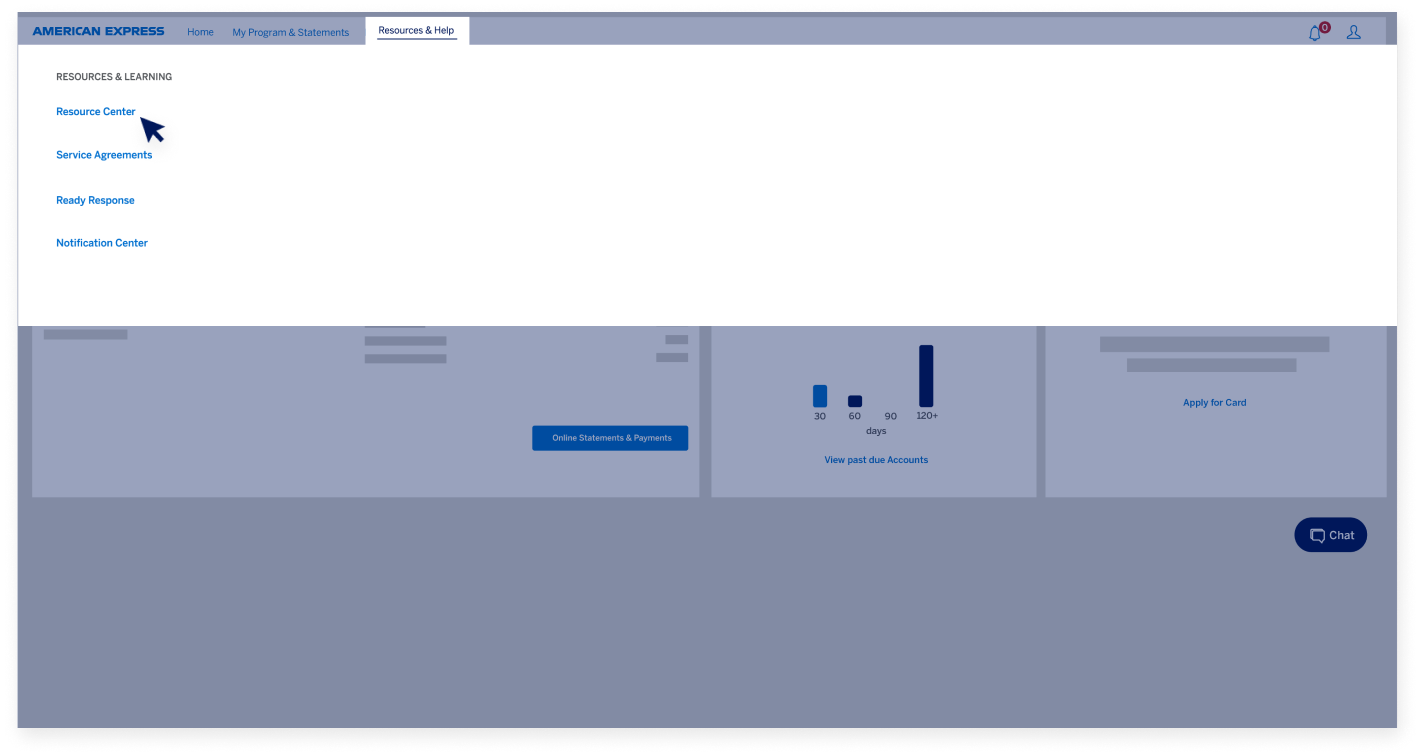
In the Resources & Help tab, you can find links to the Resource Center and helpful links to navigate the site. 

@ WORK HOMEPAGE

The Search bar

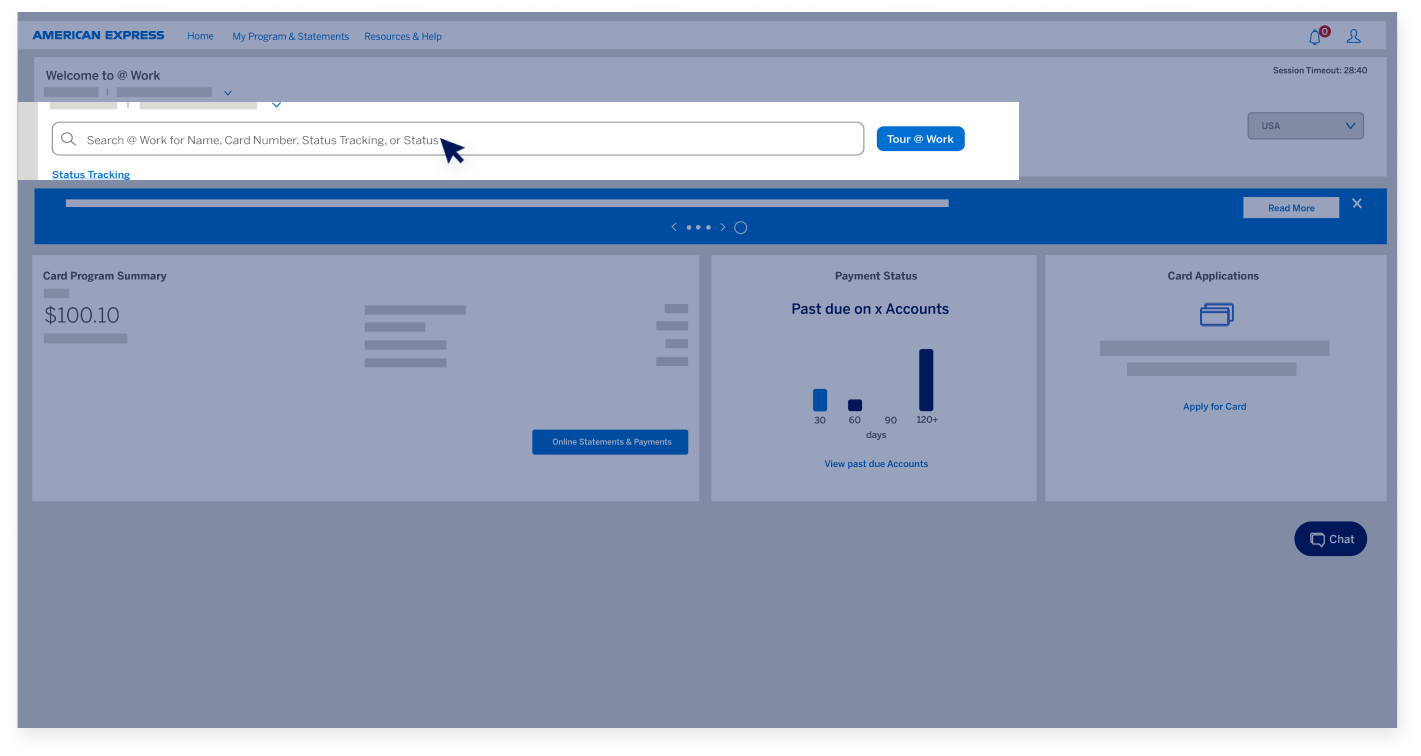
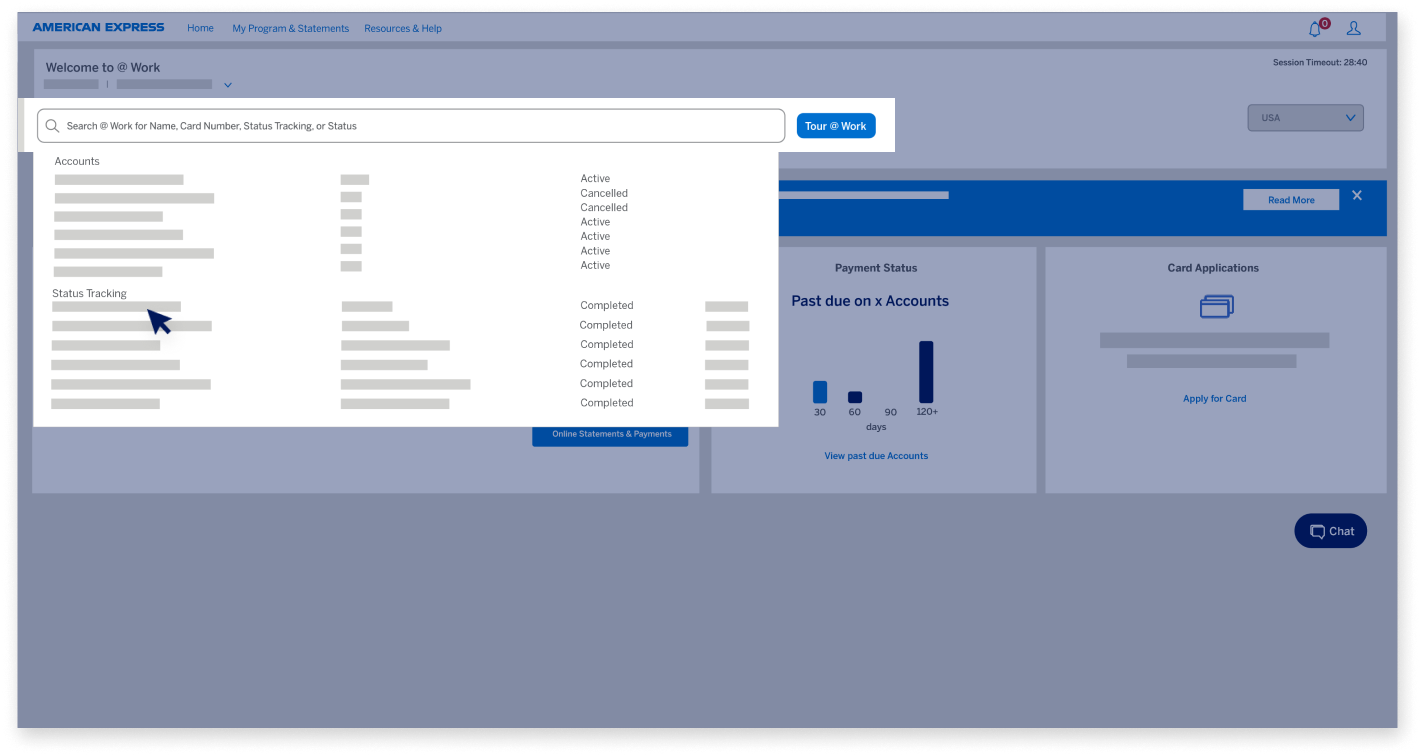
The Search bar has an auto-suggest function that lets you enter just a few characters of text to find an Account Number, Account Status, Status Tracking ID, Card Type, Employee ID, and more.  

@ WORK HOMEPAGE

The Search bar

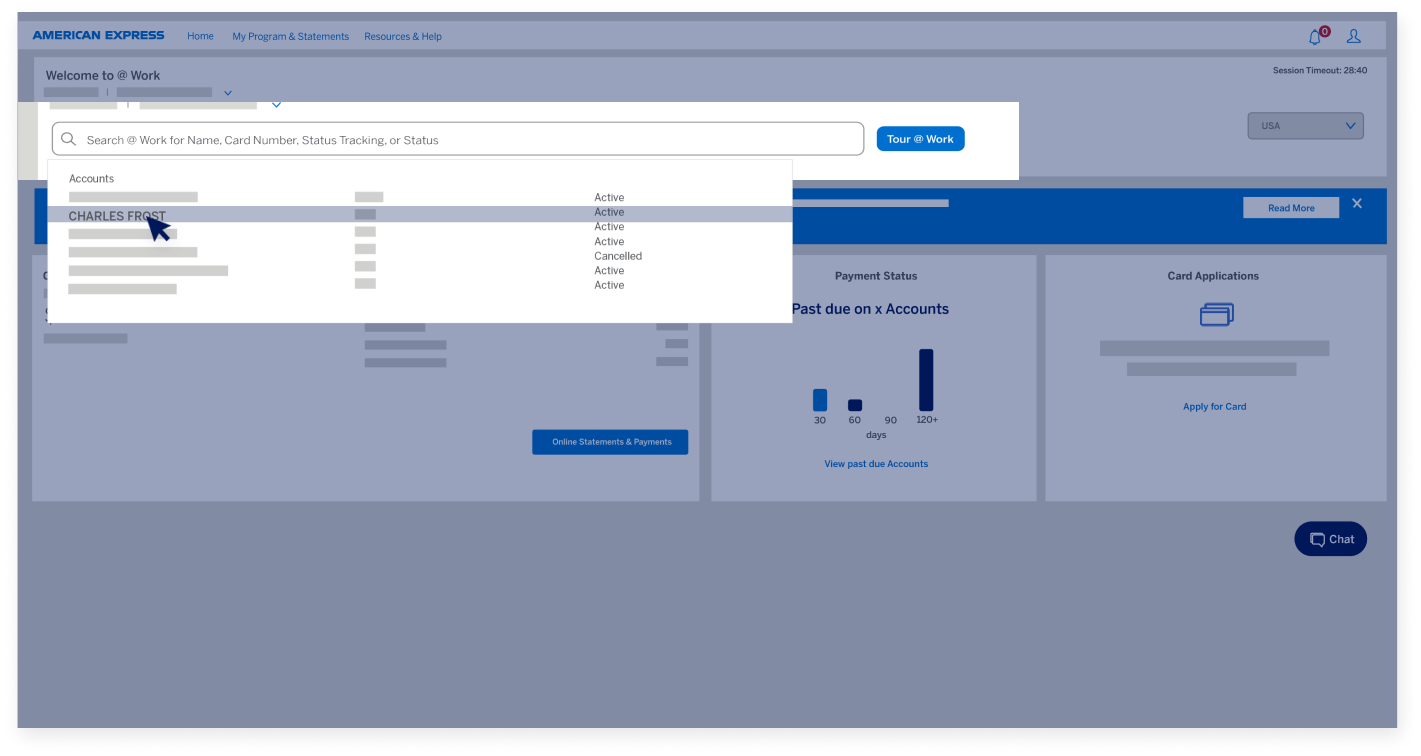
After searching for a name, Card account number, or Card status, you can click on a Card Account result in the drop-down...  

@ WORK HOMEPAGE

The Search bar

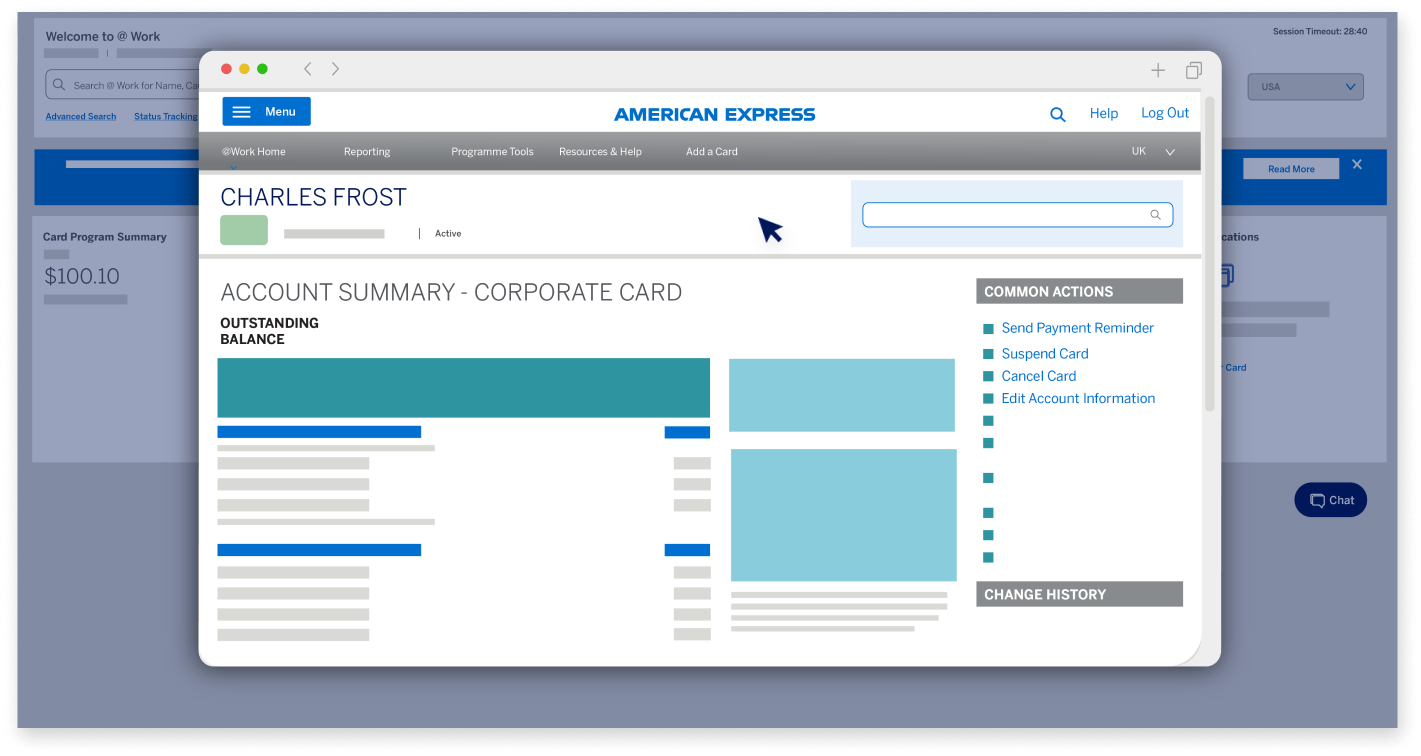
...and you’ll go to the Card Profile page for that specific account.   

@ WORK HOMEPAGE

The Search bar

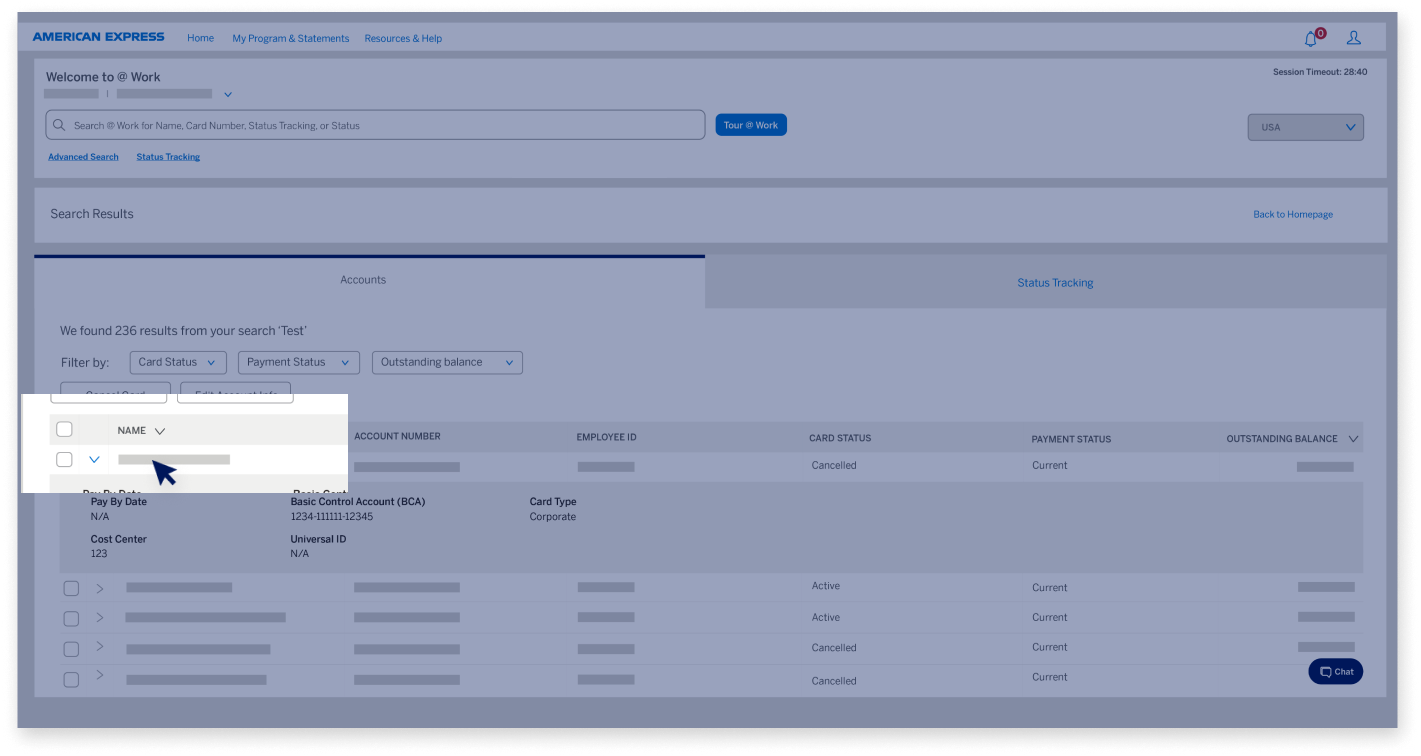
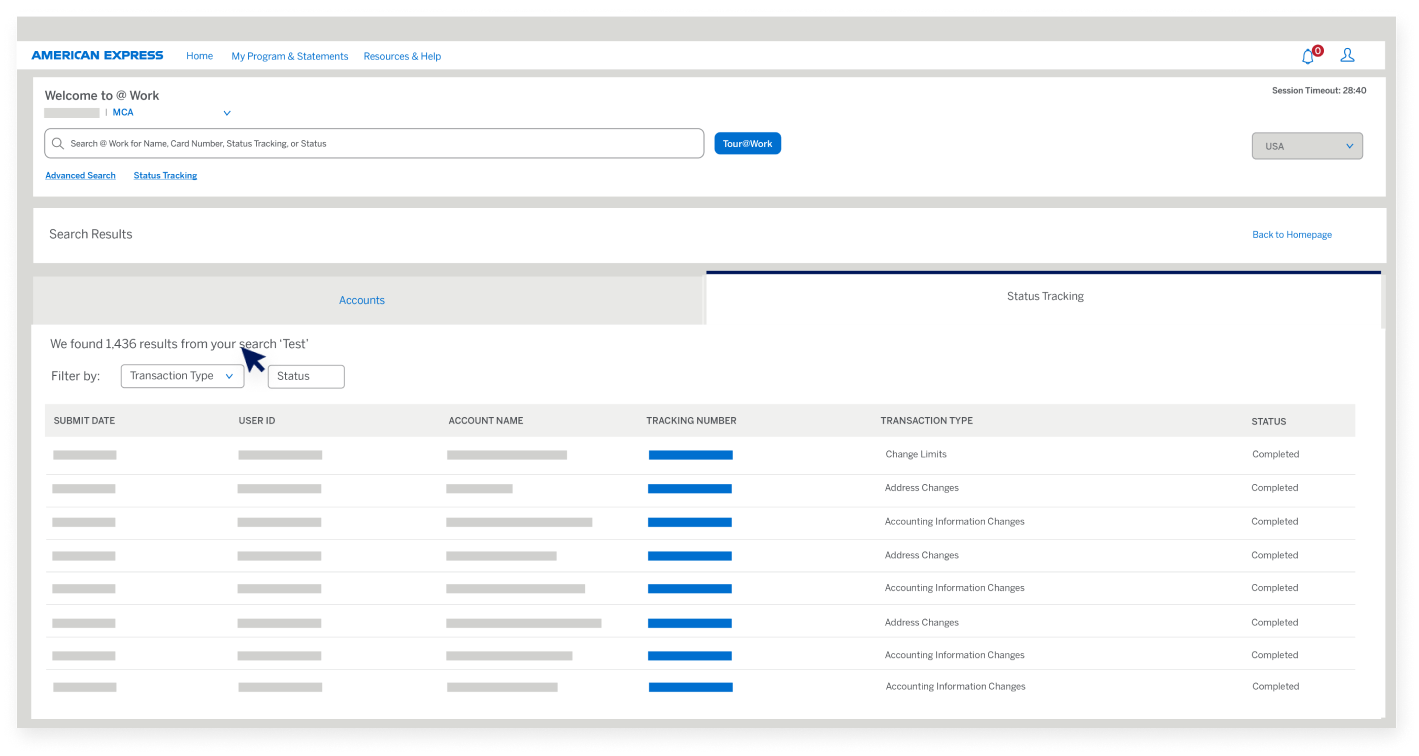
Click on a Status Tracking result in the drop-down to go to the Status Tracking Page. If you input a Search item and press “Enter”, you will be taken to the Search Results Page that has two tabs.  

@ WORK HOMEPAGE

The Accounts tab

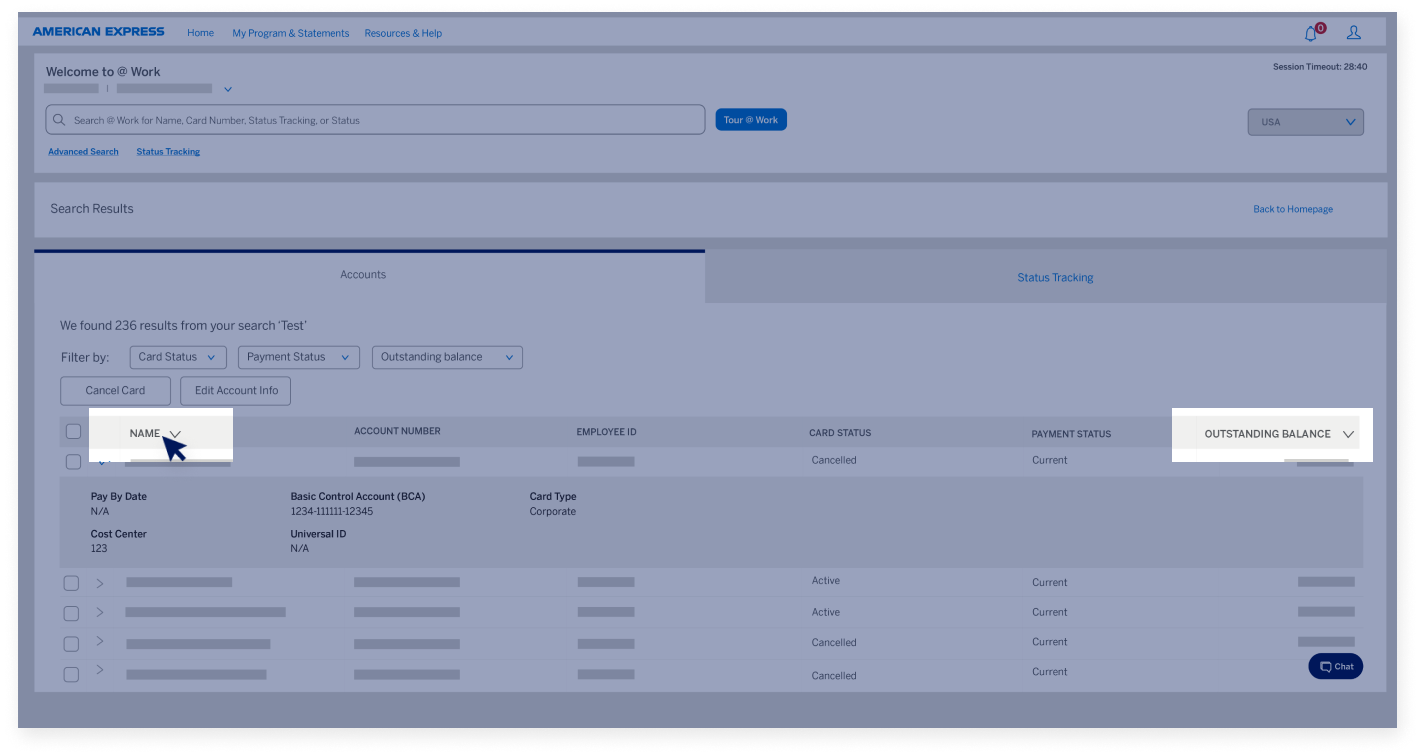
Under the Accounts tab, you can refine your results by clicking this arrow to sort by name and outstanding balance.  

@ WORK HOMEPAGE

The Accounts tab

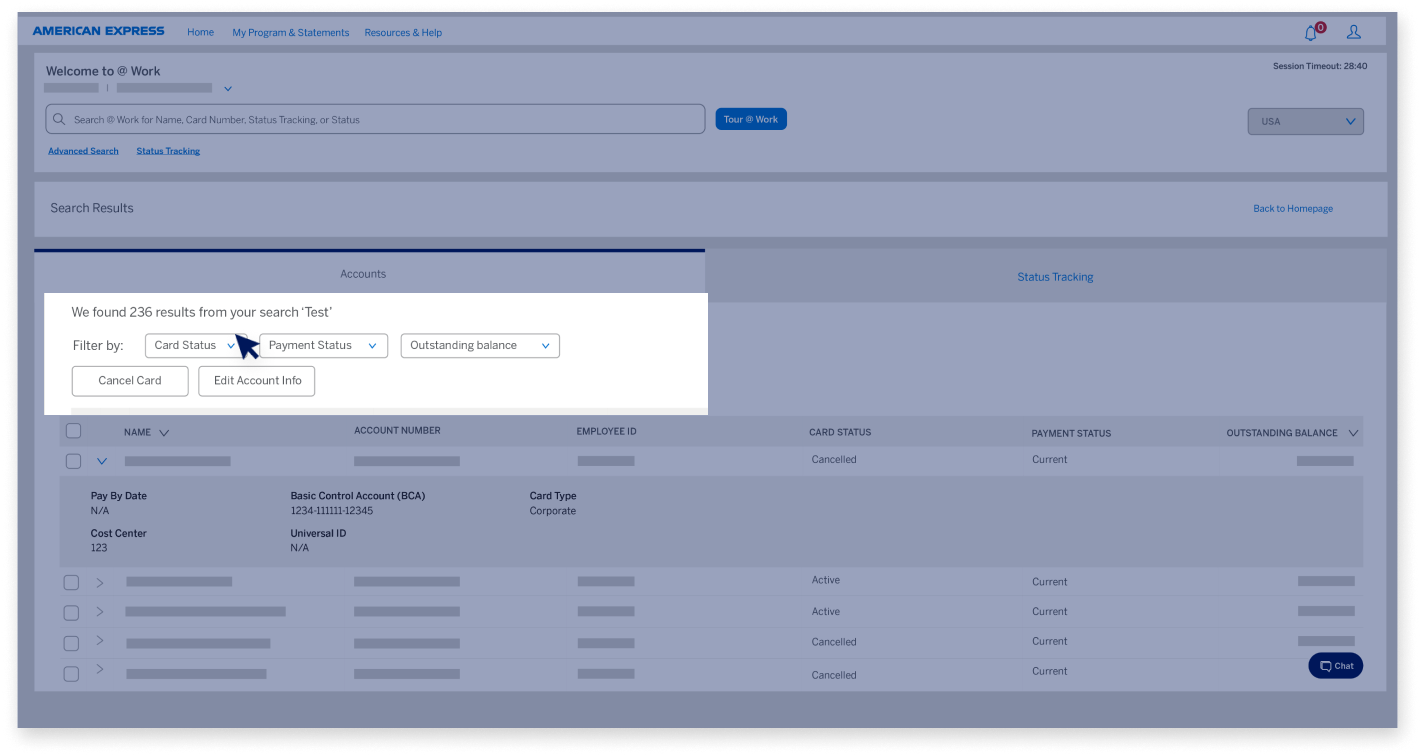
You can filter your results using the Card Status, Payment Status, or Outstanding Balance filters, and...  

@ WORK HOMEPAGE

The Accounts tab

...click on the hyperlink in the ‘Name’ column of the respective Card you would like to view to go to the Card Profile Page for that specific Card Account.  

@ WORK HOMEPAGE

The Accounts tab

To see additional details, you can click on this arrow and see details like BCA, Pay By Date, and more.  

@ WORK HOMEPAGE

Status Tracking tab

Under the Status Tracking tab, you can further refine your results and filter by Transaction Type or Status.  

@ WORK HOMEPAGE

Status Tracking tab

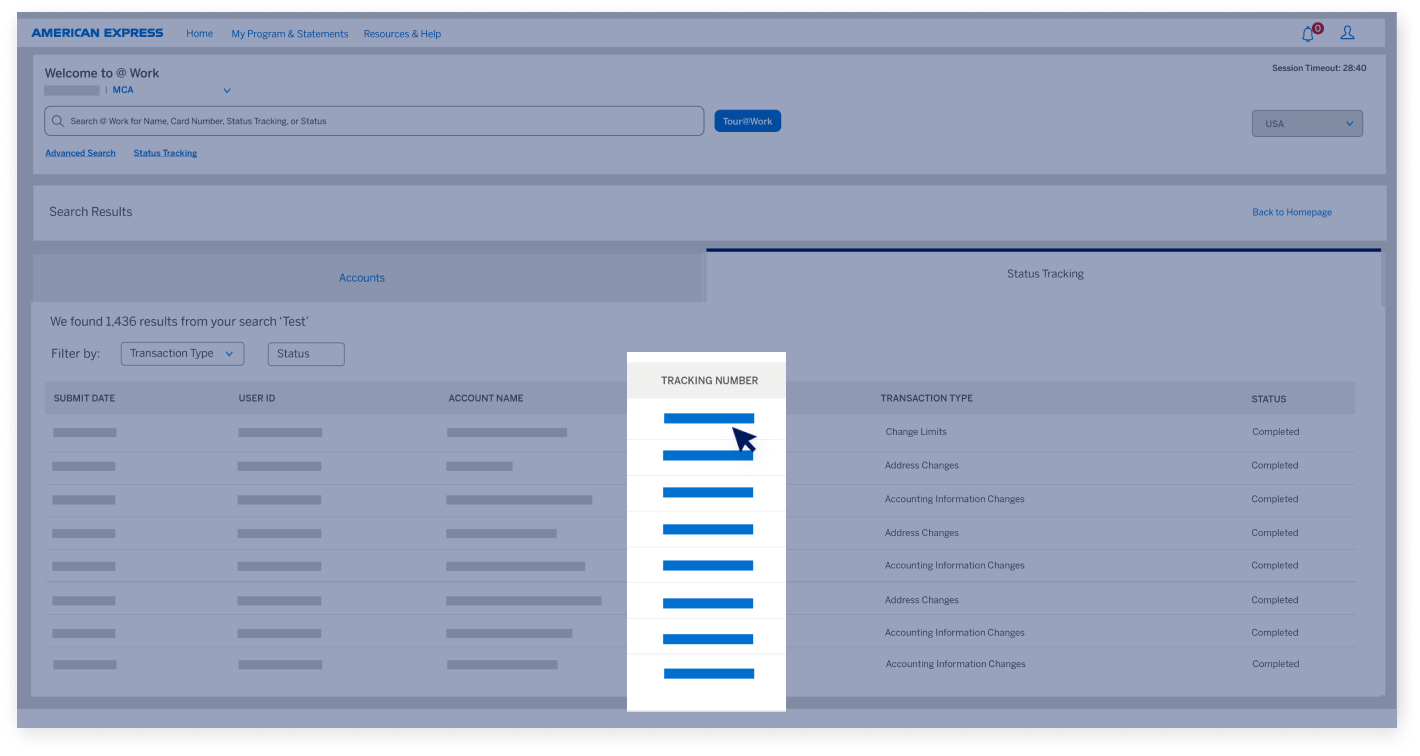
Clicking on the hyperlink in the ‘Tracking ID’ column will take you to the Status Tracking detail page for that specific transaction.  

@ WORK HOMEPAGE

Status Tracking tab

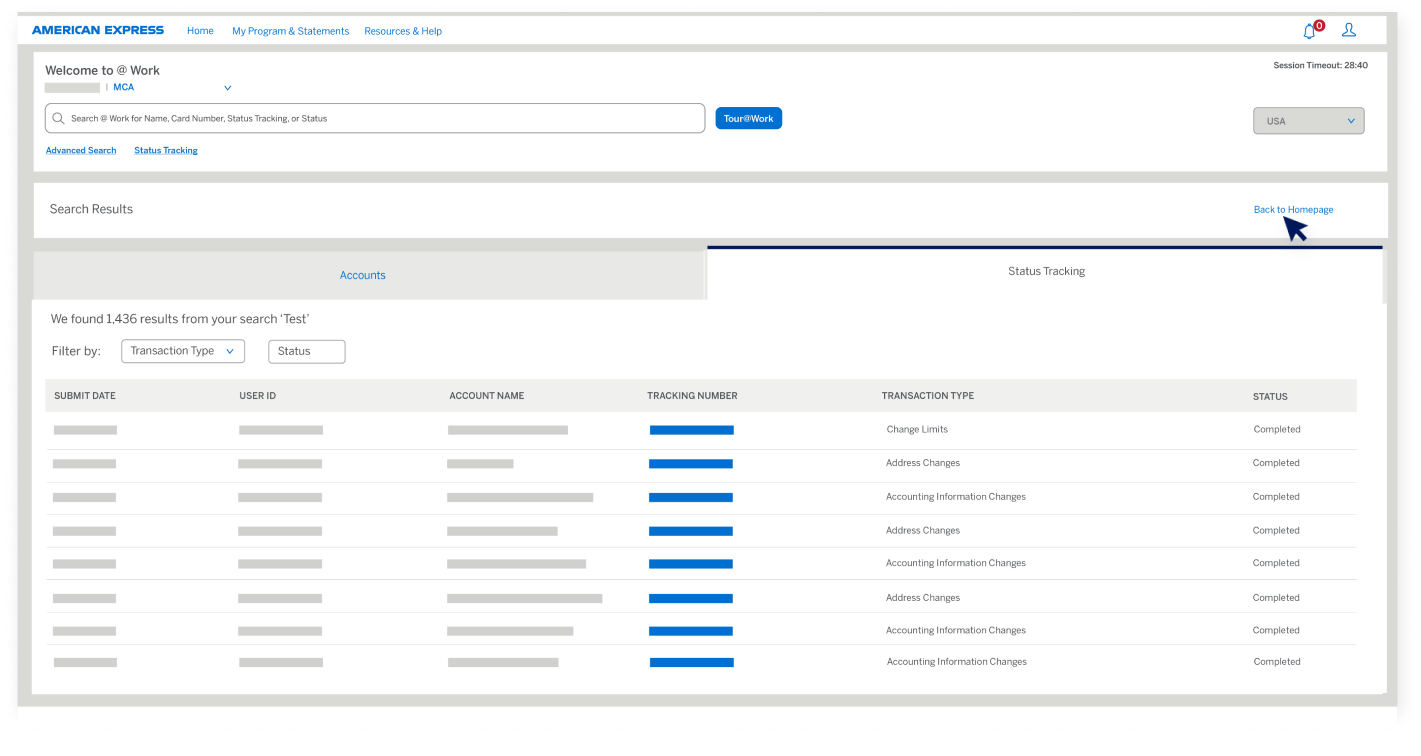
Once you’re finished, return to the Homepage and you’re ready for your next @ Work task.   

@ WORK HOMEPAGE

Go to the main menu for more Guided Tours 

Next

atwork-homepage-screen1
atwork-homepage-screen2
atwork-homepage-screen3
atwork-homepage-screen4
atwork-homepage-screen5
atwork-homepage-screen6
atwork-homepage-screen7
atwork-homepage-screen8
atwork-homepage-screen9
atwork-homepage-screen10
atwork-homepage-screen11
atwork-homepage-screen12
atwork-homepage-screen13
atwork-homepage-screen14
atwork-homepage-screen15
atwork-homepage-screen16
atwork-homepage-screen17
atwork-homepage-screen18
atwork-homepage-screen19
atwork-homepage-screen20
atwork-homepage-screen21
atwork-homepage-screen22
atwork-homepage-screen23
atwork-homepage-screen24
atwork-homepage-screen25
atwork-homepage-screen26
atwork-homepage-screen27
atwork-homepage-screen28
general-navigation-screen14

Back to main menu 

Business Travel Accounts

Other Resources

Video Tutorials

Back

BUSINESS TRAVEL ACCOUNT OVERVIEW

Introduction to BTA

Managing your business travel expenditures can be easy with @ Work Reconciliation. Transactions and travel data both flow systematically into the tool and are linked based on fields such as passenger name, ticket number or reference number.

BUSINESS TRAVEL ACCOUNT OVERVIEW

Automate the Reconciliation Process

We will show you how to reconcile BTA transactions, search for travel data, and link travel data to transactions.

BUSINESS TRAVEL ACCOUNT OVERVIEW

Reconciling Travel Transactions

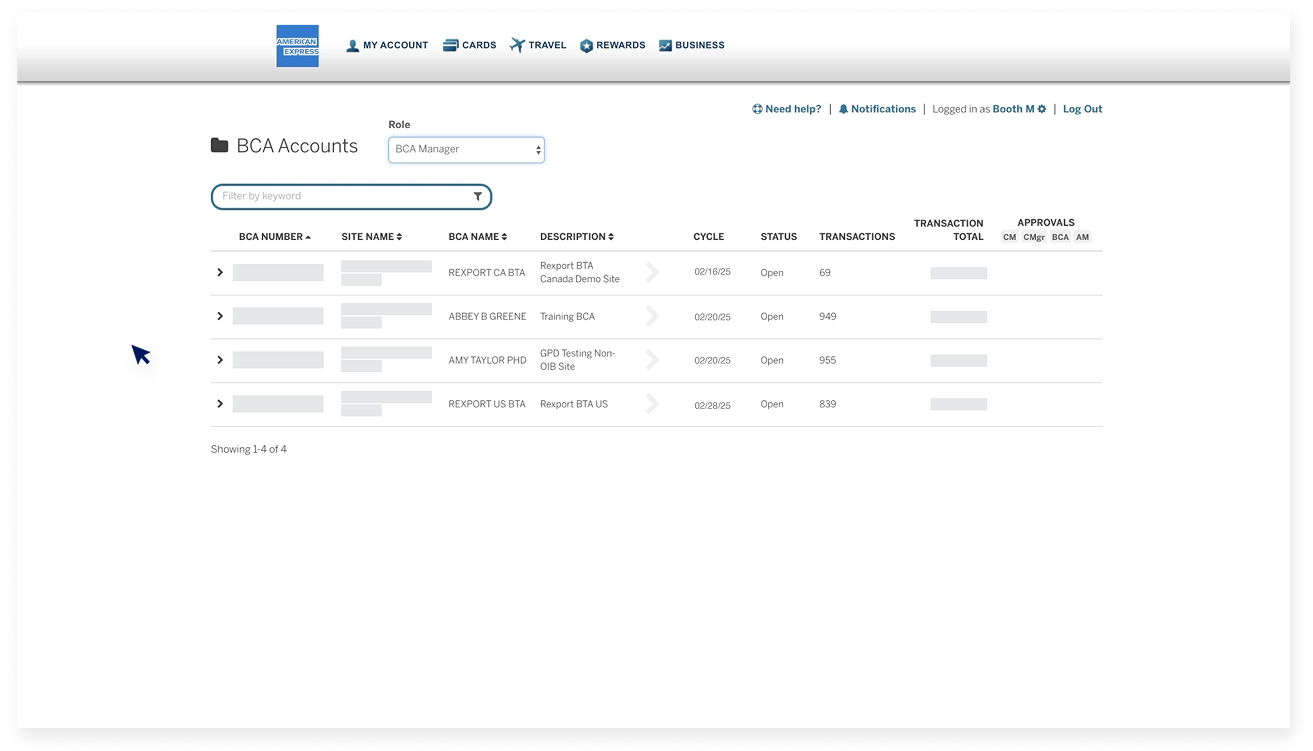
When you log in to @ Work Reconciliation, you will see the Account Summary page. The default view shows the available accounts and their current Billing Cycles.

BUSINESS TRAVEL ACCOUNT OVERVIEW

Reconciling Travel Transactions

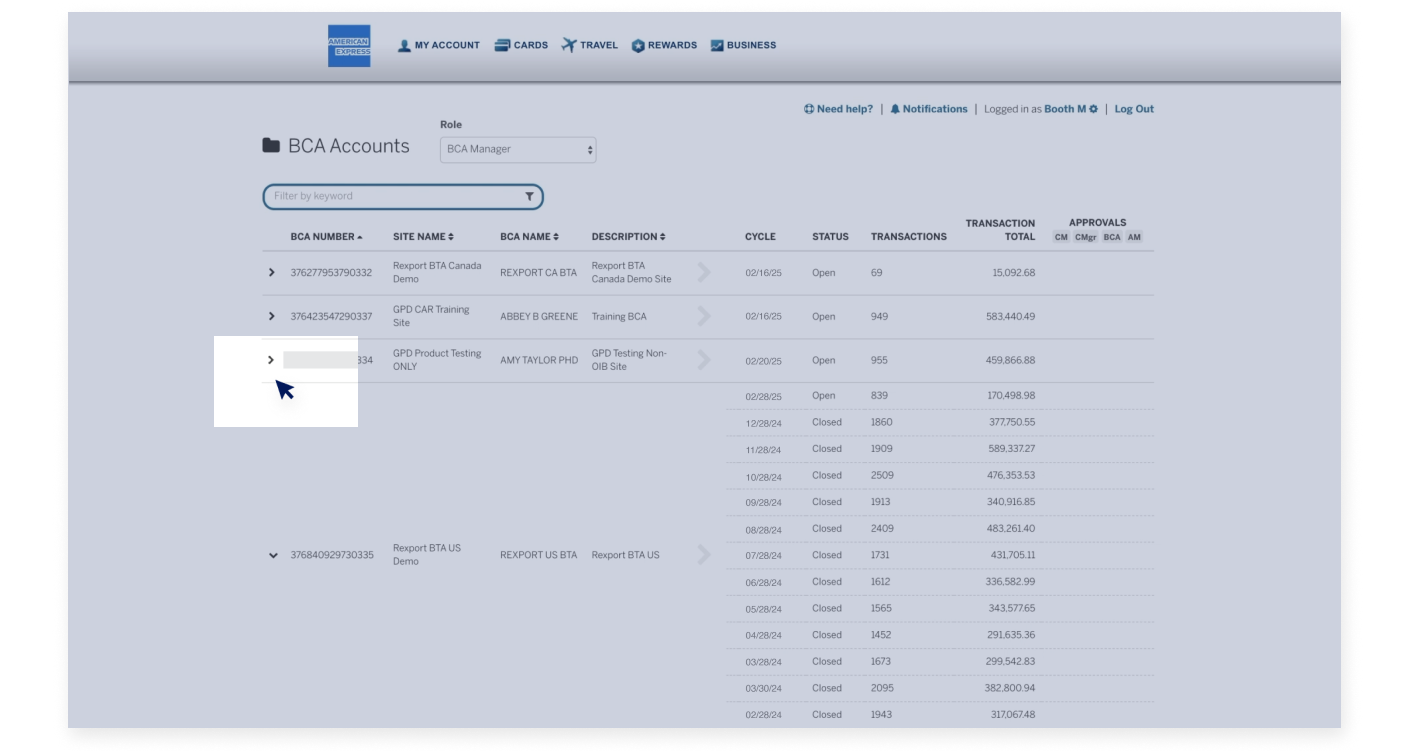
You can select the accounts and use the arrow to 
expand the view to see up to 12 previous Billing Cycles.

BUSINESS TRAVEL ACCOUNT OVERVIEW

Reconciling Travel Transactions

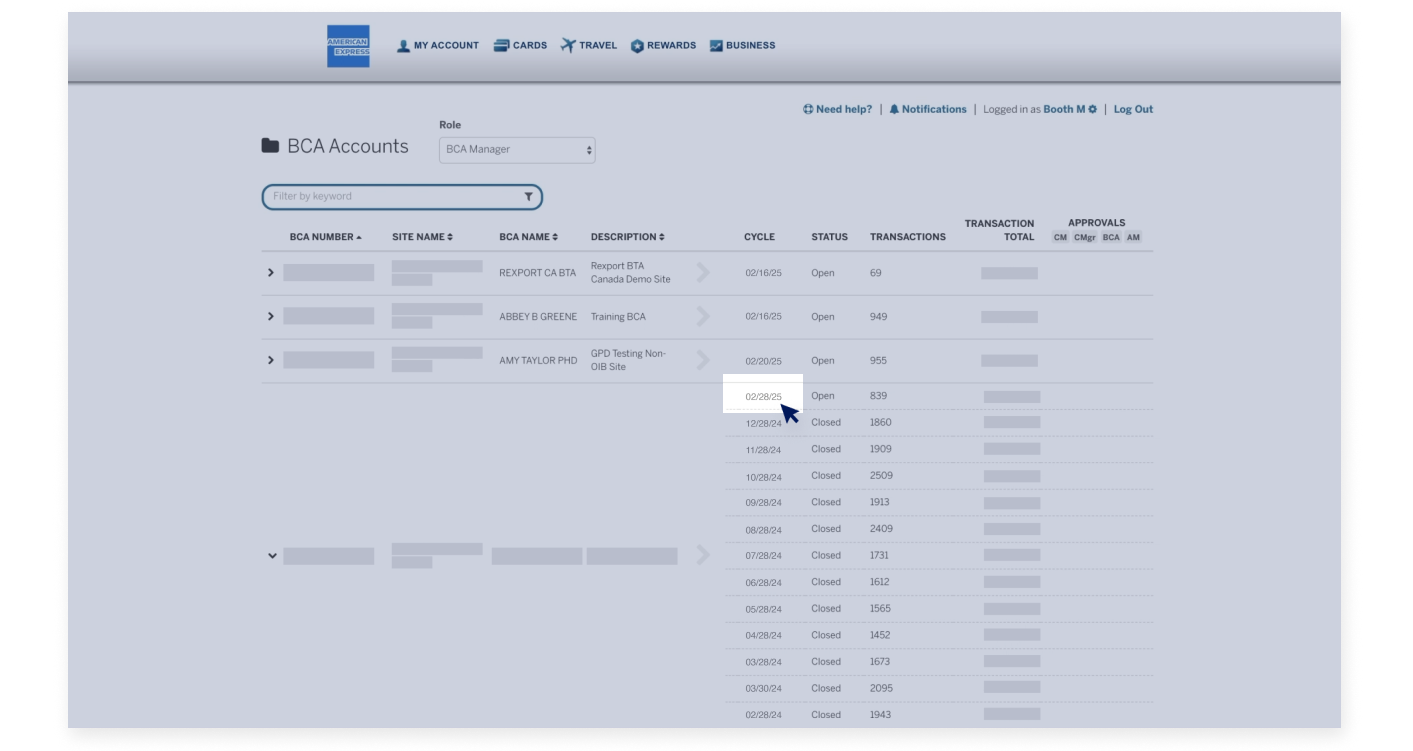
Click on the Billing Cycle of your choice to open the Transaction Summary view.

BUSINESS TRAVEL ACCOUNT OVERVIEW

Reconciling Travel Transactions

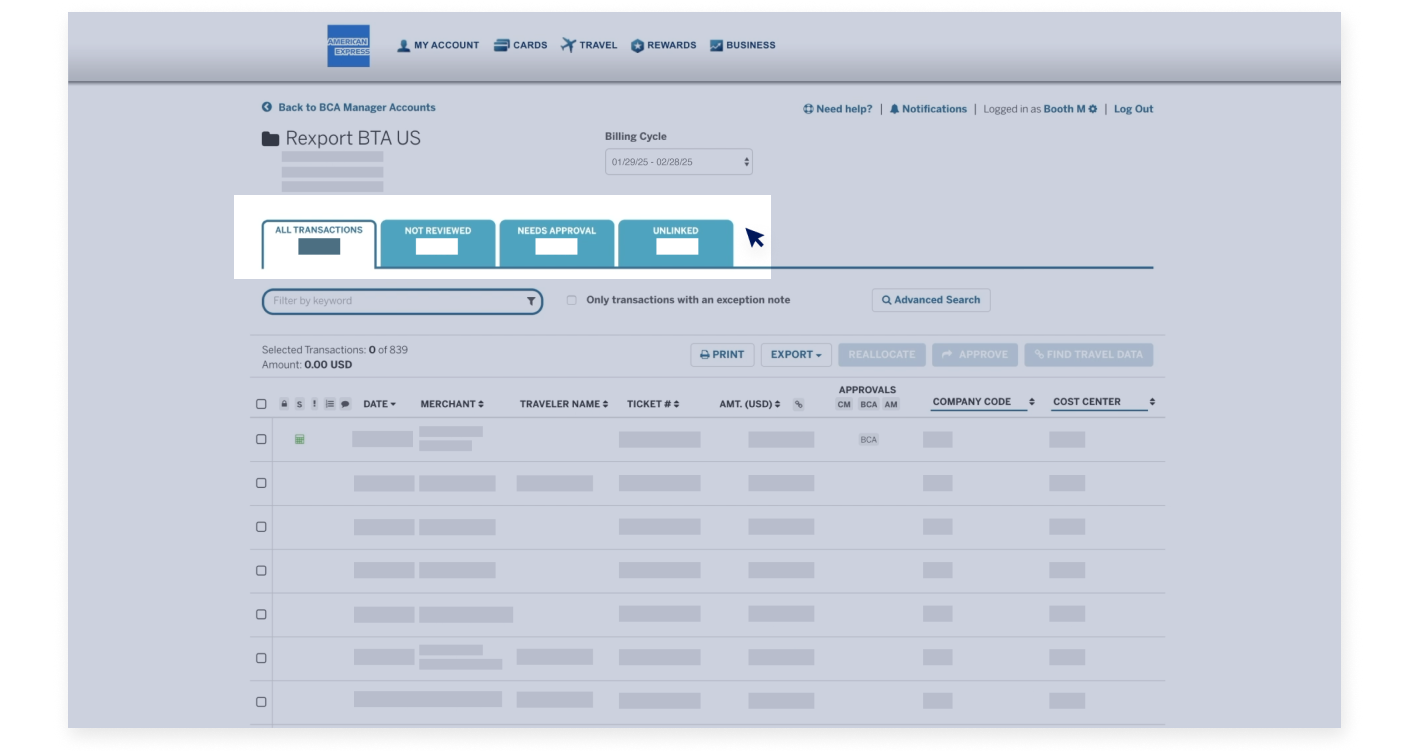
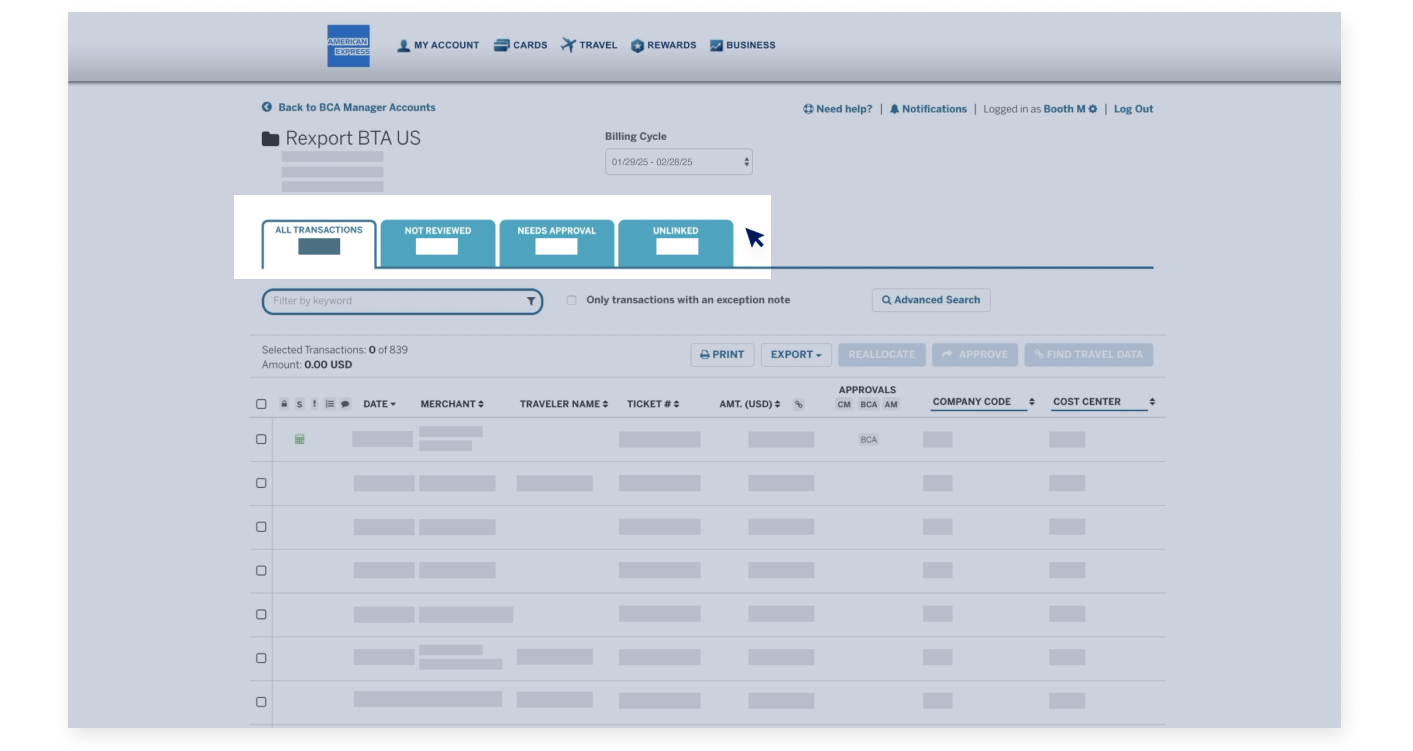
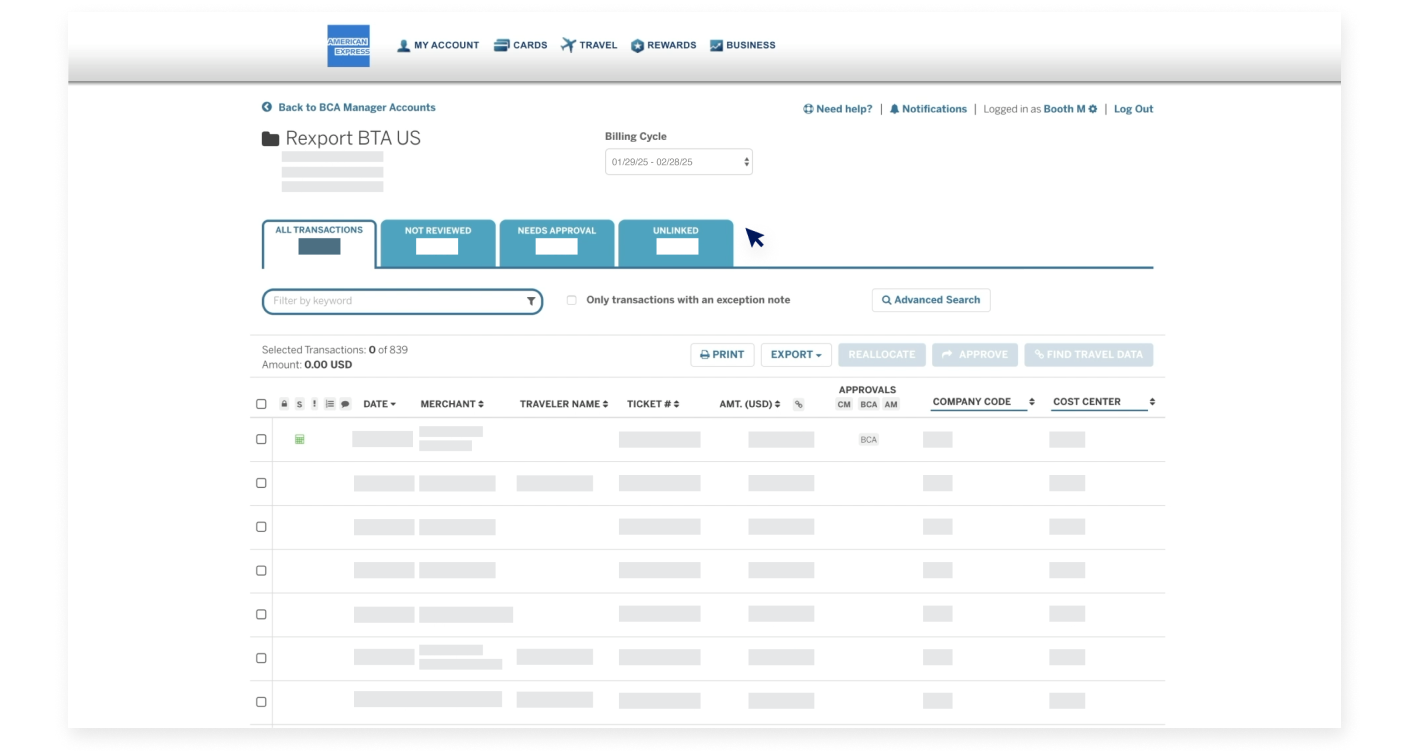
The Transaction Summary view features several action tabs based on your business rules.

BUSINESS TRAVEL ACCOUNT OVERVIEW

Reconciling Travel Transactions

In this example, you will see four tabs, including “All Transactions”, “Not Reviewed”, “Needs Approval” and “Unlinked”.

BUSINESS TRAVEL ACCOUNT OVERVIEW

Reconciling Travel Transactions

These tabs allow you to assess what needs to be done in order to complete the reconciliation process.

BUSINESS TRAVEL ACCOUNT OVERVIEW

Reconciling Travel Transactions

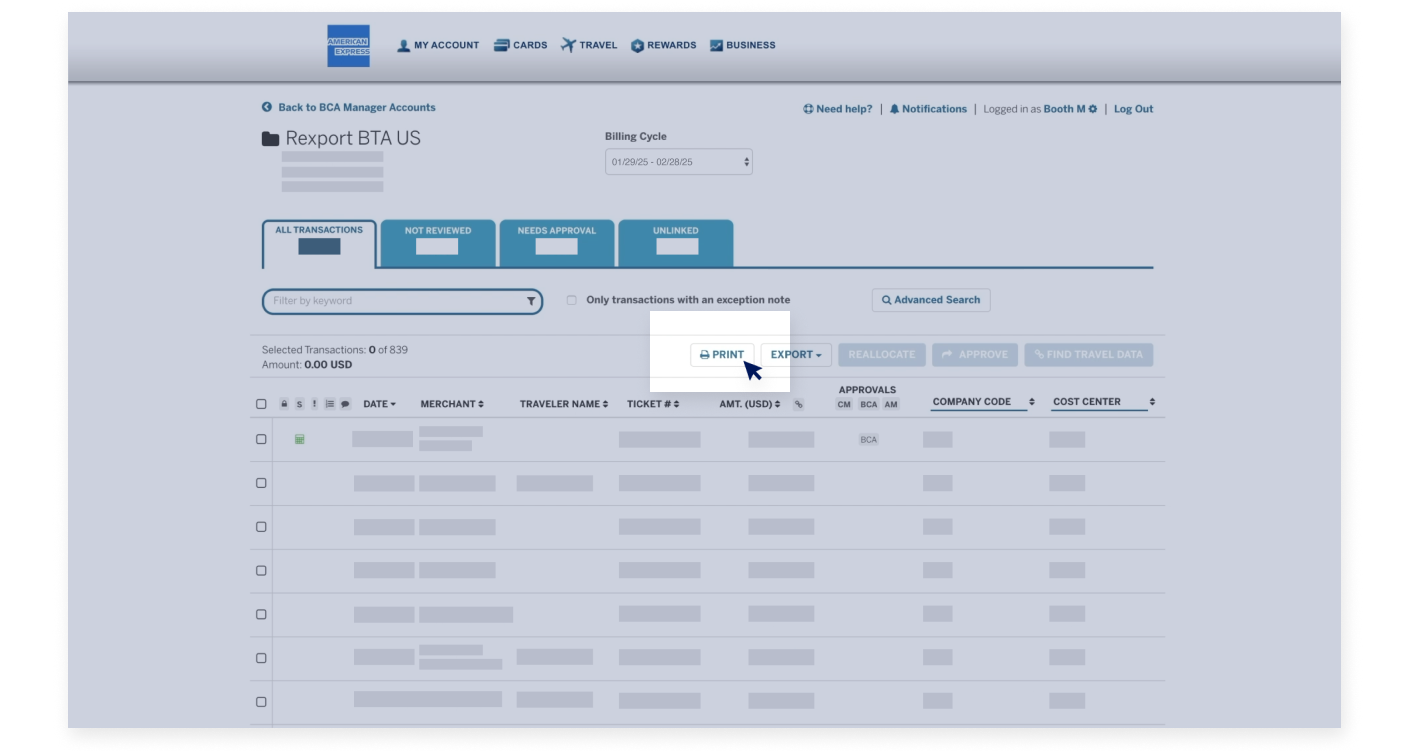
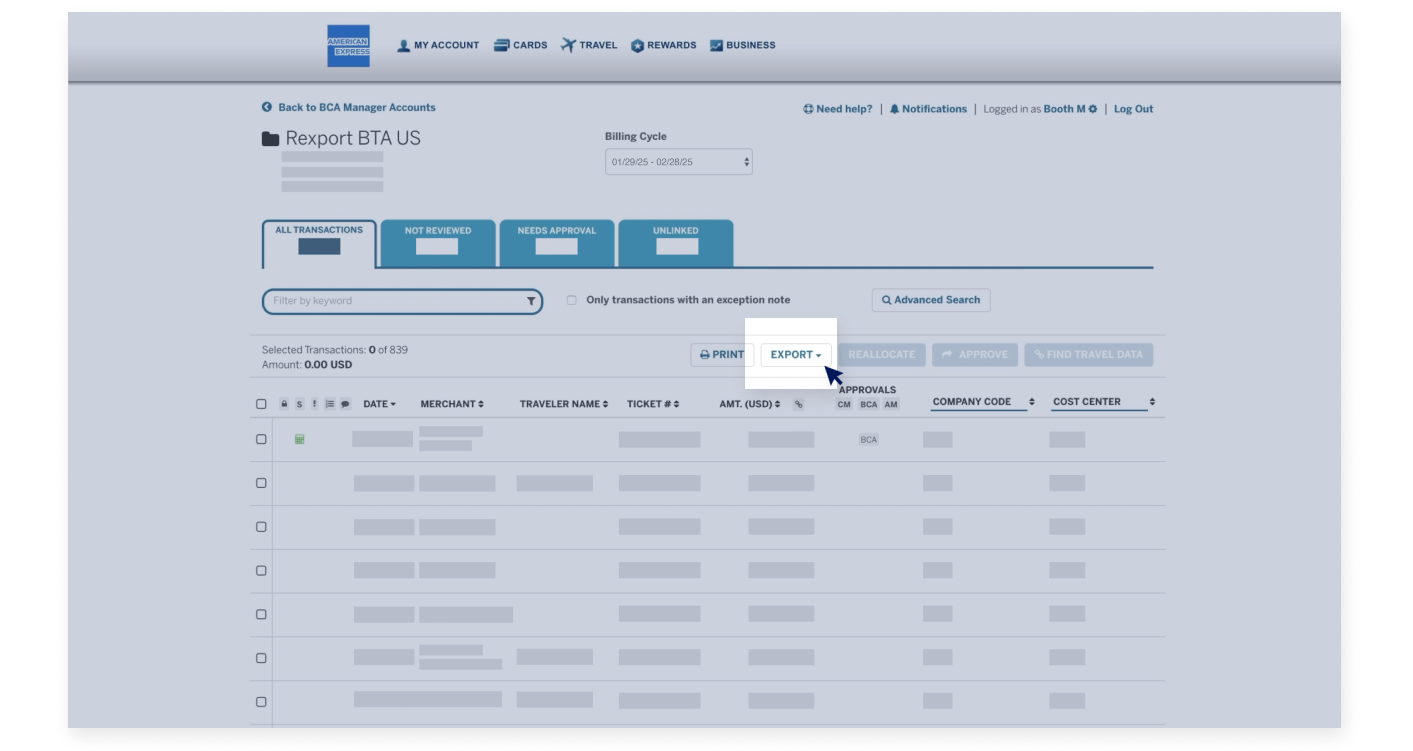
On the Transaction Summary view page, you can print or export your transactions. If you click on the “Print” button…

BUSINESS TRAVEL ACCOUNT OVERVIEW

Reconciling Travel Transactions

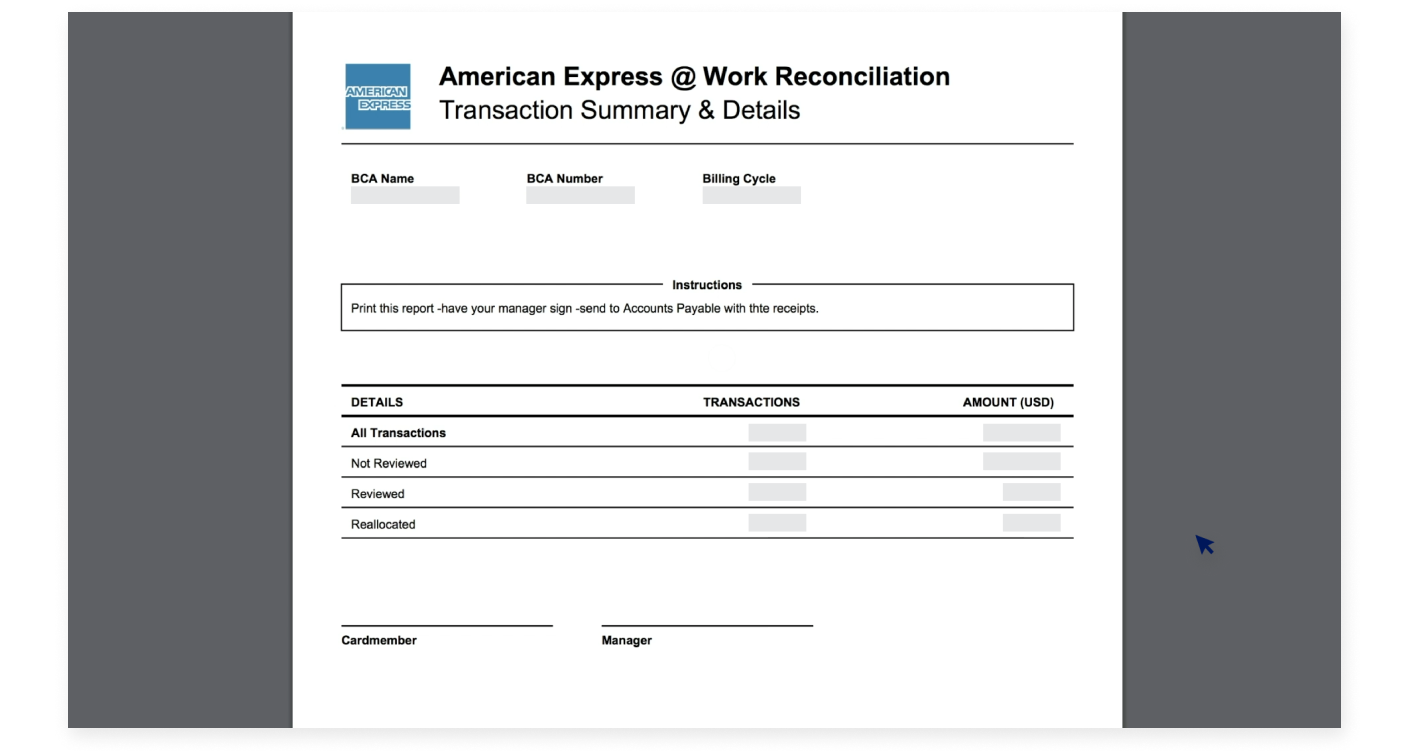
…you will see a PDF file that contains a summary overview as 
well as a detailed listing of your transactions for this Billing Cycle.

BUSINESS TRAVEL ACCOUNT OVERVIEW

Reconciling Travel Transactions

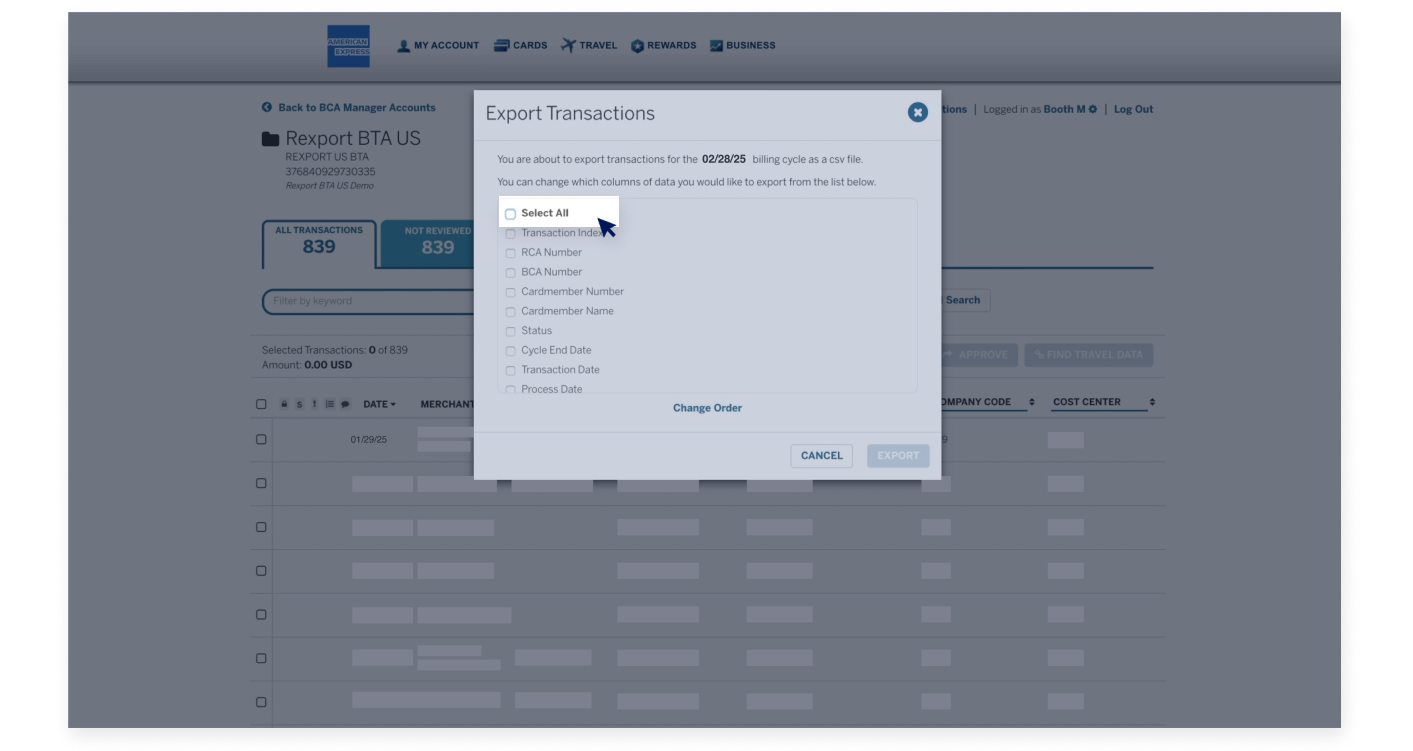
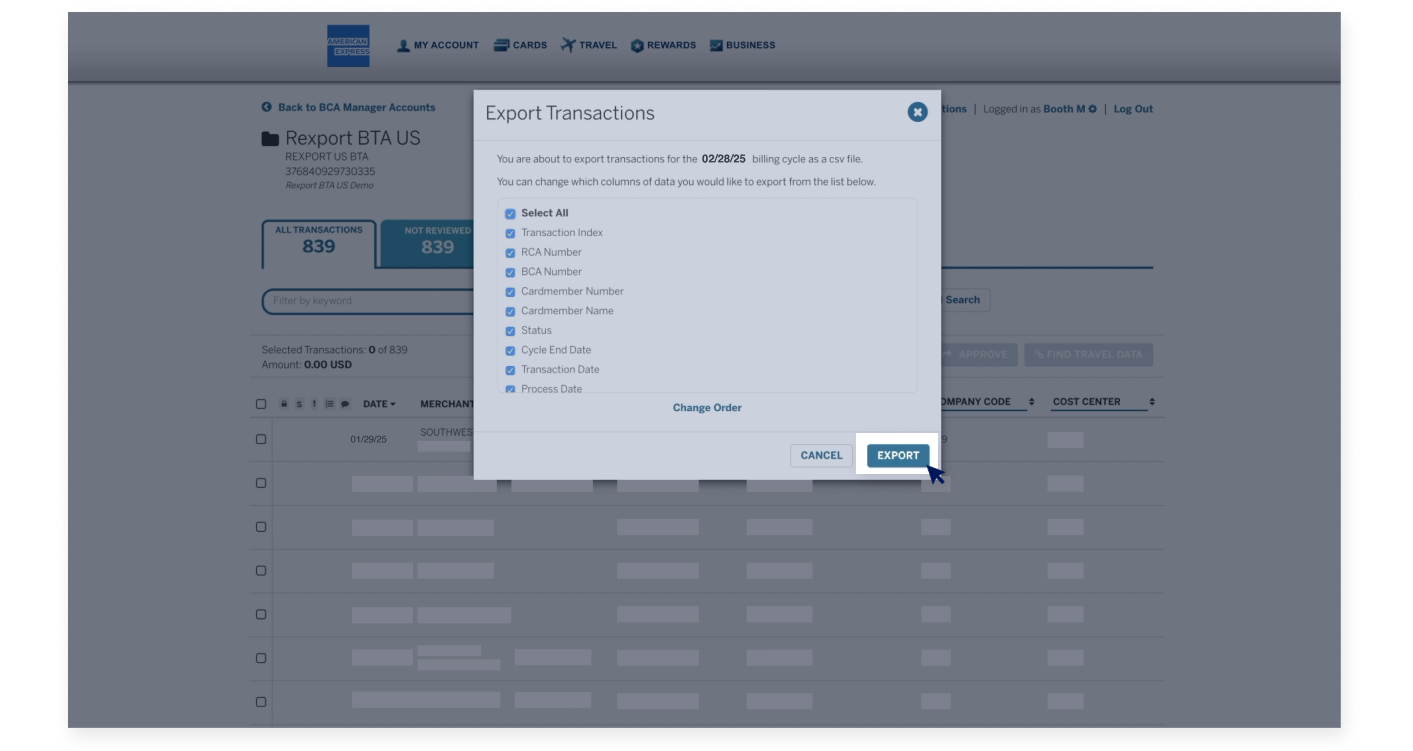
If you select “Export”, you can create a customized file,

BUSINESS TRAVEL ACCOUNT OVERVIEW

Reconciling Travel Transactions

by choosing the data fields to be included. This file can be exported as a CSV file into a spreadsheet for manipulation.

BUSINESS TRAVEL ACCOUNT OVERVIEW

Reconciling Travel Transactions


BUSINESS TRAVEL ACCOUNT OVERVIEW

Reconciling Travel Transactions

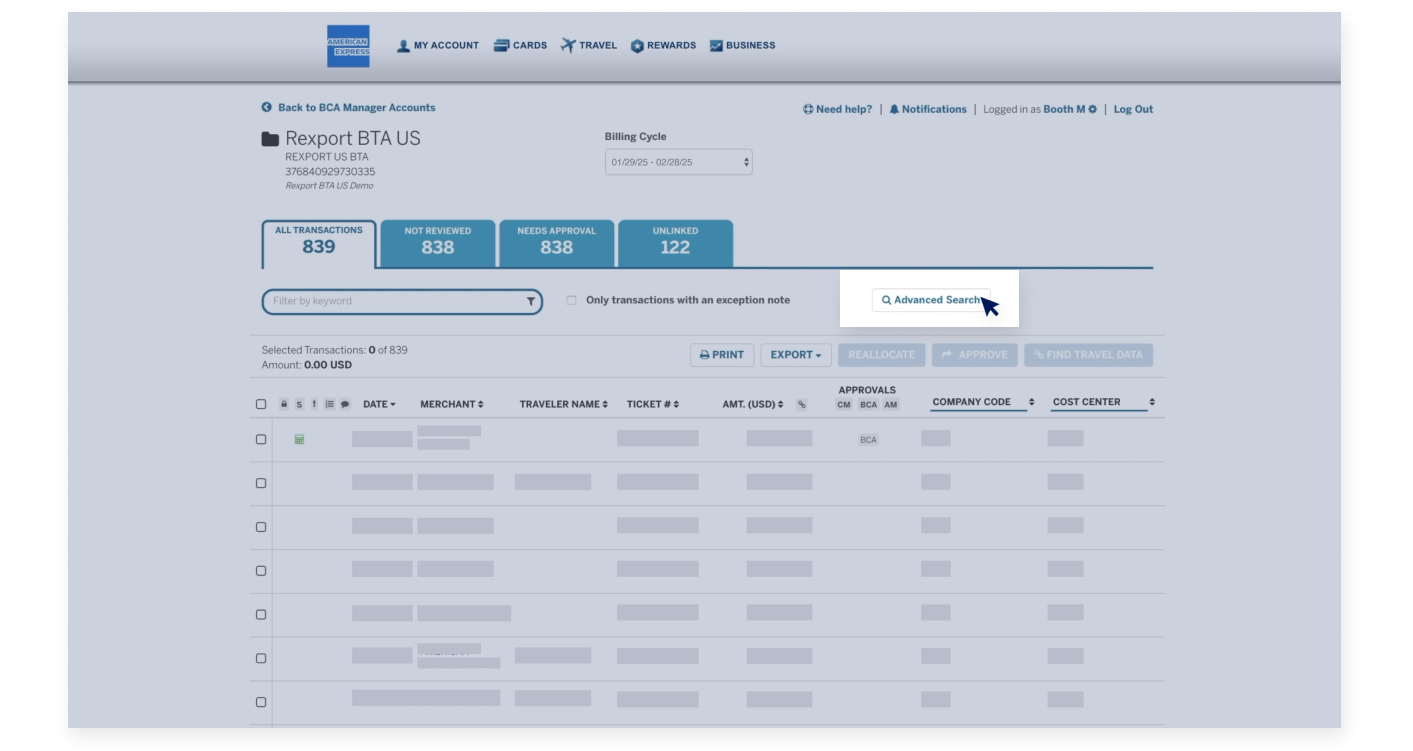
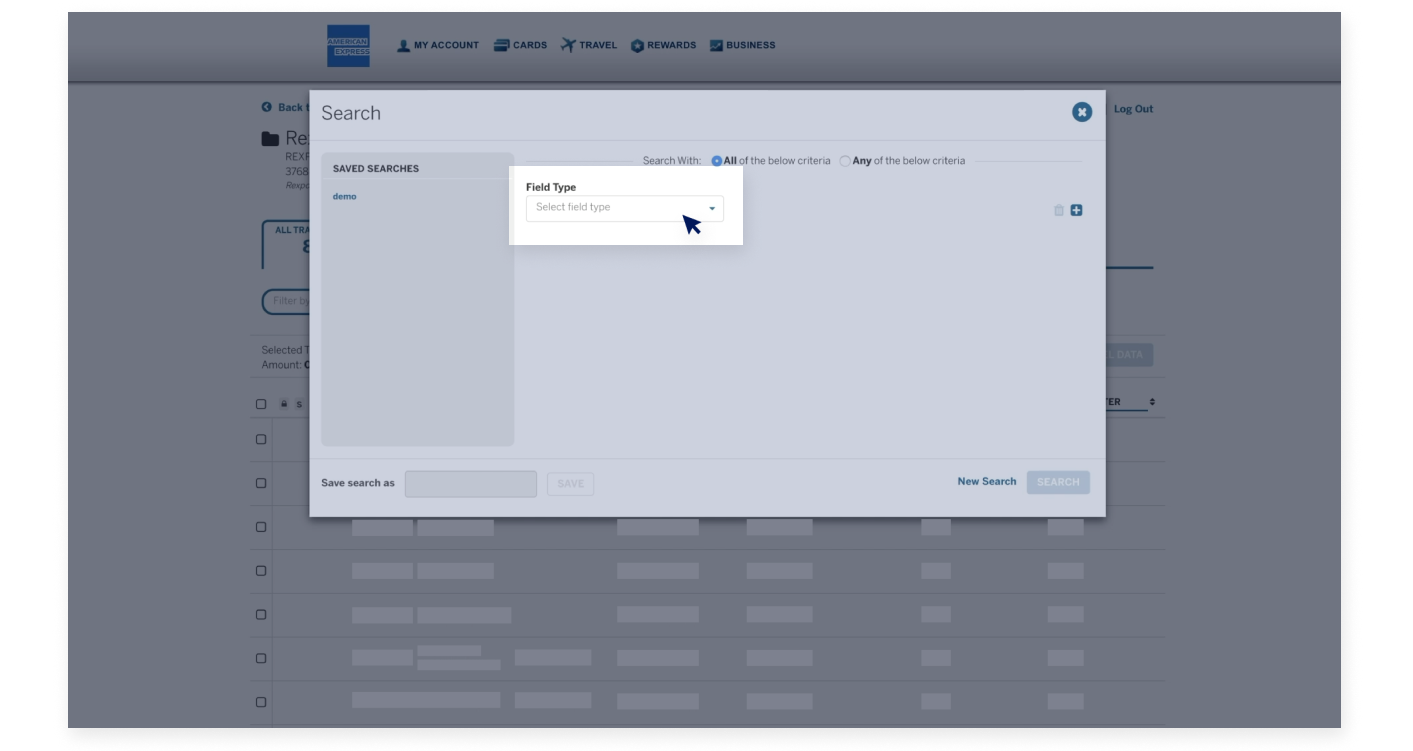
On this page, you can use the advanced search functionality...

BUSINESS TRAVEL ACCOUNT OVERVIEW

Reconciling Travel Transactions

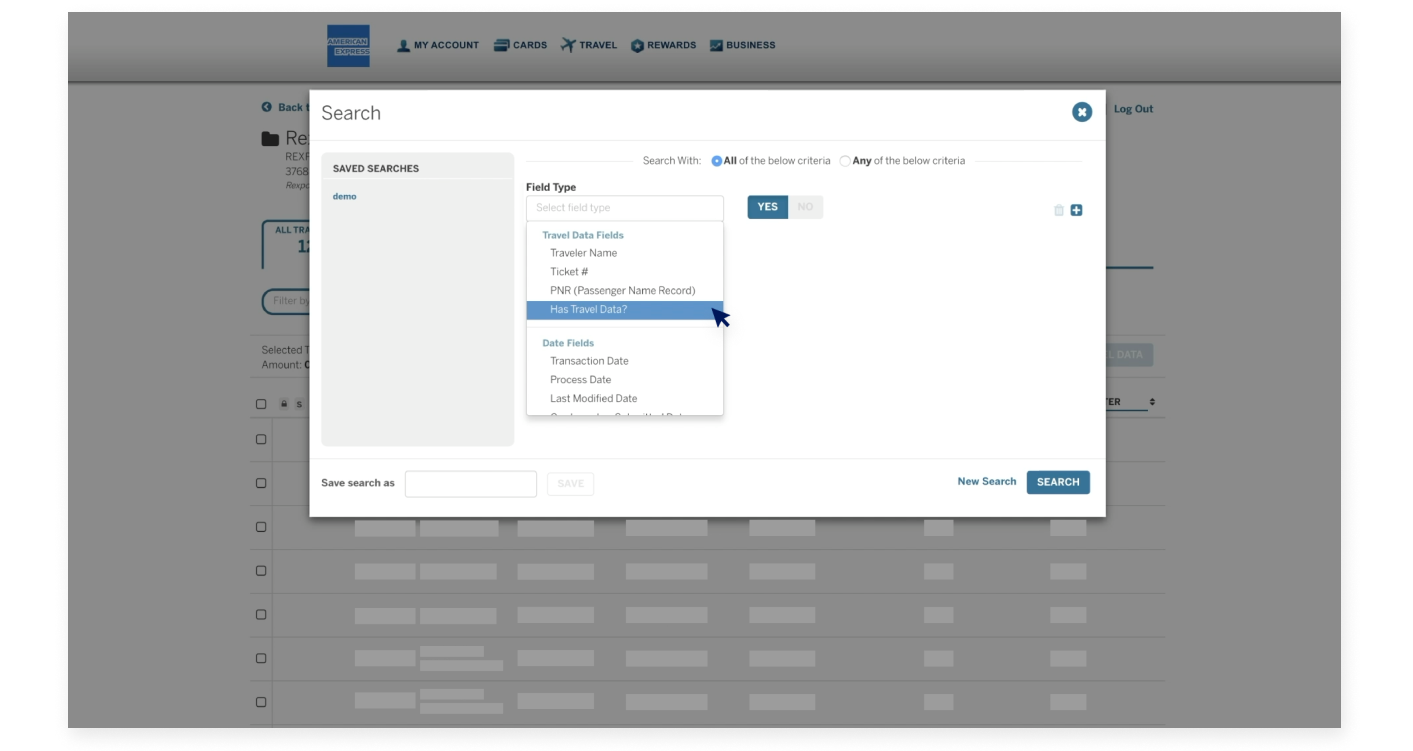
...to search for a specific transaction based on the available data fields, such as...

BUSINESS TRAVEL ACCOUNT OVERVIEW

Reconciling Travel Transactions

...“Has Travel Data?”.

BUSINESS TRAVEL ACCOUNT OVERVIEW

Reconciling Travel Transactions

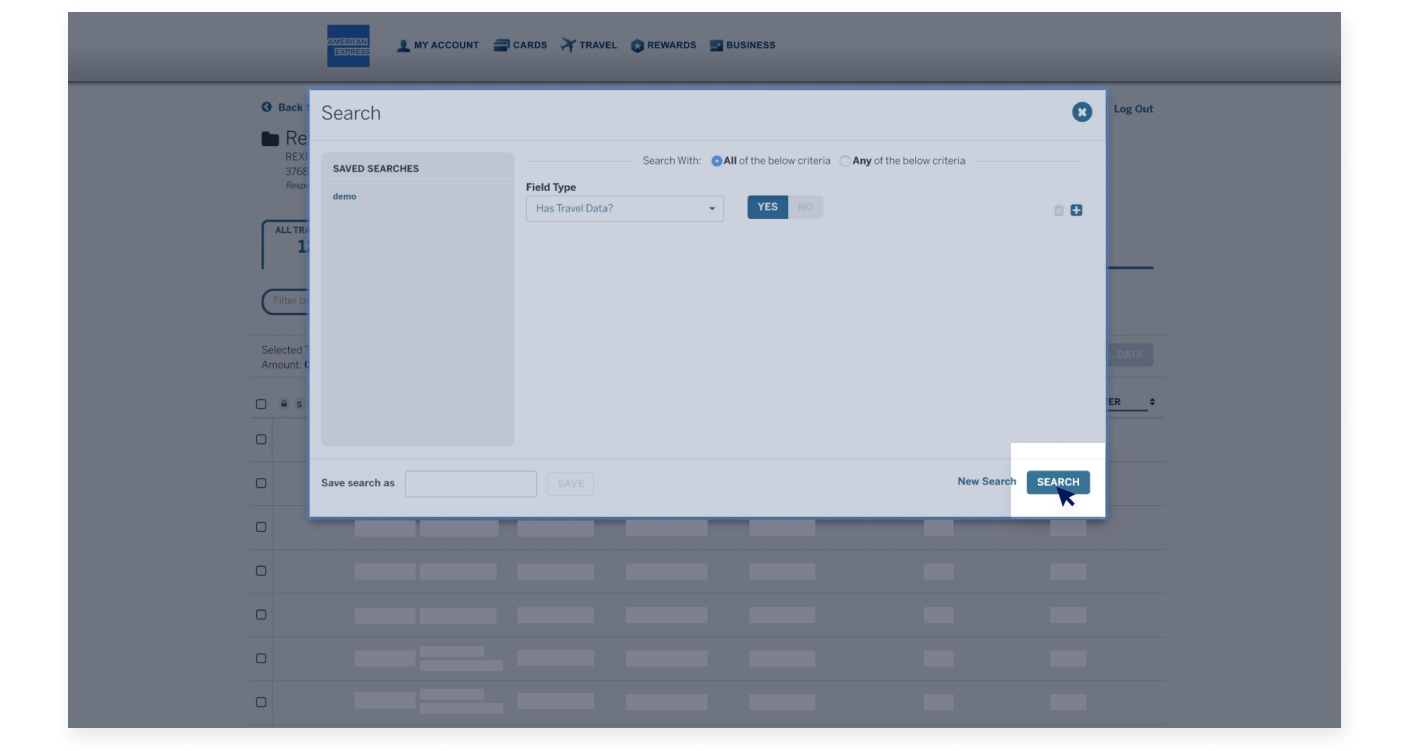
The results will be provided on a new tab.

BUSINESS TRAVEL ACCOUNT OVERVIEW

Reconciling Travel Transactions

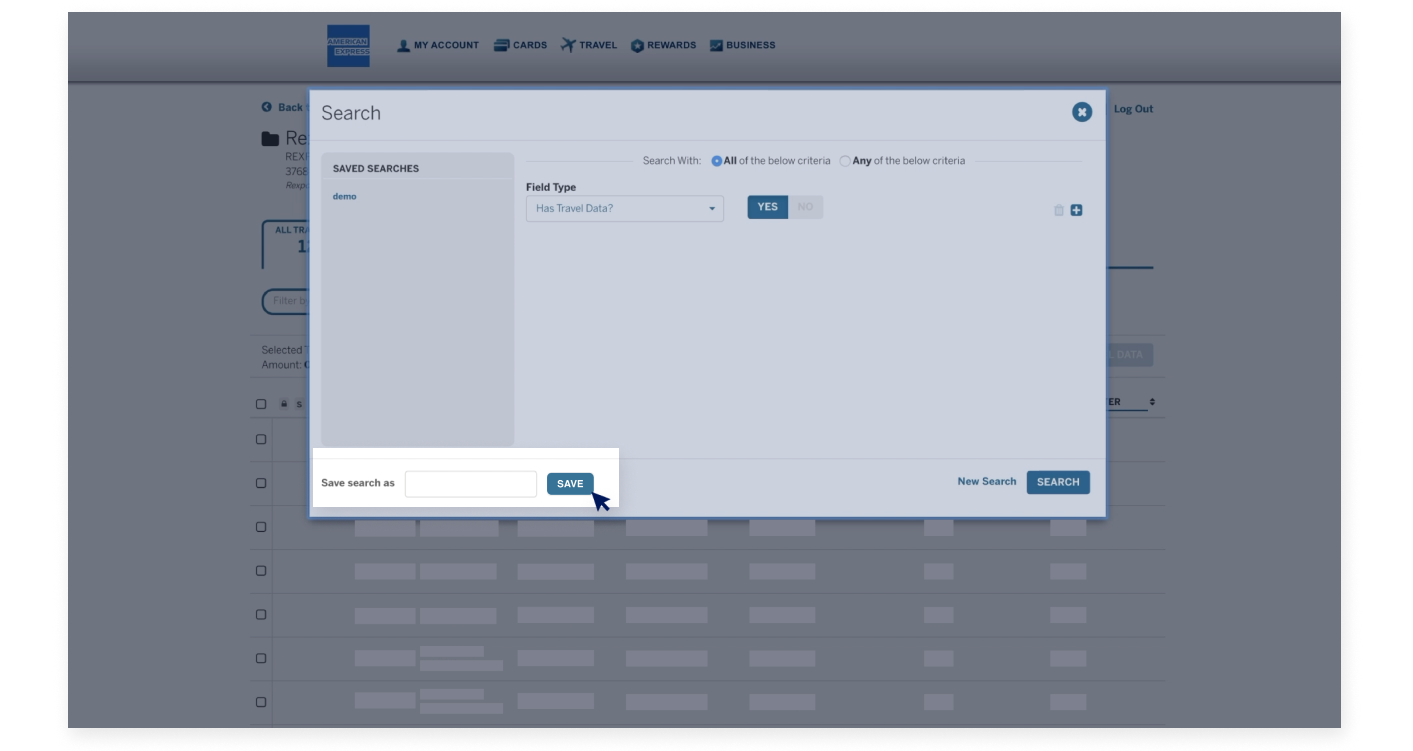
Keep in mind that you can save searches for future use.

BUSINESS TRAVEL ACCOUNT OVERVIEW

Linking to Travel Records

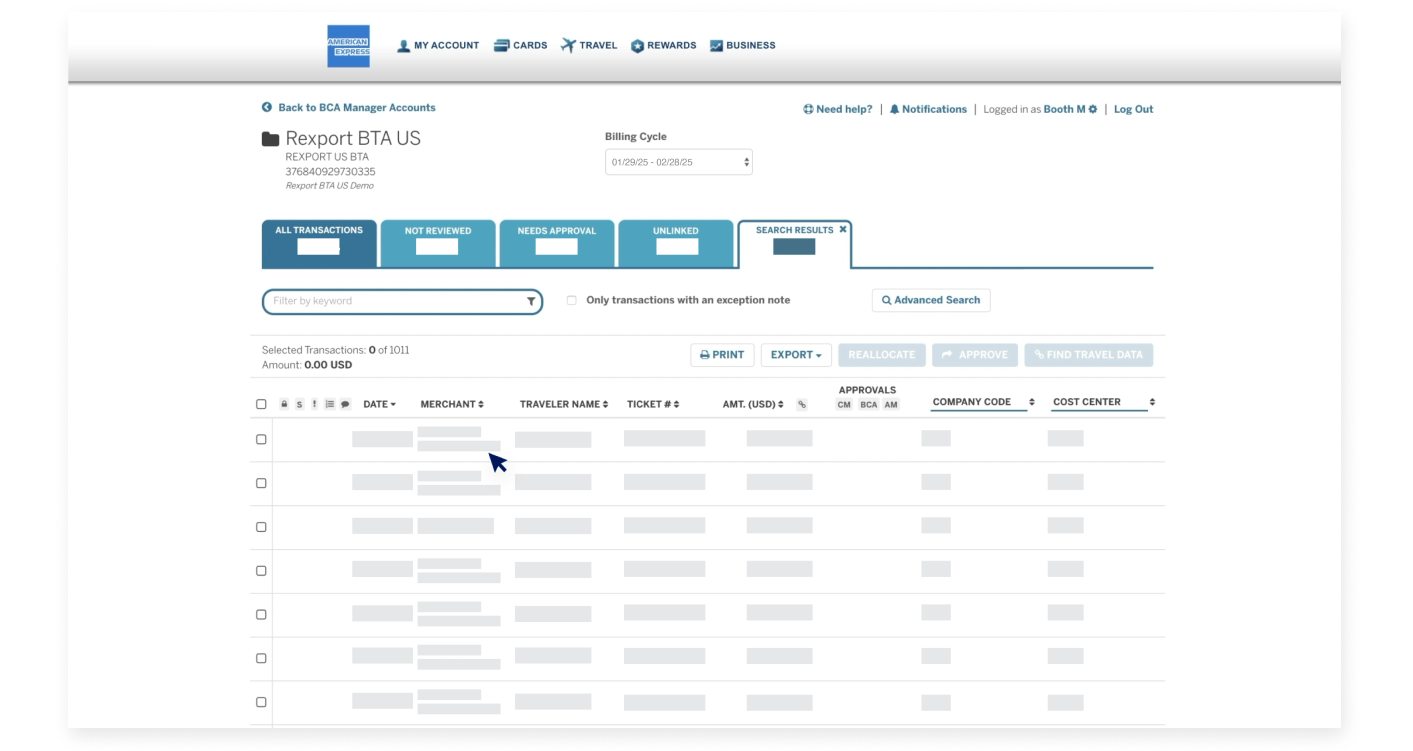
Ideally, as transactions flow into the system, the travel records will be linked systematically. If a transaction was not linked to a travel record, it will appear on the “Unlinked” tab.

BUSINESS TRAVEL ACCOUNT OVERVIEW

Linking to Travel Records

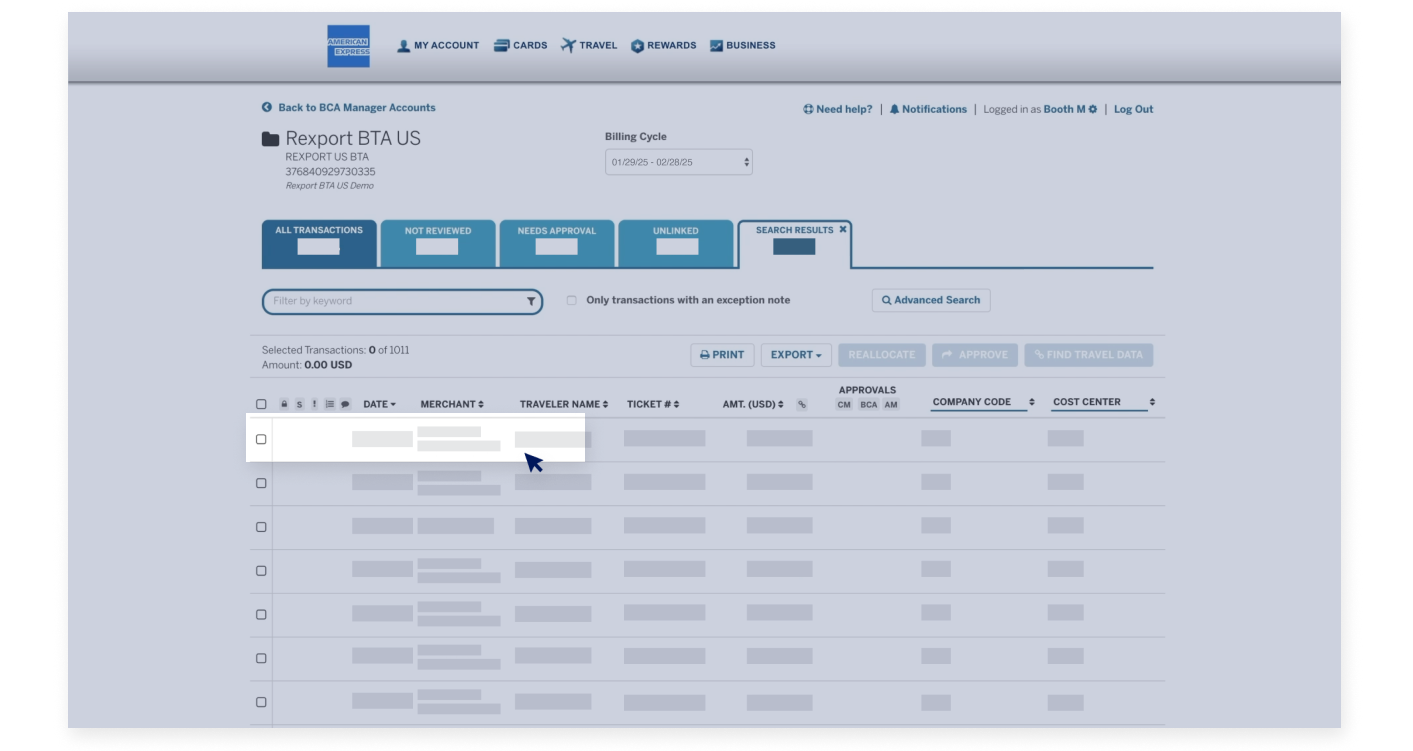
To search for travel data, select a transaction from the list...

BUSINESS TRAVEL ACCOUNT OVERVIEW

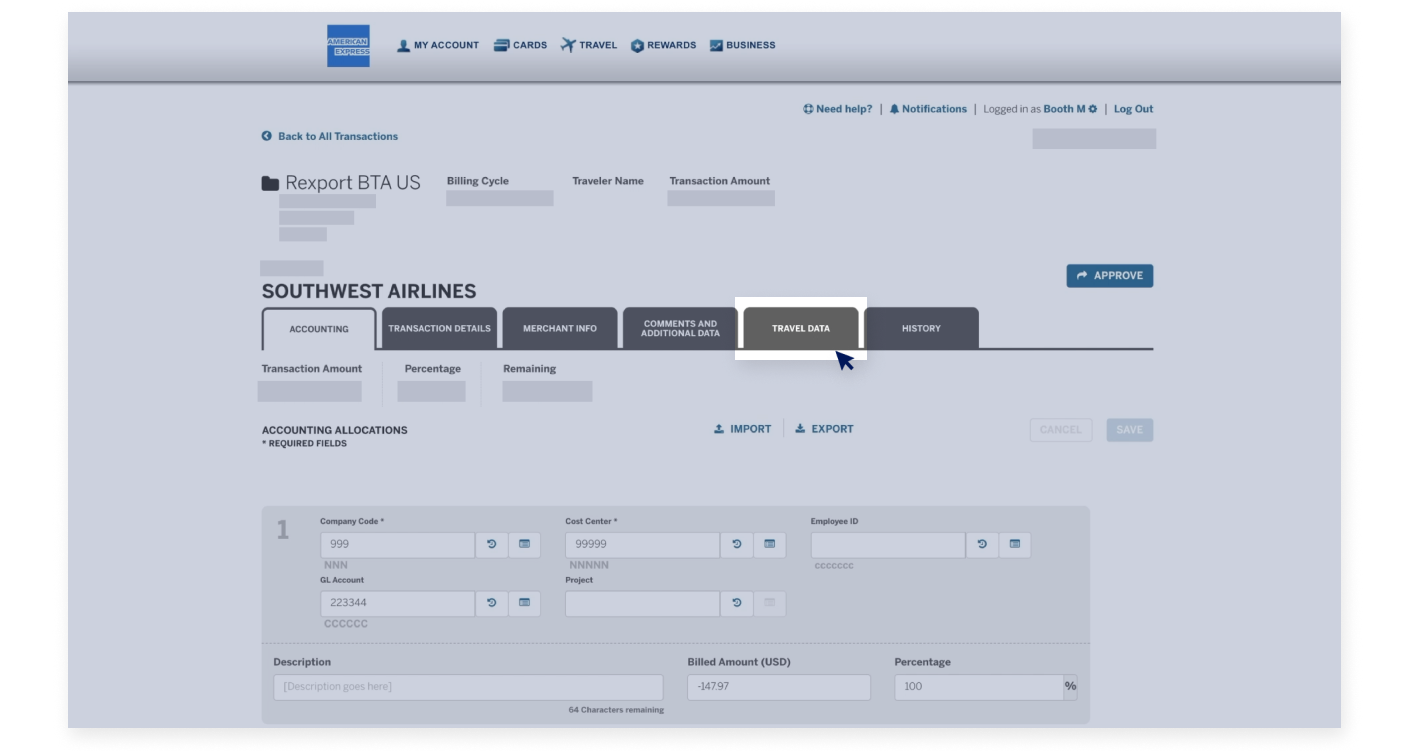
Linking to Travel Records

...and click the travel data tab.

BUSINESS TRAVEL ACCOUNT OVERVIEW

Linking to Travel Records

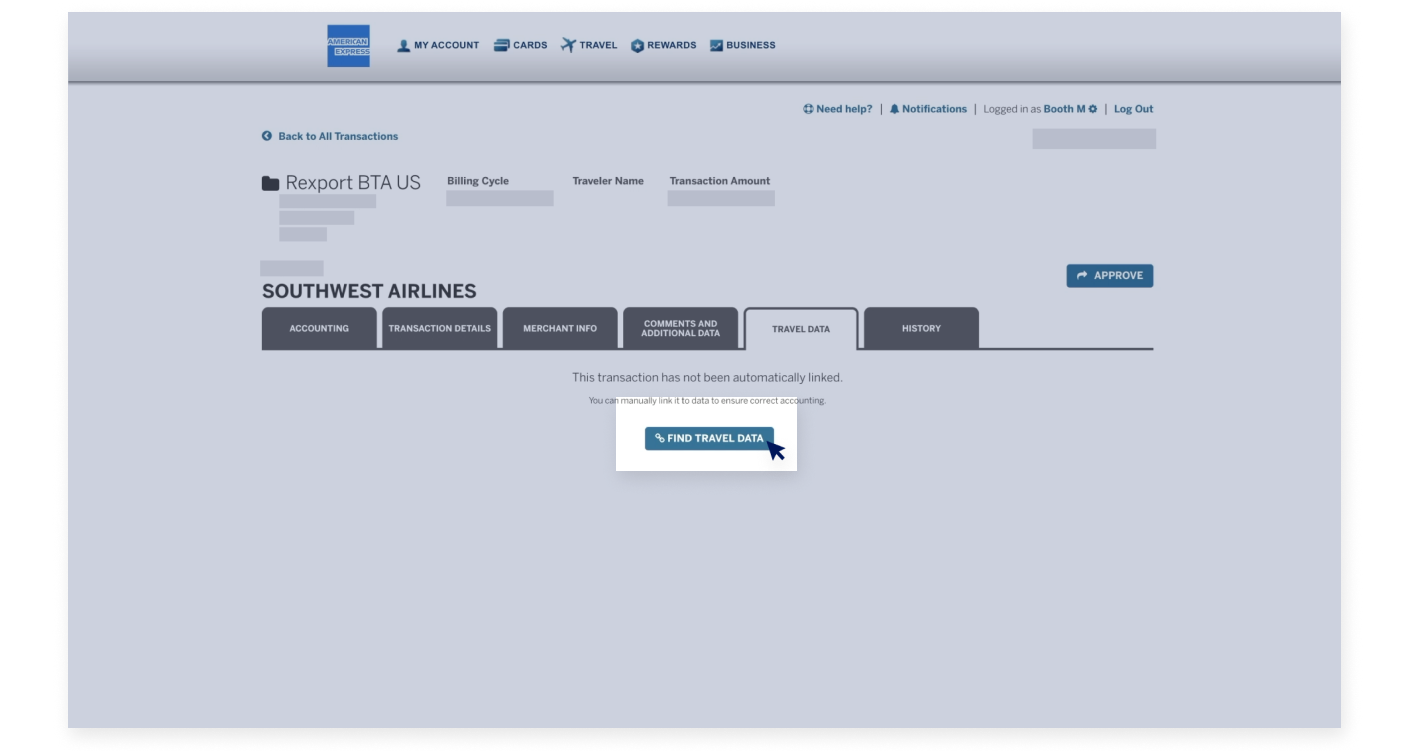
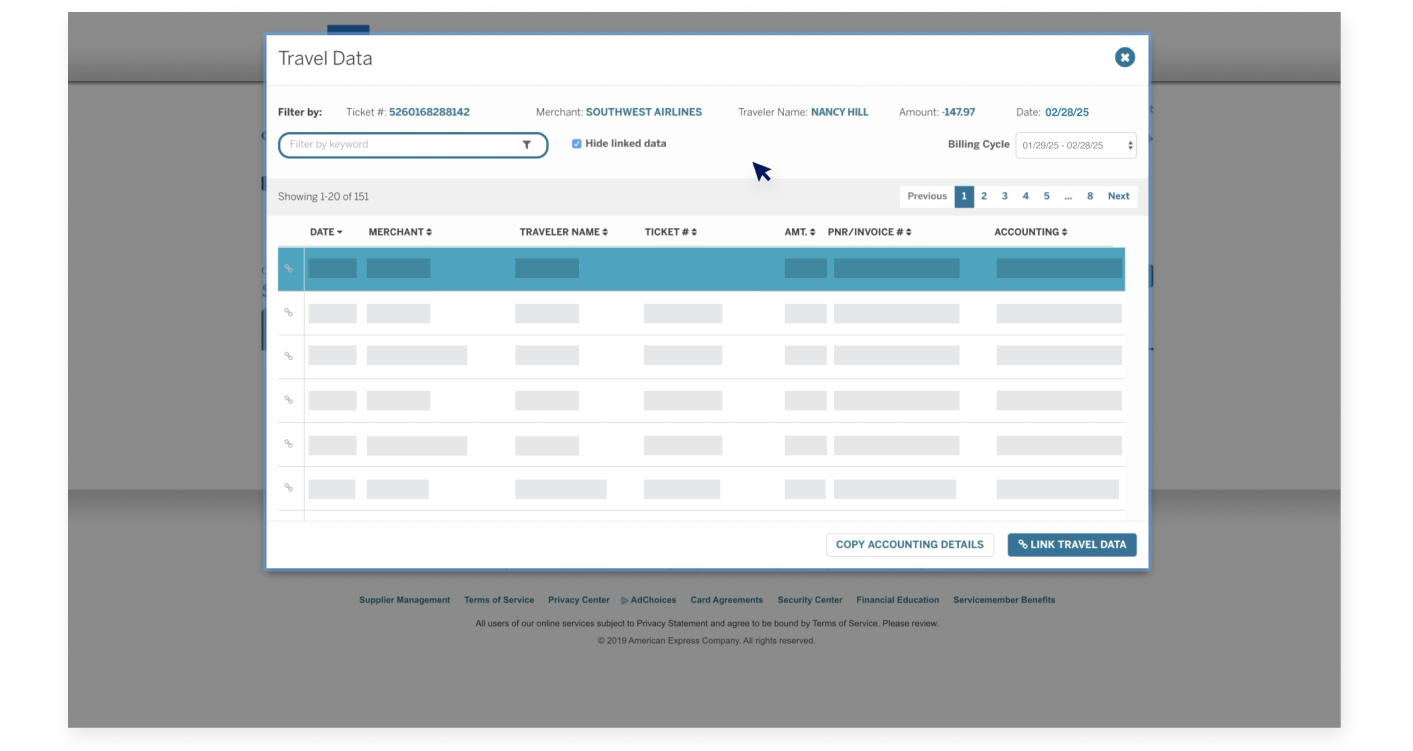
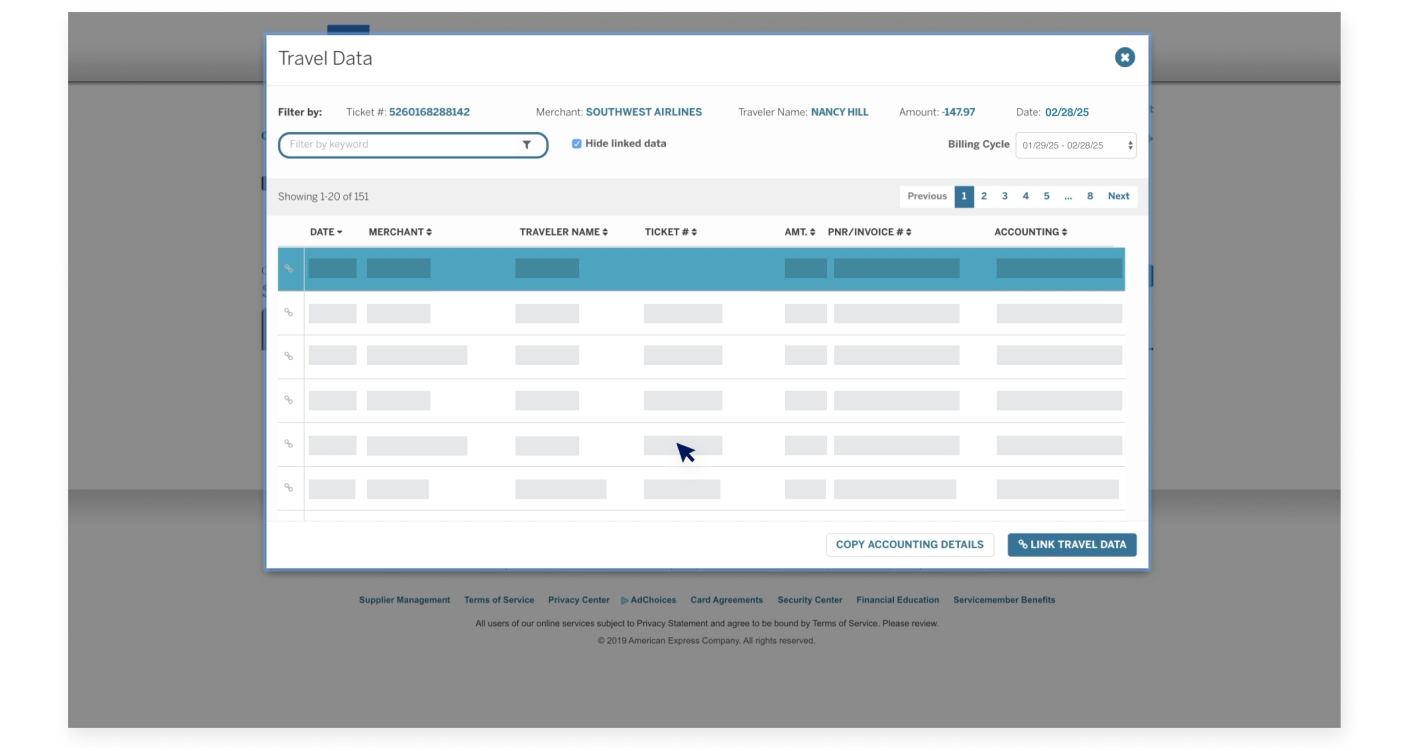
Click the “Find travel data” button to launch the travel data search page.

BUSINESS TRAVEL ACCOUNT OVERVIEW

Linking to Travel Records

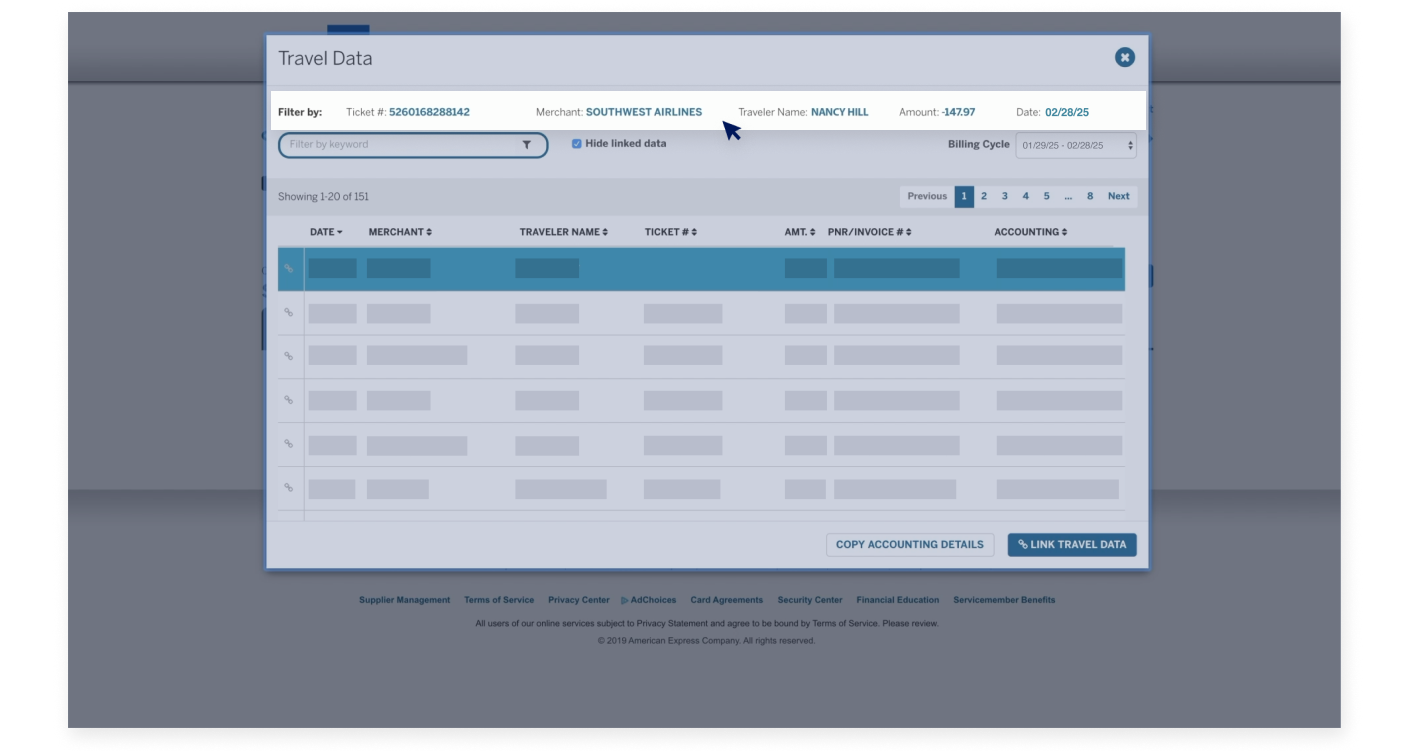
Across the top of your screen, there are various fields to filter your transactions,

BUSINESS TRAVEL ACCOUNT OVERVIEW

Linking to Travel Records

including ticket number, merchant (which is the airline), traveller name, amount, and date.

BUSINESS TRAVEL ACCOUNT OVERVIEW

Linking to Travel Records

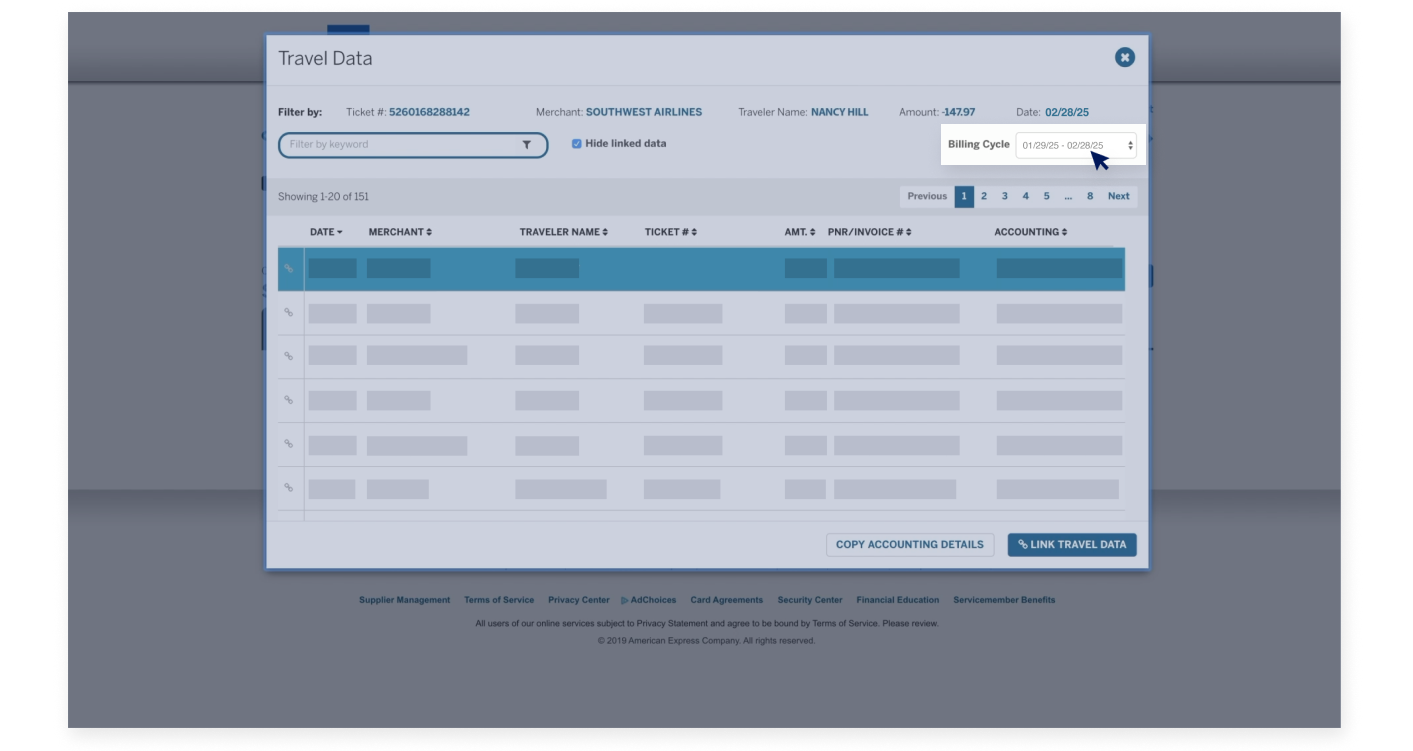
The first step is to make sure that the transaction date falls into the correct Billing Cycle. If not, use the dropdown menu to change the Billing Cycle to the correct time frame.

BUSINESS TRAVEL ACCOUNT OVERVIEW

Linking to Travel Records

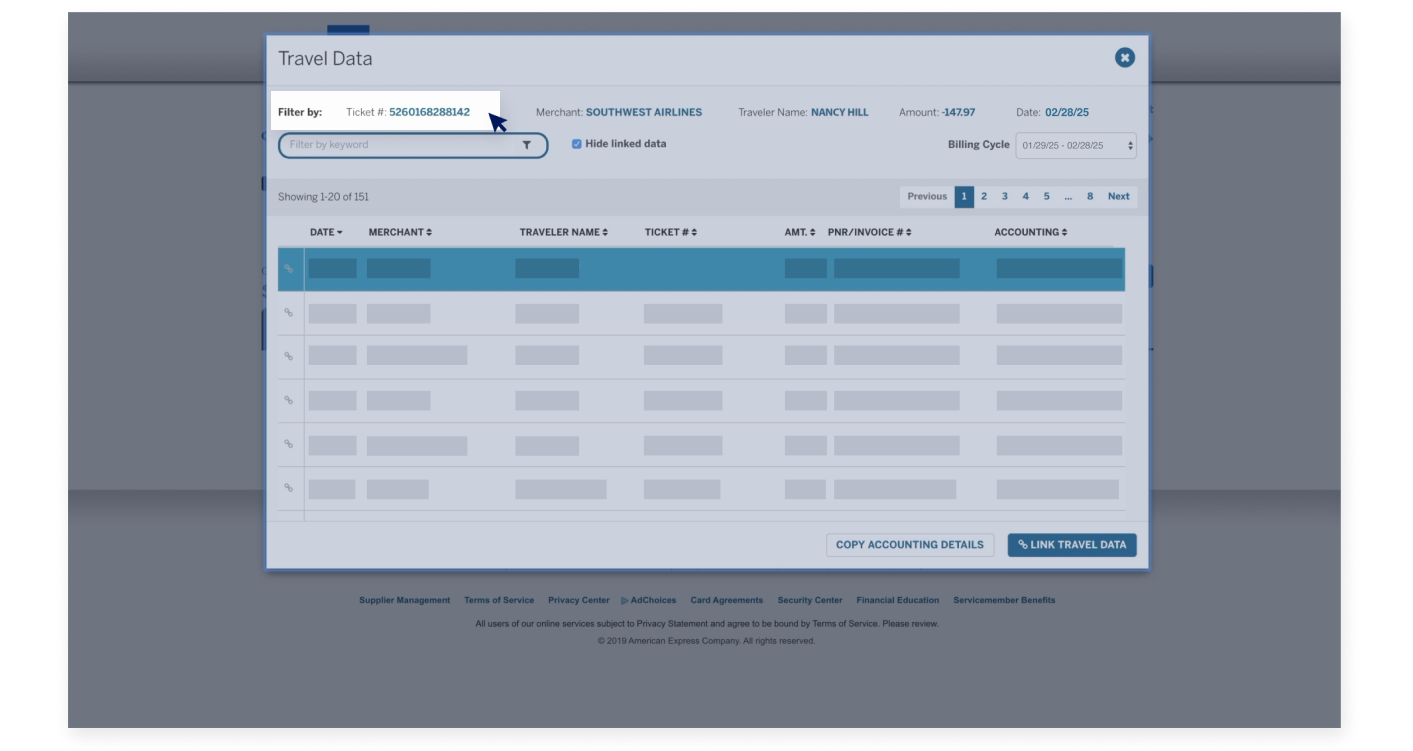
Most users start by filtering by the ticket number.

BUSINESS TRAVEL ACCOUNT OVERVIEW

Linking to Travel Records

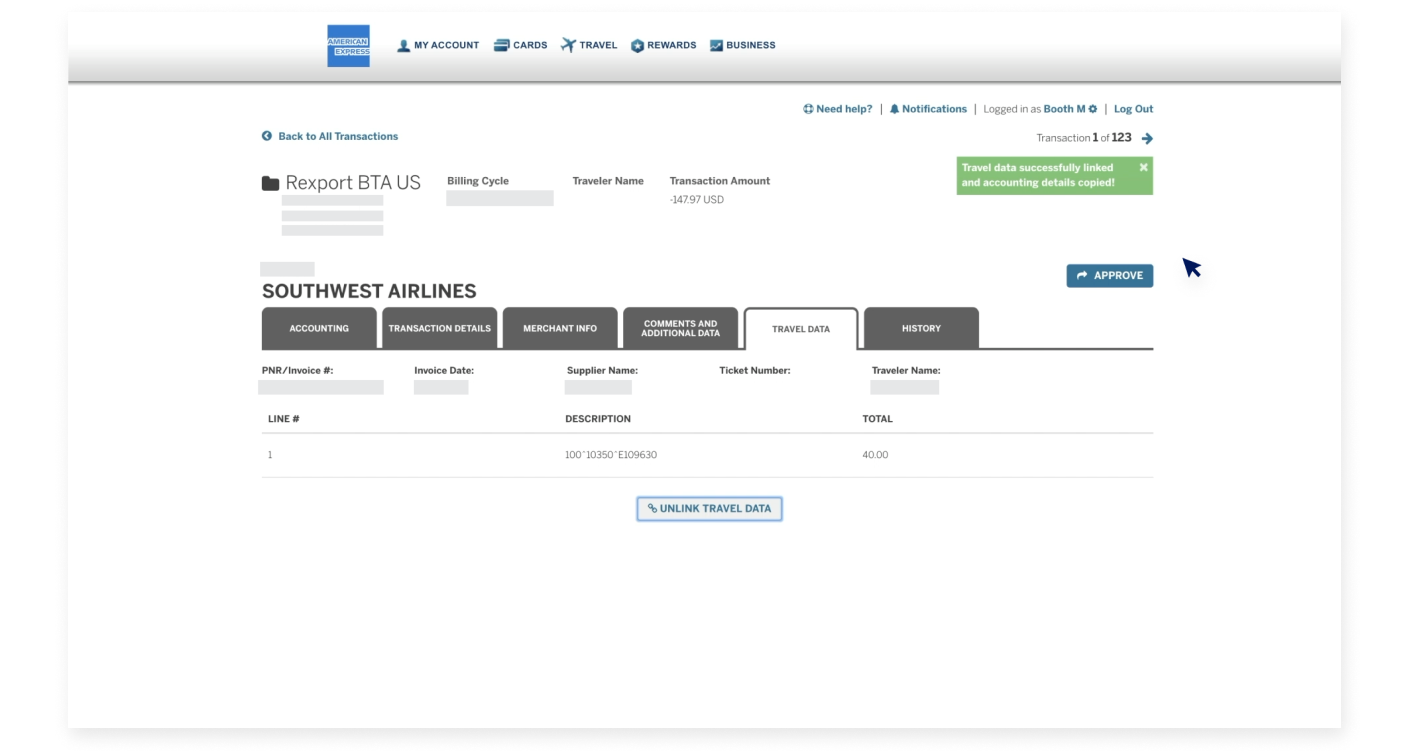
When you click on the ticket number, if a travel record is available, it will appear.

BUSINESS TRAVEL ACCOUNT OVERVIEW

Linking to Travel Records

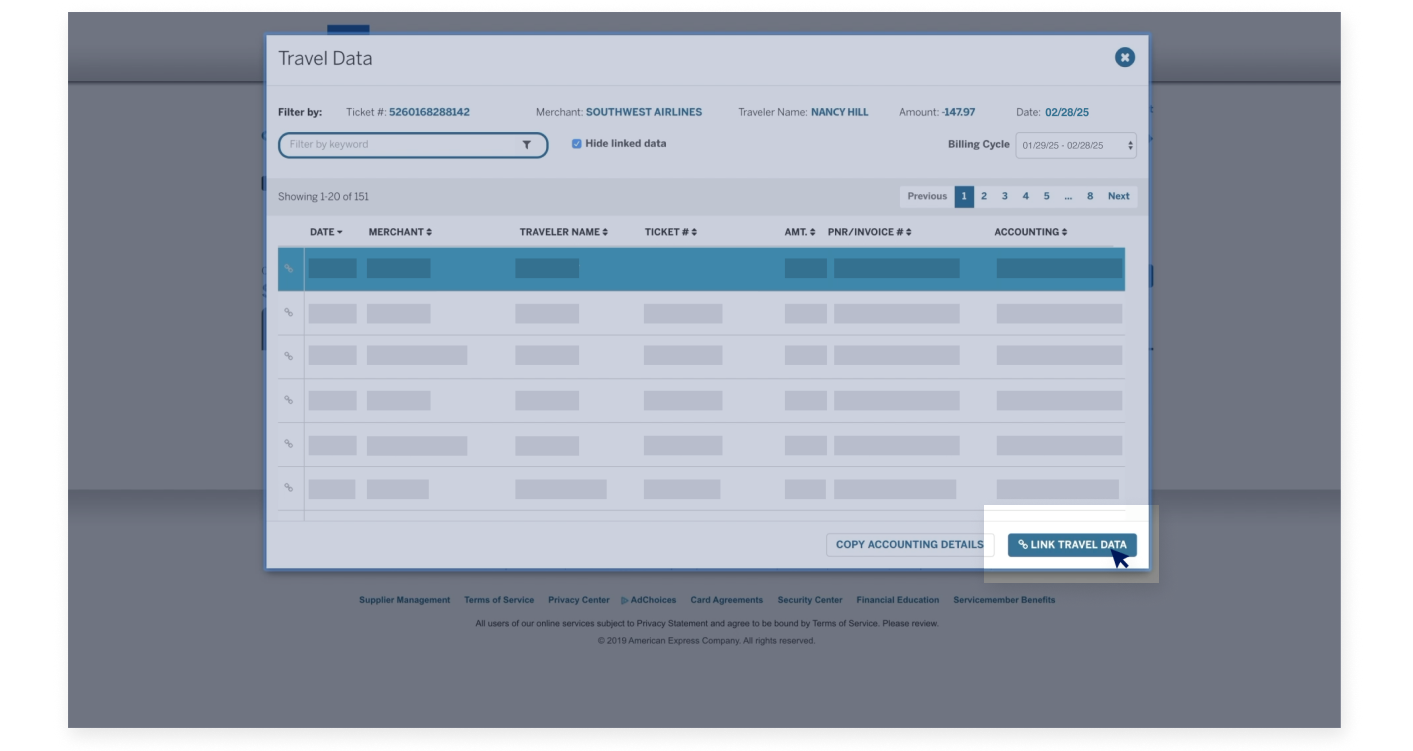
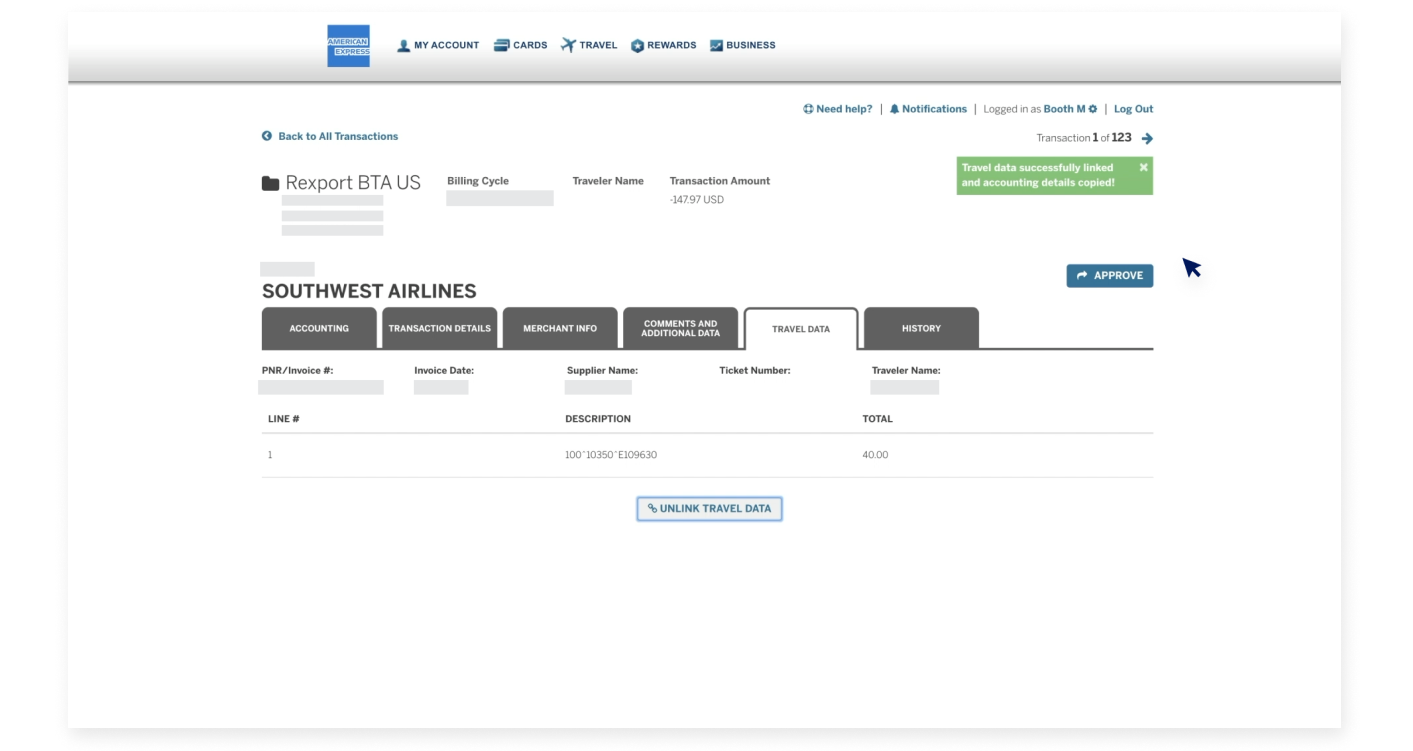
Click the “Link travel data” button to match the travel data to the transaction,

BUSINESS TRAVEL ACCOUNT OVERVIEW

Linking to Travel Records

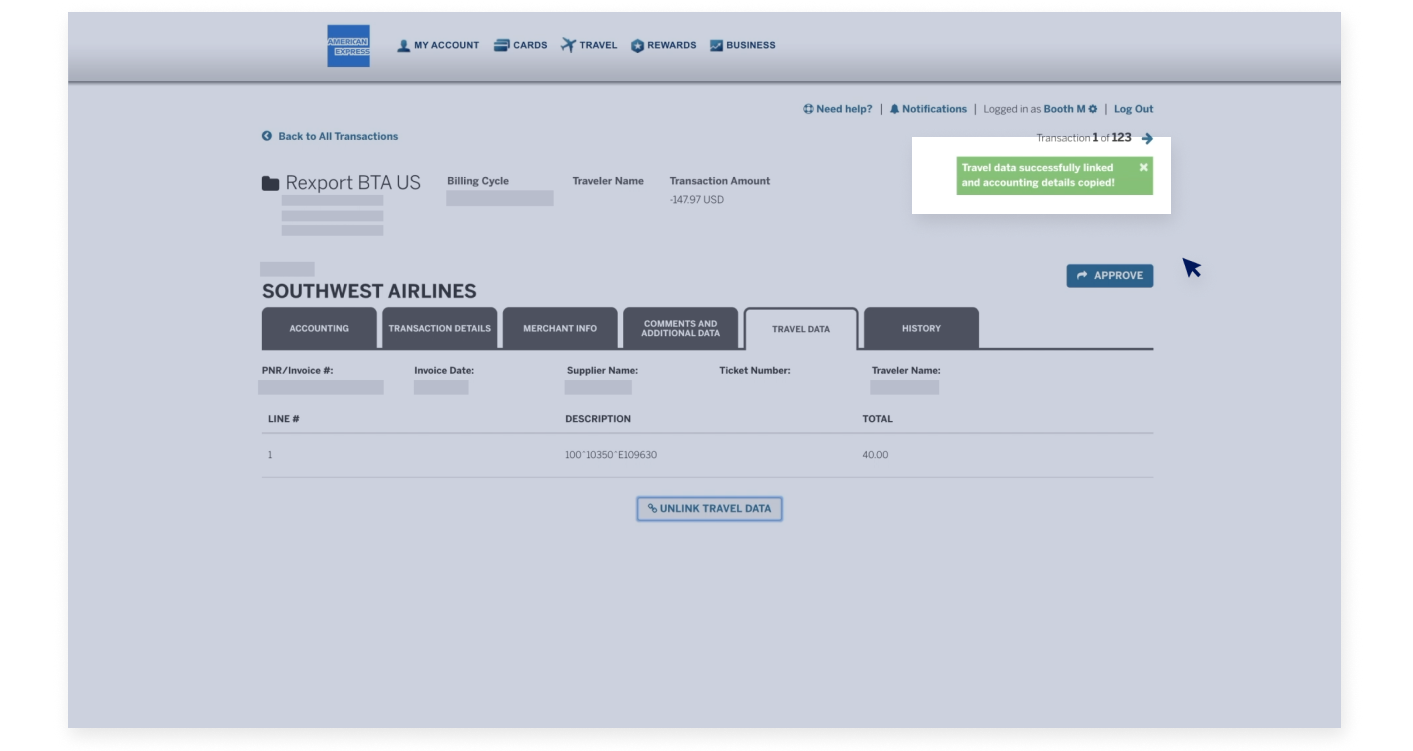
and a confirmation popup will appear.

BUSINESS TRAVEL ACCOUNT OVERVIEW

Linking to Travel Records

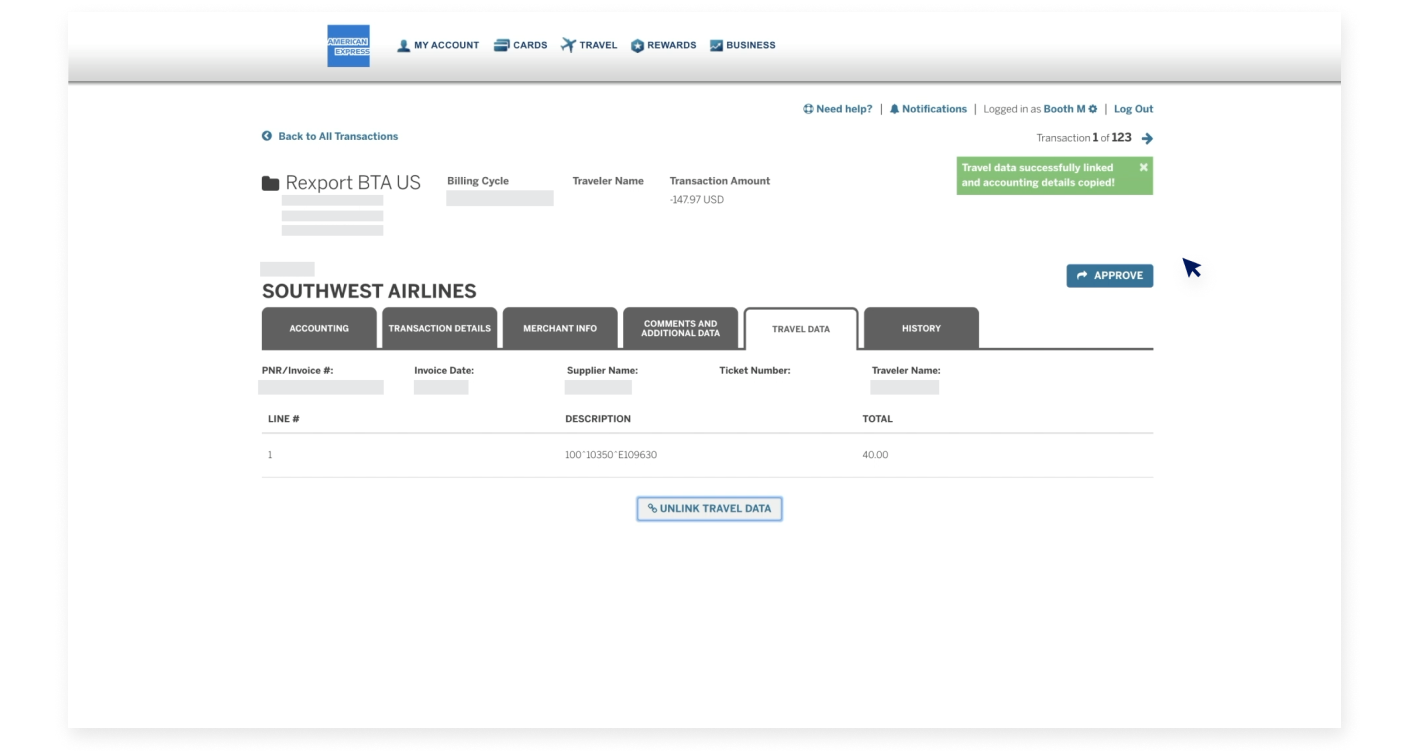
Note that when you link the travel data, the accounting information, such as General Ledger code and cost center, is also applied to the transaction.

BUSINESS TRAVEL ACCOUNT OVERVIEW

Linking to Travel Records

If a travel record is not available, try performing a search in the previous Billing Cycle to see if the record appeared earlier, or search using one of
the other filter types, such as traveller name.

BUSINESS TRAVEL ACCOUNT OVERVIEW

Linking to Travel Records

If you have exhausted the search capabilities and you still cannot locate the travel record, you may want to reach out to your travel agency for assistance.

BUSINESS TRAVEL ACCOUNT OVERVIEW

Review the accounting Data

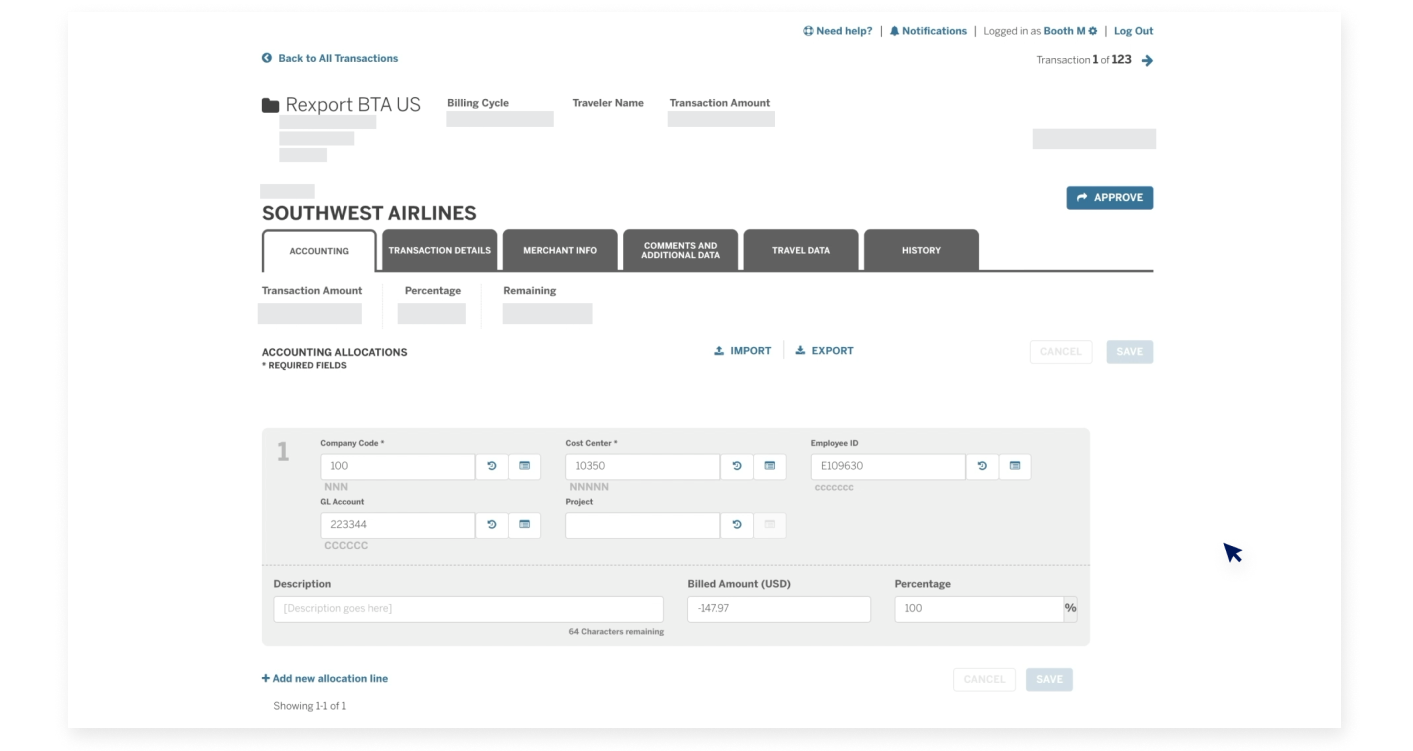
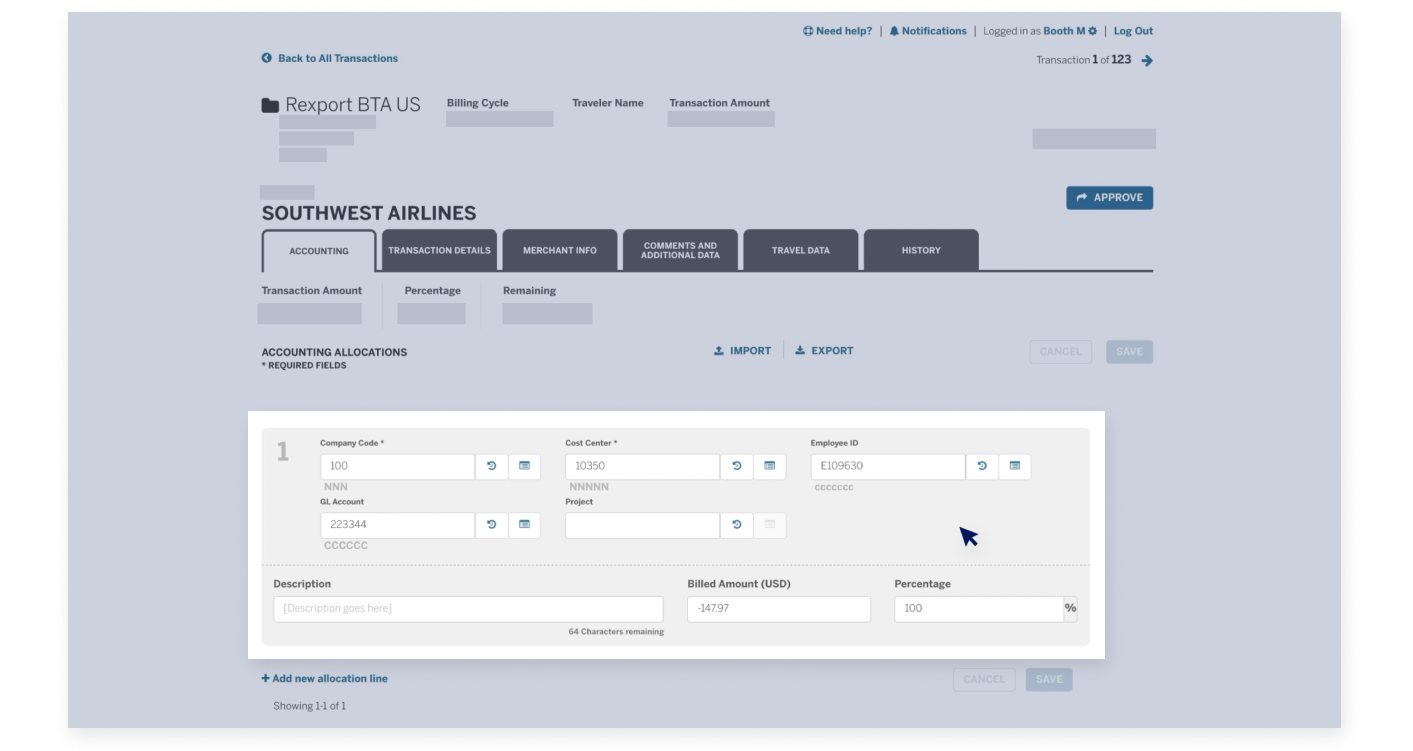
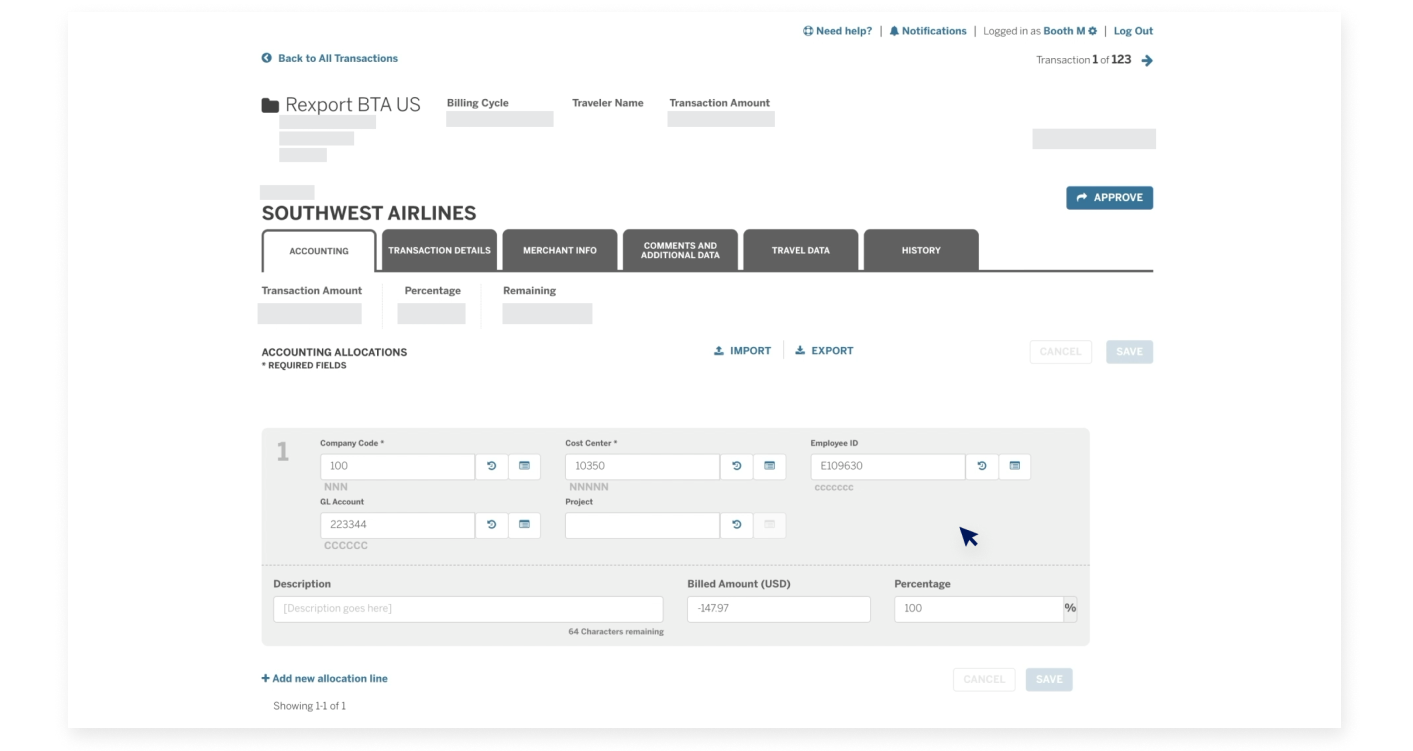
Next, go back to the “Accounting” tab on the Transaction Details screen to review the accounting code information. The default accounting codes provided by your travel agency are mapped to the transactions.

BUSINESS TRAVEL ACCOUNT OVERVIEW

Review the accounting Data

They can be reallocated as needed.

BUSINESS TRAVEL ACCOUNT OVERVIEW

Review the accounting Data

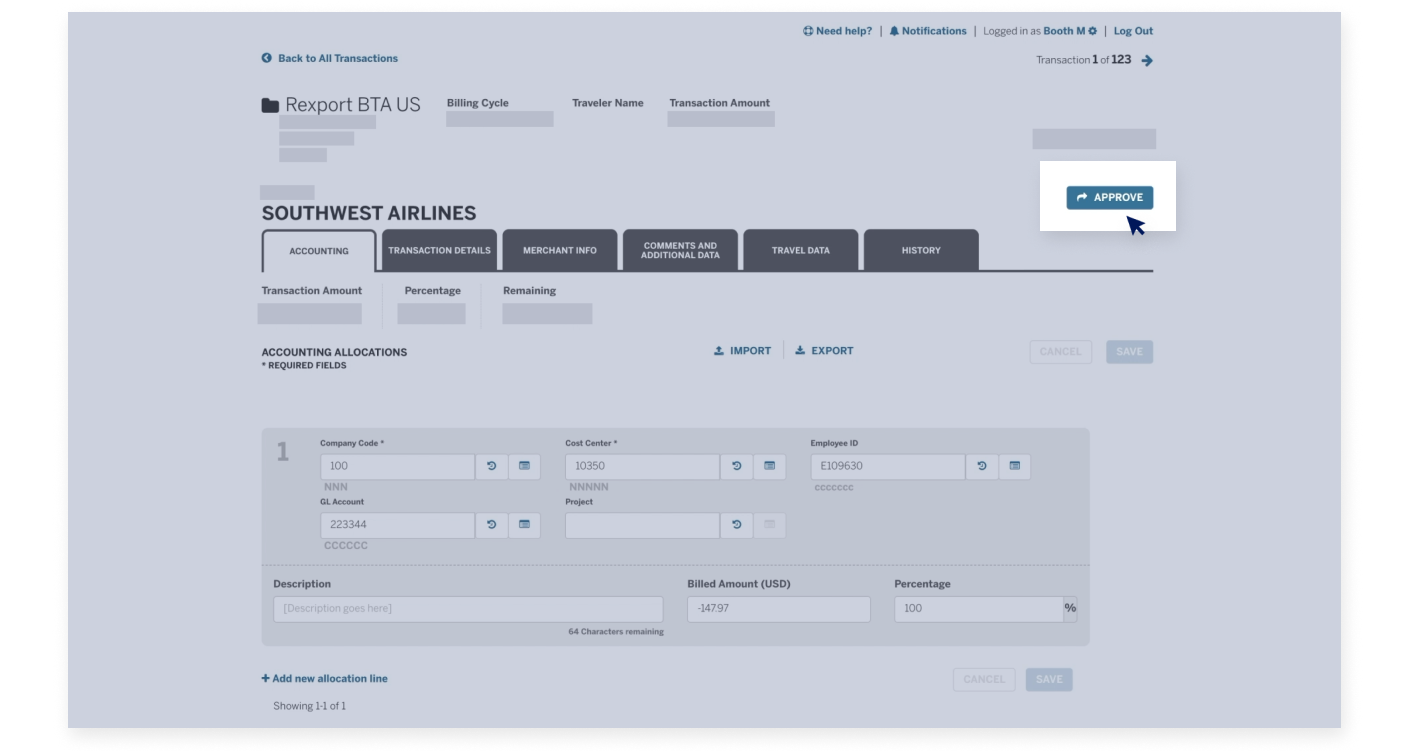
Once you have validated the accounting codes,

BUSINESS TRAVEL ACCOUNT OVERVIEW

Review the accounting Data

click the “Approve” button to complete the reconciliation process for this transaction.

BUSINESS TRAVEL ACCOUNT OVERVIEW

Key Takeaways

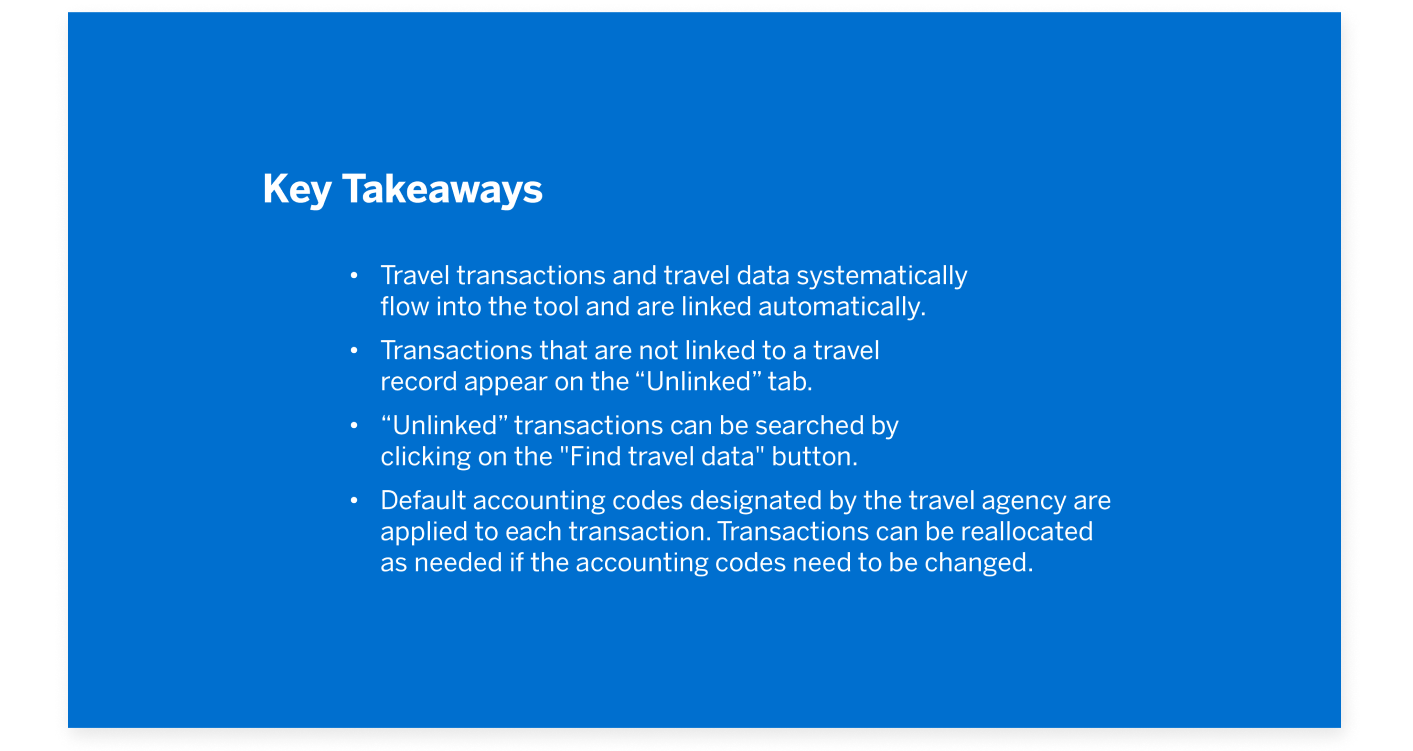
The key takeaways for the Business Travel Account Guided Tour include:

BUSINESS TRAVEL ACCOUNT OVERVIEW

Thank You

You have now completed the @ Work Reconciliation Business Travel Account overview tutorial.

Next

business-travel-accounts-screen