



Log In with Multi-Factor Authentication
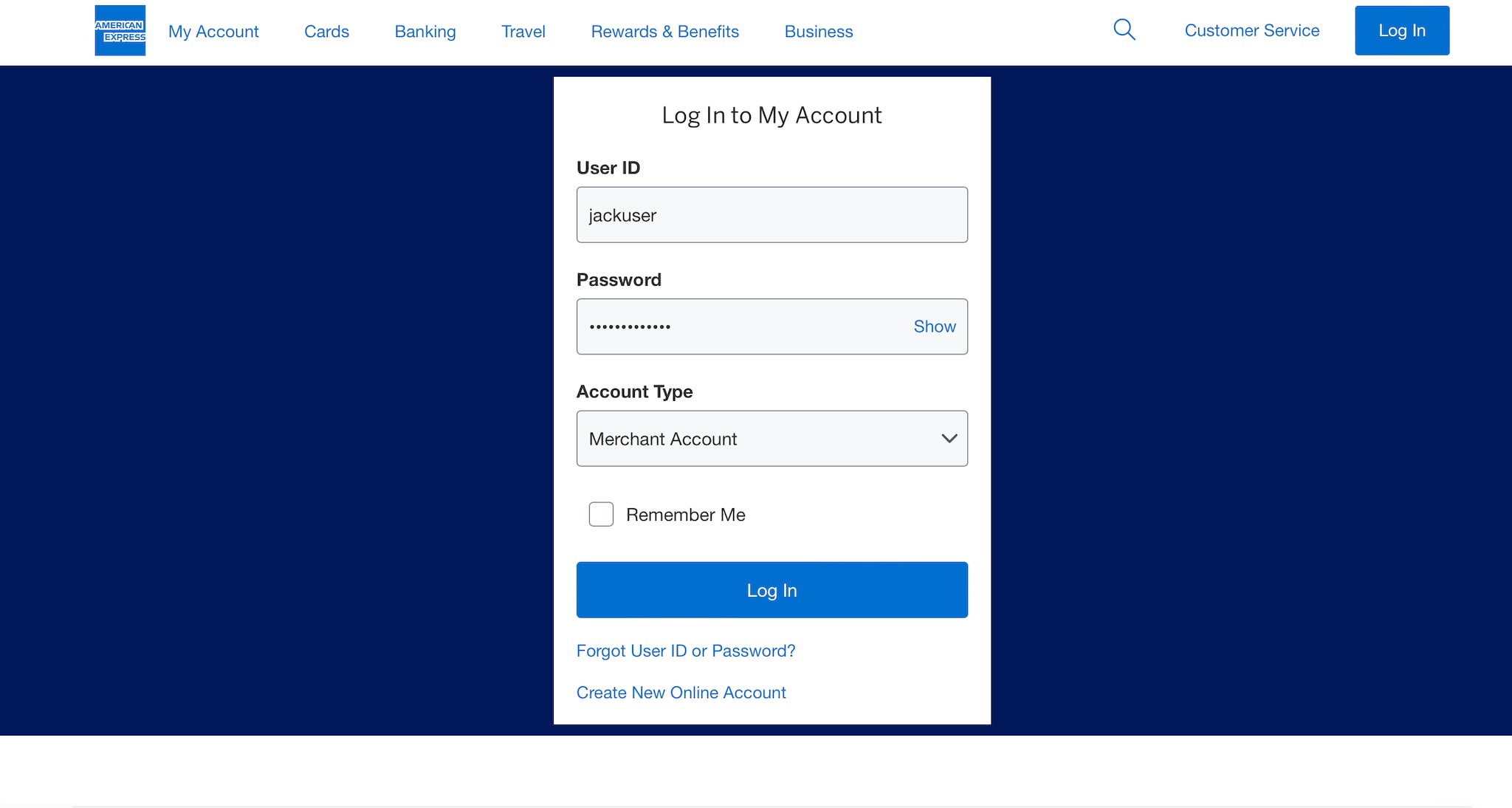
To log in to your Merchant Account, you can go to americanexpress.com/merchant and click the “Log in” button on the page or click the “Log In” button in the top right corner of the screen.
First, log in with your User ID and password. Ensure you have selected “Merchant Account” as the account type. If you do not have a Merchant Account established, create a new Online Account here: https://www.americanexpress.com/en-us/business/merchant/registration
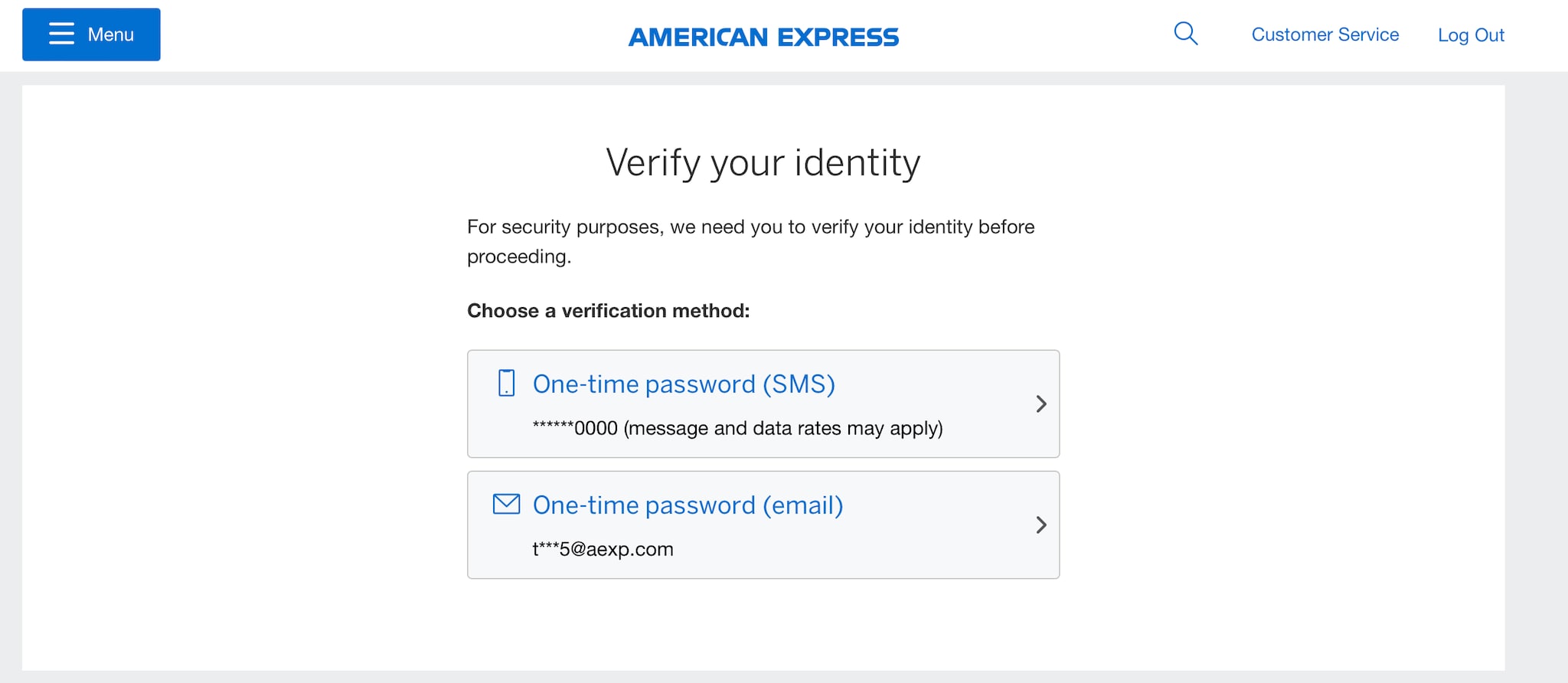
After clicking “Log In”, you will be asked to verify your identity with a one-time password that can be received via SMS or email. To receive an SMS, you must have a phone number saved on your profile.
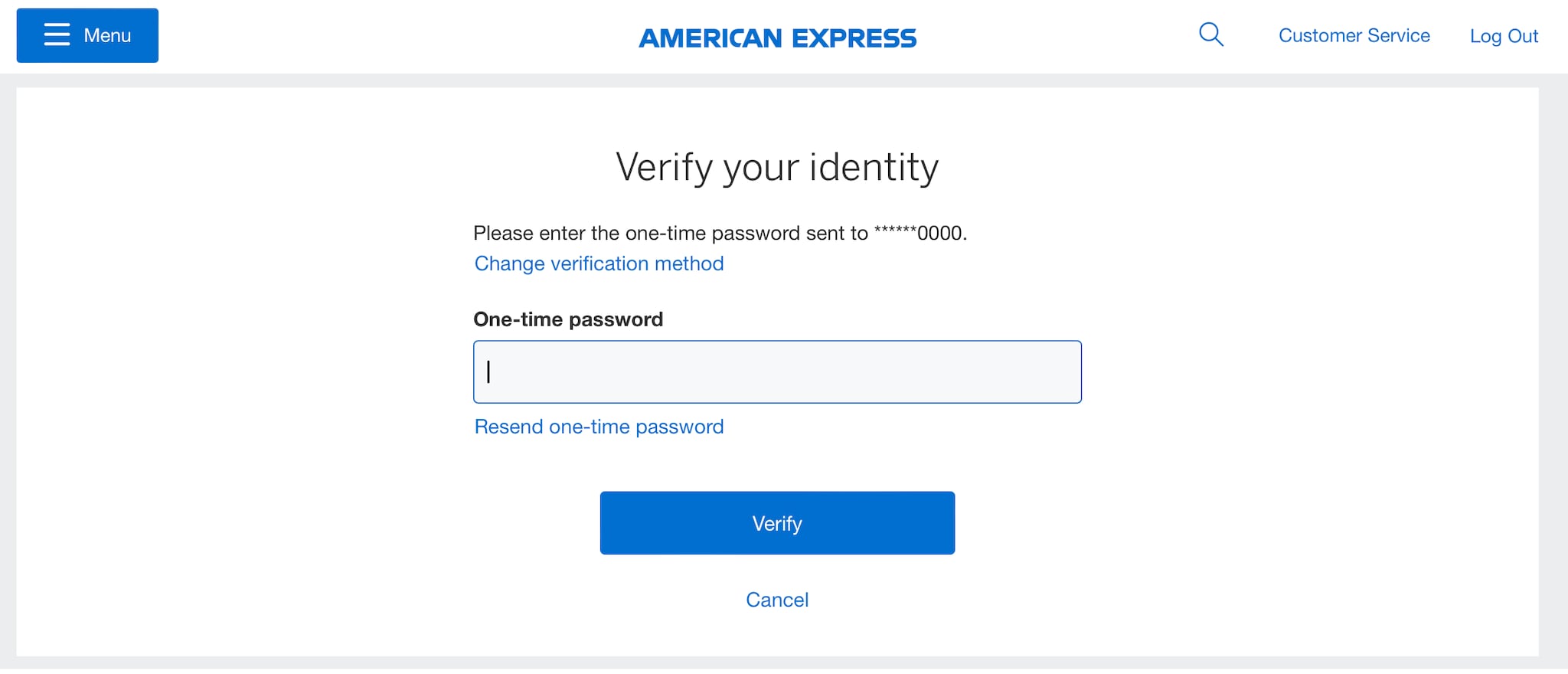
You will need to input the one-time password that you received through the verification channel that was selected.
By selecting the checkbox, you will have the option to remember the device for future log in instances, allowing you to bypass Multi-Factor Authentication.
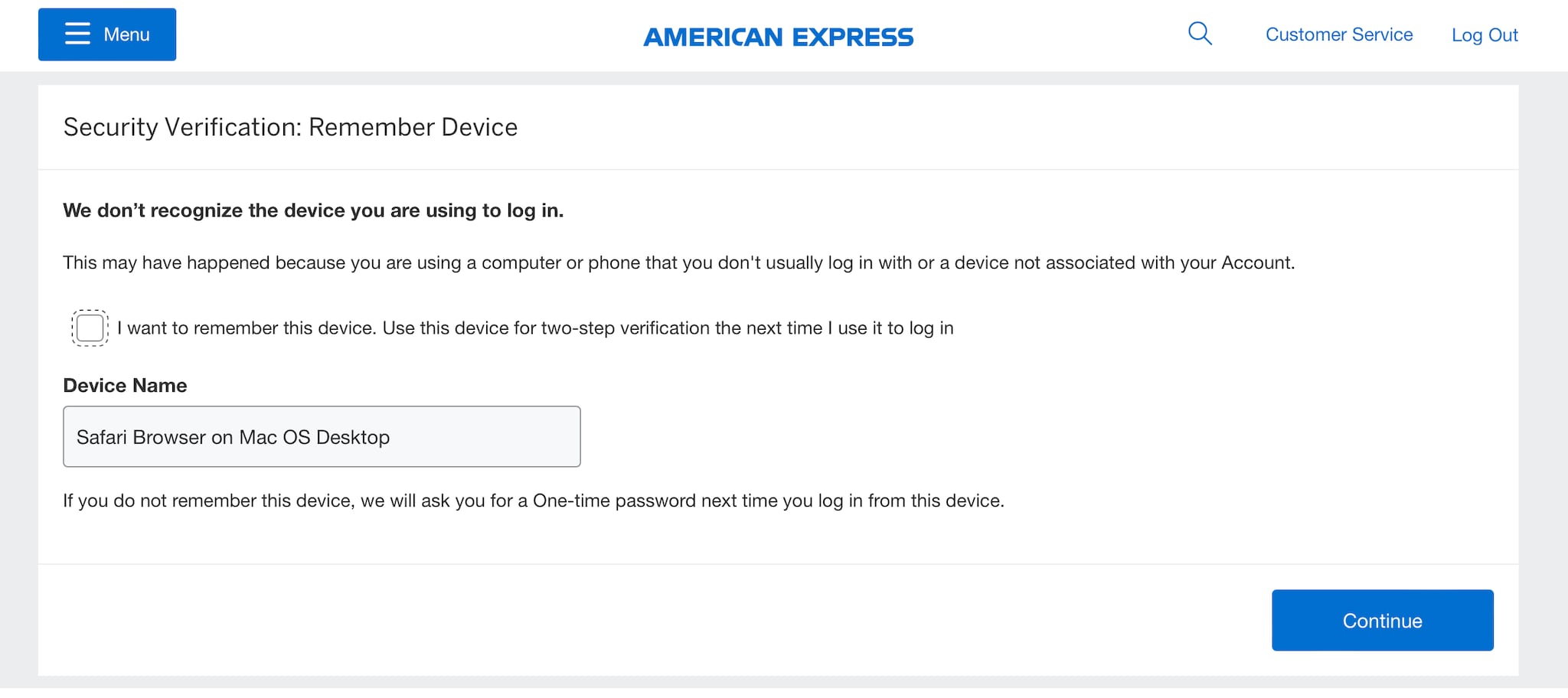
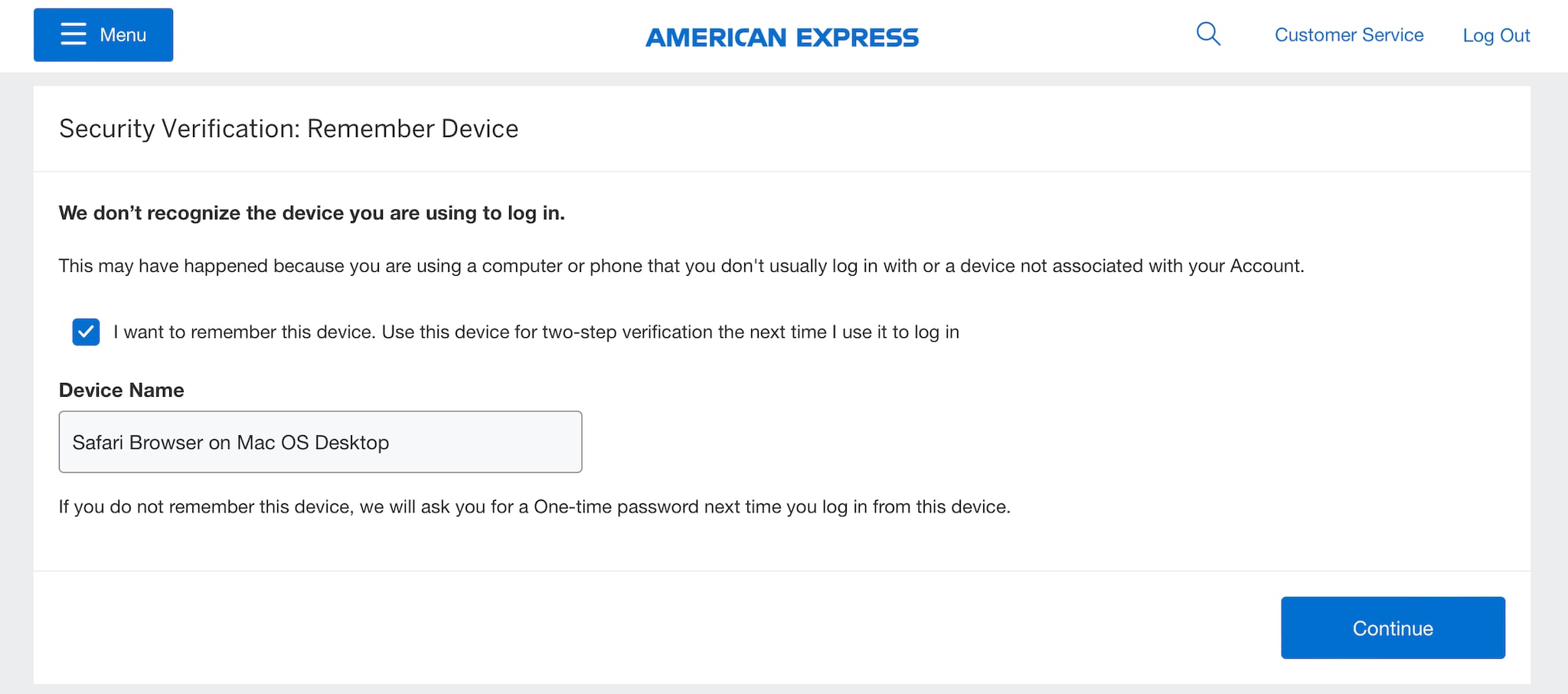
Select “Continue” and you will have successfully logged into your Merchant Account.
Managing Two-Step Verification
To remove a device that is linked to the account, visit http://www.americanexpress.com/en-us/account/two-step-verification/manage.
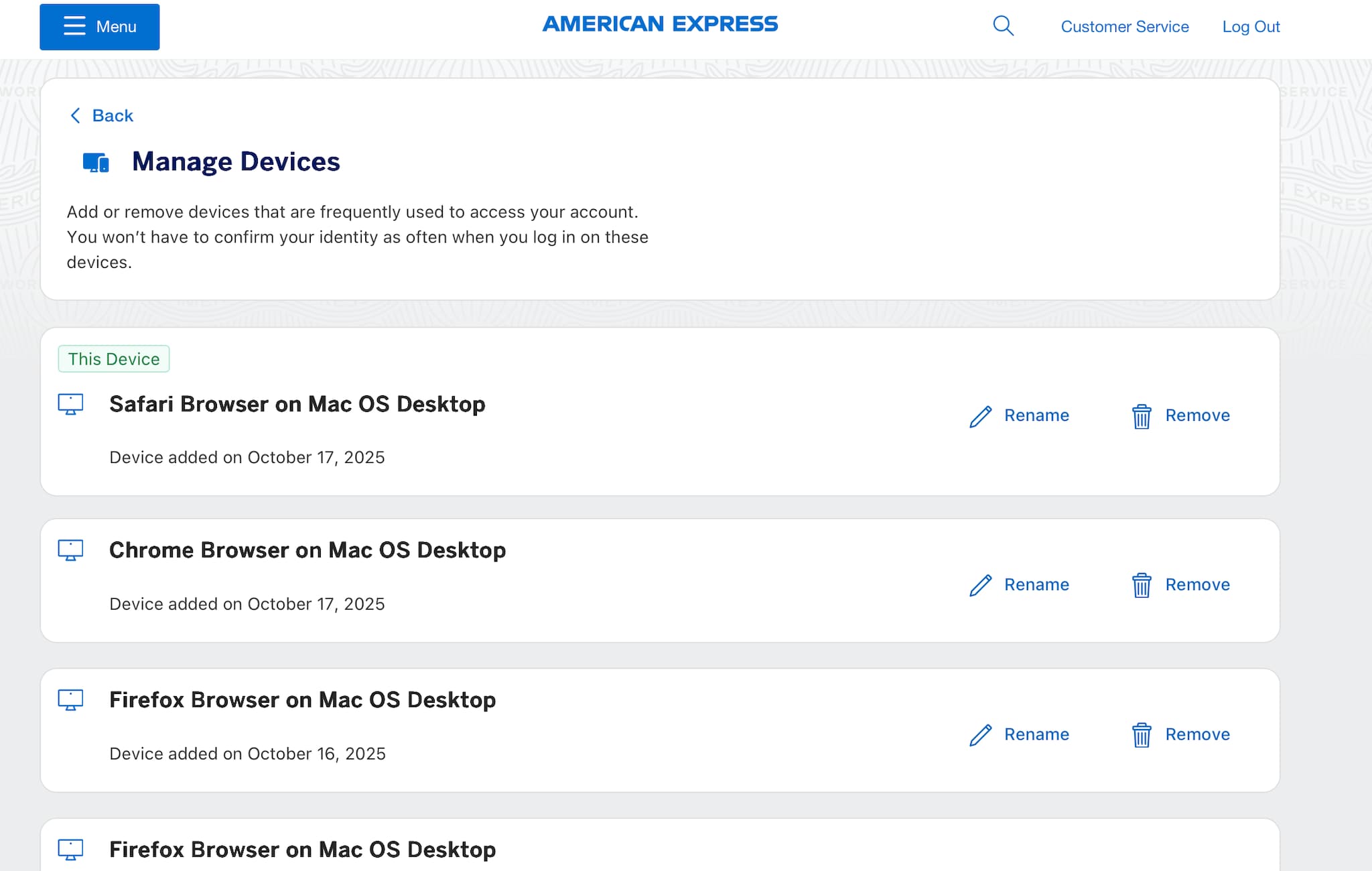
Click on “Remove” followed by “Yes, Remove Device” to remove the device from being remembered at the log in stage. If you do not see a pop-up please check internet settings for pop-up blockers.
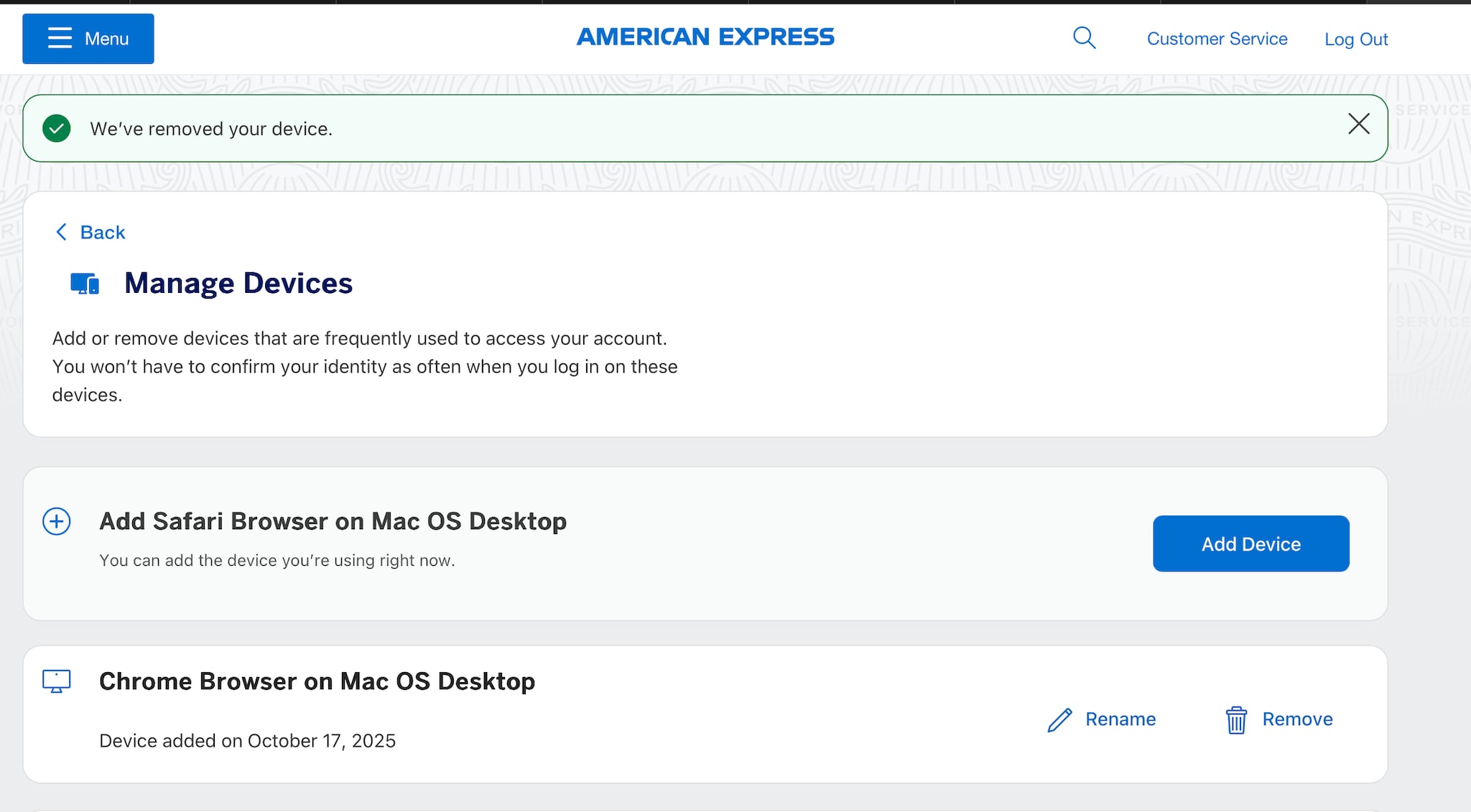
The following message will be shown upon removal of a device.
Contact Us
Live Chat
Click the 'Chat' button once you've logged in to your Merchant Account to chat with a member of our service team.
Mon-Fri, 8:00am to 6:30pm ET
Call Us
Our Merchant Customer Care Professionals will assist you Mon-Fri, 8:00am to 8:00pm ET