



3 Min Read | Published: December 12, 2023 | Updated: October 24, 2025
How to use the Transactions tab in American Express Business BlueprintTM
The Transactions tab, located under “Insights” in Business Blueprint, offers a consolidated view of transactions from your select American Express products and linked external business checking and card accounts. You can search for transactions and use filters, like account, category, and type of transaction, to review your cash flow and expenses more efficiently and to better understand potential impacts to your budget.
This guide will help you understand how to keep track of your transactions using Business Blueprint Insights.
After logging into your Business Blueprint dashboard, select “Insights” on the top of the page. Then select the “Transactions” tab from the navigation bar.
You will see a reverse-chronological list of your business transactions that make up your cash flow and expenses for all dates available in Insights. Your available transaction history and data will show up to 2 years back from the time you sign up. The data that appears in Insights may be limited based on how long an account has been open or if your financial institutions have any restrictions about how much data they share. Your available data within Insights may also accumulate over time.
Some features that exist on this page include:
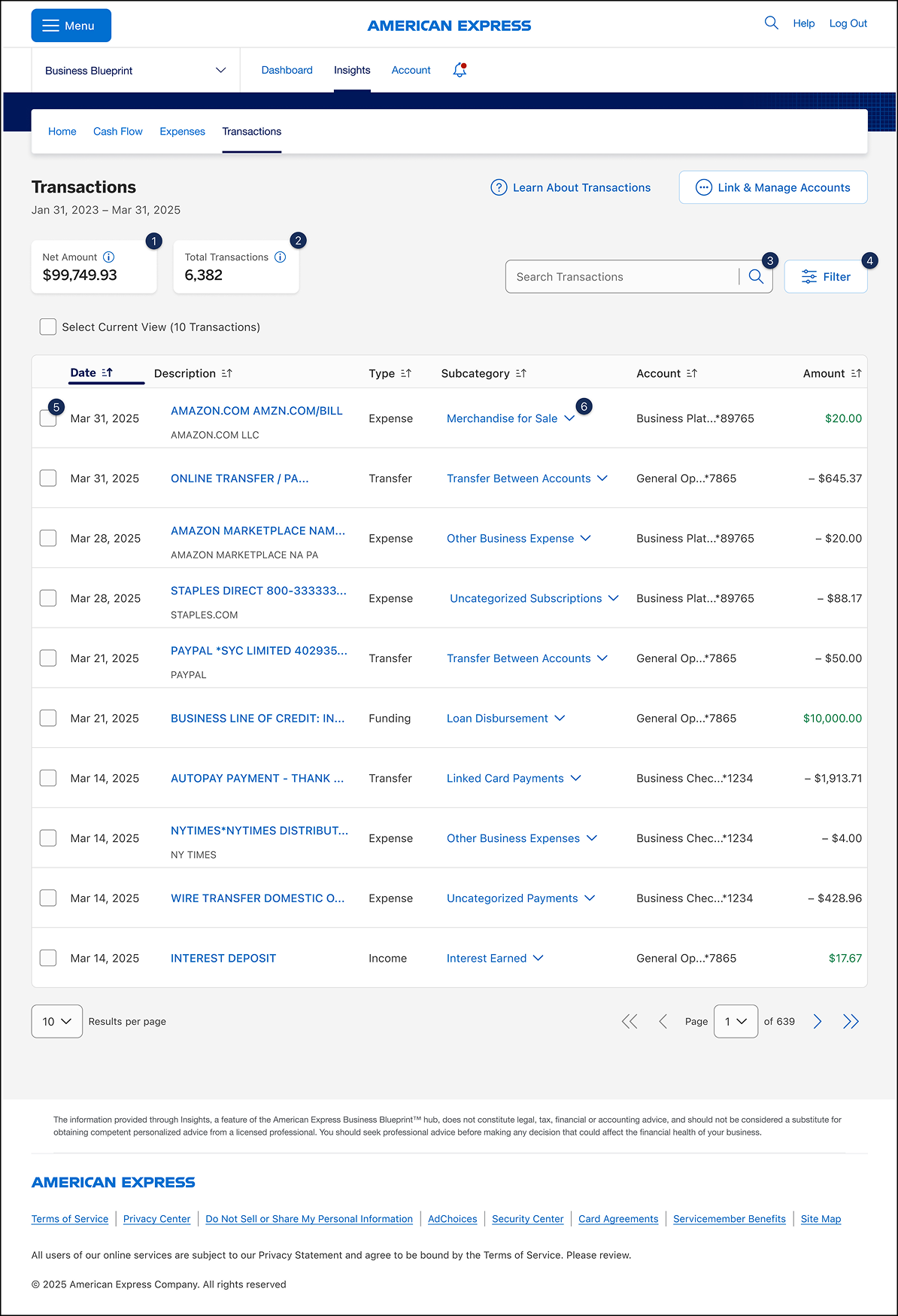
- Net amount. The sum of the transaction amounts across your select American Express and linked external business checking and card accounts. The amount may vary based on the selected time period and any filters applied.
- Total Transactions. The number of transactions across your select American Express and linked external business checking and card accounts. The total may vary based on the selected time period and any filters applied.
- A search bar to find specific transactions by name or keyword.
- Filter and sort options to better find what you’re looking for.
- Multi-select boxes to recategorize more than one transaction at a time.
- Dropdown category lists that allow you to recategorize transactions or create a custom subcategory while viewing the table.
For illustrative purposes only
You can classify your transactions in a few ways in Insights.
When regrouping your transactions, you can consider what type of transaction it is, what broader category it falls under, and what more specific subcategory best describes it. You can also create your own custom subcategory if none of the provided options fit your preferences.
The Transactions tab allows you to apply a variety of filters to find the data you need.
Transactions can be filtered by:
- Date. This includes weekly, monthly, and quarterly breakdowns, as well as all available transactions.
- Type. Focus on transactions with the Expense, Income, Distribution, Funding, or Transfer types.
- Category. View transactions within one or more categories or subcategories.
- Account. See transactions from one or more of your connected accounts.
- Transaction Amounts. Filter transactions by all positive amounts or all negative amounts.
- Cash Flow. View transactions that are included in or excluded from your cash flow.
Once you have selected one or more filters, select “See Results” and your transactions table will update. The “Filtered by” section will appear above your transactions table to highlight the options you have selected. If you want to remove a filter, select the pill to remove that particular filter and the table will update again with any remaining filters.

For illustrative purposes only
Most transactions you make are automatically assigned a subcategory to help you better organize, filter, and review your transactions. You can recategorize a particular transaction or several at once, if you’d like to.
For One Transaction
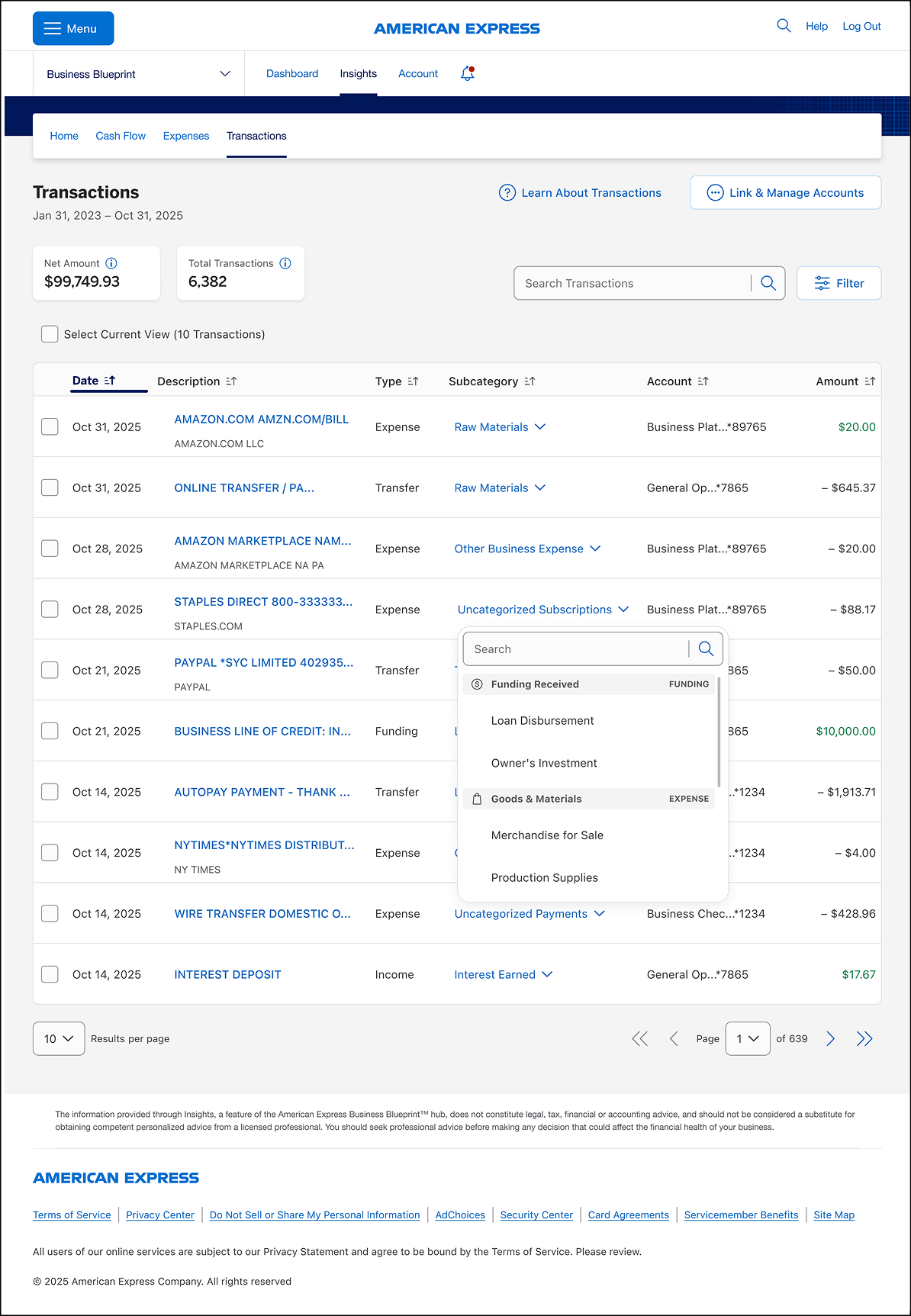
While viewing the Transactions table, select the dropdown from the “Subcategory” column for the transaction you would like to recategorize. Once you’ve opened the dropdown, you can select an existing subcategory by scrolling the list or typing in the search bar. If the subcategory you’re looking for does not exist, you can create a custom subcategory.
You can also change a single transaction’s subcategory by viewing the transaction’s details and selecting a new subcategory from the “Subcategory” dropdown.
For illustrative purposes only
For Multiple Transactions
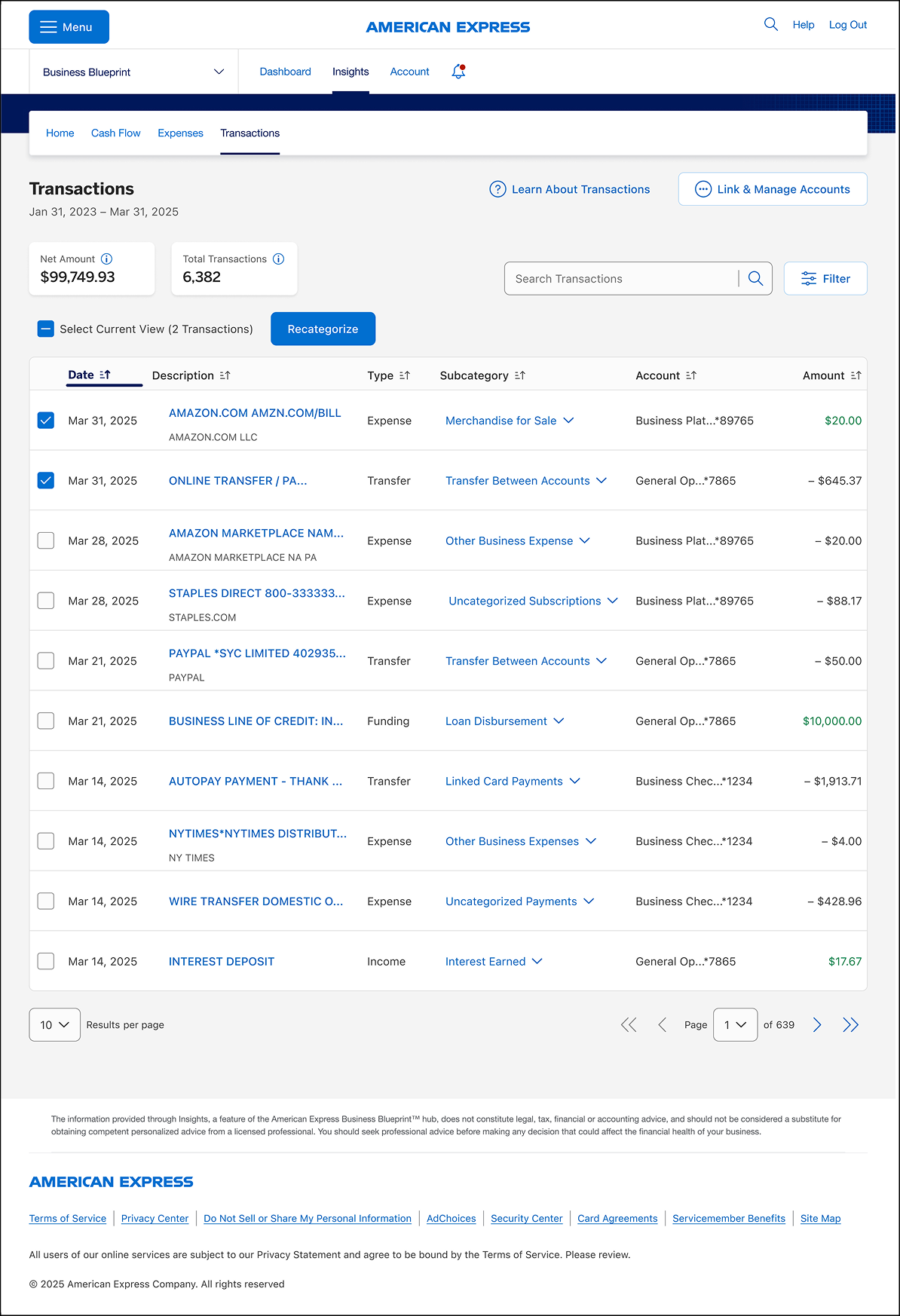
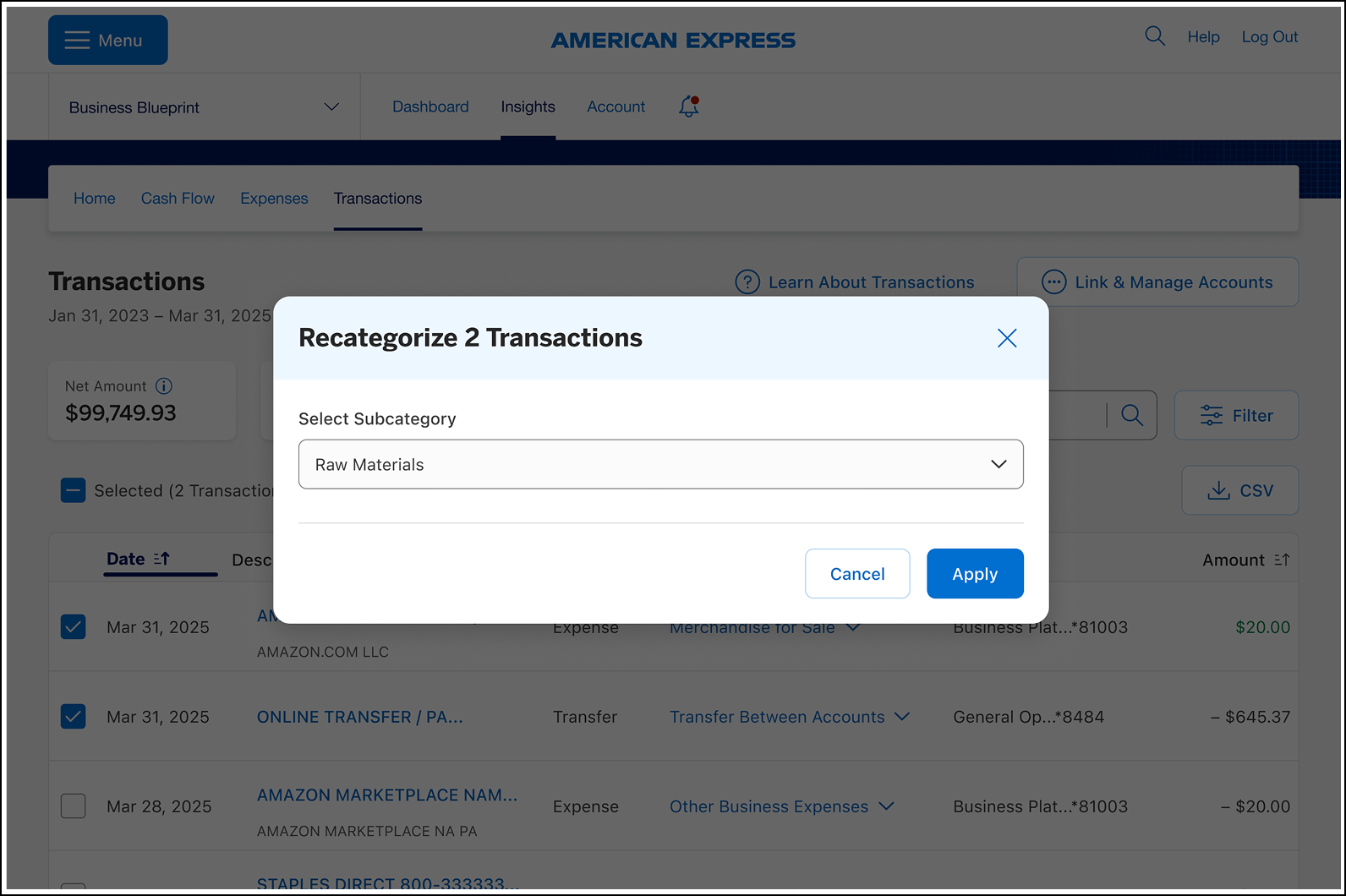
Select the checkbox to the left of each of the transactions you would like to recategorize. Once you’ve selected all of the relevant transactions, select the “Recategorize” button to change all ofthe selected transactions to the same subcategory.
For illustrative purposes only
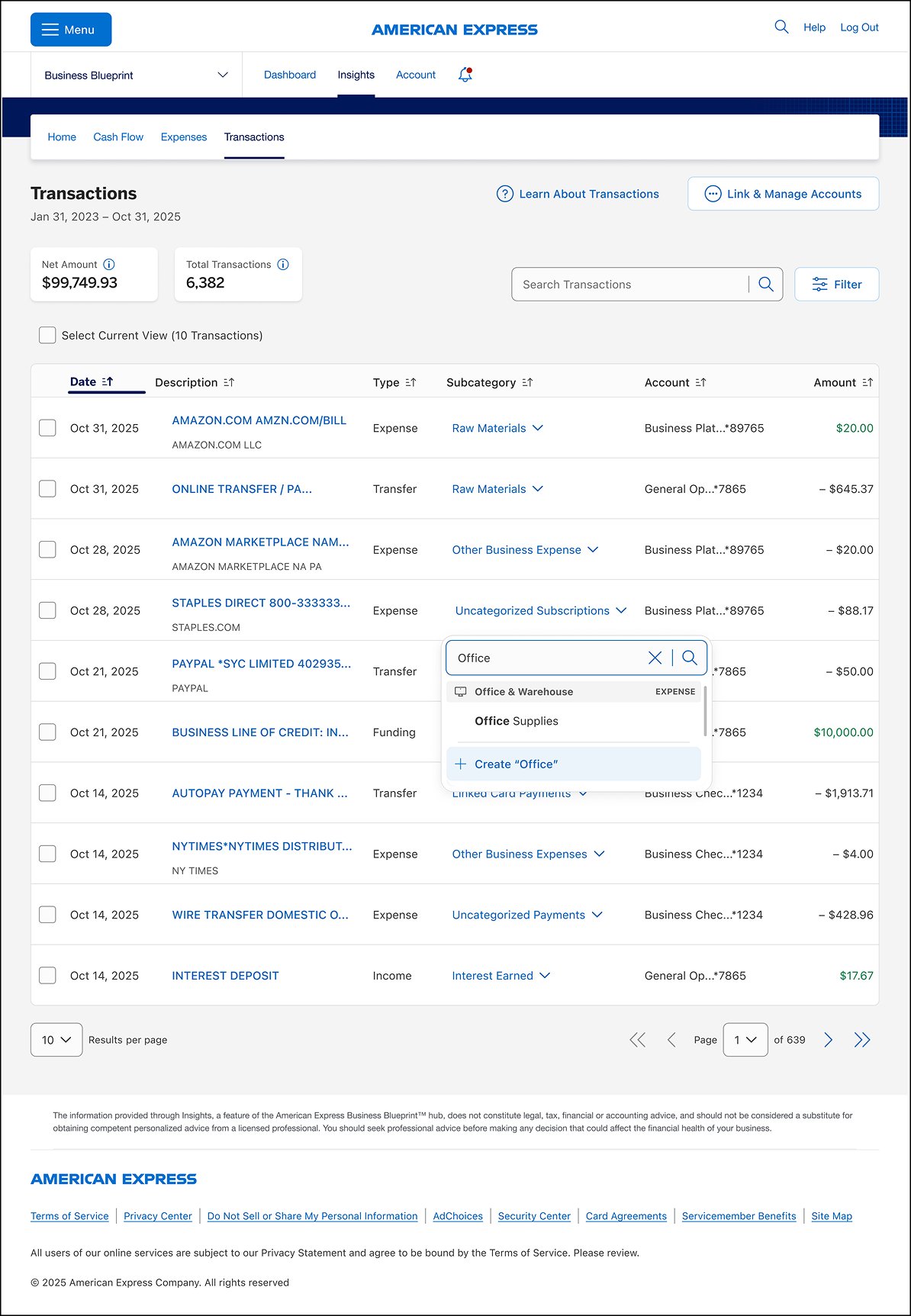
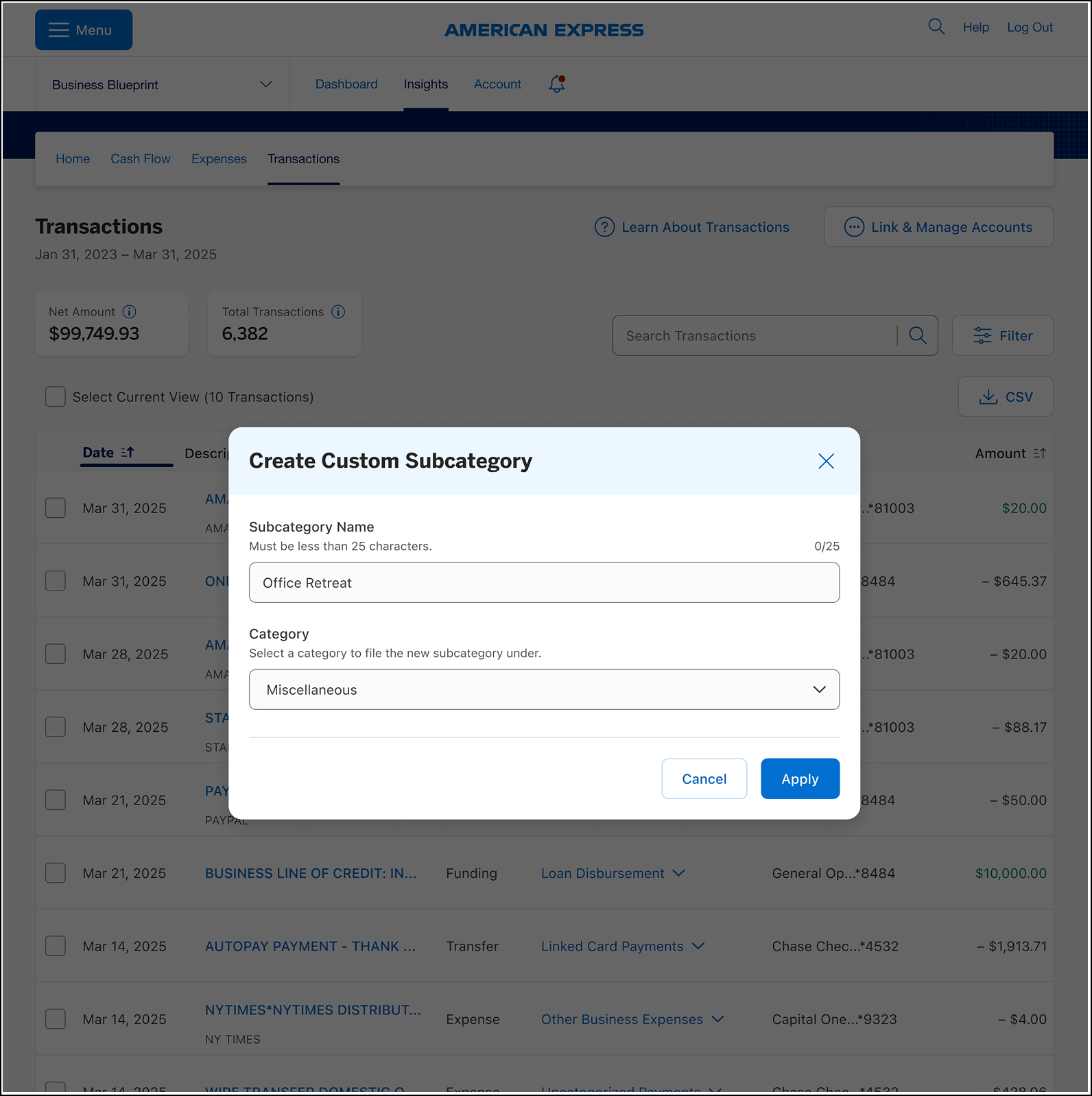
If you find that the options within Insights don’t fit your exact needs, you can create a new subcategory to categorize a transaction.
- Within the search option, you can write in the subcategory you would like to assign, and if it does not exist, select the “Create” button to begin the process of creating a custom subcategory.
For illustrative purposes only
2.
Each new custom subcategory will need to be assigned a category to go under. There are 22 existing categories to choose from.
For illustrative purposes only
3.
Once you’ve filled out the subcategory name and chosen a category, select the “Apply” button to continue. The new custom subcategory will automatically be assigned to the transaction.
For illustrative purposes only
 Create a rule for auto-assigning a subcategory for current and future transactions
Insights can help you save time by creating custom rules, so you don’t need to recategorize individual transactions with the same criteria. There are several ways to create these rules:
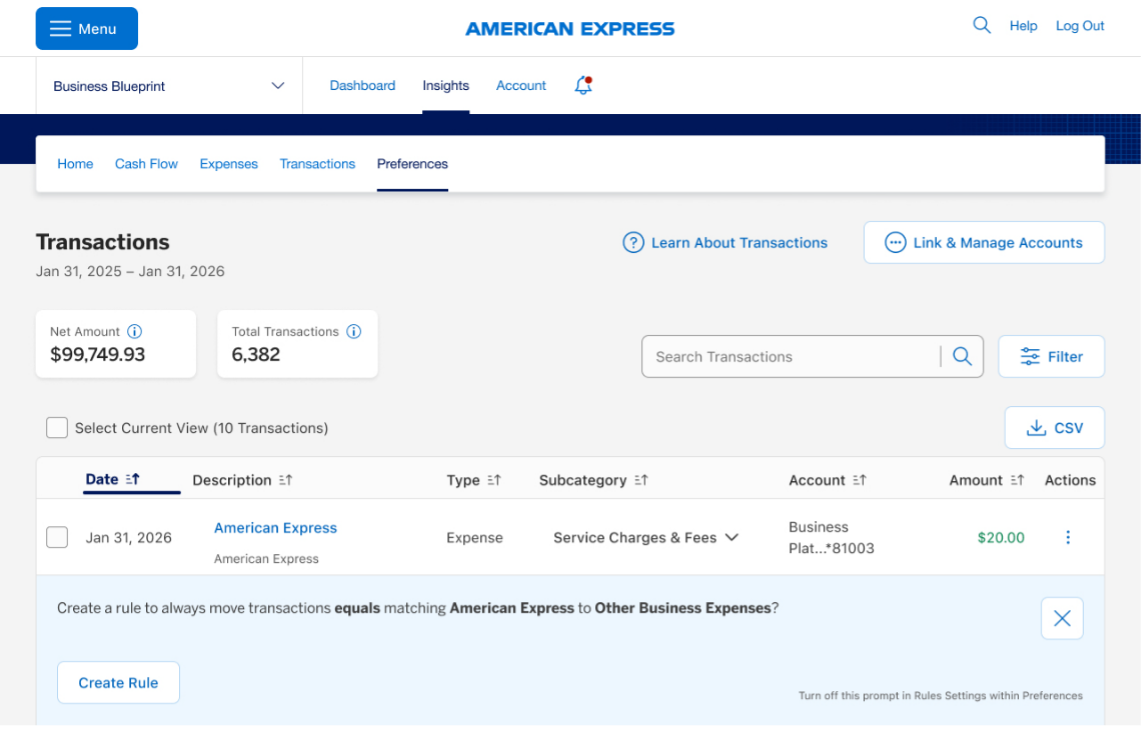
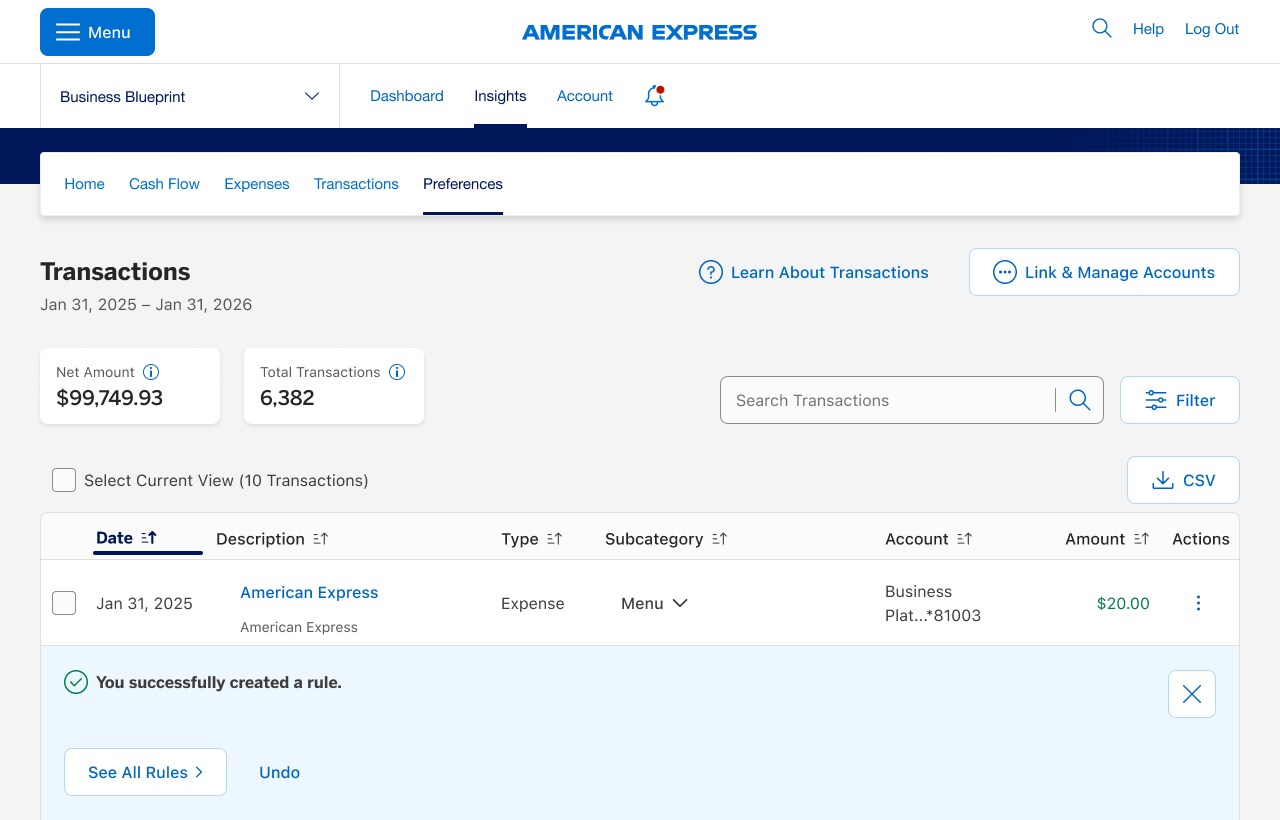
- From the Transactions table. Update the transaction to the correct subcategory using the Subcategory dropdown from the Transactions table. After you save the updated subcategory, you’ll see an option asking if you’d like to create a rule. If you choose this option, Insights will automatically move similar transactions into that same subcategory in the future — so you won’t have to update them again. Once completed, you will receive a message that the rule has been updated. You can also undo the change if you decide that you don’t want the rule.
For illustrative purposes only
For illustrative purposes only
2.
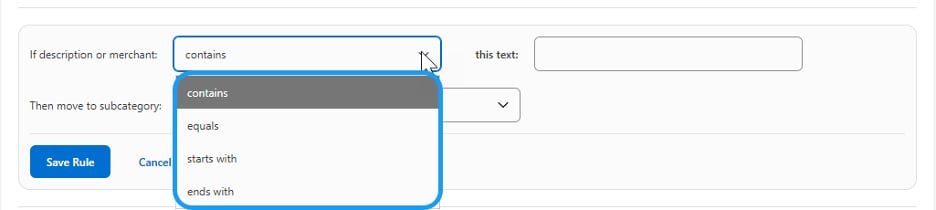
You can go to the Preferences tab to create a rule from scratch, which is located next to the Transactions tab. There are several different options to choose from while setting up a rule.
Choose how the rule should know which transactions to recategorize.
In the first dropdown, select how you want the system to recognize the transaction:
a. Contains – if the description or merchant name includes certain text.
b. Equals – if the description or merchant name exactly matches your text.
c. Starts with – if the description or merchant name begins with your text.
d. Ends with – if the description or merchant name ends with your text.
Enter the text to match.
In the box next to “this text,” type the word or phrase that appears in the transaction description or merchant name.
Select the new subcategory.
Under “Then move to subcategory,” choose the subcategory you want these transactions to be assigned to.
Save your changes.
Select “Save Rule” to apply the update.
Once saved, any current or future transactions that match your selected criteria will automatically move to your chosen subcategory.

For illustrative purposes only
For illustrative purposes only
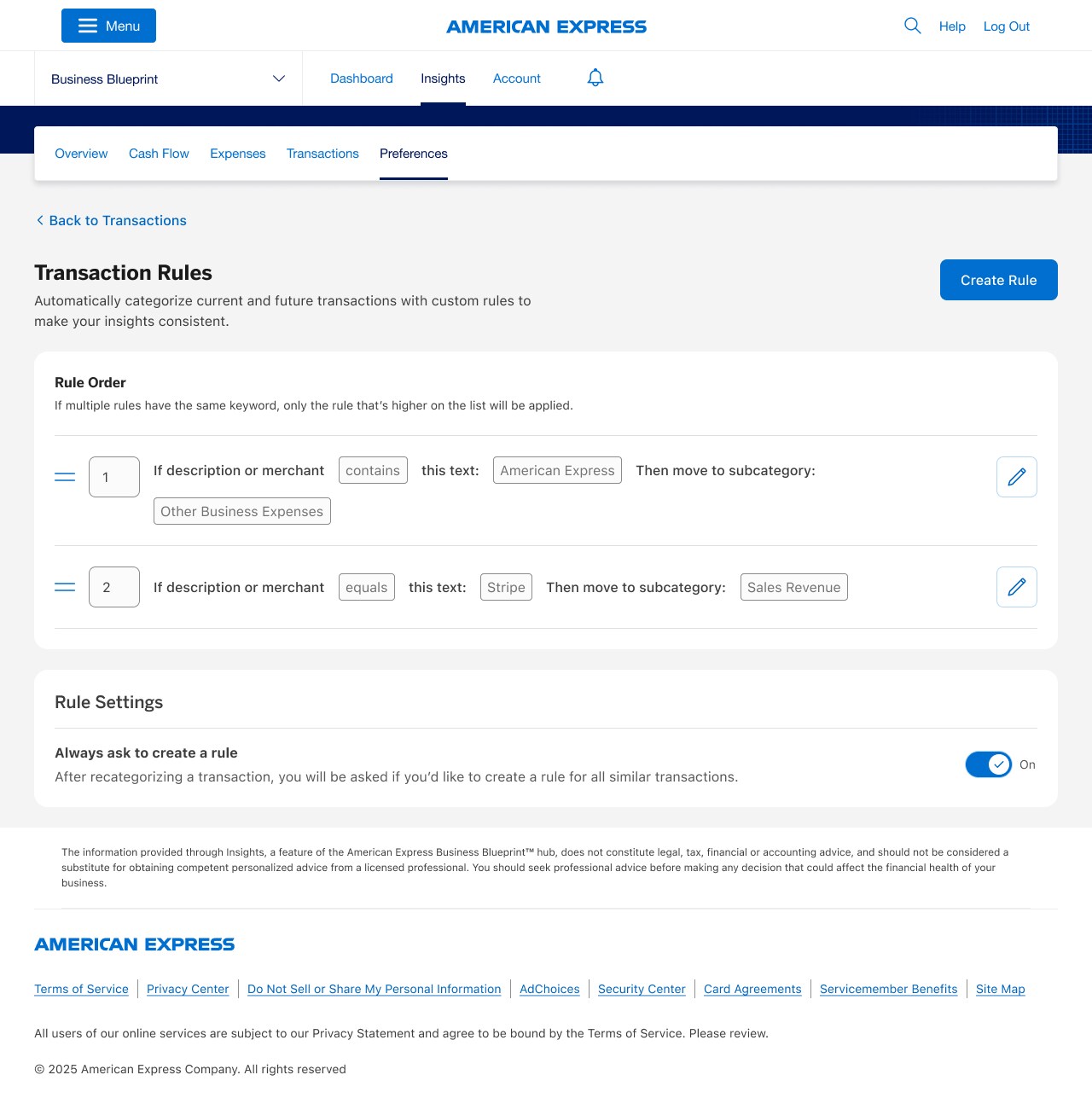
In addition to creating rules, you can edit or delete them at any time. To update a rule, go to the Preferences tab and select “Edit” next to the rule you’d like to change. When multiple rules share the same keyword, only the rule that is higher on the list is applied. You can click and drag the lines next to a rule's number to move that rule up or down on the list. You can also delete a rule at any time by selecting the trash can icon.
For illustrative purposes only
The types of transactions in Insights are:
Expense. These transactions are your typical business spending. They’re usually negative transaction amounts, with the exception of Statement Credits (Rewards) and refunds.
Income. Transactions with this type are sources of operating and non-operating revenue. They’re usually positive transaction amounts.
Transfer. These include payments to credit cards that are linked to Insights, transfers to investment accounts, and transfers between your own accounts.
Funding. Transactions with this type are sources of funding your business has received, including loan disbursements, owner’s investments, and more.
Distribution. Funds withdrawn from the business for an owner’s personal use.
STILL NEED HELP?
Reach out to us for further guidance.
Deposit accounts offered by American Express National Bank. Member FDIC.
TERMS AND CONDITIONS
American Express Business Blueprint™
American Express Business Blueprint™ is the small businesses digital experience that allows a customer to view on one digital dashboard summary account information for the following American Express small business products: American Express® Business Cards, American Express® Business Line of Credit, and American Express® Business Checking. The customer can also choose to link their third-party issued business bank accounts and business credit cards to Business Blueprint. Not all third-party accounts or cards can be connected to Business Blueprint. Business Blueprint allows the customer to view data insights and track their business cash flow and expenses by viewing reports that American Express prepares using the customer’s linked account information. While the cash flow management service from Business Blueprint is currently free, each of the business products from American Express that are visible in Business Blueprint has its own fees, eligibility criteria, application process and approval requirements. The Business Blueprint service (including any data insights provided to the customer) does not constitute legal, tax, financial or accounting advice, and is not a substitute for obtaining competent personalized advice from a licensed professional. You should seek professional advice before making any decision that could affect the financial health of your business. American Express makes no representations as to the accuracy, completeness or timeliness of the reports, data or account information that are available to the customer from Business Blueprint.™
American Express® Business Line of Credit
Terms and Conditions for an American Express® Business Line of Credit apply. Visit https://www.americanexpress.com/en-us/business/blueprint/terms-and-conditions/business-line-of-credit/ for more information.
American Express® Business Checking and Business Savings
We are currently accepting applications from eligible U.S. businesses. Not all applicants will be approved for a Business Checking and Business Savings accounts. Select industries or businesses engaged in certain activities are currently ineligible, such as money service businesses, cryptocurrency, internet gambling businesses, and marijuana related businesses.
Membership Rewards® Program
Terms and Conditions for the Membership Rewards® program apply. Visit membershiprewards.com/terms for more information. Participating partners and available rewards are subject to change without notice.
The value of Membership Rewards® points varies according to how you choose to use them. To learn more, go to www.membershiprewards.com/pointsinfo
American Express and Amex are registered trademarks of American Express.