



Generate Reports
Learn how to build standard and customized reports using @ Work1 Reporting tool.

OVERVIEW

Offers Carousel
-
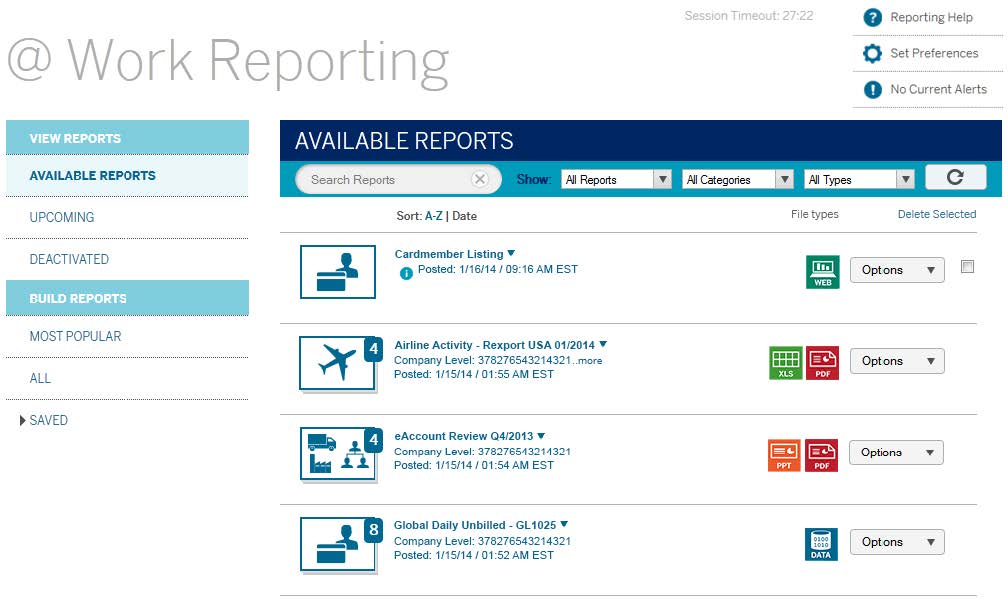
-
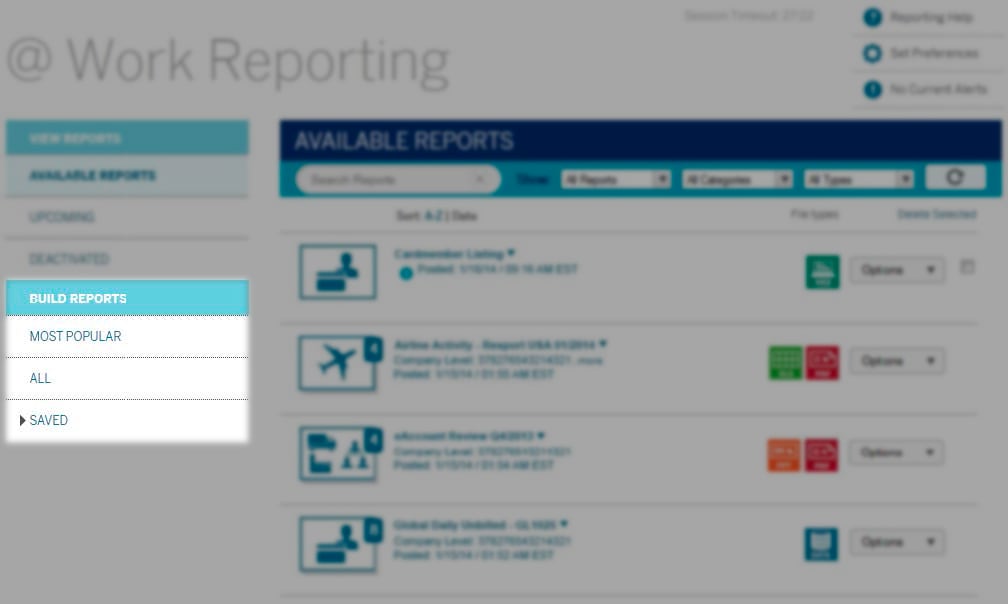

There are three types of report templates available in @ Work Reporting: Most Popular, All, and Saved. Choose the one that works best for you.


Offers Carousel
-
-


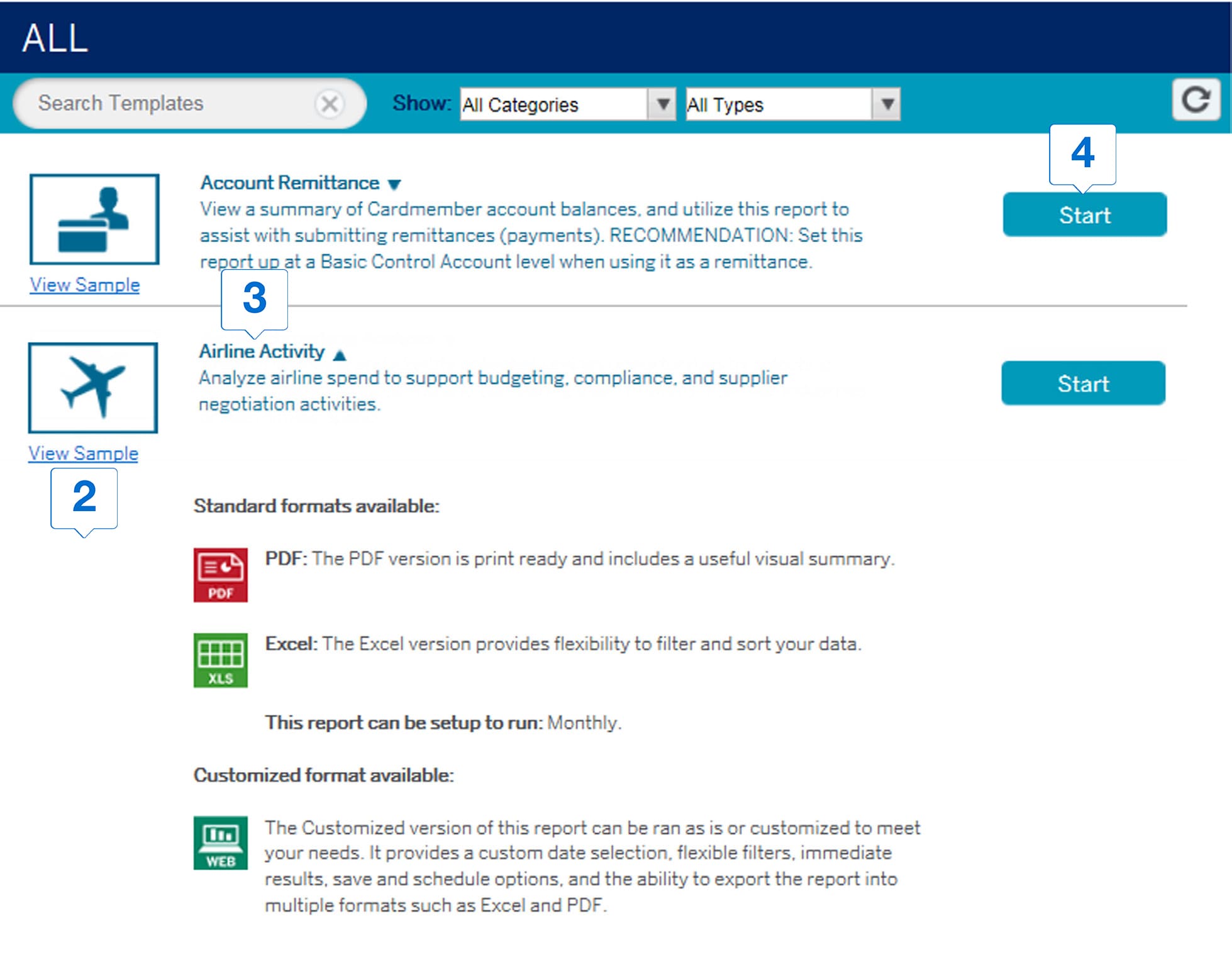
Click on the report name to view the available report formats. There are two formats: Standard and Customized.
-


Click View Sample to get more information and screenshots of the available formats.
-


Click Start to initiate the report generation process. You will be asked to select a suitable report format in the following screen.
STANDARD REPORT

Offers Carousel
-

-

Use the Filter to search for a specific program hierarchy type
-
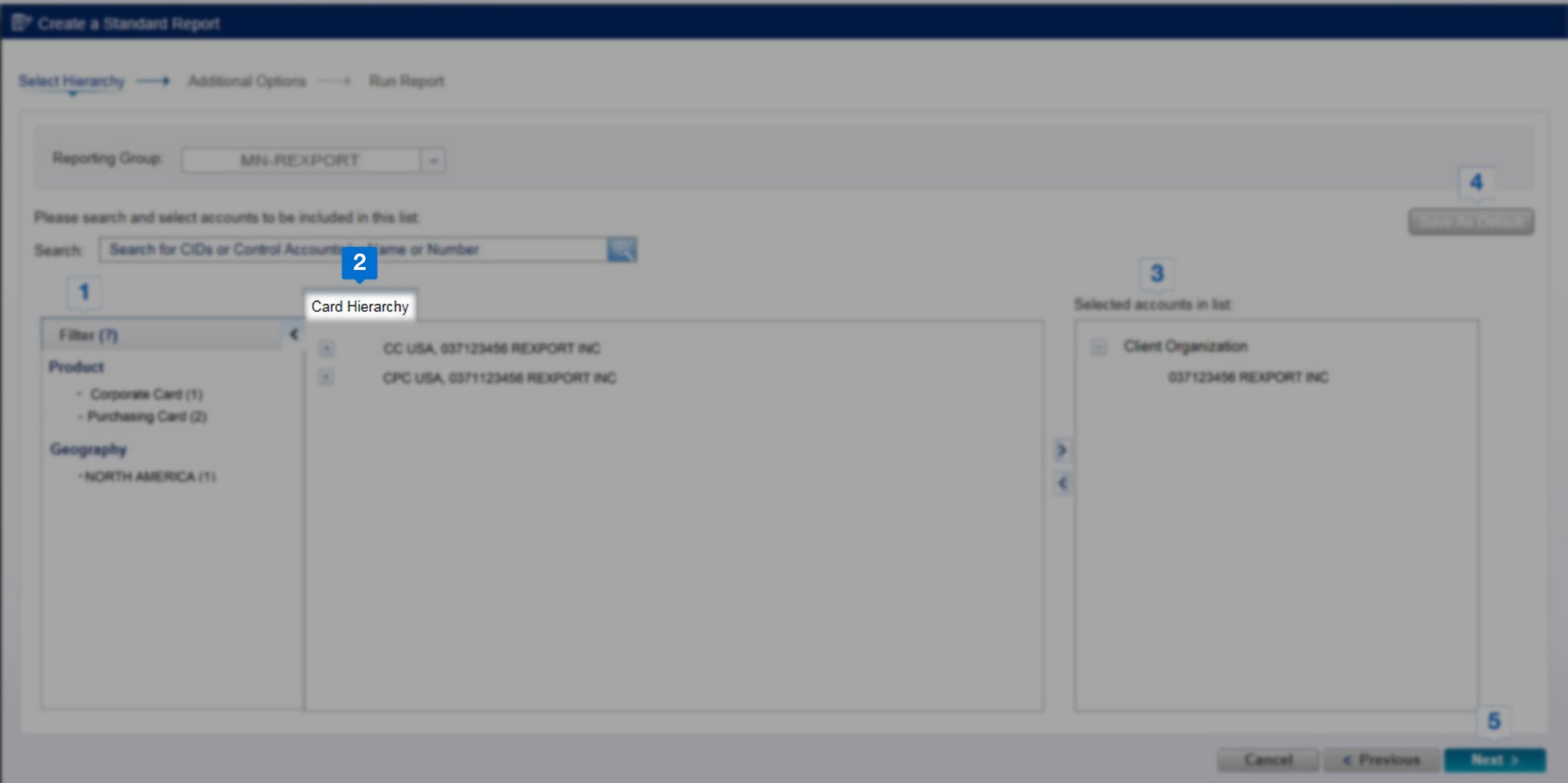
Select the desired Card Hierarchy.
-
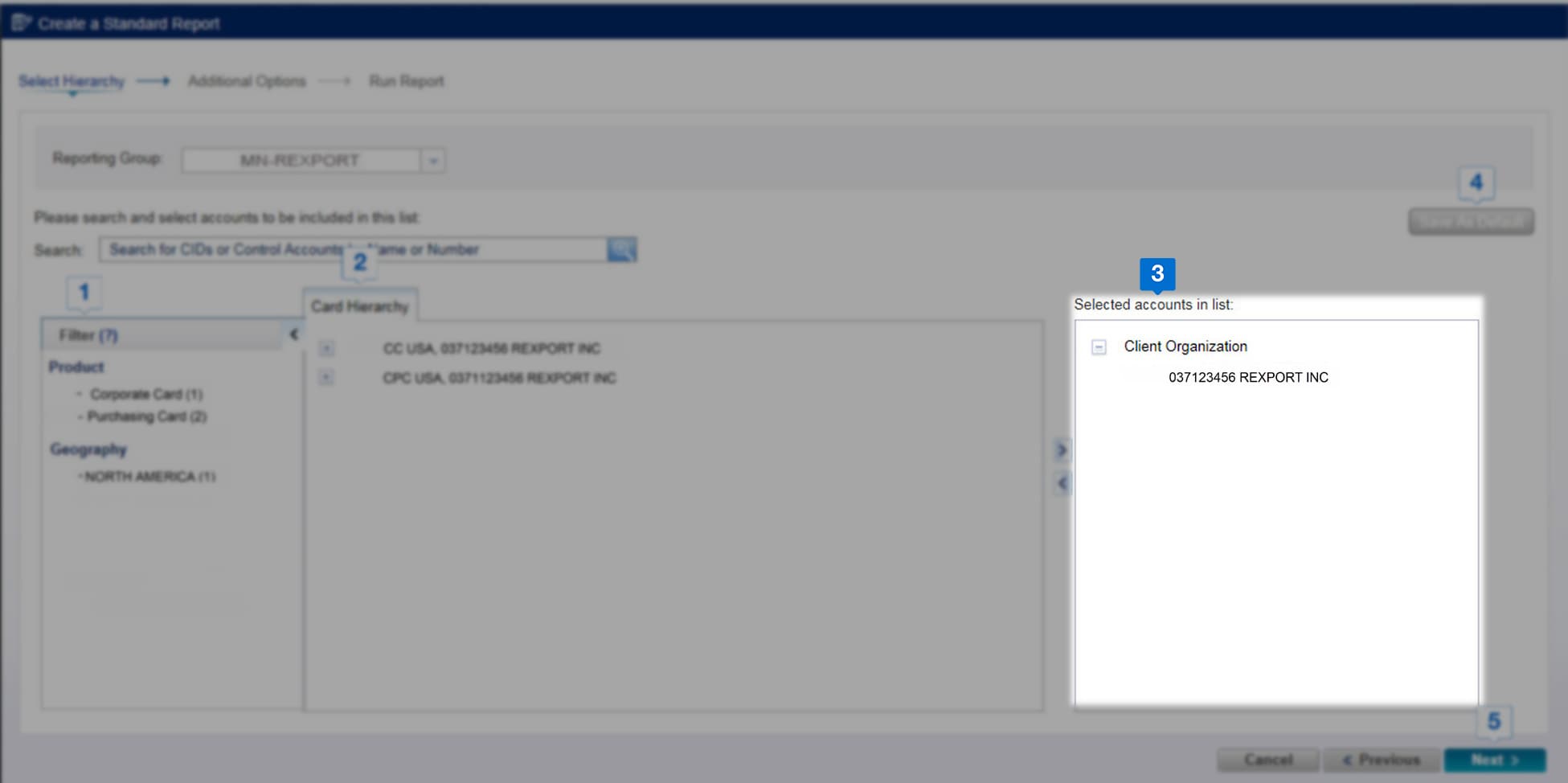
Click the right arrow icon to move the selected hierarchy to the right-side column under Selected accounts in list.
-
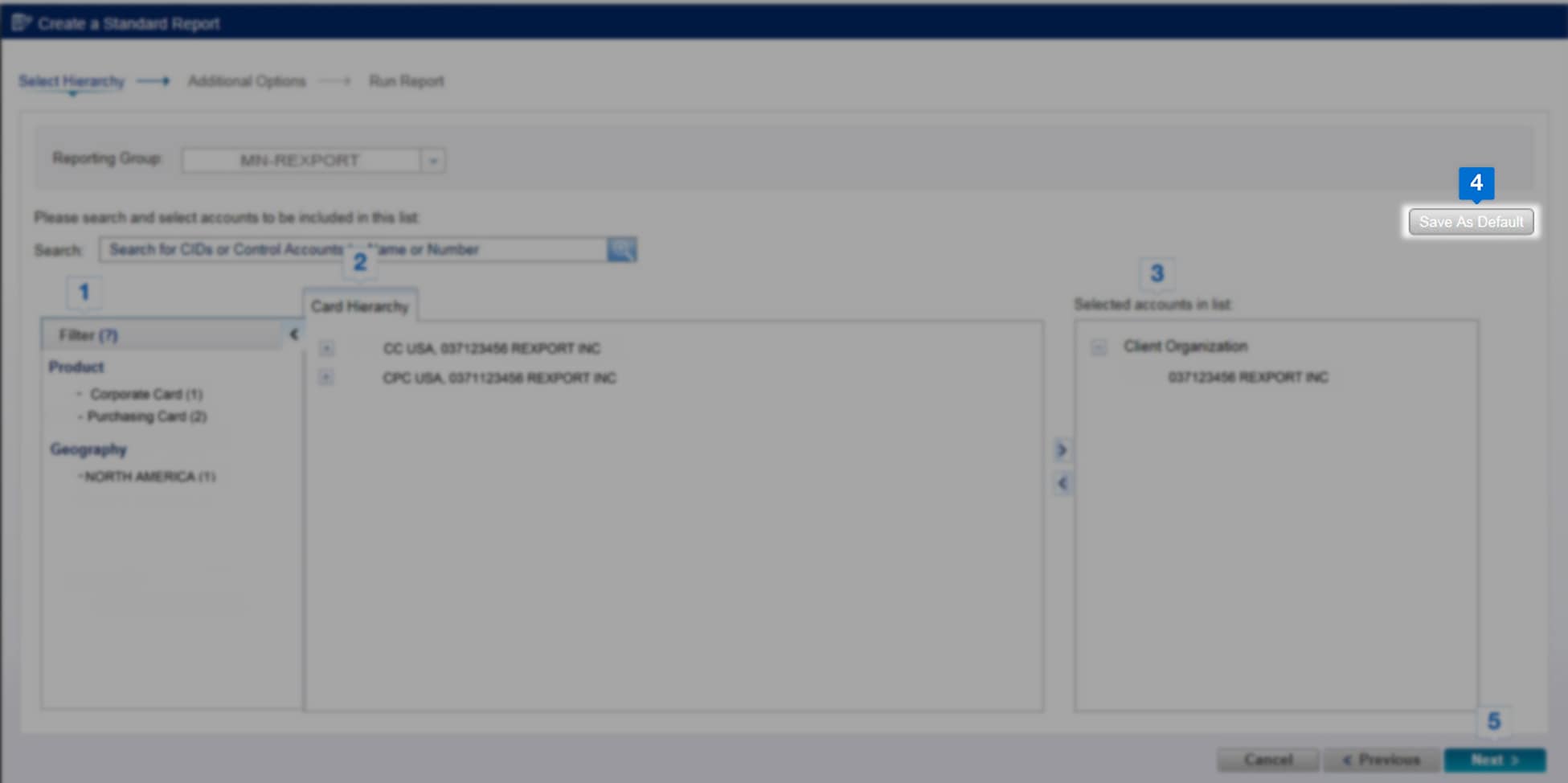
Click Save as Default to save the hierarchy selection for future reports
-
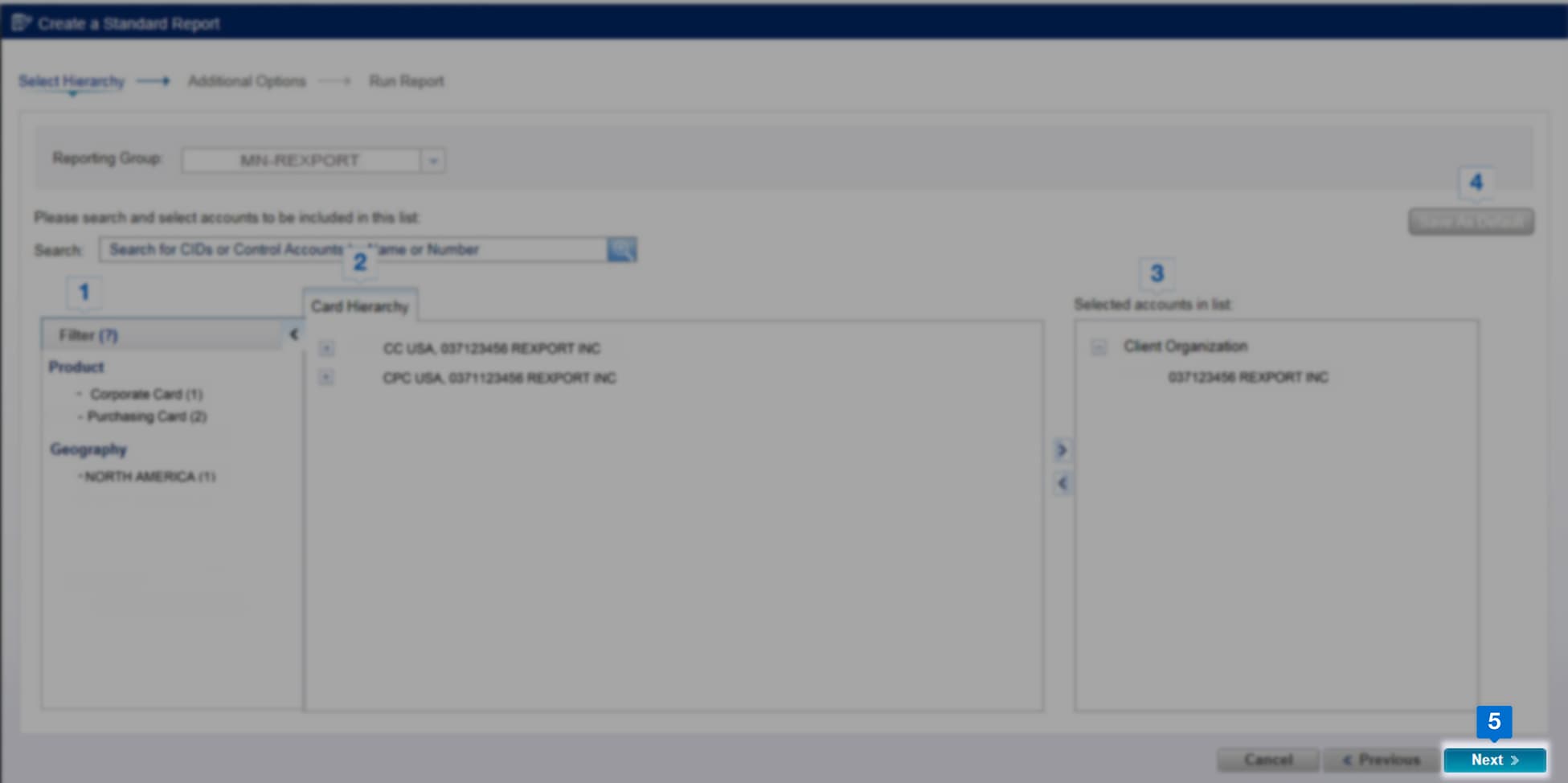

Click Next to continue with the process


Offers Carousel
-
-
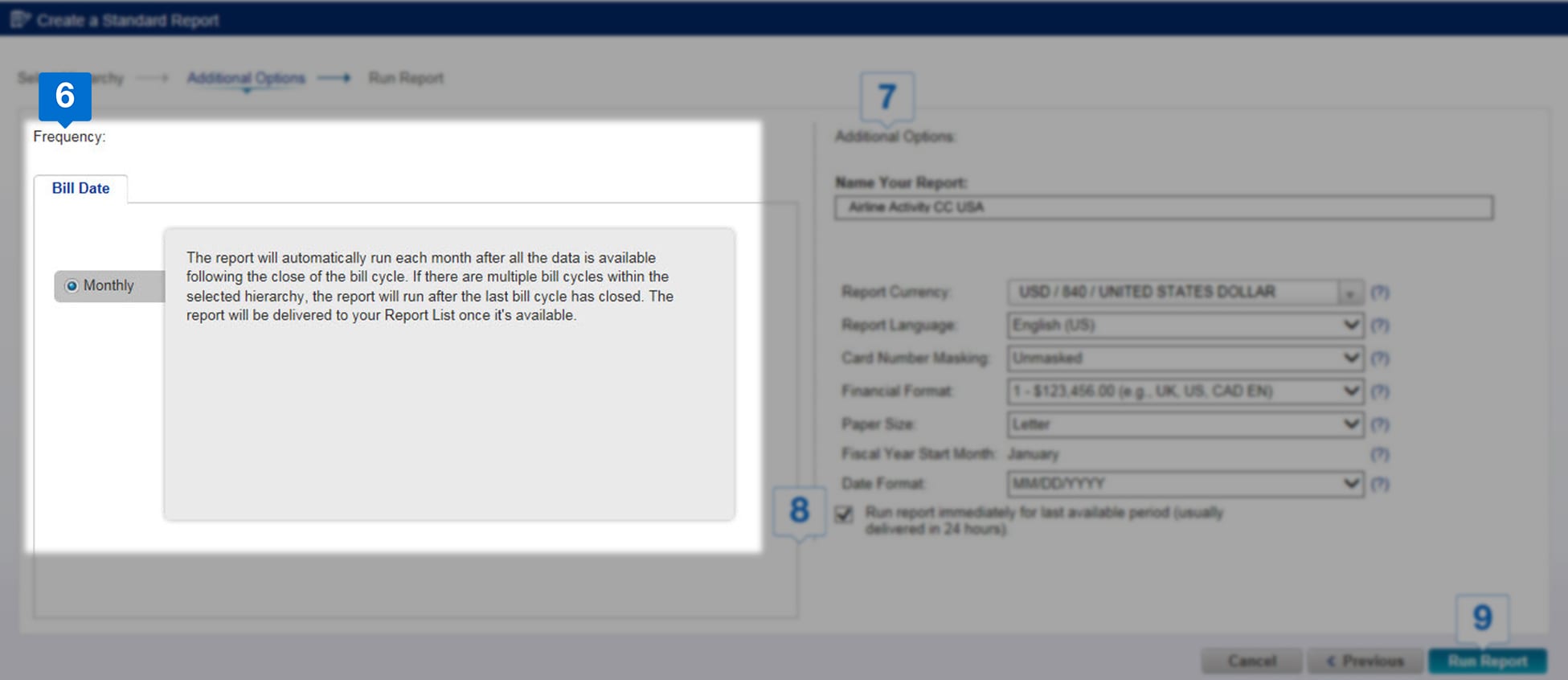

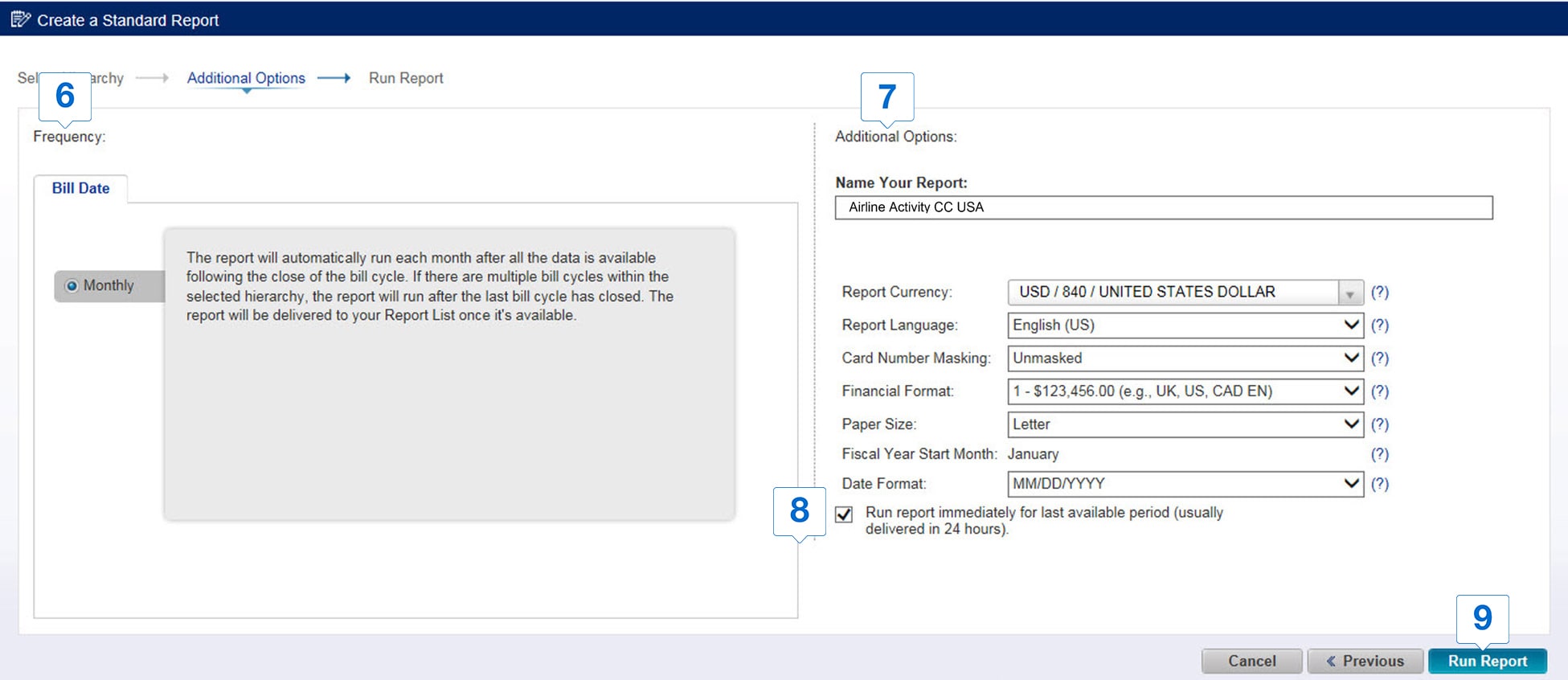
Set the frequency of the report generation as Monthly or Quarterly in the Bill Date section.
-
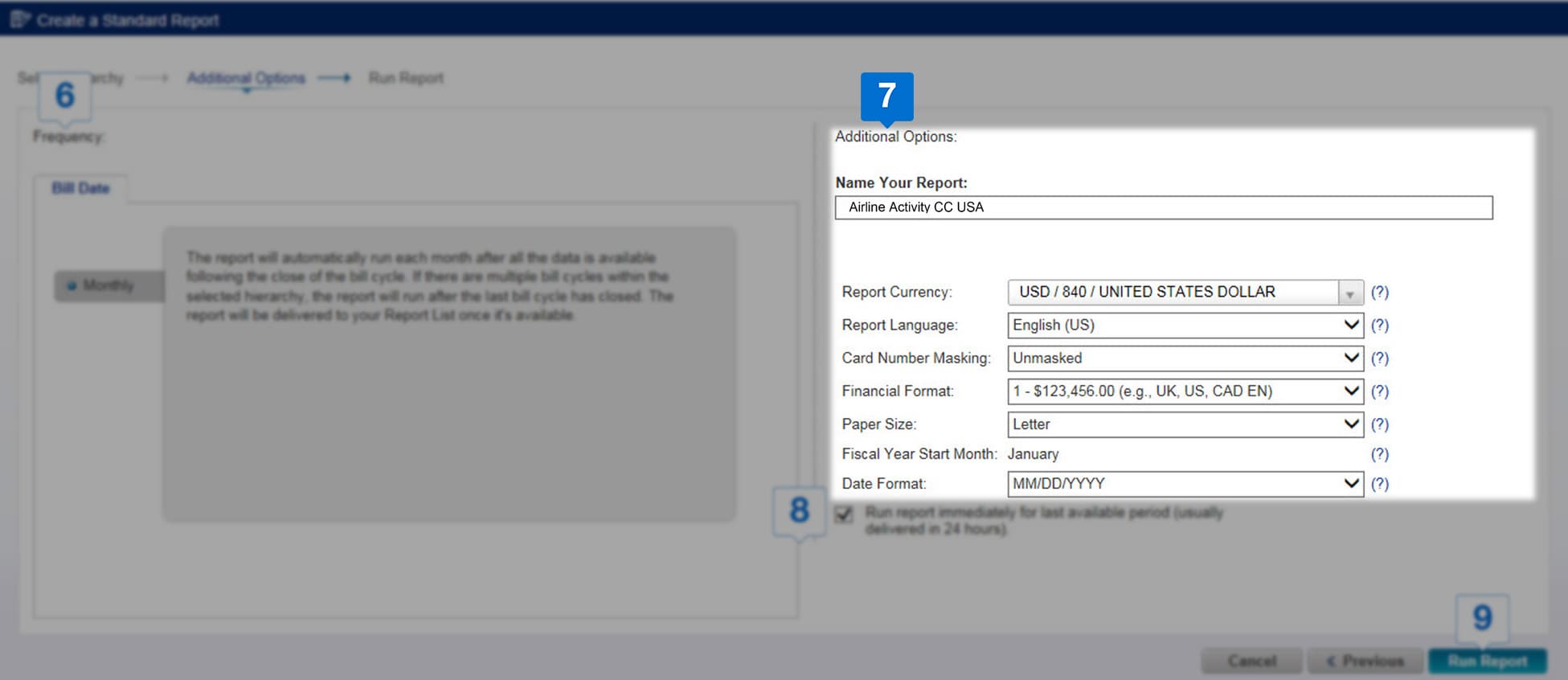

In the Additional Options section, add details such as Name, Currency, Language, etc., to personalize your report,
-


If required, check the box to request a report from the previously available billing period.
-
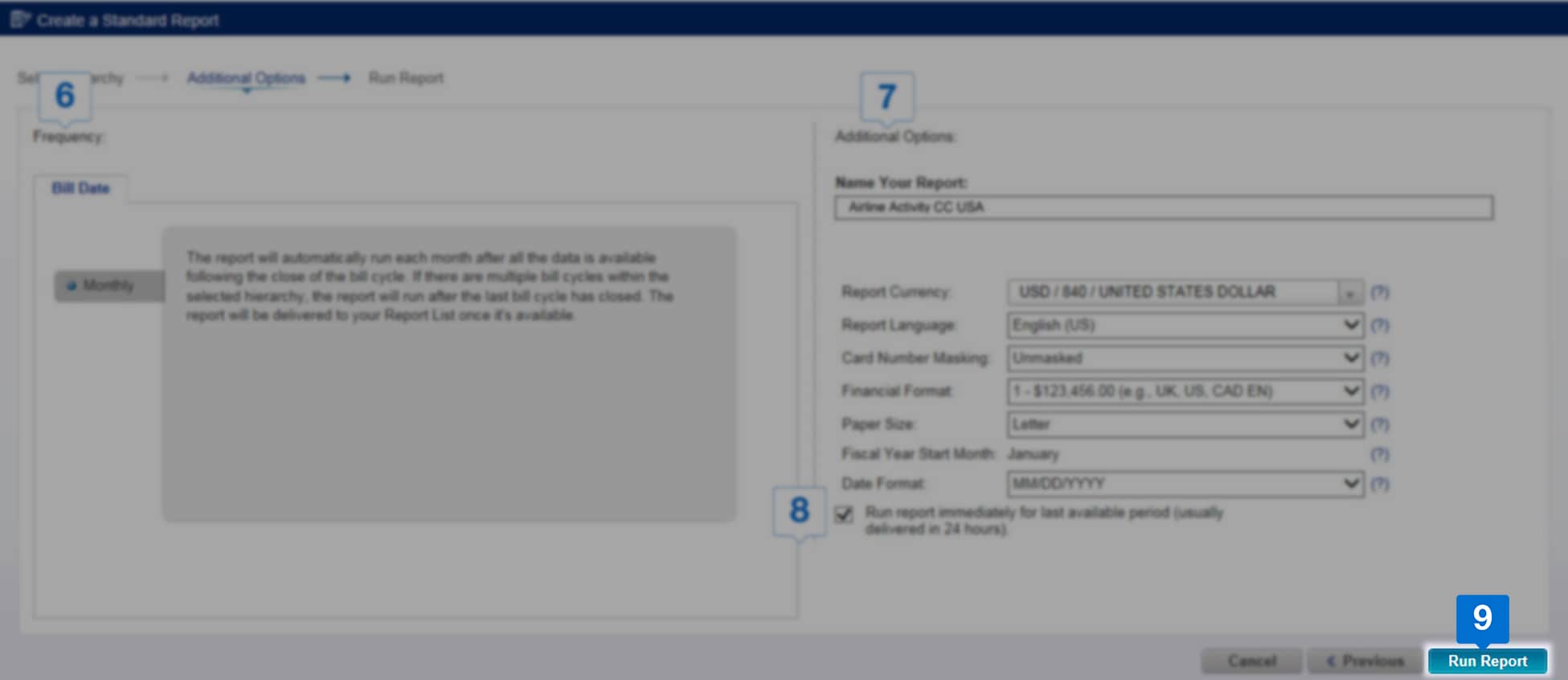

Click Run Report to complete the set-up proces
CUSTOMIZED REPORT
Offers Carousel
-
-
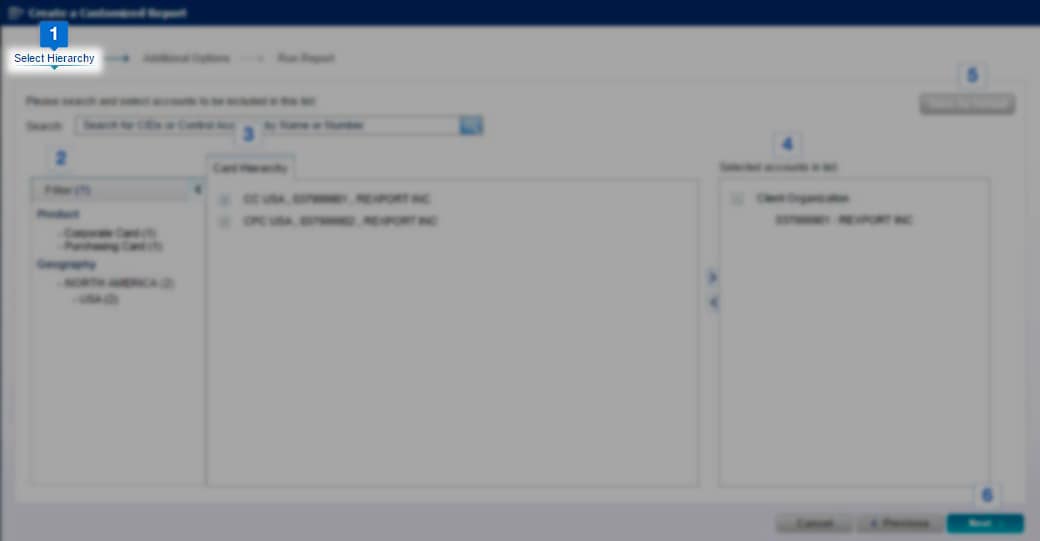

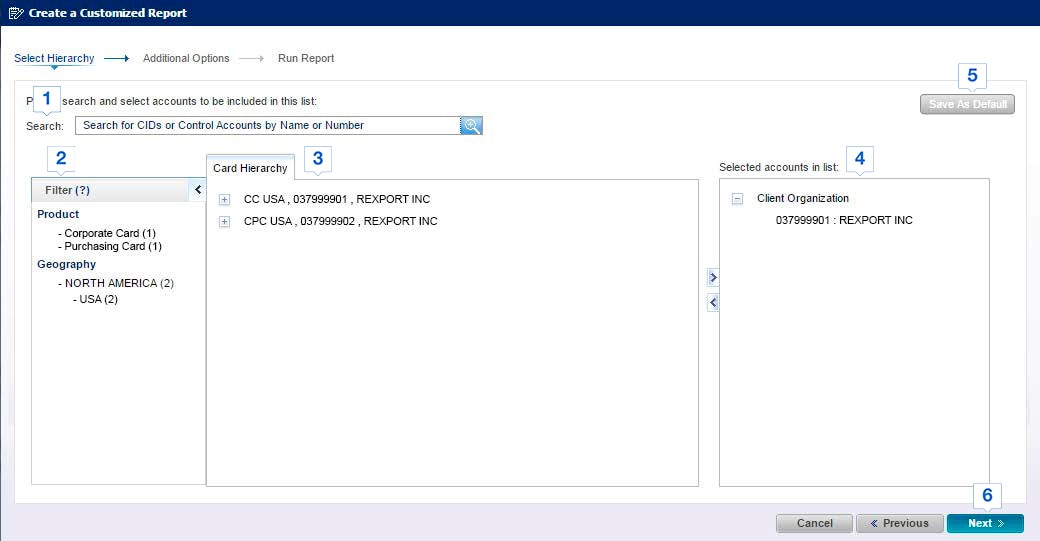
Use the Search field to find the required program hierarchy by entering a name or number
-
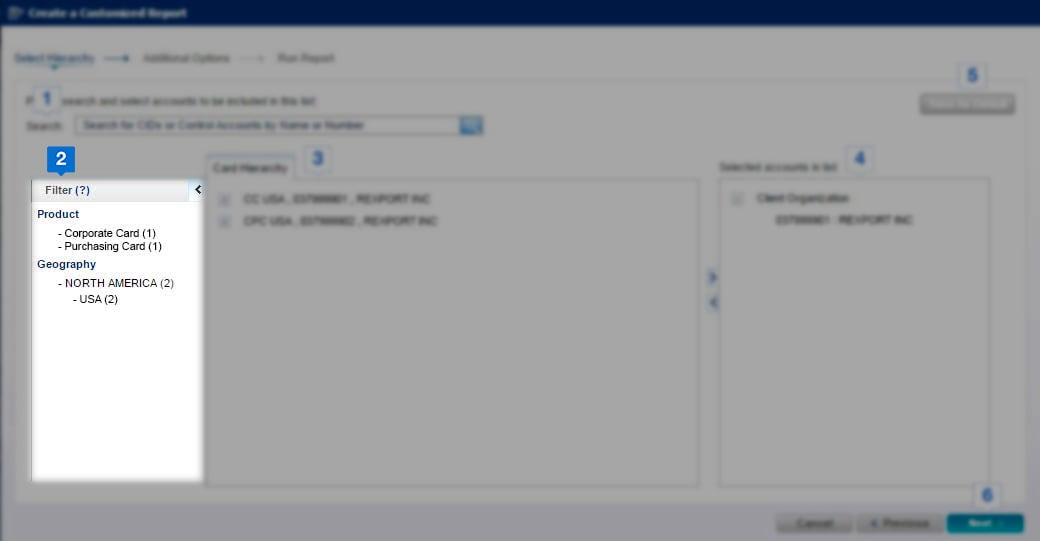

You can also use the Filter option to search for a specific hierarchy type.
-
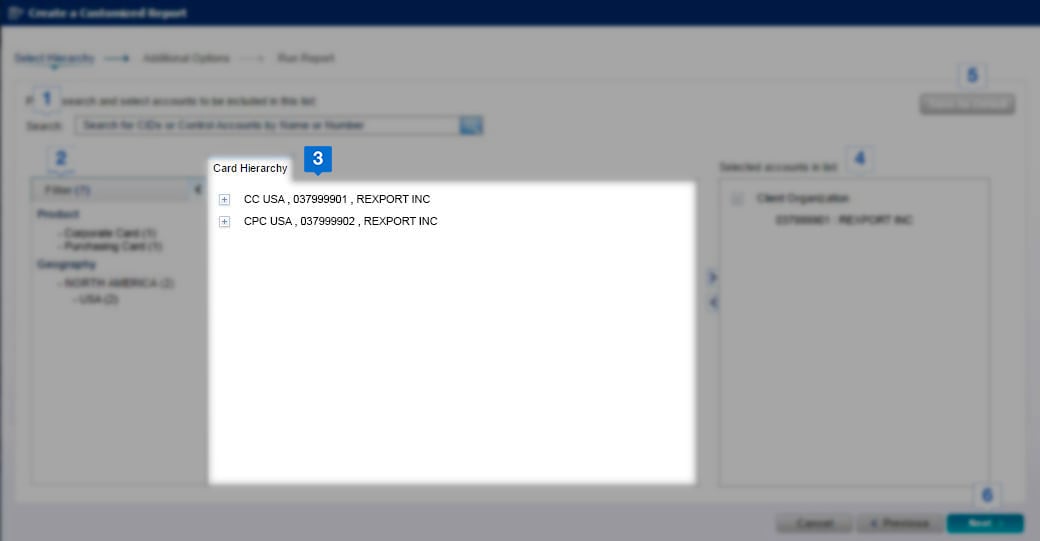
Select the desired Card Hierarchy.
-

Click the right arrow icon to move the selected hierarchy to the right-side column under Selected accounts in list.
-
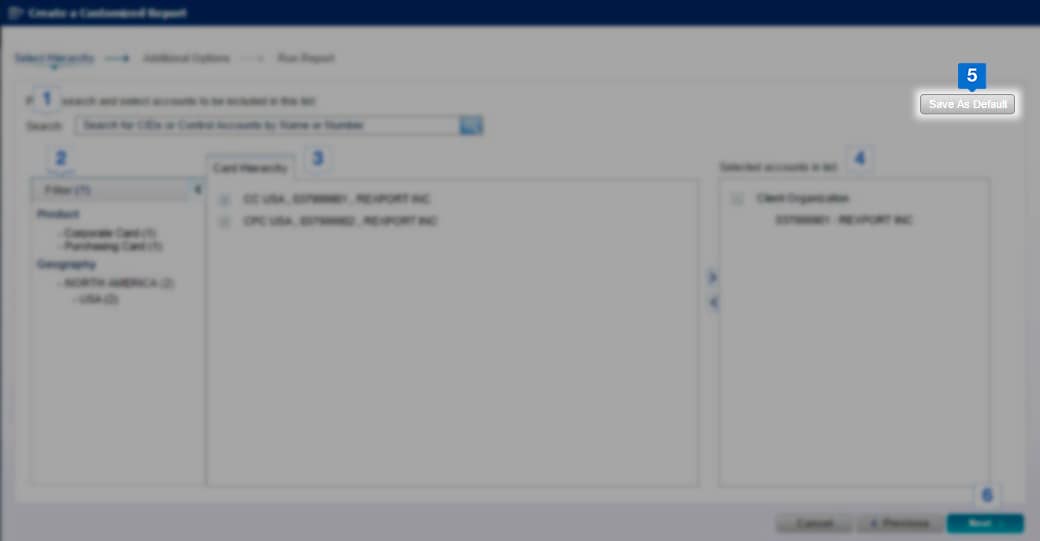
Click Save as Default to save the hierarchy selection for future reports
-
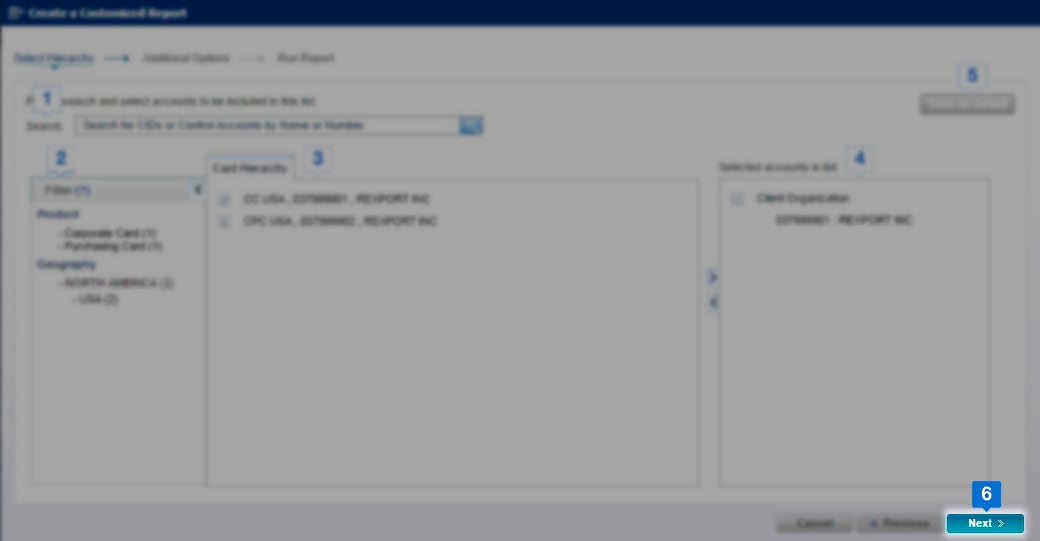
Click Next to continue with the process



Offers Carousel
-
-
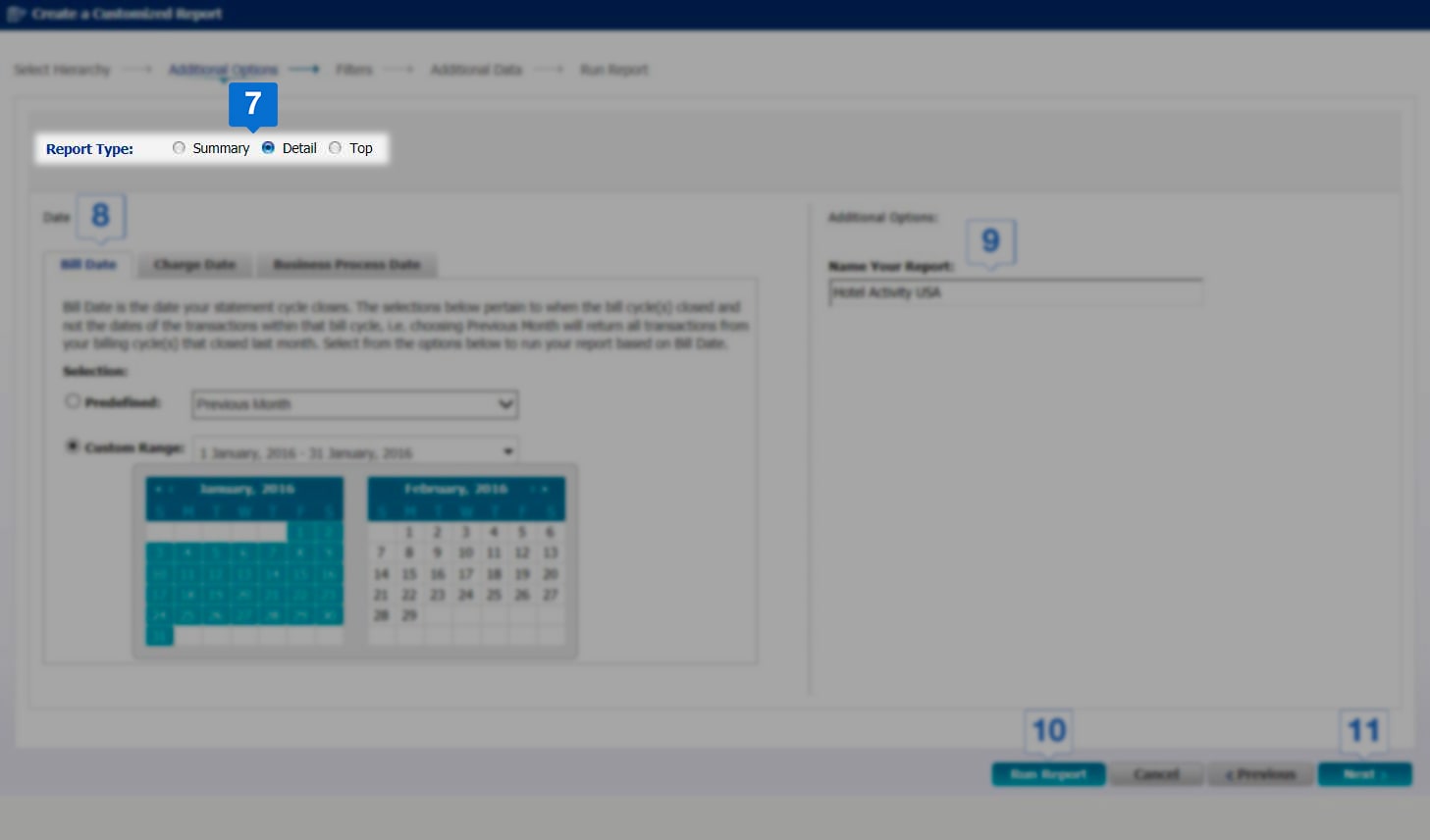
Choose the View Type for your report; Summary, Detail, and Top. Please note that the view type impacts the date, filters, and additional data options in the selection process.
-

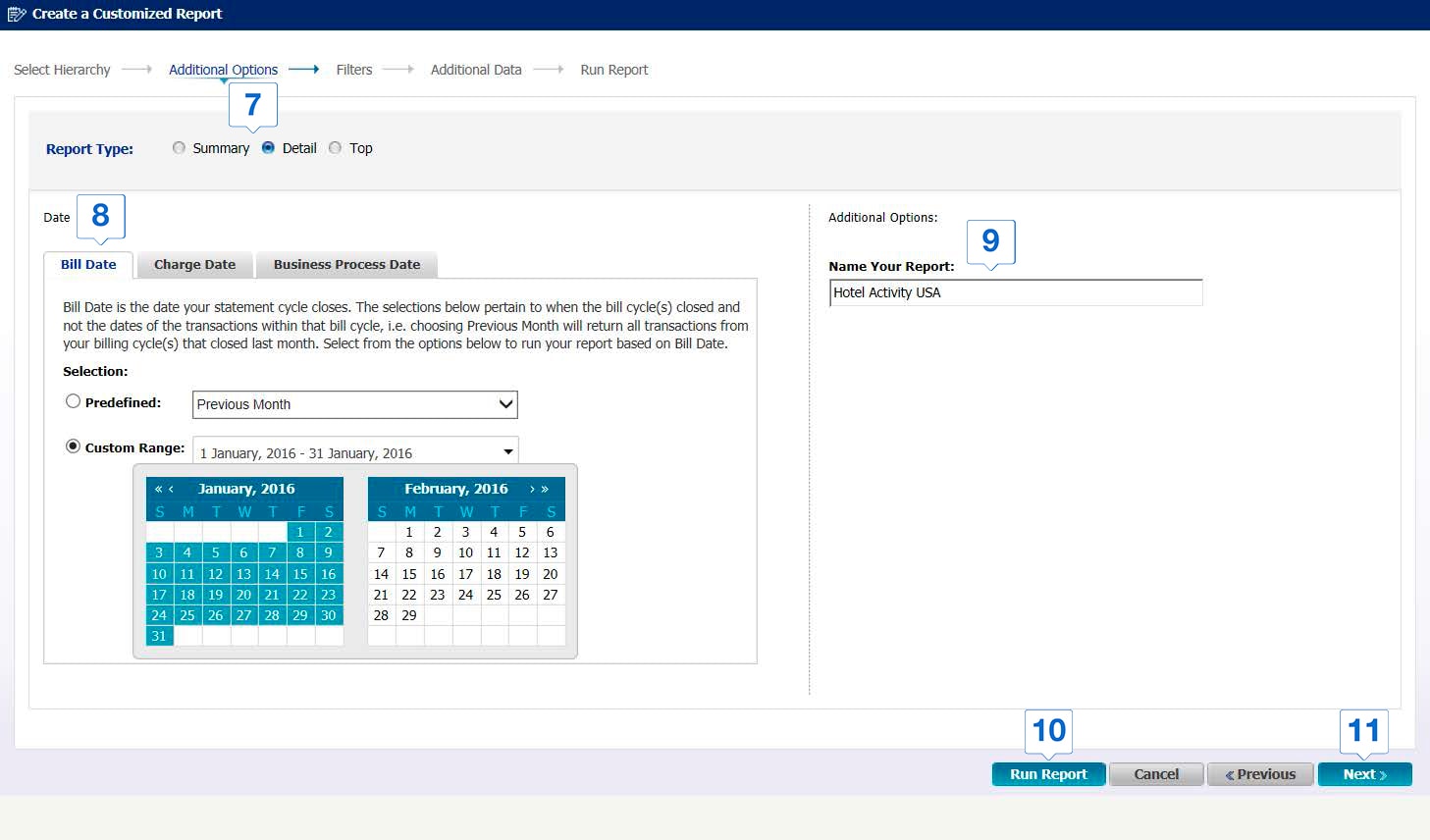
Select the timeframe for the report. You can select a predefined or custom date range to run your report
-
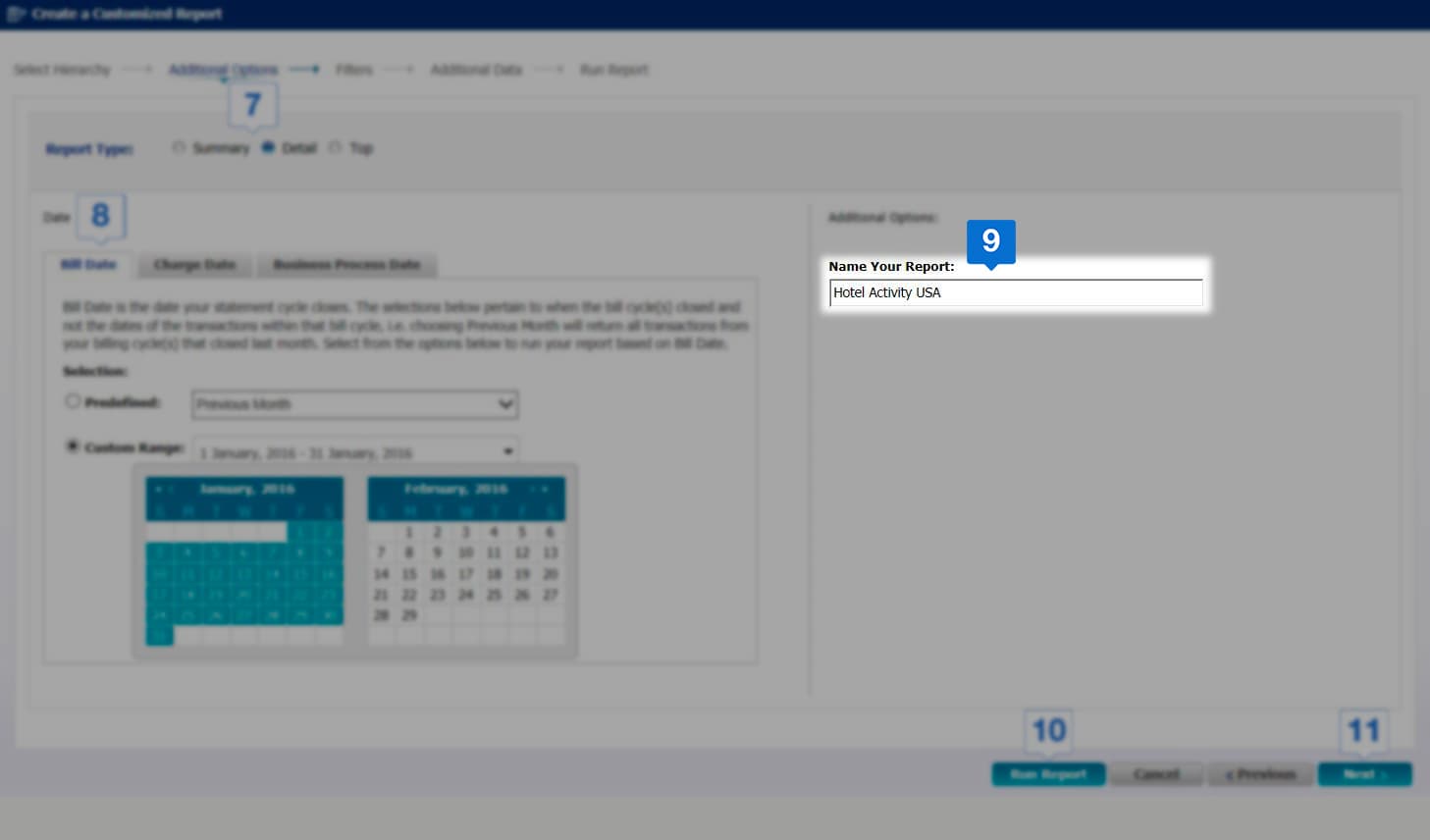
Update the name of your report to identify it easily later
-
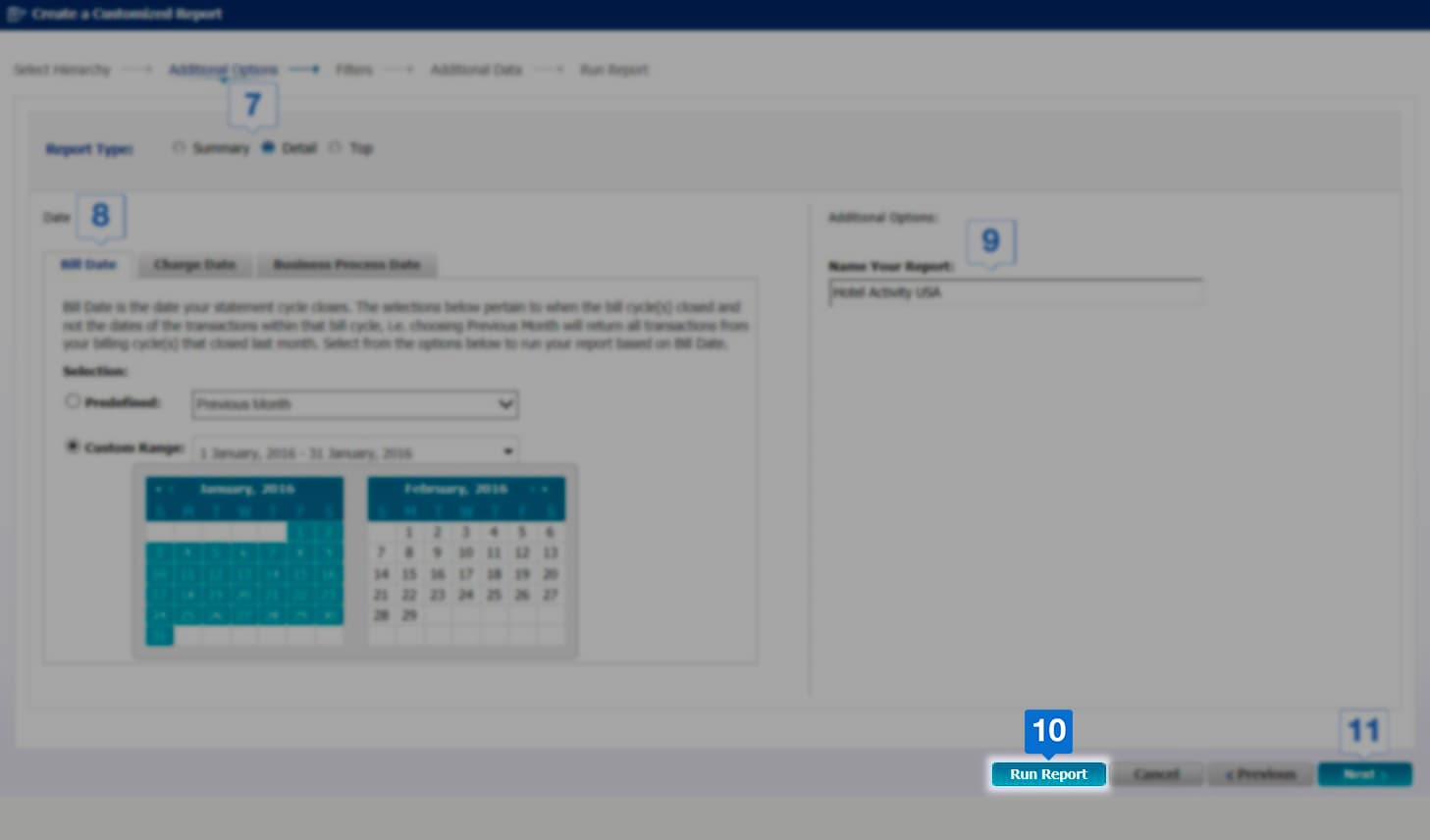

Click Run Report to complete the set-up process
-
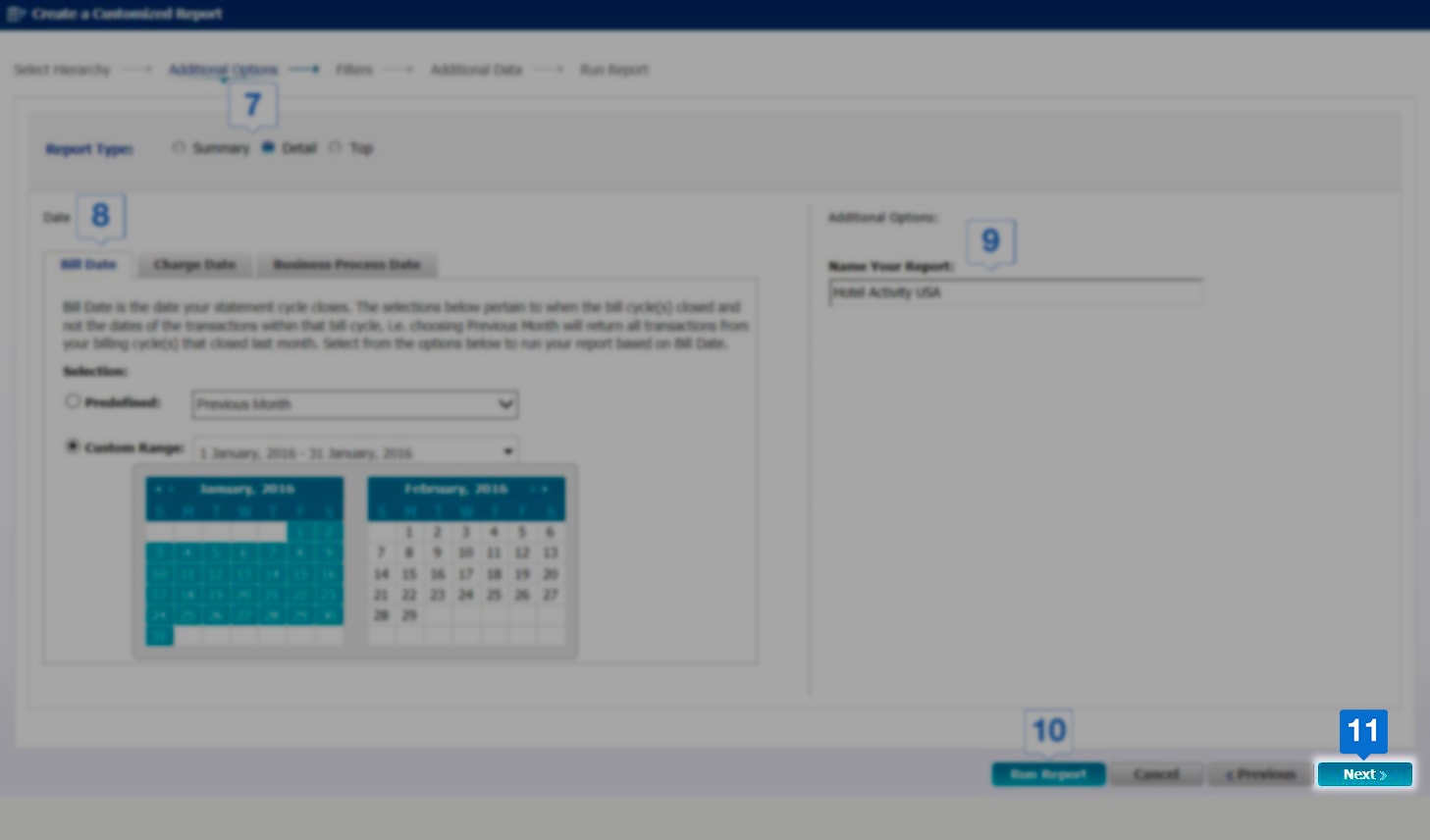

If you wish to customize your report further, click Next.





Offers Carousel
-

-
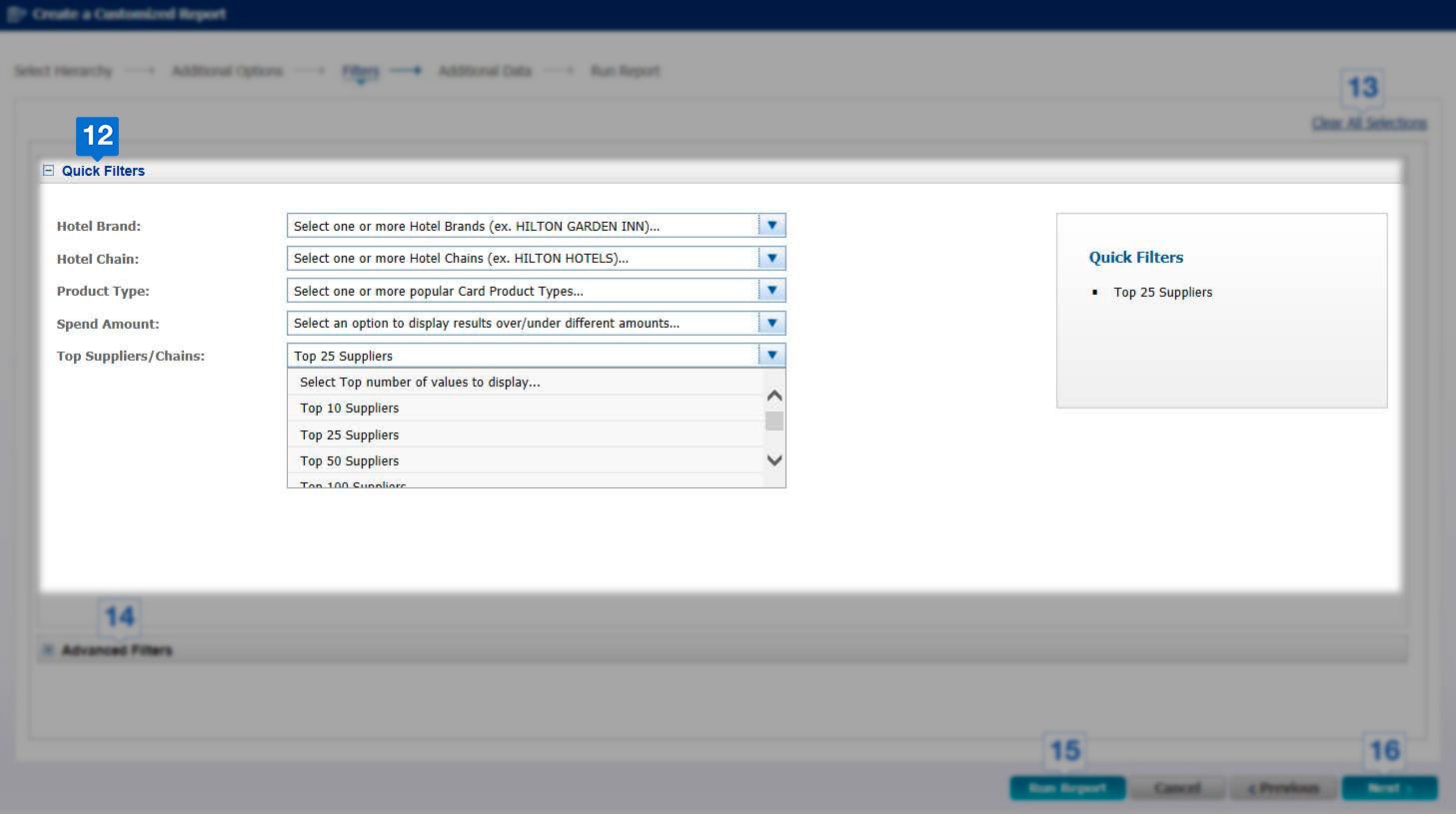

Click on Quick Filters to see the most commonly used options
-
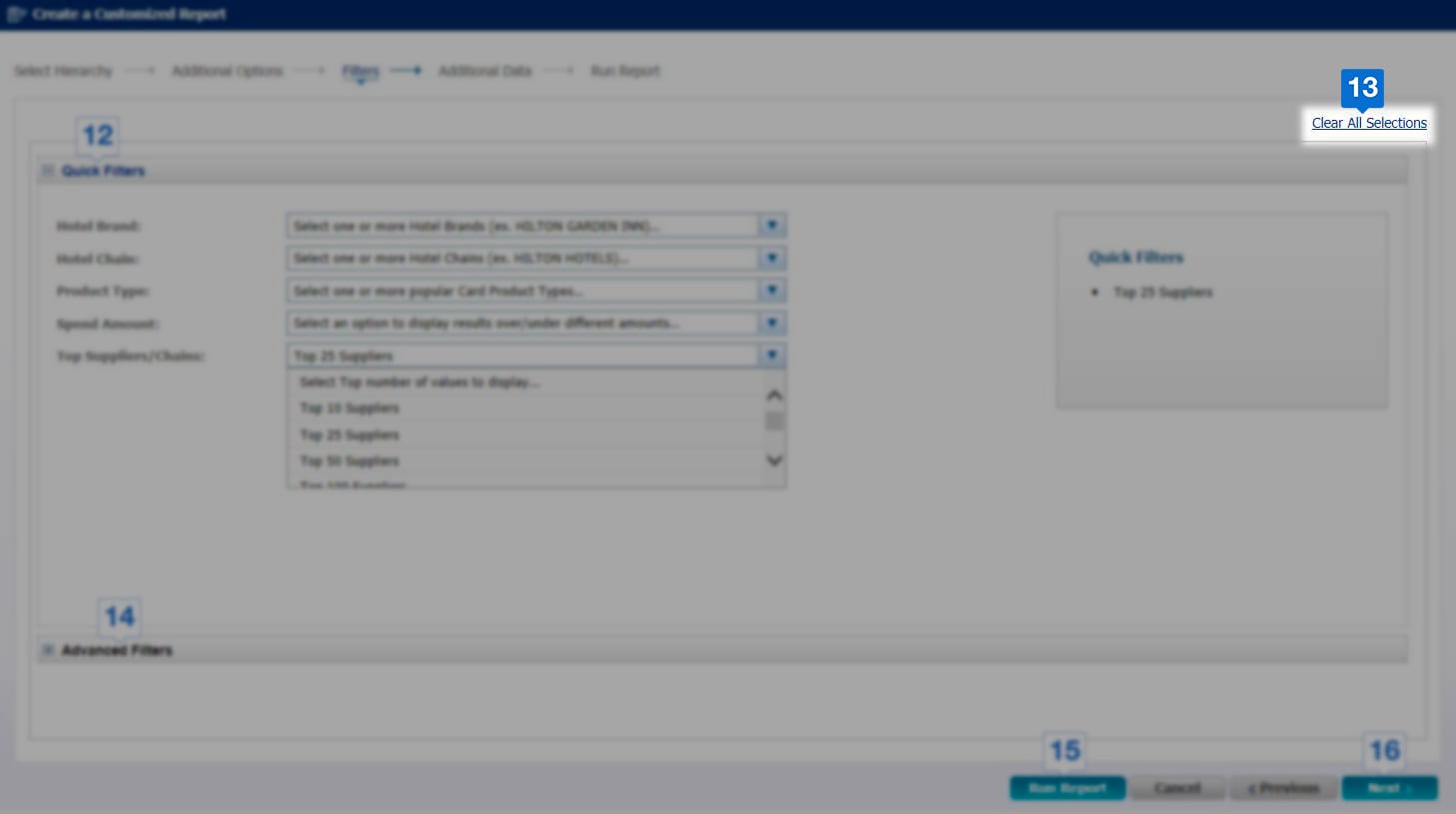

If you want to remove all selections and switch to default options, click on Clear All Selections
-
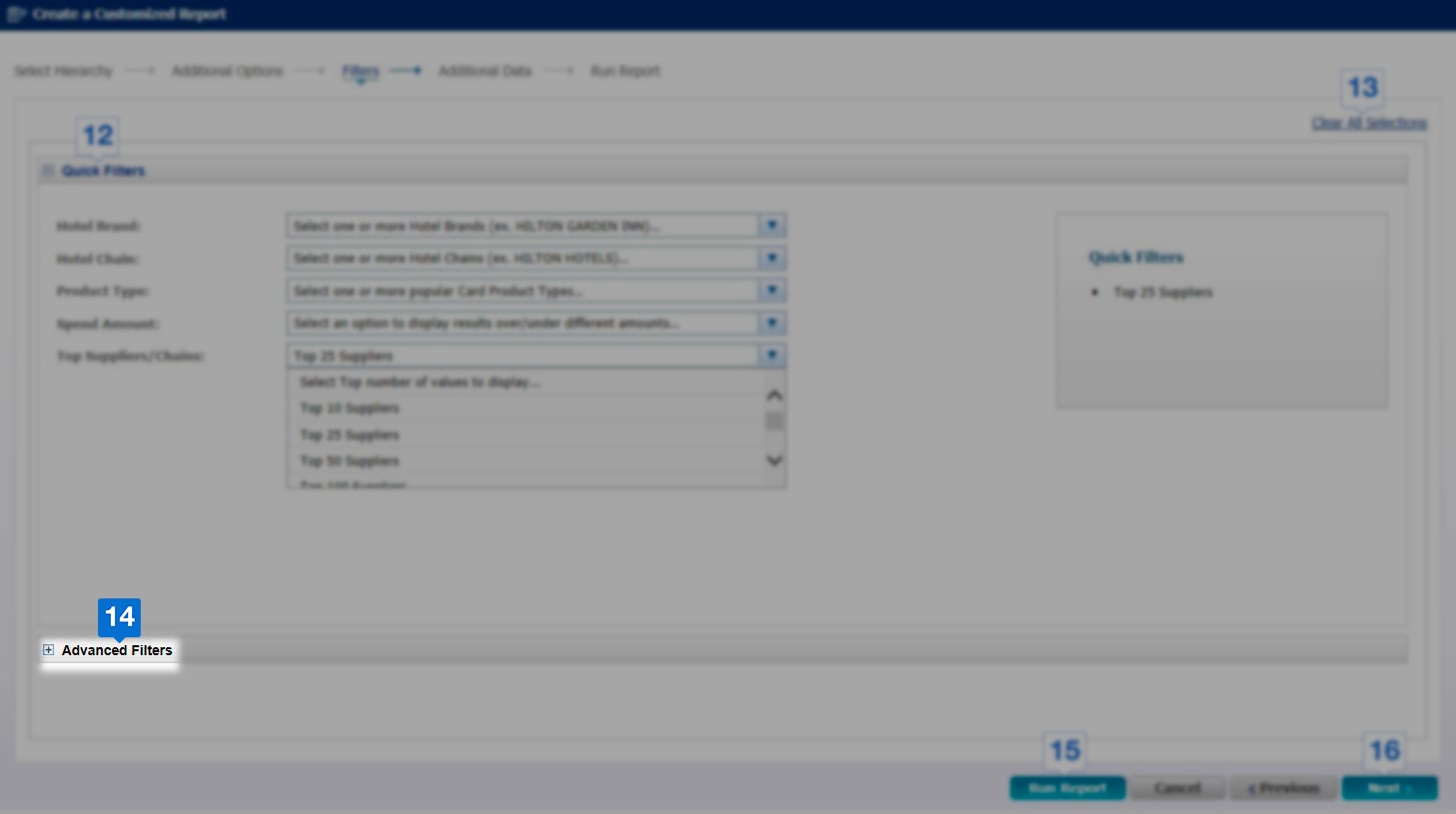

Use Advanced Filters option for more detailed filtering options.
-
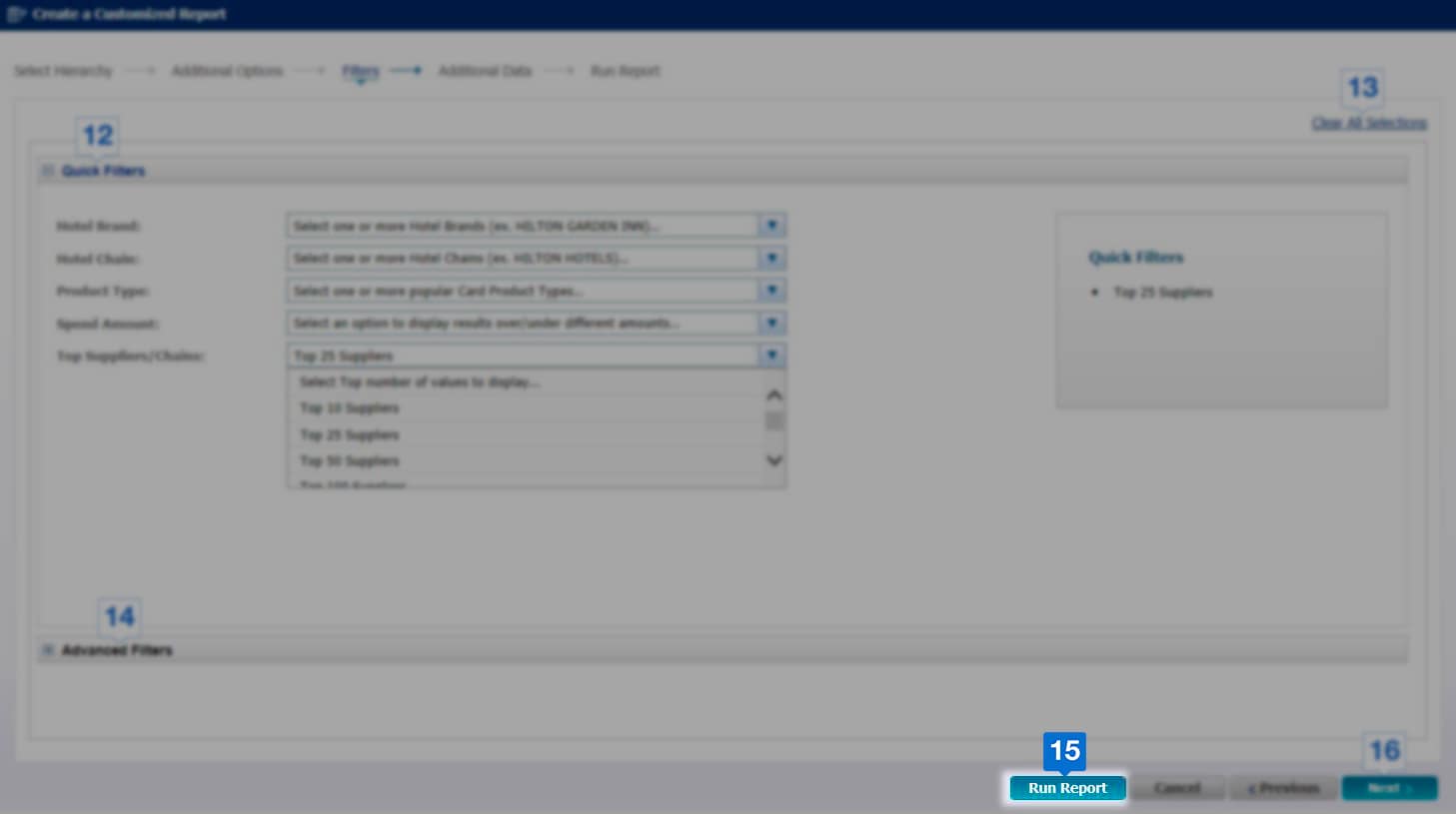

Click Run Report to complete the set-up process.
-
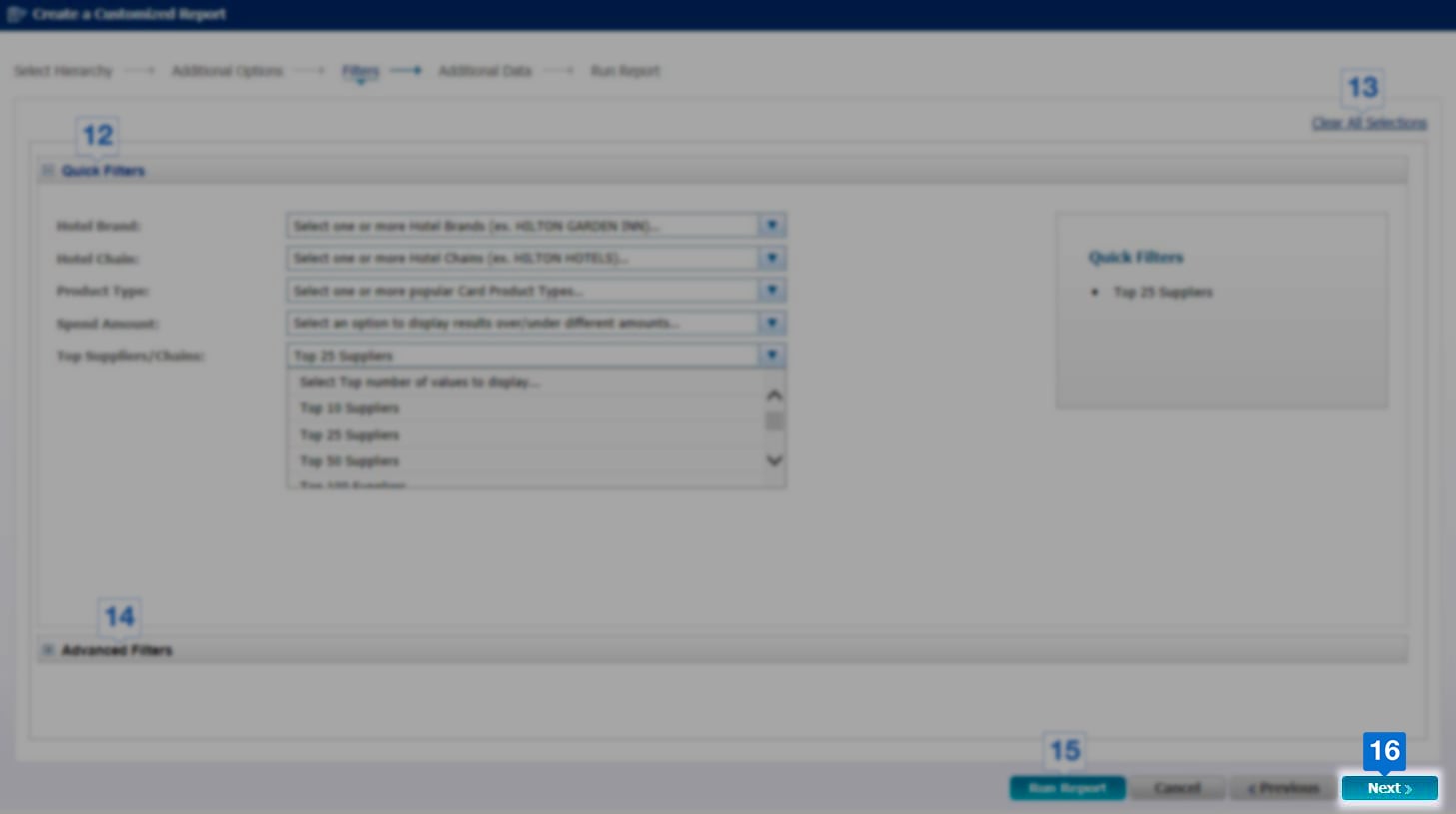

If you wish to customize your report further, click Next





Offers Carousel
-
-
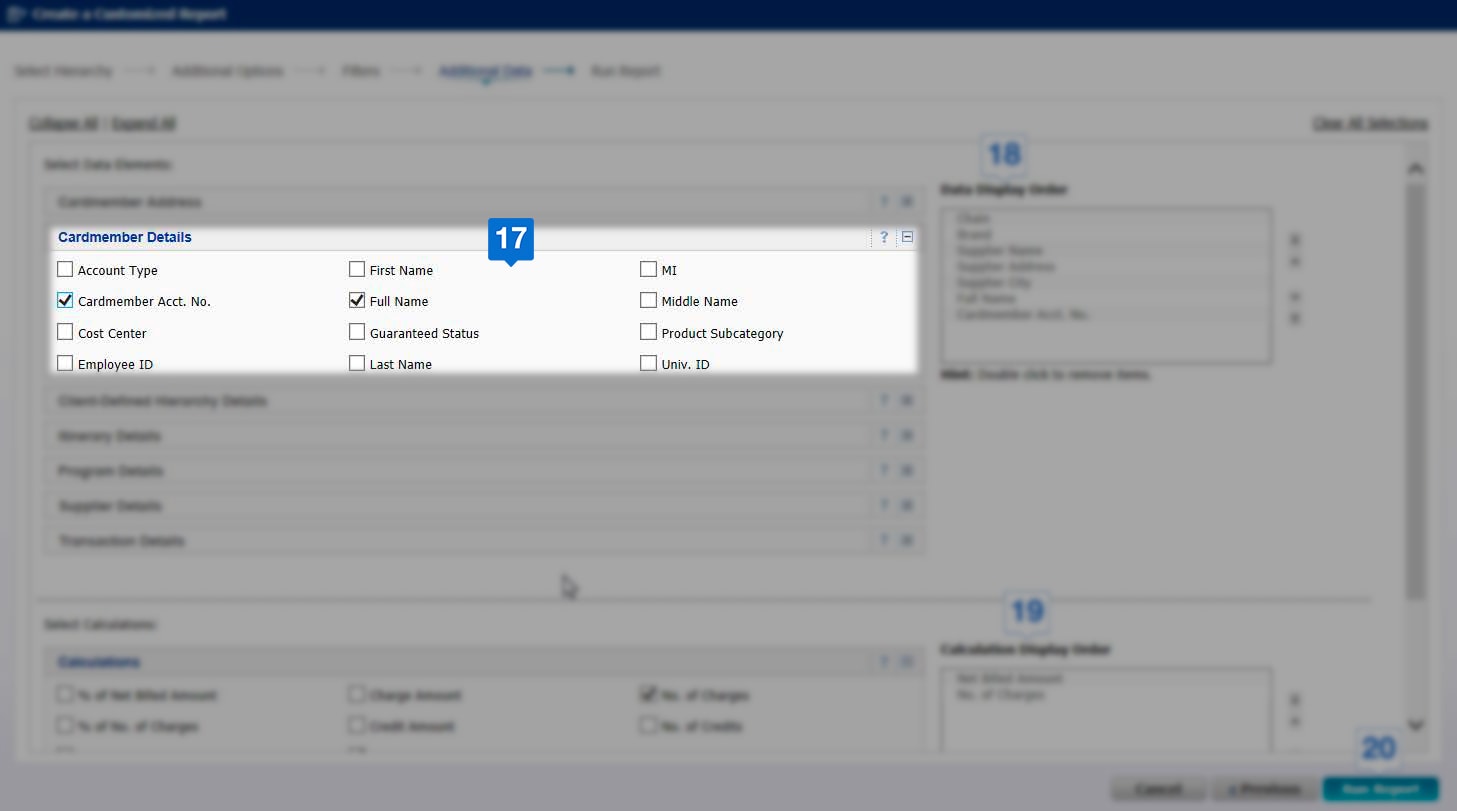

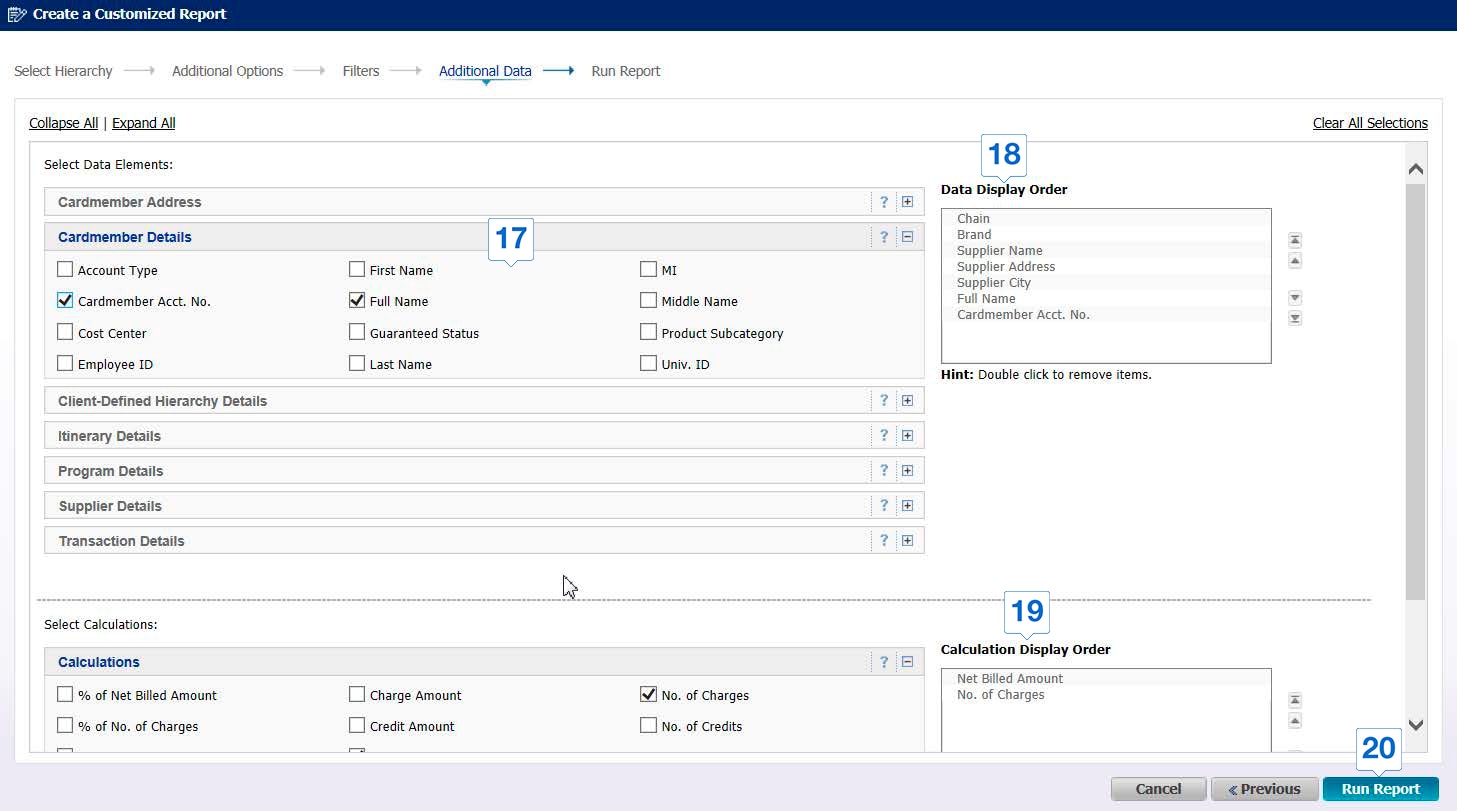
Check or uncheck the boxes to add or remove elements from your report
-
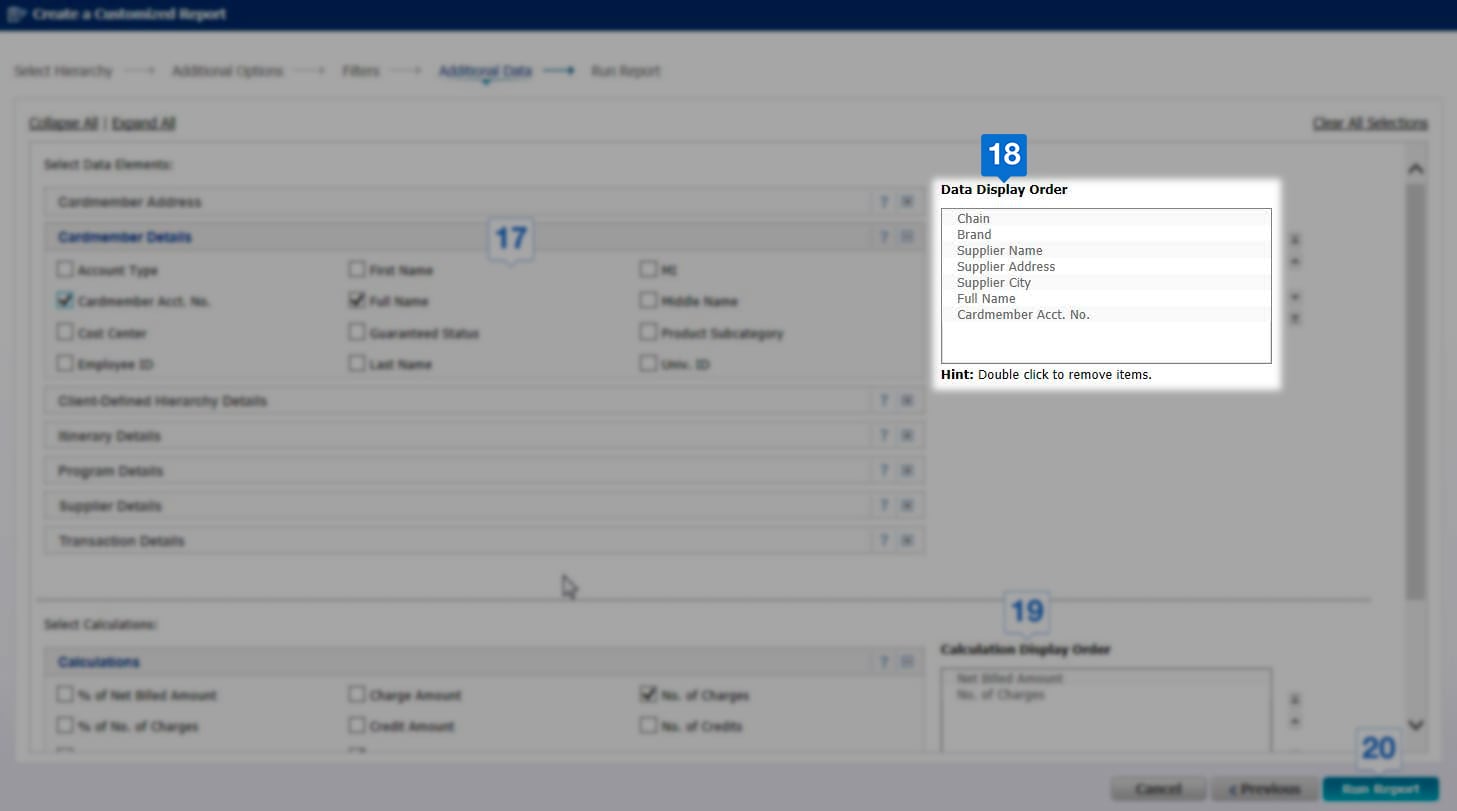

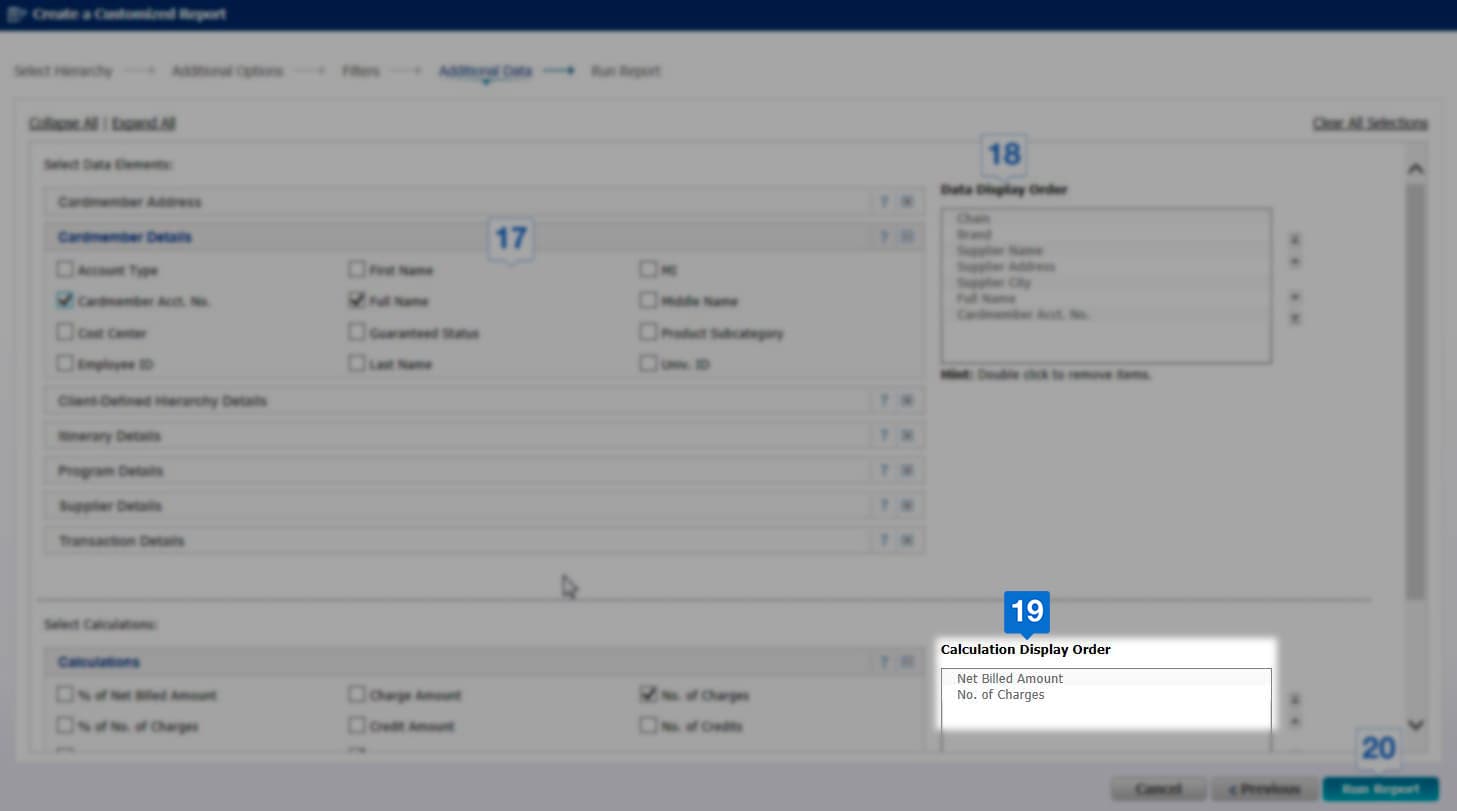
To change the order of columns in your report, use the arrows in the Data Display Order and Calculation Display Order boxes accordingly
-

If you want to remove all selections and switch to default options, click on Clear All Selections
-
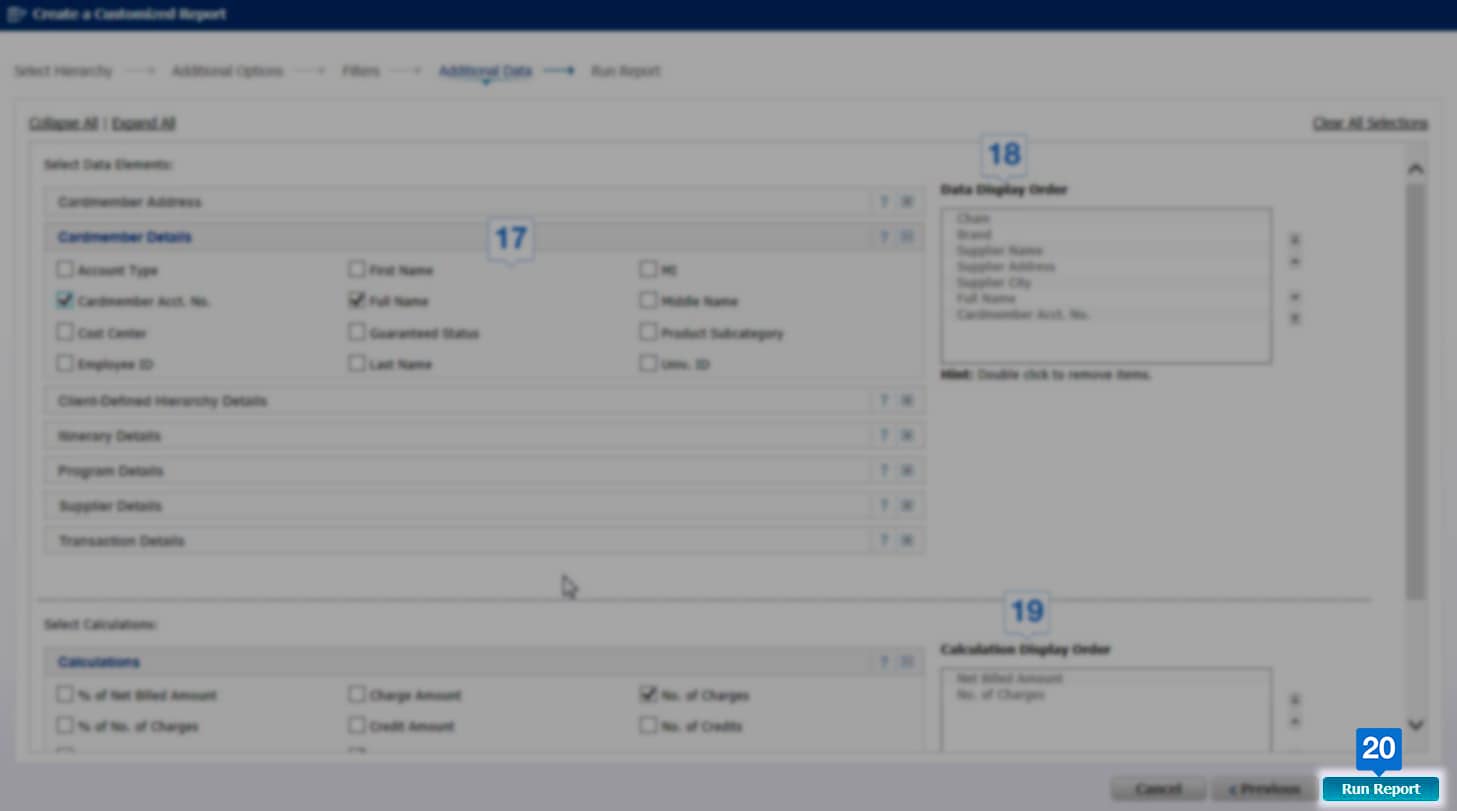

Once you have completed all the selections, click Run Report to finish the set-up process
Terms & Conditions
1Use of American Express @ Work ® is restricted to employees, contractors and/or agents that the Company, and its representatives designate for the sole purpose of performing online account queries and maintenance, including accessing and/or creating reports relating to the Company's American Express® Corporate Card programs. @ Work is available to all companies with an American Express Corporate Card program.
Enrollment is required. To enroll in @ Work please contact your American Express Representative or call 1-888-800-8564.
© 2021 American Express.